Lights, Camera, Action!
08/27/2025
Summary
What are the initial steps to start filming a TikTok video?
- Open the app and click the Plus button at the center bottom.
- Choose a sound, set a start delay, select video length, upload clips, and select effects before shooting.
How can you enhance your TikTok video after capturing it?
- Add text to highlight key messages and grab attention.
- Apply filters, effects, transitions, and stickers to set the mood or vibe.
What tools are available for editing video clips on TikTok?
- Use the Adjust clip tool to trim, split, speed up, slow down, adjust volume, rotate, or delete parts of the video.
- Add voiceovers by clicking Voiceover, adjusting the bar, and holding the button to record.
How can you incorporate products into your TikTok video?
- Click on ADD LINK, select PRODUCT, and choose products from your showcase to feature in the video.
What should you do before posting your TikTok video?
- Add text, hashtags, tag friends, select a cover image, and toggle commenting options.
- Decide whether to post the video publicly or save it to drafts for later editing.
Now that you've chosen your content type, established your voice, and built your video formula, Let's start filming!
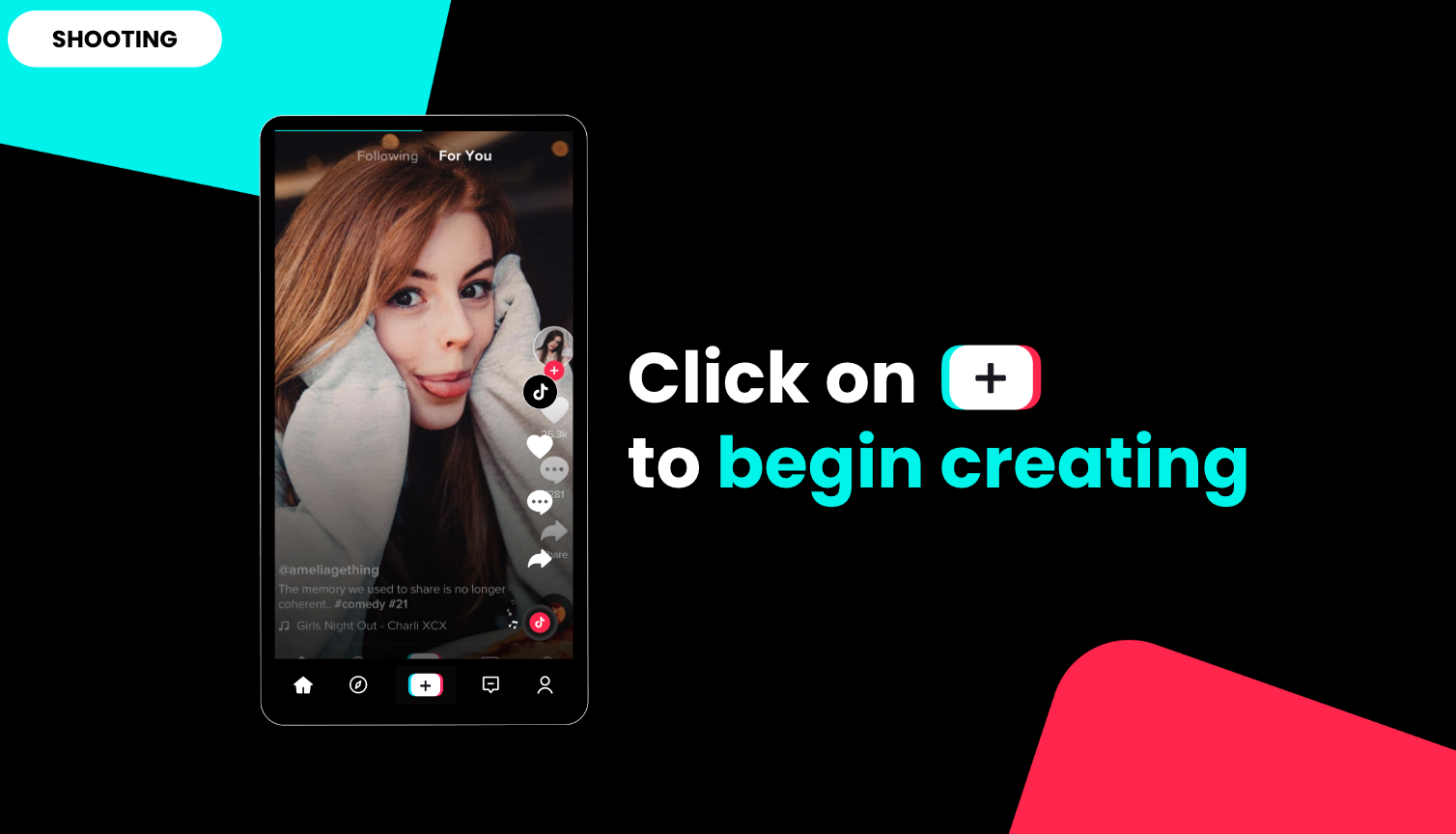
- First, open the app, and click on the Plus button in the center bottom to start.
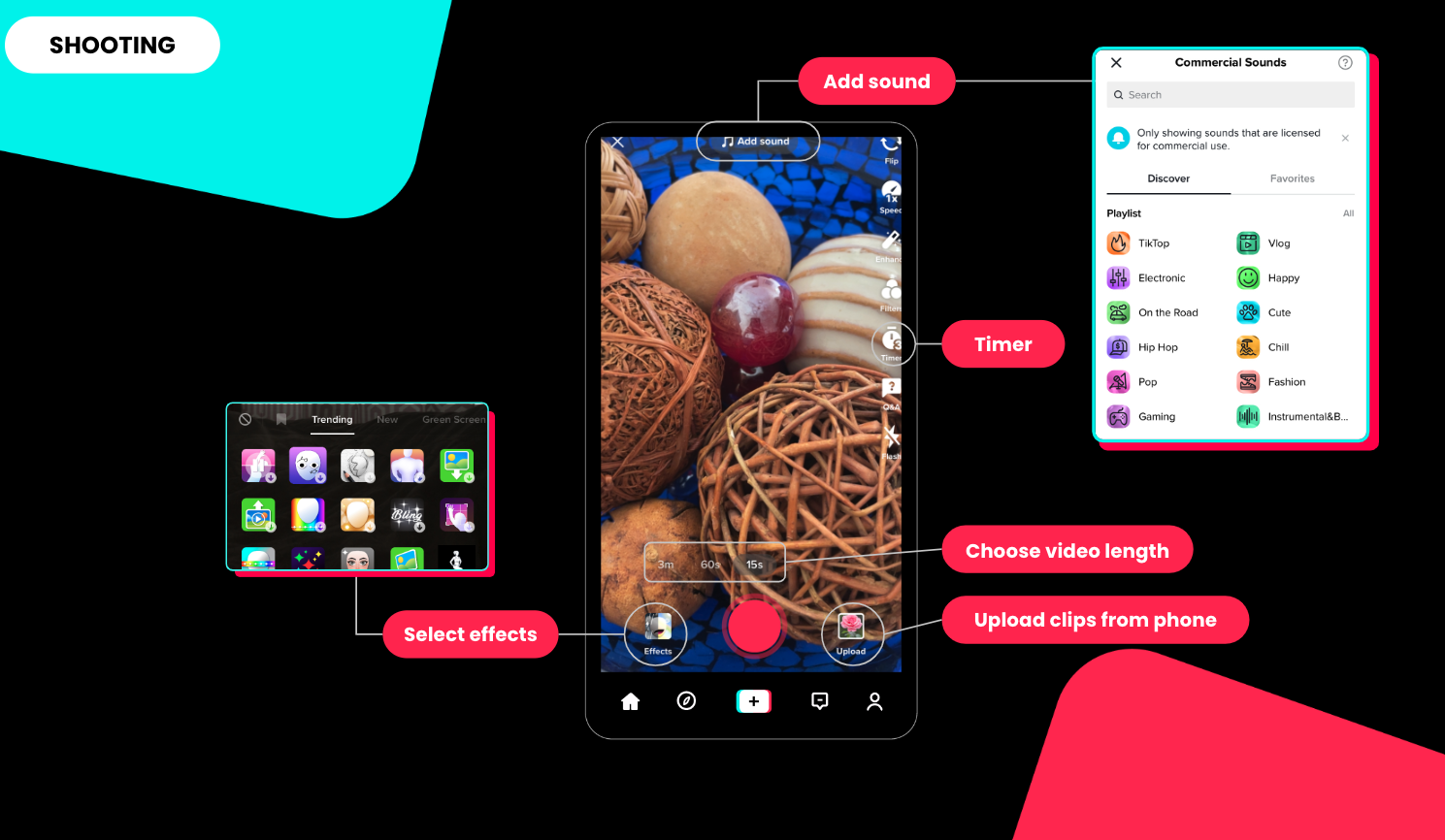
- Before you start shooting, you can:
- Choose a SOUND from the commercial library
- [click return - 'Timer'] Set a start delay.
- [click return - 'Choose video length'] Choose the maximum length of your video.
- [click return - 'Upload clips from phone'] Use existing videos that you already took with your phone.
- [click return - 'Select effects'] Select a certain effect for your video, like adding a sparkle to your product.
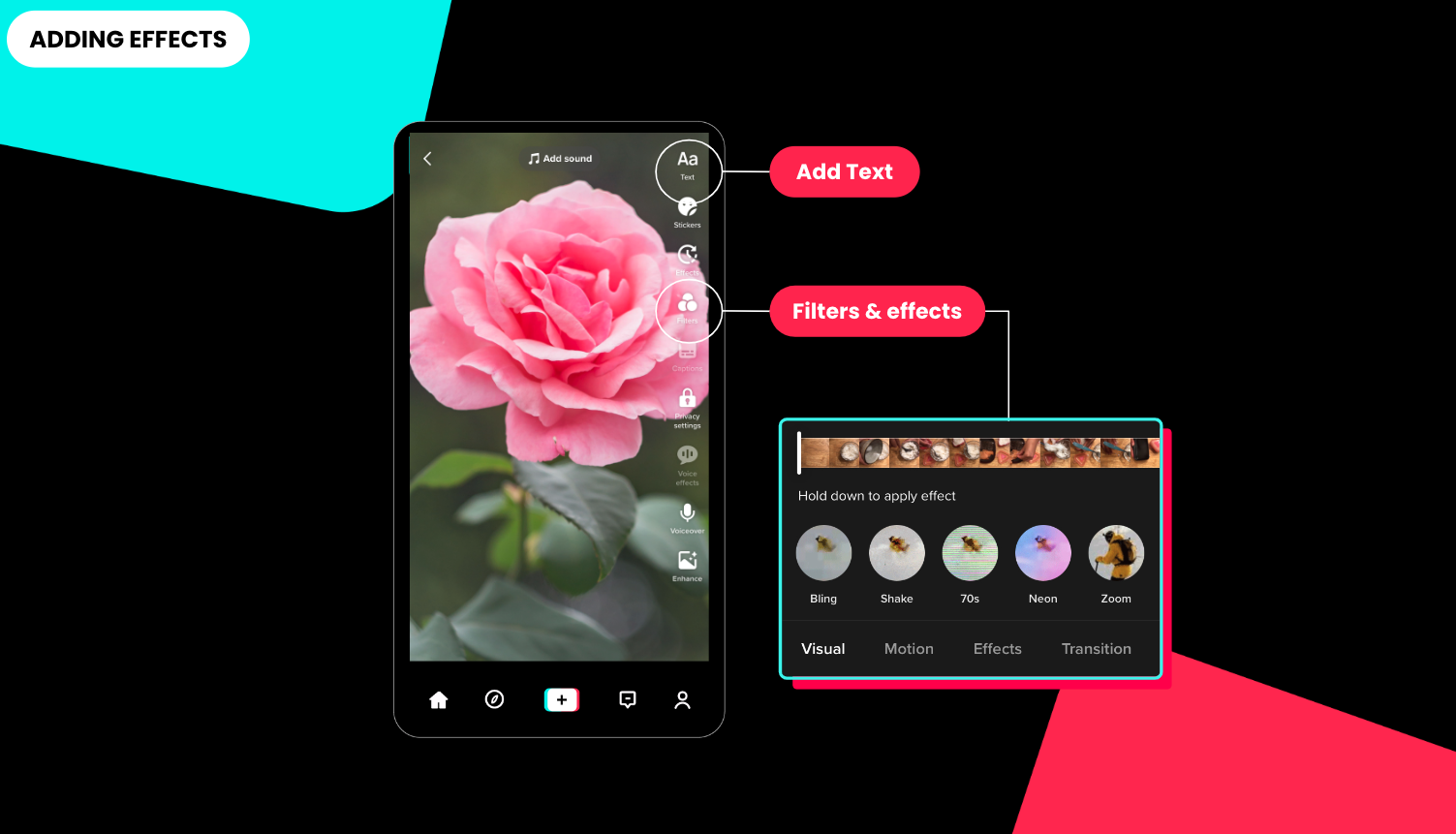
- Once you've captured your video, you can add different types of effects to make your TikTok really stand out.
- You can ADD TEXT to your video to grab attention and highlight what you want to say
- You can also ADD FILTERS AND EFFECTS by applying different filters to your clips, transitions, and stickers to give it a certain mood or vibe.
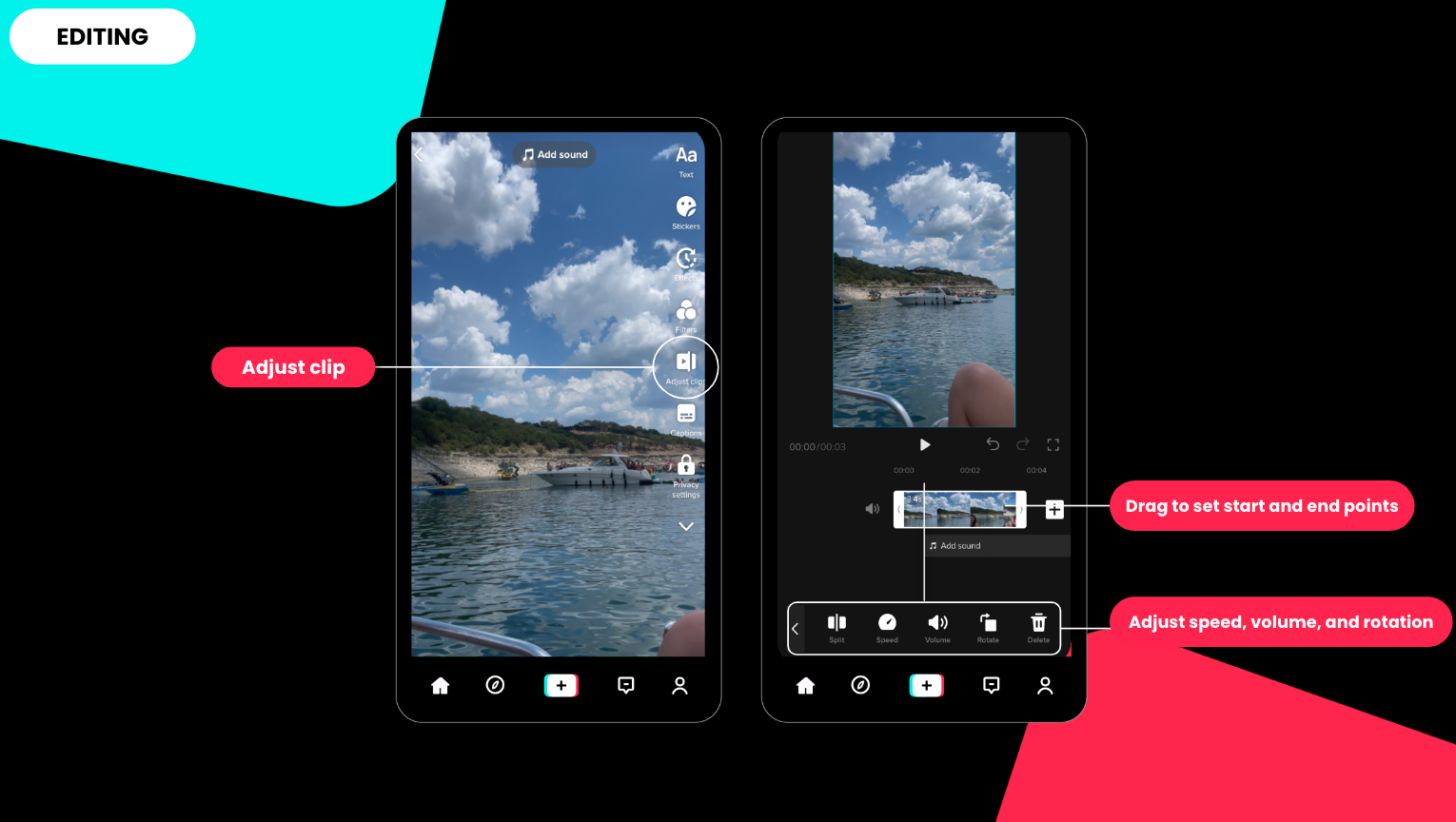
- If you're looking to remove parts from your video clips, you can easily trim the video clip using the Adjust clip tool.
- Click on Adjust clip.
- Then use your finger to drag the ends of the red bar to set your desired start and end points.
- Do the same on the right red bar to trim from the ending of the video clip.
- In the same spot, you can split the frame, speed or slow down, adjust the volume, rotate and have the option to delete.
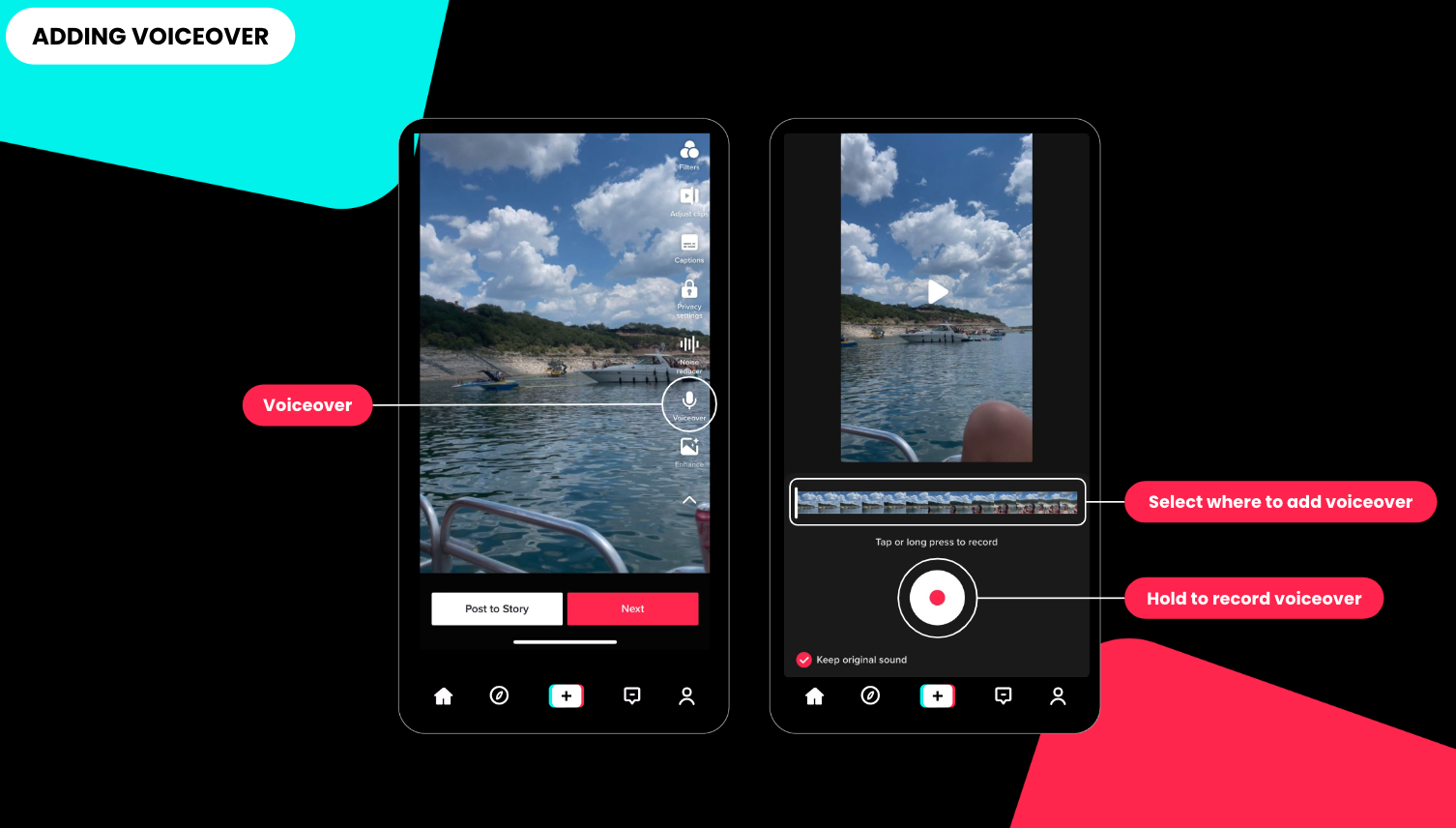
- Adding voiceover is a great way to speak directly to your audience.
- [click return - 'Voiceover'] Click on Voiceover.
- [click return - 'Where to add voiceover'] Adjust the bar to the place in the video where you'd like to add your voiceover
- [click return - 'Hold to reecord voiceover'] Tap and hold the button to record
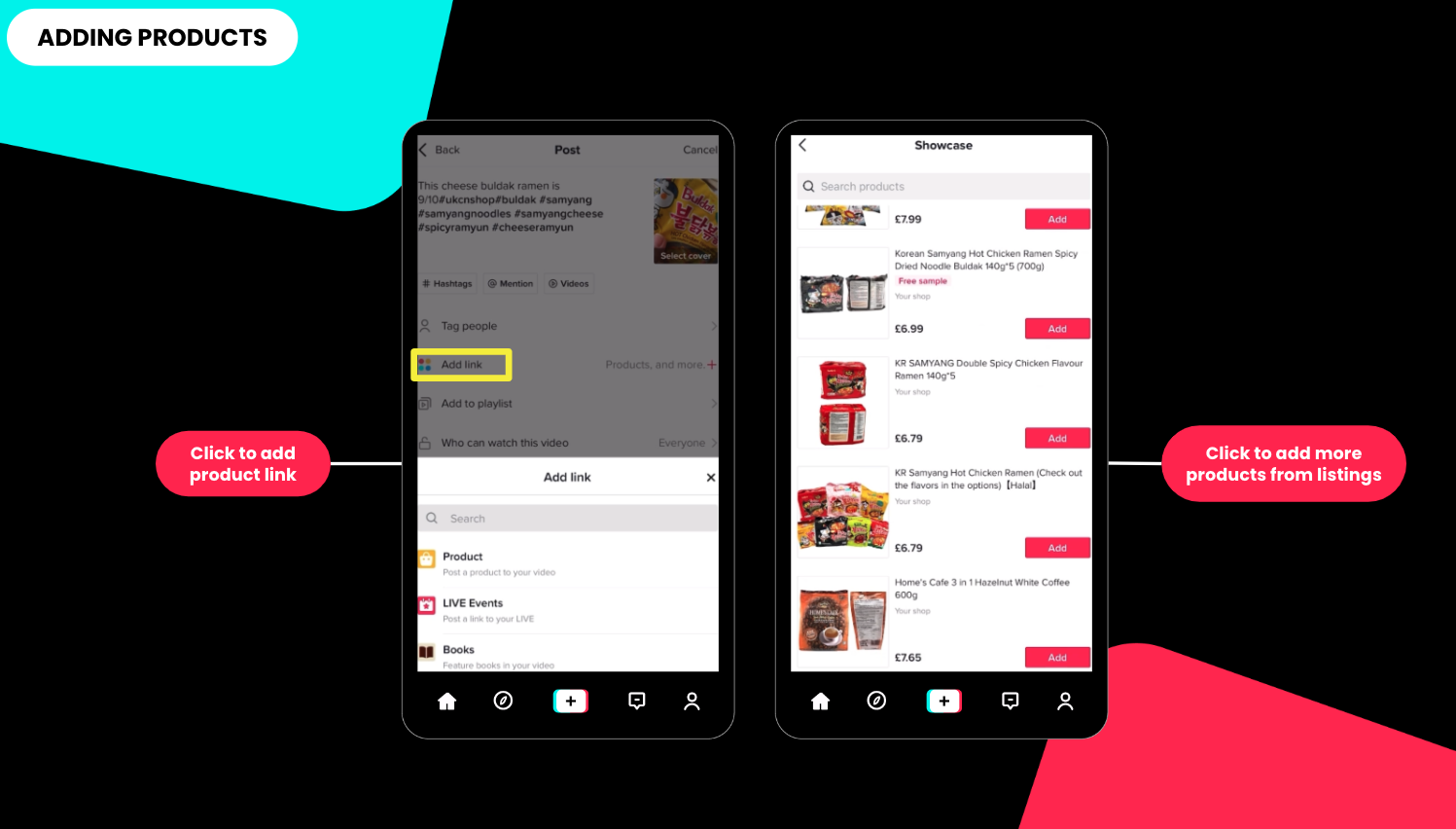
- Adding products is super easy.
- Click on ADD LINK
- PRODUCT
- Choose the products from your showcase that you would like to feature in the video
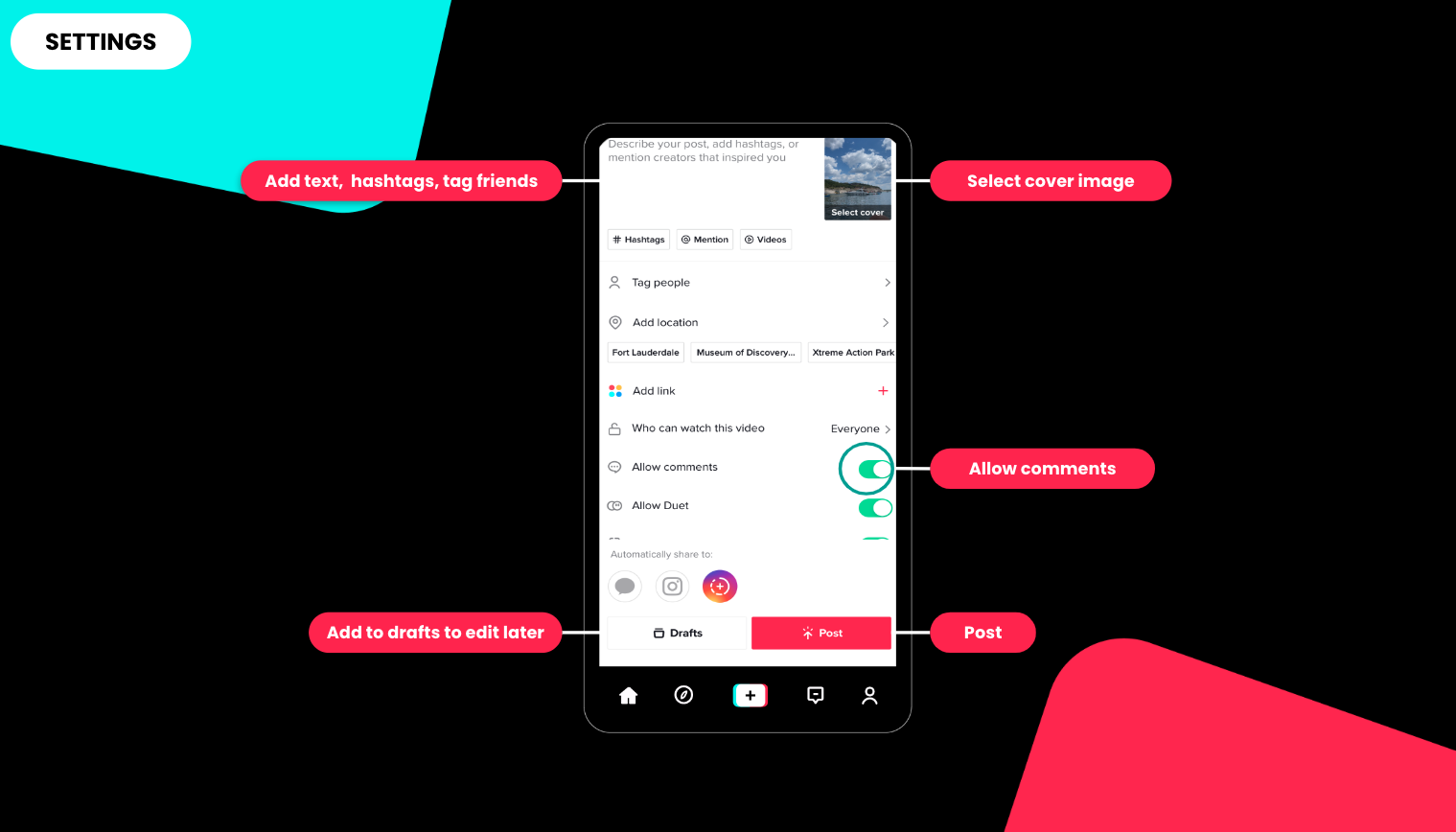
- Once you're finished with your TikTok, you can go to the video's settings to:
- Add text & hashtags and tag friends.
- Don’t forget to select your cover image which is how the video will be seen on your feed
- Toggle on or off to allow or disable commenting in your video.
- When you're ready, you can make your video publicly visible by posting it OR You can add it to drafts to edit later.