

Combining Orders for Shipping: Seller Guide and FAQs


AI Summary
Order combination lets you ship eligible non-FBT orders from the same shop, warehouse, buyer, address, and shipping service in one package. TikTok may still recommend separate packages if estimated shipping is cheaper, but you can manually combine eligible packages in Orders > Manage Orders > Package Shipments before Awaiting Collection. Use accurate final package dimensions and weight; incorrect values can block recommendations, raise charges, or cause label and delivery issues.
Order Combination
When a buyer places multiple orders, you can ship eligible orders together in one package. TikTok Shop recommends how to group your orders, and you can manually combine or split packages to match how you pack them.This guide explains which orders can ship together, how to set recommendation rules, how to combine packages manually, and how to troubleshoot common issues. Before purchasing a shipping label or confirming shipment, make sure the orders and items in Seller Center match the contents of your package, and enter accurate package dimensions and weight.
This guide covers order combination in Seller Center. For Fulfilled by TikTok (FBT) orders, the platform handles order combination as needed; you do not need to configure it yourself.
Which orders can I ship together?
Orders must be from the same shop, warehouse, and buyer, with the same shipping address and shipping service. The service must be available for the combined package and able to deliver to the destination. Orders from different warehouses or using different fulfillment methods cannot be combined.How do recommendations differ from manual combination?
| Method | How it works |
| System recommendations | After checking the basic conditions, your shop’s Order Combination Rules, and shipping-service limits, the system compares the estimated total shipping costs of combining orders versus shipping them separately. It recommends the lower-cost option, which may be separate packages even when the orders qualify for combination. |
| Manual combination in Package View | Your Order Combination Rules do not restrict manual combination. Cross-channel and cross-LIVE session settings, category groups, and custom item-count, weight, and dimension limits do not apply. The basic conditions and shipping-service requirements still apply, with a maximum of 200 items per combined package. |
Why weren’t all my orders combined into one package?
- The system does not always recommend the fewest packages. A larger package may fall into a higher weight or size pricing tier, making several smaller packages cheaper overall. Order details, your recommendation rules, or shipping-service limits may also lead to separate packages.
The following example uses hypothetical rates to explain how recommendations work:
- Up to 5 lb: $6 per package.
- Over 5 lb and up to 10 lb: $15 per package.
Assume two orders from the same buyer meet the basic conditions, your shop’s rules, and shipping-service limits:
| Weight entered | Estimated cost: separate packages | Estimated cost: one package |
| Accurate: 2 lb per order; about 4 lb combined | $6 × 2 = $12 | $6 — combining is cheaper |
| Too high: 3 lb per order; about 6 lb combined | $6 × 2 = $12 | $15 — separate packages are cheaper |
If the system does not recommend combining your orders, check that the product dimensions and weight are accurate. Overstated values can change the recommendation.
- If the system doesn’t recommend combining packages, you can still combine them manually in Package Shipment View if the orders meet the combination requirements. Make sure to do this before the packages move to Awaiting Collection. Before purchasing a shipping label, enter the actual dimensions and weight of the packed parcel and verify the shipping cost.
How do I set order combination rules for my shop?
Seller GuideFor non-FBT orders, go to Logistics > Warehouse & Shipping > Fulfillment settings > Order Combination Rules.These settings control which orders the system can recommend shipping together. They do not require it to fill each package to your limits, and they do not restrict manual combination in Package View.| Setting | What to choose |
| Cross-channel and cross-LIVE session combination | Choose whether the system can recommend combining orders from different sales channels or LIVE sessions. |
| Category groups | Choose which product categories can be packed together. Only categories in the same group can be recommended together. You can create up to five groups. |
| Maximum items | Set an item-count limit for recommended packages, up to 200 items. |
| Maximum weight and dimensions | Set limits based on the packages you can actually pack and ship. |

Do updated rules apply to existing orders?
They can, depending on whether you have purchased the shipping labels.- Labels not yet purchased: Updated rules can apply to existing orders, allowing the system to recommend new combinations.
- Labels already purchased: Updating the rules does not change the existing combination. These orders continue to follow the rules used when the labels were purchased.

What if I fulfill orders through an ERP?
Check and adjust the combination rules in your ERP. Seller Center settings only control recommendations within Seller Center; they do not override your ERP’s own processing rules.Will turning off "Offer shipping discounts to customers" stop recommendations?
No. The system may still recommend combining orders or shipping them separately based on estimated shipping costs. Check Package Shipments View to see the actual recommendations.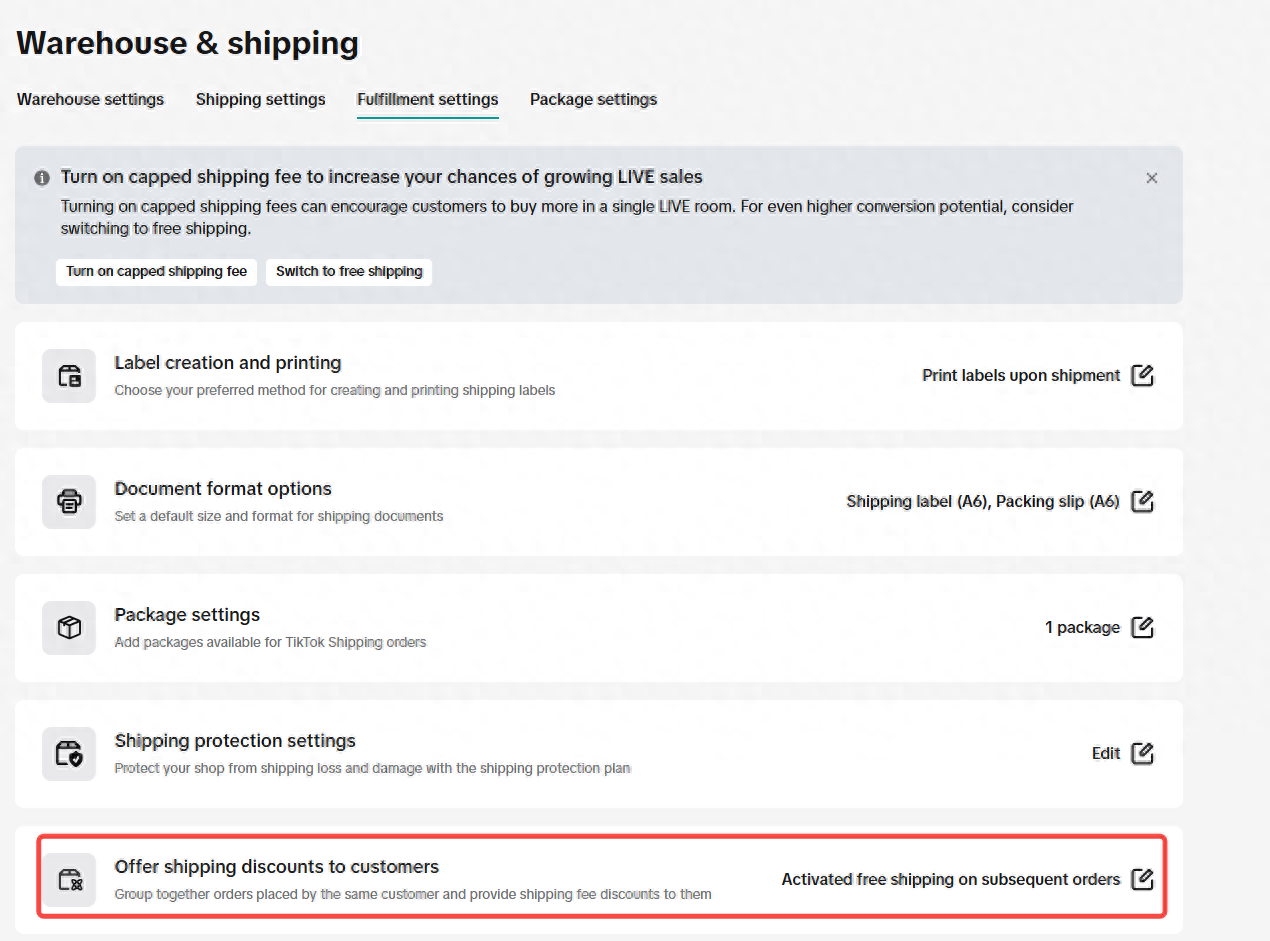
How do I view and manually combine packages?
Seller GuideGo to Orders > Manage Orders > Package Shipments to see recommended packages and the orders they contain. You can filter by LIVE session, channel, buyer username, and time.Filters show the entire package. If any order in a package matches your filter, the whole package appears, so it may also contain orders from other LIVE sessions or channels.

Can I combine packages if the system did not recommend it?
Yes. First, check that the orders are from the same shop, warehouse, and buyer, with the same shipping address and shipping service. The service must remain available for the combined package. You do not need to change your Order Combination Rules to combine packages manually.How do I combine packages manually?
- Find the packages you want to ship together.
- Select multiple packages and click Combine Orders.
- Review the combined orders and items to make sure nothing is missing or included by mistake.
- Enter the length, width, height, and weight of the final packed package.
- Confirm that the shipping service is available and review the cost, then purchase the label or confirm shipment.

Can I change a combined package?
Yes. In the package details, use the option to undo the combination or edit and split the package to adjust its orders or items. Make changes before shipment and before the package enters "Awaiting Collection" status.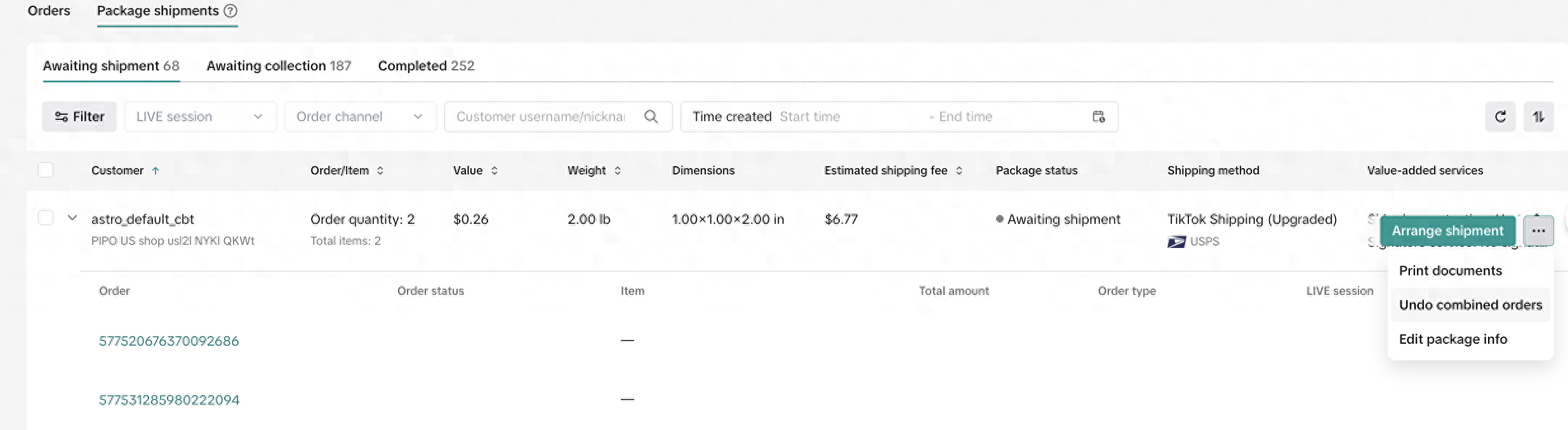
What should I check before shipping?
- More orders may arrive during a LIVE session. Consider waiting until the session ends to confirm the final combinations and packed items, while still meeting each order’s shipping deadline.
- Enter accurate product dimensions and weight, and use the final packed dimensions and weight when purchasing a label. Overstated values can put the estimated combined shipping cost into a higher pricing tier, leading to a recommendation for separate packages. If orders are not combined as expected, check these values first. Do not understate dimensions or weight to force a combination: inaccurate values can lead to additional shipping charges, invalid labels, carrier rejection, or delivery issues.
- If you have edited a package’s dimensions or weight and new orders are added, refreshing the page may recalculate the values. Check them against the final physical package before purchasing a label.
- After a label is purchased, later orders are not automatically added to that package. Before shipping, check whether manual combination is needed and make sure the shipping documents match the package contents.
- For TikTok Shipping orders, you cannot change the combination after shipment. For Seller Shipping orders that are physically packed together but have not been combined in the system, use the same tracking number only if the platform allows it and the orders meet the applicable conditions.
- For hazardous materials, check the product category against the selected service’s requirements. System recommendations currently do not combine orders containing different hazardous-material categories.
How do I troubleshoot unexpected results?
The system did not recommend the combination I expected
- Check the order details. Confirm that the shop, buyer, address, warehouse, shipping service, and fulfillment method match. Orders should be awaiting shipment with no cancellation request.
- Check your recommendation rules. Review cross-channel and cross-LIVE session settings, category groups, and custom item-count, weight, and dimension limits. Updated rules can also apply to existing orders whose labels have not yet been purchased; see section 2.1.
- Check product dimensions and weight. Update them whenever the product or packaging changes. Values that are too high can put the estimated combined cost into a higher pricing tier or exceed a combination limit, resulting in separate packages. Enter accurate values rather than lowering them to force combination. When purchasing the label, use the final packed dimensions and weight.
- Check shipping-service limits. Confirm that the combined package’s dimensions, weight, value, and hazardous-material category meet the selected service’s requirements.
- Check your LIVE temporary listing. For orders from a temporary listing, check the package dimensions and weight entered when you created the listing—not just the values on the shipping page.
- These fields describe the shipping package for that product, not the full box containing multiple combined orders. Check the values against the actual package and confirm the weight and dimension units are correct.
- Overstated values can increase the estimated combined shipping cost or exceed your recommendation rules or shipping-service limits, preventing a recommendation to combine. Always enter accurate information.
- Check where you fulfill orders. If you use an ERP, review its independent combination rules.

Manual combination failed or an error appeared
- Read the error message, then check that the shop, warehouse, buyer, shipping address, and shipping service match.
- Check dimensions, weight, and item details against the final physical package. Confirm that the shipping service is available and can deliver to the destination.
- Check the package status and available actions. Confirm whether the package has entered Awaiting Collection or has already shipped.
Package dimensions or weight changed, or later orders were not added
If dimensions or weight changed, check whether new orders were added or the values were recalculated after a refresh, then verify them against the physical package. If later orders were not added, check whether a label has already been purchased and try manual combination if adjustments are still available.Even when all conditions are met, the system may recommend multiple packages because their estimated total shipping cost is lower. If you prefer to ship the orders together, you can try manual combination as long as the basic conditions are met.
Offer shipping discounts to customers
Seller GuideTikTok Shop will recommend combining orders placed by the same shopper across different order channels within a predefined time window, provided that the shopper, delivery address, seller, and seller warehouse are the same. By consolidating these orders into a single package, this cross-channel order combination can encourage repeat purchases while reducing shipping costs.Importantly, TikTok Shop will display reduced shipping fees to shoppers during checkout for subsequent purchases with the same seller (within a specific time horizon), thereby incentivizing incremental orders, repeat buying, and growing GMV.
Navigate to Seller Center > Logistics > Warehouse & Shipping > Fulfillment settings > Offer Shipping Discounts to Customers.

Offer Shipping Discounts to Customers | Offer free shipping on subsequent orders | Offer reduced shipping fee for eligible orders | Capped Shipping Fee | Do not offer |
How it works | Buyers pay full shipping on the first order. Eligible follow-up orders ship free. | Buyers pay the full shipping fee on their first order. For eligible follow-up orders, they pay any additional shipping fee based on the combined weight. | For eligible orders placed during the same LIVE session, buyers pay up to the shipping cap you set. | Buyers pay the full shipping fee on every order. |
Discount window | Within 3 hours | Within 6 hours | Up to 24 hours within the same LIVE session | None |
Where it applies | Across sales channels and LIVE sessions within the discount window | Depends on your order combination settings for sales channels and LIVE sessions | Same LIVE session only | N/A |
Setup | 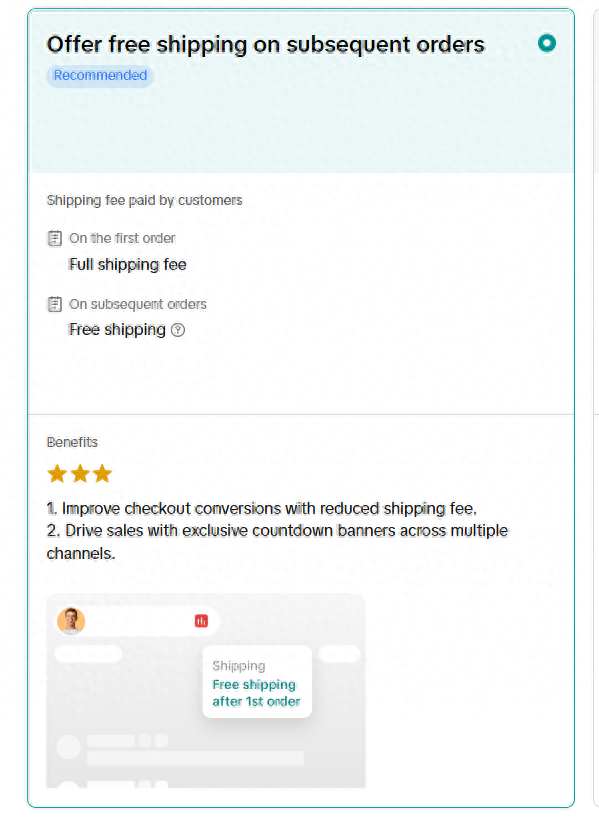 |  |  |  |
Buyer payment example | The shipping template charges $5 for up to 1 lb and $8 for over 1 lb and up to 2 lb.A buyer places two orders within one hour during the same LIVE session. Each order weighs 0.6 lb, for a combined weight of 1.2 lb. Both orders meet the order combination rules, and no other shipping discounts apply. | |||
|
| Capped Shipping Fee ($6 cap)
|
| |
Suppose you select “Offer reduced shipping fee for eligible orders” and set a limit of 3 items per package. A buyer places 5 orders within one hour during the same LIVE session, each containing one 0.6 lb item. All orders meet the other eligibility requirements, and no other shipping discounts apply.
The shipping template charges $5 for up to 1 lb and $8 for over 1 lb and up to 2 lb.
What the buyer pays for each order:
Order | Combined Weight in Group | Shipping Fee for Group | Buyer Pays on This Order | Buyer’s Running Total |
| 1st order | 0.6 lb | $5 | $5 | $5 |
| 2nd order | 1.2 lb | $8 | $3 | $8 |
| 3rd order | 1.8 lb | $8 | $0 | $8 |
| 4th order (new billing group) | 0.6 lb | $5 | $5 | $13 |
| 5th order | 1.2 lb | $8 | $3 | $16 |

FAQ
- Will shipping fees be recalculated for orders that have already been placed but haven’t shipped if I change the item count limit, weight limit, or shipping discount settings?
- Buyer shipping fees are set at checkout. Any changes you make afterward apply to future charges.
- Your actual shipping costs depend on how you ship the orders. In Package Shipments, you can compare the estimated cost of combining orders with the cost of shipping them separately, then purchase labels based on how you pack them. If you use Seller Shipping, you can compare carrier rates and upload the tracking numbers for the packages you send.
- Why might the shipping fee for the second order be $0?
- If you use a flat-rate shipping template and adding the second order doesn’t increase the total shipping fee for the group, the buyer has already paid the full amount. The second order may show $0 in shipping.
- What if the system doesn’t recommend combining orders? Can I apply updated rules to existing orders?
- First, check that the orders are from the same shop, ship from the same warehouse, and are for the same buyer. The delivery address, fulfillment method, and shipping service must also match. Then confirm that the product categories and the combined package’s dimensions and weight meet the carrier’s requirements, and review the estimated shipping costs.
- Even when orders are eligible for combination, the system may recommend shipping them separately if the estimated total cost is lower. You can manually combine eligible orders in Package Shipments.
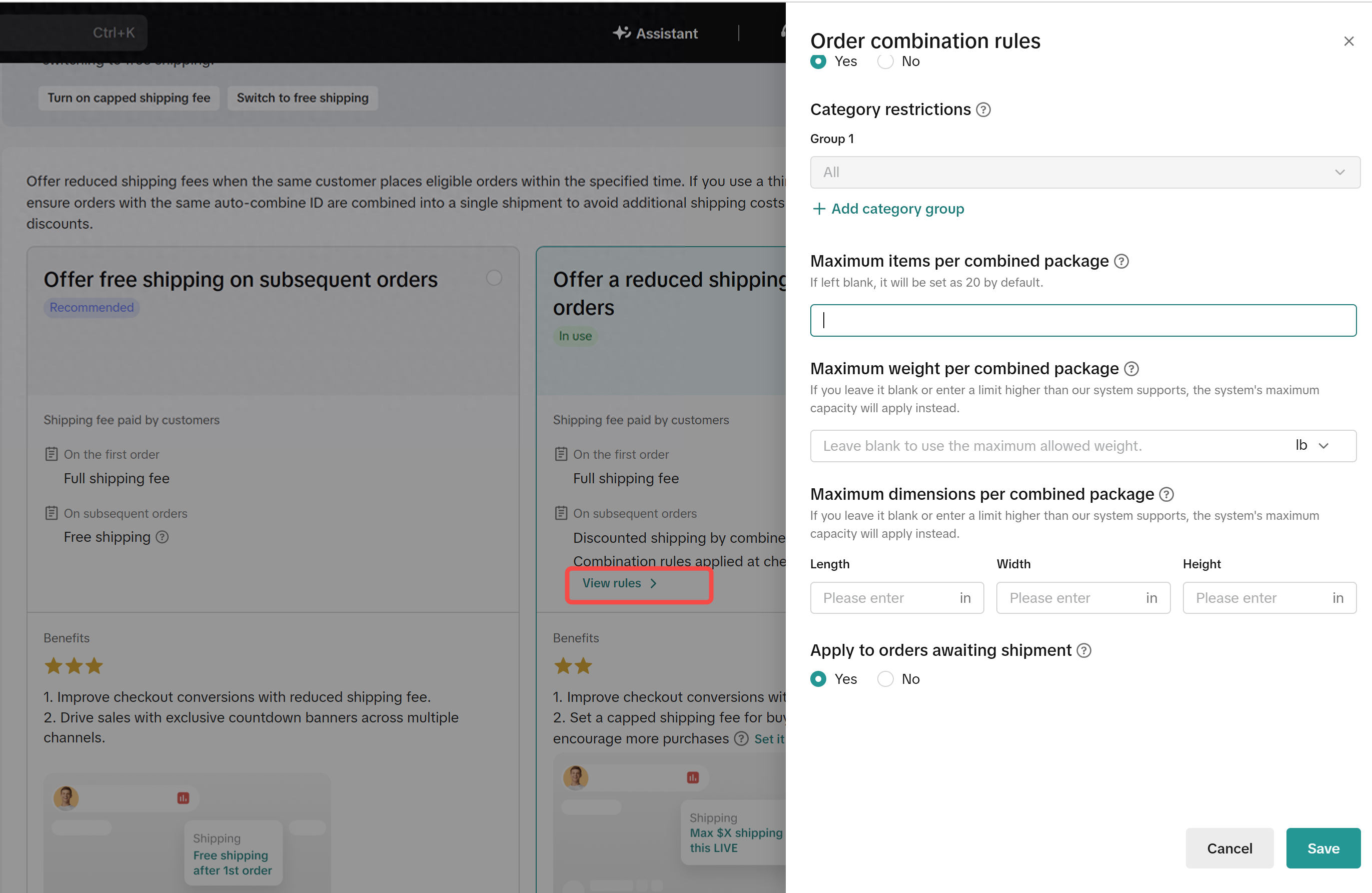
- If your custom order combination rules are too restrictive, you can relax the relevant limits. When saving your changes, turn on Apply to orders awaiting shipment. The system can then reevaluate existing orders awaiting shipment that don’t yet have a purchased shipping label.
| Package shipments | Order Combination Rules |
 |  |
- How should I set shipping rates and item weights if I use one temporary LIVE auction listing for items of different weights?
- Use the heaviest item’s weight. This helps reduce the risk of undercharging for shipping, though buyers may pay more for lighter items.
- Use the average item weight. This balances shipping charges across items, though the amount collected for heavier items may fall short of your actual shipping cost.
- How is “Offer Shipping Discounts to Customers” different from free shipping on orders of $30 or more? Why enable reduced shipping if I already offer free shipping on those orders?
- These are separate settings. With storewide free shipping, you set a minimum order amount, such as $30. With reduced shipping for eligible orders, buyers who qualify for combined shipping rates pay only the additional shipping charge on eligible follow-up orders.
- At checkout, free shipping takes priority whenever an order qualifies under any applicable free shipping rule. If an order meets your $30 minimum, the buyer pays $0 for shipping. If it falls below $30 and qualifies for reduced shipping, the buyer pays only the difference, if any.
You may also be interested in

Logistics & Fulfillment: Shipping Options, Policies, and Bes…
🎬 Start here: Watch the Order Fulfillment Edu Video for a visual walkthrough before reading this ar…

TikTok Shipping Standard Delivery: Manage Shipping Services…
With TikTok Shipping Standard Delivery, you can view the shipping services enabled for each warehous…

How to Use Express Service with TikTok Shipping
On this page: Express Service Overview Express Service Rates Benefits of Express Service How to Sele…