

How to register for Long-Term Rolling Campaigns


AI Summary
Long-Term Rolling Campaigns let sellers enroll products once for automatic entry into future eligible campaigns. It applies to sellers using Seller Center Campaigns, with Standard or Advanced pricing that must keep meeting future campaign thresholds. Register via Promotions > Campaign, confirm auto-registration, and manage products from the rolling campaign dashboard. Products that fail pricing or eligibility checks show Attention Needed and won’t auto-enroll until updated.
What are Long-Term Rolling Campaigns?
Long-Term Rolling Campaigns is a new campaign registration experience that allows sellers to enroll products once and automatically participate in future eligible platform campaigns throughout the year.Instead of registering for each campaign individually, sellers can manage campaign participation through a single enrollment. The platform will automatically evaluate and synchronize eligible products into future linked campaigns, helping sellers save time and stay active across upcoming promotional opportunities.
Long-Term Rolling Campaigns also provides a centralized dashboard where sellers can manage products, pricing, inventory, and campaign participation status in one place.
Unlock More Value with Long-Term Rolling Campaigns
🌟 Simplified Campaign Participation: Enroll products once and automatically participate in future eligible platform campaigns without repeatedly registering for each campaign.💰 Consistent Access to Campaign Benefits: Stay eligible for future campaign opportunities, including promotional placements, marketing support, and applicable TikTok Shop-funded subsidies.
📊 Centralized Product Management: Manage pricing, inventory, and campaign participation from a single dashboard. Changes made in Long-Term Rolling Campaigns automatically sync across future linked campaigns.
📅 Greater Visibility into Upcoming Campaigns: View upcoming linked campaigns through a campaign timeline and track which products are successfully registered or require action.
🔔 Ongoing Registration Support: Receive alerts and guidance whenever products require attention due to eligibility, pricing, inventory, or campaign requirement changes.
How It Works
Step 1: Access 'Long-Term Rolling Campaigns' and Begin Registration
In Seller Center, navigate to Promotions > Campaign.Scroll to "Open for registration" section.
Available Long-Term Rolling Campaigns will appear at the top of the campaign list and may include campaign timelines, participation benefits, and upcoming campaigns.
You can register into two types of Long-Term Rolling Campaig:
- Mega Campaigns (e.g., platform campaigns like April Stock-Up, Memorial Day, Deals For You Days)
- Weekly Deals Campaigns
Click on Register to begin enrollment process.

Step 2: Registration Flow
The registration experience for Long-Term Rolling Campaigns is similar to other campaign registrations in Seller Center. You can enroll into two types of sub-campaigns:- Standard Registration: Set a baseline campaign price to participate in campaigns and receive standard campaign benefits, such as marketing support, visibility opportunities, and platform incentives.
- Advanced Registration: Offer a deeper discount to unlock access to high-reach, high-performance channels such as Flash Sales and Premium Offers, along with additional promotional benefits.

Step 2: Review Detailed Rules of Long-Term Rolling Campaigns
Click Learn More About Rolling Campaigns to understand important registration rules, pricing requirements, and eligibility criteria. This information will help you maximize campaign participation and ensure your products remain eligible for future automatic enrollments.
Step 3: Confirm Auto-Registration
Review and confirm your auto-registration settings to allow TikTok Shop to automatically enroll eligible products into future campaigns and sub-campaigns.Once confirmed, your products will be evaluated for future campaign opportunities, helping you save time and stay active across upcoming promotions.
Review and confirm your auto-registration settings to allow TikTok Shop to automatically enroll eligible products into future campaigns and sub-campaigns.
Once confirmed, your products will be evaluated for future campaign opportunities, helping you save time and stay active across upcoming promotions.
Step 4: Register Your Products
Click on Standard and/or Advanced Registration to begin registering your products for Long-Term Rolling Campaigns.The product registration flow is the same as other single enrollment campaigns. For more detailed guide, refer to this article.
Step 5: Review Product Recommendations
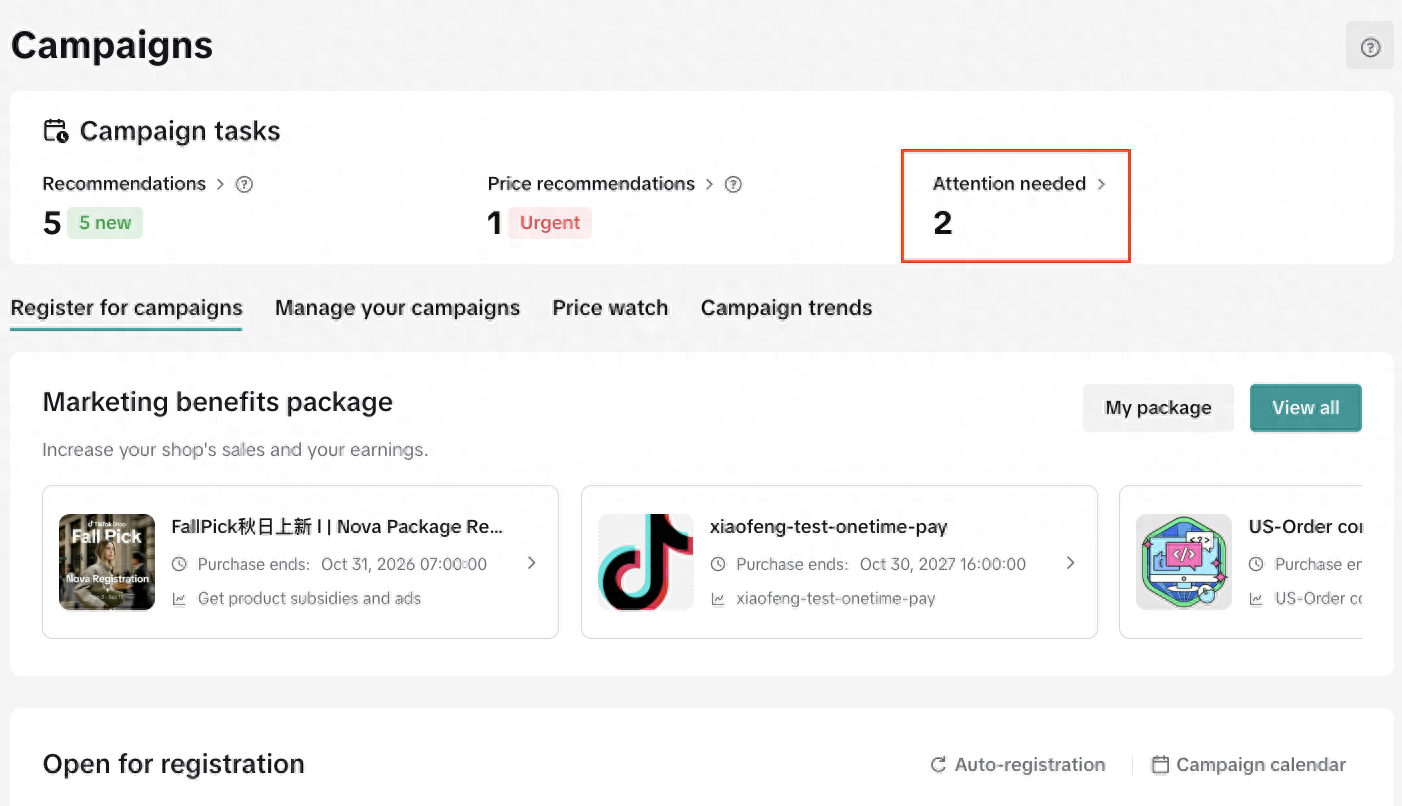
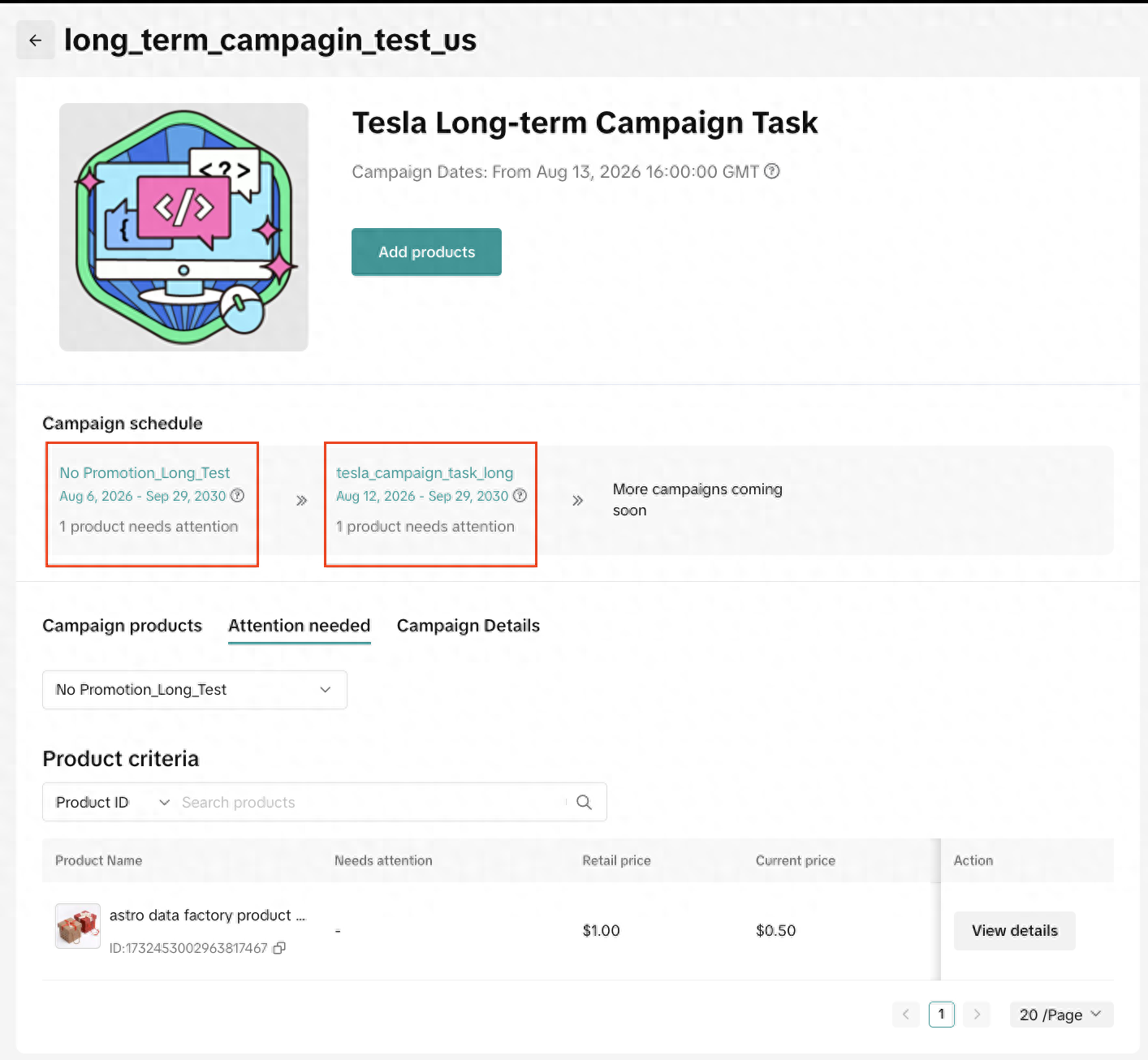
If a product registered in a long-term Rolling Campaign does not meet the price criteria for a specific campaign during auto-enrollment, it will be flagged with an “Attention Needed” tag.Sellers can go to Campaign Homepage > Campaign Tasks > Attention Needed to view affected products and recommended actions.
Note: Products in “Attention Needed” status will not be auto-enrolled in the campaign until the price criteria are met.
Phase 2 Product Experience & Configuration Guide
1. Configure short-term campaign visibility
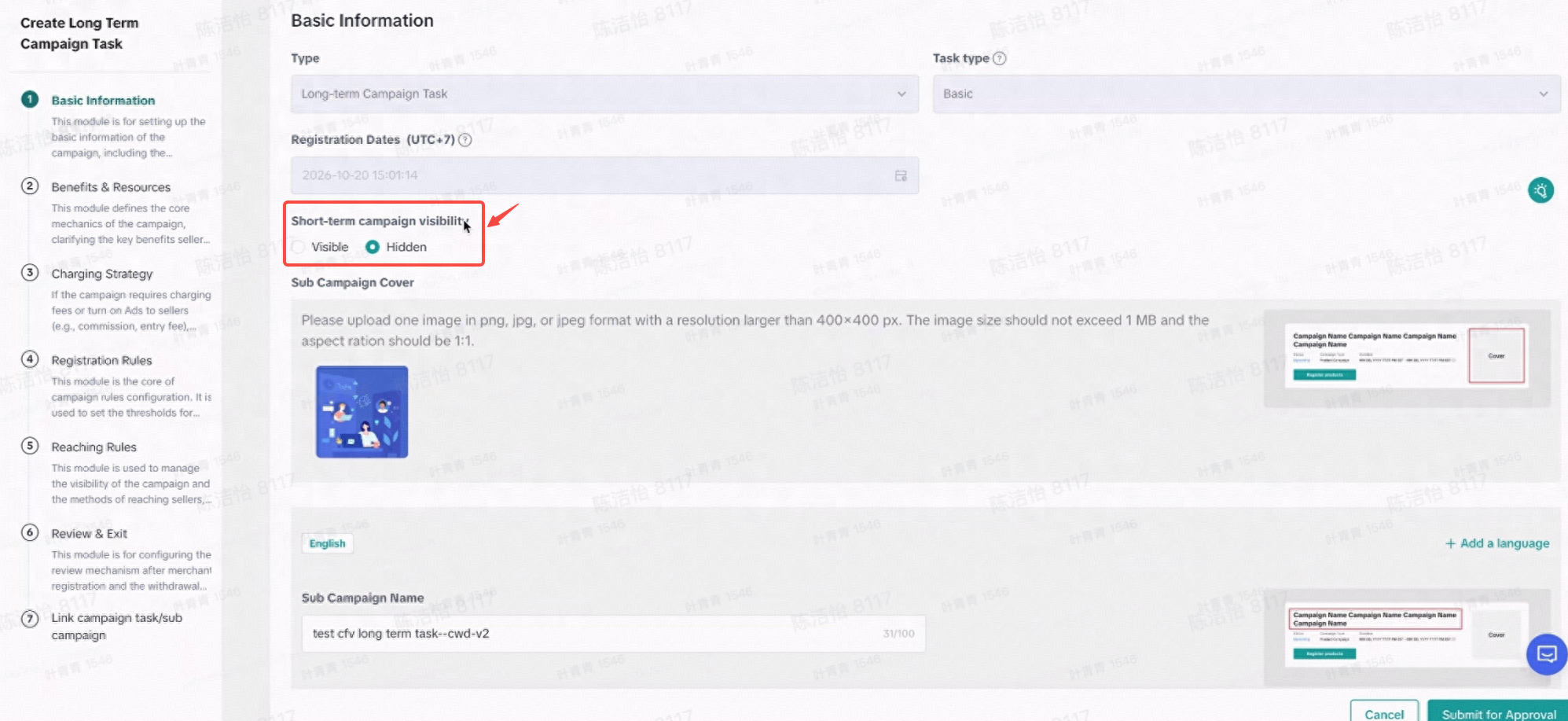
1.1 Add a field to Rolling Campaigns configuration
- When configuring a Rolling Campaign, open the corresponding Rolling Campaigns task. A new option, “Short-term campaign visibility,” is available.
- To show the short-term campaign entry point, select Visible.
- The following two list pages will not show the related campaigns:
- Register for campaigns will not show specific sub-campaign names.
- Manage your campaigns will not show registered short-term campaigns.
- To hide the short-term campaign entry point, select Hidden.

1.2 Hidden entry points for sellers
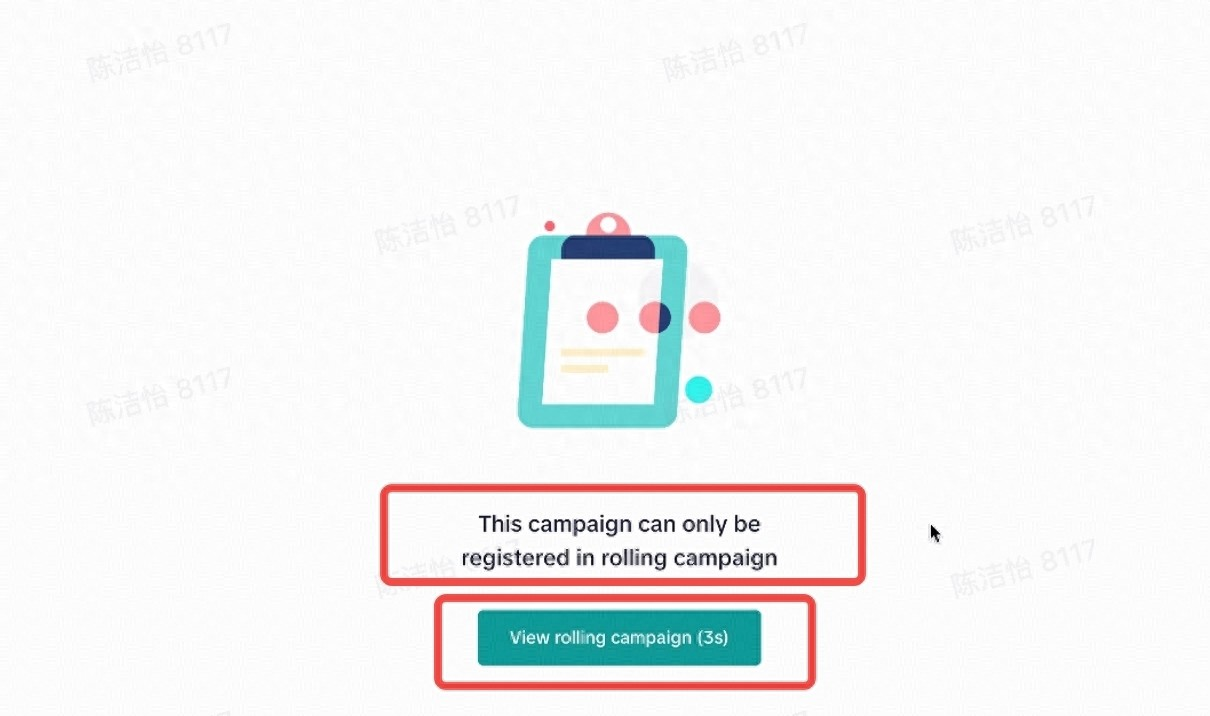
1.2.1 Block short-term campaign link redirects
- Open a short-term campaign link. The page displays This campaign can only be registered in rolling campaign.
- Click View rolling campaign, or wait for the page to redirect automatically after 3 seconds. On the Rolling Campaign page, continue registering or managing products.
1.2.2 Hide blocked short-term campaigns from search results
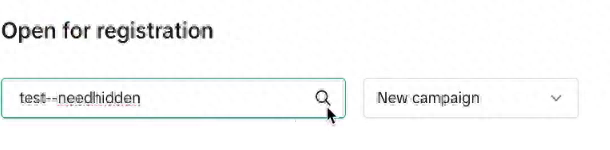
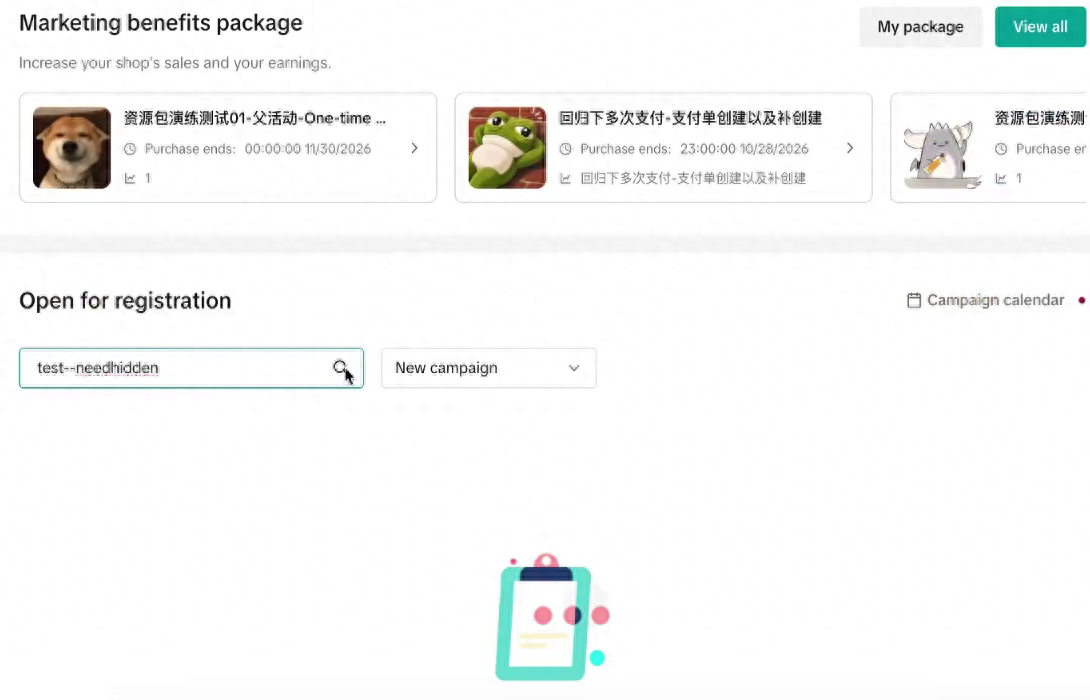
- In Register for campaigns
and Manage your campaigns, enter the name of a blocked short-term campaign in the search box, then run the search.
- Check the search results
- Review the campaign list. Hidden short-term campaigns will notappear in the search results.
1.2.3 View short-term campaign Criteria on the Rolling Campaign management page
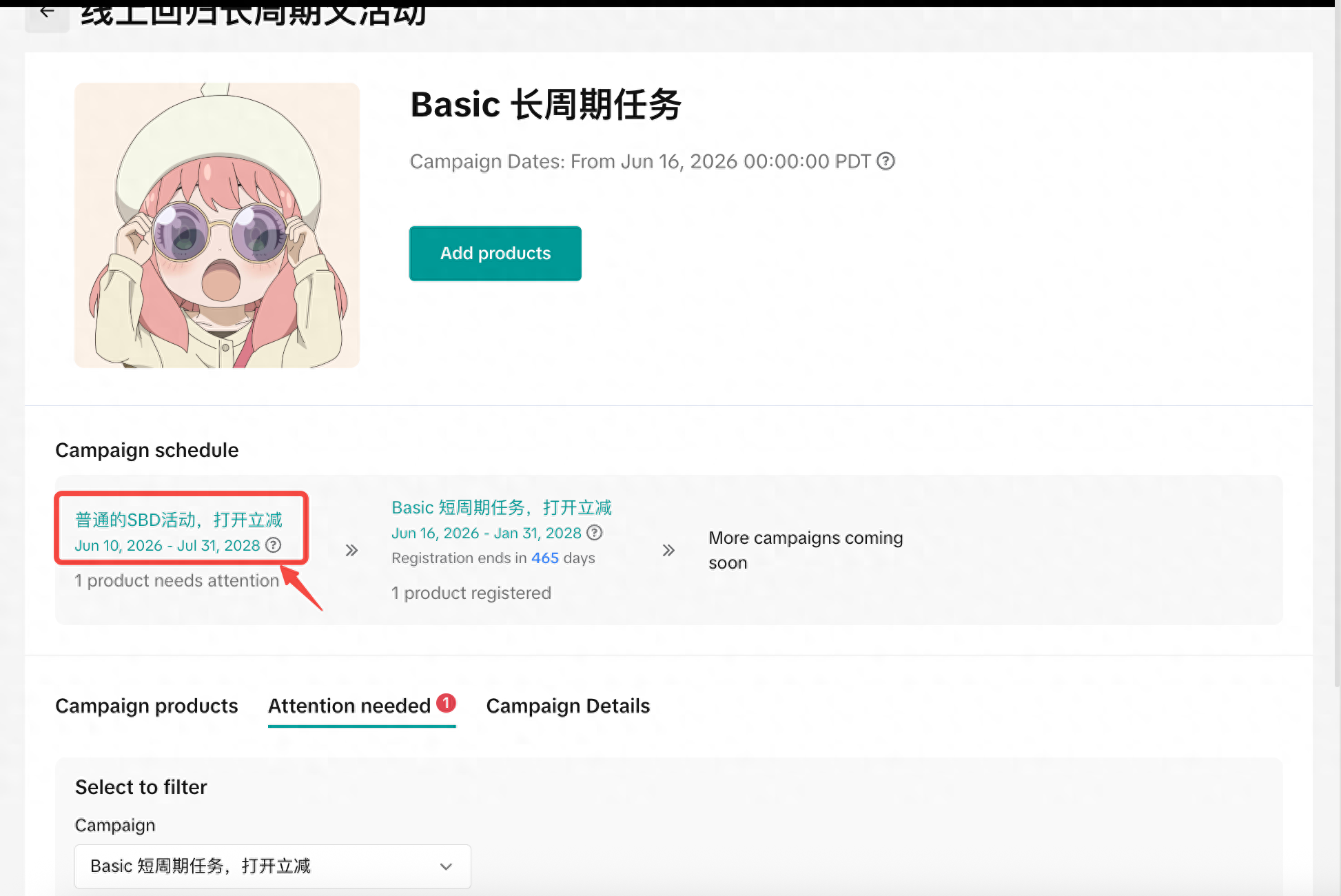
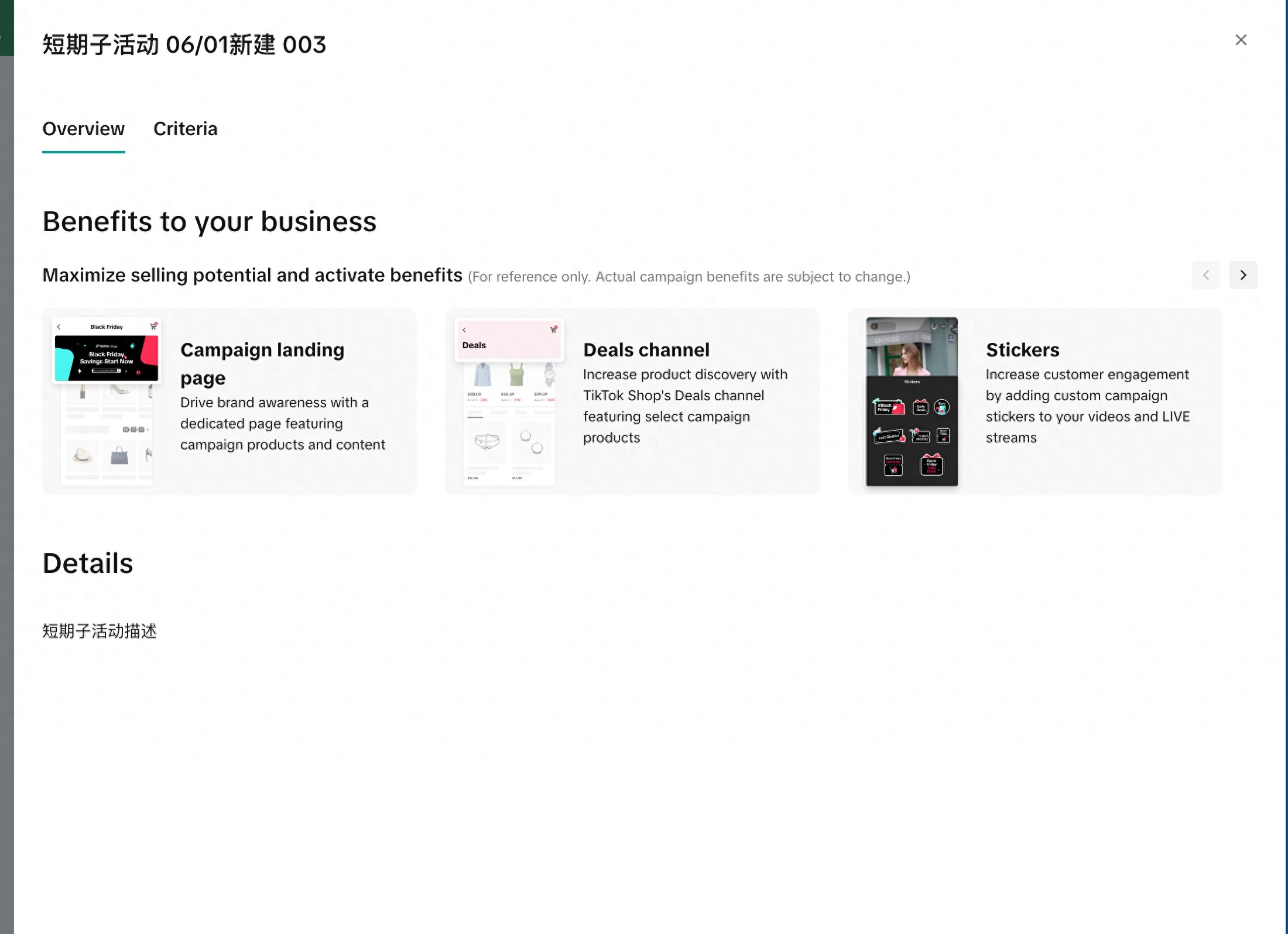
- Click the target short-term sub-campaign and view Overview in the drawer on the right.
- Switch to Criteria to view the registration criteria.
2. Campaigns home page filter and search updates
2.1 Open the campaign list on the Campaigns home page
Go to Campaigns and find Open for registration.

2.2 Filter campaigns by registration status
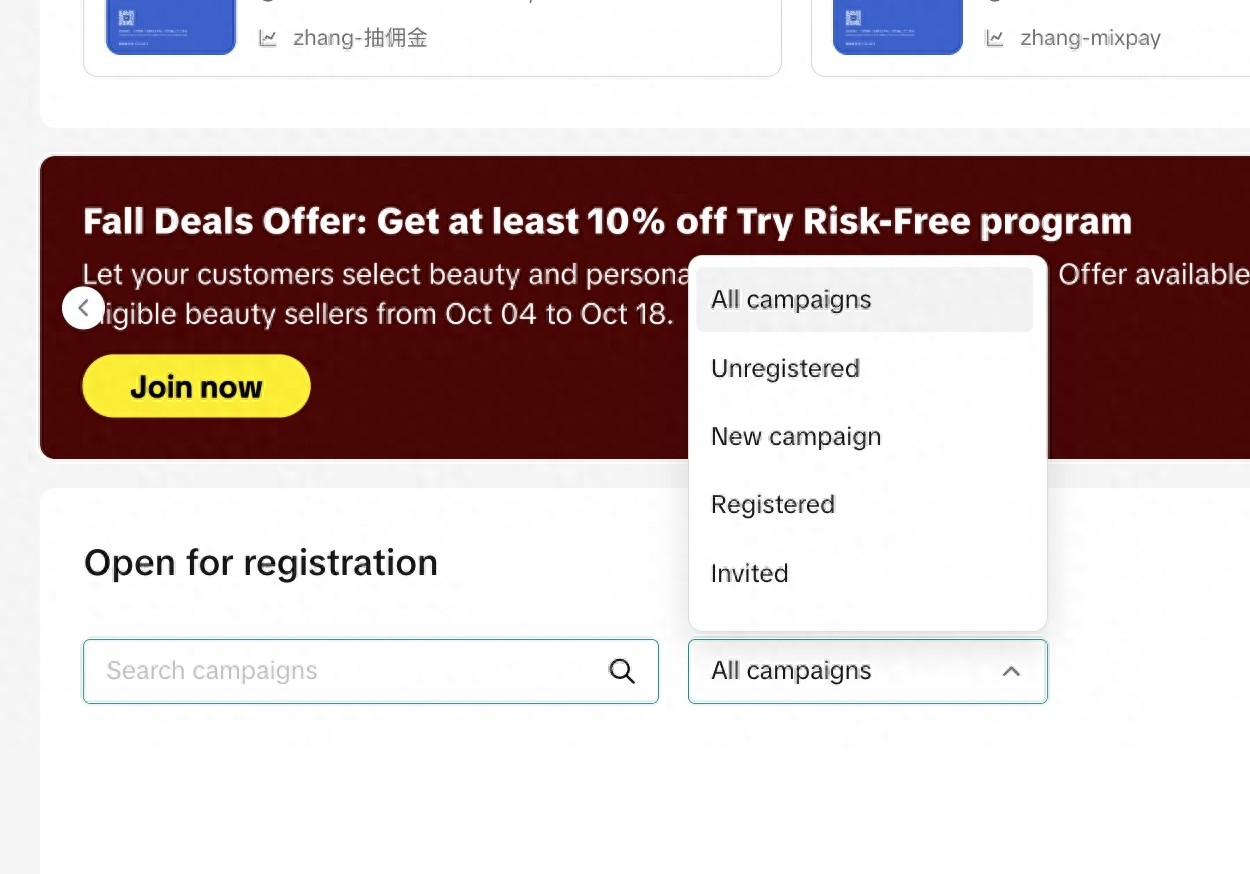
The home page drop-down now includes Registered and Unregistered. Click the status filter. The latest option order is shown on the right.
- Unregistered is selected by default.
- Use Unregistered to filter campaigns that are open for registration.
- Select Unregistered.
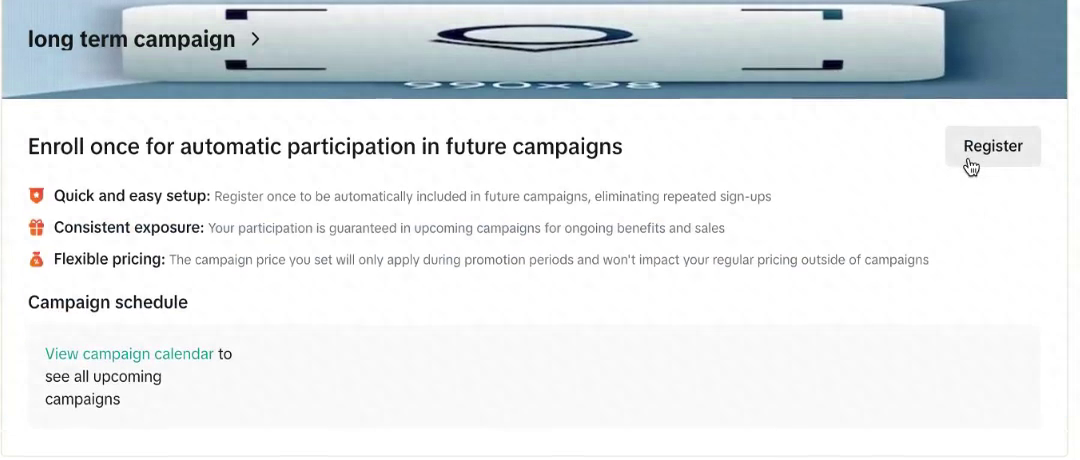
- Find the target campaign and click Register to start registration.
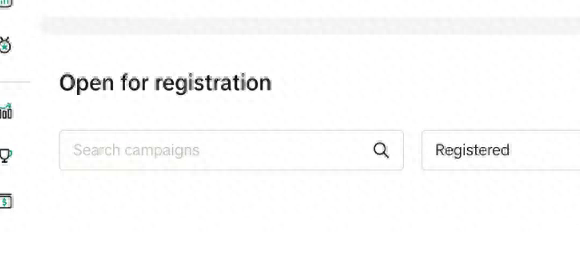
- Use Registered to filter registered campaigns.
- Select Registered, open the target campaign, and continue managing registered products.
3. Manage sub-campaigns in Campaign products
3.1 Filter products by sub-campaign
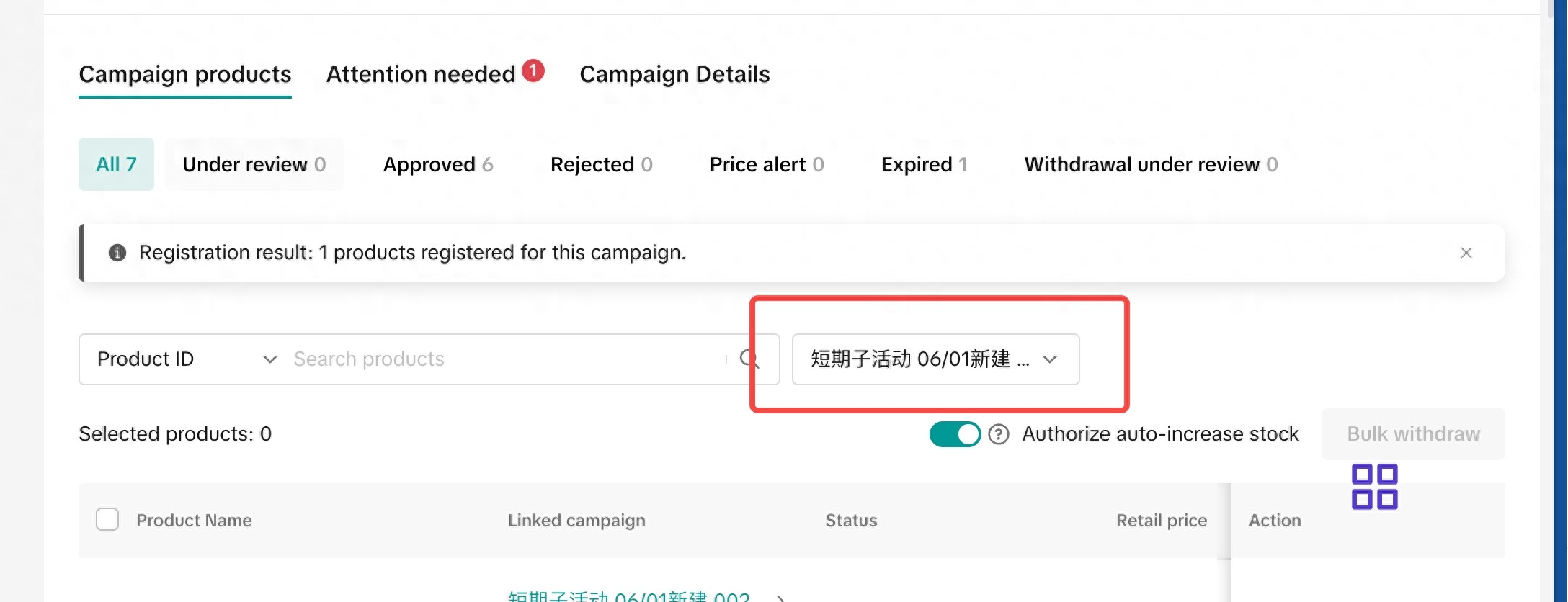
- Go to Campaign products for the Rolling Campaign.
- Click the sub-campaign filter and select the target short-term sub-campaign to view the products in that sub-campaign.
4. Use Attention needed to resolve product issues
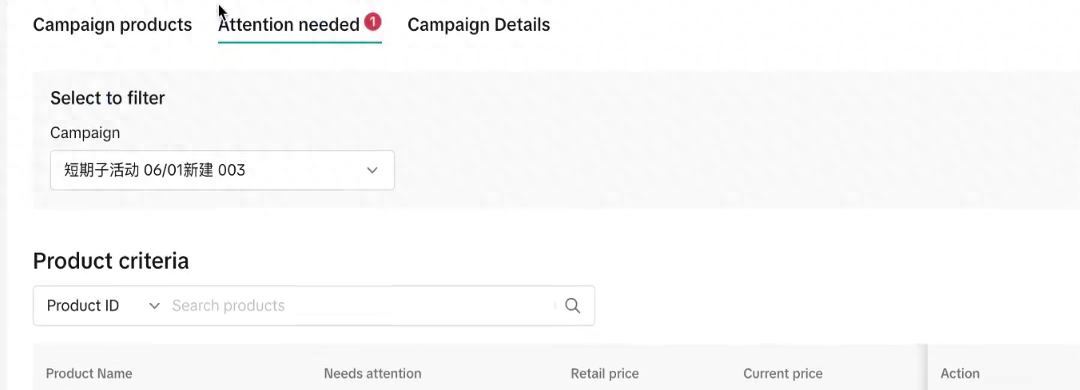
4.1 Find Attention needed items using the red dot
- Open the Rolling Campaign details page.
- Review products with issues and their Product criteria.
- Find Attention needed with a red dot.
- In the product list, review Needs attention, then check Product criteria and the reason shown.
- Adjust the product price or registration information as instructed on the page.

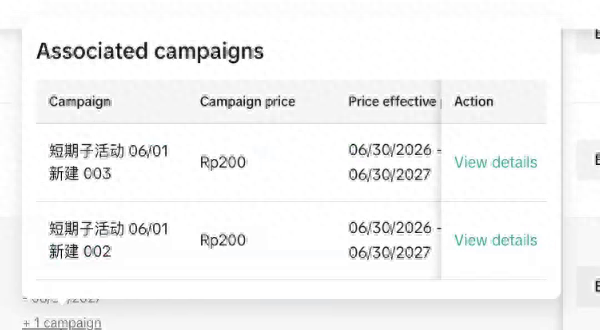
4.2 View short-term campaigns associated with a product
- Open Associated campaigns.
- View the short-term campaigns associated with the product.
- Click View details to view the campaign requirements
FAQs
- Can I still register for campaigns individually?
- Can the same product be enrolled in both a Rolling Campaign and an individual campaign registration?
- What happens when new campaigns are added?
- Can I update my campaign price after registering?
- For Black Friday/Cyber Monday I typically have my lowest price of the season. How would I change it if I'm in Rolling Registration?
Option 1: Update Your Rolling Campaign PriceBefore the target campaign begins, update the product's price within Rolling Campaigns. Once the campaign ends, you can change the price back to your preferred level for future campaign participation.
Option 2: Register Through the Individual Campaign PathRemove the product from Rolling Campaigns and register it directly through the individual campaign enrollment flow for the specific campaign. After the campaign ends, you can re-enroll the product in Rolling Campaigns using your preferred price for future campaigns.
- What happens if my product no longer meets campaign requirements?
- Can I leave a Rolling Campaign after registering?
- How do I know if my products were successfully enrolled in a future campaign?