

How to register for standard / advanced registration?


AI Summary
Standard Registration lets eligible products join campaigns for TikTok Shop-funded exposure and promotions. It generally requires compliant campaign pricing, SPS 3.5+ or no SPS, free shipping ≤ $30, and all required coupons enrolled. Register in Seller Center → Marketing → Campaigns, set campaign price and stock, and submit. Approved products can gain tags, coupons, and added visibility; edits, SKU changes, withdrawals, and co-funded campaigns may trigger review limits, re-registration needs, or a 1% service fee.
What is Standard Registration?
Standard Registration allows you to register products that meet specific campaign requirements in order to unlock TikTok Shop-funded benefits and promotional exposure opportunities.Key Benefits
- Enhanced product visibility: Products registered through standard registration receive specialized campaign tags. This feature increases their visibility and prominence, ensuring they are highlighted to a wider audience, particularly during high-traffic periods.
- Special promotional funding: Registered products are eligible for special, platform-funded promotions. This includes unique campaign coupons that provide a competitive edge and can drive conversions and sales, all while preserving your profit margins.
Eligibility Requirements
- Pricing : Campaign prices are typically required to be at or below the lowest price in the past 30 days. For major events like BFCM, this requirement may extend further. Specific rules vary by campaign.
- Shop performance score: Your SPS must be 3.5 or higher. If you do not yet have an SPS, you may still be eligible.
- Shipping : You are required to offer free shipping on your products. The threshold for free shipping must be $30 or less. Please note that shipping requirements can vary by campaign.
- Coupons: You have to register all coupons in order to enroll
How To Register
Step 1: Registration process
- Go to Seller Center →Marketing -> Campaigns, then select the campaign you’d like to register for and click Register now.

Step 2: Review campaign details
If your products qualify for any of the campaign's recommended product groups (e.g., Premium Offers, Flash Sale), a top banner will appear indicating which products require action and your current registration progress.
- Products matching the campaign's key product strategy carry a tier label.
- Label signals the product is strategically important for this campaign
- Use it to decide which products to register first. A banner with a progress bar that tracks your registration status for recommended product groups.
- Use filters to focus the list
- Product Type filter → focus on one certain campaign key product group
- Source filter → distinguish Platform Recommended vs. Ops Invited


- Coupons : A list of available coupons directly on the campaign details page.
- Discount Type: Indicates whether the coupon offers a fixed dollar amount ($) or a percentage (%) off.
- Targeting: Specifies who can use the coupon—either all customers or selected customers. The selected group of customers is chosen dynamically based on their purchasing behavior and patterns to align with your marketing strategy and improve campaign performance.
- Funding Details: Shows the co-funded ratio and the maximum funding contributed by you.
- Coupon Rules for Your Campaign
- Campaign Price: You must set the campaign price when you register.
- Availability: Shoppers can claim and use coupons during the campaign period, but only on eligible products with the specific promo label.
- Stacking: Co-funded coupons can be combined with other seller coupons.
- Minimum Purchase: Coupons can be applied to any registered product as long as the order meets the minimum purchase value.
- Limited Quantity: Coupons are limited, so some shoppers may not be able to claim one.
- Usage per Order: Shoppers can claim all available co-funded coupons, but they can only apply one coupon to each order.
- Campaign Service Fee: Participating in standard registrations is subject to a 1% campaign service fee. This fee is applied to every order placed during the campaign period. Please refer to the Campaign Fees Q&A sections for more details.
Step 3: Check your campaign eligibility
In some cases, your shop or products may not meet the requirements to register for a campaign. When this happens, you’ll see a notification banner on the campaign details page.To understand why something is not eligible and what actions you can take. Click Review all criteria
- A detailed panel will appear showing:
- Real-time eligibility results for both your shop and products
- The specific reasons you cannot register
- Recommended next steps to improve eligibility

Step 4: Register your products
You’ll have three ways to register your products,choose the option that works best for you.
Step 5: Set campaign price & stock
- On the left-hand menu, you can review requirements for both key and all other products.
- In the campaign price range column, you can hover to see price requirements and recommended price.
- The retail prices are already filled in. Enter the campaign sale price and stock as needed.


- You must register ALL SKUs within a product for extra discounts in order to unlock associated benefits. Applying extra discounts for a partial subset of SKUs within a PID is not allowed.
- If you don't want to add an extra discount for your products, please leave in BLANK. You will not be able to submit by adding 0% discount or discount lower than minimum threshold.


When registering products in bulk, you may encounter an error message listing all products with issues. To address this, use the "View products with inventory and/or price issues" filter. Once you've identified the issue, you can either fix the errors directly or use the "Bulk delete" function to remove the ineligible products entirely.

Step 6: Registration successful
When you reach this page, it confirms your registration has been submitted. In some cases, the status may appear as “Pending” while your registration is under review, especially for campaigns with co-funded subsidies or stricter requirements. Once approved, your products will move to “Registered.”From here, we’ll recommend additional relevant campaigns for you to join. You may also see Campaign Price Recommendations, where TikTok suggests optimized prices based on campaign rules and performance data. You can choose to accept, edit, or dismiss these suggestions, helping you align with campaign criteria and improve your chances of approval.
You will also see a list of recommended relevant campaigns for them to join. After clicking the Register button, the price you entered in this campaign will automatically be pre-filled in the next one.

Step 7: Edits after registration
Go to Seller Center →Marketing-> Campaigns, then select the campaign you have registered for and click manage
Updating campaign price
- Update one by one
Please note for co-funded subsidy campaigns, if the platform subsidy has not yet been applied and the status is "Under Review", you will not be able to edit the campaign price at this stage. Edits can only be made once the product status changes to "Approved".

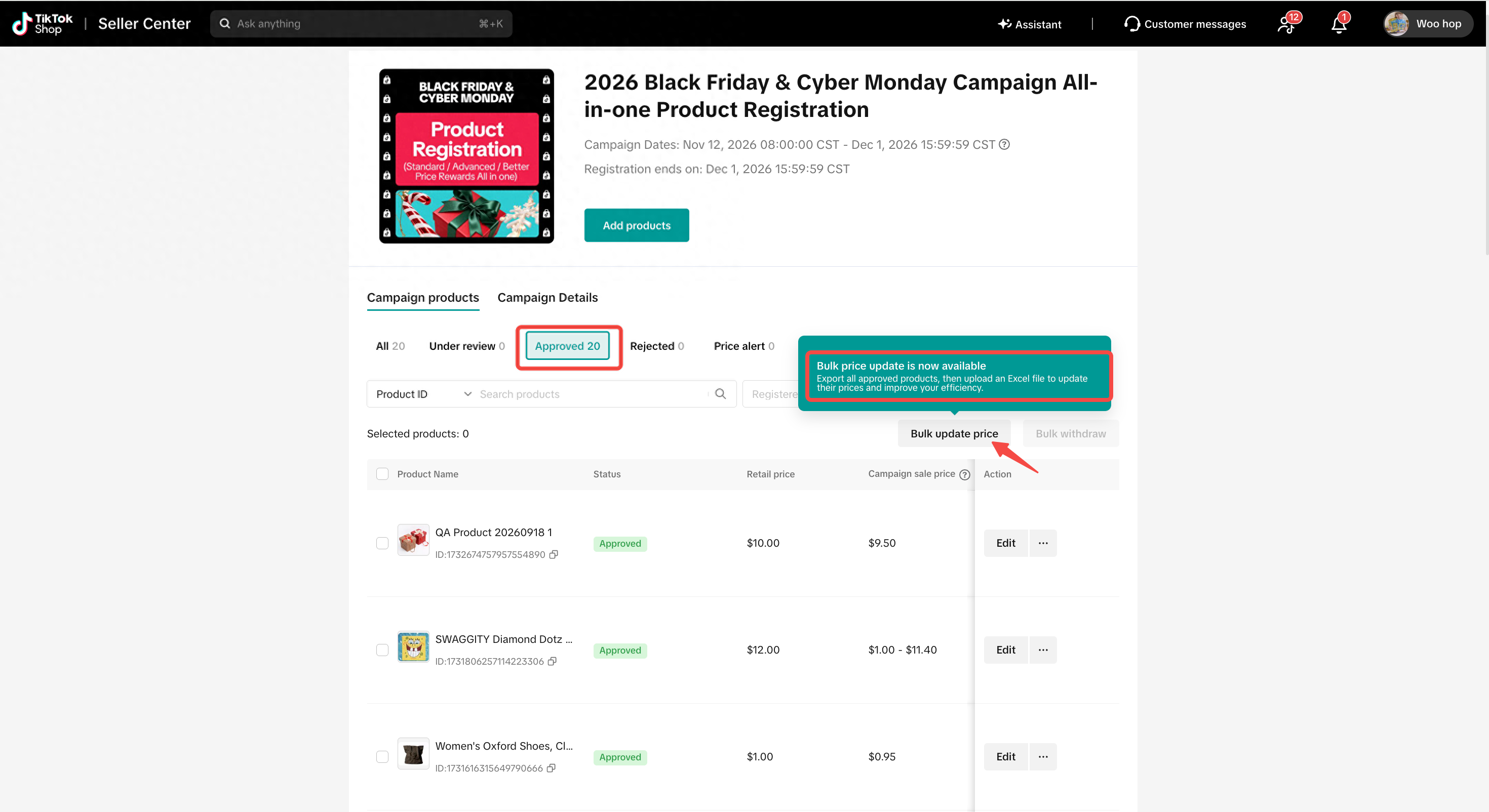
- Bulk update price New+
Note: Only approved product prices can be bulk updated.
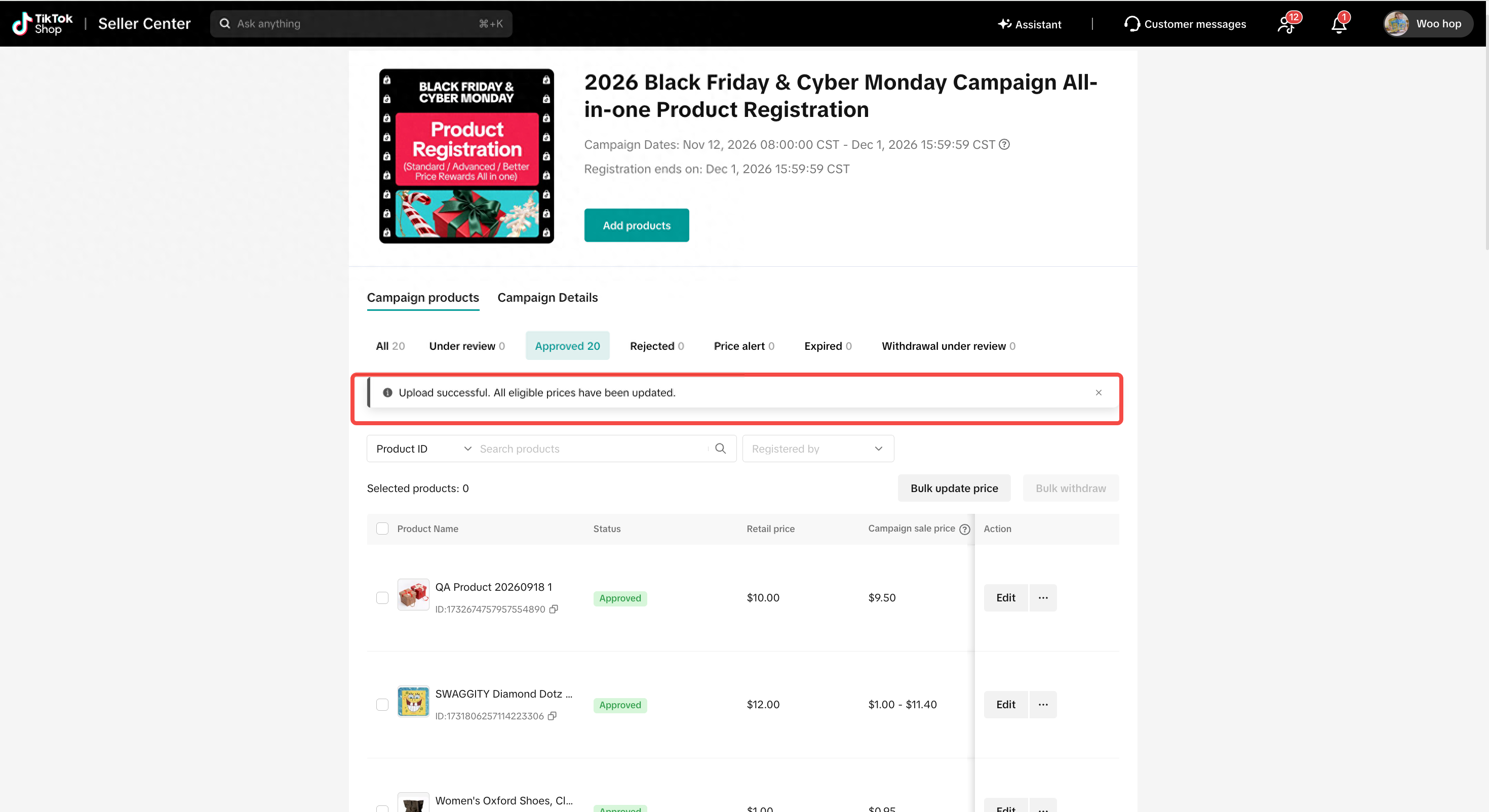
And you can see a note:Bulk price update is now available:Export all approved products, then update their prices and improve your efficiency.

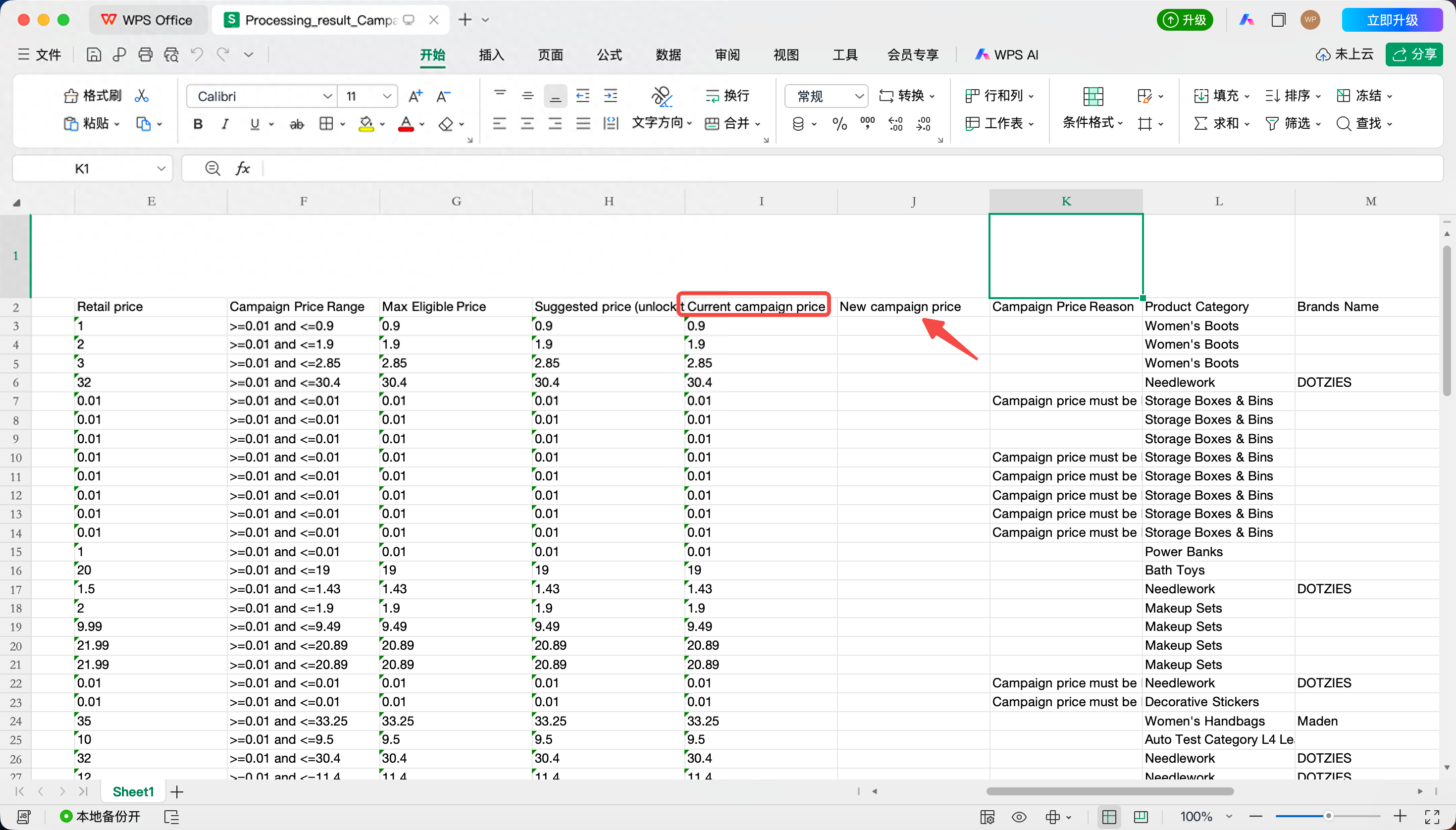
Note: this file will include all products approved so you can only update the ones you need to update their prices.
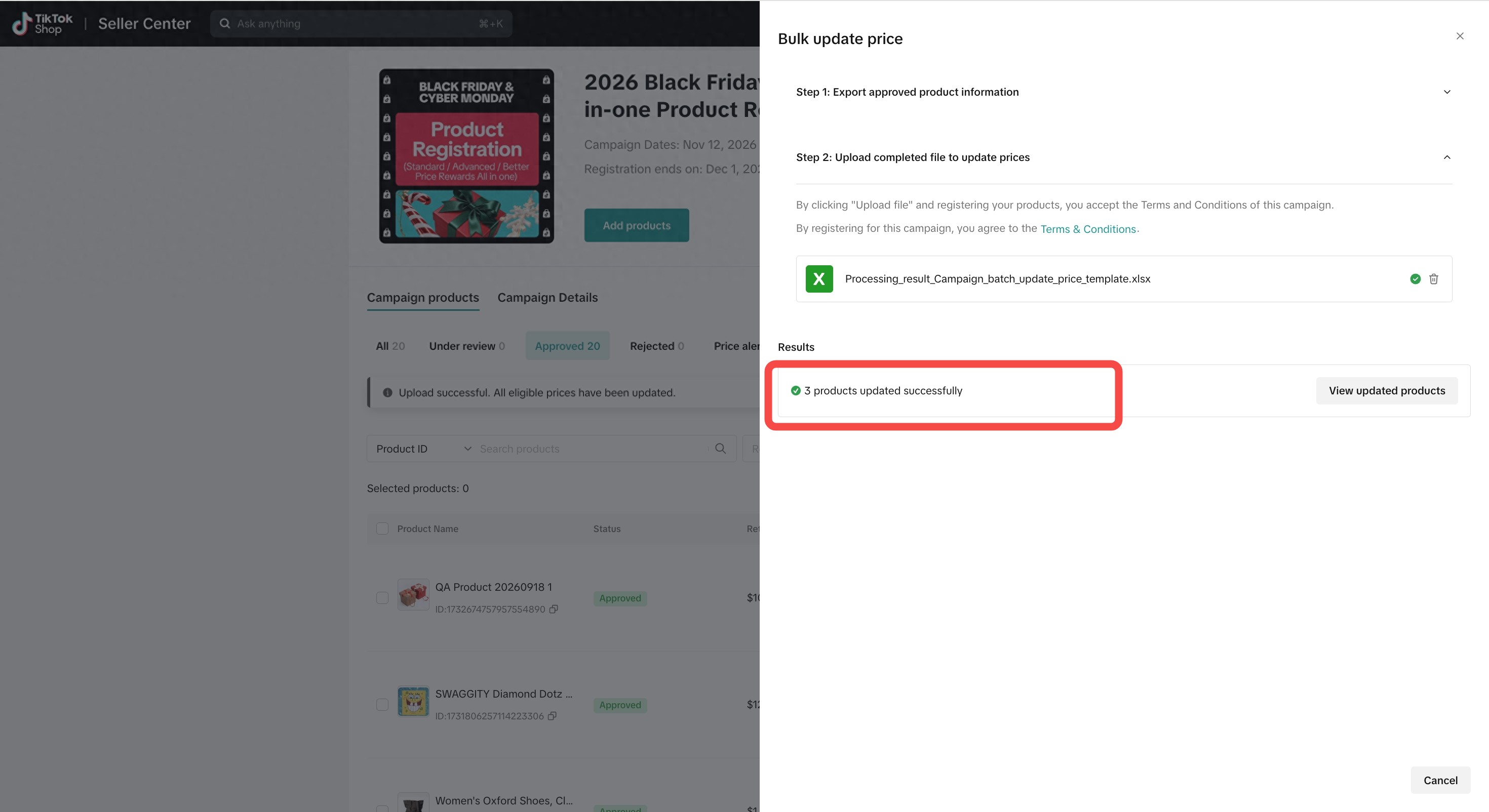
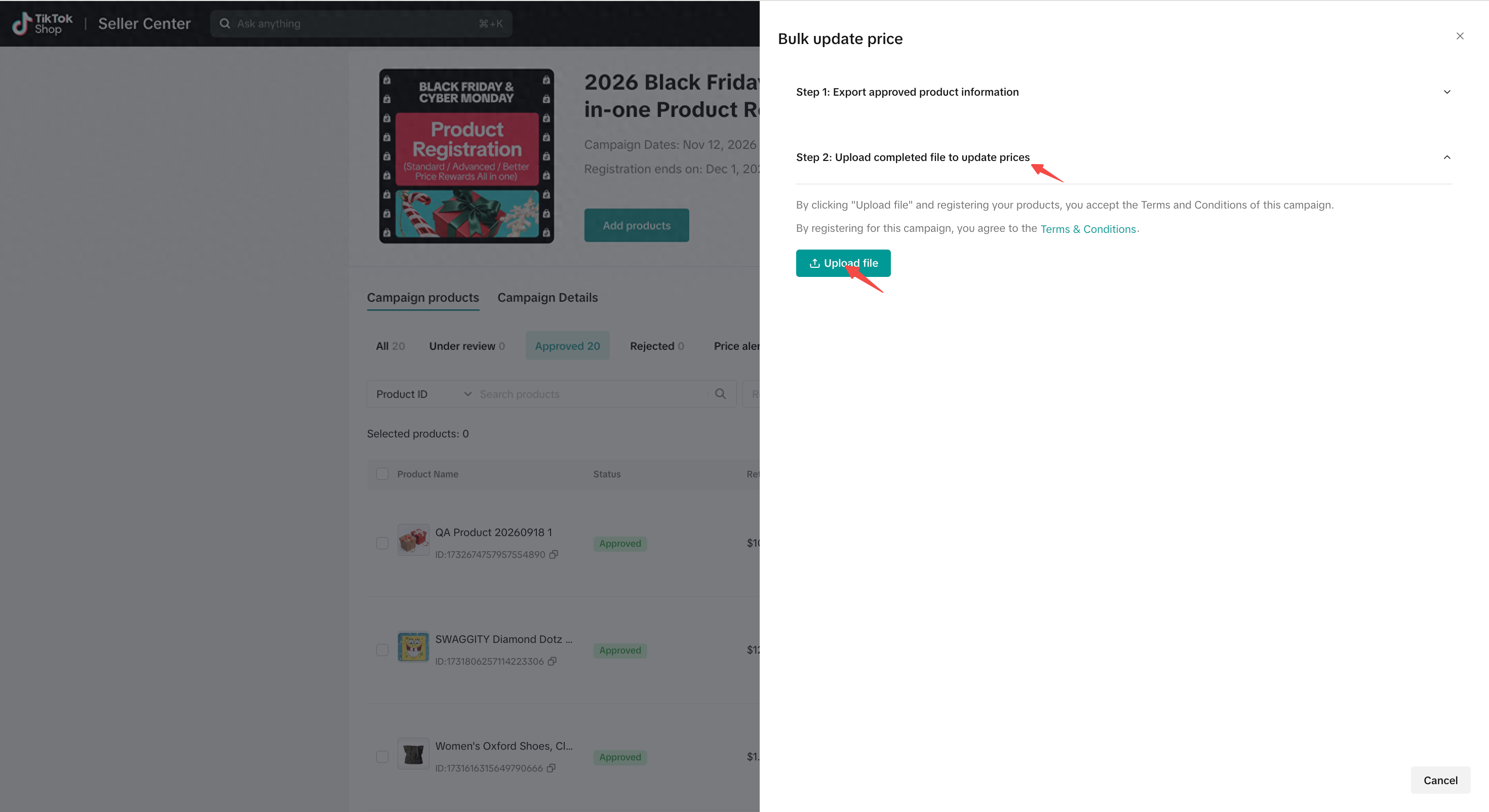 If the process of updating prices has been finished, you can see the results in the drawer and also can check it in product management page.
 Withdrawing from campaigns and discountsYou can withdraw at different levels depending on what you need:
- Withdraw a single product: Select the product you want to remove and use the withdraw feature.
- Withdraw from the entire campaign: Use the Bulk Withdraw feature to remove all of your products from the campaign at once.
- Withdraw from extra discounts only: Use the Withdraw Discount feature to remove products from the additional discount offer while keeping them in the campaign.

Step 8 : Review campaign performance
In Seller Center, go to Marketing → Campaigns → Manage Your Campaigns.On the Manage your campaigns tab, you can view the annual performance for all of your campaigns.To see a detailed breakdown for each campaign, click View data and it will redirect you to the analytics page

Step 9: How to resolve SKU errors
If you need to edit your product's retail prices or add, delete, or edit a SKU while it is registered to a campaign, you can do so in "Managed Products". Editing a SKU in "Managed Products" will disrupt the campaign sales price system and trigger a SKU error. This means your Product ID (PID) cannot participate in the campaign. To resolve this, you must withdraw the product and re-register it before the campaign deadline.The following edits are supported while your product is registered for a campaign:
- Retail price
- Deleting SKUs
- Adding SKUs
- Editing SKUs
If you add or remove a SKU variation in Manage Products, you will see an alert on the sub-campaign page that says "⚠️ Need to re-register". This means you must withdraw the PID and register it before the deadline. Click "Need to re-register".

A drawer will pop up with guidance to re-register your product. A message will state: "Changes to the SKU variation caused an issue with the campaign sale price. Re-register the product now!". Click "Re-register".

You will then be prompted to set a "Campaign sales price" (and possibly "Campaign reserved stock"). Click "Submit" to re-register. This will fix the SKU error.


Your product needs to be re-reviewed to participate in the campaign.

Step 10: TikTok Shop invited products
TikTok Shop may invite your products to join specific campaigns. When this happens, you’ll see a notification in the Recommendations section under Campaign tasks


Note: The template contains a maximum of 50,000 invited products that are still unregistered.

Campaign Fees Q&A
Q: What are campaign service fees?A: Campaign service fees are charges applied to eligible product campaigns. These fees are incurred for each order placed during the campaign period. You can find detailed information on the applicable fees and effective periods in the "Fee Policy" section of the campaign details page.Q: How is campaign service fee being calculated?A: The Service Fee Rate × (Campaign Gross Sales - Seller Discount + Customer-Paid Shipping Fee)
Example: Order with one product joining a campaign
| |
| Original item price | $100 |
| (–) Seller Discount | $10 |
| Seller Price after Seller Discount (effective during campaign) | $90 |
| Campaign Service Fee Rate | 1% |
| Campaign Service Fee = Fee Rate × (Seller Price after Seller Discount + Customer-Paid Shipping Fee) | 1%x ($90 + $5) = $0.95 |
Q: How can I check the earnings and fees for each order?A: You can view detailed information by navigating to Seller Center > Finance > Settled Records and then clicking "View details".
Q: Are campaign fees refundable if I withdraw from a campaign?A: No, campaign fees applied to orders placed before your withdrawal is approved are non-refundable. However, you will not be charged campaign fees for any orders placed after the withdrawal process is completed.
Q: What happens if a customer cancels or returns an order?A: In the event of an order cancellation or return, campaign fees for those specific orders will not be charged. If a fee has already been charged, it may be refunded depending on the specific campaign's refund policy.
Q: Will I be charged multiple times if a product is in several campaigns?A: No. If you participate in multiple campaigns that all have a service fee, the fee will only be charged once per order. The fee will be based on the campaign price of the applicable campaign.
Standard Registrations FAQs
Q: How is the cost of co-funded coupons with a percentage discount split?A: The cost is split based on the agreed-upon contribution ratio.Example: Contribution Ratio: 50% Seller, 50% Platform. Coupon Policy: 20% off on orders of $100 or more, with a maximum discount of $50.
Scenario 1: Discount Does Not Exceed the Maximum
Order Value: $100
Total Discount: $100 * 20% = $20
Your Contribution: $20 * 50% = $10
Platform's Contribution: $20 * 50% = $10
Scenario 2: Discount Exceeds the MaximumOrder Value: $300
Calculated Discount: $300 * 20% = $60
Applied Discount (Max): $50
Your Contribution: $50 * 50% = $25
Platform's Contribution: $50 * 50% = $25
Q: How can I check my contribution for co-funded coupons?A: You are not charged upfront. Your contribution is deducted from the final payout of an order. You can see a detailed breakdown of your contribution on the Order Details Page, where promotions are itemized into seller promotions and platform promotions. Your registered campaign price is also factored into this calculation.Example: Coupon: $10 off a $100 purchase. Contribution Ratio: 50% Seller, 50% Platform
Customer Pays: $100 - $10 (coupon) = $90
Your Payout: The platform receives $90 from the customer and pays you $95. The $5 difference from your full product price ($100) is your contribution to the discount.