

How to Use CRM
12/05/2025
Summary
What is TikTok Shop’s CRM tool and how can it help sellers improve customer engagement and sales?
- TikTok Shop’s free CRM tool enables sellers to send personalized marketing messages and promotions to targeted customer segments, helping re-engage lapsed customers, encourage repeat purchases, and convert abandoned carts into sales.
- It offers pre-built customer segments, message templates, and automation features like order confirmations and price drop reminders to streamline campaigns and boost shopper retention and loyalty.
How is access to the TikTok Shop CRM tool determined and what are the implications of different Shop Performance Score (SPS) levels?
- Access depends on the seller’s SPS: ≥4.5 grants advanced access (6-8 messages/week), 3.5–4.5 standard access (3-5 messages/week), 3–3.5 results in permission frozen (no new or edited plans but existing run), and <3 revokes access, suspending all CRM plans.
- If SPS recovers from below 3 to ≥3, paused CRM plans automatically resume, allowing sellers to continue campaigns without manual intervention.
What are the key steps for sellers to create and launch effective CRM messaging plans on TikTok Shop?
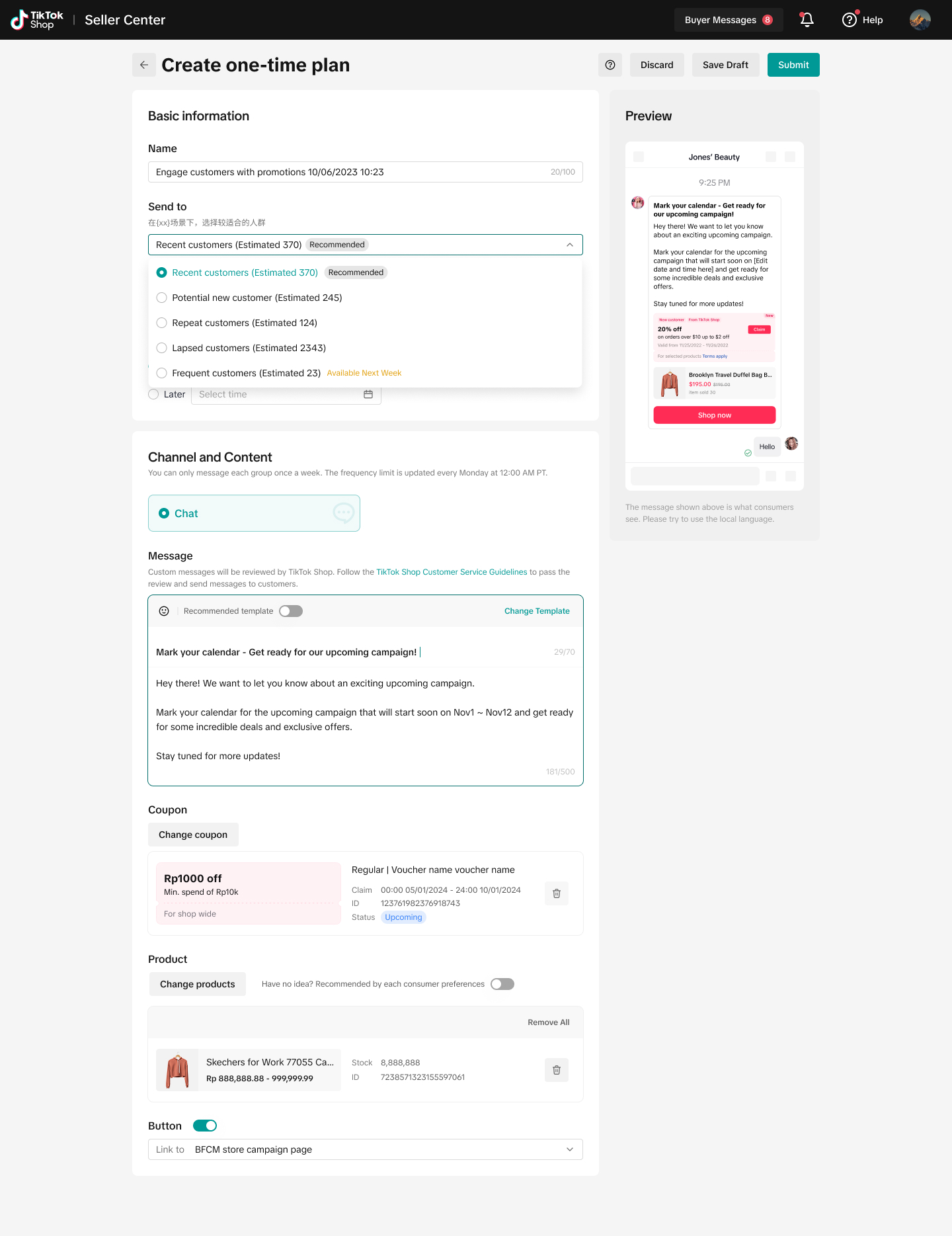
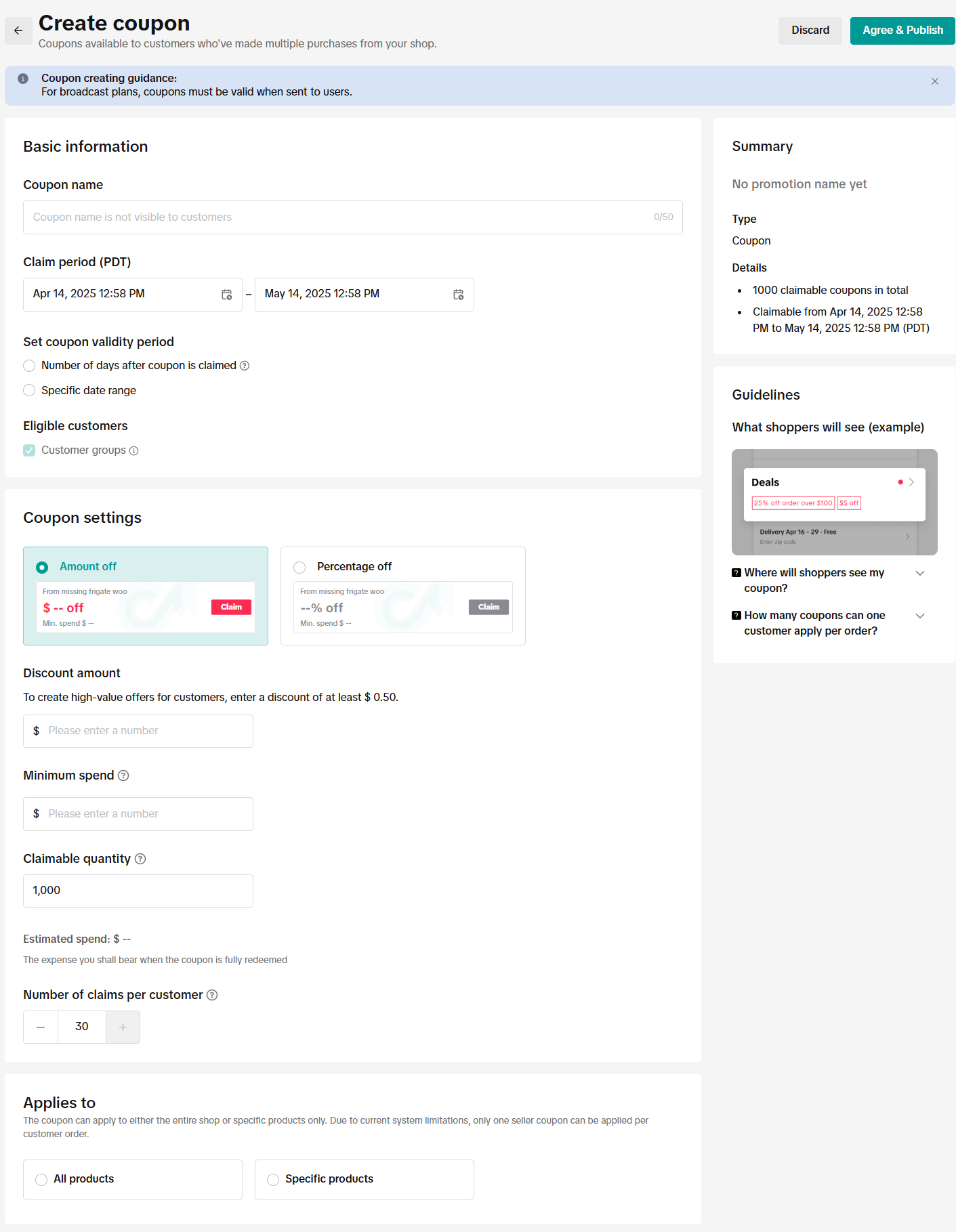
- Sellers choose between one-time or automated messaging plans, select campaign scenarios and customer segments (including custom segments), then configure message content, schedule, and optionally add coupons linked to up to 4 products.
- After previewing the message, sellers submit to activate or save drafts; performance metrics like GMV, orders, and read rates are tracked via the Data Overview dashboard to optimize future campaigns.
What types of customer segments can sellers target using TikTok Shop’s CRM tool, and how can custom segments be created?
- Predefined segments include recent, repeat, frequent, lapsed customers, potential new customers, followers, abandoned cart, and incomplete checkout shoppers.
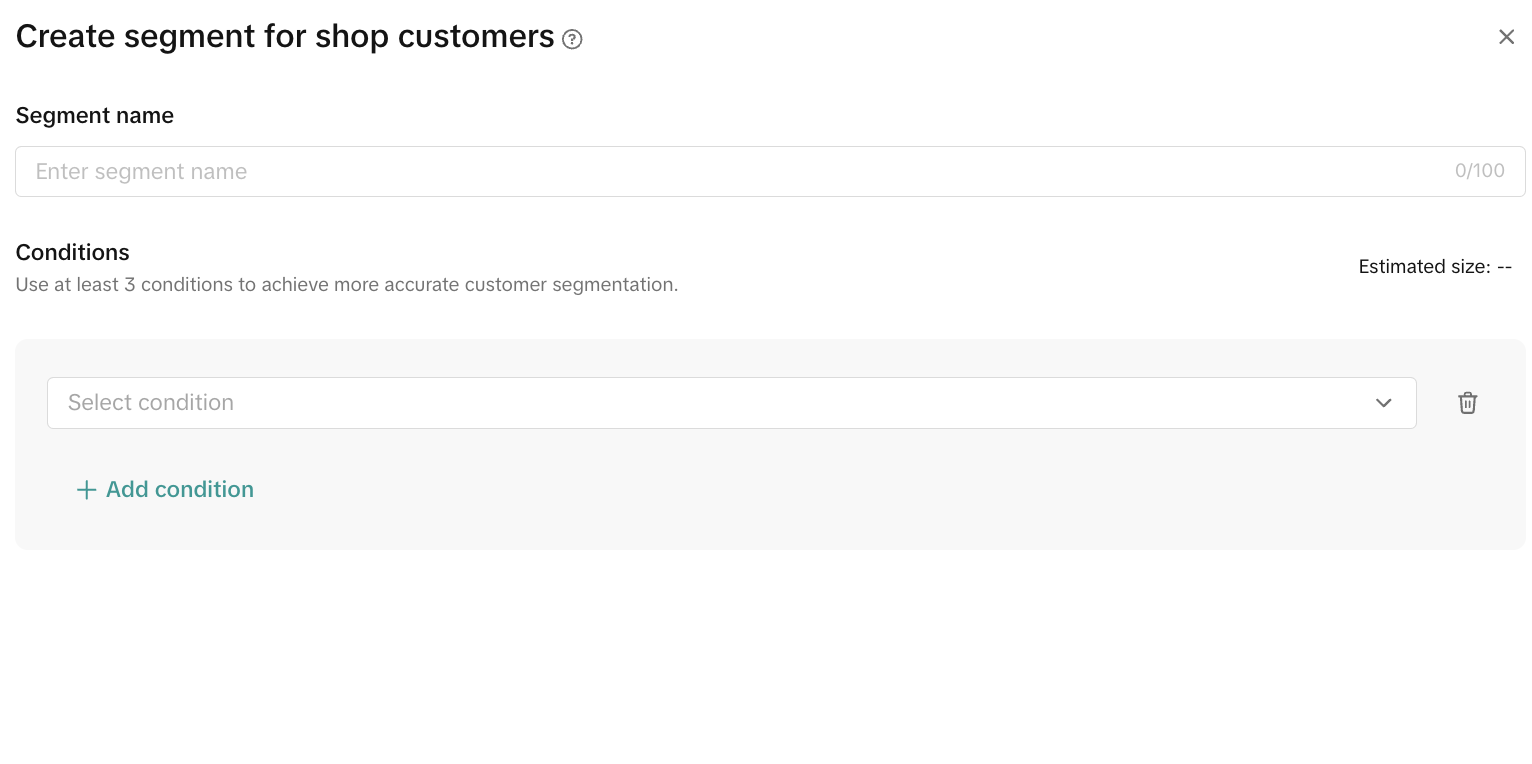
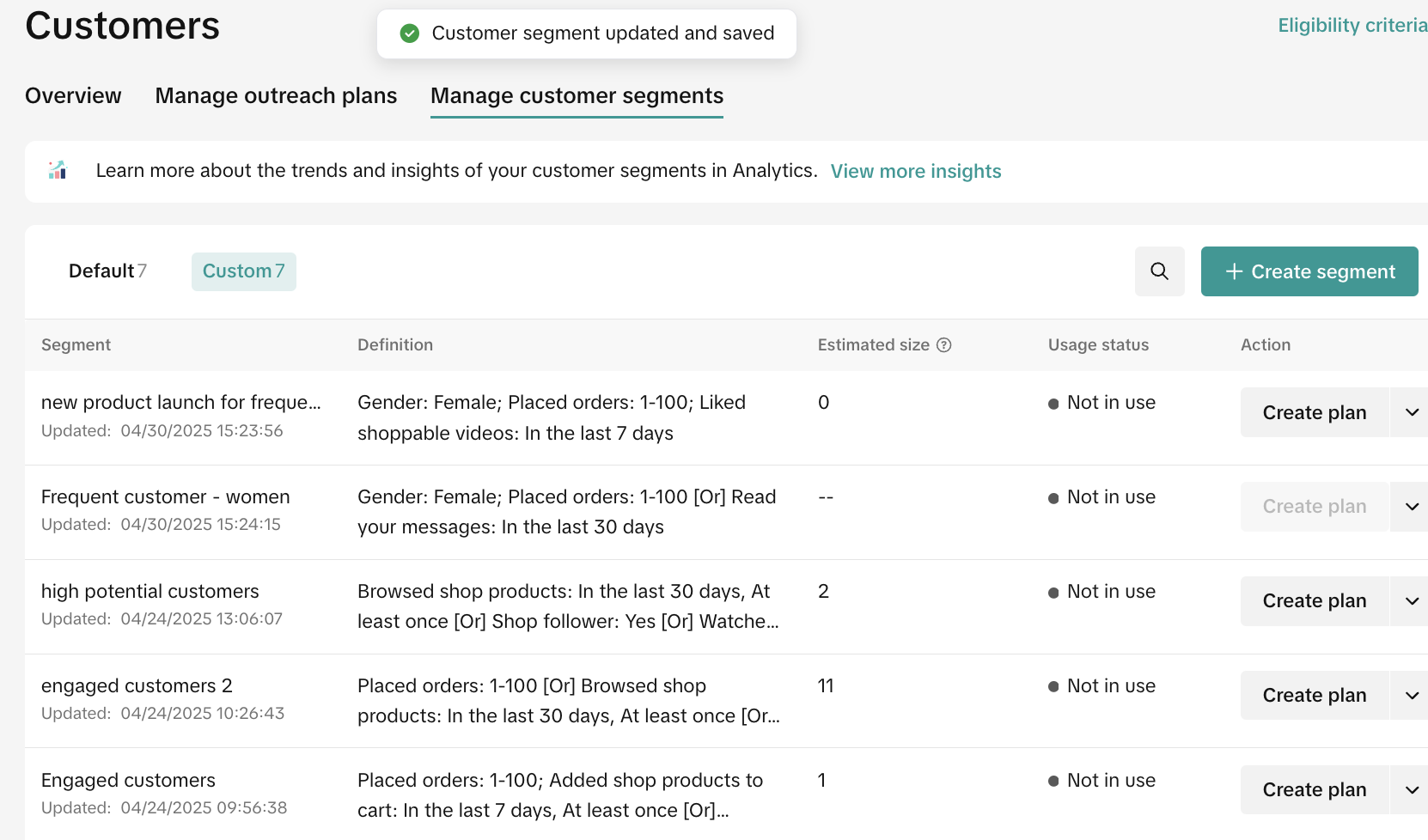
- Sellers can create custom segments by selecting at least three conditions from demographics, purchasing behavior, or engagement attributes under Manage Customer Segments, enabling highly tailored marketing efforts.
What limitations and best practices should sellers be aware of when using TikTok Shop’s CRM messaging feature?
- Sellers can send only one message per week to the same customer but can send up to three different messages daily from different sellers; plans can only be edited while in draft status.
- Private and targeted coupons created within CRM plans are exclusive to specified customers and not publicly visible, enhancing personalized promotions without public exposure.
Feature Overview
TikTok Shop's Customer Relationship Management (CRM) tool is a free, easy-to-use feature that helps you build stronger relationships with your customers through personalized marketing messages and promotions. Whether you want to re-engage lapsed customers, encourage repeat purchases, or convert abandoned carts into sales, CRM makes it easy.- Increase sales with targeted messages: Drive engagement and conversion by sending personalized messages based on shopper behavior, such as repeat purchases and abandoned carts.
- Launch campaigns fast and for free: Use pre-built customer segments and ready-to-use message templates, and automate repetitive tasks like order confirmations and price drop reminders.
- Improve shopper retention and loyalty: By delivering timely and relevant messages, you can build strong customer relationships and drive repeat business.

How to Access This Feature
Eligibility Criteria:
Access to CRM is based on your Shop Performance Score (SPS). Access levels and quotas are recalculated daily, based on your latest SPS score.- ✅ SPS ≥ 4.5 → Advanced access (quota = 6-8 messages/week)
- ✅ 3.5 ≤ SPS < 4.5 → Standard access (quota = 3-5 messages/week)
- 🟡 3 ≤ SPS < 3.5 → Permission Frozen (previously active plans will not be affected)
- 🔴 SPS < 3 → Access revoked
You'll see a badge and tooltip at the top of the Customers page in Seller Center, showing whether your access is Ineligible, Standard, or Advanced.
Standard Access Update
Permission FrozenTrigger: When SPS falls within the range of 3 ≤ SPS < 3.5Status behavior: In this state, you are temporarily restricted from creating new CRM plans or editing existing ones. However, previously active plans will continue to run without disruption.
Access RevokeTrigger: When SPS < 3
Status behavior: In this state, your access to CRM will be revoked. All created CRM plans will be suspended from sending to ensure system stability and prevent execution under abnormal conditions.
Automatic Plan RestartTrigger: When SPS increases from <3 to ≥3
Status behavior: The CRM plans that were previously paused due to the access revoke state will automatically resume, allowing you to seamlessly continue your marketing campaigns once system stability is restored.
Accessing the CRM Tool:
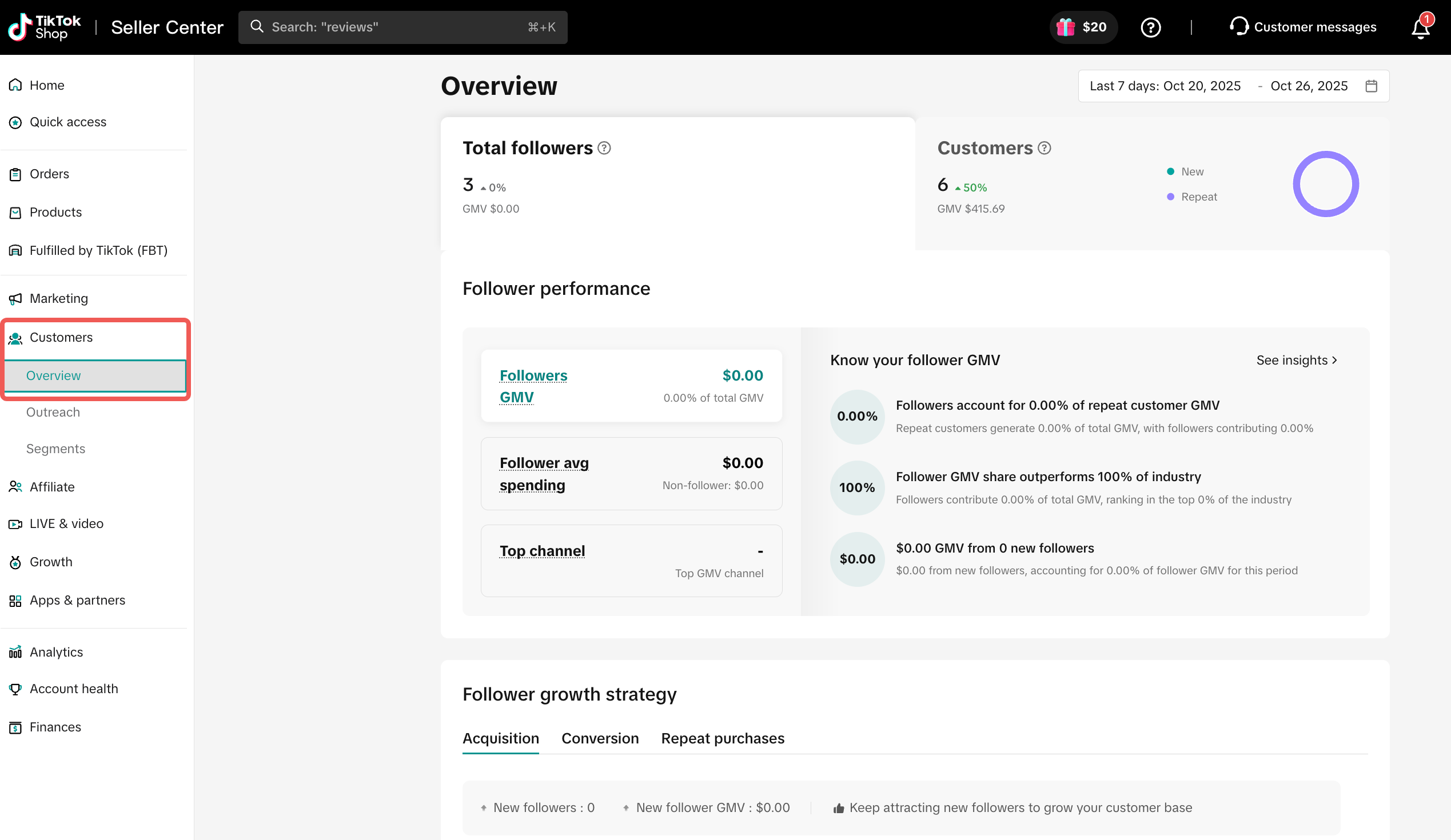
- Log in to Seller Center.
- Navigate to Customers on the left-hand menu.

How it Works
- Step 1: Choose a messaging plan. The CRM tool offers two types of messaging plans:
| Option 1: One-Time Plan | Option 2: Automated Plan |
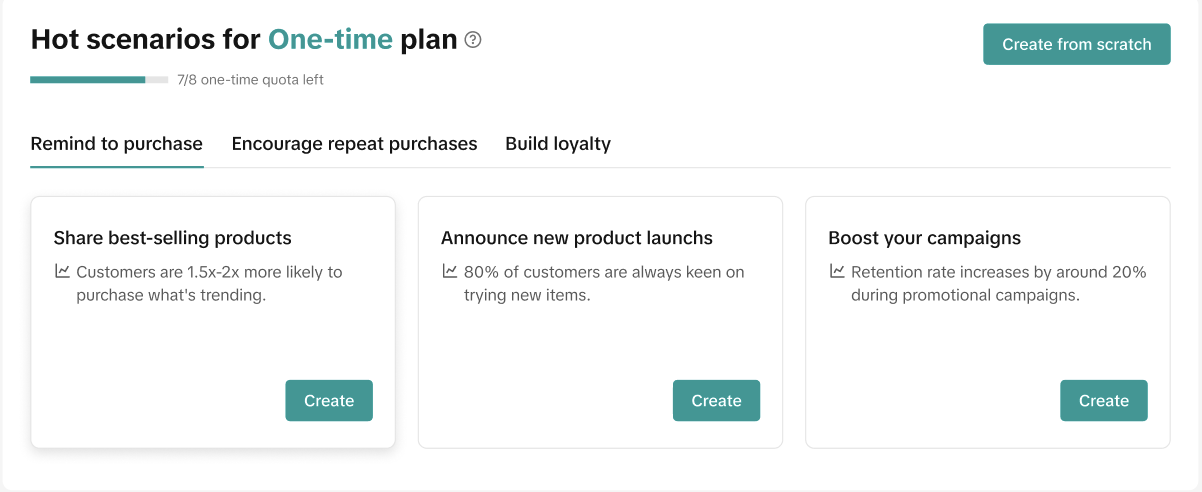 | 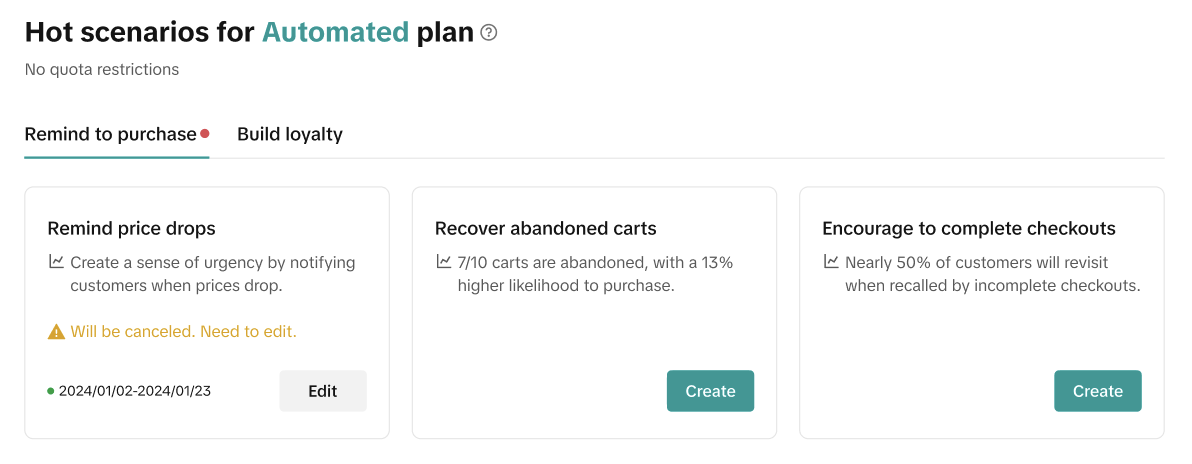 |
| Manual plans allow you to send one-time or scheduled messages to specific customer segments. These plans are great for sending promotions, announcing new product launches, or offering special discounts to reengage lapsed customers. | Automated plans allow you to send messages automatically based on specific customer actions, such as abandoned carts or incomplete checkouts. These plans are best for maintaining consistent and timely engagement with customers. |
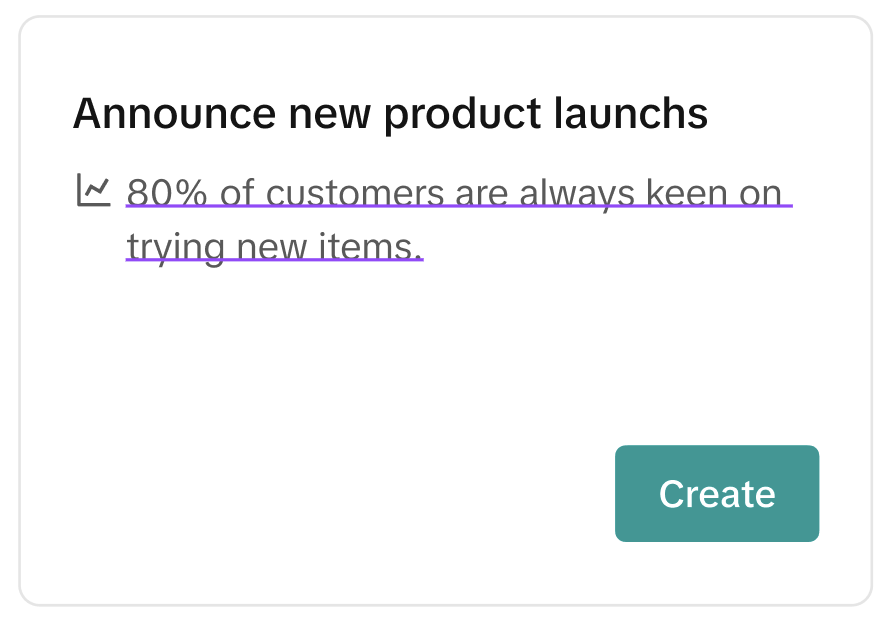
- Step 2: Choose a scenario. Pick a tactic that fits with your campaign goals, then click Create plan.
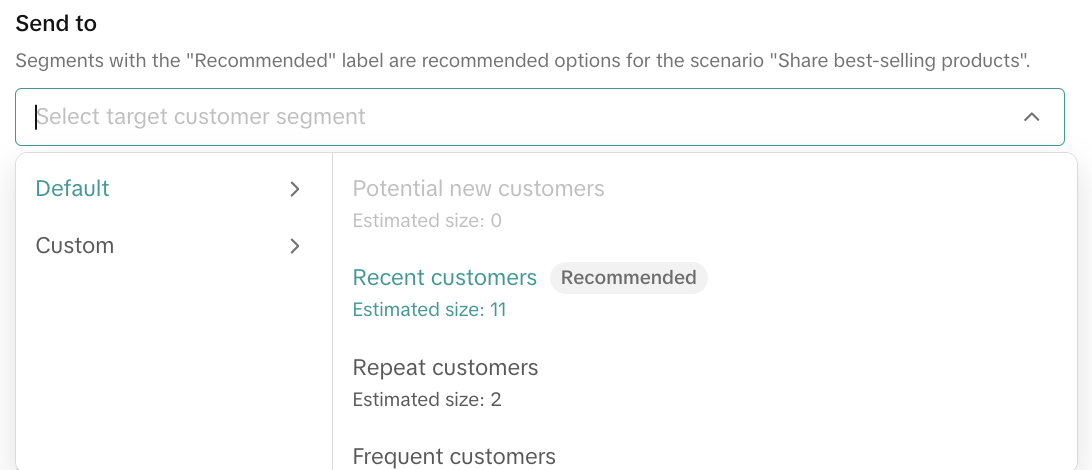
- Step 3: Select a customer segment. Choose a customer segment that aligns with your campaign goals.
 |
|
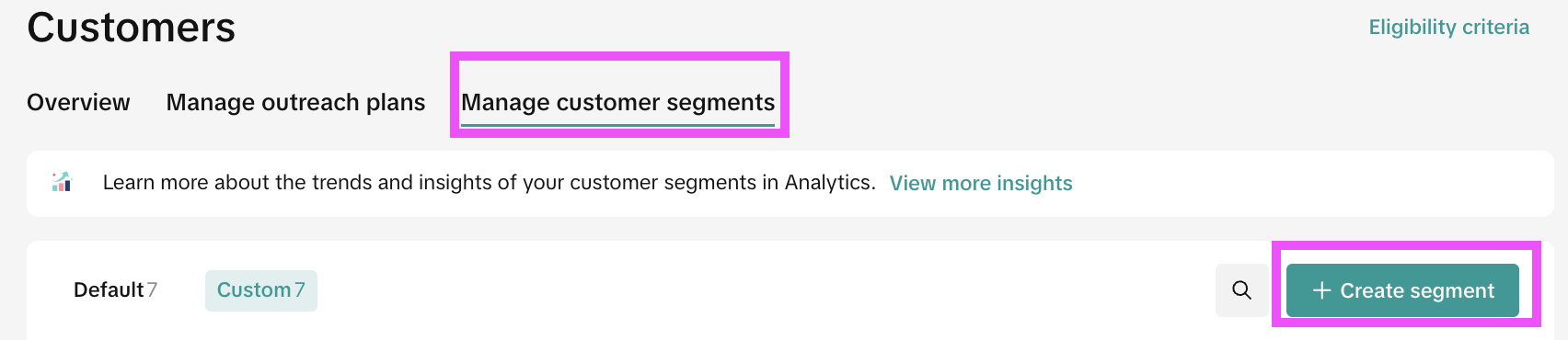 | You can also select the custom customer segments you’ve created. To create your own custom customer group, follow these steps:
|
 |
|
 |
|
- Step 4: Configure a messaging plan. On the Create plan page, you can configure every aspect of your messaging plan.
 |
|
 |
|

- Step 5: Preview and launch your plan. Once you're done creating your plan, use the Preview feature to ensure the message is visually appealing. Once you're satisfied, click Submit to activate the plan or Save draft if you need more time to finalize it.
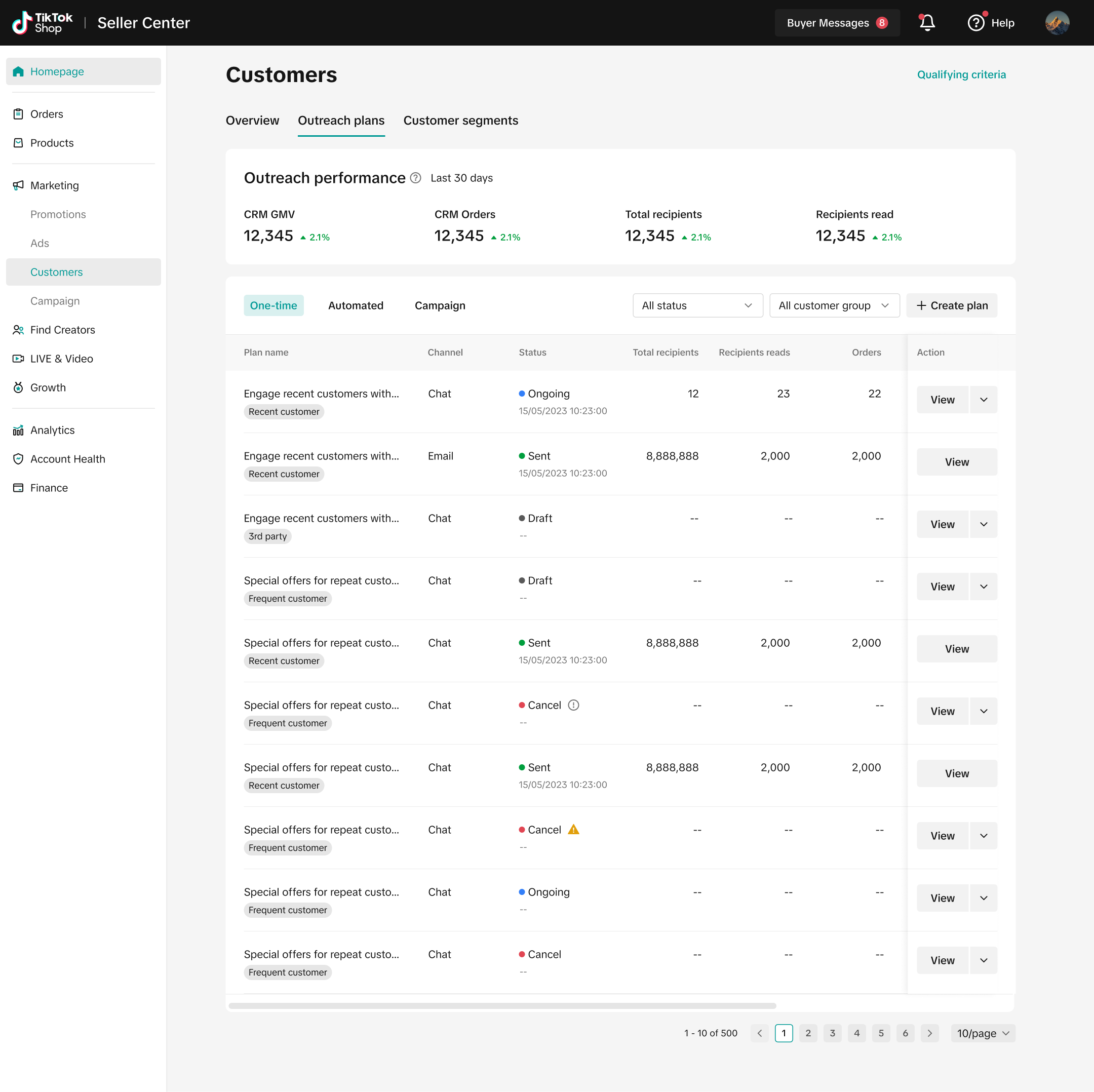
- Step 6: Analyze performance. Use the Data overview section at the top to monitor key metrics, including GMV generated from the CRM tool, orders resulting from CRM messages, and total recipients and read rates to measure engagement. Follow insights from the Recommendations section to continuously improve your strategy and future messaging plans.

Frequently Asked Questions (FAQs)
| Question | Answer |
Who can access the CRM tool? | The CRM tool is accessible to the main account owner, as well as sub-accounts with the roles of Main Administrator, Advertising Manager, or Marketing Specialist. |
| Can I create custom customer groups? | You can now create your own customer groups by following these steps:
|
| How many products can I include in a message? | You can include up to four products in each CRM message. |
| Can I edit a plan after submission? | You can only edit drafts. For sent or scheduled plans, you may view details, duplicate, or cancel them if necessary. |
| How many messages can I send to a single customer? |
|
| What happens if I lose access to the CRM tool? | If your CRM access is revoked due to not meeting the eligibility criteria, Auto Plans will be deleted. Once you regain access, you must recreate these plans. |
| How can I track the performance of my CRM plans? | Use the Data Overview Dashboard in the Customer Management section to see metrics like GMV, orders, and read rates. |
Need Help?
- Contact your Account Manager: If you have an Account Manager, reach out to them directly for personalized support.