Access Management on Seller Center
As a shop owner, you can add sub-accounts for your employees to help manage and operate your TikTok Shop. In this feature guide you will learn how to add sub-accounts and manage their role & permissions in Seller Center.
You can add shop sub-accounts and assign your staff different roles with unique permissions for them to complete daily operations, like managing products or tracking orders. TikTok Shop provides default roles with preset permissions for easier management.
You can also create and customize your own roles and set their permissions according to your needs.

Please note: You can only see this feature when and only when you use the same business license to open multiple stores.
The sub-account will have all the permissions under the roles assigned.
For example, a sub-account with the role Customer Service Agent may find that they suddenly lose the permission to edit products/orders. You can ask the account owner to add other roles with permissions to the sub-account. The account owner can also create a new role and assign it to the sub-account.
You can add shop sub-accounts and assign your staff different roles with unique permissions for them to complete daily operations, like managing products or tracking orders. TikTok Shop provides default roles with preset permissions for easier management.
You can also create and customize your own roles and set their permissions according to your needs.
Add Users as Sub-Account
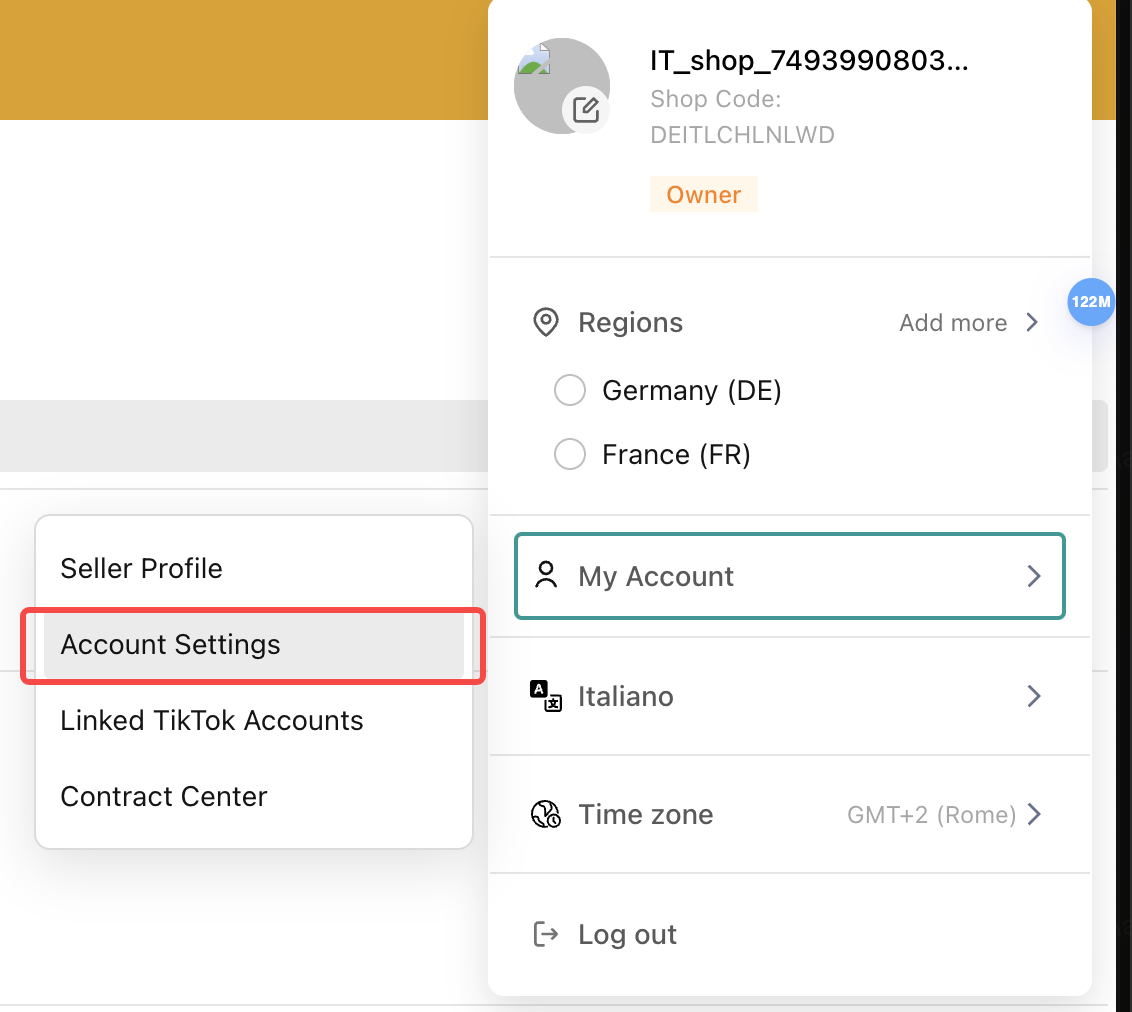
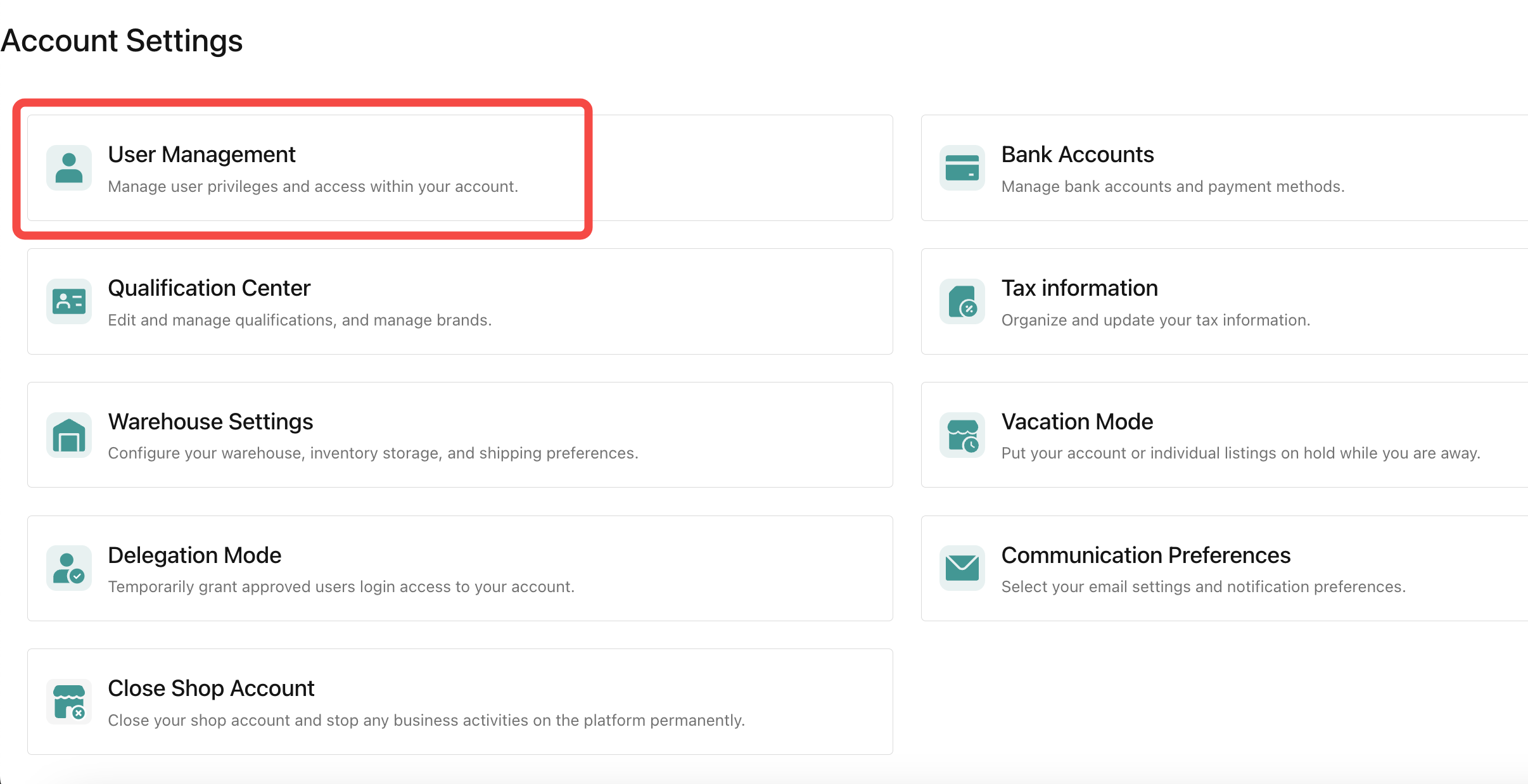
- Go to My Account > Account Settings > User Management in Seller Centre.
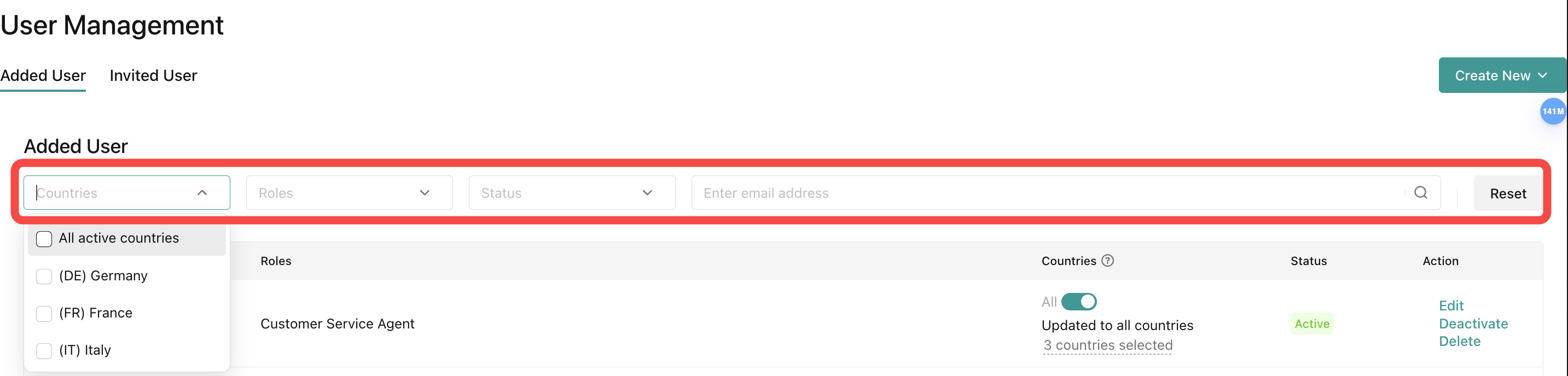
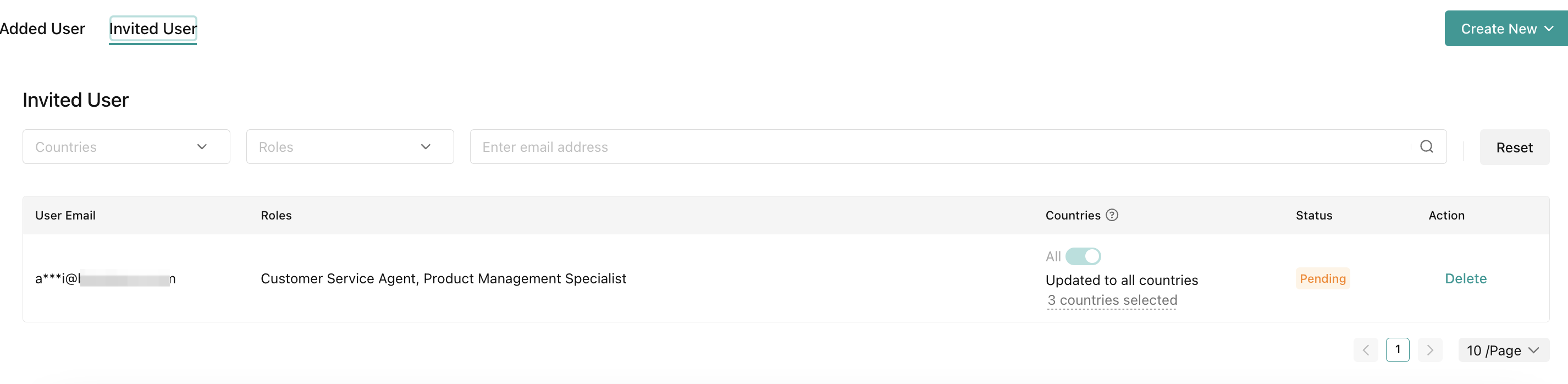
- You can search for users that you have added through the filter bar on the top. It can be based on countries, roles, status, and email address.
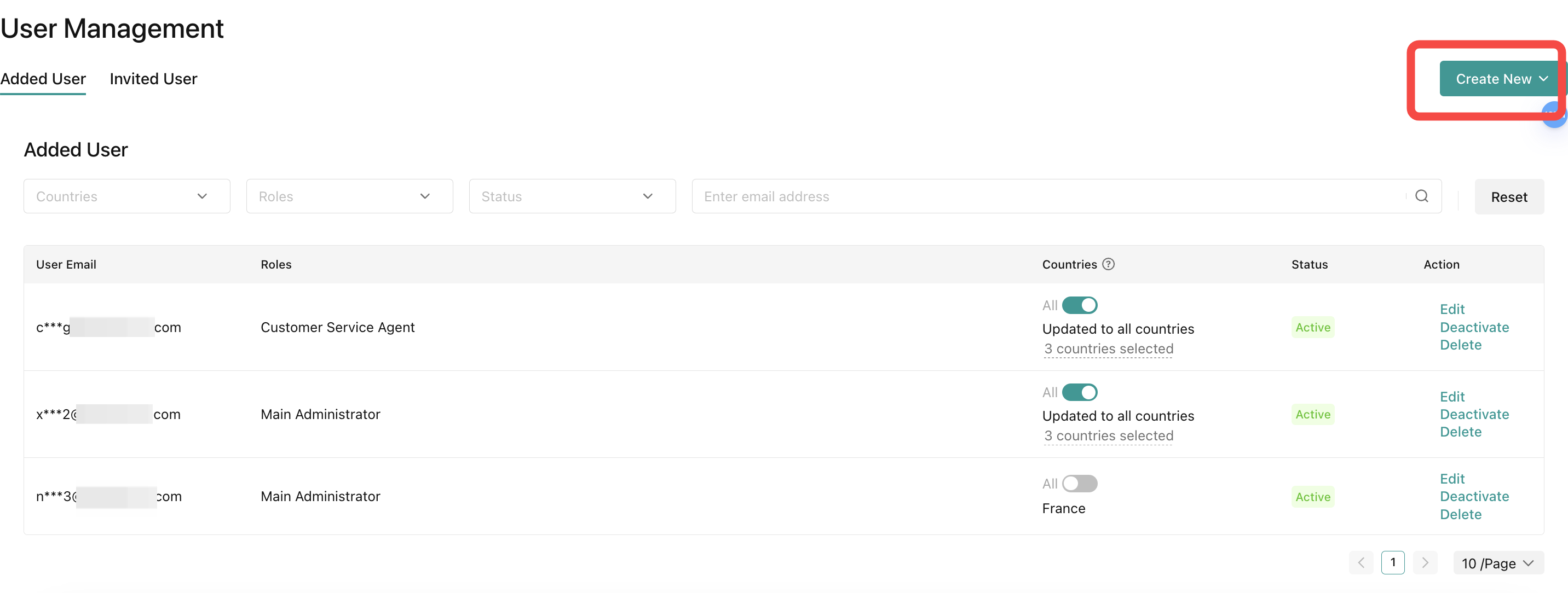
- Click Create New
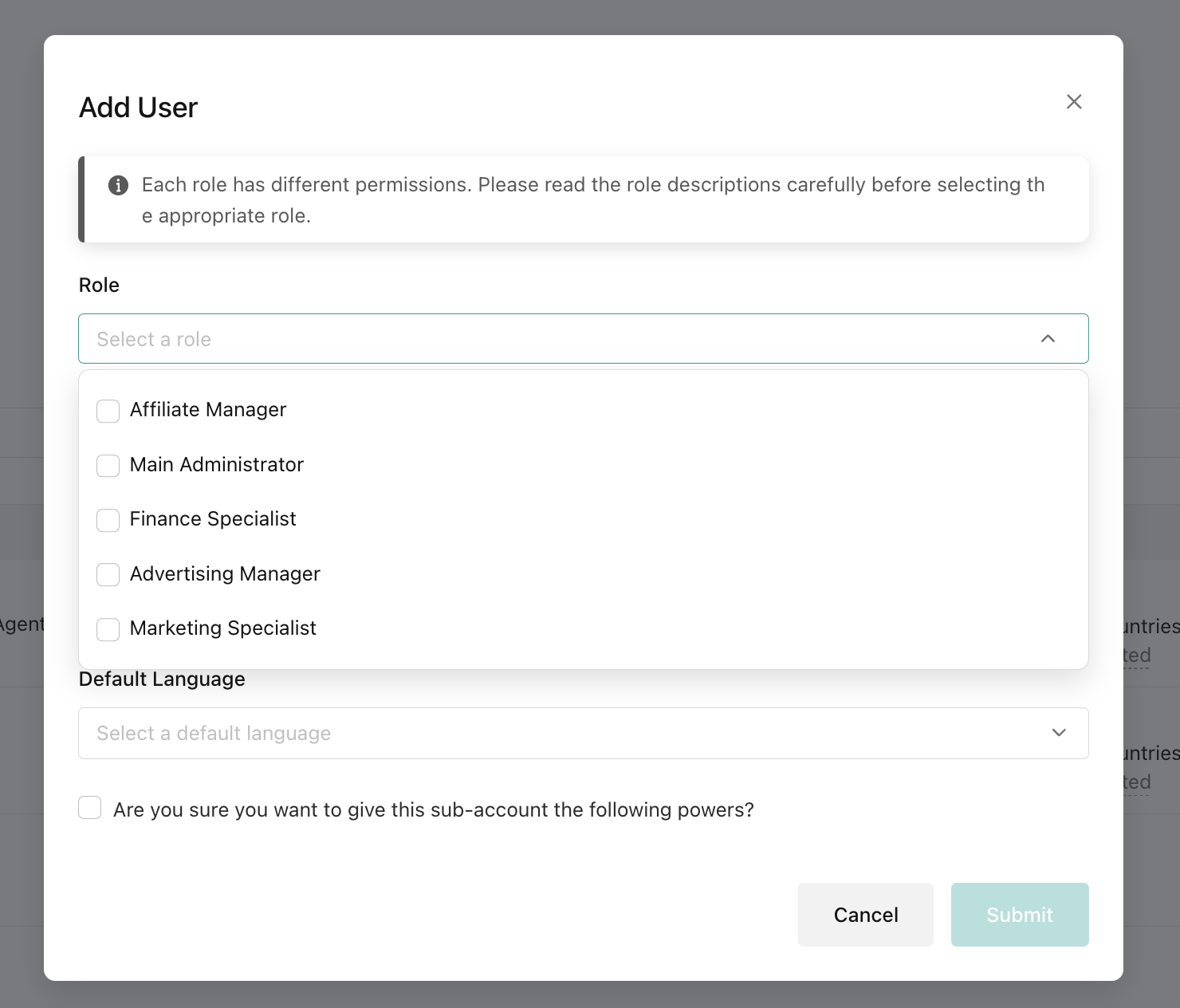
- Choose role for user that you want to add
- Choose operating countries, whether the sub account that you want to add should have access to all countries or only a specific country. (This applies only for multi-region shops)
- Type the email address of the new user you want to add
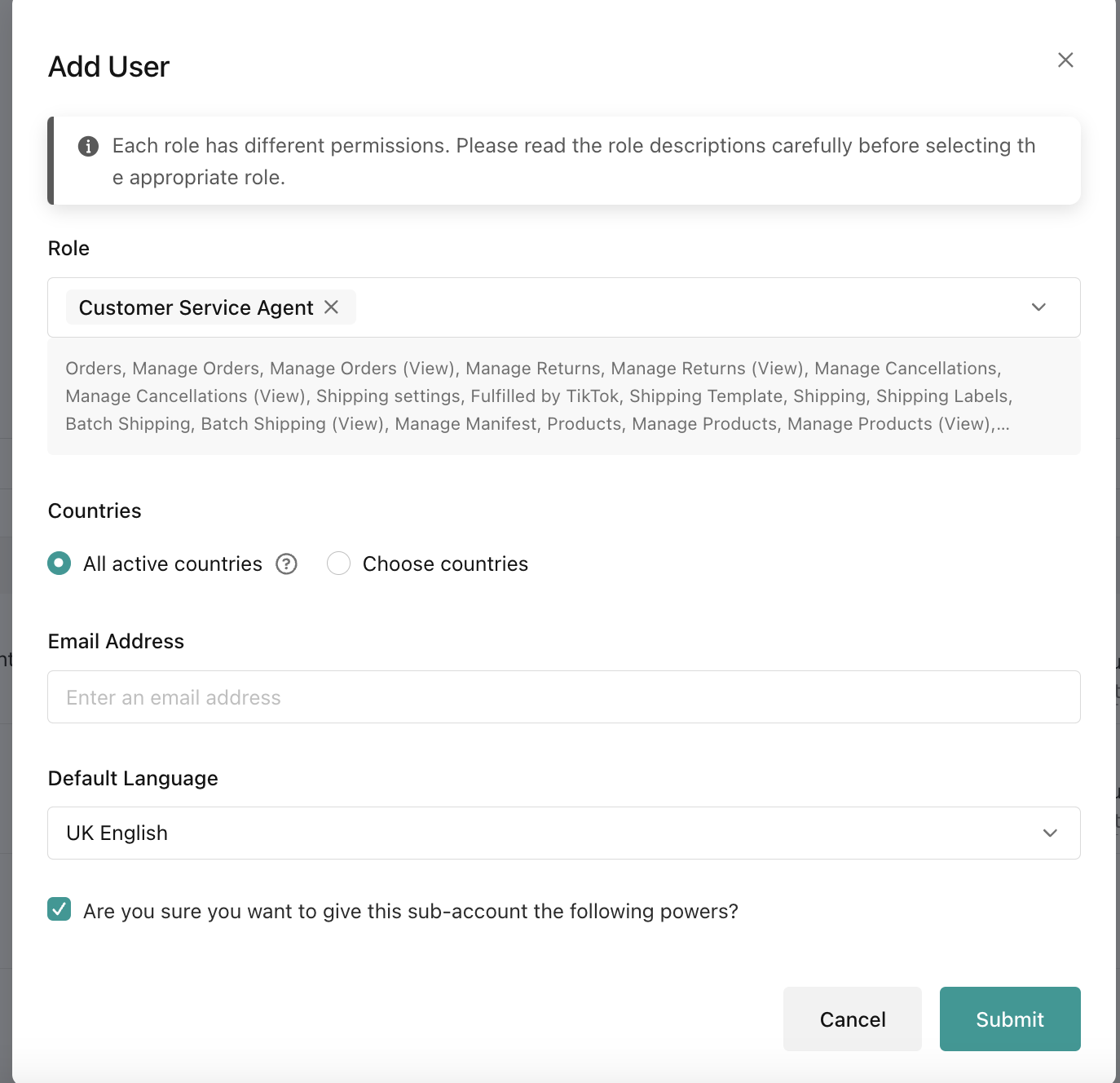
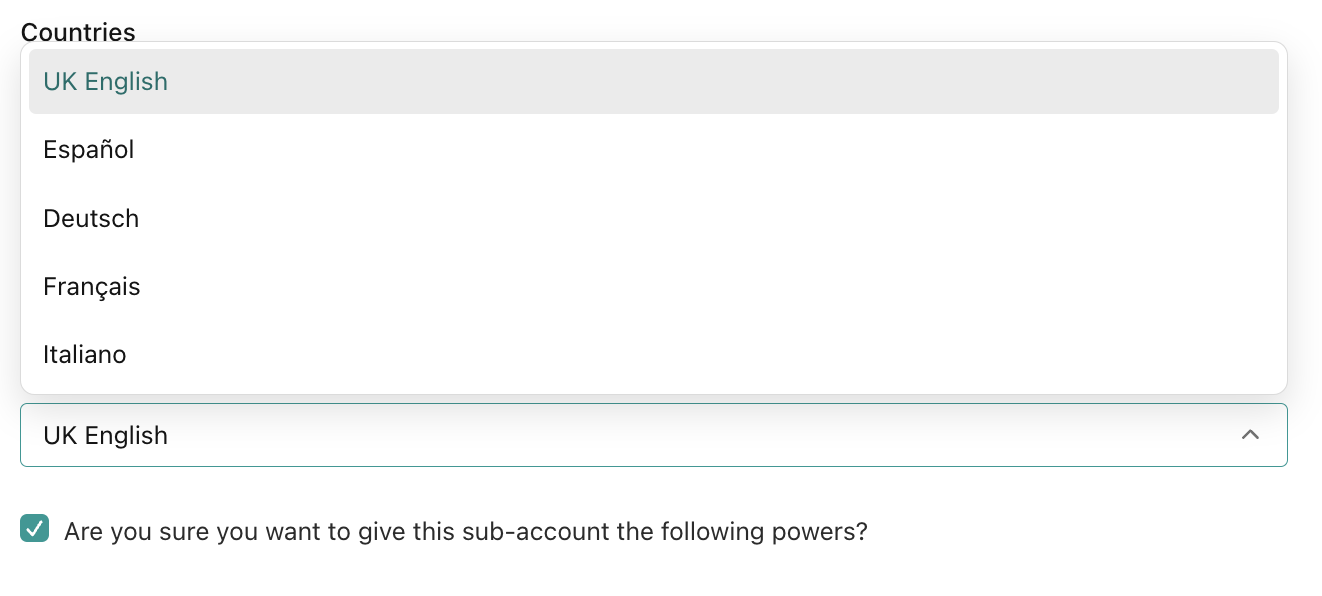
- Choose the default language then click submit.
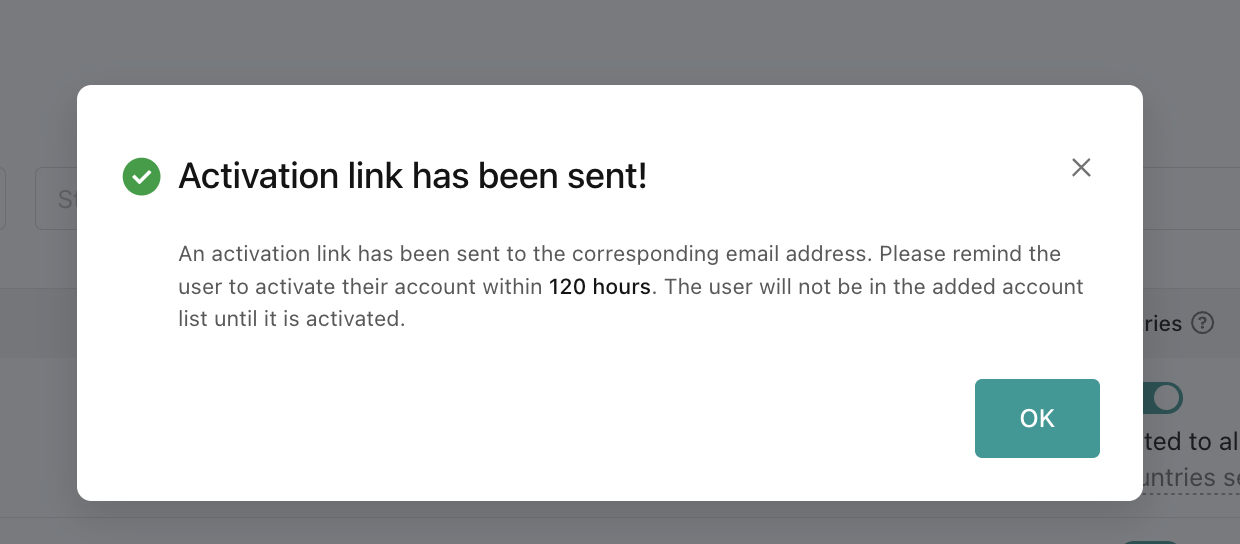
- Verification notification will pop up and tell that the system has sent an activation email to the corresponding email address. The user needs to activate their account within 120 hours and can only access the seller center account after they activate their account.
- If you go back to the User Management page, you can see the user that you have just added and their activation status.
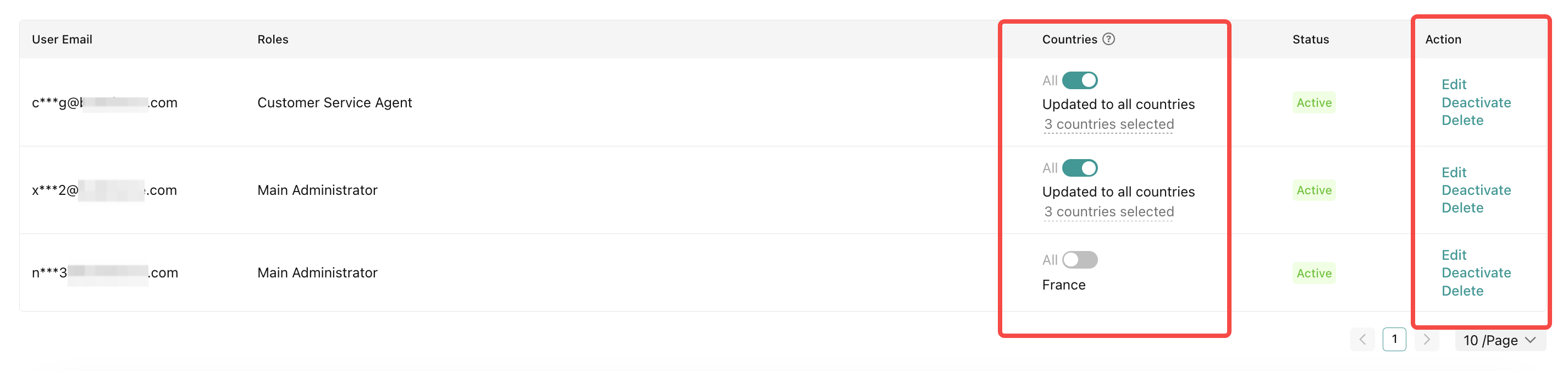
- You will also be able to edit users' roles anytime after their account is active.

Account Binding
Overview
Allows you to bind multiple seller accounts sharing the same business license so that you can manage multiple stores on one platform.Please note: You can only see this feature when and only when you use the same business license to open multiple stores.
- 1.1 Entry Point:
- Go to Account Settings (at the avatar or name) at the top of the page -> User Management.
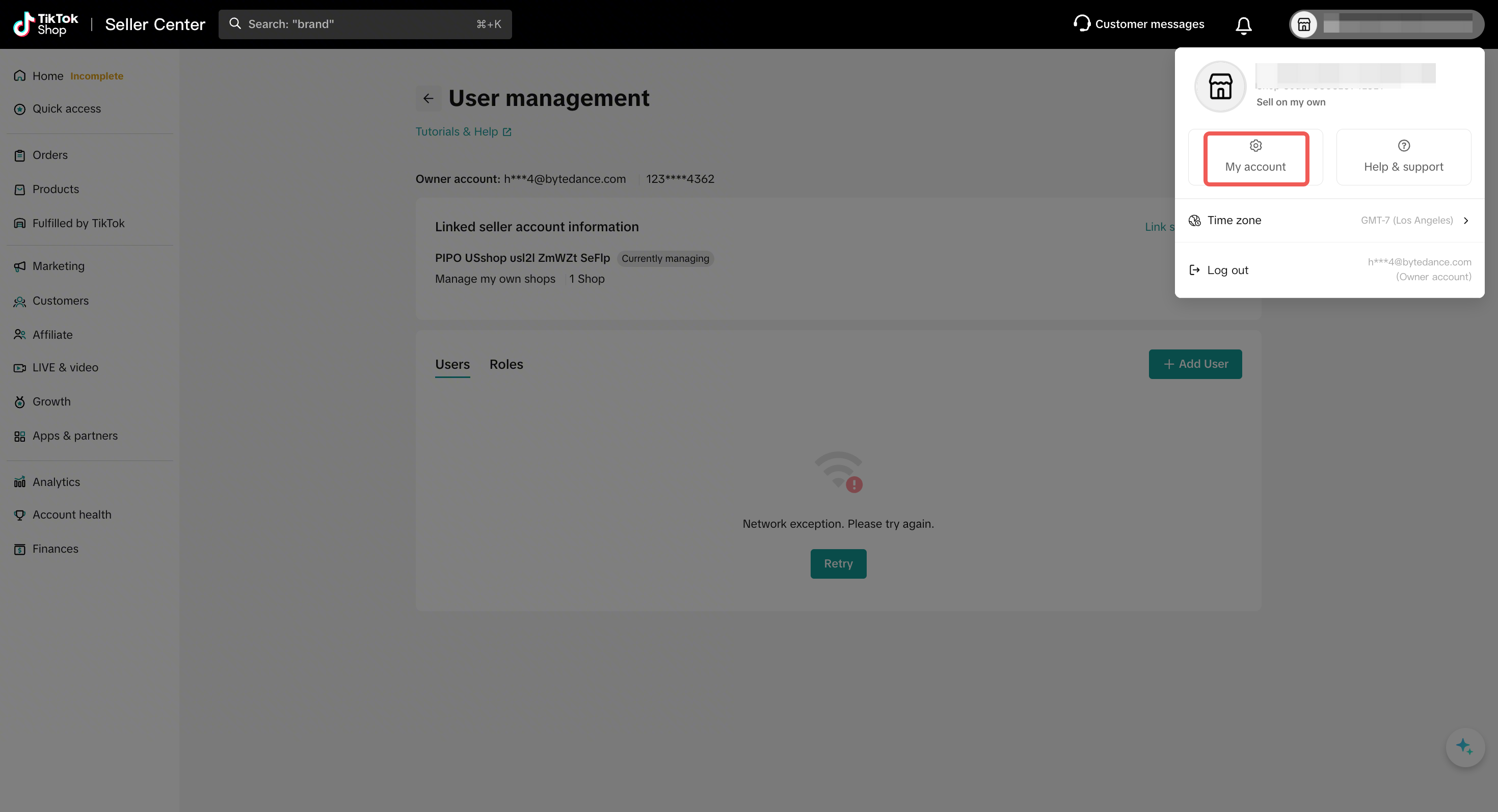
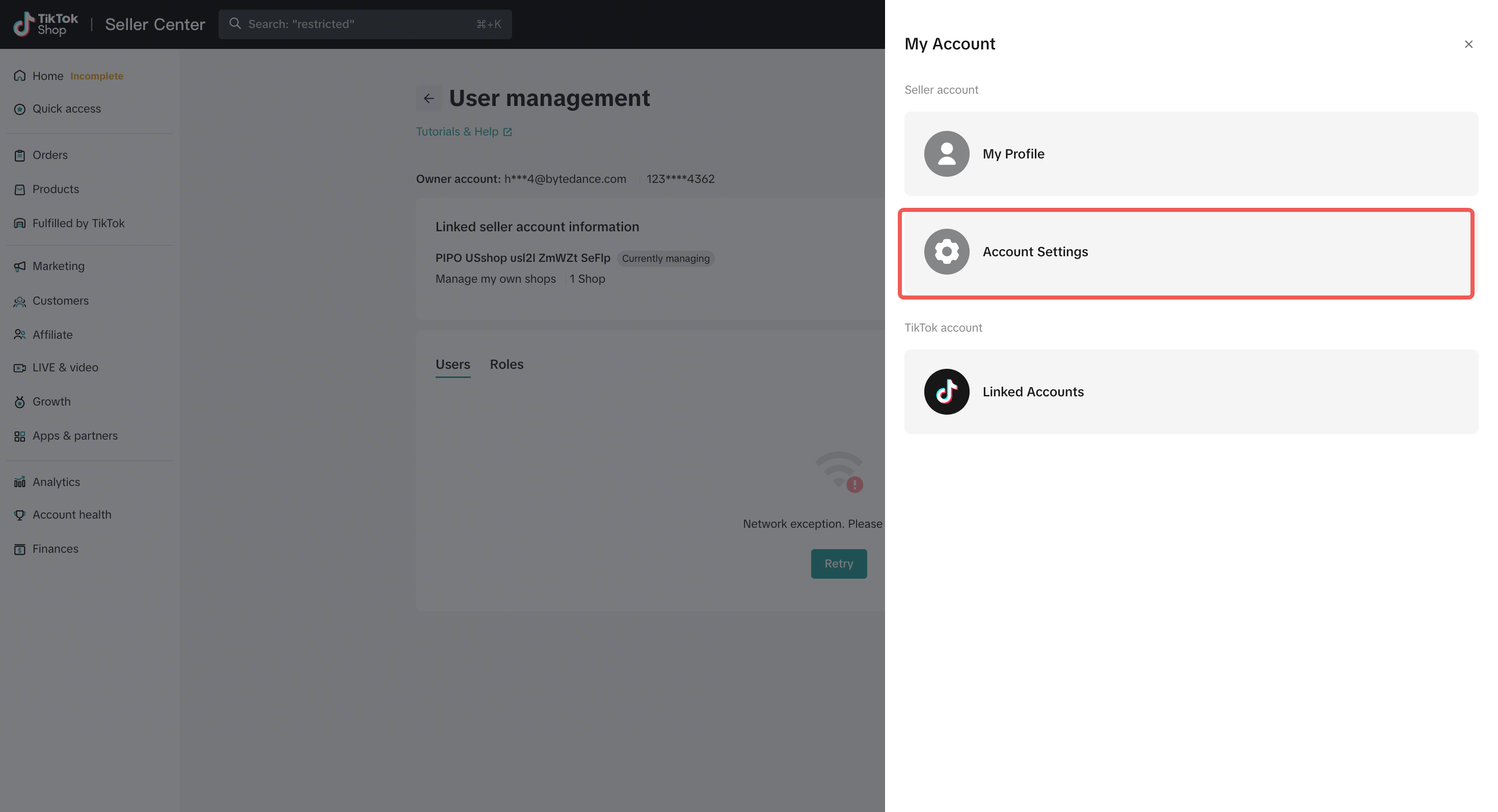
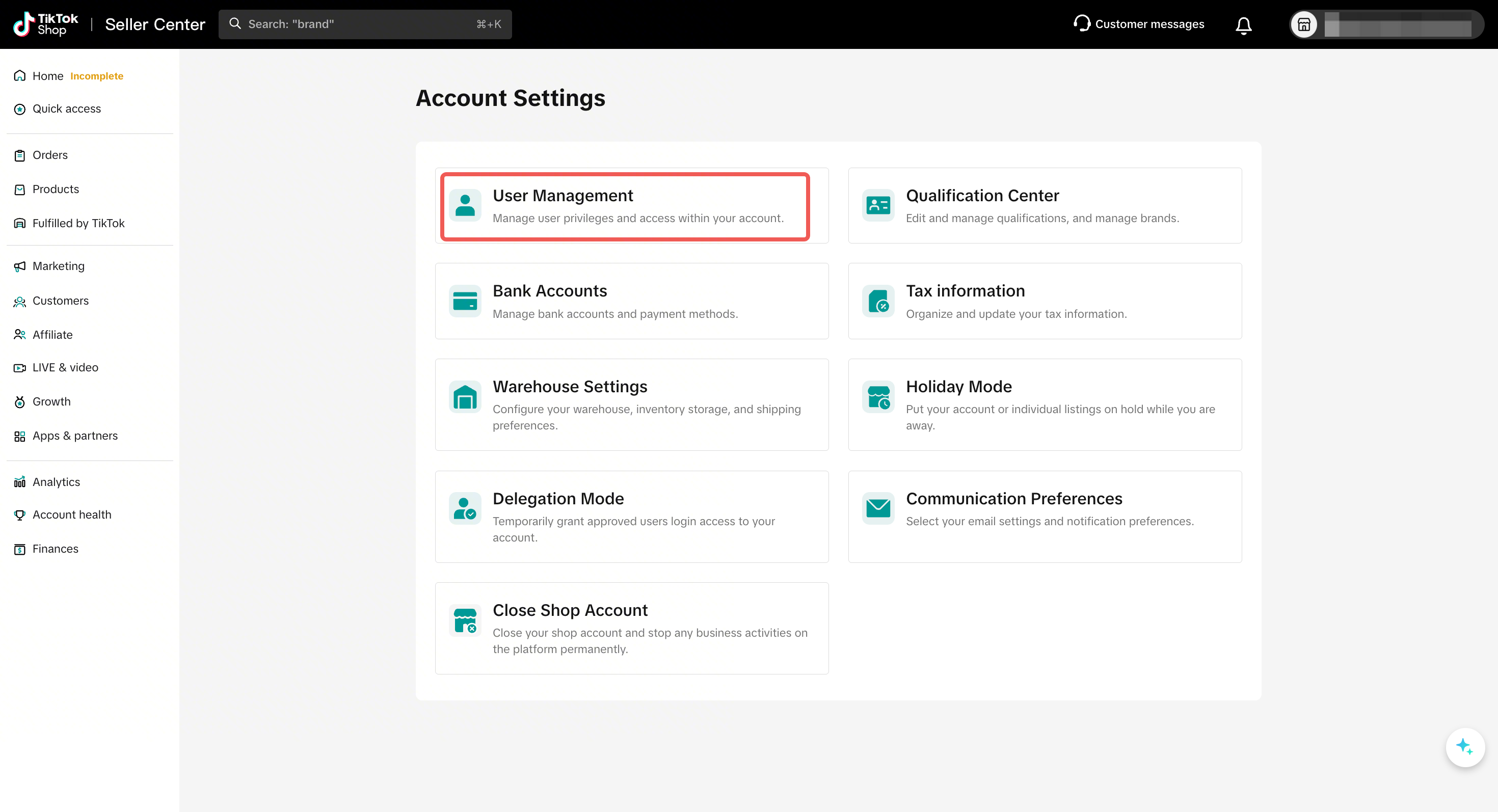
- Go to Account Settings (at the avatar or name) at the top of the page -> User Management.
- 1.2 Binding a New seller:
- Click the "Link seller account" button.
- The system will automatically filter for other sellers that can be bound based on the business license of your currently logged-in account.
- Select the target seller you want to bind and confirm the information to complete the process.
- Binding Scope:
- Can bind US L2L sellers sharing the same business license.
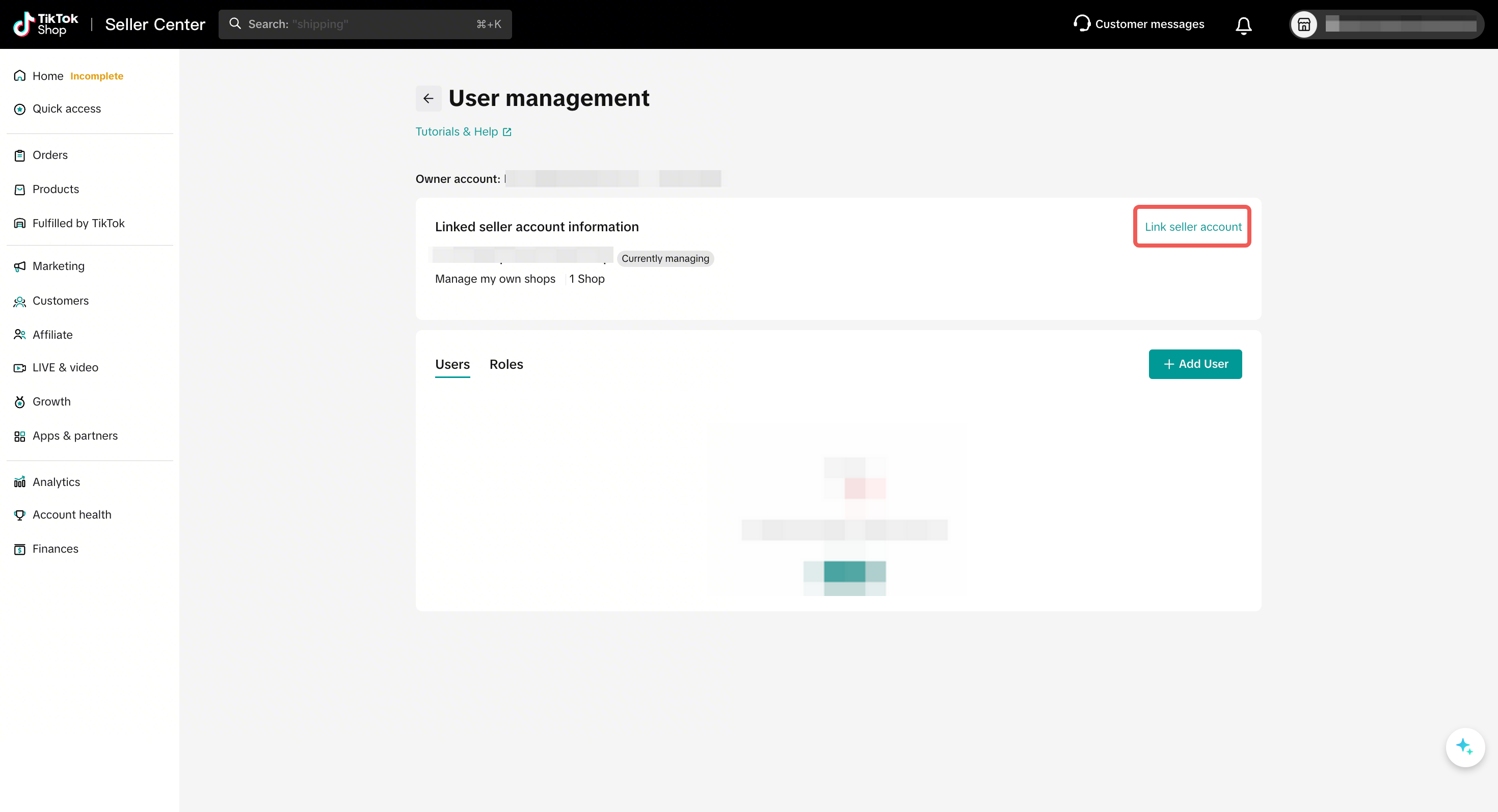
- Can bind US L2L sellers sharing the same business license.
- 1.3 Viewing Bound sellers:
- In the "Bound sellers" list, you can view all sellers that have been bound.
- The "seller" column displays the Seller Name.
- The "Stores" column shows the number of stores under that seller. Hover over the number to see the specific Shop Region and Shop Name.
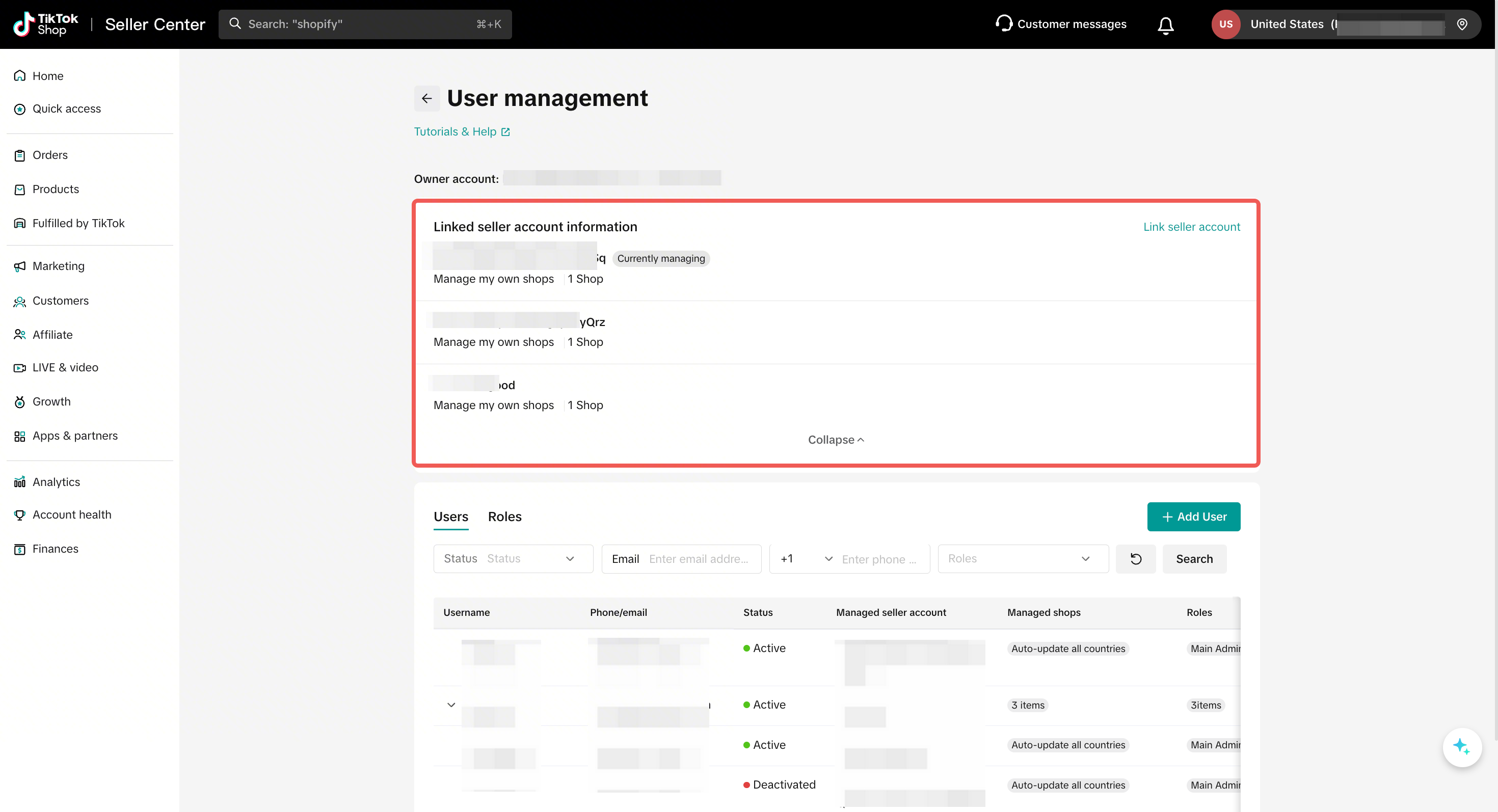
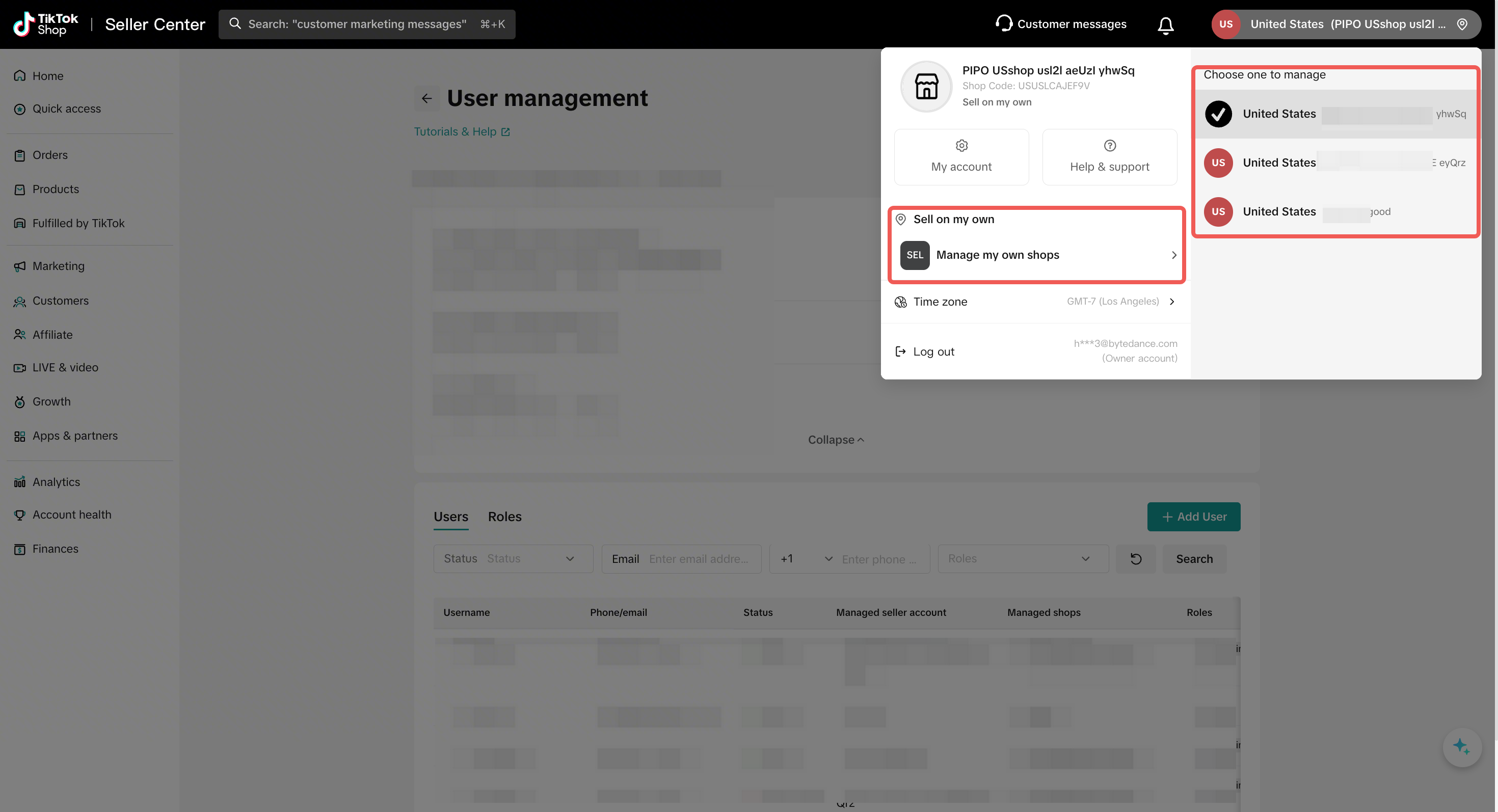
- 1.4 Notifications & Unbinding:
- Inbox Notifications: The system will remind you to bind accounts or notify you if unbinding is required due to inconsistent business license information.
- Account Unbinding: Self-service unbinding is not currently supported. If you need to unbind due to a change in business license or other reasons, please contact customer service for assistance.
- 1.5 Impact of Account Binding
- The owner account of the originally bound store becomes a "Sub-account" with the permission role of "Main Administrator".
- The sub-accounts of the originally bound store remain "Sub-accounts," and their permission roles remain unchanged.
- The owner account of the originally bound store can no longer assign permissions to other accounts; only the current, latest owner account can. You can view and modify the owner account in [My Account] - [Seller Profile].
FAQs
- Can I directly assign permissions to a sub-account?
The sub-account will have all the permissions under the roles assigned.
- Who can assign and customize roles?
- Why can't I edit/create products/orders etc.?
For example, a sub-account with the role Customer Service Agent may find that they suddenly lose the permission to edit products/orders. You can ask the account owner to add other roles with permissions to the sub-account. The account owner can also create a new role and assign it to the sub-account.