

How to Use Saved Replies
Summary
What is the purpose and benefit of using saved replies in TikTok Shop’s messaging system?
- Saved replies allow admins to create standardized response templates that agents can quickly use, improving response speed and ensuring consistent communication with buyers. This reduces manual typing and streamlines customer service.
How can admins configure and organize saved replies effectively?
- Admins create up to 20 reply groups (e.g., Shipping, Refunds) to categorize templates, rename or sort groups for easy access, and delete groups if needed (deleting a group removes all its templates). Each group can hold up to 20 templates.
What are the steps to create and manage individual saved reply templates?
- Within a group, admins create new templates by entering common responses and optionally adding shortcuts (letters/underscores only). Templates can be edited or deleted anytime, facilitating quick updates to messaging content.
How can agents use saved replies when responding to buyers?
- Agents can insert saved replies by either searching through groups and keywords or by typing shortcuts preceded by “/”. Multiple templates can be combined in one message and edited before sending, enhancing reply efficiency and accuracy.
Save frequently used replies to respond to messages faster
The admin can configure commonly used reply templates, and agents can directly use the saved reply when replying to buyer messages instead of manually typing each word. You can unify the standard response of different agents and improve response speed by using this feature.How to configure saved reply
- How to Access Saved Reply: Seller Center -> Buyer Message -> Setting -> Saved Reply
- Permission: Admins have permission to add and edit saved replies. Agents have permission to view saved replies.
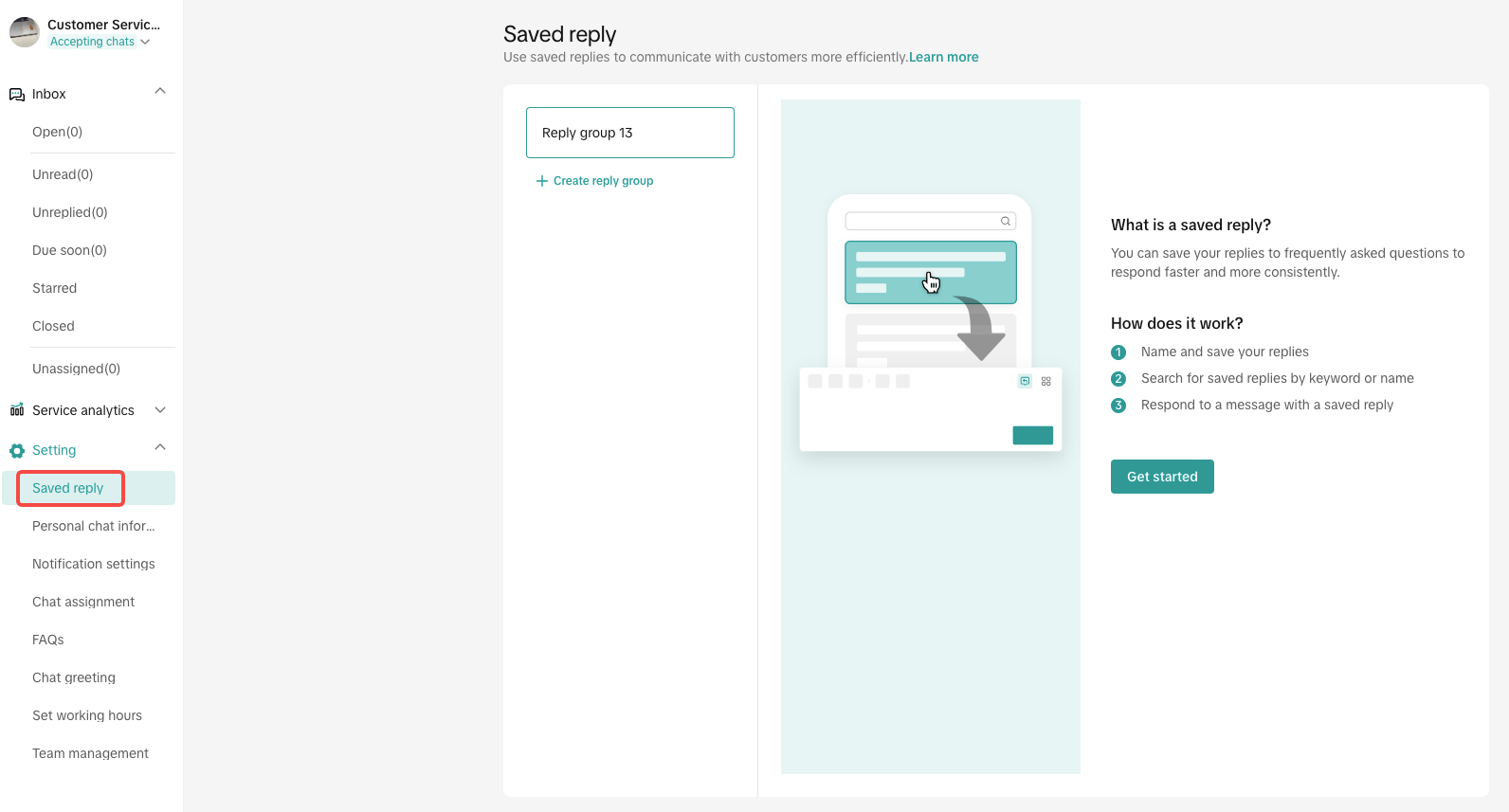
Step 1: Create groups
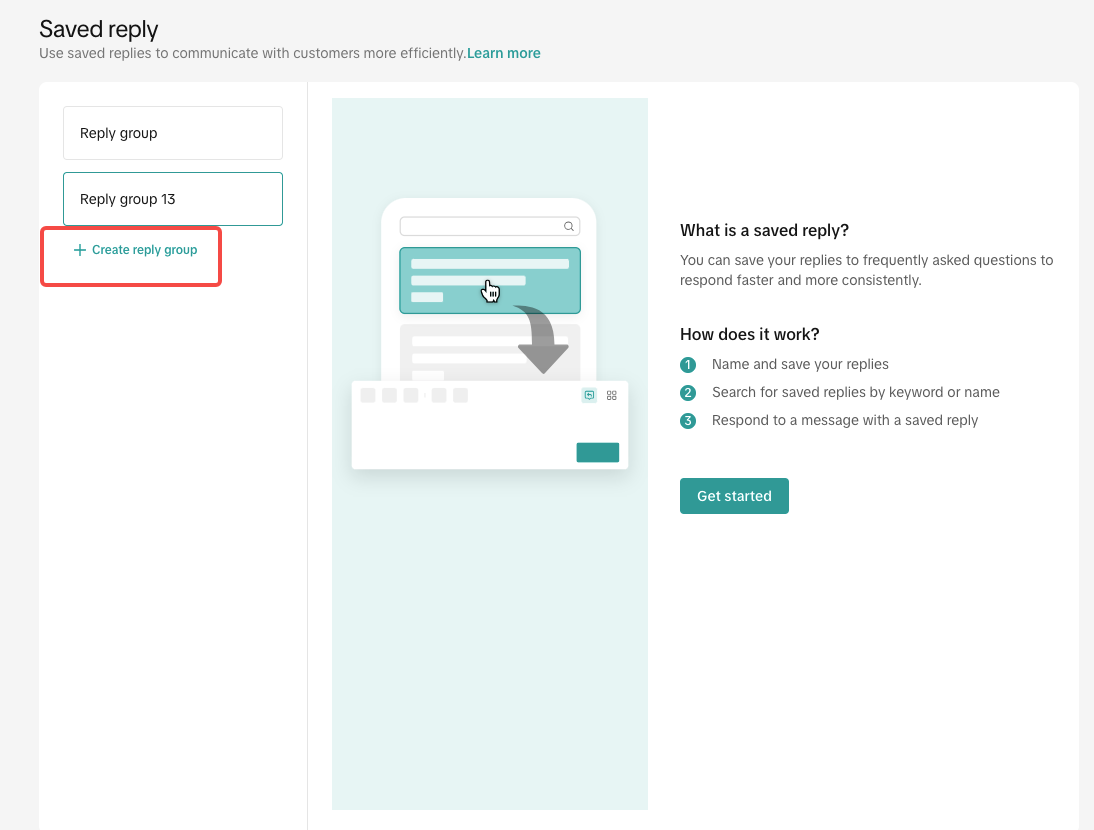
Create, organize, and store your canned responses into different groups. For example, Shipping, Refunds, Logistics, or Promotions.- Click 'Create reply group' then enter a name. You can create up to 20 groups.
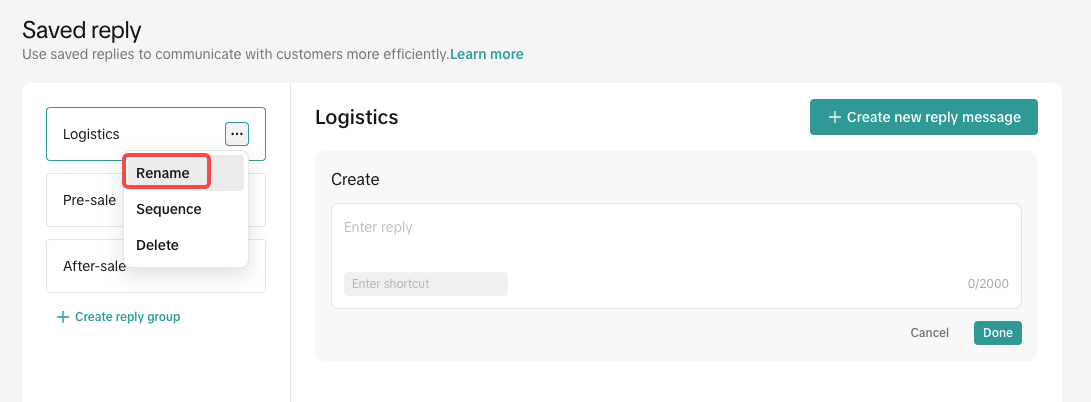
- You can rename the group by double-clicking it or clicking the 'Rename' button.
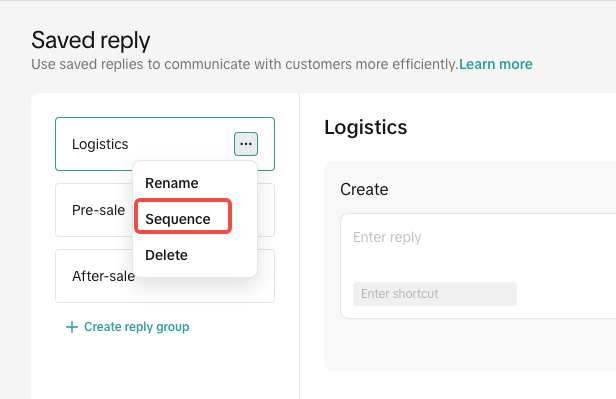
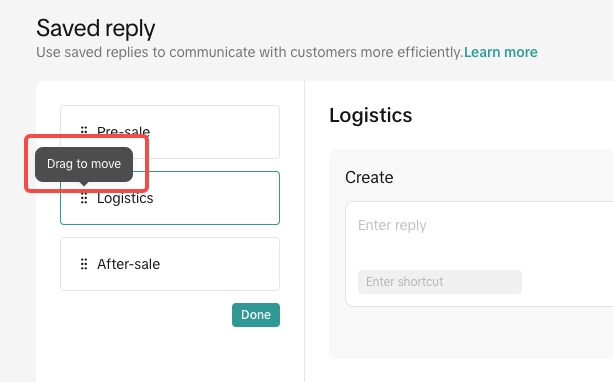
- If you create multiple groups, you can also sort them. When agents search for templates to use, the groups ranked above will be displayed first.
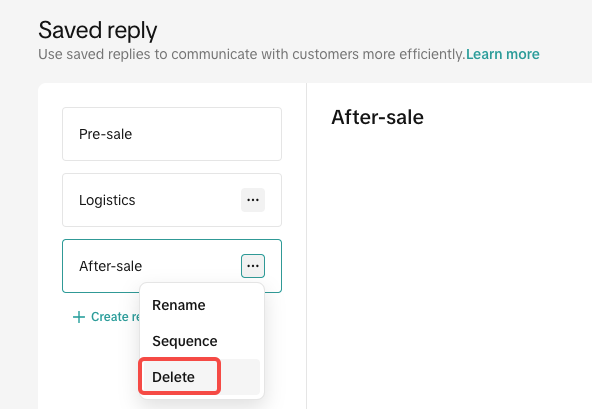
- You can also delete useless groups. Please note that when a group is deleted, all templates contained in the group will also be deleted.
Step 2: Create saved reply template
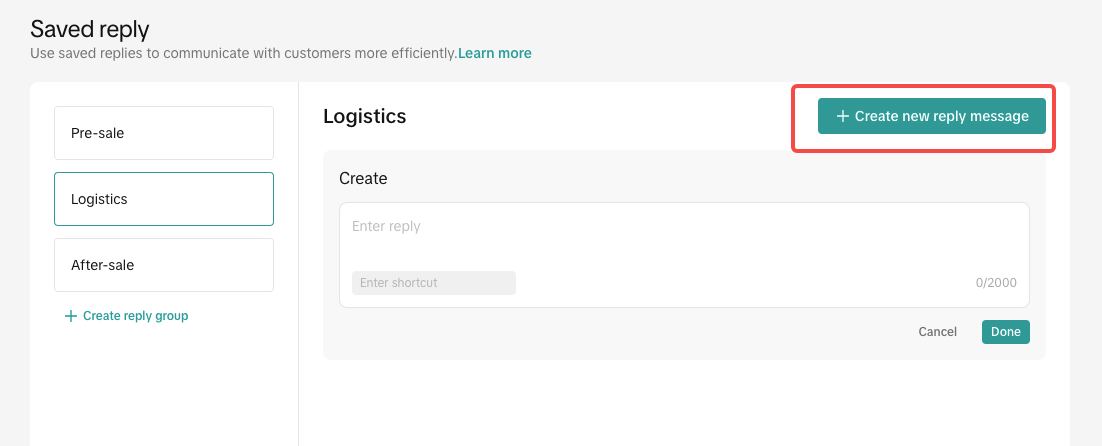
- Select a group and then click "create new reply message' to create a new template.
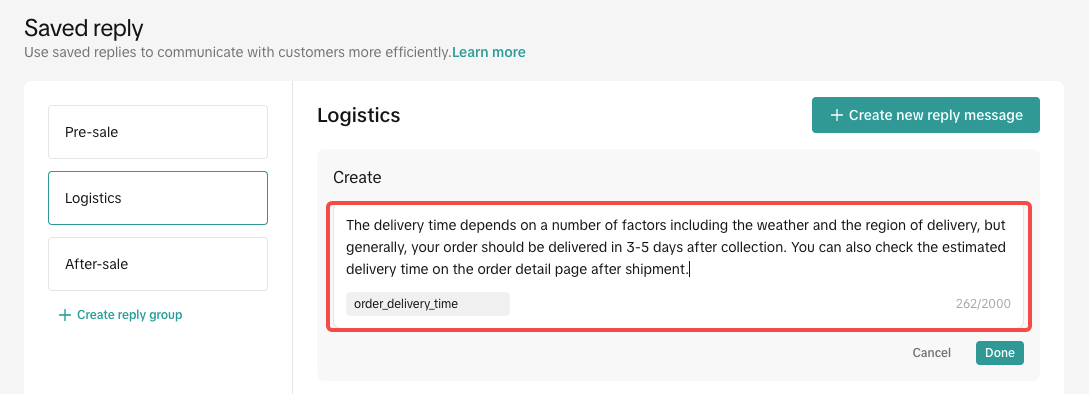
- Enter the content of the template, that is, commonly used responses. At the same time, you can add a shortcut to this reply. It is optional. When agents replies to buyer message, they can use the template by entering the shortcut directly. The shortcut can only include letters and underlines. For example, if a customer asks when the order will arrive, you can set it up as shown below.
- You can edit the template or delete it at any time.
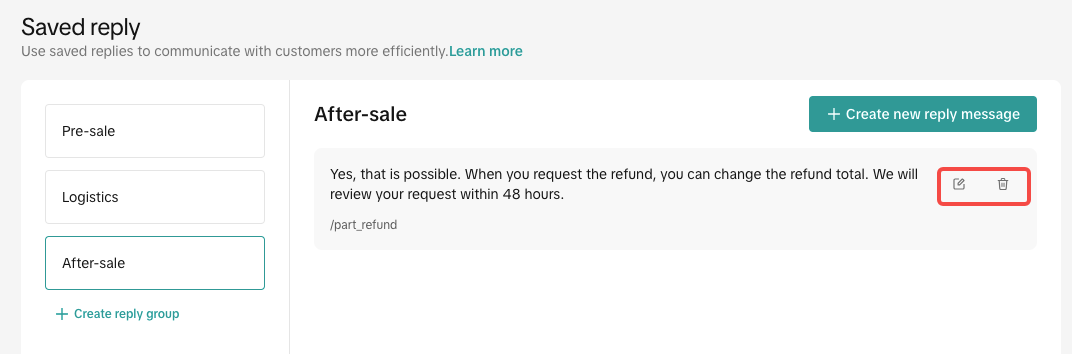
- Up to 20 templates can be created for each group.
How to use saved reply
When agents reply to buyers, they can use the existing saved reply in 2 ways.Method 1: By searching
- Click the icon above the input box to open and view all saved replies.
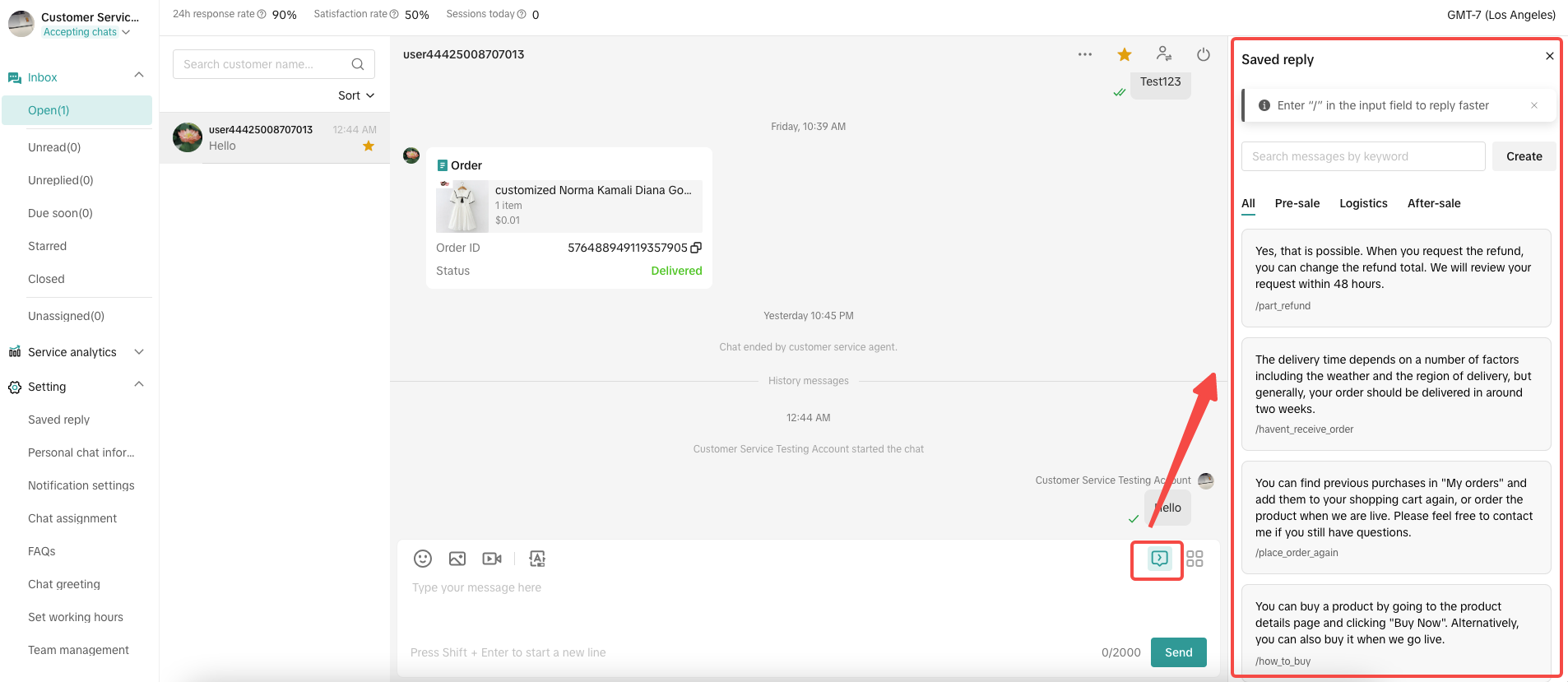
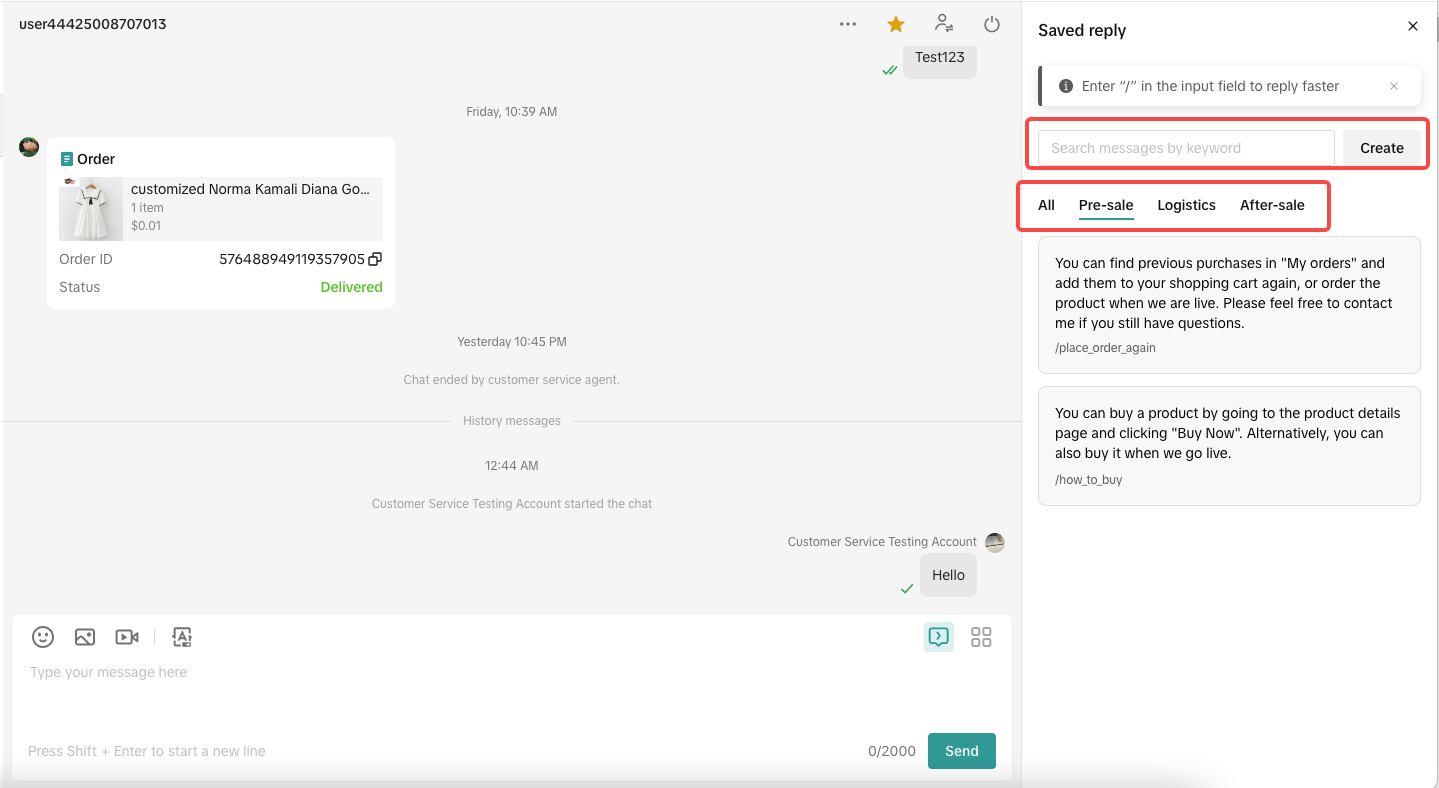
- You can search for the saved reply you want to use by switching different groups. You can search for templates by keywords as well.
- Click the template and then the content will appear in the input box directly.
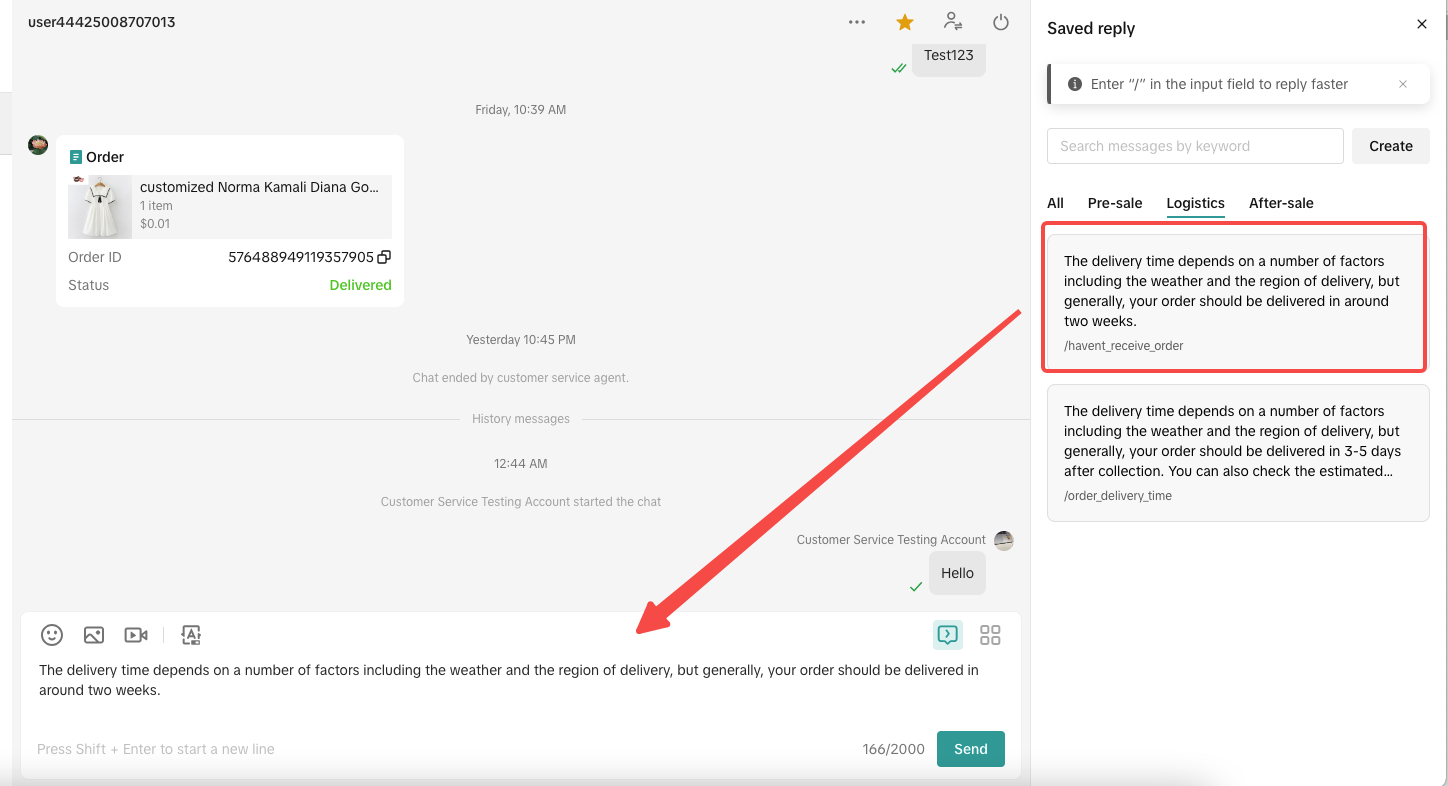
- If you need to use multiple templates at the same time, you can click the templates in sequence. The templates will be displayed in the input box in the order you click.
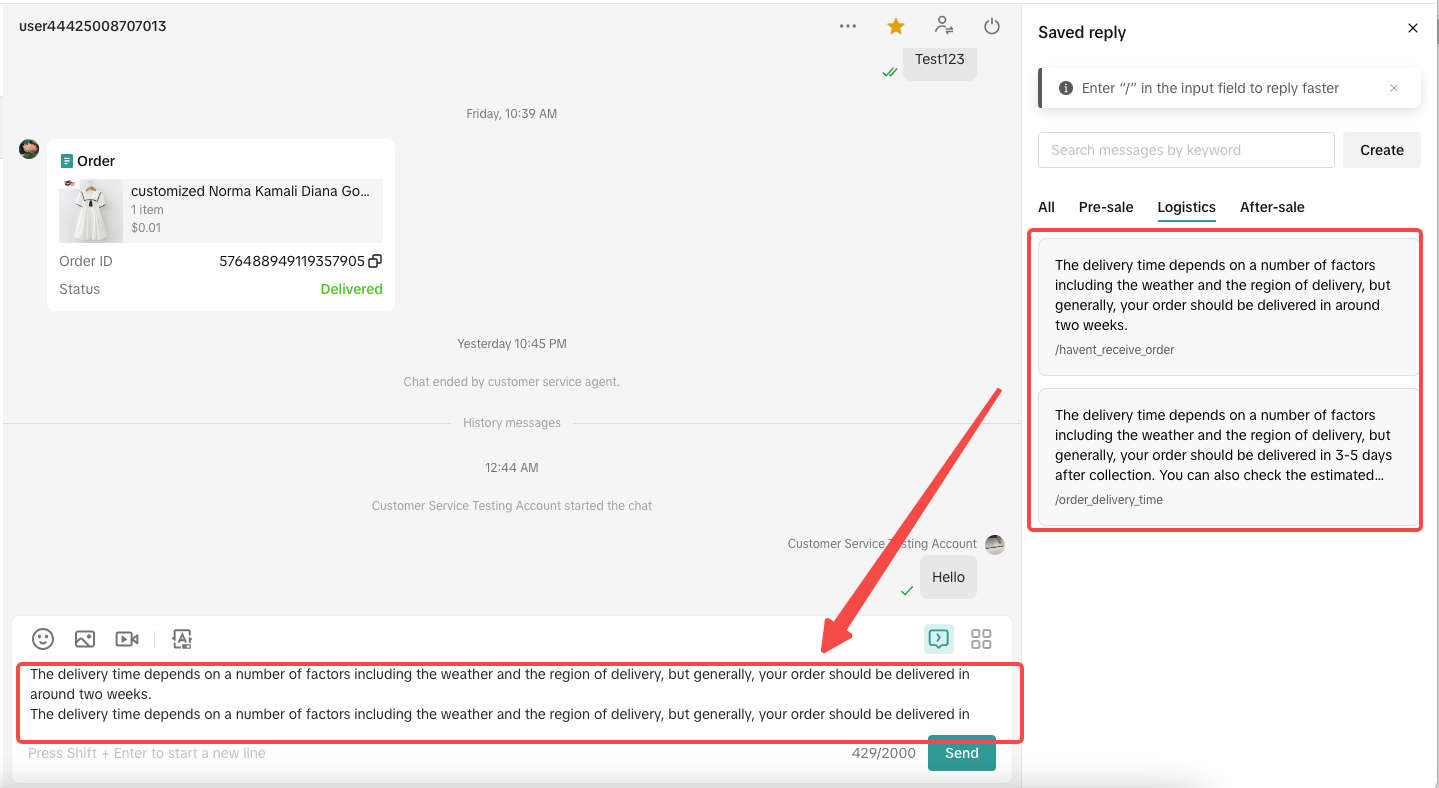
- Then you can send message directly or send it after editing.
Method 2: By shortcut
- You can enter '/'+'shortcut' in the input box or enter the shortcut directly to use the template. After selecting a template, the reply content will appear in the reply box.
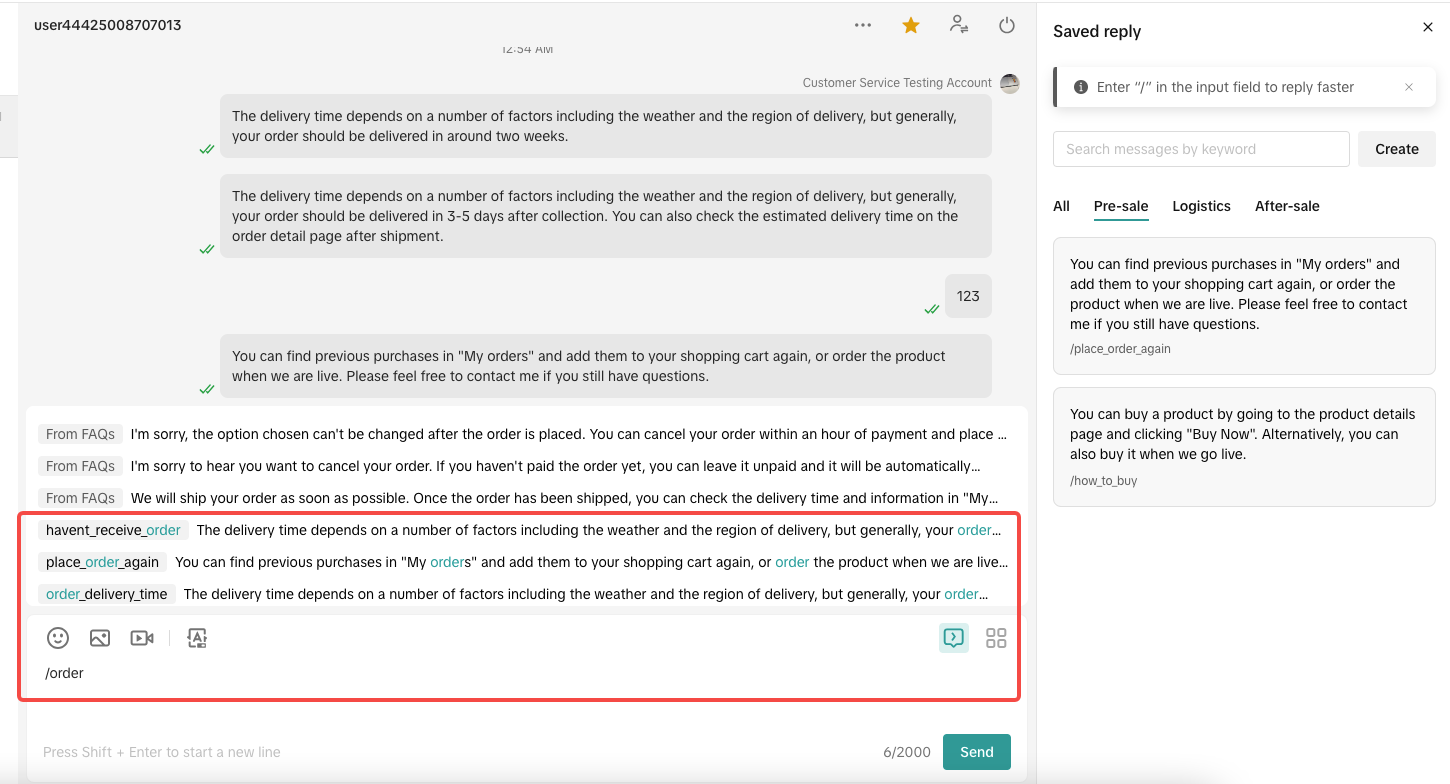
- You can also enter keywords in the input box to use the saved reply template.
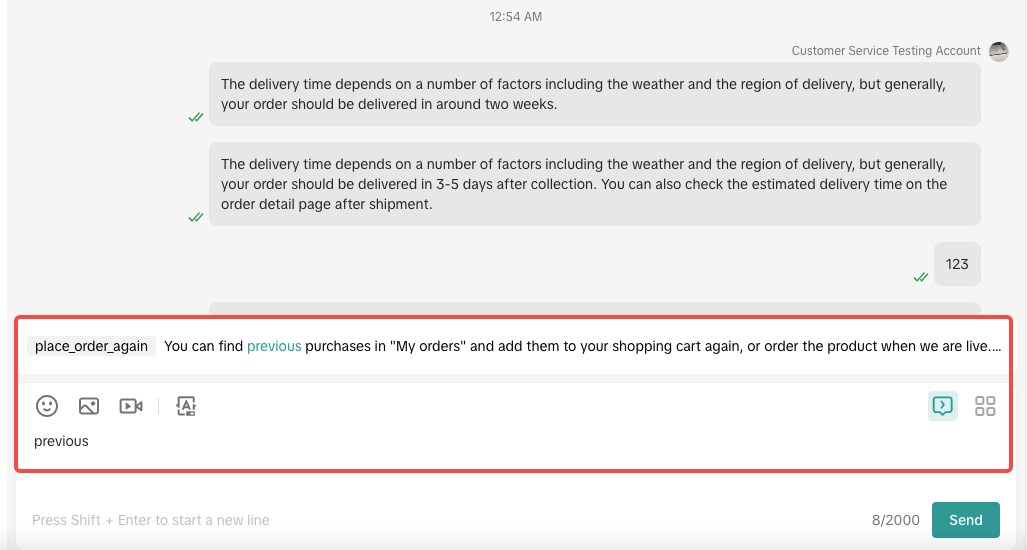
You may also be interested in

How to Enable Customer Service Chat Assistant
Why use chat assistant? During off-work hours of human customer service agents (such as at night, h…

How to use Customer Messages
Feature Overview TikTok Shop offers a suite of messaging tools that allow sellers to communicate wit…

How to Maximize Customer Messages
Are you overwhelmed with hundreds of chats you get every day? Do you feel you don't know how all of…
How to Navigate Customer Service Workbench
Use the workbench to improve the efficiency Communicating with customers is a necessary condition fo…

March 2024 Monthly Product Innovation
Every month, we introduce new products and features designed to simplify store management, boost sal…

Requirements for the 24-Hour Response Rate Metric
Prompt responses = happy customers = more sales! The 24-Hour Response Rate aims to help you build tr…

Customer Outreach Playbook
🛍️ Engaging your customers with Customer [CRM] tools in Seller Center Why is customer management im…

Zendesk for TikTok Shop
Zendesk for TikTok Shop As a seller on TikTok Shop, we understand the importance of creating an easy…