How to integrate Shopify web design to TikTok Shop
Summary
What are the key steps to sync a Shopify store’s UI/UX design with TikTok Shop?
- Log in to Shopify, navigate to TikTok > Shop Management > Marketing > Shop Design, then select the Shopify theme to sync and start the synchronization process.
- The system analyzes components, syncs logos (if no existing TikTok logo), and converts Shopify components (images, collections, products) to TikTok Shop equivalents.
How can sellers preview and adjust their store design after syncing from Shopify to TikTok Shop?
- After syncing, merchants get preview capabilities to fine-tune or delete components directly in the TikTok Shop emulator before applying changes.
- Sellers can edit unrecognized components manually via provided links and must complete or remove product/category links for better interaction.
What should sellers do if the sync process fails when syncing Shopify design to TikTok Shop?
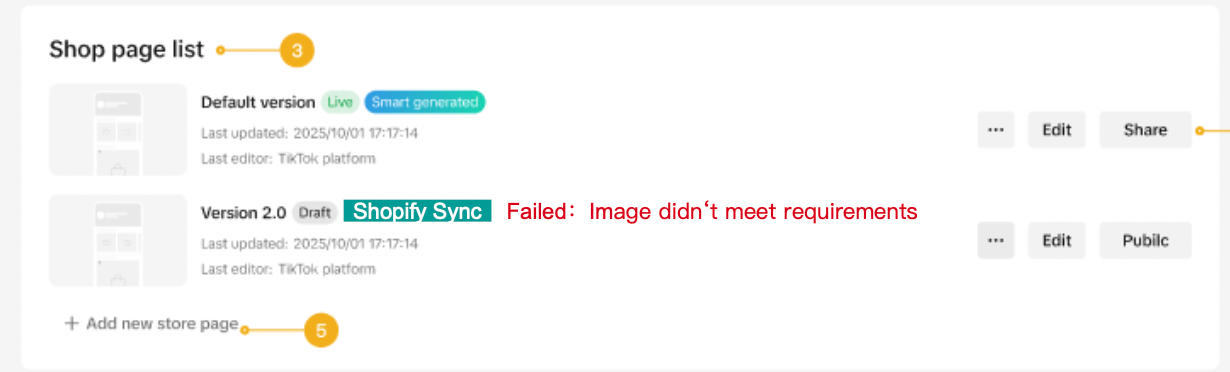
- Sync failures typically result from logo or creative copy review rejections; sellers are redirected to TikTok Shop Seller Center’s Shop Design page to resolve issues.
- Sellers should review and correct logo or content to meet TikTok Shop standards before attempting to sync again.
What are the implications of syncing Shopify store design to TikTok Shop for sellers?
- Auto-syncing ensures brand consistency across platforms, saving time and maintaining a cohesive customer experience.
- Sellers retain control to customize and optimize their TikTok Shop storefront post-sync, enhancing marketing campaign suitability and user engagement.
Do you have Shopify account and want to keep your brand design consistent across all platforms? Below are 3 easy and simple steps for you to get automatically sync your store UI/UX from Shopify to TikTok Shop.
Step 1: Log in to your Shopify account
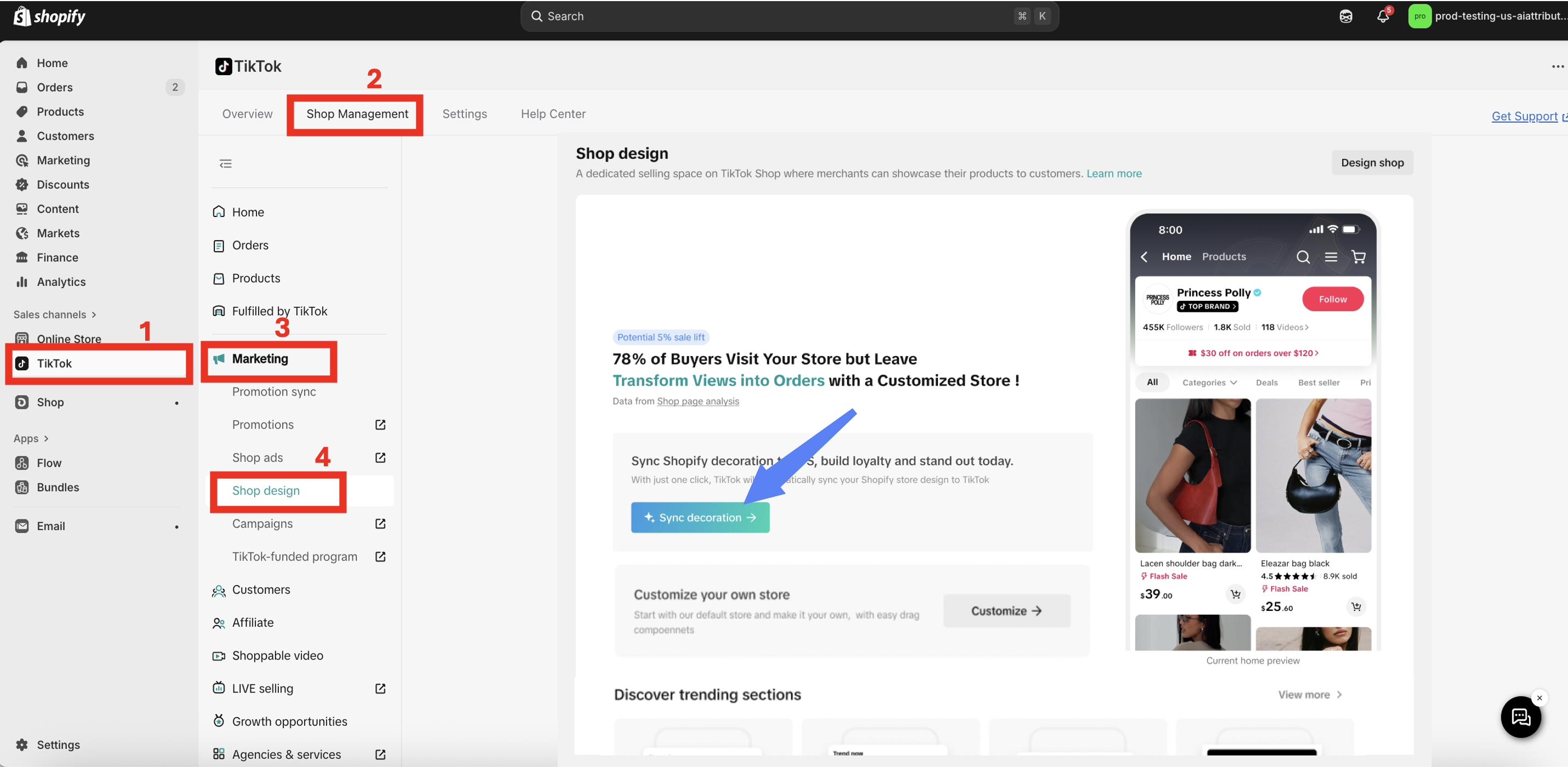
Step 2: Click TikTok > Shop Management > Marketing > Shop Design and you will find the below page
 Step 3: Select the Shopify page to sync
3 Simple steps to sync from Shopify to TikTok Shop:
Please find these easy steps for you to integrate your UI/UX store to TikTok ShopStep 1: Log in to your Shopify account
Step 2: Click TikTok > Shop Management > Marketing > Shop Design and you will find the below page
Step 3: Select the Shopify page to sync- The current theme is selected by default.
- You can switch to another theme if you want to sync it.
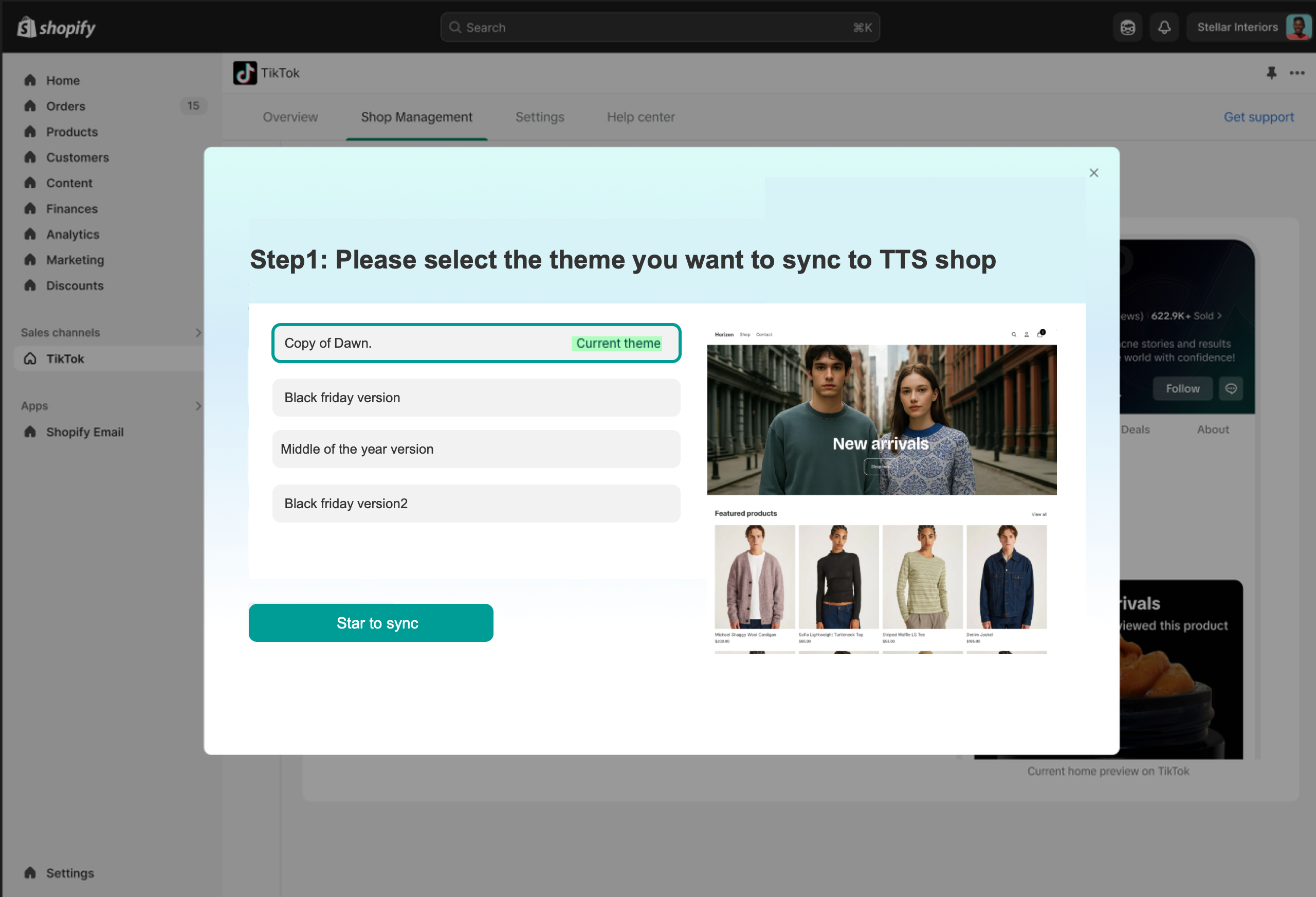
Next step is "start to sync" and the system will conduct the following steps:
Perform component analysis and data synchronization
- Synchronize the Logo data
- Shopify logo is decorated onto TikTok Shop - Store logo
- If the merchant already has its own uploaded logo, there is no need to synchronize logo data.
- Synchronize the decoration components
- Shopify Image Component -> TikTok Shop Image Component (Single Image, Multiple Images, Multiple Image Carousel, etc.)
- Shopify-Collection Component -> TikTok Shop-collection Component
- Shopify - Product Component -> TikTok Shop - Featured Product Component
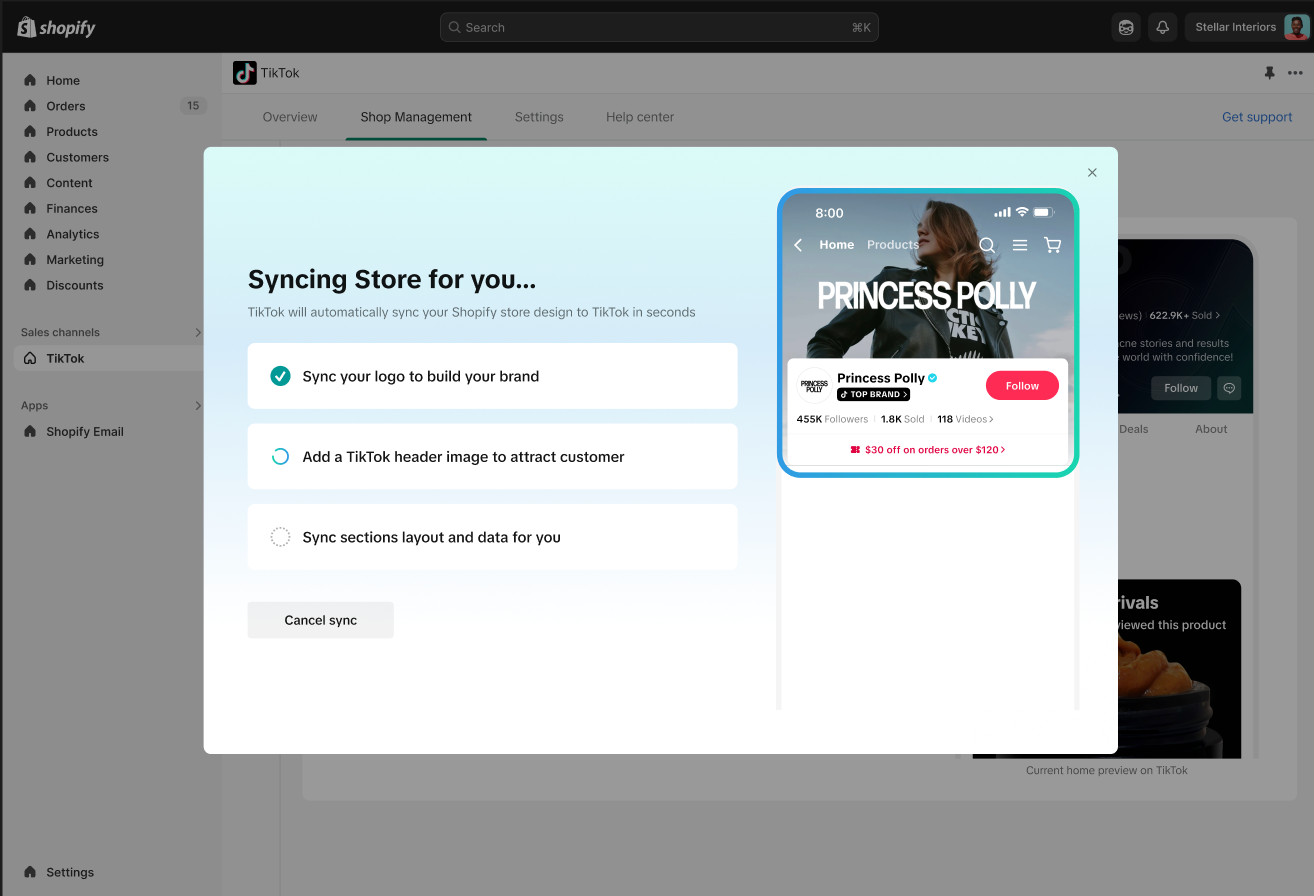
After two steps are completed, it will provide merchants:
- Preview capabilities
- Support merchants in making fine adjustments
- Support merchants in directly applying or editing.
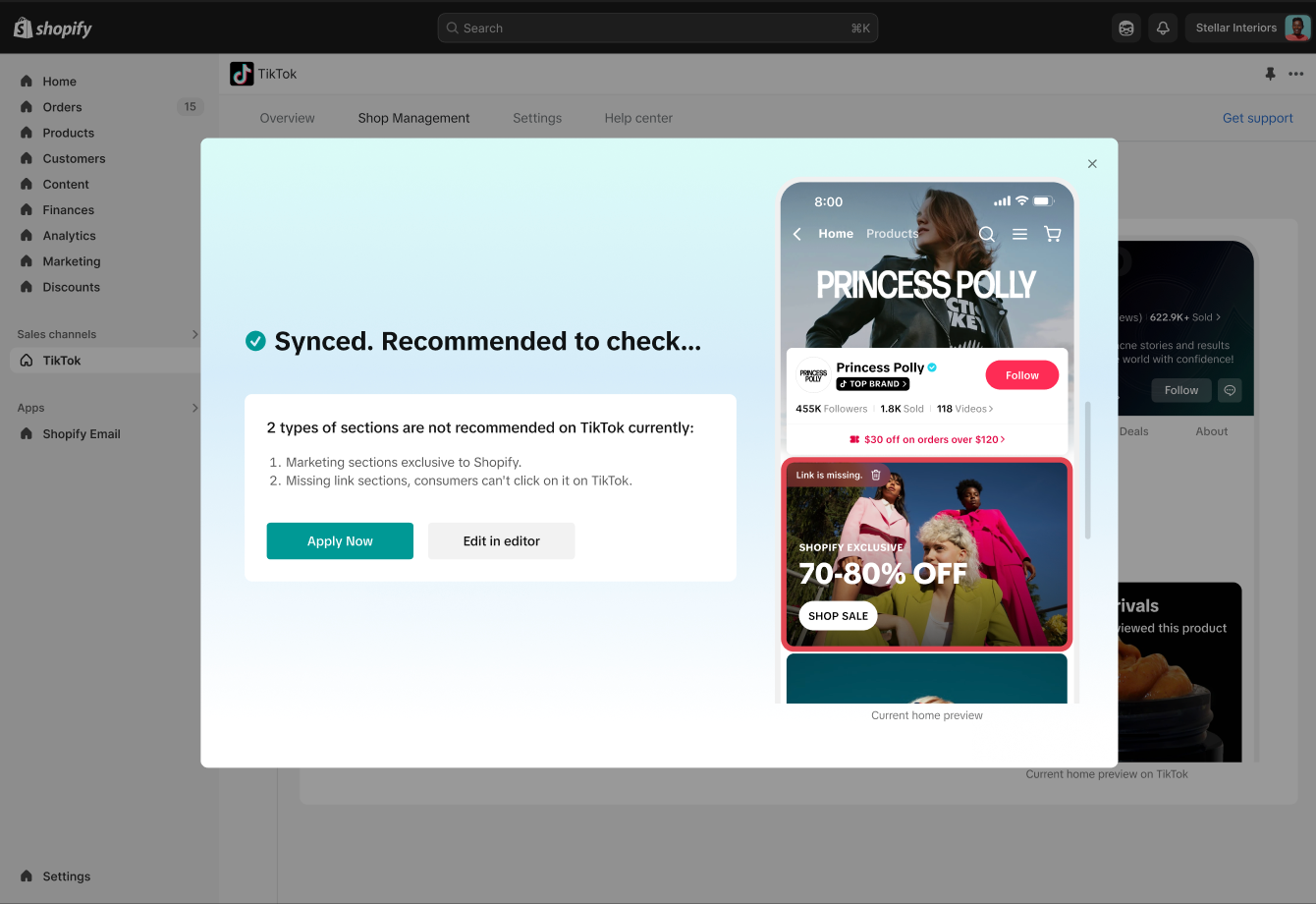
Additional info:
- Merchants need to complete the link or delete the component in the Editor;
- Note: In terms of interaction, it can be considered to complete link completion (product links, category links, etc.) within the widget, which will provide a better experience.
- Apply: Publish the online version and take effect.
- Editor: Enter the seller center or Shopify account to edit your shop design.
- You can confirm whether the marketing campaign is suitable for TikTok Shop. If you don't find it suitable, you can directly delete components in the emulator on the right;
- Auto sync will only apply to collection & logo features. For components that were not recognized, you can edit them through the link.
- After adjusting the decoration synchronization, sellers can do two things.
Sync result:
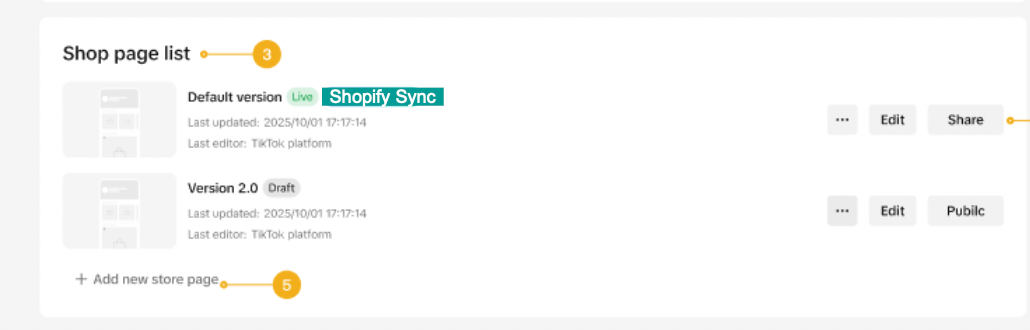
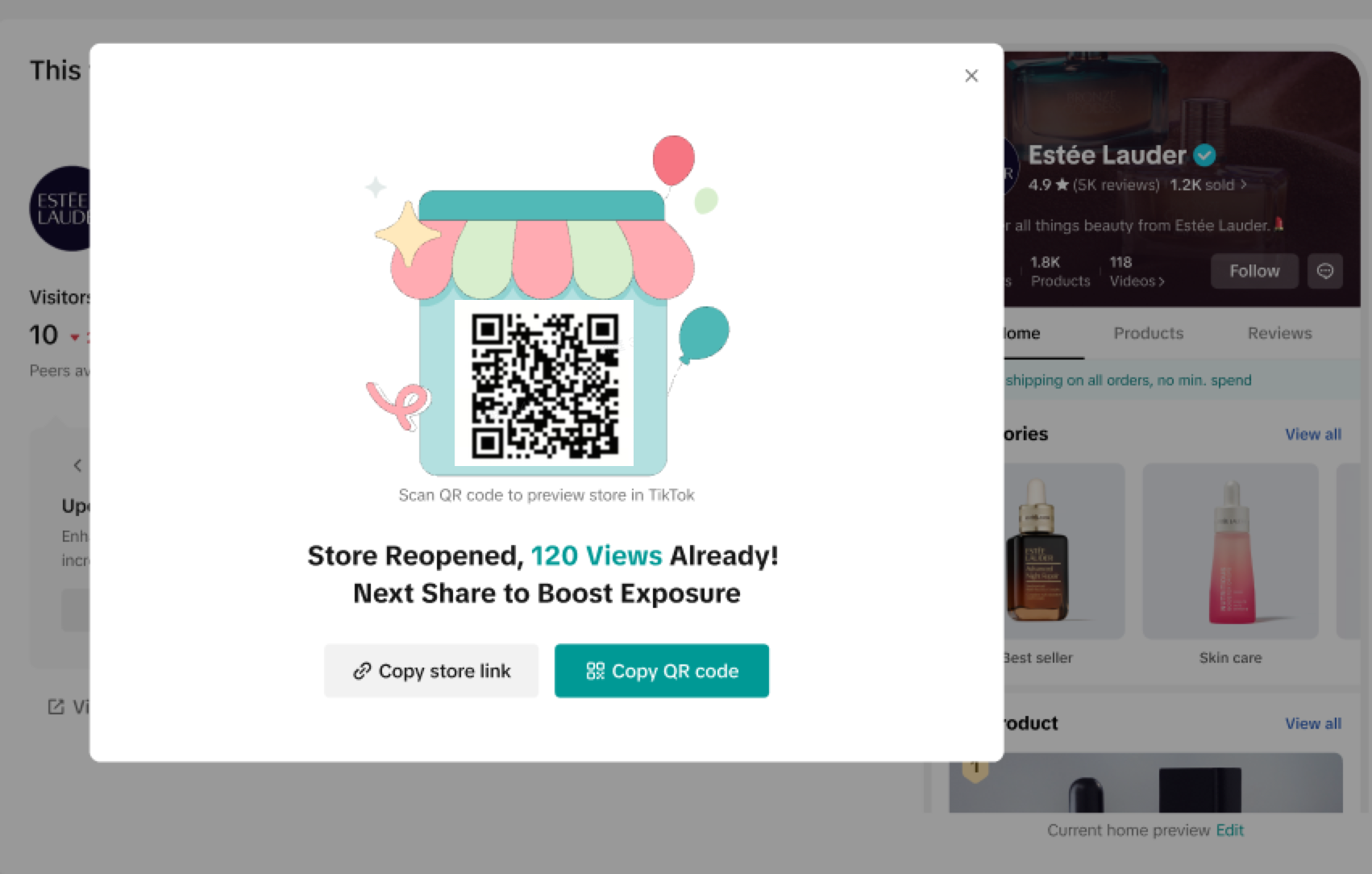
- Successful: If the sync was successful, you could see the page below at TikTok Shop seller center and edit further through Shop Design.