

How to use Shop Ad commission rate recommendations
11/25/2025
Product Overview
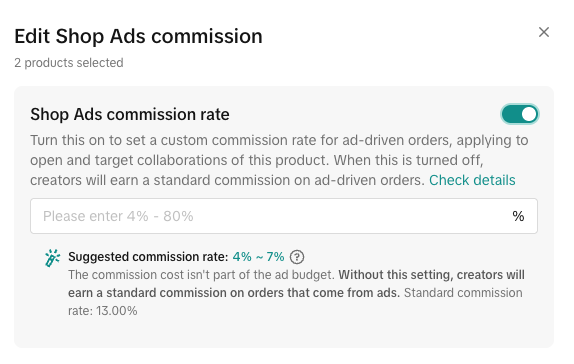
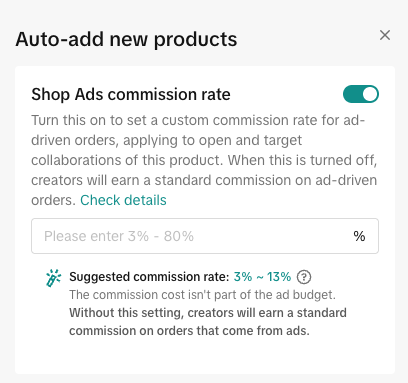
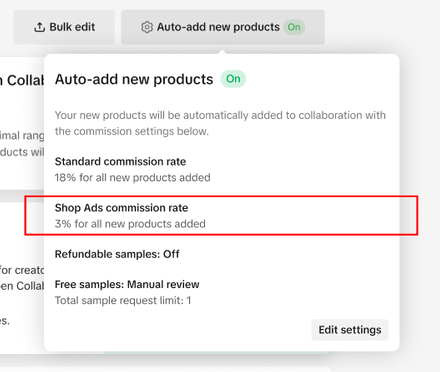
Set your affiliate commissions with confidence. This feature provides data-driven commission rate suggestions for your Open collaboration affiliate products. By analyzing what works for top-performing products in your category, we help you set competitive rates to attract creators and drive sales—all while keeping you in complete control.| Existing seller batch edit experience | Existing seller auto-add in experience |
 |   |
Benefits
- Smarter rate recommendations.
- Faster setup for sellers.
- Flexible control.
Note: keep in mind that Shop Ad commission rates have a 30-day grace period. If a creator has already linked your product to their content or showcase, their Shop Ad commission rate will not change to the lower rate until 30 days after the change.
How It Works
For new sellers:- Add all your products to Open collaboration. When you first start using Affiliate Center, you will have the option to enroll all your products in Open collaborations - which means making your products available on Product Marketplace. When you do this, any new products you list will automatically get added into Open collaborations too.
- Behind the scenes: When your products are added, we automatically apply a Standard commission rate and a Shop Ads commission rate. These rates aren't random; they are our recommended rates calculated to make your products more attractive to creators. In most cases, the recommended Shop Ads commission rate will be based on the shop ad rate used with the top 30% performing products in your product category.
- Update specific products or products in batch. You can batch edit or edit individual products' standard and Shop Ad commission rates after the products are added to Open collaboration.
- If you select products from the same category: You'll see a specific suggested rate (e.g., "15%").
- If you select products from multiple categories: You'll see a suggested range (e.g., "15% - 20%"). This range represents the minimum and maximum recommended rates across the different categories you've selected.
- Update your settings in auto-add settings. If you want to toggle off the recommended Shop Ad rates for all new products, you can do this from the auto-add settings.
- Go to your auto-add new product settings. You can toggle on the on the Shop Ads commission rate to set a commission rate for ad-driven orders. If this toggled on, our recommended Shop Ad commission rate will apply to new products auto-added into Open collabs.
- If turned off, your standard commission rate will be used. When adjusting these settings, you will see a suggested ad commission range that you can use.
- Use batch edit or the edit button on specific products to update the Shop Ads commission rate. When you are updating the rates, you will see a recommendation for the Shop Ads commission rate that you can use to guide your rate.
- If you select products from the same category: You'll see a specific suggested rate (e.g., "15%").
- If you select products from multiple categories: You'll see a suggested range (e.g., "15% - 20%"). This range represents the minimum and maximum recommended rates across the different categories you've selected.
- You are in control. Our rates are just a suggestion, you can toggle on a seperate rate than the standard commission and either use our recommendation as a guide or set your own rate.
- We look at all products in your product's specific category (e.g., "Women's Dresses") over the last 30 days. We then identify the top 30% of those products based on a combined score of creator click-through rates and product selection rates. The median commission rate of that top-performing group becomes the recommended rate for your product.
Tips
- Our recommended rates are a powerful starting point. Consider using them for a few weeks, then check your Product performance analytics to see how they’re working for you.
- A higher Shop Ads commission can be a great incentive for creators to feature your products in their paid advertising, potentially helping increase your visibility and sales.
- Market trends change. What's competitive today might not be in a few months. Make it a habit to review your commission rates quarterly to ensure they align with your business goals.
FAQ
- Do I have to use the recommended commission rate? No, not at all. The recommendation is a suggestion to help you make an informed decision. You always have 100% control to set whatever rate you choose.
- What's the difference between the Standard commission and the Shop Ads commission? The Standard commission is the rate a creator earns on any sale they generate organically through their content. The Shop Ads commission is a potentially higher rate that a creator earns only on sales that come from authorized creator ads.
- What if I want to keep my Standard and Shop Ads commission the same? You can do this by adjusting your settings in auto-add or batch editing. When you do, just toggle off the Shop Ad commission rates.
- What if I don't want my products automatically added to Open Collaboration? You can turn this off. In the Open collaboration tab, find the Auto-add new products toggle and switch it off. You can also deactivate any products you don't want in the program at any time.
- Are there any rules about the Shop Ads commission rates? Remember that Standard and Shop Ads commission rates have a 30-day grace period with active creators. Read more in our commission rules feature guide. In addition, Shop Ad commission rates need to be above a certain threshold (at least one third of your standard commission rate) and the platform will indicate if your proposed Shop Ad commission rate does not meet this threshold.