

Scheduling your payouts
08/20/2025
Summary
What is the payout schedule on TikTok Shop and how does it benefit sellers?
- The payout schedule lets sellers choose when to receive funds from sales—daily, every business day, weekly, or monthly—helping them manage cash flow effectively. Sellers can view their net earnings and track payouts via the Seller Center website.
How can sellers set or change their payout schedule on TikTok Shop?
- Sellers access payout settings in the Finances summary, select their preferred frequency and specific payout day (for weekly/monthly), and submit changes which take effect immediately, with pending payouts adjusting accordingly.
What causes fluctuations or decreases in net earnings, and how are negative balances handled?
- Net earnings may decrease due to new statements showing negative balances, which are automatically paid off using available net earnings, ensuring the net earnings balance never becomes negative.
What are common reasons for payout delays or failures, and how can sellers resolve them?
- Delays can result from negative balances, net earnings below $1 minimum threshold, account restrictions, or invalid bank details. Once issues are fixed, payouts retry automatically the next day.
What important considerations should sellers know about payout processing times and feature availability?
- Bank processing takes 1-3 business days, so funds may not appear immediately. The flexible payout schedule is currently in testing, available only to selected sellers via the Seller Center website, with app support planned later.
What is payout schedule?
A flexible payout schedule enables you to take control of your cash flow by setting a preferred payout schedule—daily, weekly, or monthly, with a clear view of your remaining balances on TikTok Shop through the "net earnings" tab.The payout schedule refers to the dates when funds from sales are transferred to your designated bank account. Choosing when and how often to receive your payouts is an important aspect of managing your finances. You can choose to receive payouts daily, on business days, weekly, or monthly.
Payouts are subject to bank processing times, so the funds may not appear in your bank account immediately after they are initiated. Banks typically take between 1 to 3 business days to process deposits.
Choose a payout schedule
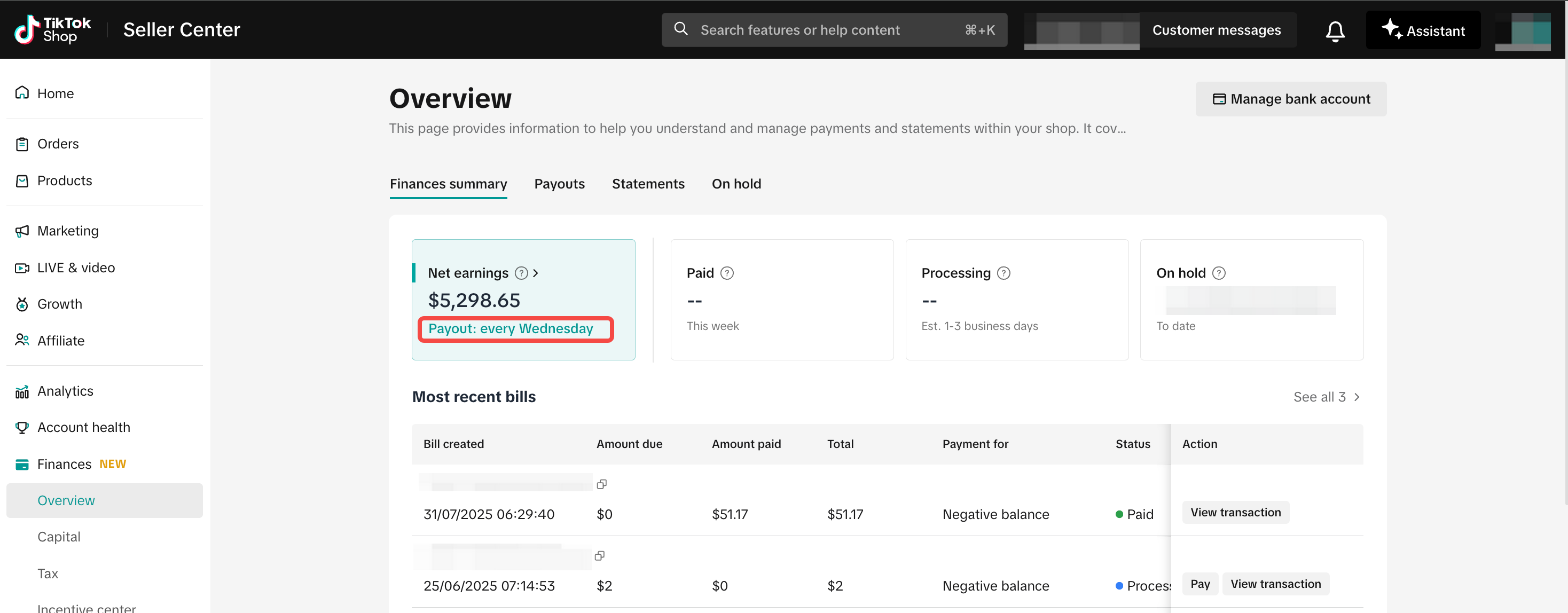
The feature is currently in testing and is available only to selected sellers. It will gradually be rolled out to all sellers soon. Currently, the feature can only be accessed on the Seller Center website, with support for the seller app planned for the future.| Step 1 | In the Finances summary section, click on Payout: daily or Payout schedule to be redirected to the Payout Schedule settings page. | 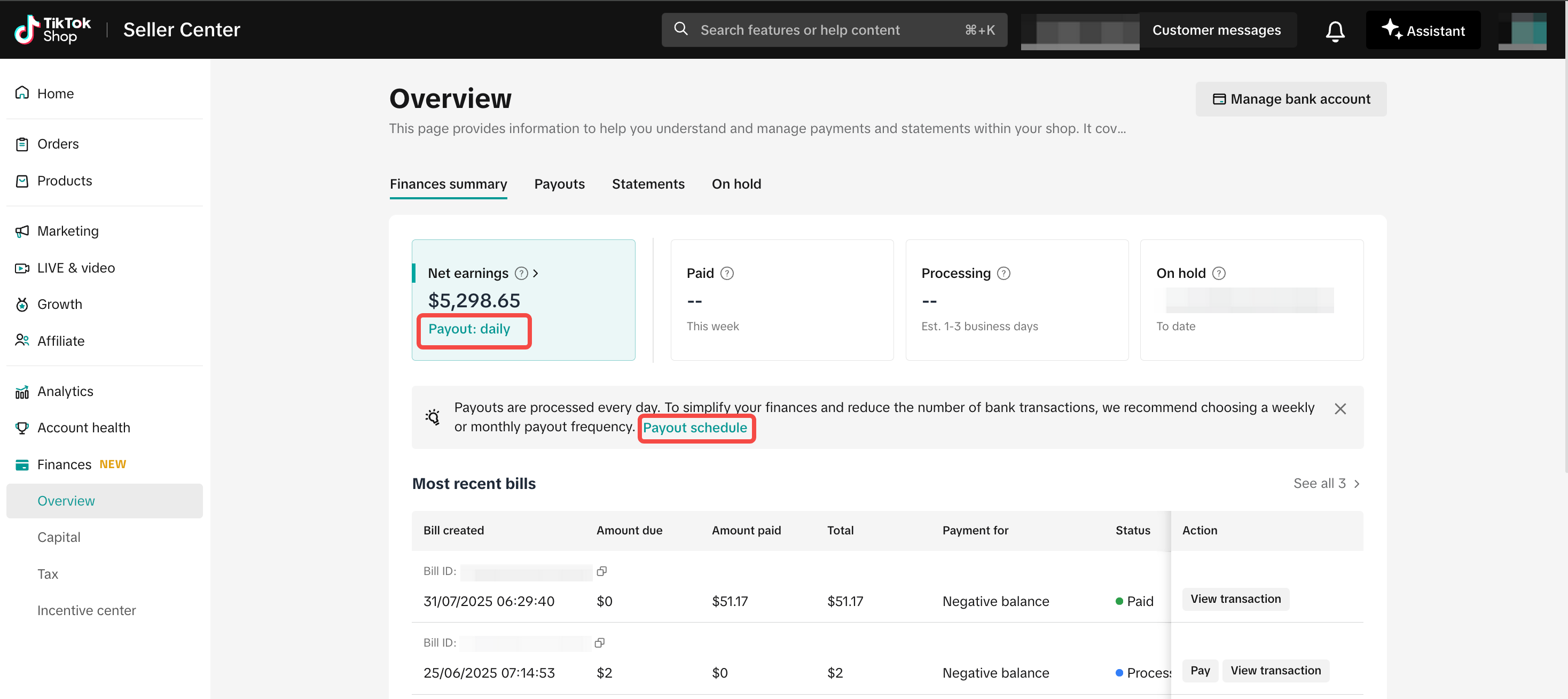 |
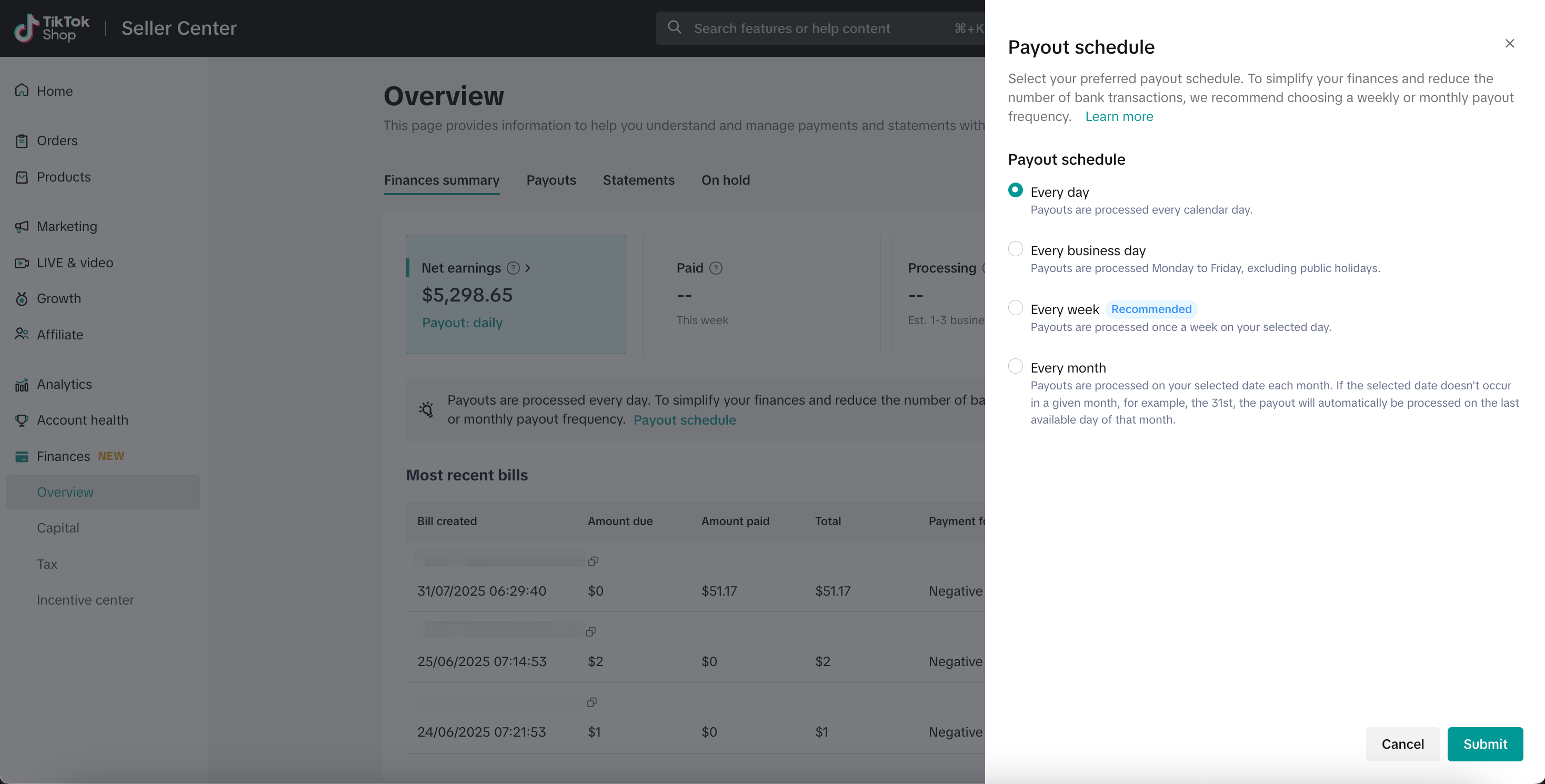
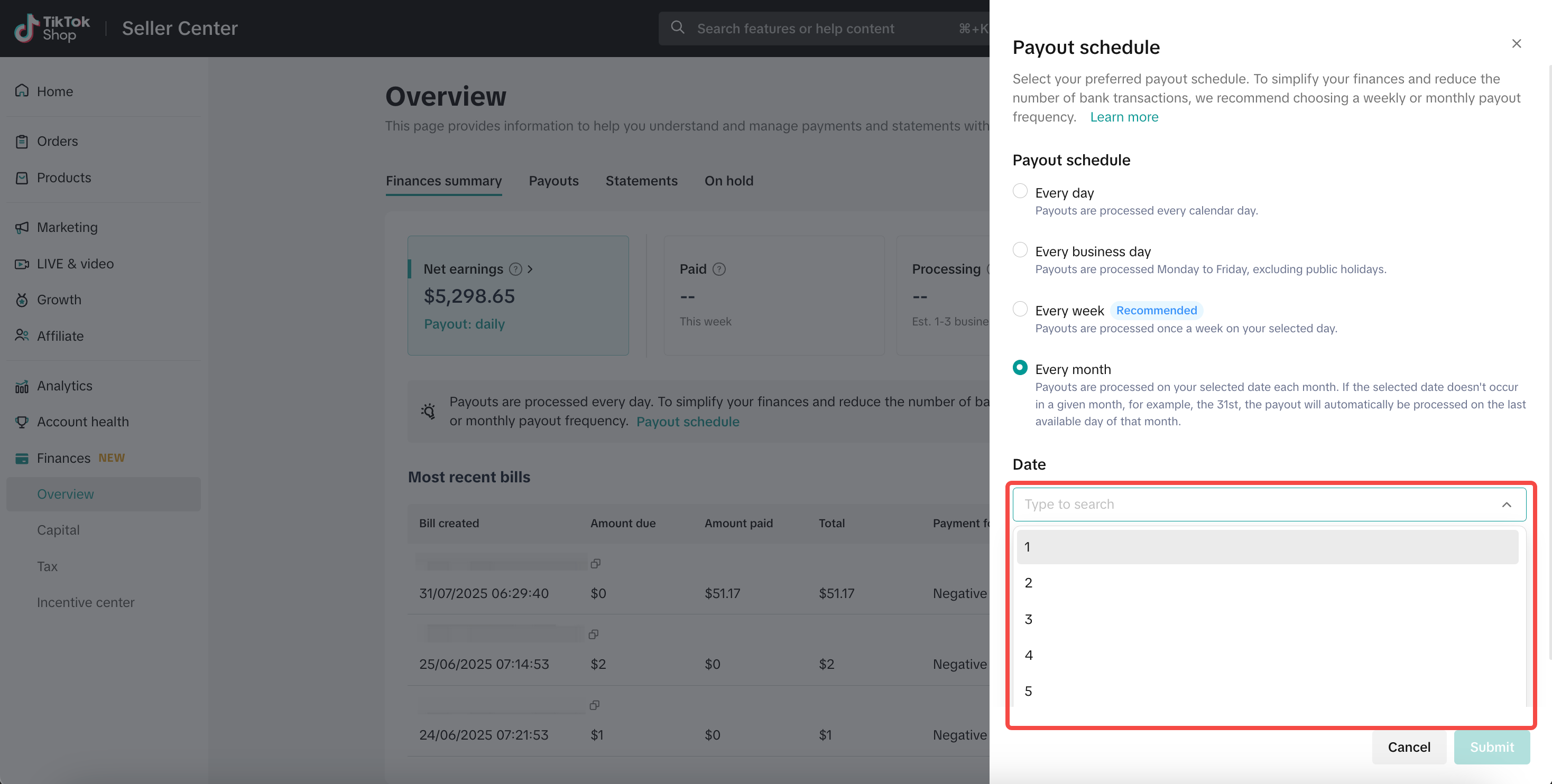
| Step 2 | On the Payouts Schedule settings page, select your preferred payout schedule:
|  |
| Step 3 | If you select Every week, then click the drop-down menu and select the day of the week that you want to get your payouts on. | 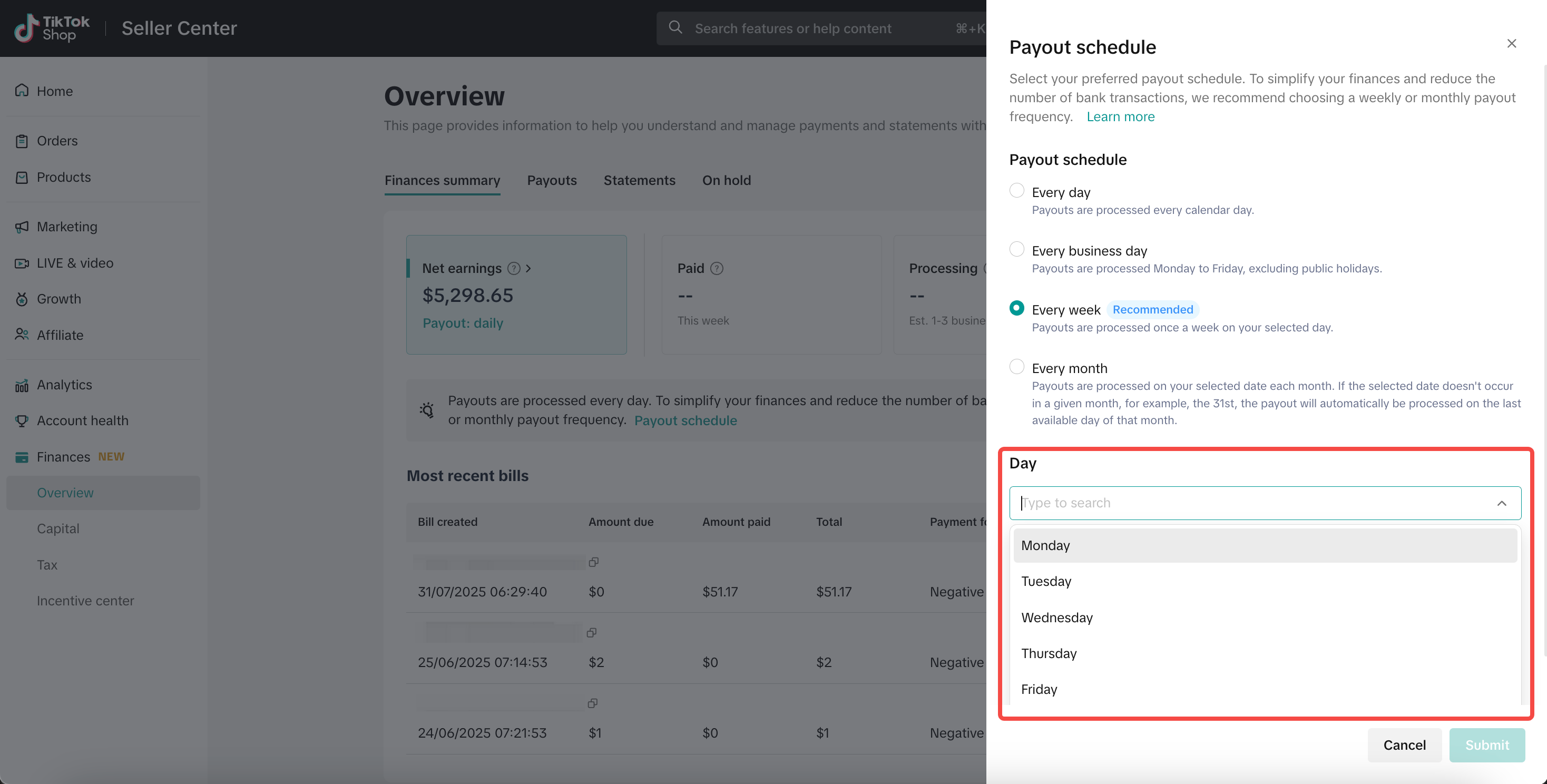 |
| Step 4 | If you select Every month, then click the drop-down menu and select the day of the month that you want to get your payouts on.Please note: Monthly payouts originally set for a date beyond the current month's end will instead be processed on the final day of that month, ensuring timely payments. For example, if your monthly schedule is set for the 30th, in February 2025, you will be paid on February 28. | 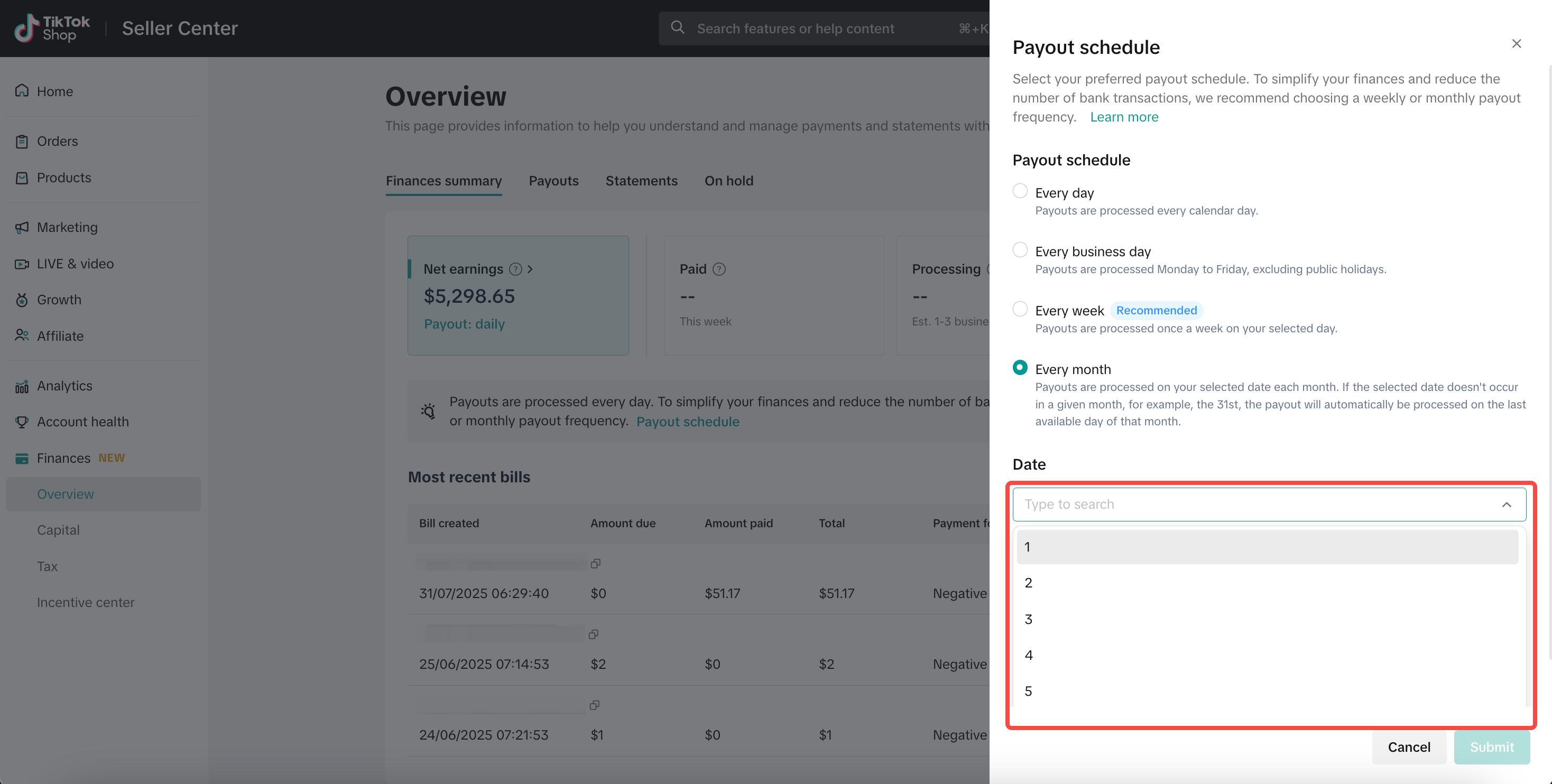 |
| Step 5 | Click Submit to save the payout setting.Once you update your payout schedule, the changes will take effect immediately. For example:
|  |
View your net earnings
If you set the payout schedule to a non-daily frequency, such as weekly or monthly, TikTok Shop will still adhere to the Dynamic Settlement Policy for settling funds to your shop account.The net earnings represent the total amount that has been settled but is awaiting payout initiation according to your payout schedule, or is pending retry due to a payout failure. Please note that net earnings cannot be negative.
Click the ">" next to the net earnings to view all related statements details.
Why have my net earnings decreased?
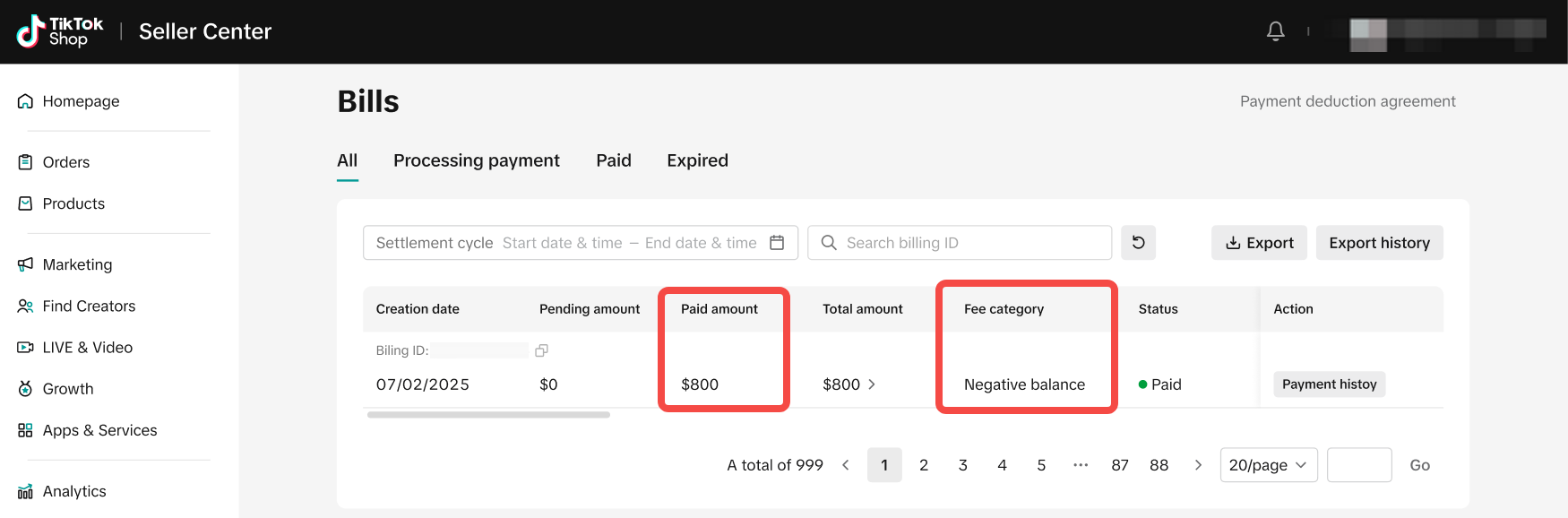
In some cases, you may notice a decrease in your net earnings, which is typically due to newly generated statements reflecting a negative balance.For example:
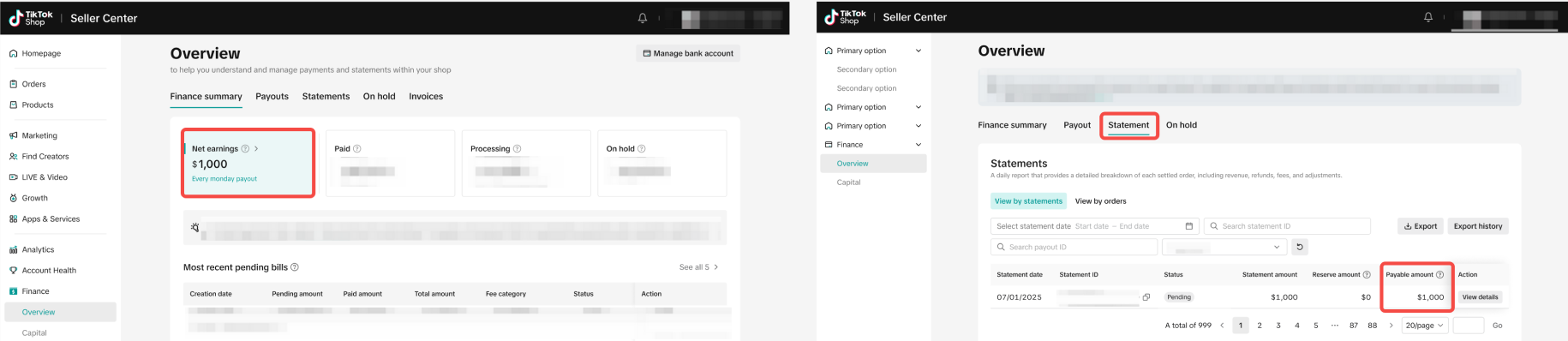
- July 1: Your net earnings show $1,000. When you click ">" to view details, you see a pending statement of $1,000.
- July 2: Your net earnings drop to $200. Upon reviewing the details, you see pending statements of $200, calculated as $1,000 minus $800.
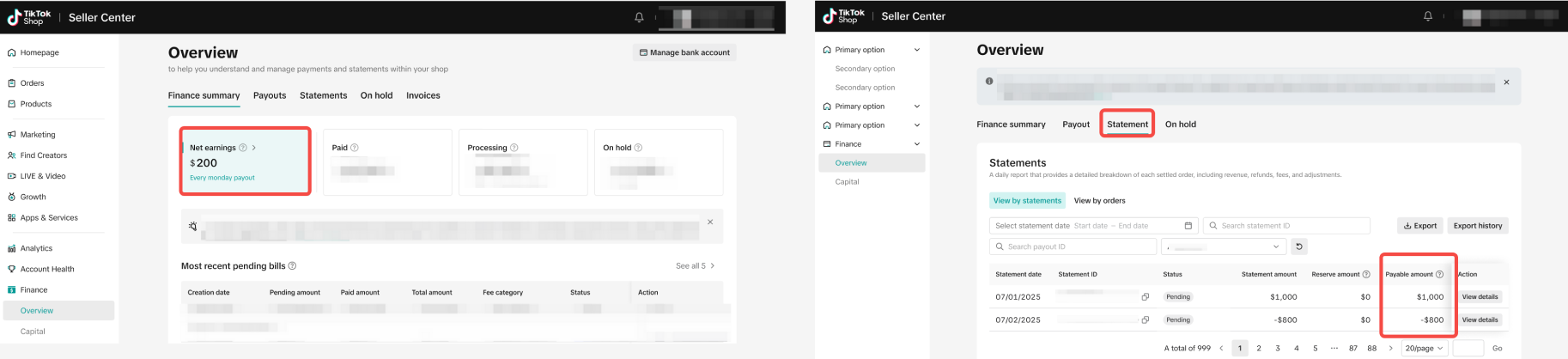
- You will also see a bill record indicating your negative balance of $800, which has been automatically paid off using your net earnings balance as the payment method.
FAQ
| Q1: Why was my payout not initiated as scheduled? | A1: If your payout wasn't initiated on time, it may be due to one of the following reasons. Please verify the following:
|
| Q2: How do I retry my failed payout once I have resolved the issue? | A2: If a payout fails due to invalid bank account information or other reasons, once the issue is resolved, the system will automatically retry the payout the next day to ensure timely processing. |
| Q3: My net earnings show "0" with the label "Action needed", and I also see a negative balance banner. What does this mean? | A3: This indicates that you have a negative balance. You can follow the guide to proactively pay it off. |
| Q4: What do the adjustments "Net earnings balance" and "Net earnings deduction" mean? | A4: These adjustments represent the system using net earnings to pay off the negative balance. They should net to 0 and will have no impact on your total balance. |
You may also be interested in
Finances Page FAQ
What's New? Sellers can now download detailed On-hold data in the Finance section. Sellers can now v…
How to Pay Off Negative Balances
Why do I have a negative balance? A negative balance can occur when miscellaneous platform expenses…
How to View Your Reserve Record
How does Reserve work? TikTok Shop will calculate and hold a reserve amount from the settlement amou…