

How to Appeal Your Shop Performance Score (SPS)

Overview
The Shop Performance Score (SPS) Appeal feature allows sellers to directly submit appeals for SPS-related metrics in Seller Center. If you believe a metric was impacted by an issue outside of your control—or you have evidence to prove the responsibility is not yours—you can now start an appeal directly in Seller Center without help from the support team.The appeal process follows a full review loop:
Seller submits appeal > TikTok moderation reviews (~3 business days) > Metric is corrected (if approved, ~1 business day) > SPS score updates automatically.
Why Does the SPS Appeal Feature Matter?
SPS plays an important role in shop visibility, buyer trust, and driving overall business success. That's why maintaining a strong SPS score is such a big deal. However, we know that sometimes SPS drops are caused by issues unrelated to the seller—such as buyer mistakes, logistics problems, or system errors.The new SPS Appeal feature allows sellers to take action directly to address SPS metrics that they believe are incorrect.
Where can I check if the SPS Appeal feature is available for me?
If the SPS Appeal feature is available for you, you will find it by logging in to Seller Center > Account Health > Shop Performance. Take note that this feature is being rolled out in phases, and will be available to all sellers by end of March 2026.Three ways to access the SPS Appeal feature:
Entry Points 1 & 2: Shop Performance Score (SPS) Main Page
- Appeal Center button in the top right corner
- Submit an Appeal Ticket button at the bottom of the page
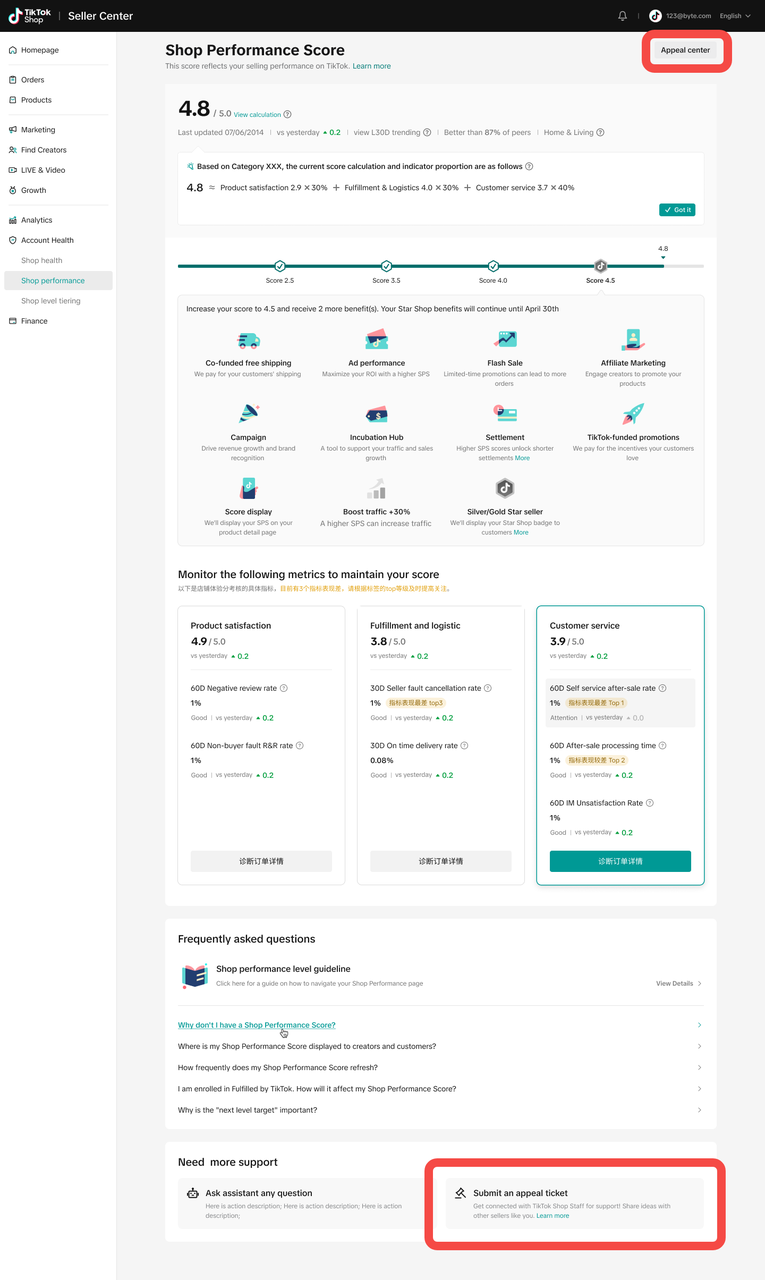
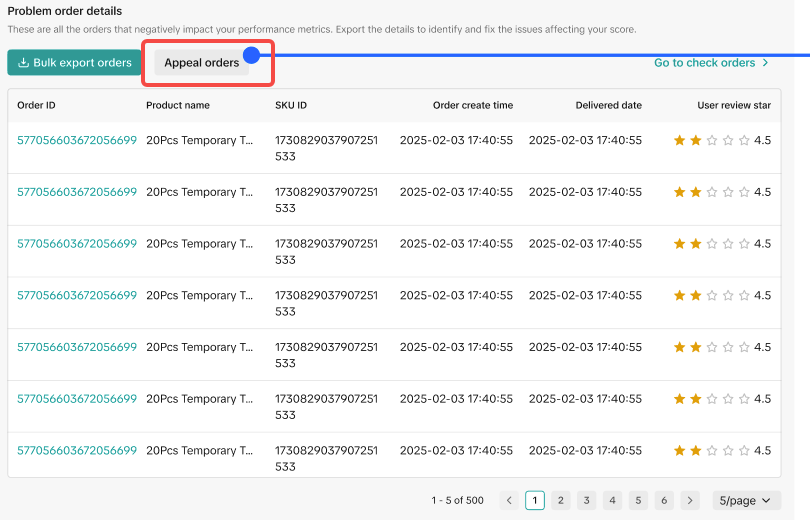
Entry Point 3: SPS Diagnosis Page
- Appeal Orders button at the top of the order list page
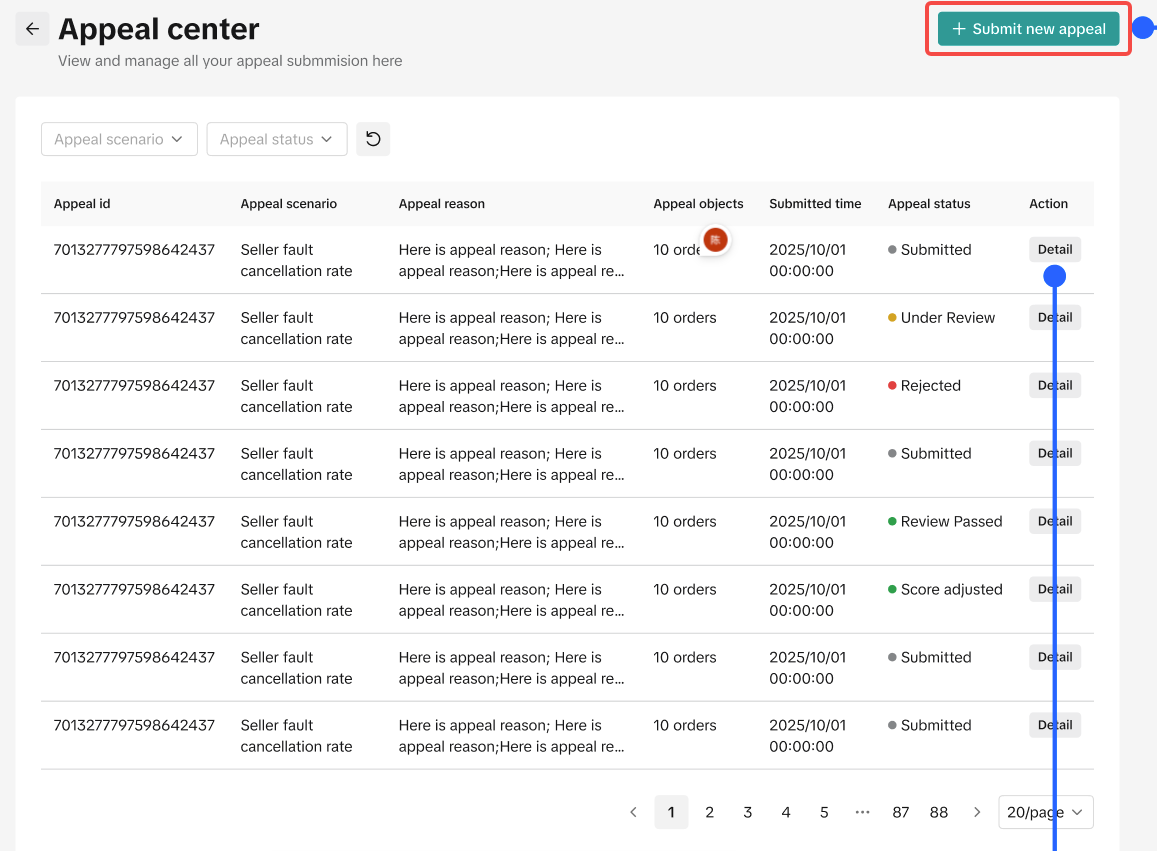
Submit a new appeal ticket or check on your appeal status
How to submit a new appeal ticket:
Click 'Submit new appeal'
Select the appeal metrics
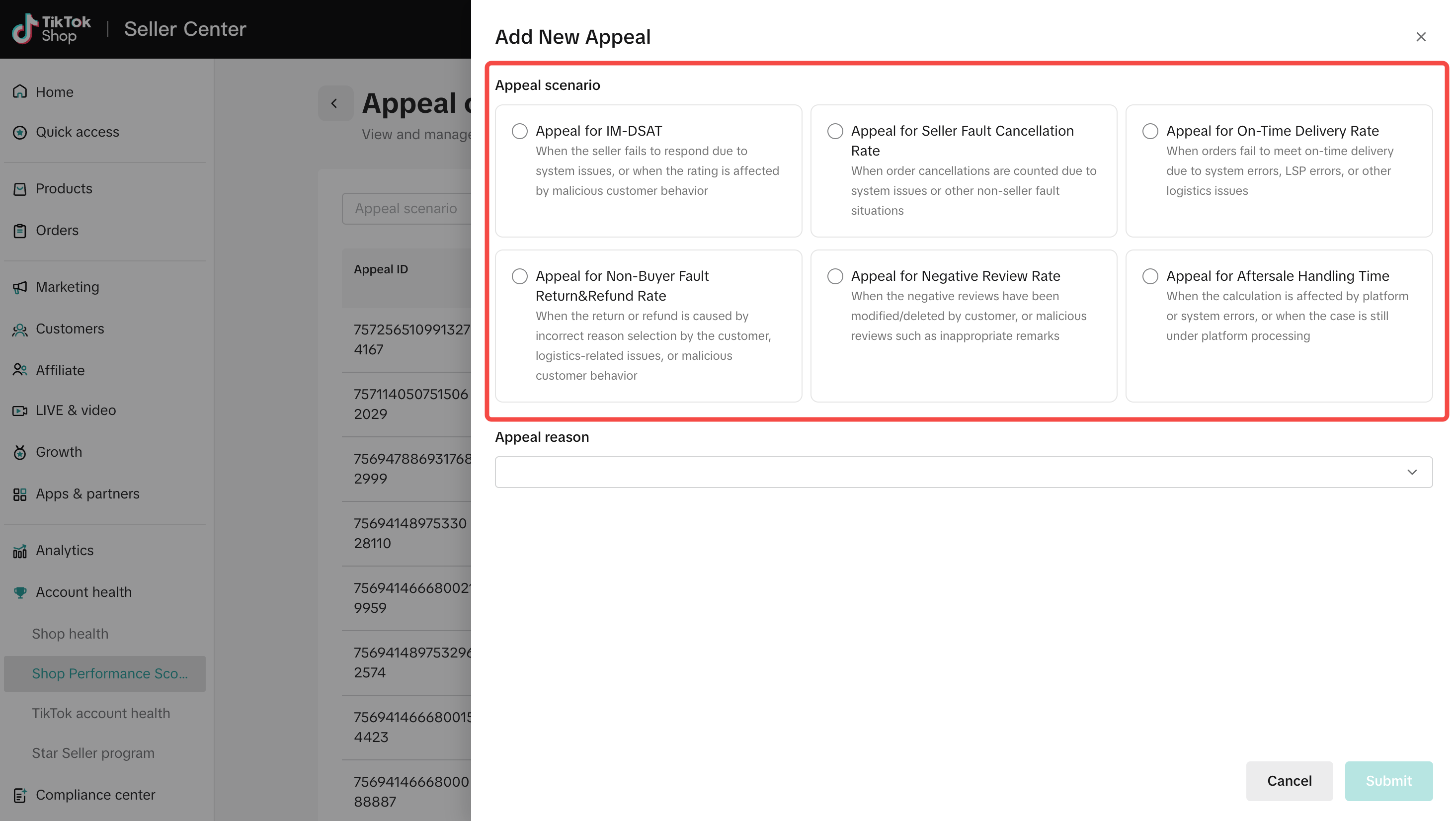
Select the reason for appeal
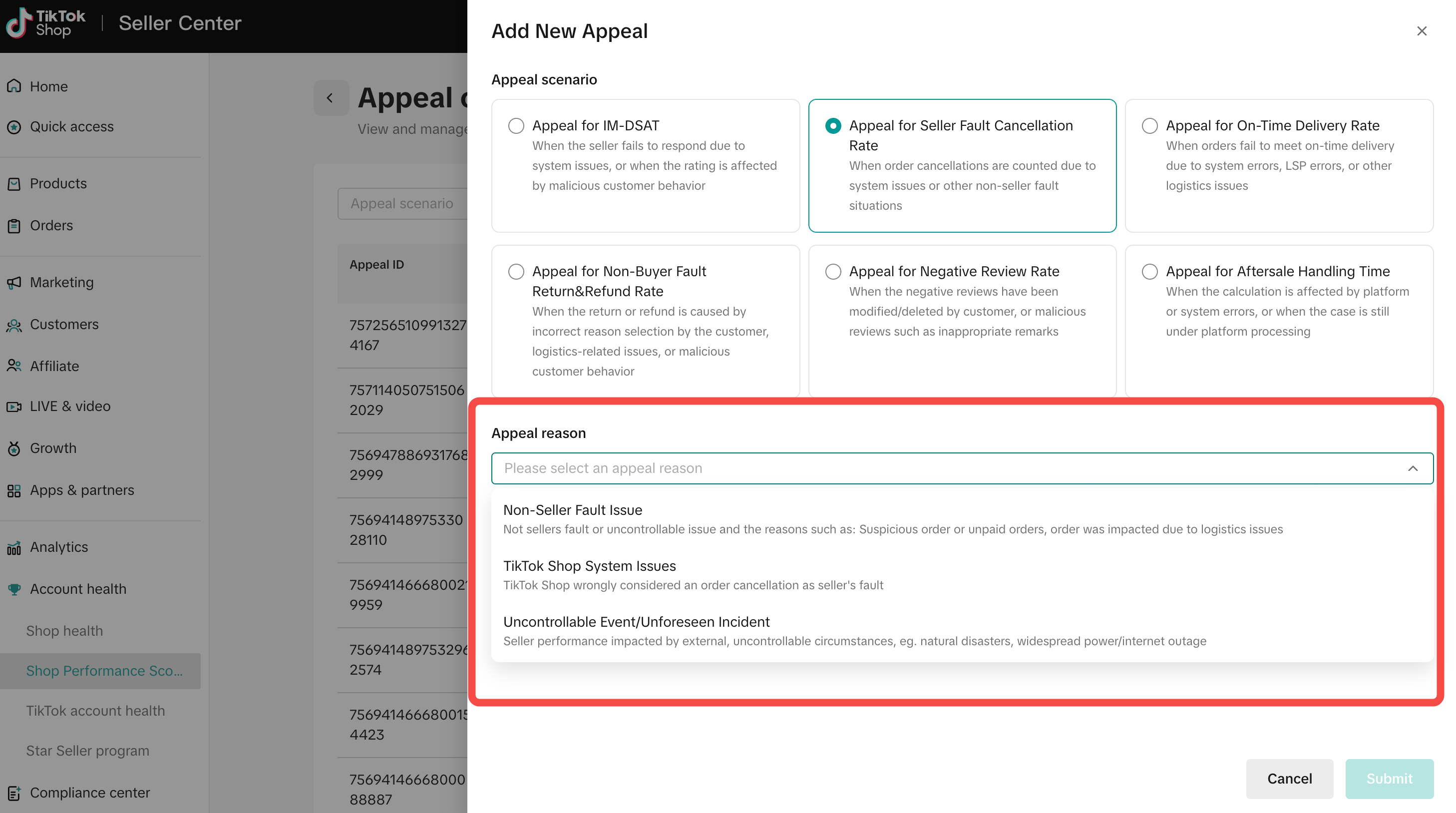
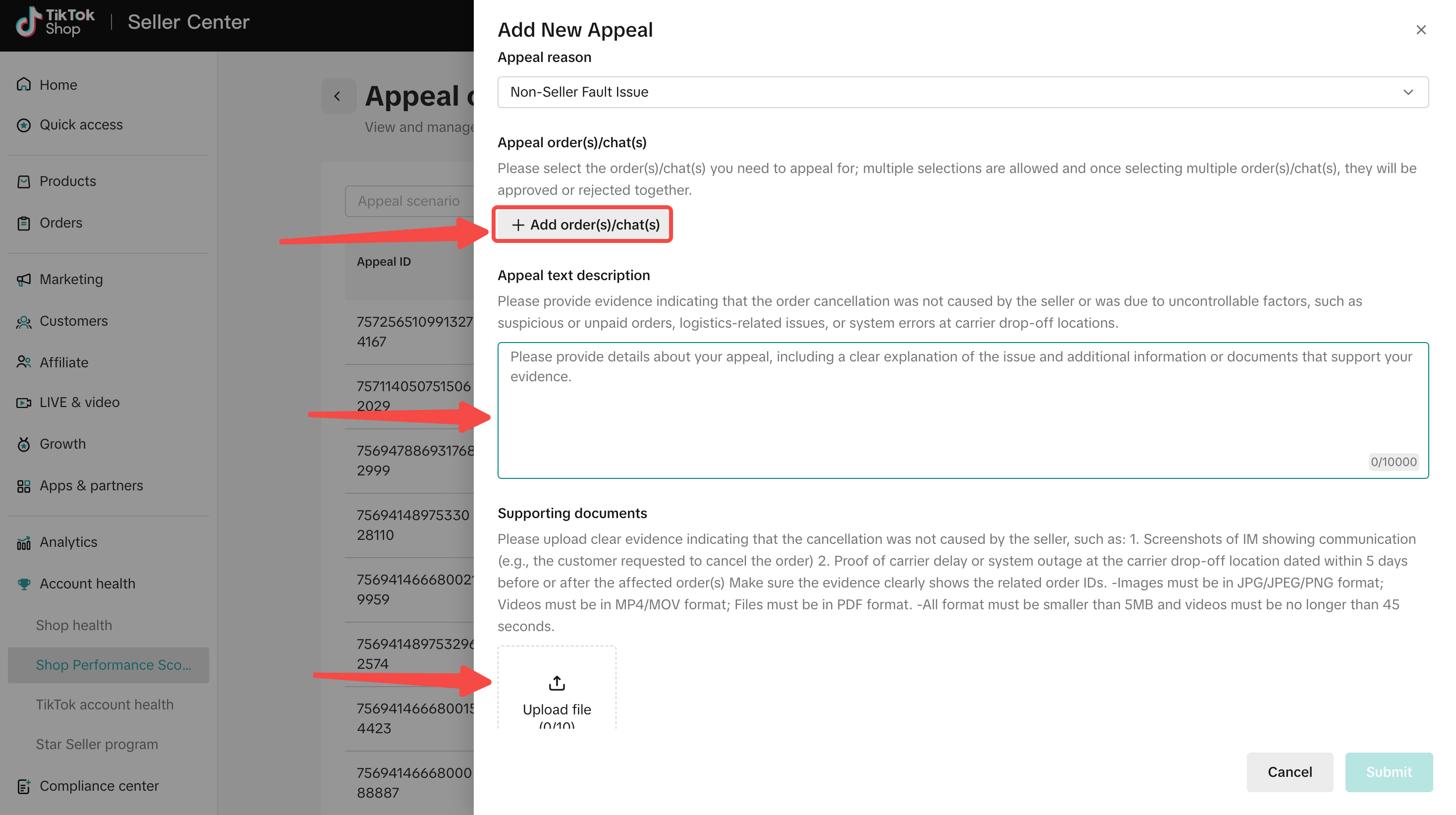
Select the order(s) to appeal

Fill out the appeal information and upload the evidence for appeal
How do I select appeal reasons and what materials do I need to upload?
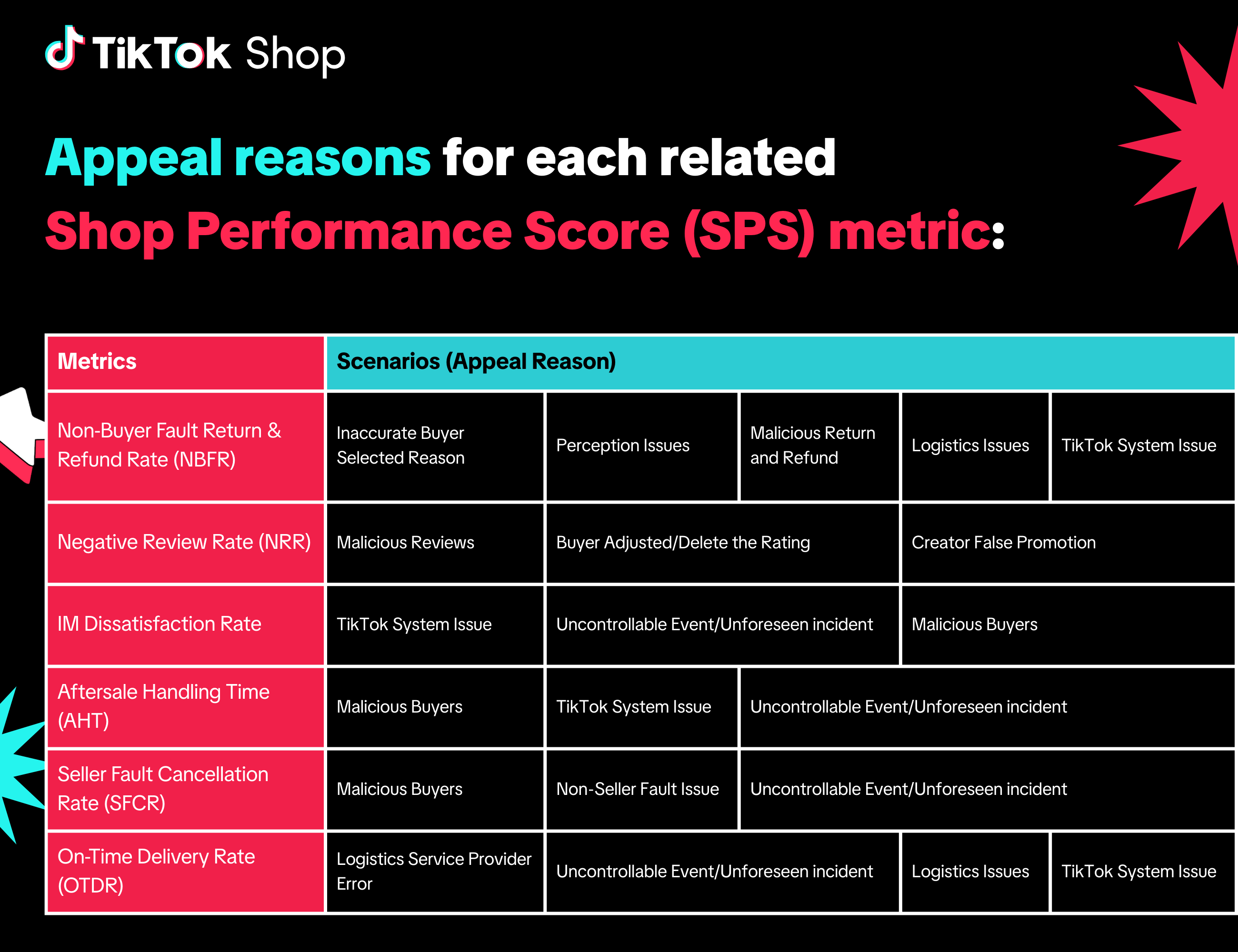
Please choose the correct appeal reason and make sure all supporting materials are accurate and complete before submitting.
Each order can be appealed up to 3 times for the same metric. If all three appeals are unsuccessful, the appeal option for that metric on that order will close, and no further appeals can be submitted.
To improve your chances of approval, review your documentation carefully before submitting.
Product Non-Buyer Fault Return & Refund Rate (NBFR)

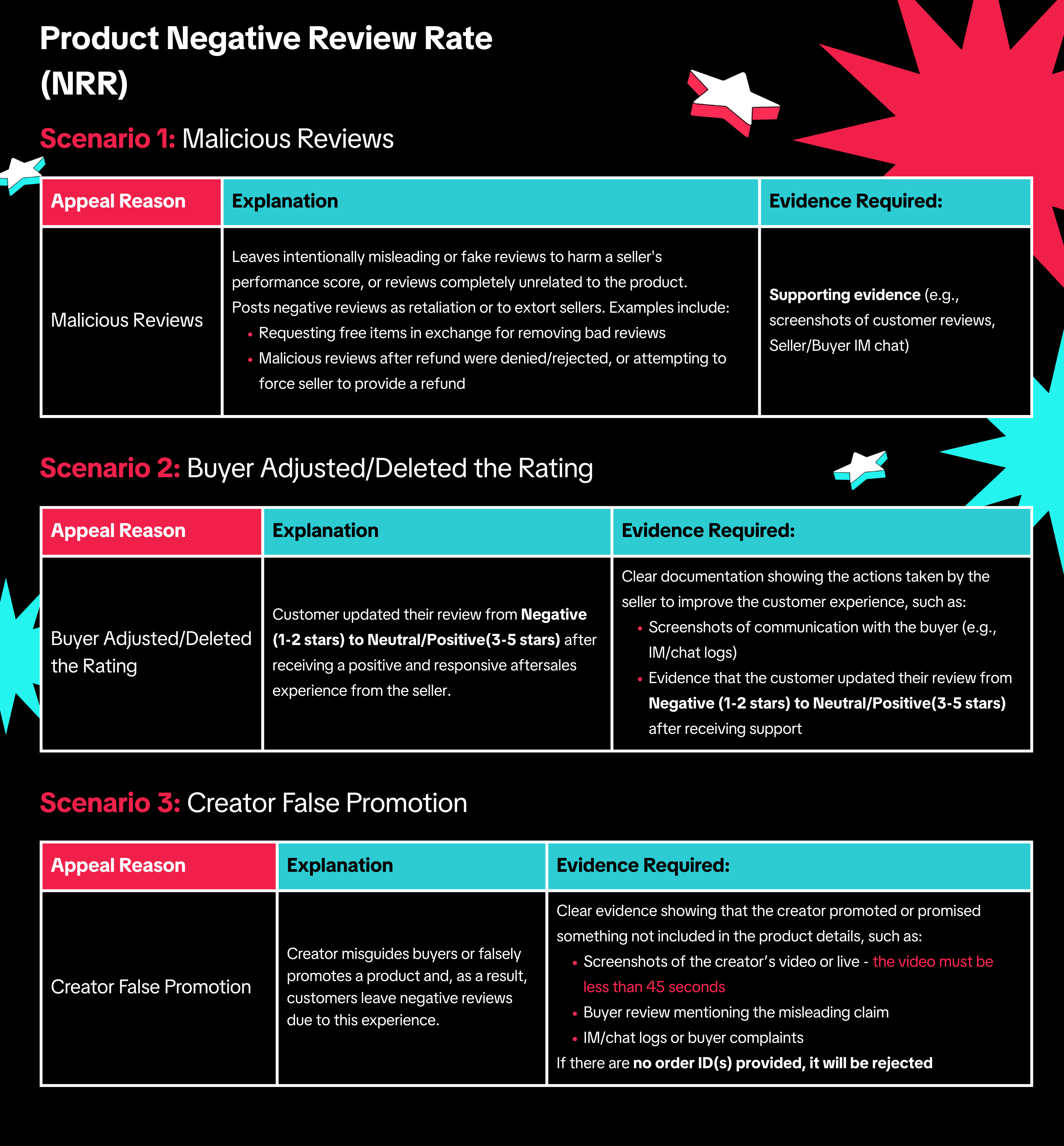
Product Negative Review Rate (NRR)
Seller Fault Cancellation Rate (SFCR)

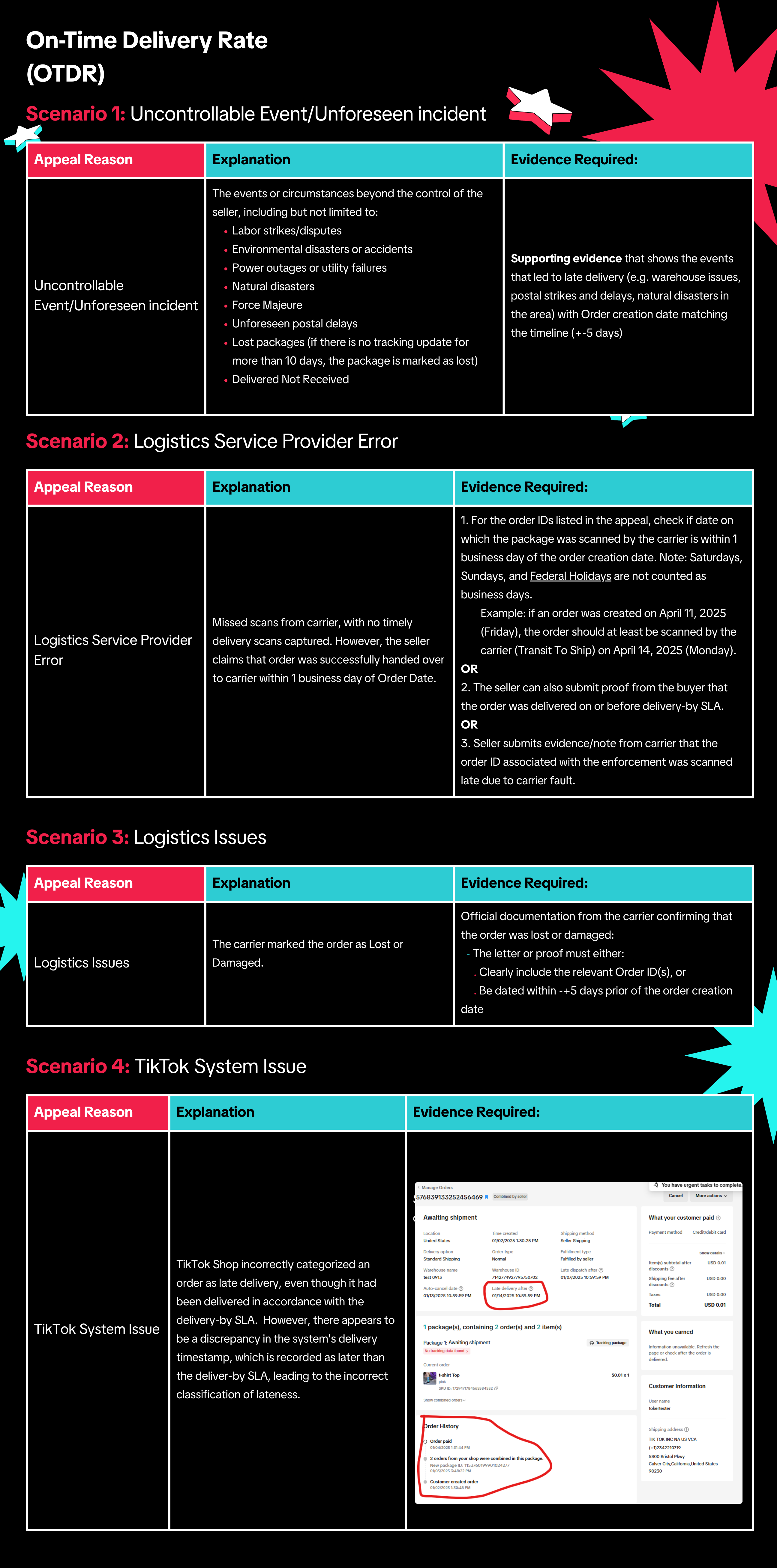
On-Time Delivery Rate (OTDR)
Aftersales Handling Time (AHT)

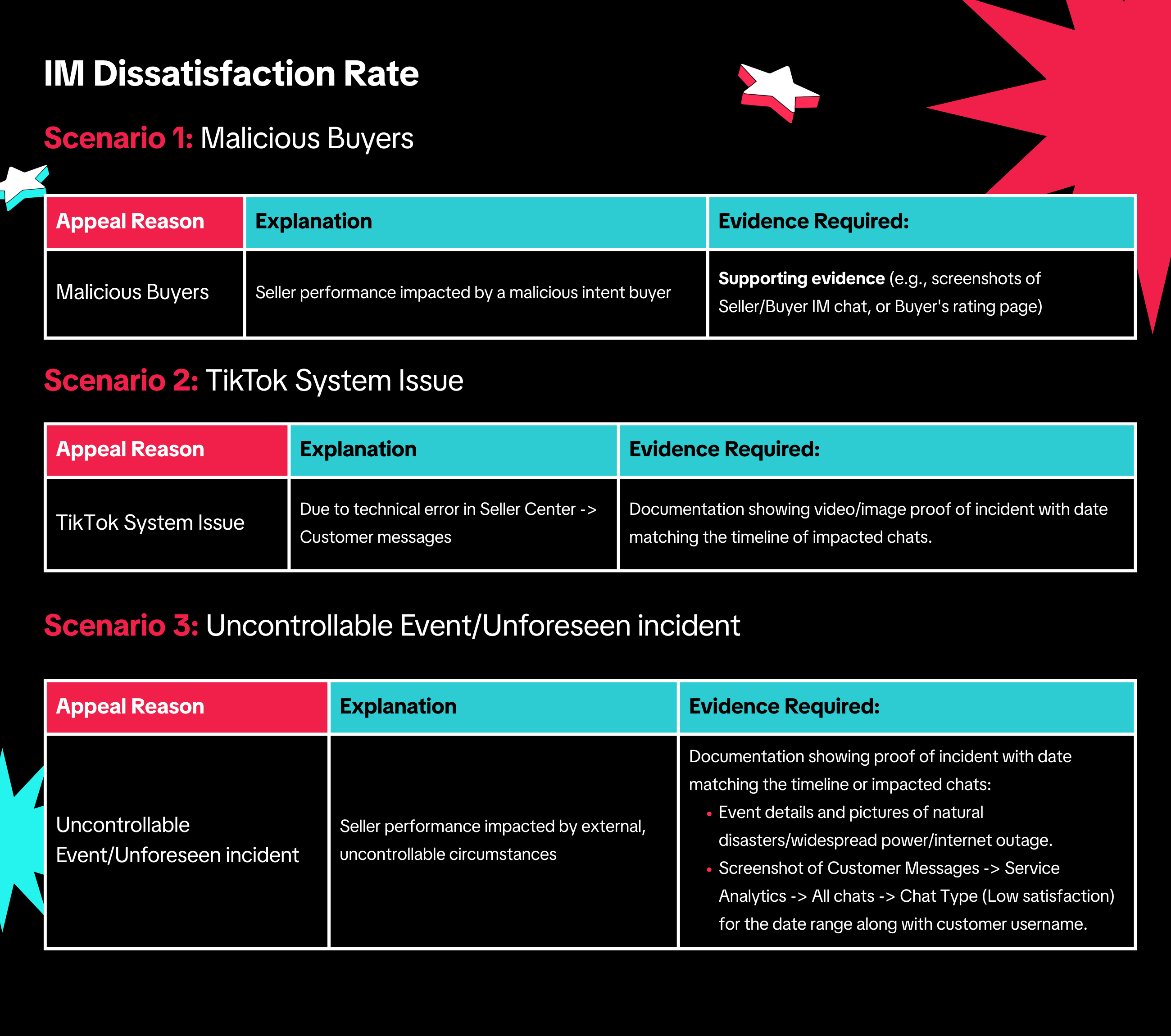
IM Dissatisfaction Rate
Check the status of your appeal
Frequently Asked Questions (FAQs)
How many times can I submit the same appeal?
You may also be interested in
April 2025 Product Innovation
Every month, we introduce new products and features designed to simplify store management, boost sal…

How to appeal a violation
TikTok Shop takes action against sellers who violate our TikTok Shop Seller Policy and related polic…

How to use the TikTok Account Health page
What is TikTok Account Health? The TikTok Account Health page helps sellers monitor the health statu…

What To Do When You Receive A Violation
This guide outlines what you need to do when you receive a violation. How TikTok Shop Will Notify Y…

How To Avoid Counterfeits, Knockoffs, And Other Trademark In…
TikTok Shop maintains a strict policy against all forms of intellectual property (IP) infringement.…

All About TikTok Shop's Policy/Milestone Quiz
Overview The Policy/Milestone Quiz is a feature designed to help you get familiar with our platform…

How to Correct Seller Violations
Overview: A Correction allows you to fix issues in your listings that violate specific policies befo…

How To Avoid Copyright Infringement Violations
TikTok Shop maintains a strict policy against all forms of intellectual property (IP) infringement.…

Requirements for the 24-Hour Response Rate Metric
Prompt responses = happy customers = more sales! The 24-Hour Response Rate aims to help you build tr…