

How to Analyze Your Video Performance on Desktop


AI Summary
Video Analytics in Desktop Streamer helps creators improve shoppable content by tracking engagement, top-performing products/videos, and audience behavior. Use the Video Analysis tab to review performance, product and content analysis, and video profiles; compare viewers vs purchasers to refine content and product choices. For inspiration, watch the top 3 revenue-driving videos for the same product. Private or deleted videos won’t display or show data; TOP 3 transaction videos appear only after selecting a single product, not All.
From this article, you will learn how to use video analytics generated by the platform to analyze your video performance. This helps you continue creating high-performing shoppable content!

How to Use Video Analytics
Analyse Your Video Performance
Analyse how people engage with your video content and what your top-performing products and videos are.Learn From Examples
Watch the Top 3 best-performing videos promoting the same product to help you find inspiration for your next video.Audience Analysis
Study your viewers and target audience. Use this insight to plan future videos and product selection. Understand the difference between purchasers and viewers and try to close the gap by offering more relevant content and products.Performance Overview
Enter LIVE Manager and find the Video Analysis tab in the left-hand menu.Video Data

Performance Overview
Enter LIVE Manager and find the Video Analysis tab in the left-hand menu.Video Data
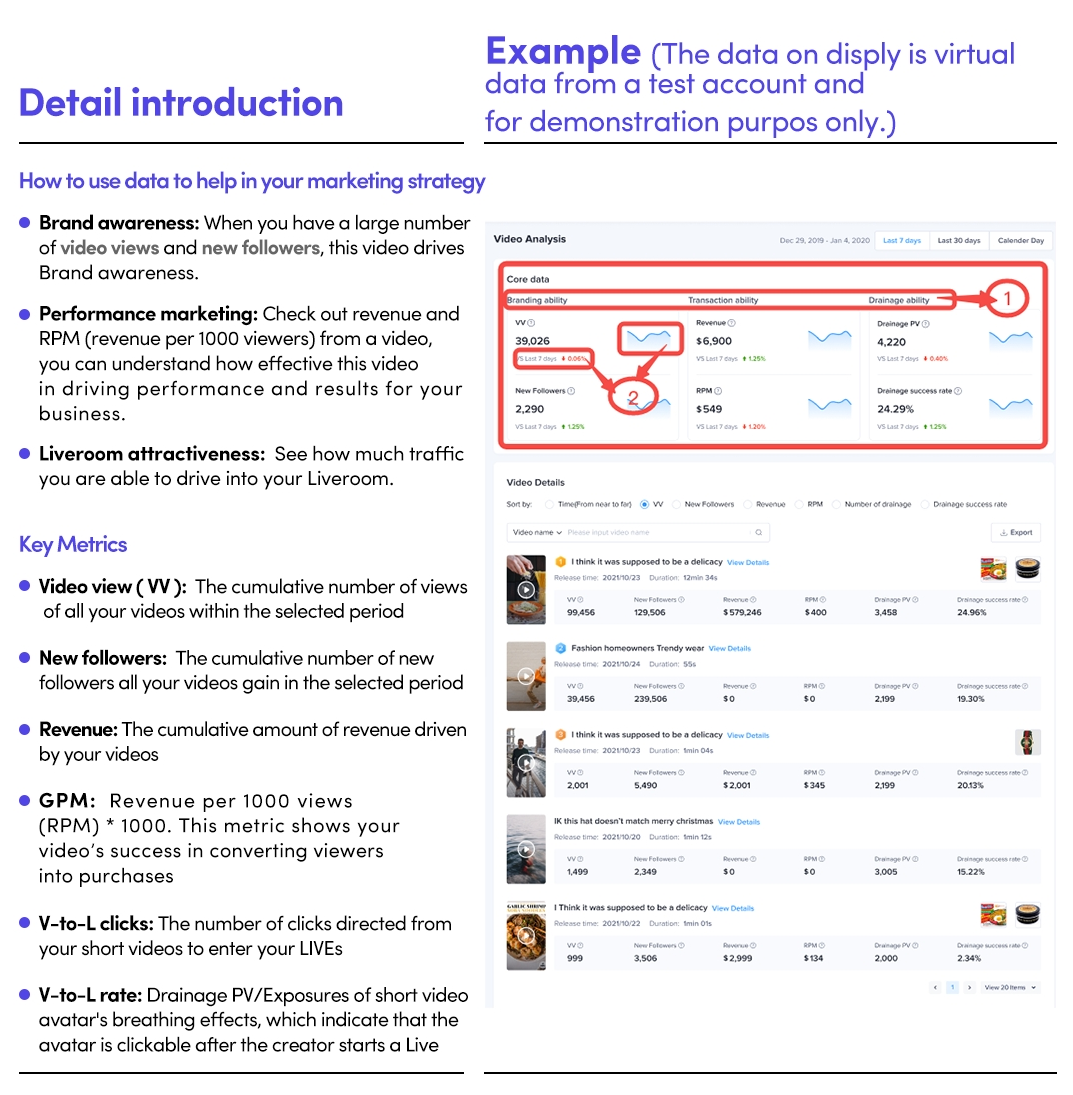
How to Analyse Your Data
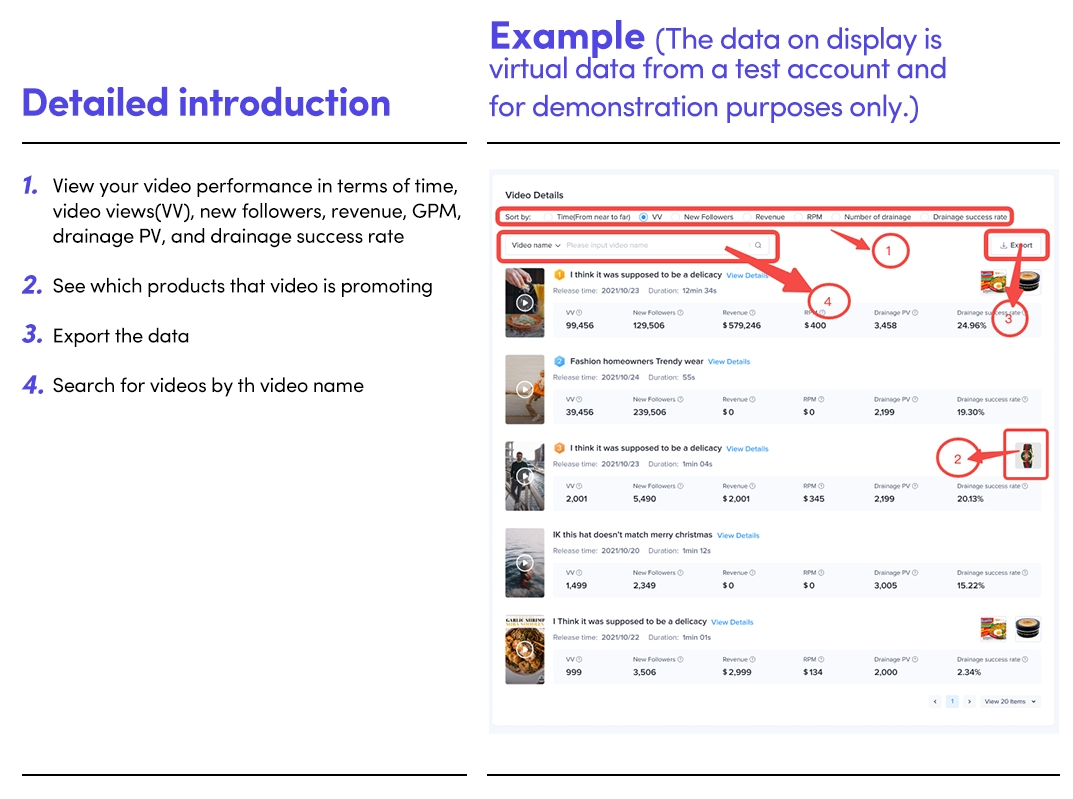
Product Analysis
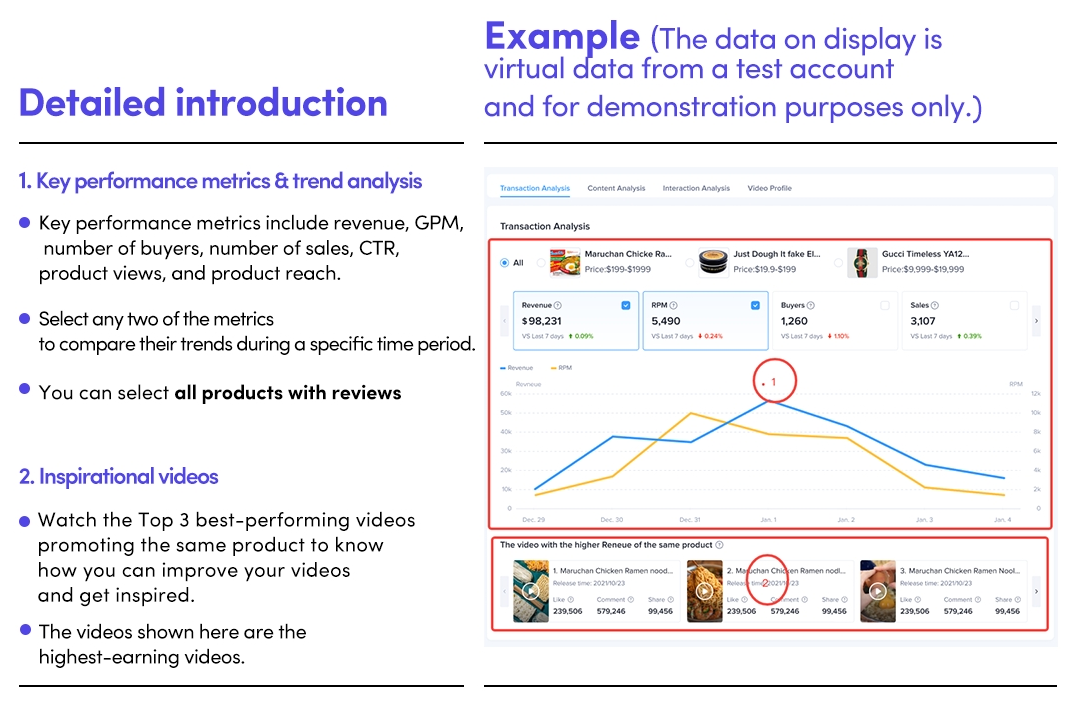
Content Analysis
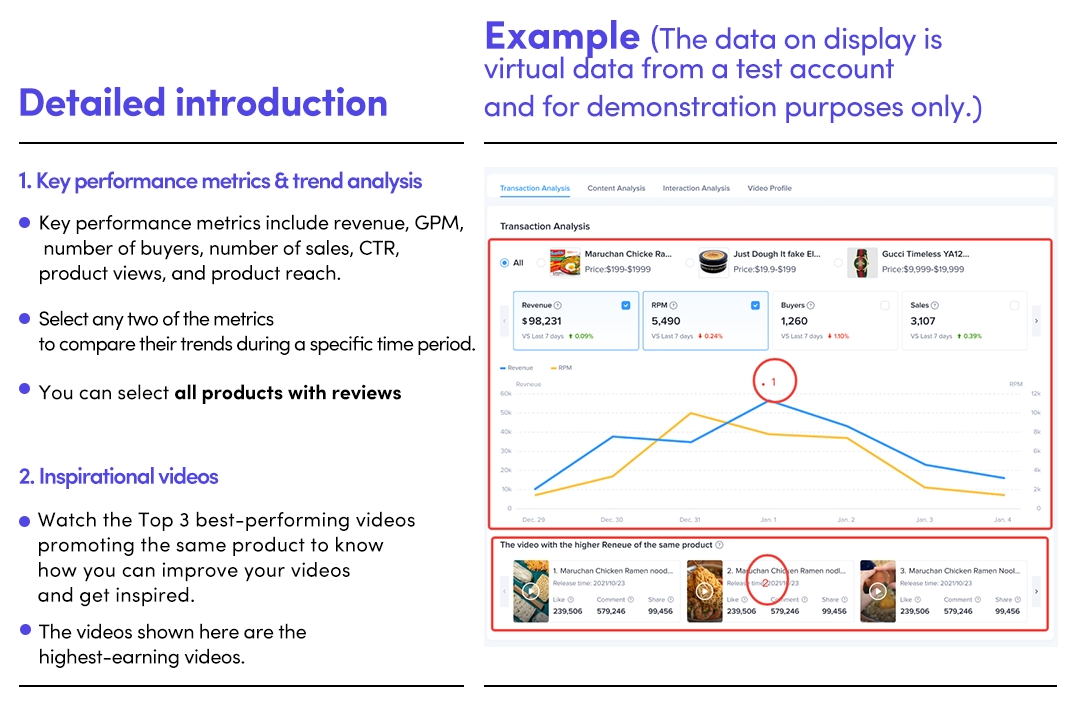
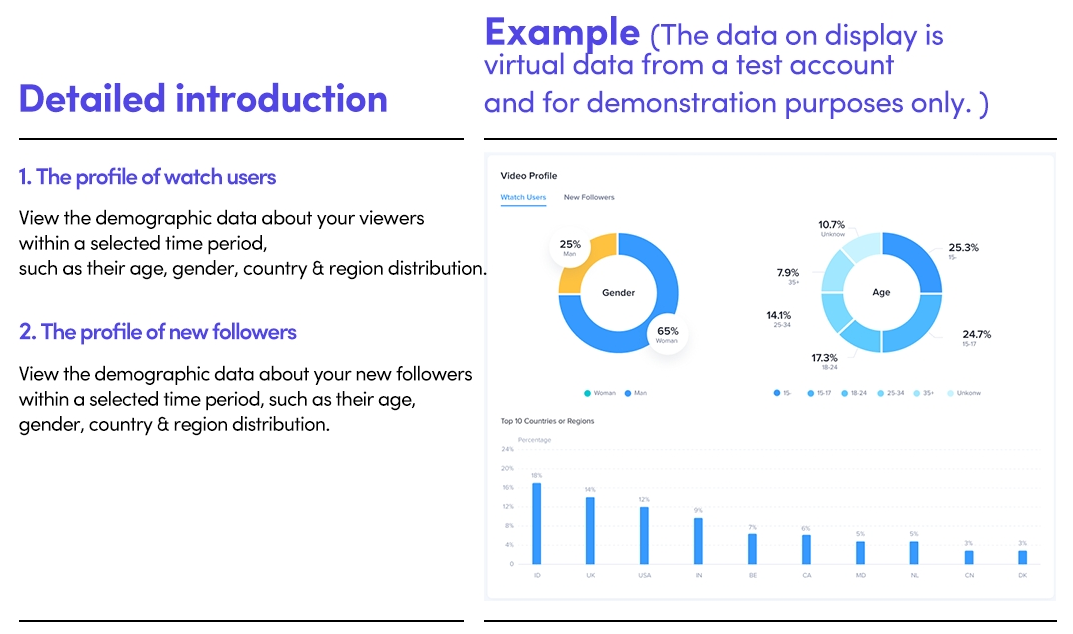
Video Profile

FAQs
- Why is the video on the Video Detail page not playing, and why is the video picture blank?
- The video may be set as private or deleted; we do not support playback nor display video pictures for deleted or private videos.
- Why are the inspirational videos with the highest revenue not shown in Transaction Analysis on the Video Detail page?