

Lipsync Dubbing
11/25/2025
💡 Feature Overview
Lipsync Dubbing lets you turn your shoppable videos into any supported language using AI. The tool automatically matches your lip movements, dubs your audio, and generates natural scripts, so you can create localized product videos without reshooting.🌟 Top Benefits:
- ⏳ Save time and effort: Create high-quality videos in minutes with lipsync dubbing and script generation.
- 🌍 Increase your reach: Translate your videos in multiple languages, helping you reach new markets and connect with international shoppers.
- 👀 Increase engagement: Use natural, human-like AI dubbing to capture attention, build trust, and keep your audience watching longer.

🧭 How to Access This Feature
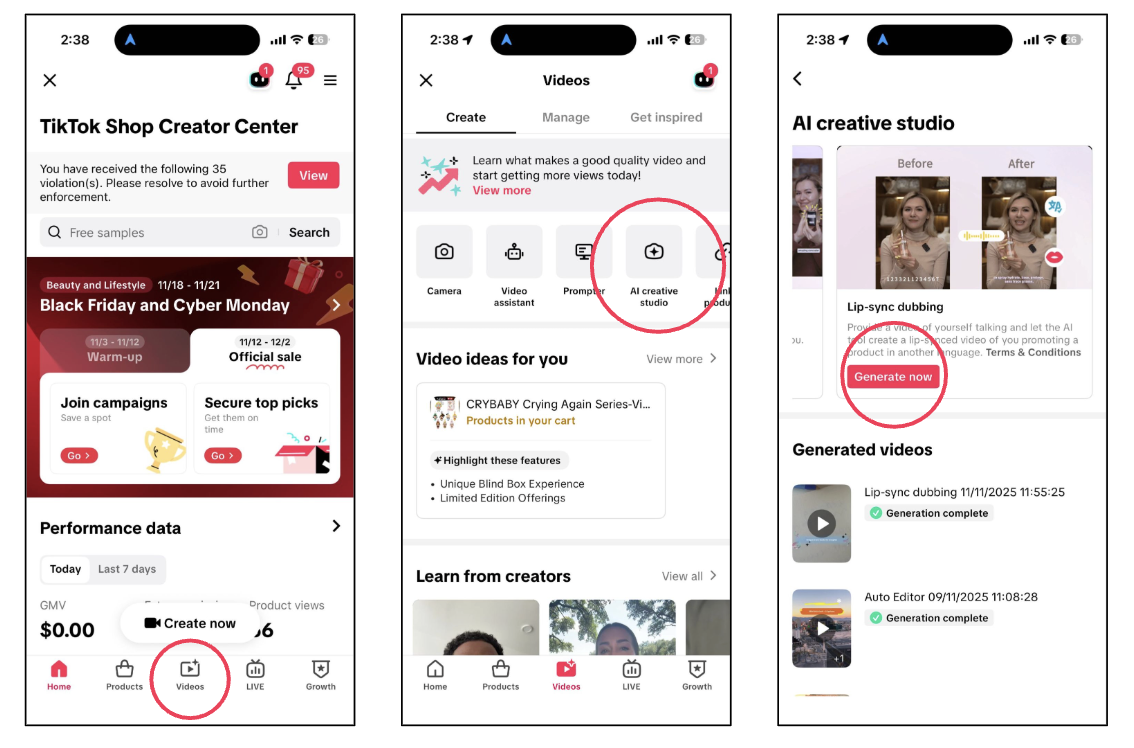
- Go to TikTok Shop Creator Center then click the Videos tab.
- Click AI creative studio.
- Click "Generate now" under Lip-sync dubbing.

⚙️ How it Works
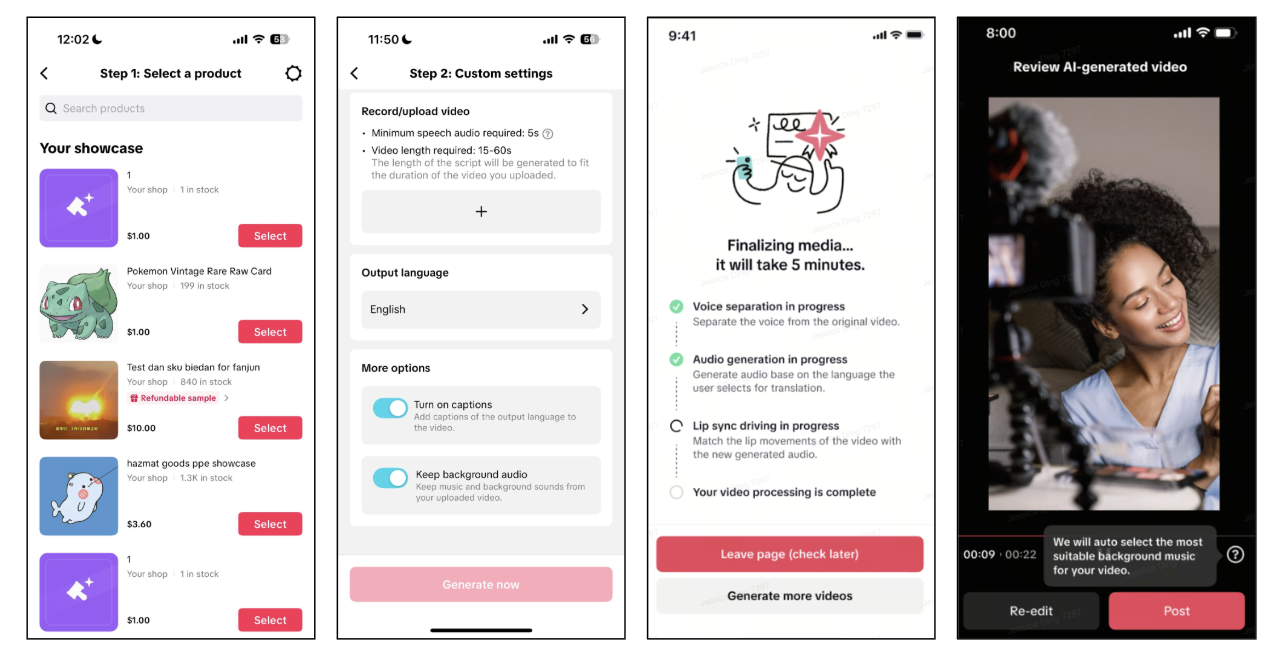
- Step 1: Select a product.
- Step 2: Record a video.
- Minimum speech audio: 5 seconds
- Video length: 15–60 seconds
- Step 3: Choose your output language. Current options include English, Spanish, French, or German.
- Step 4 (Optional): Customize your settings.
- Turn on captions (in the output language)
- Keep background audio (retain music or ambient sound)
- Step 5: Generate your video. AI automatically lip-syncs your mouth movements, replaces your voice, and produces a clean translated video. Once it’s ready, you’ll see it under Generate videos.

Frequently Asked Questions (FAQs)
| Question | Answer |
| What does Lipsync Dubbing do? | It transforms your existing talking videos into translated, lip-synced product videos, helping you reach shoppers in different languages without re-shooting. |
| How long should my video be? | Your video must be 15–60 seconds with at least 5 seconds of clear speech. |
| Which languages are supported? | You can currently dub your video into:
|
| Can I keep my background music? | Yes. Turn on Keep background audio to retain music or ambient sounds from your original video. |
| Where do I find my generated videos? | All completed videos appear under Generated videos in the AI Creative Studio, marked as Generation complete. |
| Do I need editing experience? | No. AI handles everything, including lipsyncing, dubbing, script timing, and output generation. |

You may also be interested in
- 1 lesson
Creating Shoppable Videos with Shopify's 1P App
Are you a Shopify seller looking to create scroll-stopping shoppable videos but don’t know where to…
2025 Shoppable Video Holiday Guide for Sellers 🎁 ✨
👋 Introduction Black Friday Cyber Monday (BFCM) is the biggest seasonal sales weekend of the year,…
TikTok for Shopify: Shoppable Videos
Introduction: What is the SV Widget on the Shopify App? Compelling videos are at the heart of what d…

How to Schedule Shoppable Videos
💡 Feature Overview Scheduled Shoppables Videos lets sellers, like you create and prepare videos whe…
How to Change Your Video's Sound
TikTok will notify you if any of your videos' sound is no longer available. The TikTok App offers di…

Image-to-Video (formerly known as AI Fashion Video Maker)
💡 Feature Overview Image-to-Video is a tool that instantly turns your product photos into short, po…
"TikTok Shop for Sellers"
Introduction Shoppable Video is the most powerful way to sell on TikTok Shop. TikTok Shop for Seller…

Shoppable Photos
NOTE: This feature is currently in beta and available for select sellers. Functionality may evolve a…