

Good Quality Video Guide
💡 Feature Overview
The Good Quality Guide is your go-to resource for learning what great shoppable content looks like, why they perform well, and how to create more content that meets TikTok Shop's "good quality" standards. It also provides clear insights and guidance after you post, so you can see how your good quality videos contribute to your traffic and improve with each new video.
🧭 How to Access This Feature
From the Videos Tab
- Go to TikTok Shop Creator Center.
- Tap the Videos tab at the bottom of the screen.
- Click the banner at the top that says "Learn what makes a good quality video and start getting more views today!"


⚙️ How it Works
Step 1: Learn What Makes a Good Quality Video
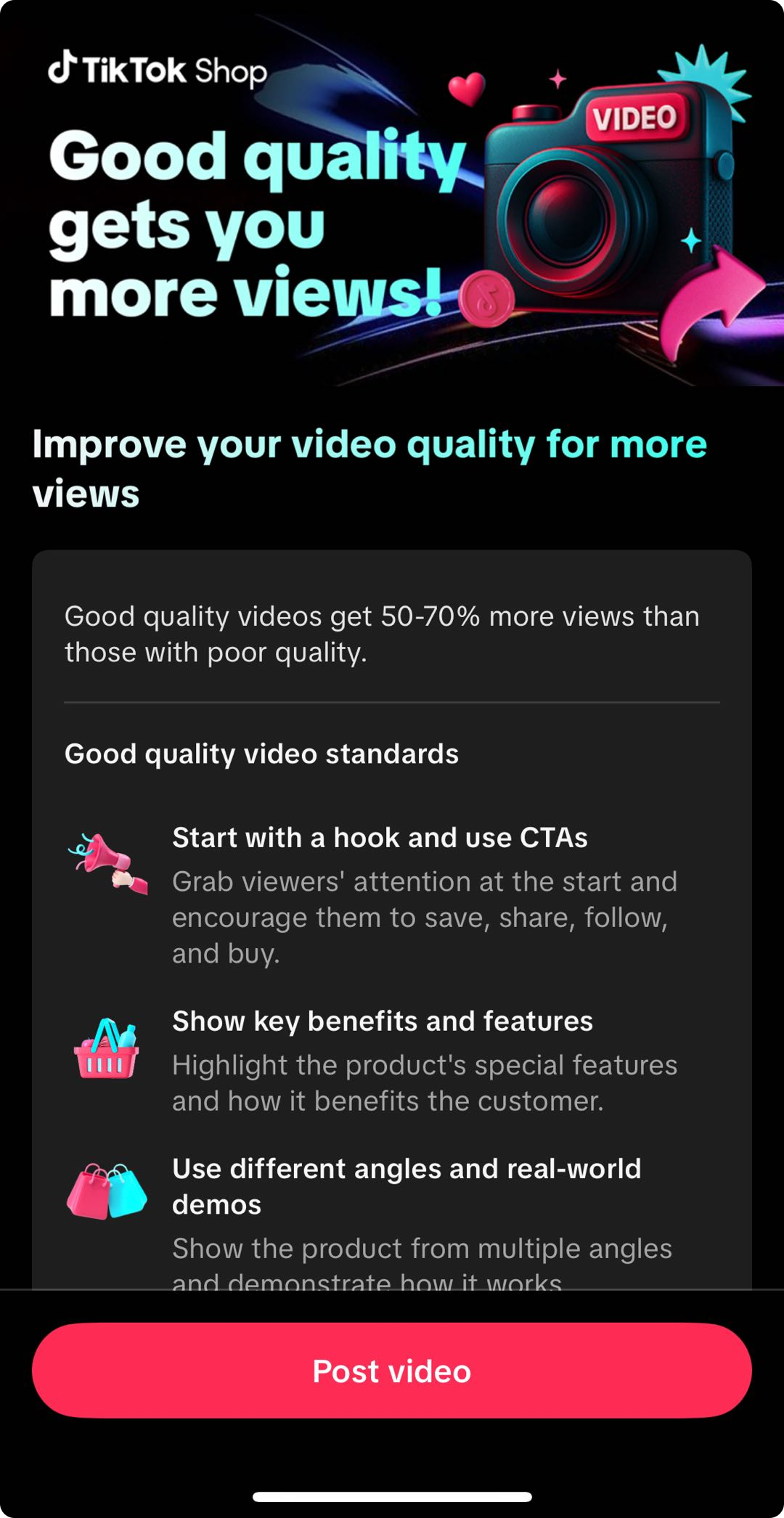
- A quick intro video explaining the value of good content.
- The 3-part formula for a great shoppable video:
- 🪝 Hook: Capture attention fast with a strong visual, verbal, or text overlay hook in the first 3 seconds to stop the scroll. Show a transformation, like a before-and-after or product reveal, say something bold that will spark curiosity, and add text that quickly tells viewers what the video is all about. Combine all three hooks for maximum impact.
- 🥩 Meat: Show how the product works and why it's worth buying. Use a multi-angle demo, like step-by-step usage, a before-and-after, and real use-cases, to highlight key benefits in practical scenarios. Keep it natural and easy to follow.
- 📞 Call-to-Action: End with a clear, confident call to action that tells viewers exactly what to do next, like "tap the link to buy now." Keep the energy up and remind viewers of the benefit to inspire action.
Step 2: Explore Real Creator Examples
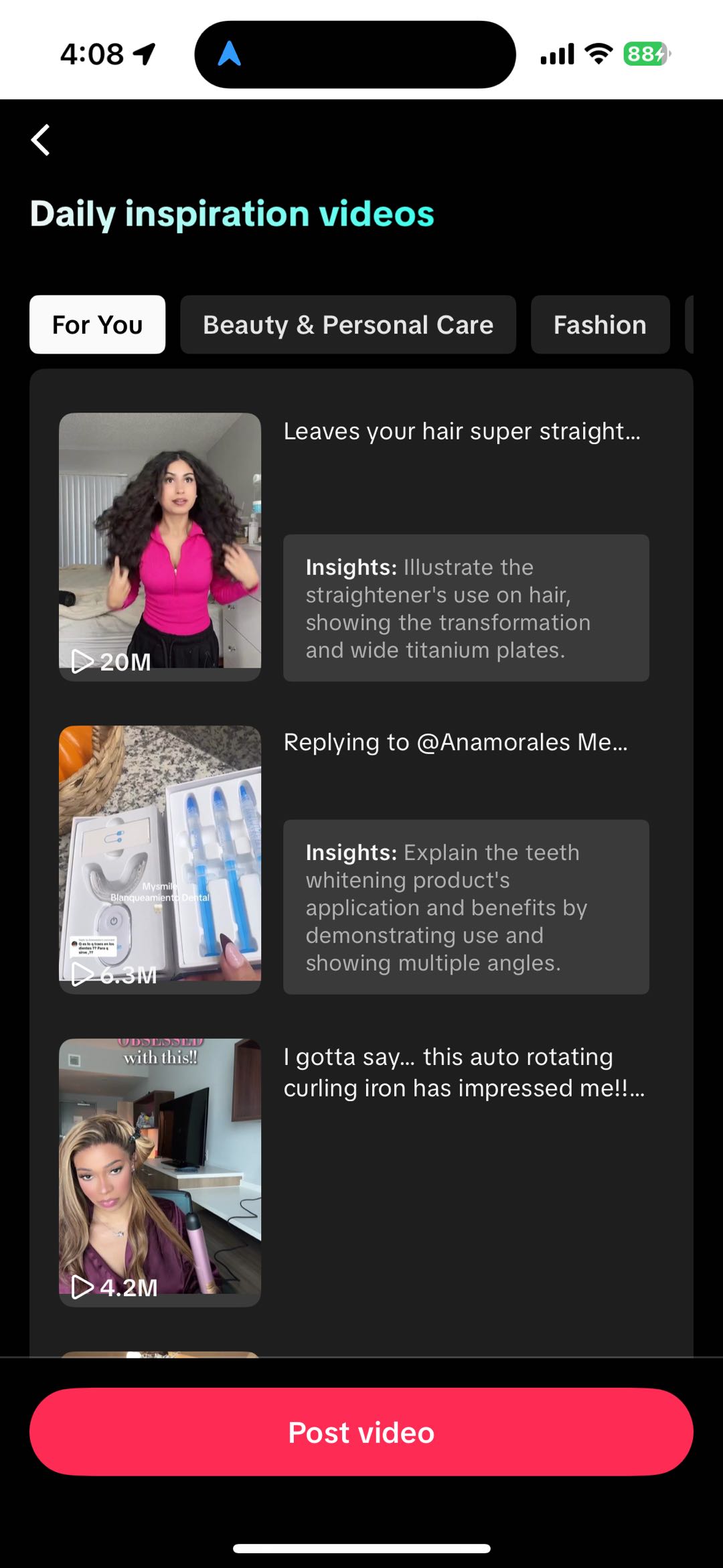
Step 3: Create and Post Your Own Videos
Use the guide's tips and examples to film and upload your next shoppable video. Post it directly in the app as usual. Your content is automatically evaluated, and good-quality videos will be identified and used in your performance insights.Step 4: Track Performance and Get Feedback
After you post, you can review how your videos are performing and see how your good-quality content contributes to your growth. Performance insights appear across Creator Center to help you understand what's working and what to improve next.Manage Tab
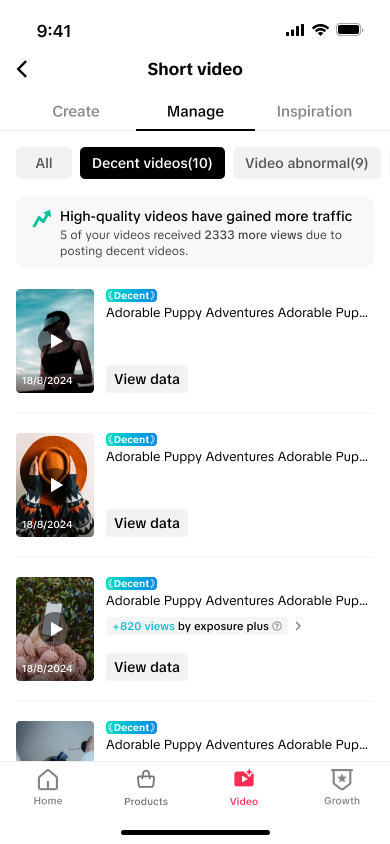
Video Details
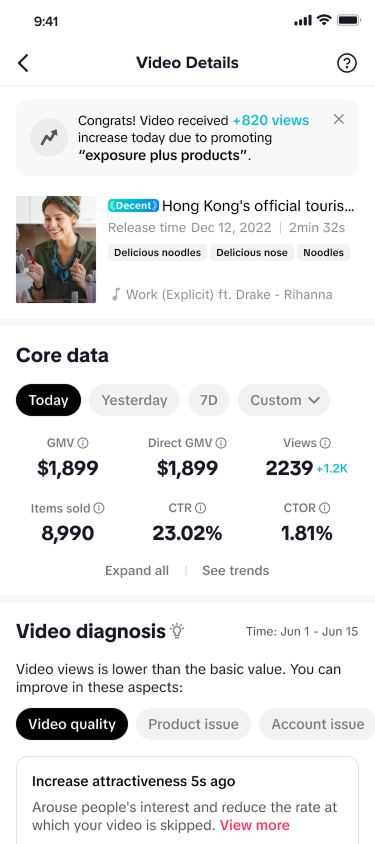
Traffic InsightsAt the top of the page, you'll see a traffic insight banner that explains why your video's views increased, such as promoting exposure plus products. This helps you understand which programs or content types are contributing to your growth.
Video InformationBelow the banner, you'll see key information about the video, including video title, release time, video duration, and associated product tags or categories. This makes it easy to quickly identify which video you're reviewing and whether it meets the Good Quality Standards.
Core DataThis section summarizes your video's performance across different timeframes, including Today, Yesterday, 7 Days, and custom dates. It includes the following metrics:
- GMV: Total sales generated from this video
- Direct GMV: Sales directly attributed to the video’s performance
- Views: Total views and view increase compared to the previous period (e.g., +1.2K)
- Items Sold: Total number of products purchased through this video
- CTR: Click-through rate from the video to the product page
- CTOR: Conversion rate from product page to purchase
Video DiagnosisThe Video Diagnosis section helps you understand why your video performed the way it did and what you can improve next. It includes:
- A clear statement of the issue, such as: “Video views is lower than the basic value. You can improve in these aspects:”
- Various diagnosis categories, such as: Video quality, Product issue, and Account issue
- Example Improvement Card with actionable guidance, such as: "Arouse people’s interest and reduce the rate at which your video is skipped. View more." This includes supporting example videos to illustrate what effective improvements look like.
Creator Center Homepage
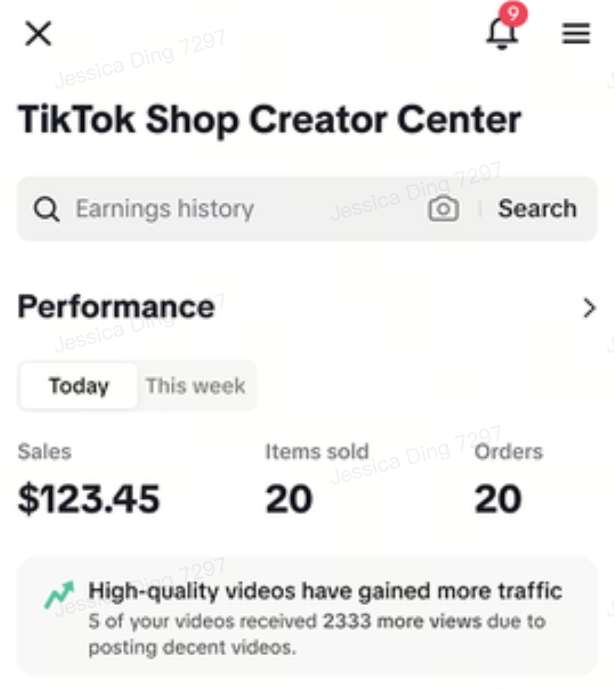
You may see a performance tip on your Creator Center homepage when your recent good-quality videos bring in more views. Tapping the tip takes you to your performance breakdown.
Good Quality Video Guide Homepage
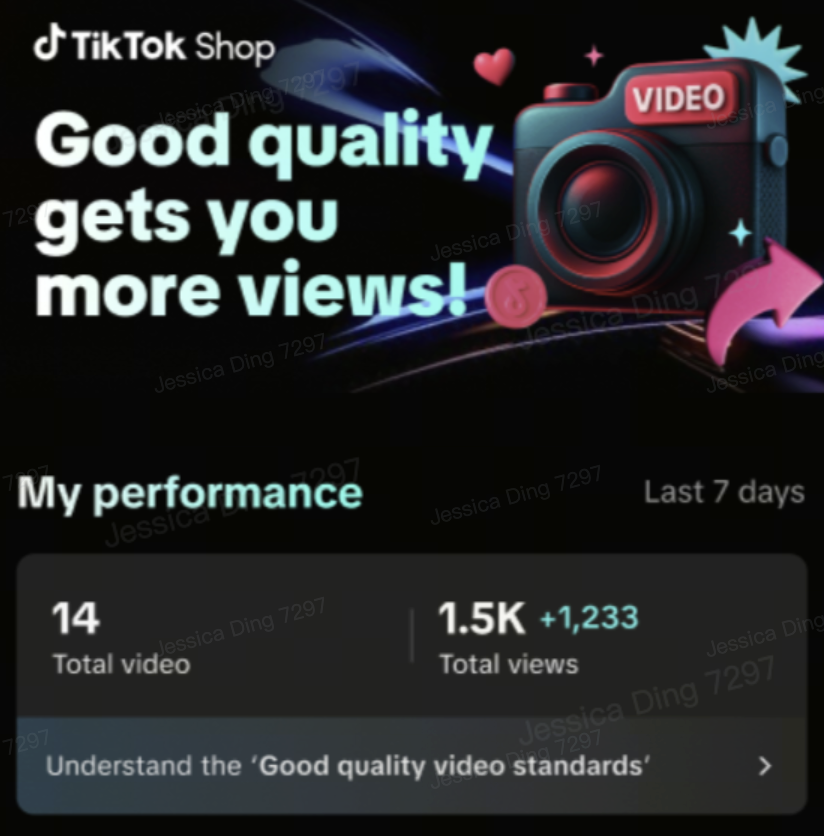
You may also be interested in
- 1 lesson
Creating Shoppable Videos with Shopify's 1P App
Are you a Shopify seller looking to create scroll-stopping shoppable videos but don’t know where to…
2025 Shoppable Video Holiday Guide for Sellers 🎁 ✨
*👋 Introduction Black Friday Cyber Monday (BFCM) is the biggest seasonal sales weekend of the year,…
TikTok for Shopify: Shoppable Videos
Introduction: What is the SV Widget on the Shopify App? Compelling videos are at the heart of what d…

How to Schedule Shoppable Videos
💡 Feature Overview Scheduled Shoppable Videos lets sellers, like you create and prepare videos when…

How to Change Your Video's Sound
TikTok will notify you if any of your videos' sound is no longer available. The TikTok App offers di…

Seller Center AI Video Maker
💡 Feature Overview Our AI tools for short video creation in Seller Center are being upgraded into a…

"TikTok Shop for Sellers"
Introduction Shoppable Video is the most powerful way to sell on TikTok Shop. TikTok Shop for Seller…

Shoppable Photos
NOTE: This feature is currently in beta and available for select sellers. Functionality may evolve a…