

Customizing Your Cancellation Features
01/08/2026
Summary
What cancellation management features does TikTok Shop provide to sellers in the Seller Center?
- Sellers can enable automated cancellation approval for requests within a set timeframe and customize cancellation windows (1, 5, or 24 hours) to control when customers can request order cancellations before shipment.
How can sellers automate the cancellation request review process to improve efficiency?
- Sellers create custom auto-approval rules by specifying reasons, product categories, refund ranges, effective times, and auto-approval windows, allowing certain cancellation requests to be processed without manual review.
What steps must sellers follow to adjust their cancellation window on TikTok Shop?
- In Seller Center, navigate to Orders > Return Settings > Cancellations tab, click "Set Up" under Cancellation Window, select the desired timeframe (1, 5, or 24 hours), and confirm to save changes.
What are the implications of using automated cancellation and adjustable windows for sellers on TikTok Shop?
- These features help streamline order management, reduce manual workload, and enhance customer satisfaction by providing faster responses to cancellation requests within seller-defined parameters.
Where can sellers get additional support if they encounter issues with cancellation automation?
- Sellers can contact their Account Manager or use the Seller Center’s Contact Us page for further assistance with cancellation settings and automation.
Overview
Cancellations occur when customers are dissatisfied with their orders or change their minds. Using features to manage the cancellation process efficiently can help streamline operations and improve the overall customer experience.Features Available in Seller Center:
- Automated Cancellation Approval:
- Enable automatic approval for customer cancellation requests within a set timeframe.
- Cancellation requests within the cancellation window that do not meet auto-approval rules will still require seller review.
- Adjustable Cancellation Window (available to select 3PL sellers):
- Set custom cancellation rules by choosing a 1-hour, 5-hour, or 24-hour window after an order is placed. This setting does not guarantee automatic cancellation approval within that window; rather, it is the timeframe in which customers can request to cancel their order.
- If no selection is made, the default cancellation window applies. Customers can request to cancel orders before the package is shipped, but sellers must approve or reject these requests.
How to Locate the Cancellation Features
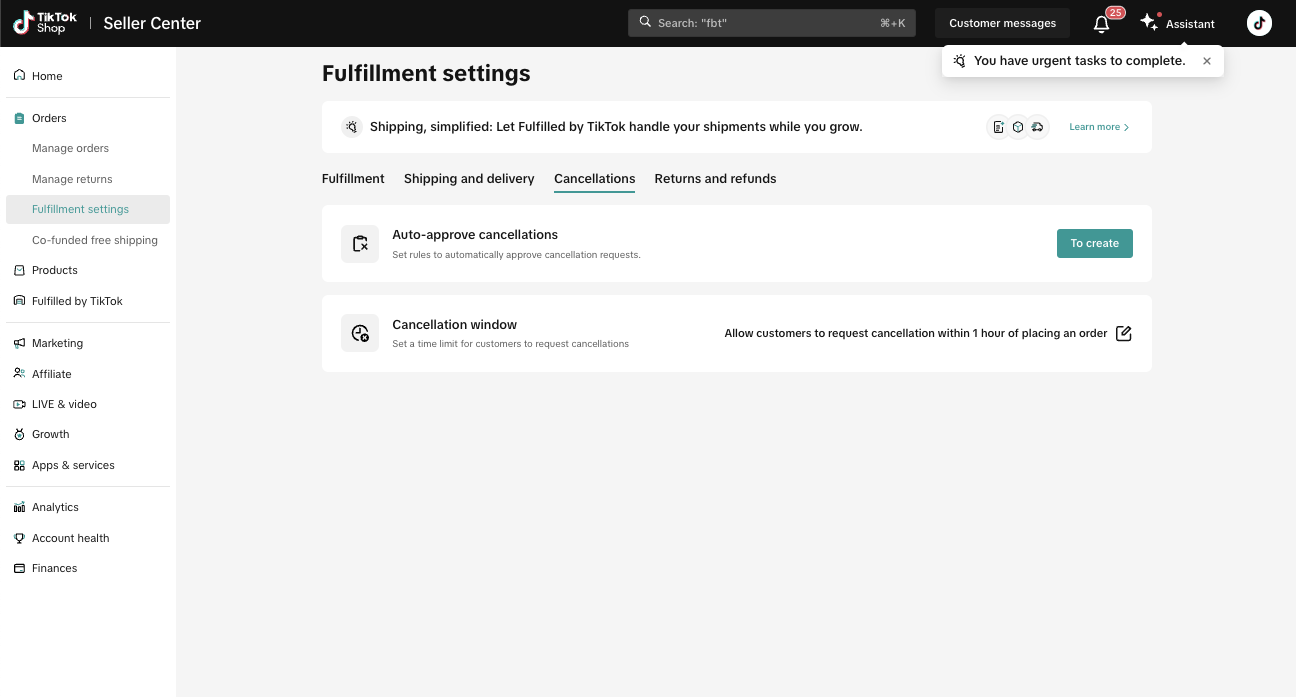
You can manage your cancellation settings for certain requests in the Seller Center.To find these settings:
- In the Seller Center, go to Orders and click the Return Settings page.
- Select the Cancellations tab.
How to Automate Cancellation Requests
Automating the review process for return, refund, and product replacement requests can help increase efficiency and reduce manual workload. Customizing this process allows you to handle certain requests automatically, creating a smoother experience for you and improving customer satisfaction.Follow these steps to automate certain cancellation requests:
Note that: Cancellation requests within the cancellation window that do not meet auto-approval rules will still require seller review.
- In the Seller Center, go to Orders and select the Return Settings page.
- Click the Cancellations tab.
- Select "To Create."

- Click "Add New Rule."
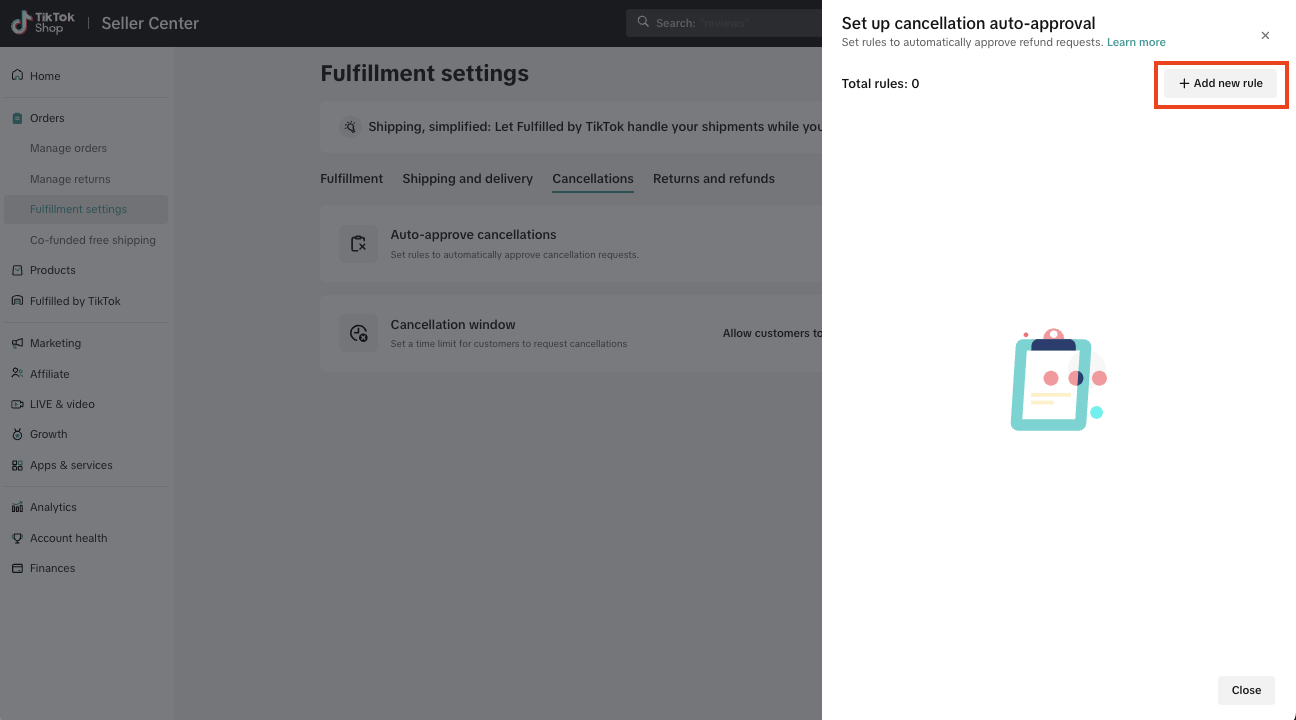
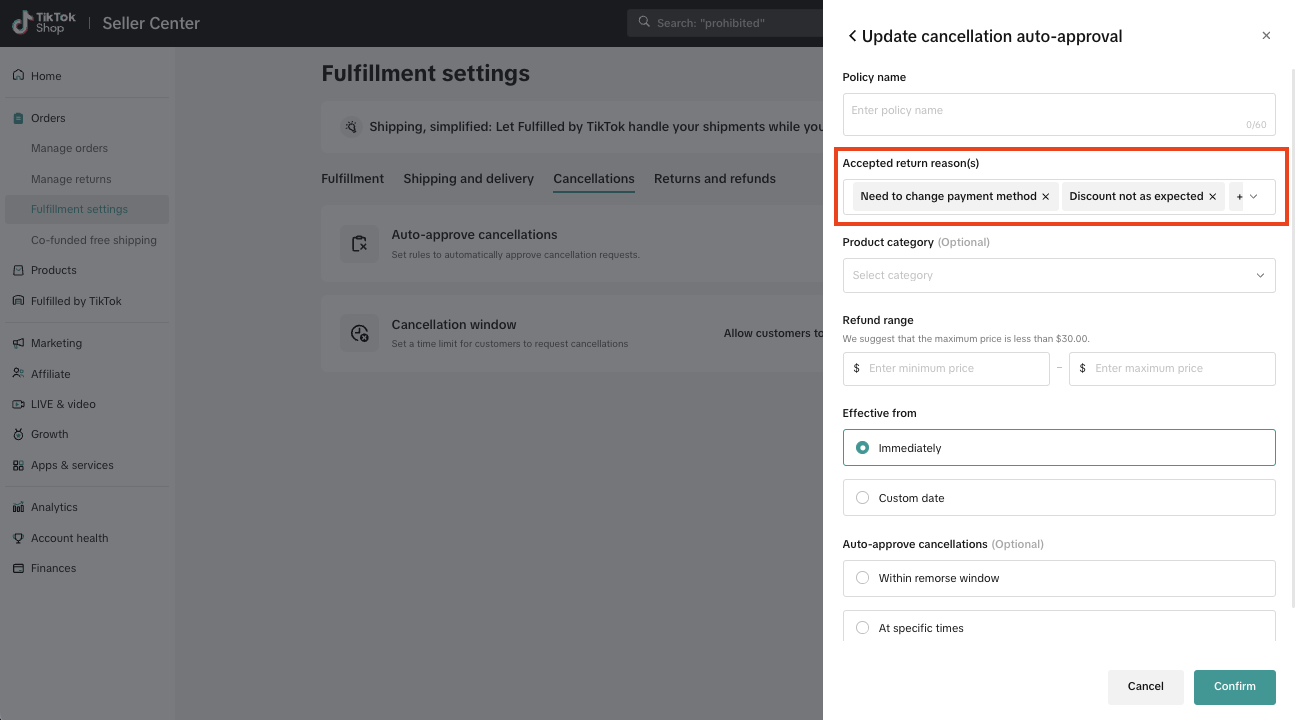
- Enter the Policy (rule) name (e.g. "Auto approval of cancellation requests").
- Select the Accept rule reason(s) from the drop-down list.
- Select the Product category from the drop-down list.
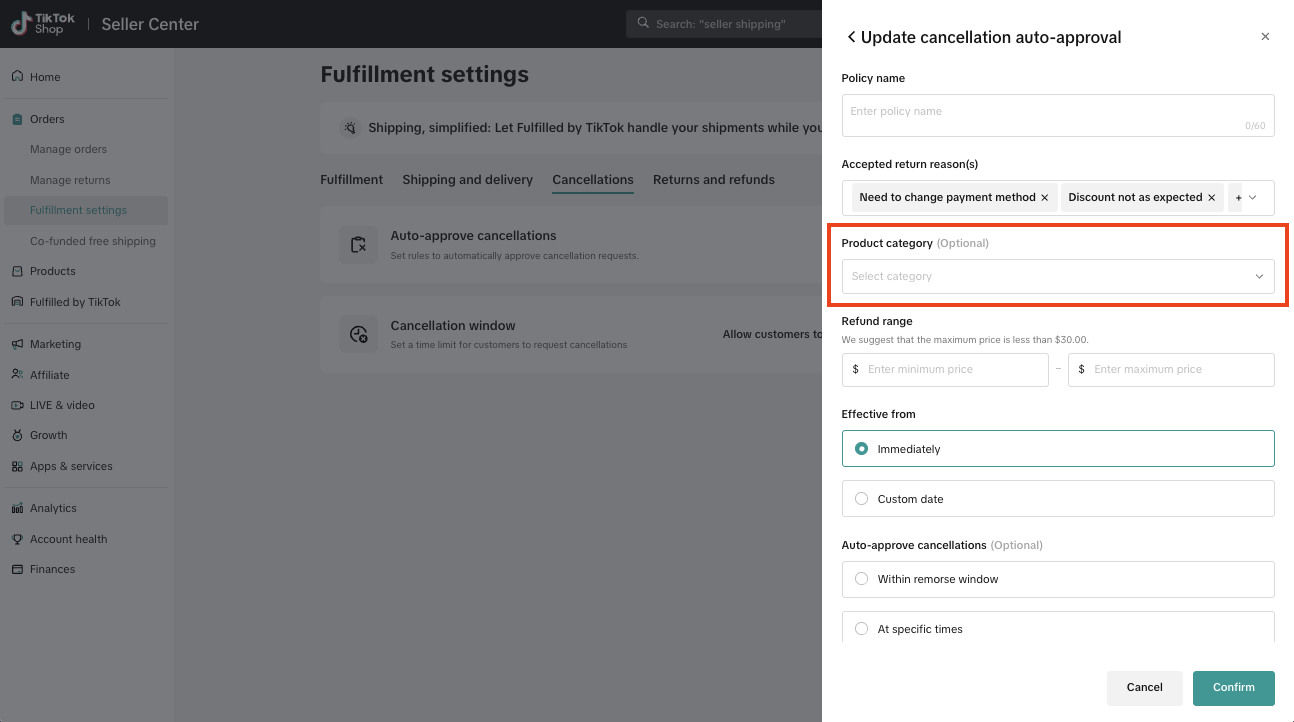
- Enter a Refund range.
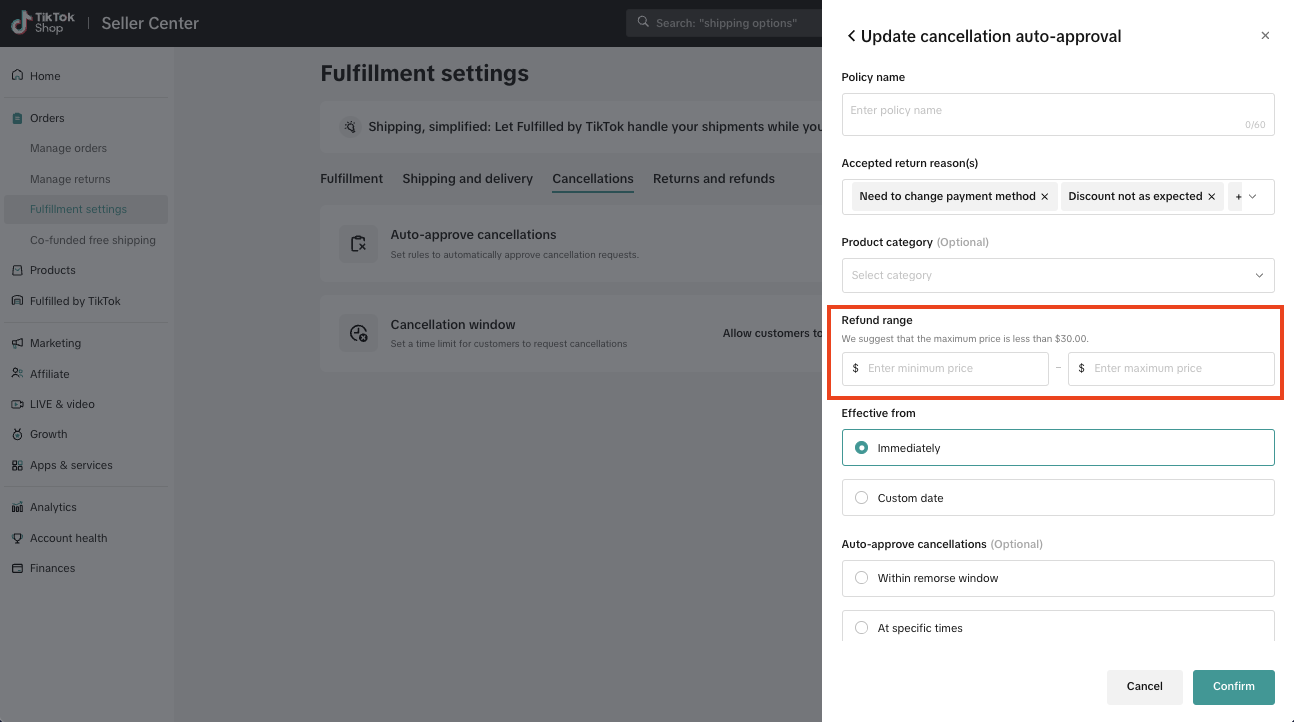
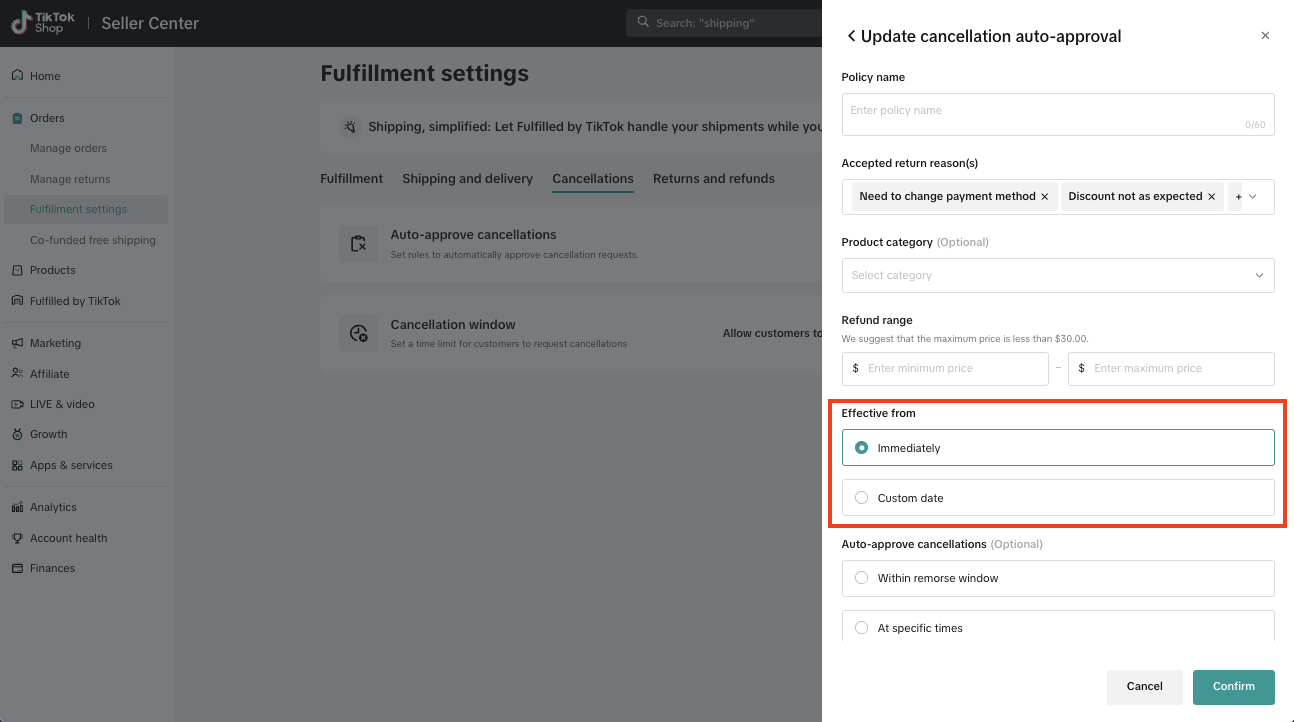
- Enter an Effective from time range for the rule.
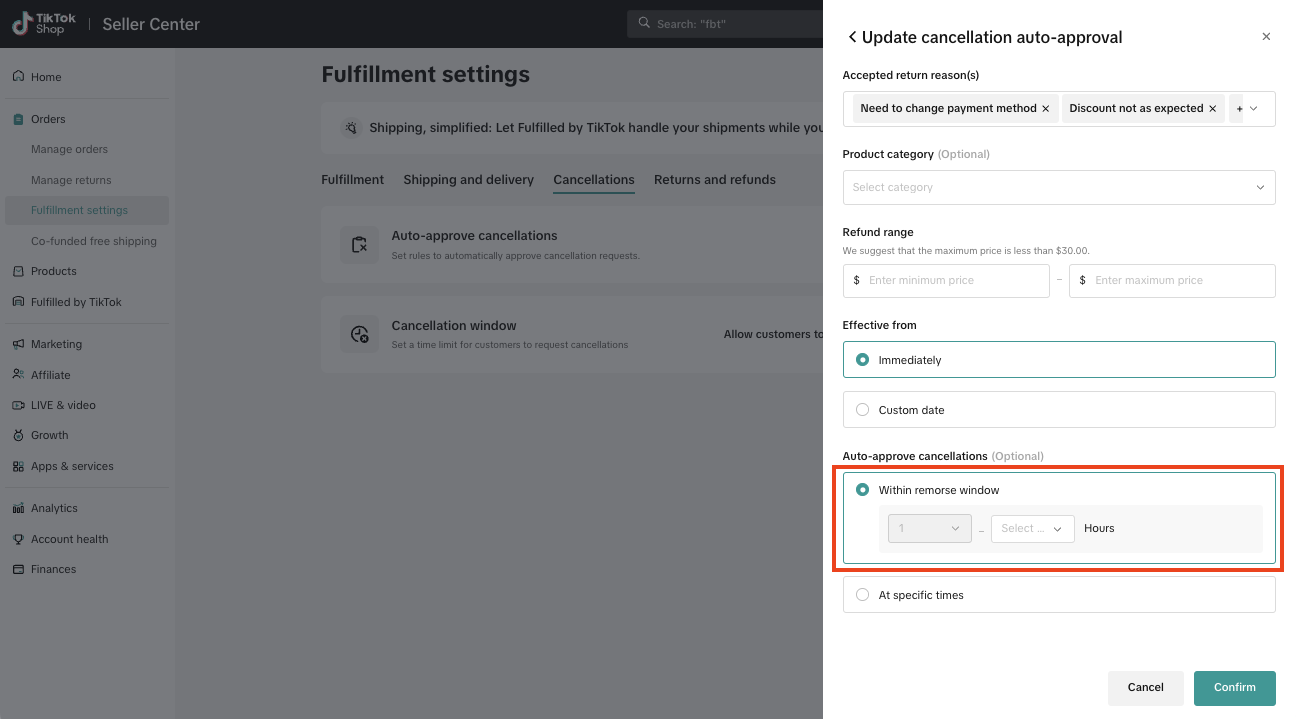
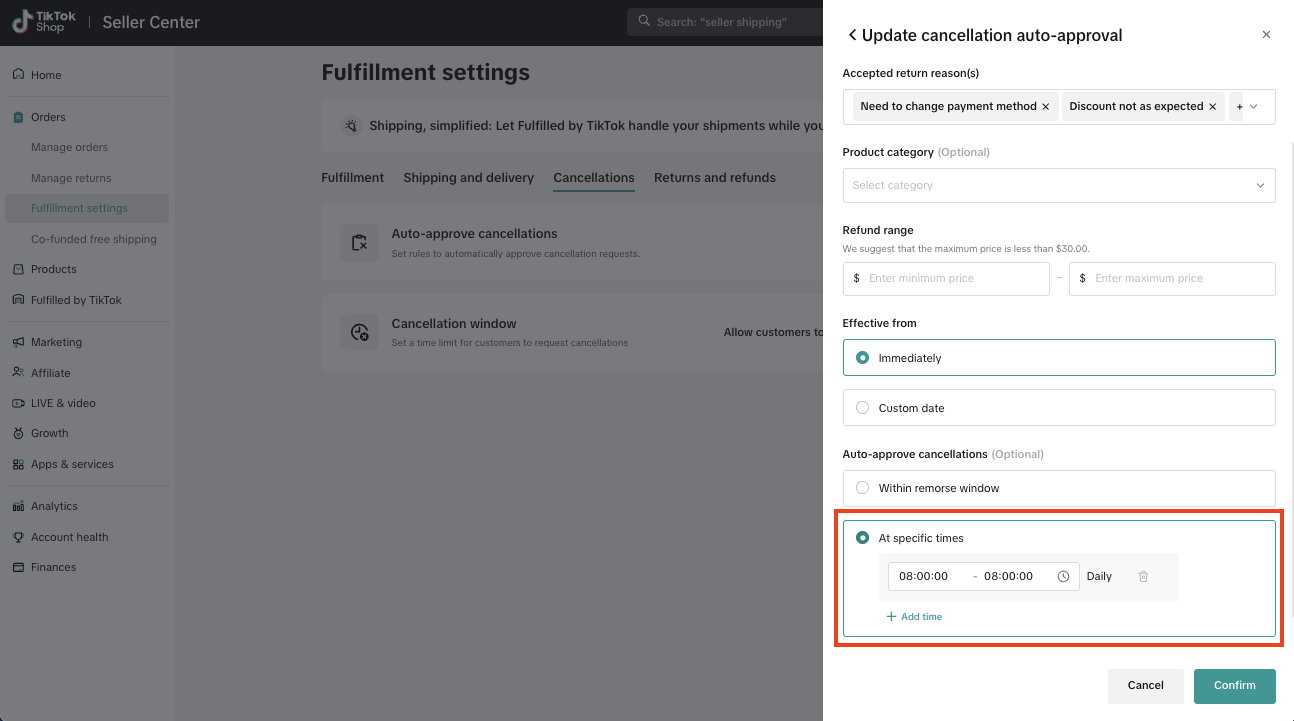
- Set your auto-approval cancellation time
- Within remorse window (e.g. 1 hour from customer order placement).
- At specific times (e.g. 10am - 11am Daily from customer request cancellation).
- Click Confirm to activate the cancellation automation.
How to Adjust Your Cancellation Window
To set up your Adjustable Cancellation Window (available to select sellers):- In the Seller Center, go to Orders and select the Return Settings page.
- Click the Cancellations tab.
- In the Cancellation Window row, click the "Set Up" button.

- Choose the desired time period (e.g., Within 1 hour) from the list of options.
Note: If no option is selected, the default cancellation policy of TikTok Shop will apply.
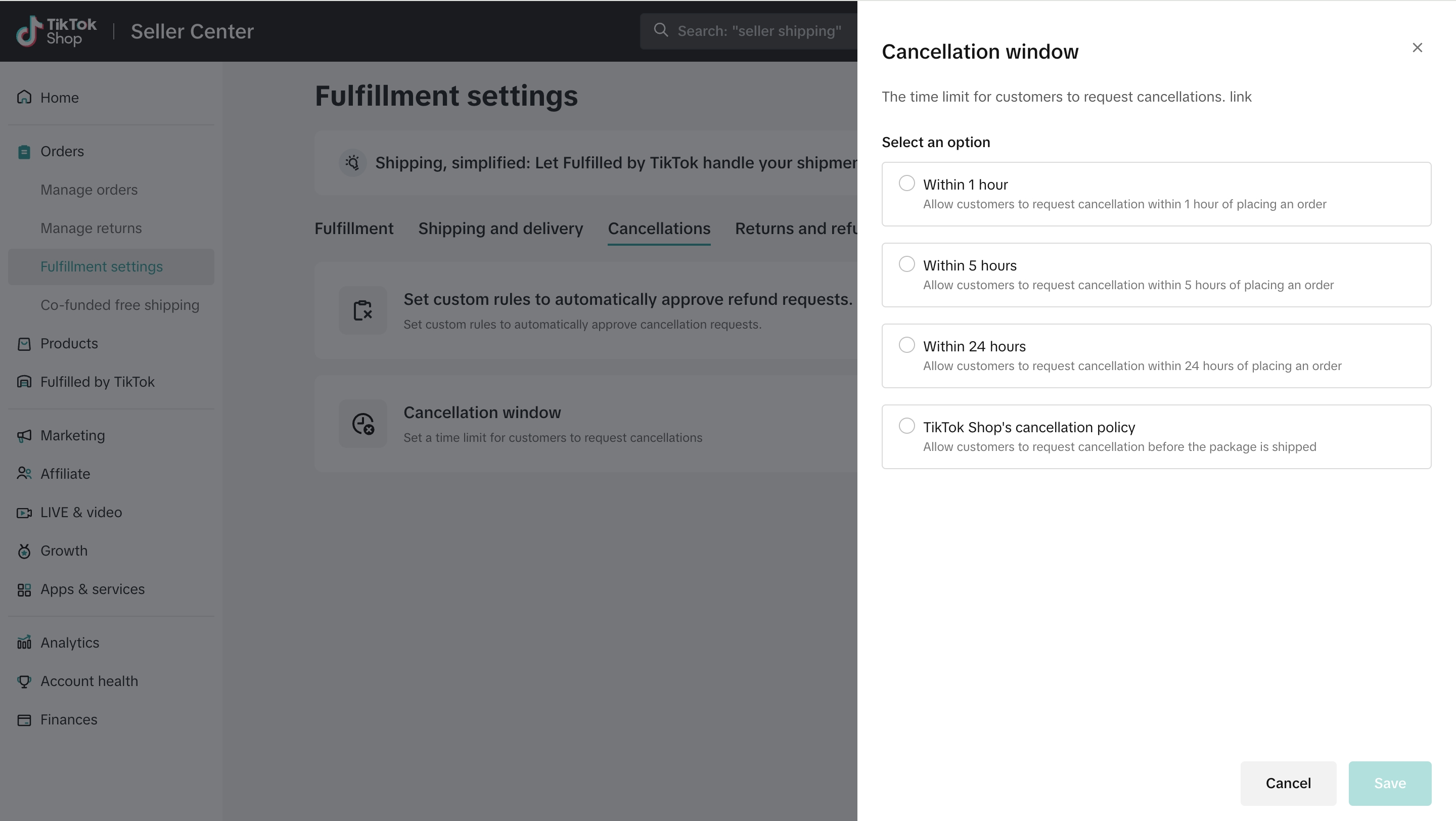
- Click Confirm to save your new cancellation window.