

How to bulk edit your sample rules
11/21/2025
Summary
What is the Bulk Edit tool on TikTok Shop and how does it help sellers with large product catalogs manage sample settings?
- The Bulk Edit tool allows sellers to download their product catalog as a spreadsheet, edit sample rules (e.g., free samples, sample quantity, creator requirements), and upload changes in bulk, saving time on managing many SKUs simultaneously.
- It supports file formats like .CSV, .XLS, and .TXT and is accessed via the Open Collaboration section in the Affiliate Center.
What specific sample settings can sellers update using the Bulk Edit tool, and what limitations exist within the spreadsheet?
- Sellers can toggle free sample offers, set sample quantities, define creator eligibility (minimum followers, sales volume), enable refundable samples, and set refund criteria.
- Certain columns and rows (e.g., Product ID, inactive products) are locked to prevent errors and maintain data integrity; only existing products in Open Collaboration can be edited.
What are the key steps sellers must follow to successfully update sample rules using the Bulk Edit tool?
- Step 1: Navigate to Bulk Edit in Open Collaboration and download the product template spreadsheet.
- Step 2: Edit allowed fields in the spreadsheet using Excel or Google Sheets to update sample settings.
- Step 3: Upload the updated file back to TikTok Shop and review confirmation or error reports for failed SKUs.
What should sellers do if their bulk upload fails or some SKUs do not update correctly?
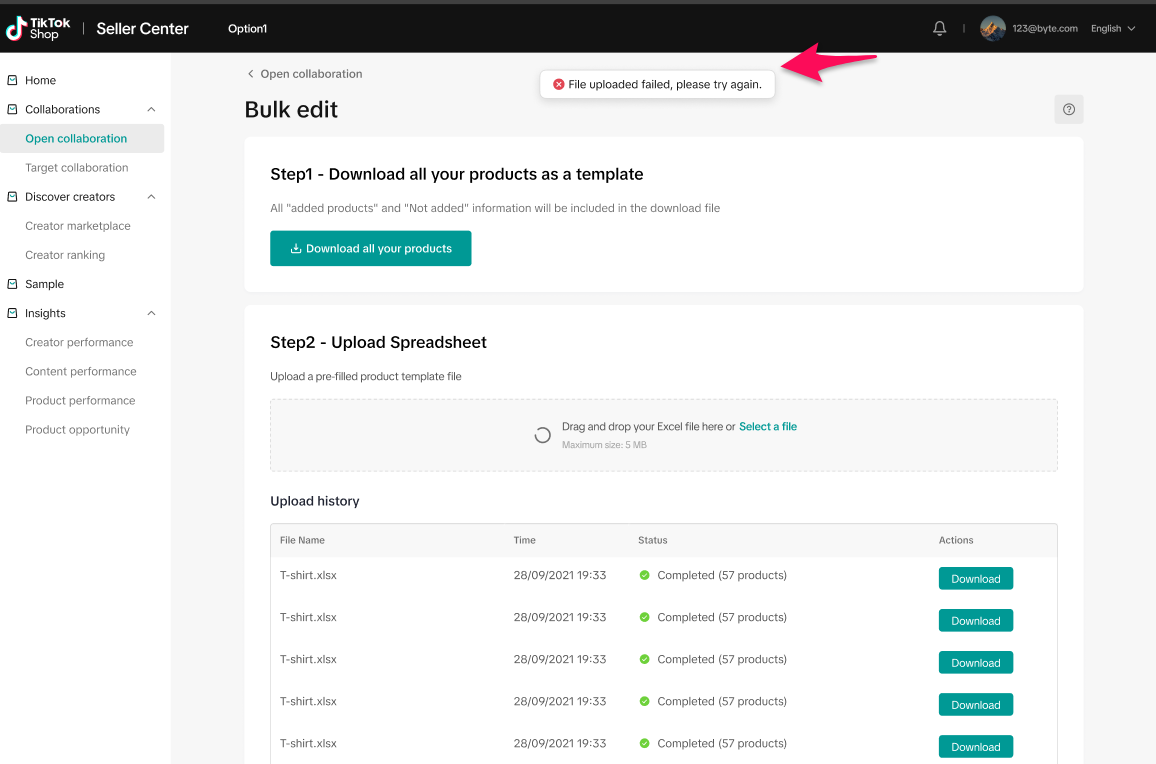
- The system provides a failure report listing SKUs that failed to upload due to errors like invalid data entry.
- Sellers should download this report, correct the errors in the spreadsheet, and re-upload to ensure all sample settings are properly applied.
What are the main implications for sellers using the Bulk Edit tool on TikTok Shop?
- This tool streamlines managing sample rules for large inventories, reducing manual effort and minimizing errors.
- It does not support adding new products, so sellers must first list items before adjusting sample settings via bulk edit.
For sellers with large product catalogs, updating sample settings via bulk-edit can save you precious time. With this tool, you can download and upload your catalogs as flat files (.CSV, .XLS, .TXT) in order to update sample rules, set up and remove samples for SKUs, and bulk set up Refundable Samples.
| Finding bulk edit | Download product template | Upload template | Failure to upload |
 |  |  |  |
How It Works
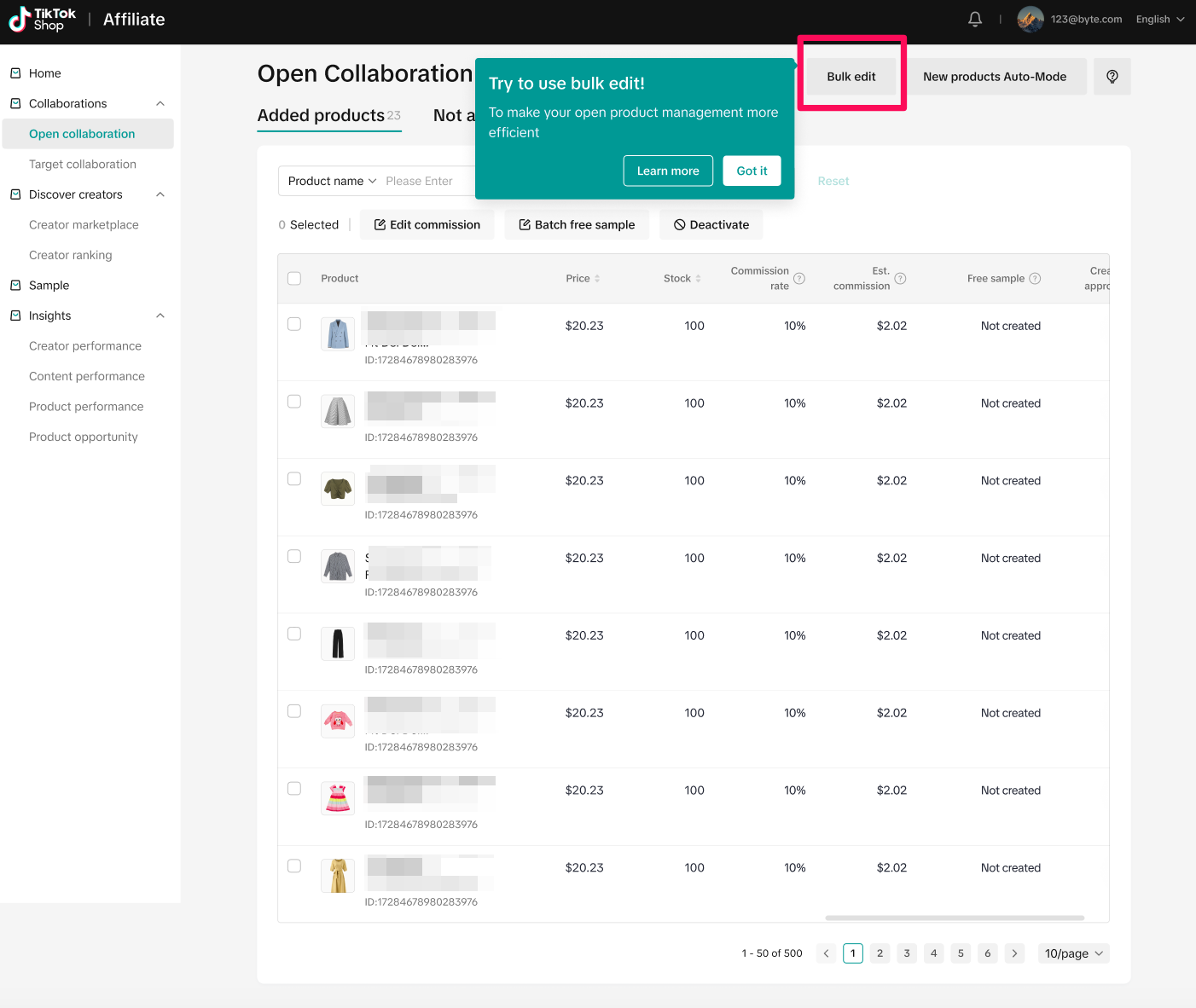
Step 1: Navigate to the Bulk Edit tool
Your journey to mass-editing starts in the Open Collaboration section. From the Affiliate Center, go to Open collaboration. At the top of the page, click the Bulk edit button.Step 2: Download your product template
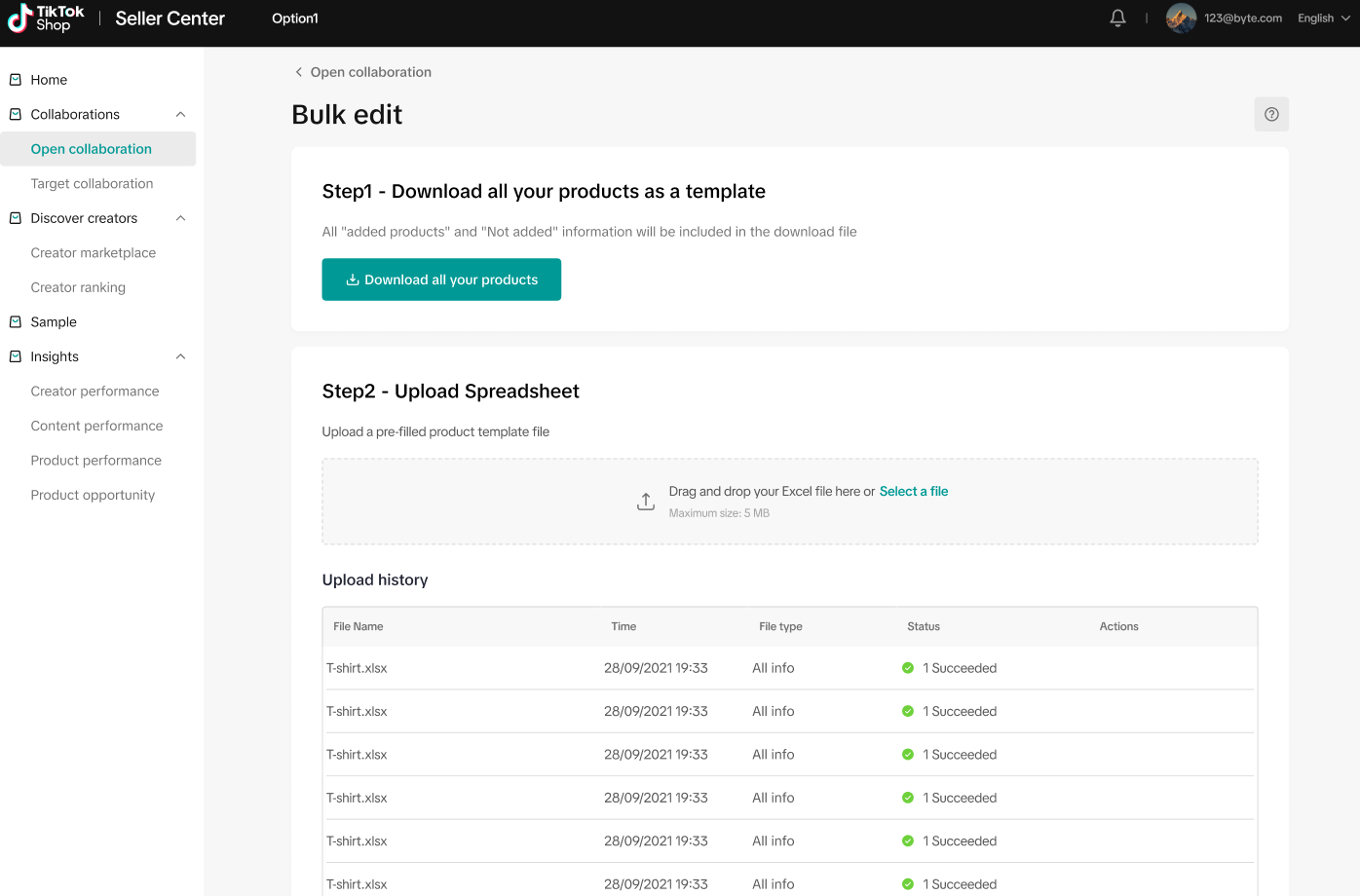
This file is your new workspace. It contains all your current products and their sample settings. In the Bulk Edit module, click the button to Download the template. The file will download to your computer as a spreadsheet (.CSV, .XLS, etc.).- Behind the Scenes: The system generates a spreadsheet with the following column labels:
- Product ID, product name, Product price, Stock, Product status, Add to open collaboration, Commission rate, Est. Commission, Approve creators, Creator showcase, Creator post, Offer free sample, Sample quantity, minimum follower, Minimum 30 day sales volume, Minimum 30 days e-commerce content number, Creator fulfillment rate, Refundable Samples, Refund Minimum
- Specific rows and columns will be locked to minimize data entry errors and upload failure. For instance, where product status is "unavailable", that row will be locked
Step 3: Edit your sample rules in the file
Now it's time to make your changes. Open the downloaded file in a spreadsheet program like Excel or Google Sheets. Go through the spreadsheet and update the values in the editable columns. You can:- Turn free samples on or off (Yes/No in the "Offer free sample" column).
- Set the Sample quantity.
- Define creator requirements like minimum follower count.
- Enable Refundable Samples and set the refund criteria.
- Behind the Scenes: Each column corresponds to a specific setting in the TikTok Shop system. When you change a value from "50" to "100" in the "Sample quantity" column for a specific Product ID, you are instructing the system to update that product's sample inventory.
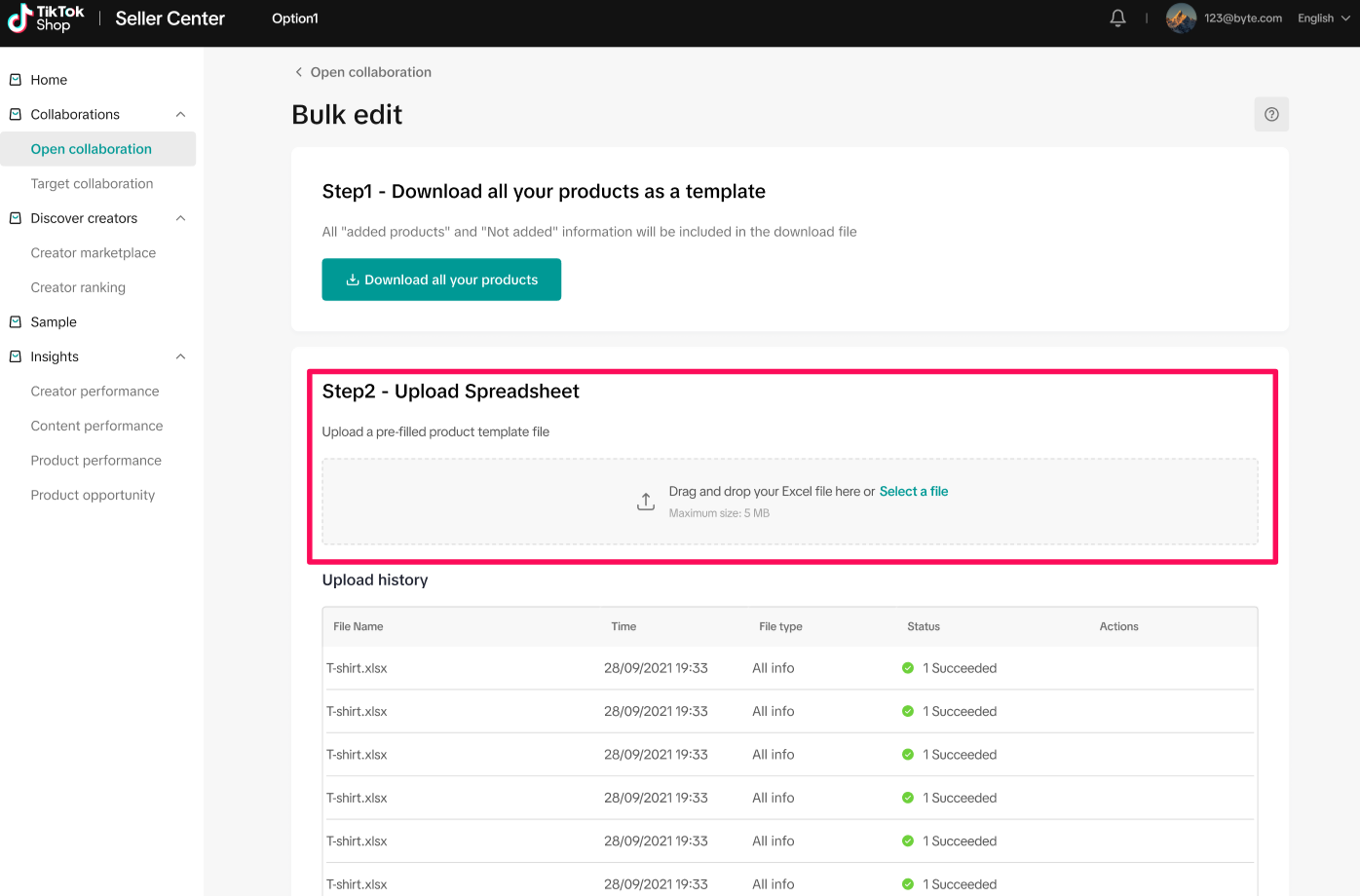
Step 4: Upload your updated file
Once you've finished making your edits, save the file and return to TikTok Shop. In the Bulk Edit module, drag and drop your saved file or click to select it from your computer. The upload process will begin. You'll get a confirmation message telling you how many products were successfully updated.- If there are errors (e.g., you entered text in a number-only field), the system will tell you how many SKUs failed. You can click download failed results for a list of SKUs with failed uploads.
FAQ
- Who is this product for? This tool is designed for sellers with large product catalogs who need an efficient way to manage their sample rules for many products at once.
- Can I use this tool to add new products to my shop? No. The Bulk Edit tool is only for editing the sample rules of products that are already in your shop and added to an Open Collaboration.
- Why are some rows or columns locked in the spreadsheet? This is a safeguard to protect your data. Critical information like Product ID cannot be changed. Rows for products that are inactive or have violations are also locked because sample rules cannot be applied to them. This prevents upload errors and ensures data integrity.