

How to Manage Your Stock
01/26/2026
Summary
What key features does the TikTok Shop Stock Dashboard offer to help sellers manage their inventory effectively?
- It provides an overview of stock quantities, sales forecasts, inventory health, and allows setting up stock alerts to prevent stockouts. Sellers can view and update stock at both product and SKU levels with filtering options for better inventory control.
- The dashboard includes detailed columns like total stock, available stock, locked stock (campaign, creator, committed), sales data, sales forecasts, suggested restock quantities, and days of supply to help sellers plan inventory accurately.
How can sellers set up and customize stock alerts to avoid running out of stock on TikTok Shop?
- Sellers can toggle stock alerts per SKU or set bulk alerts based on stock quantity or days of supply, receiving one notification per day via email, message center, push notifications, or Seller Center homepage. Alerts can be customized or removed based on business needs.
- Stock alerts are not available for Pre-Owned and Collectibles categories; sellers should prioritize alerts for best-selling products to ensure timely restocking.
What tools and processes are available for sellers to efficiently restock multiple SKUs on TikTok Shop?
- The Bulk Restock tool allows sellers to download an Excel file of selected SKUs, update stock quantities per warehouse, and upload the file back to Seller Center for quick inventory updates of up to 5000 SKUs at once.
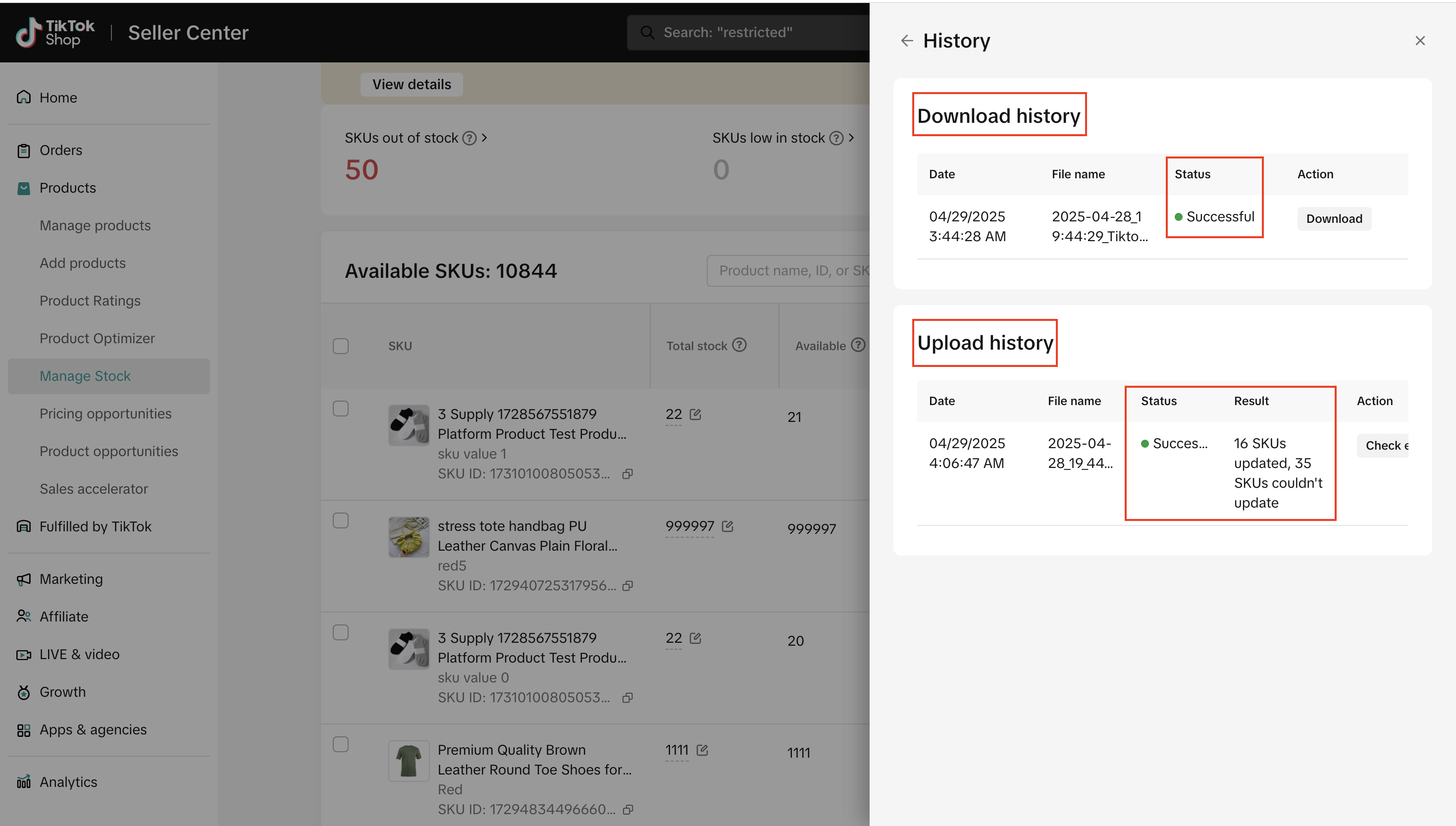
- The tool provides error checking with detailed failure reasons and maintains a history log of uploads and downloads with timestamps for tracking restock activities.
How can sellers manage sales restrictions and Fulfilled By TikTok (FBT) stock through the Stock Dashboard?
- Sellers can restrict product sales by region (state or ZIP code) by adding or editing sales restriction rules directly from the stock dashboard to control where their products are sold.
- FBT stock can be managed via a direct link in the stock dashboard, allowing sellers to view and edit FBT inventory through the FBT portal, including setting sample fulfillment preferences.
What are the best practices and important considerations sellers should keep in mind when using the Stock Dashboard on TikTok Shop?
- Regularly monitor low and out-of-stock SKUs using stock status filters and set stock alerts to maintain healthy inventory levels and avoid lost sales.
- Use sales forecasts and suggested restock quantities as references for inventory planning, and leverage notification preferences to stay informed promptly about stock changes.
Manage Stock
The Stock Dashboard provides you with (i) an overview of your stock quantities, (ii) prediction of future sales & campaign forecasts, (iii) indicates your inventory health, and, (iv) helps you setup stock alerts for your products.Getting Started
To access the stock dashboard, go to Products > Manage products > Manage stock.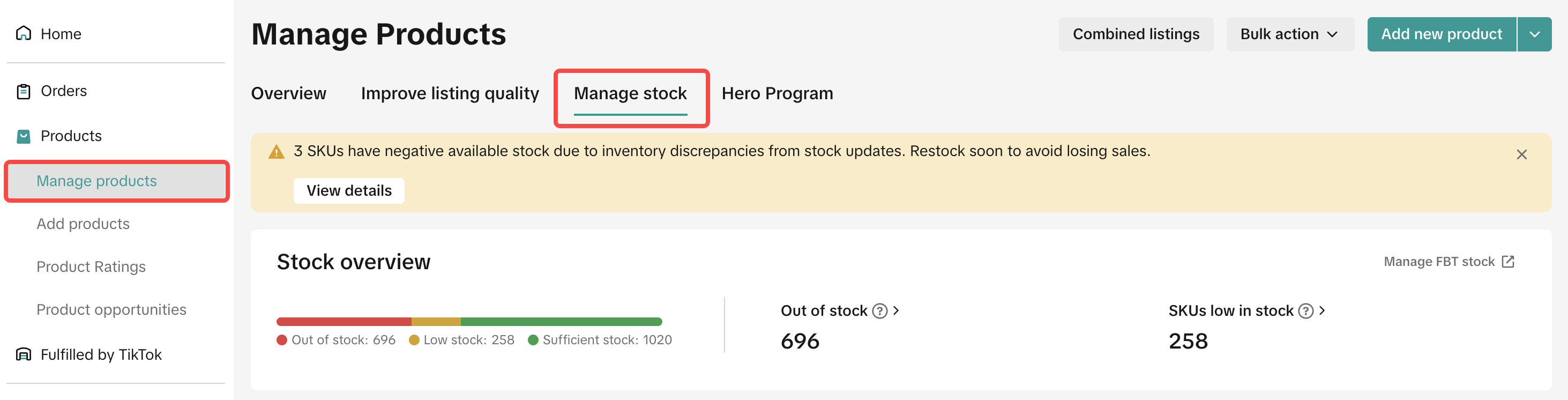
Focus on SKUs that are out-of-stock or low stock
The stock status helps you focus on products that are low in stock or are at risk of being out of stock, so you can restock accordingly. You can click on it to see relevant products in each category.- Low Stock (defined as having ≤ stock alert value, but not 0)
- Out of Stock (defined as having 0 units)
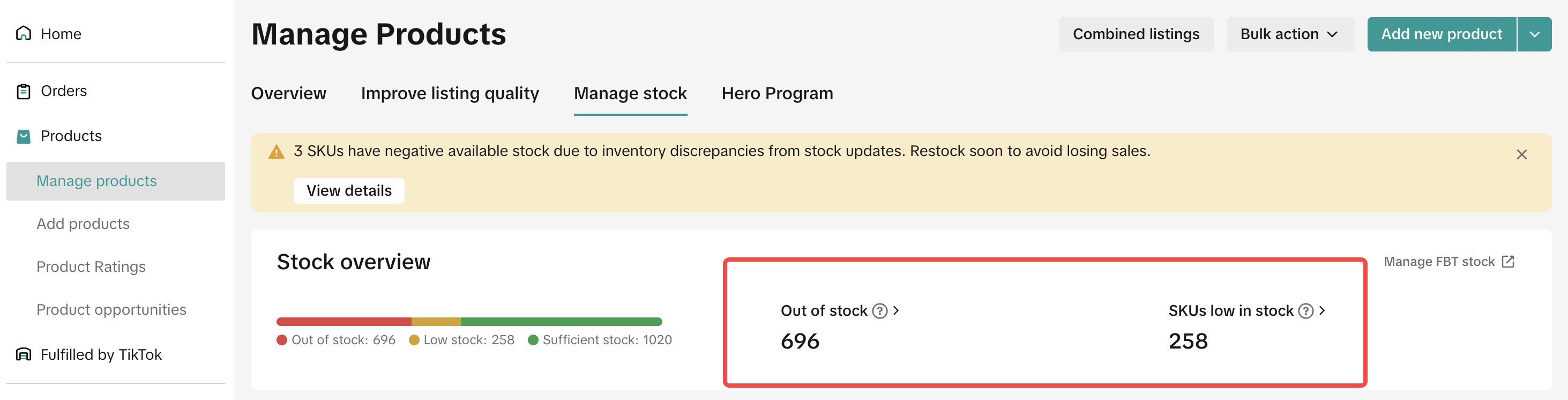
View your stock data at a Product or SKU level.
- From the Product view, all SKUs for a product can be seen below the Product row. Use the 'expand' or 'collapse' option to view all SKUs or just view the product. If you expand to view the SKUs, you will have the option to update stock quantity, setup stock alerts, view your forecast data, etc.
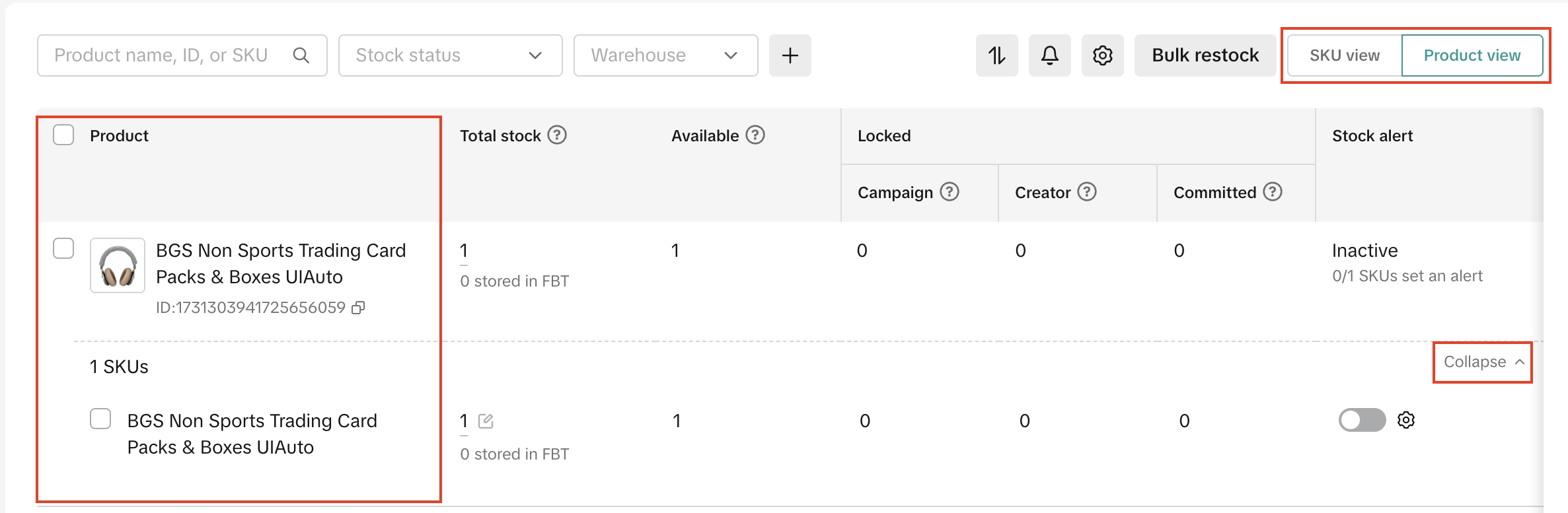
- From the SKU view, update stock quantity, setup stock alerts or view your forecast data.
- Additionally, you can filter by Product (name, ID or SKU), Stock status, or use the 'Filter' button to filter by Category, Warehouse, and some more options.

Use the Inventory Settings function to setup your notification preference, sample-fulfillment preference, and data-tracking duration.

- Notification preference: Choose your preferred channel to receive notifications for stock alerts.
- Send samples with FBT: This setting activates FBT (Fulfilled-by-TikTok) as your preferred warehouse to send affiliate samples. You will need to login to the FBT portal to complete activation.
- Tracking duration: Choose your preferred timeline to view the data in the stock dashboard. The default setting is 30 days.
Manage sales restrictions
You now have precise control over your sales territories. You can choose to restrict your shop or specific products from being sold in certain regions by setting up sales rule by state or ZIP code. To do so:- Expand the menu at the top of your stock dashboard by selecting the "..." button
- Click "Manage sales restriction"

- From there, add new rules to restrict certain product sales or manage/edit existing rules

- Click "Add rule" to add new restriction rules and select the products and regions you want to apply restrictions on; click "Confirm" to finalize the rule setting

Understand what each column means, so you can monitor your inventory closely.
Please scroll right to view all columns in the dashboard.For each SKU in the dashboard,
- Total stock: Total number of stock units physically available in warehouse and in backorder (if eligible). This also includes stock available in Fulfilled By TikTok warehouse.
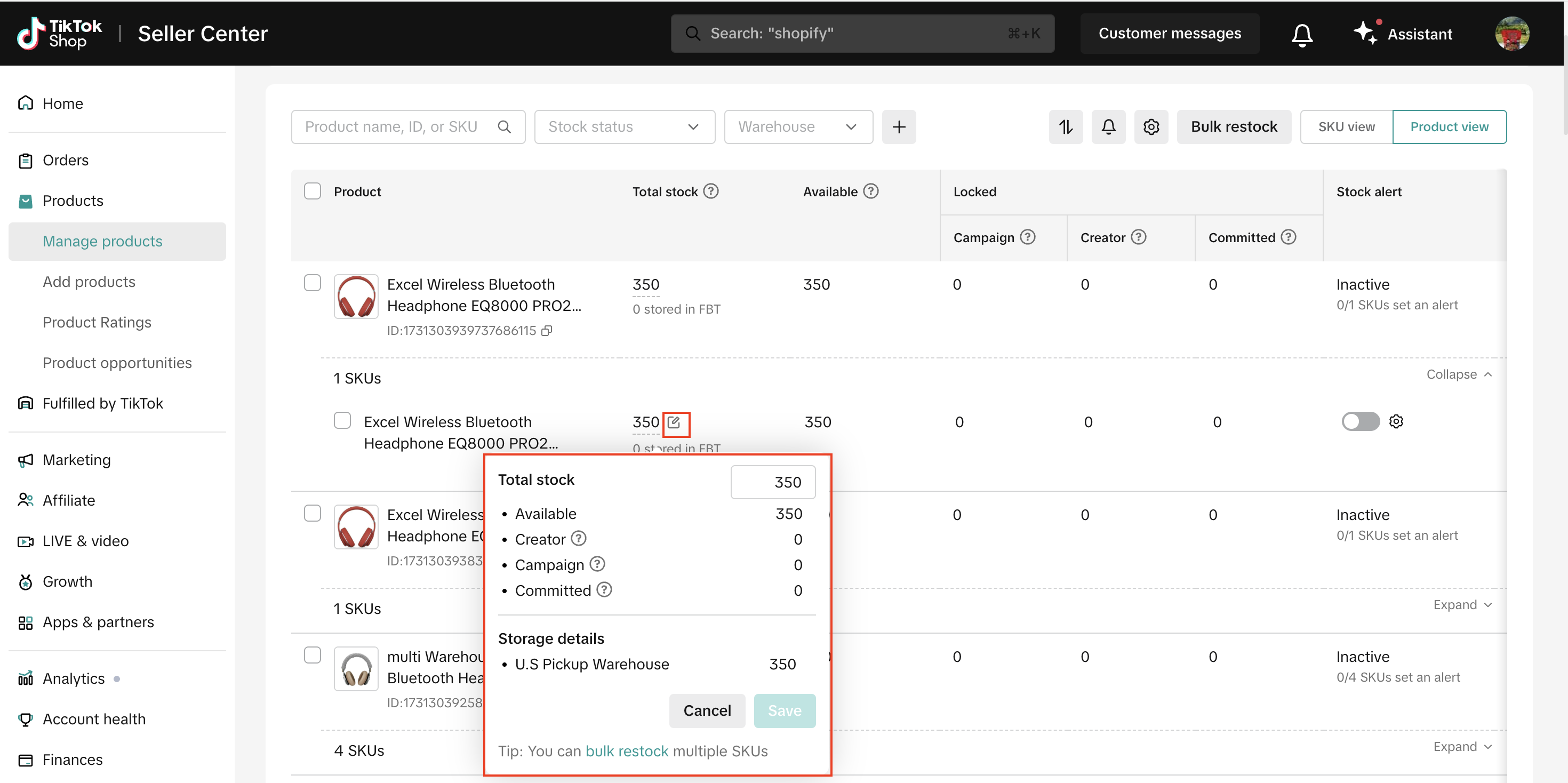
- Available: All stock that is physically available for sale, and is not reserved for creator, campaign, or orders.
- Locked: Stock reserved for select reasons.
- Campaign: Stock reserved for campaigns.
- Creator: Stock reserved for creators.
- Committed: Stock ordered by customers but hasn't left the warehouse yet.
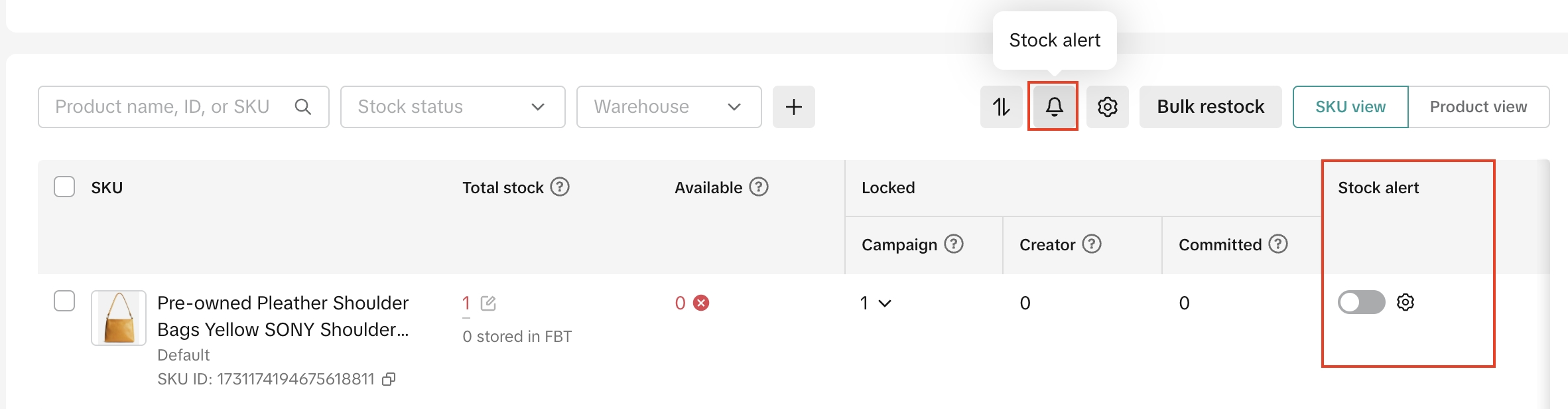
- Stock alert: A toggle that can be turned on or off to enable or disable stock alerts. A stock alert can be set based on stock quantity or days of supply as mentioned in the section above.

- Sales (last 30 days): Stock units sold in the past 30 days are shown as default. You can use the filter to view sales at other time intervals - 7, 14, 21, 45 and 60 days.
- Sales forecast (30 days): Estimated forecast calculated based on sales activity seen in various sales channels - Shoptab, LIVE, video, etc. Please use this as a reference when planning your inventory. You can also use the filter to view forecasts at other time intervals - 7, 14, 21, 45 and 60 days.
- Suggested restock qty (next 30d): This is our recommended re-stock quantity to ensure you do not run into out-of-stock scenarios and lose sales in the future. It is calculated as [(Sales forecast volume x time interval) - Current available stock quantity]. You can also use the filter to view restock qty at other time intervals - 7, 14, 21, 45 and 60 days.
- Days of supply: This is the number of days your current available stock ("Available" column) can meet order volume based on current sales activity.
- Action: Track history of stock changes & purchase records with the exact time for each SKU. If a SKU is deleted, it will not appear on this page.
Set up stock alerts.
To avoid running out of stock, you can configure stock alerts on the dashboard. These notifications will let you know when you're running low on stock, so you can take quick action and replenish.💡 Pro-Tip: Make sure to set alerts for your best-selling products and ensure you have ample time to reorder when stock is running low.
How it works
- Stock alerts can be configured based on stock quantity or days of stock left.
- Bulk alerts: Select multiple SKUs on the table and click on the Alert button that pops up to setup bulk alerts for selected SKUs.
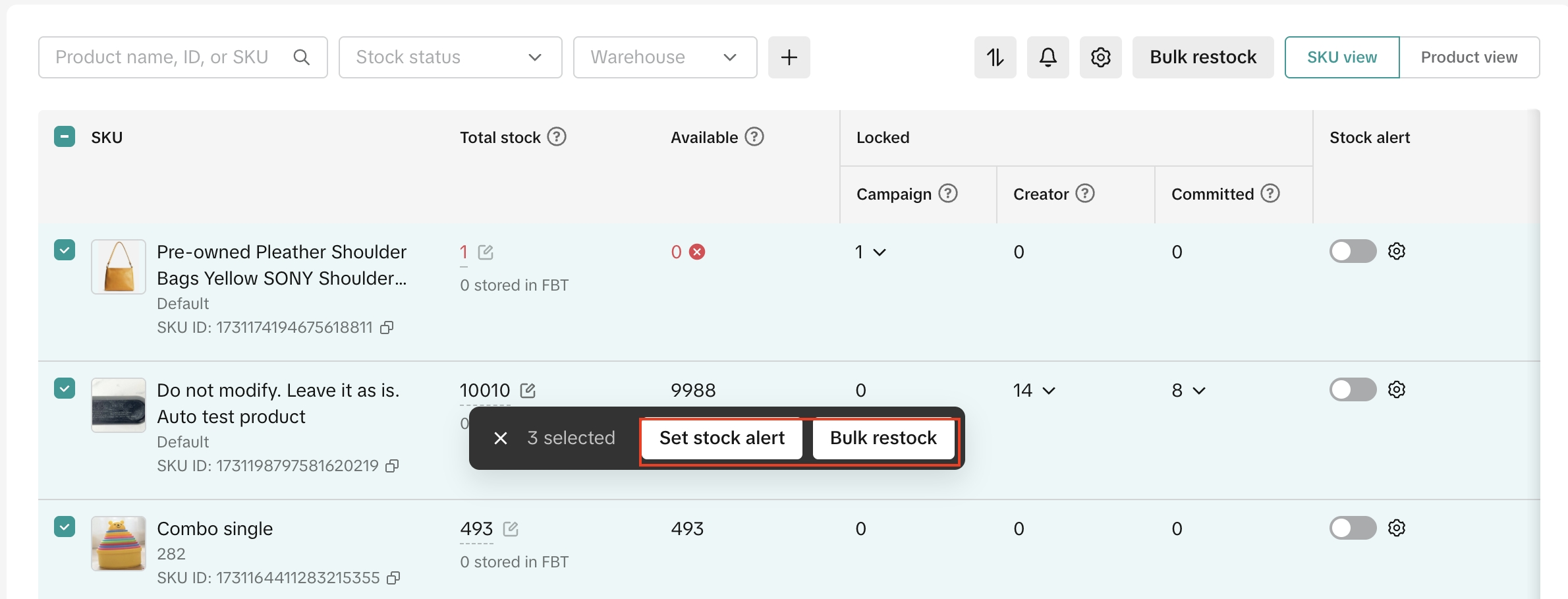
- SKU alert: For each SKU, under the Stock alert column, there is a toggle. When turned-on, this toggle will ask you to configure alerts based on stock quantity or days of supply.

- Bulk alerts: Select multiple SKUs on the table and click on the Alert button that pops up to setup bulk alerts for selected SKUs.
- You will only receive 1 stock alert notification per day. By default, stock alerts may be setup for your best selling & medium performing SKUs for a certain time interval.
- These default alerts can also be removed or edited. Please follow the above steps to setup your own alerts based on your business needs.
- Choose to receive stock alerts via email, message center or both in Seller Center. Additionally, you may also be notified through Seller Center's Homepage, mobile push notifications or help center.
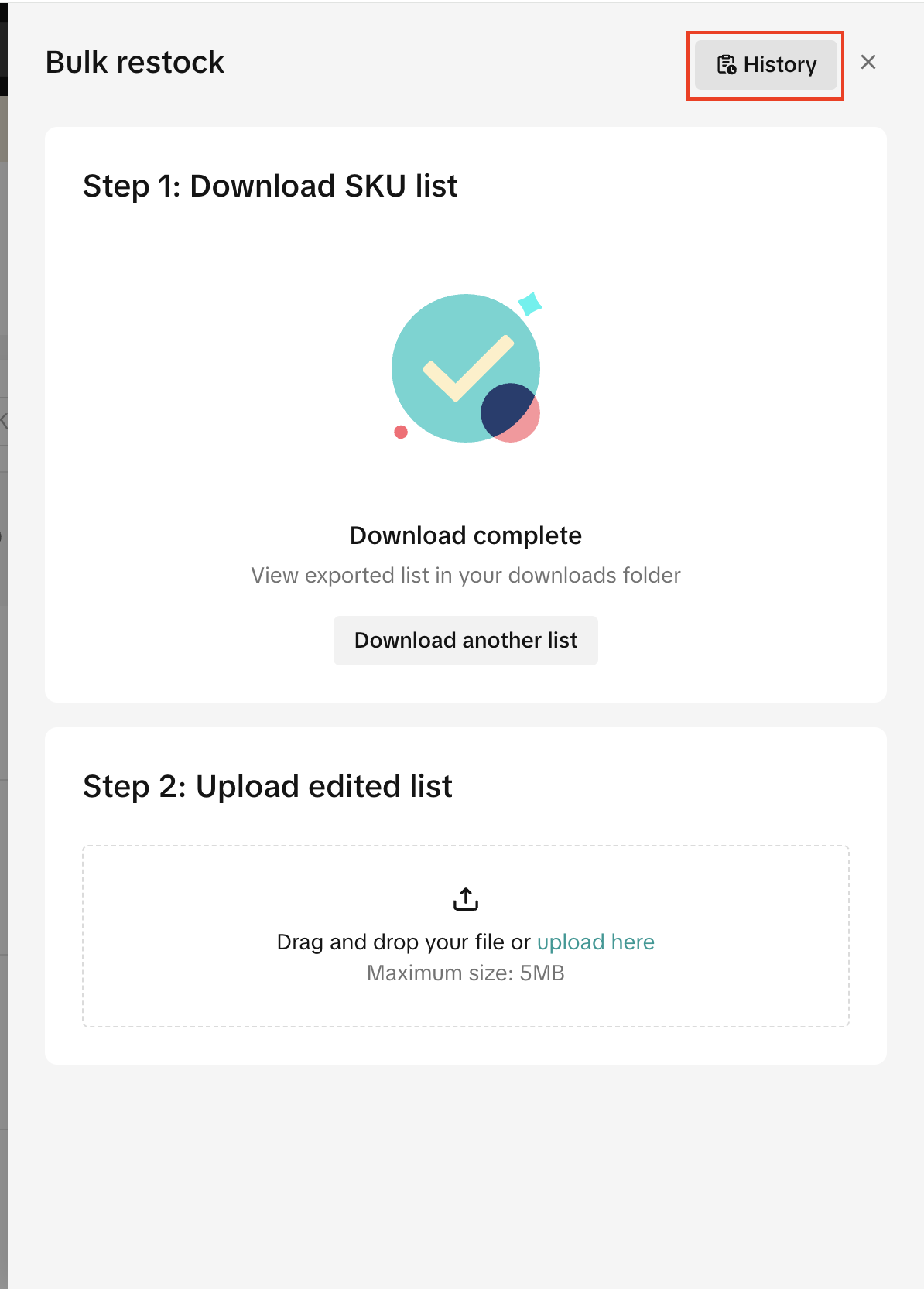
Restock multiple SKUs quickly bulk using the 'Bulk restock' tool.
The bulk restock tool helps you update stock numbers for multiple low and out of stock SKUs quickly on Tiktok Shop, saving you time & effort involved in keeping your stock up-to-date.
How it works
- Click on the 'Bulk restock' button above the inventory dashboard, or select one SKU or multiple SKUs on the table and click on the 'Bulk restock' option that shows up, or you can also use the 'bulk restock' link on our stock management widget to open the tool.
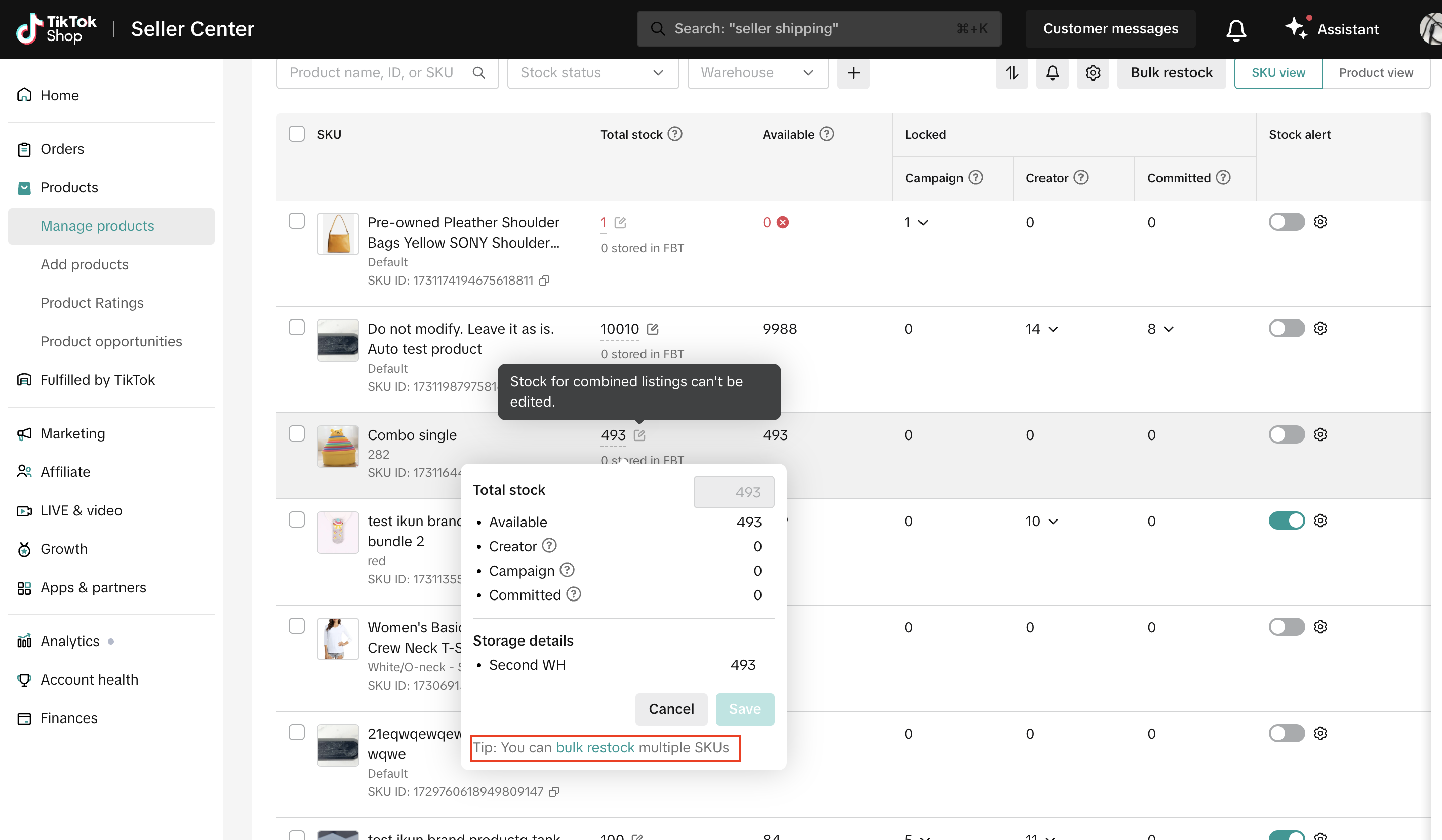
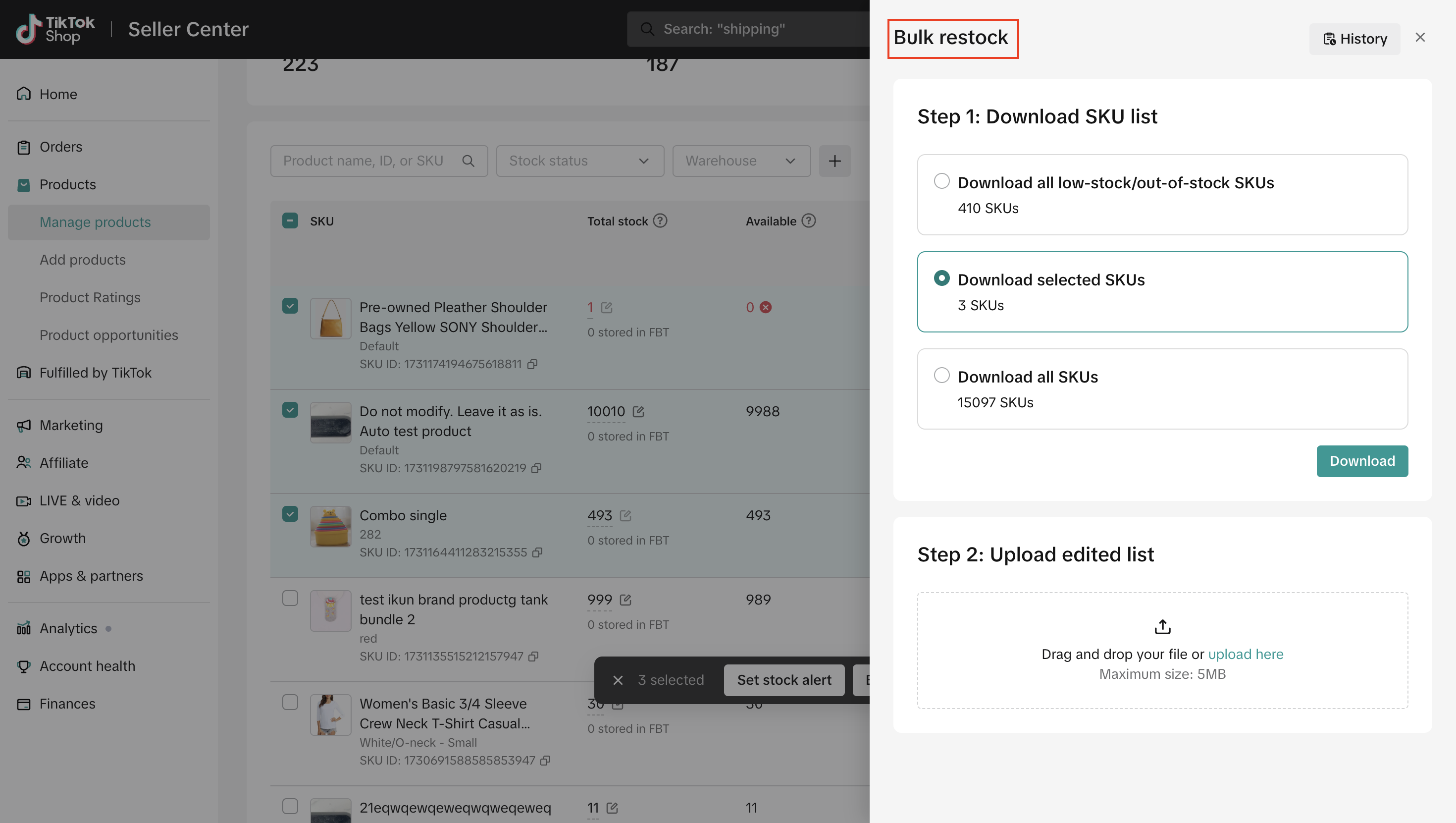
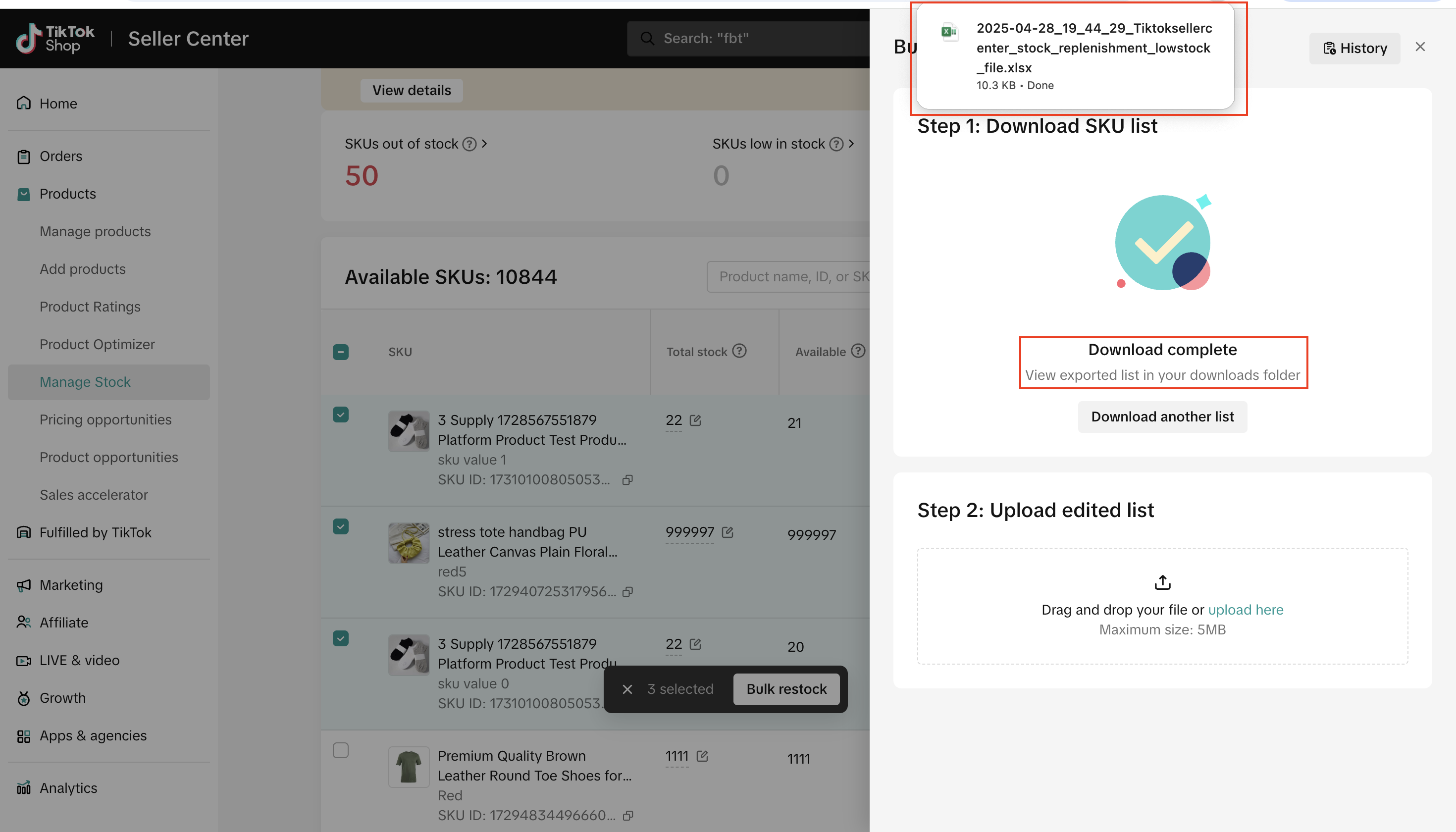
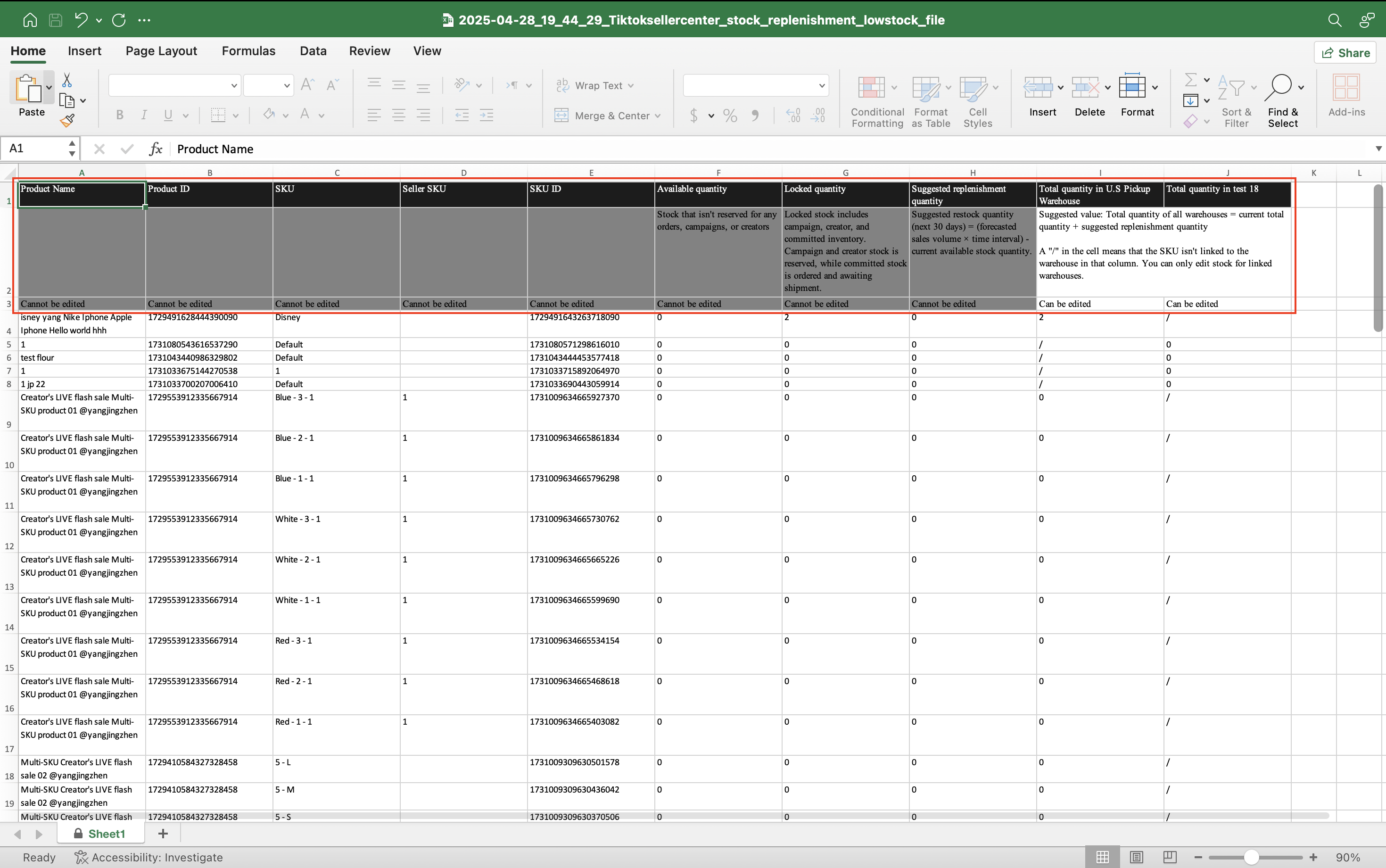
- In the downloaded file, update column I and above with your stock information. If you have multiple warehouses, each warehouse will have 1 column. Columns A-H cannot be edited as they are for reference purposes only.
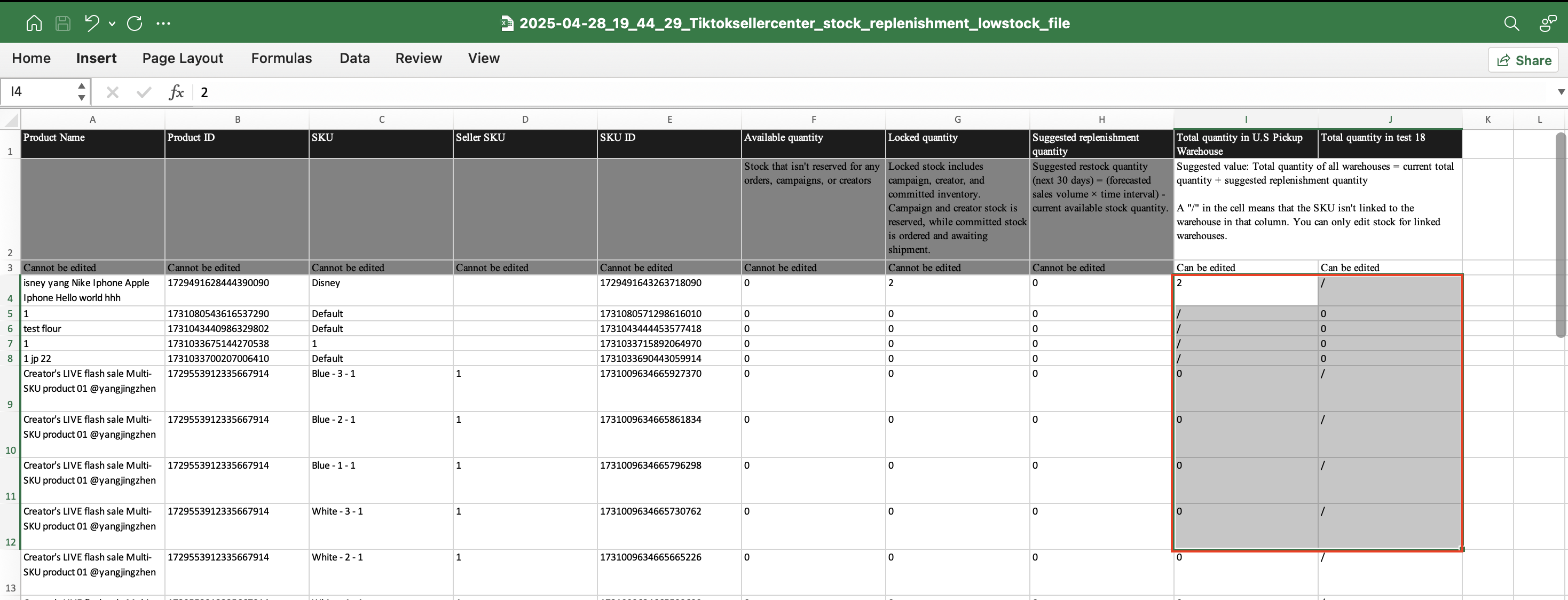
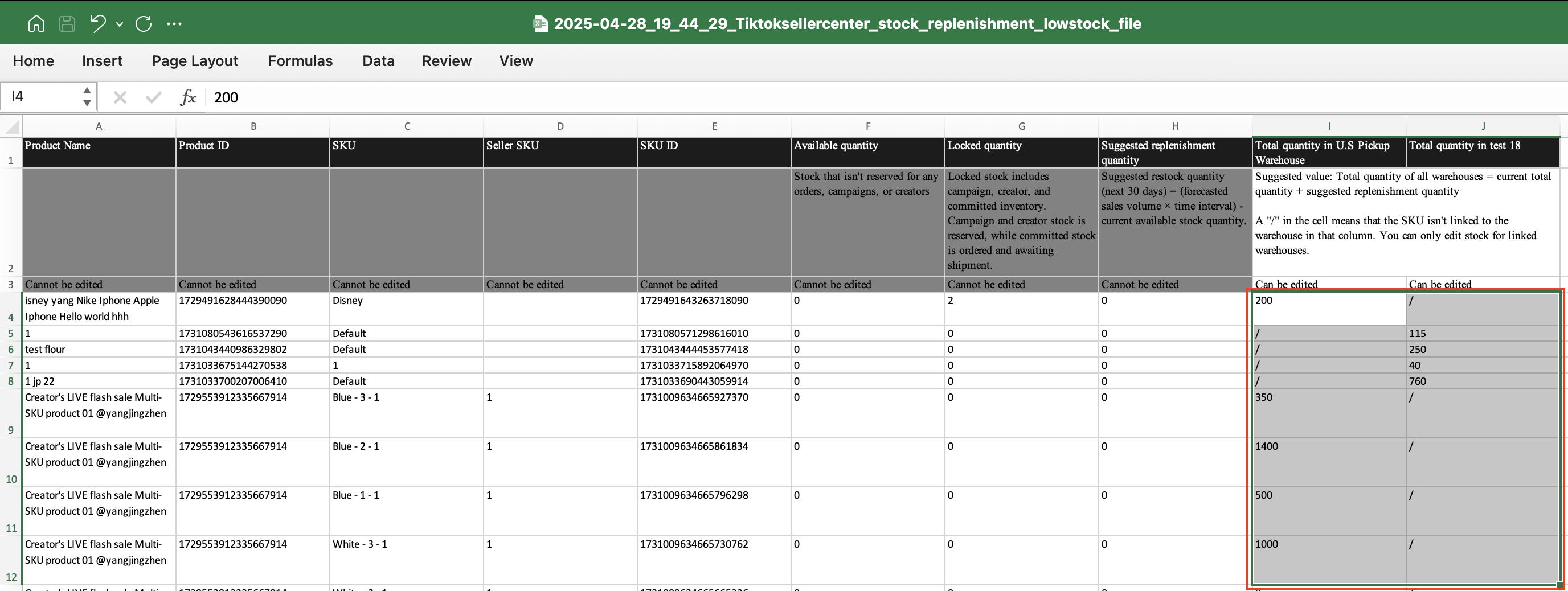
- Once you have updated your stock information, save the file. Go back to Seller Center > Bulk restock tool and upload the updated file from your device. The tool will provide you with the status of your upload.
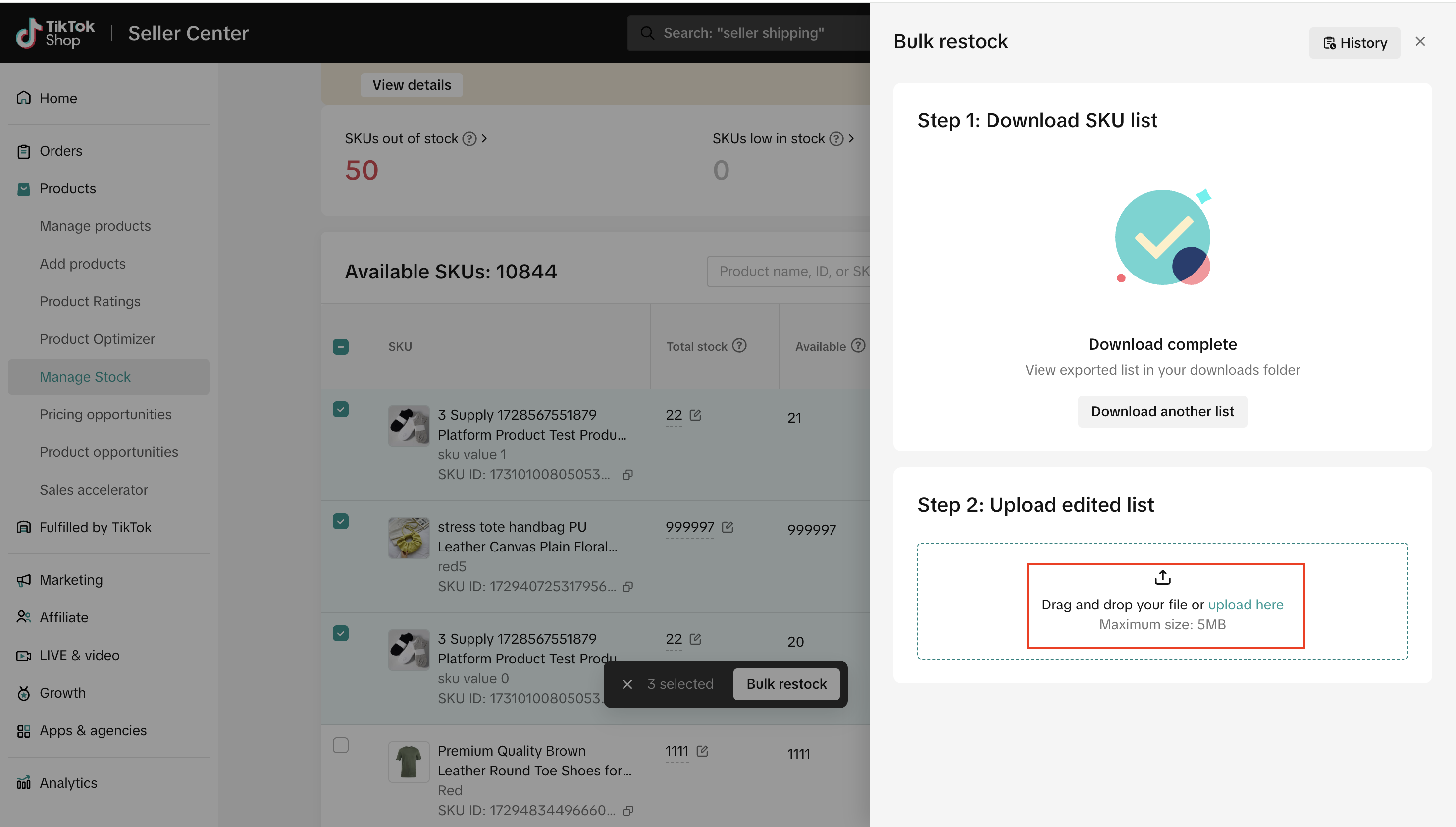
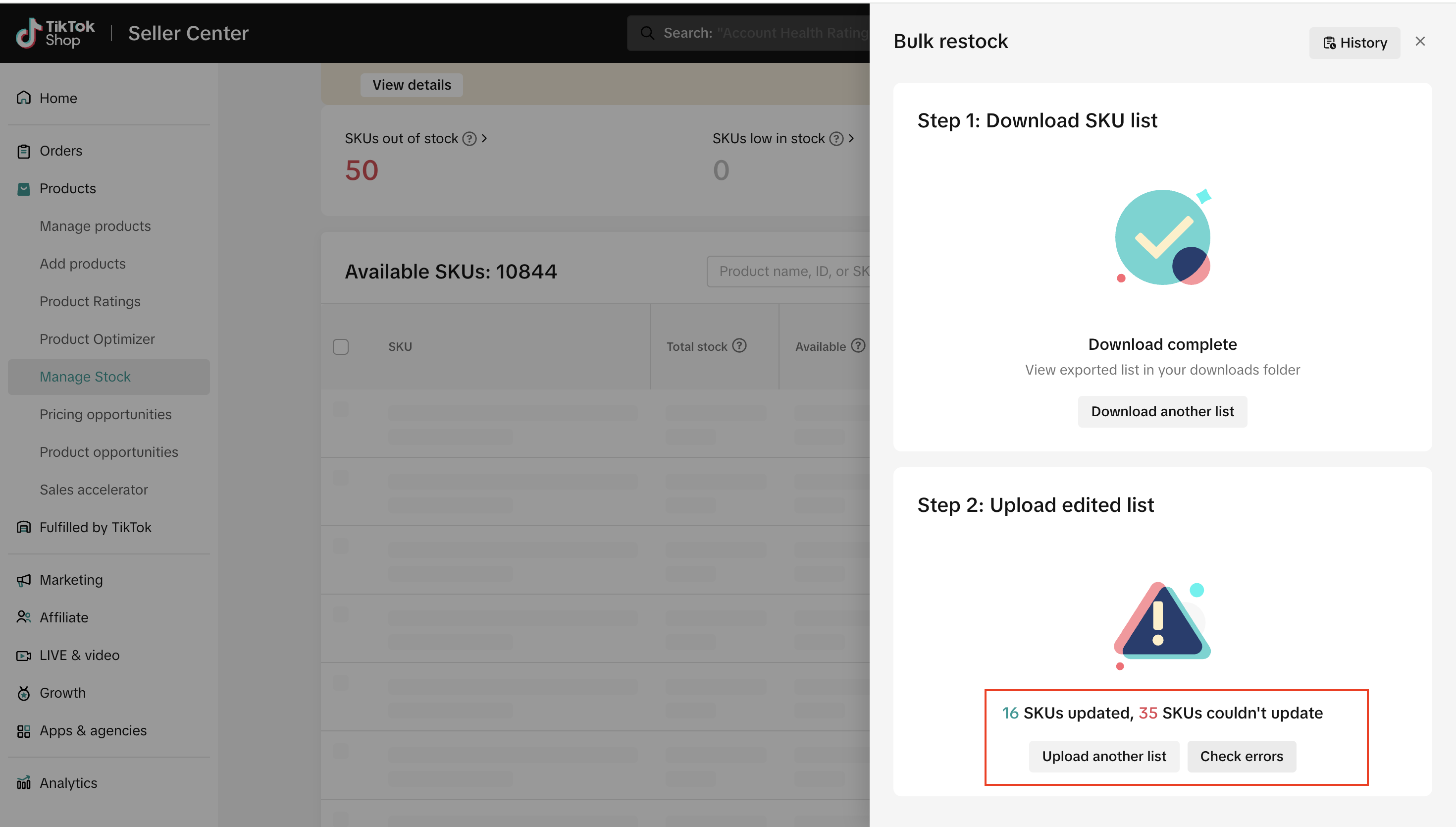
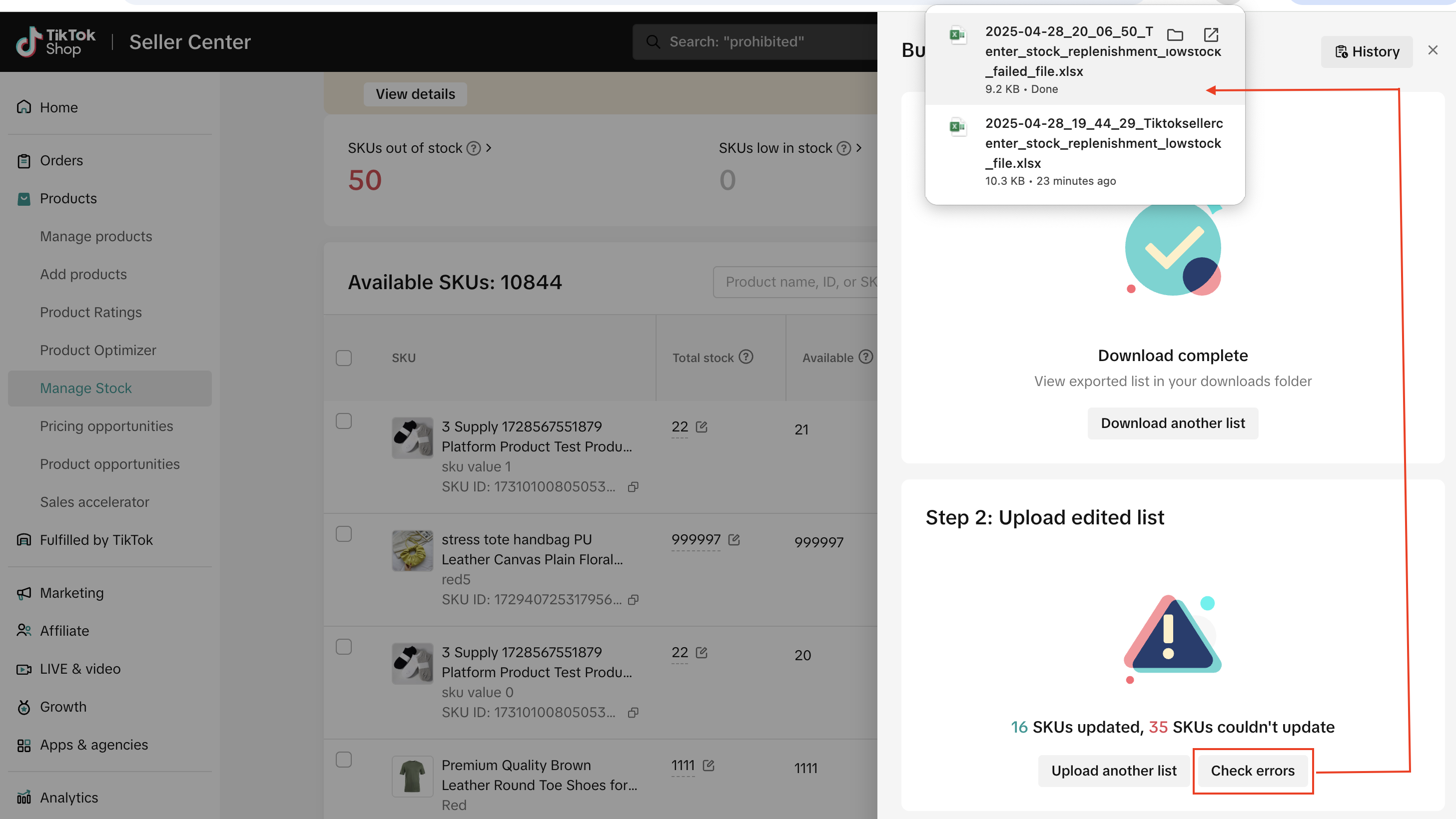
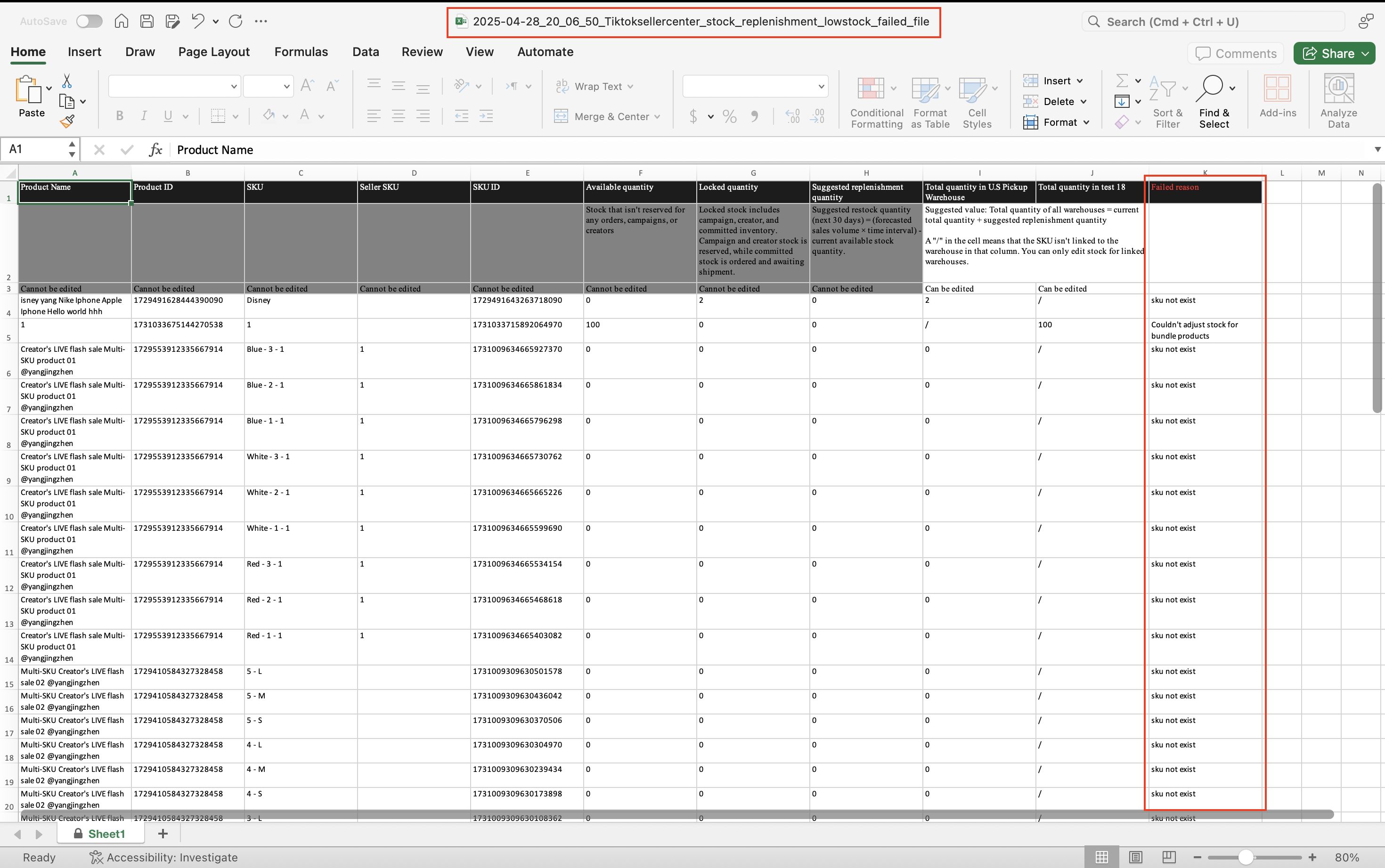
- If you have errors in your file, click on the 'Check errors' button to download your file again (new file ends with failed_file in file name), and fix your errors. This file will now provide you with a new column, 'Failed reason', so you can fix your error quickly. Once you update your file with the right information, upload the file again in the tool.
- You can also view the 'History' of your downloads and uploads in the tool, with its status and timestamp.
Manage Fulfilled By TikTok (FBT) stock from stock dashboard
In addition to viewing or editing your FBT stock in our stock management widget, you can also easily access FBT stock from Seller Center via a link in our stock dashboard. Click on the 'Manage FBT stock' button to take you to your FBT page.
You may also be interested in
2025 BFCM TikTok Shop Readiness Guide
The holiday shopping rush is your single biggest opportunity to increase sales & grow your brand on…
List with a URL
Note: This feature is currently in beta to a limited set of pre-selected sellers. Introduction: Wh…

Made-to-Order (MTO)
Introduction: What is Made-to-Order (MTO)? Made-to-order is a new listing option available for eligi…
Applying for Category Permission
Introduction Some product categories on TikTok Shop are restricted and require sellers to apply for…

TikTok for Shopify - Product Listing Upgrade
Overview: With this new listing update, sellers will have the same product listing experience whethe…
How to Use Size Chart Tool & Guidance
Introduction to our Size Chart Tool With the Size Chart tool, you can now update key sizing informat…
Edit products in your shop
Introduction to editing products in your shop Maintaining accurate and appealing product listings is…
Luxury Resale Products and Uploading Certificates of Authent…
What are Luxury Resale Products? Luxury Resale products are luxury items, including pre-owned luxury…

TikTok for Shopify: Promotions Sync
Overview: Shopify sellers can sync Promotions/Discounts except Free Shipping on Shopify directly to…

How to List Dangerous Goods
Overview When creating a new product listing, TikTok Shop may identify your product as a potential D…