

How to use flat fee collaborations
09/16/2025
Summary
What are the key benefits and features of TikTok Shop’s flat fee collaborations for sellers?
- Sellers gain creative control with up to 3 rounds of content edits and a built-in review process before publishing.
- The model allows partnering with top-tier creators via upfront flat fees ($20-$10k) plus optional sales and ads commissions, managing onboarding, review, and payments in one platform.
How do sellers set up and manage a flat fee collaboration invite on TikTok Shop?
- Create an invite in the Affiliate Center under "Target collaboration," select flat fee model, set promotion period (120-365 days), enable content review toggle if desired, select one product, and invite up to 50 eligible creators.
- Manage payments by topping up balance in Affiliate Center; funds are held securely until collaboration completion to protect both parties.
What is the process for content review, approval, and payment release in flat fee collaborations?
- Sellers can request up to 3 rounds of edits with 14 days per review and 7 days for creators to resubmit; if content is rejected after 3 rounds, payment is refunded.
- Once content is approved, payment is released to creators; if content review is off, videos post automatically after platform review.
How can sellers handle product sample shipments and amplify collaborations with Shop Ads?
- After a creator accepts an invite with free samples, sellers ship products via the Seller Center’s "sample requests" tab.
- Sellers can enable "ads authorization" and set Shop Ads commission (0-80%) to sync content to TikTok Ads Manager and launch campaigns to boost reach and sales.
What payment and refund policies should sellers be aware of when using flat fee collaborations?
- Payments are held until content passes reviews; refunds occur if creators reject invites, fail to deliver after 3 edits, or are removed from invites.
- Sellers can request refunds of unused balances anytime; refunds process within 3-10 business days and unused funds auto-refund annually in December.
Product overview
Flat fee collaborations Secure top-tier creators with flat fees and drive sales with commissions—level up your creator partnerships into a powerful e-commerce engine.Benefits
- Maximize creative control: Collaborate with creators on high-quality, on-brand content and provide feedback through a built-in review process.
- Access top tier talent: Attract and partner with high-quality creators using a new incentive structure that combines upfront fees and performance-based commissions.
- Scale your collaborations: Manage multiple flat fee creator partnerships with ease, handling everything from onboarding to content review and payment in one spot.
How it works
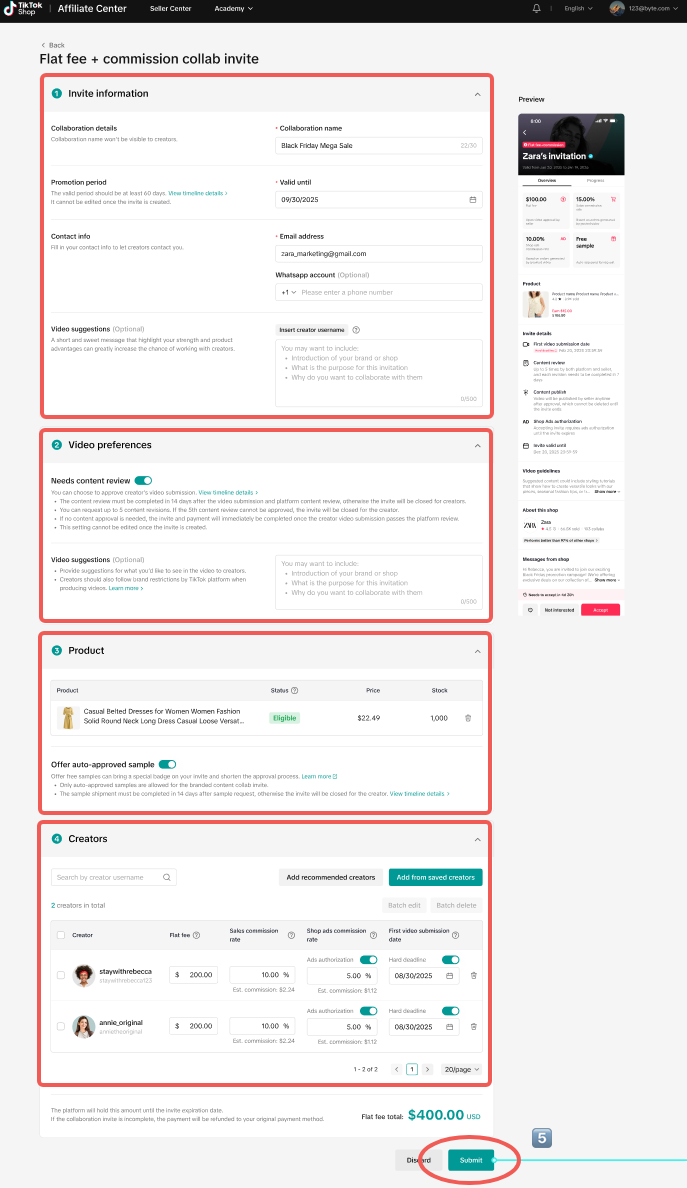
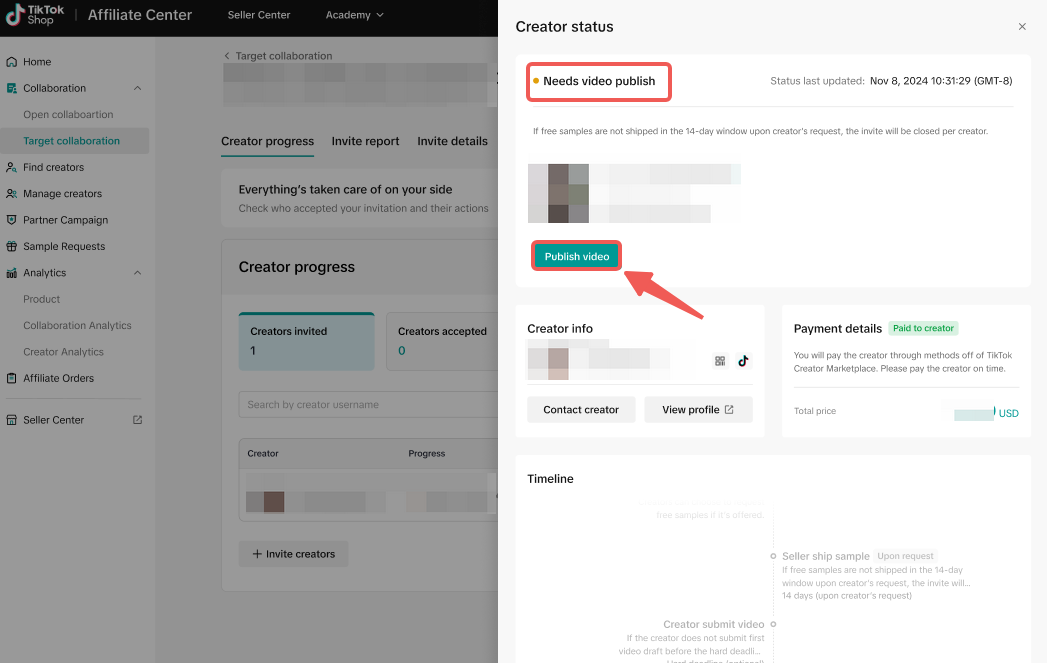
Flat fee collabs are a type of Target collaboration where invite creation, content review, and payment can all happen without leaving TikTok Shop. Sellers can request up to three rounds of content edits, with a 14-day window for each review, ensuring they have full creative control before publishing.| Step 1: Create a flat fee-based collaboration invite | Step 2: Manage payment | Step 3: Manage your collaborations and ship samples | Step 4: Review content submissions | Step 5: Launch Shop Ads campaigns |
 |     |    |      |   |
Step 1: Create a flat fee-based collaboration invite
- You'll start by heading over to the TikTok Shop Affiliate Center. On the left-hand navigation, select the "Target collaboration" tab.
- From there, you can choose to "Invite to collab" and select the "flat fee-based" model to start building your campaign. You can also invite creators to a flat fee collab the same way you'd invite them to a target collab, through Manage Creators, Find Creators, and from the Creator details page.
- You'll then fill in the invite details, including the promotion period (invite will be valid with a minimum of 120 days and a maximum of 365 days) and decide if you want to turn on the "needs content review" toggle. This toggle gives you the power to review and refine content before it goes live.
- You'll also select the product you want to promote. Keep in mind that you can only select one product for a flat fee collab and you should ensure that you set up auto-approve free samples.
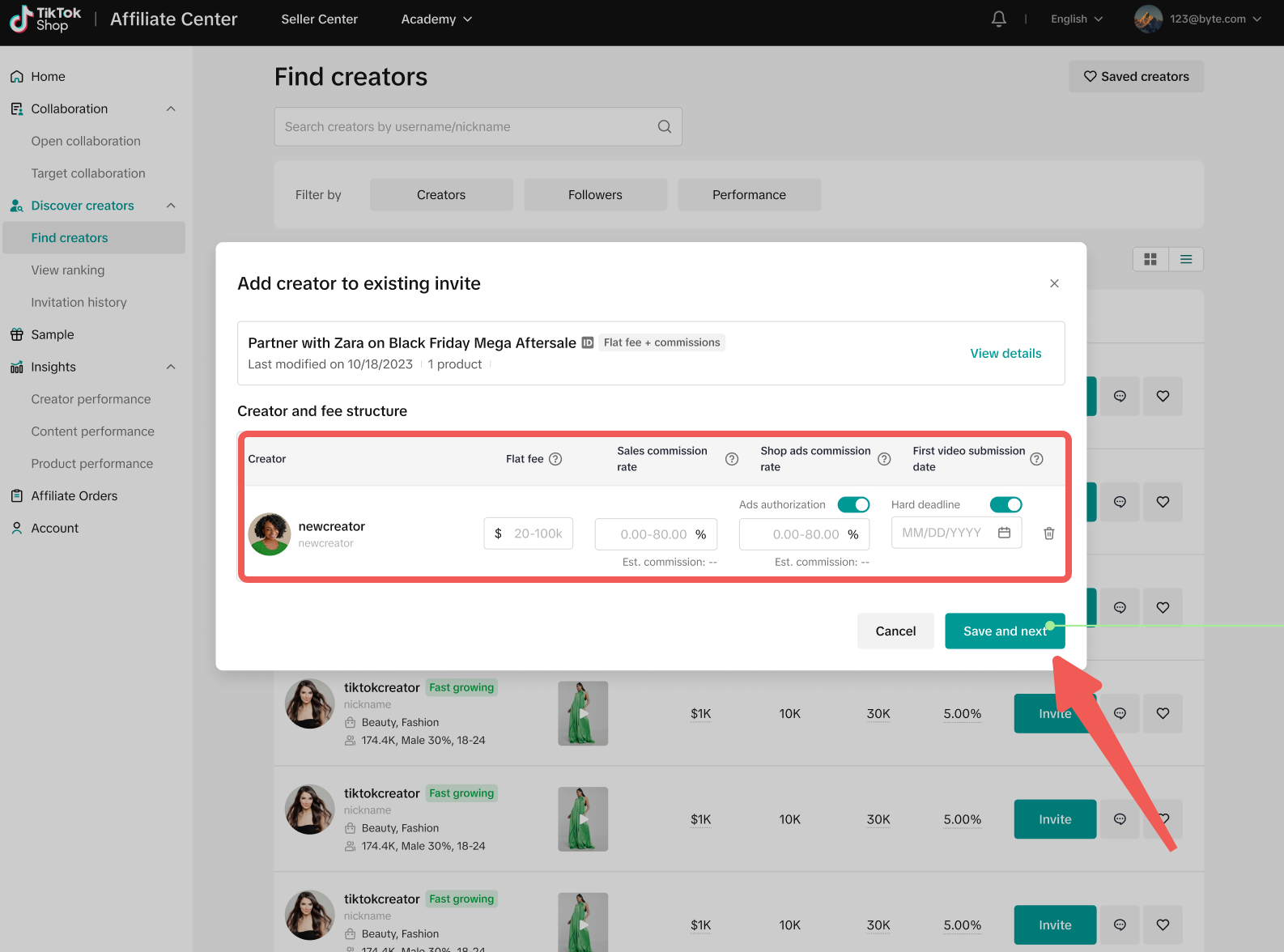
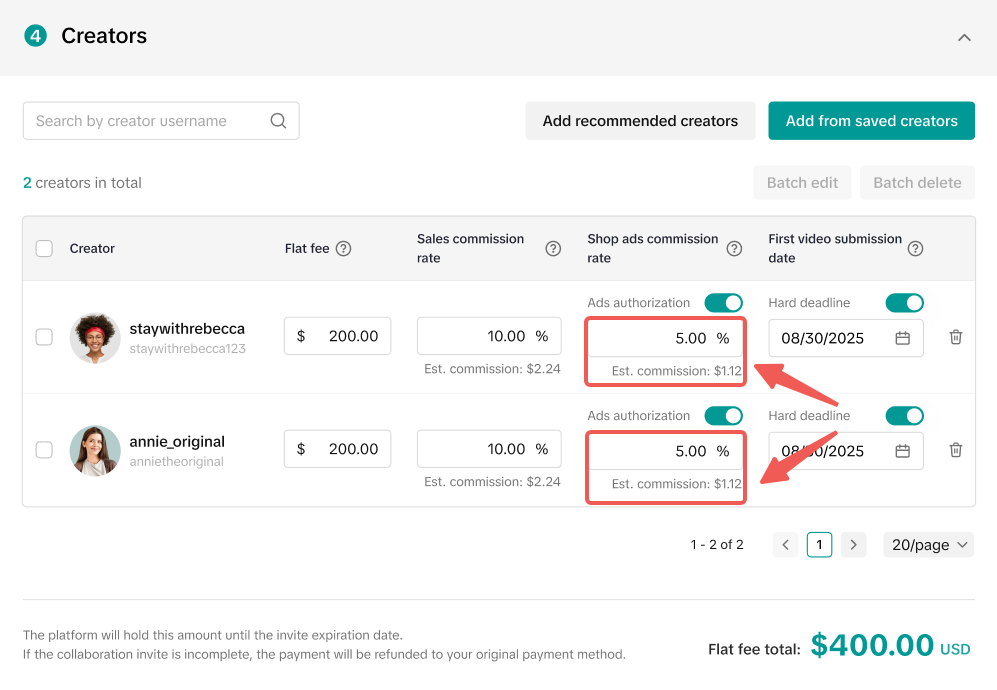
- Finally, you'll pick the creators you want to work with (up to 50 per invite!), set your payment options, and click submit. You can offer a flat fee (from $20-$10k per creator) and optionally add sales commission (0-80%) and/or shop ads commission.
Step 2: Manage payment
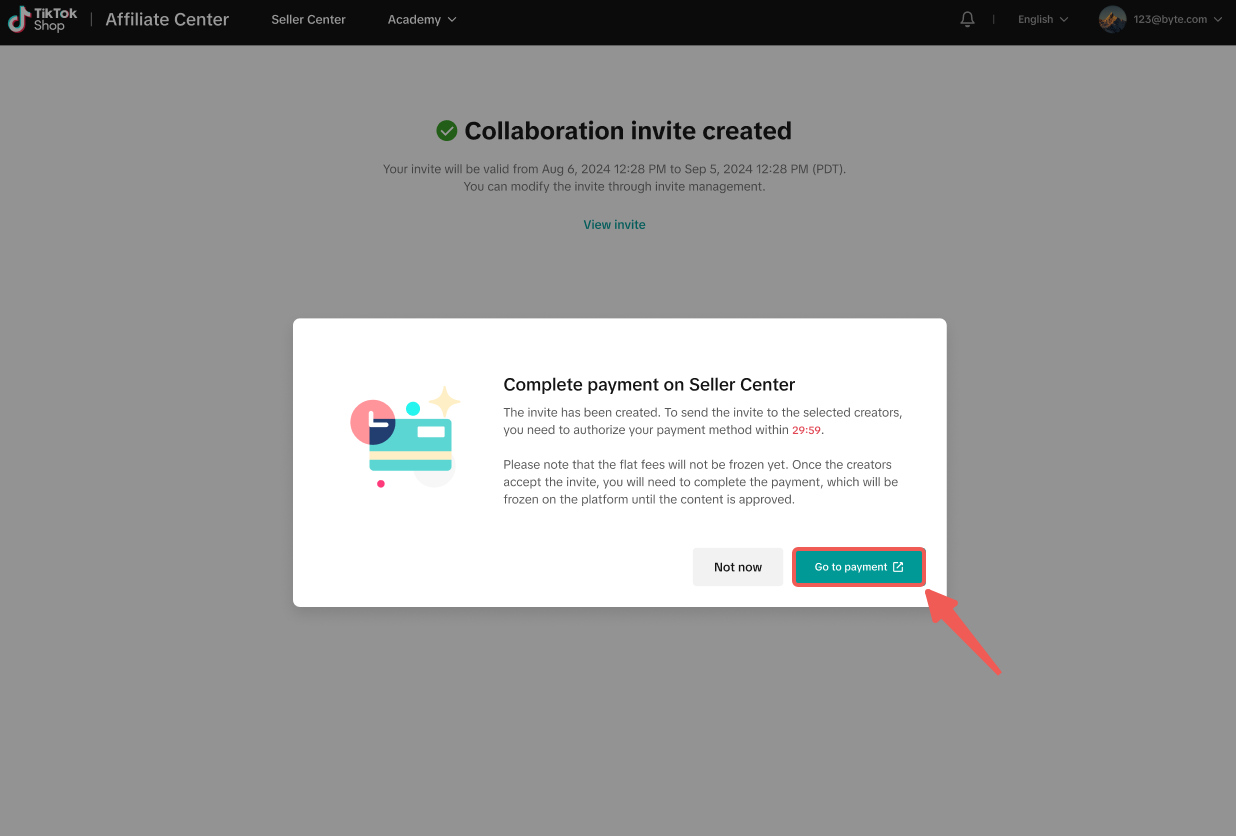
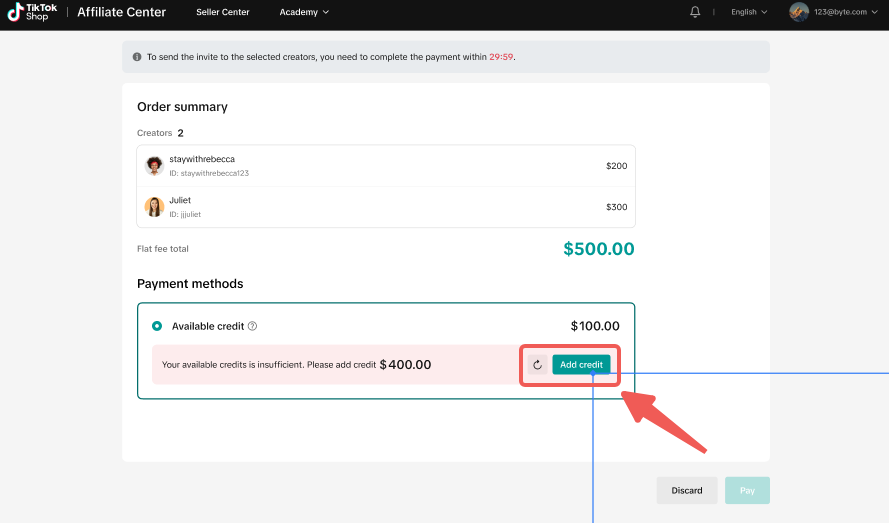
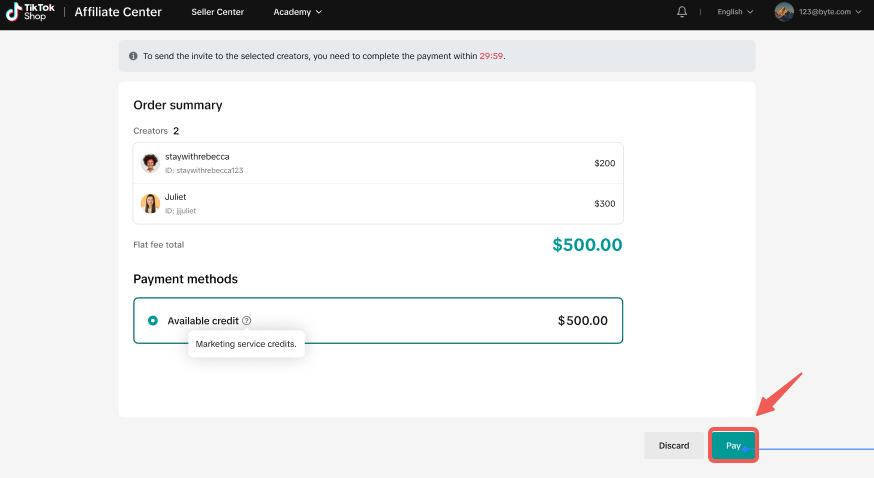
- You'll be automatically entered into the payment flow when you submit the invite. This payment will be held on the platform until the collaboration is complete.
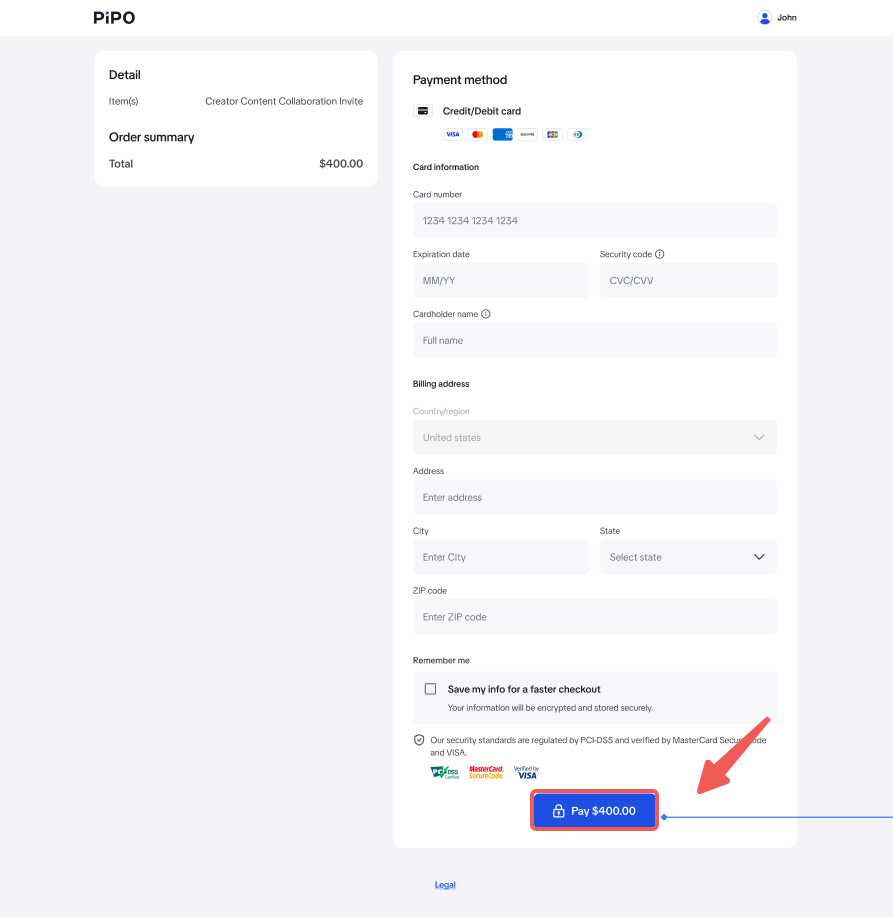
- You can pay via the "available" amount on your Flat Fee Payment page. If you need to top up your balance, you can do so with a credit/debit card.
Step 3: Manage your collaborations and ship samples
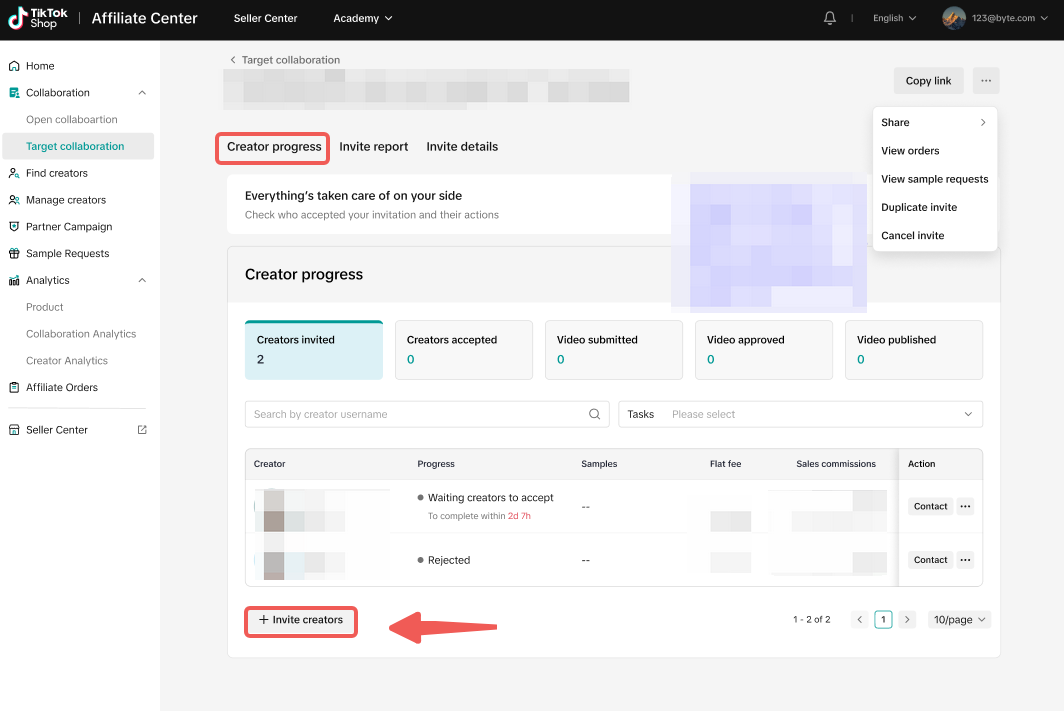
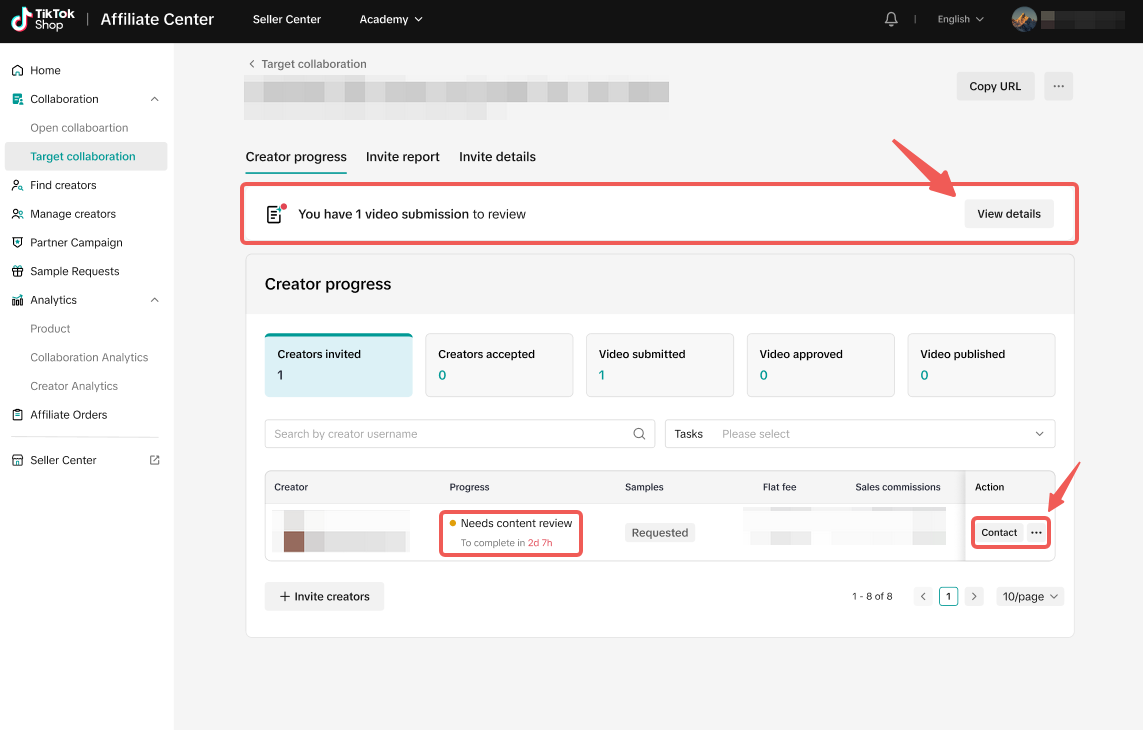
- Manage your invite from the "Target collaboration" page. Click"view details" to check the status, or click "edit" to revise invite details. Add more creators to an existing invite by clicking "+invite creators".
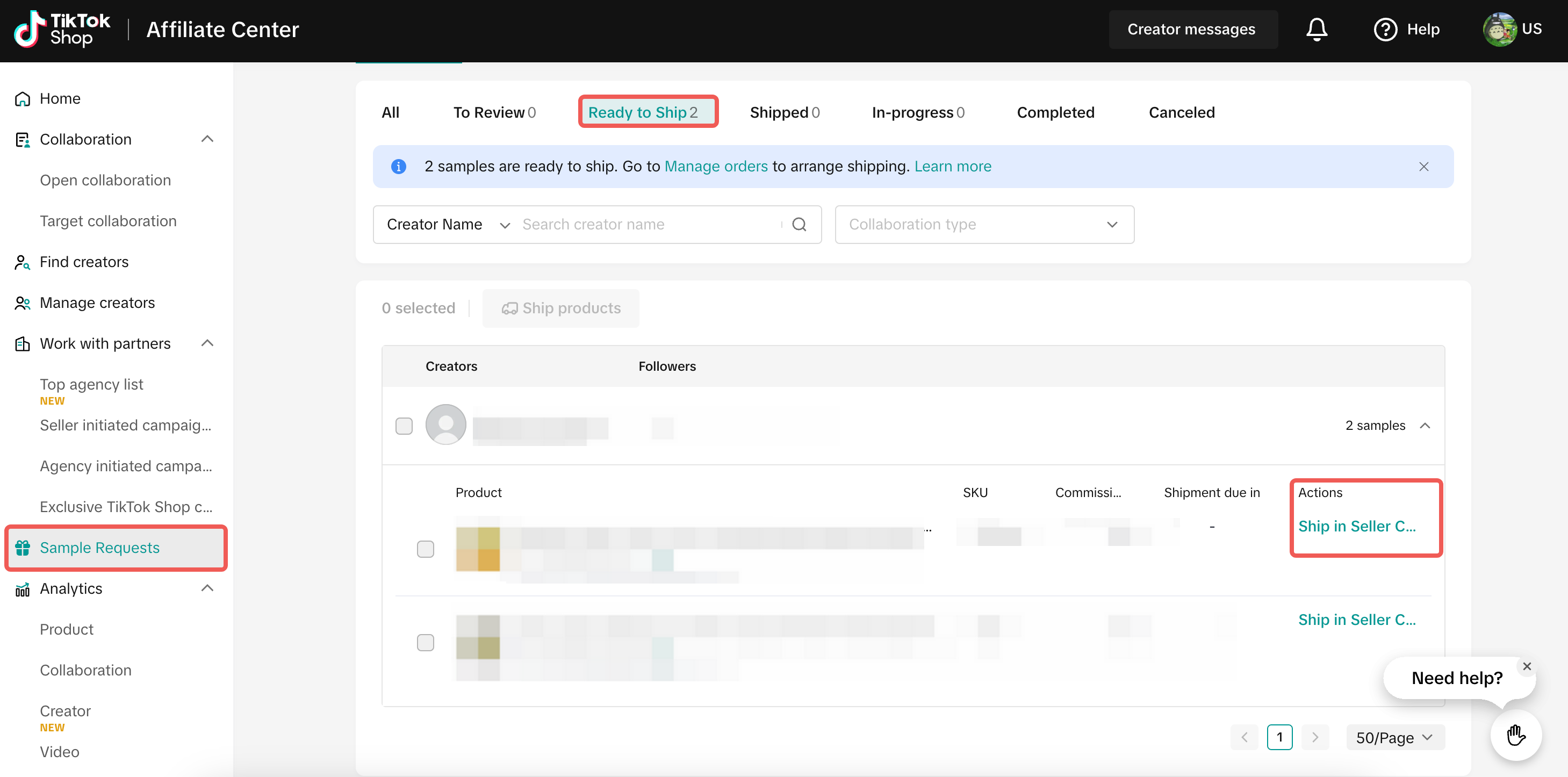
- If you offered free samples, once a creator accepts your invite, you'll need to ship the product to them. Head to the "sample requests" tab, click "ready to ship", and you'll be redirected to Seller Center to complete the shipment.
Step 4: Review content submissions
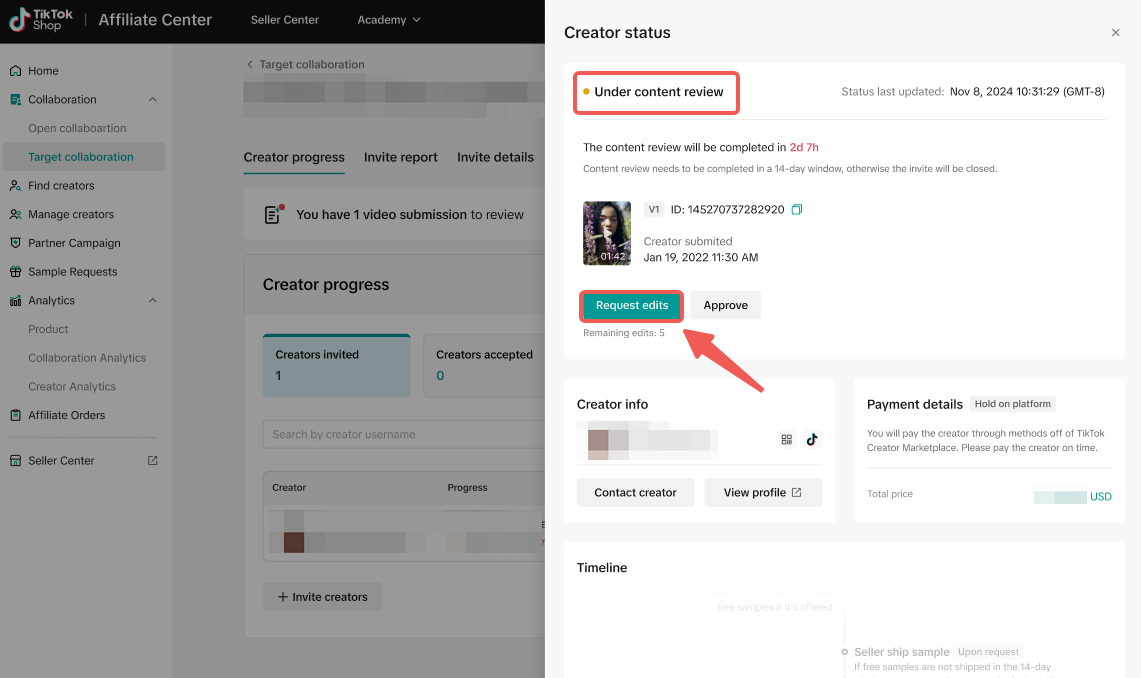
- If you turned on the "needs content review" toggle, you'll be able to review content submissions once they've been uploaded by the creator. Go to Target collabs > view > view orders > view details to see the creator progress and manage approvals.
- All videos first go through a platform review to make sure they comply with our policies. If the video passes, and your "needs content review" toggle is on, it'll be sent to you. If it doesn't pass, the creator will have up to 7 days to edit and resubmit.
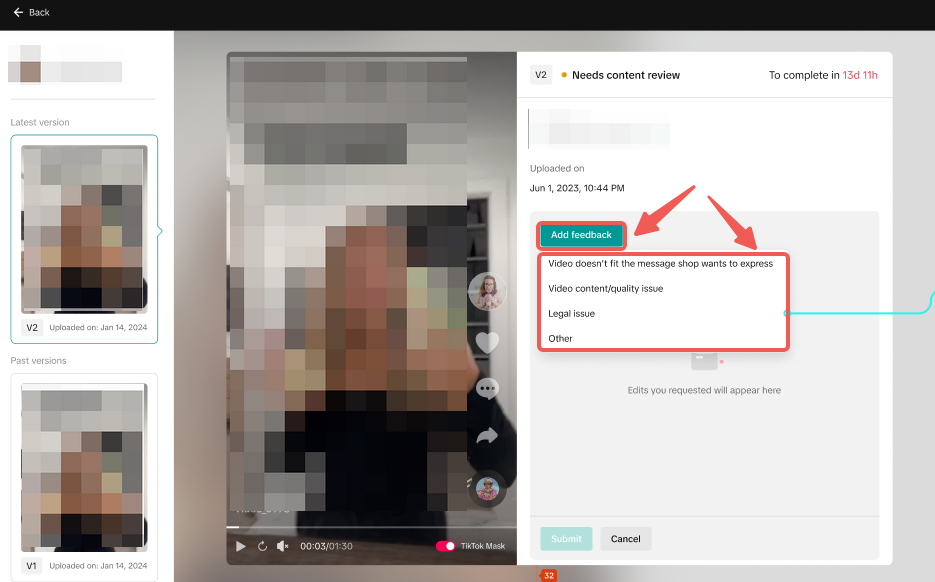
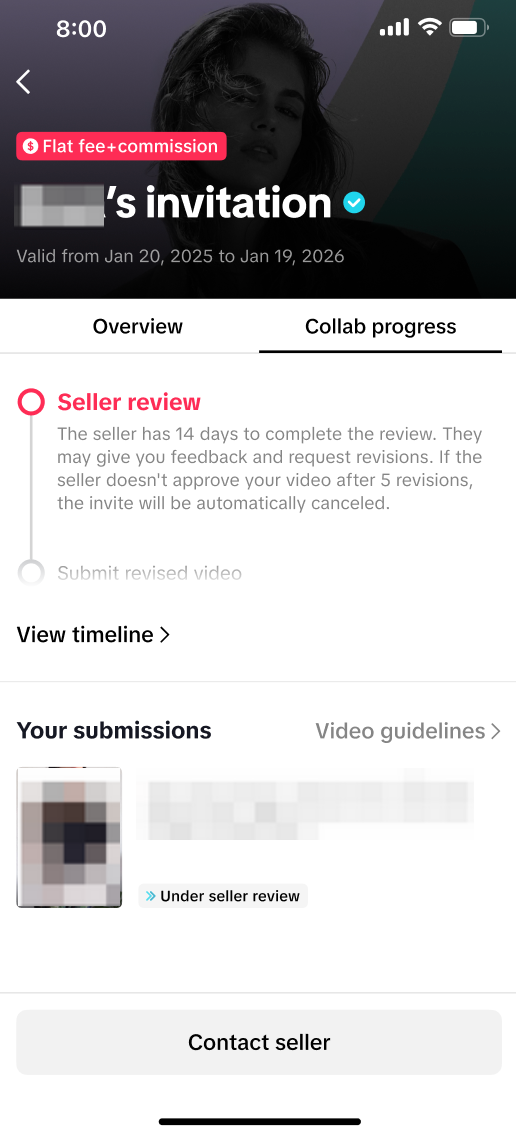
- From the creator status side bar, you can request edits or approve the content. You have up to 3 rounds of edits to request from a creator. Sellers have up to 14 days to review content for each round of edits. The creator, in turn, has up to 7 days to re-upload a revised video after a request for edits.
- If you reject the content after the third revision, the invite will be canceled and the payment will be refunded to your balance. Keep in mind that you have up to 14 days for each round of edits. After that, the content will be automatically approved and the flat fee will be paid out.
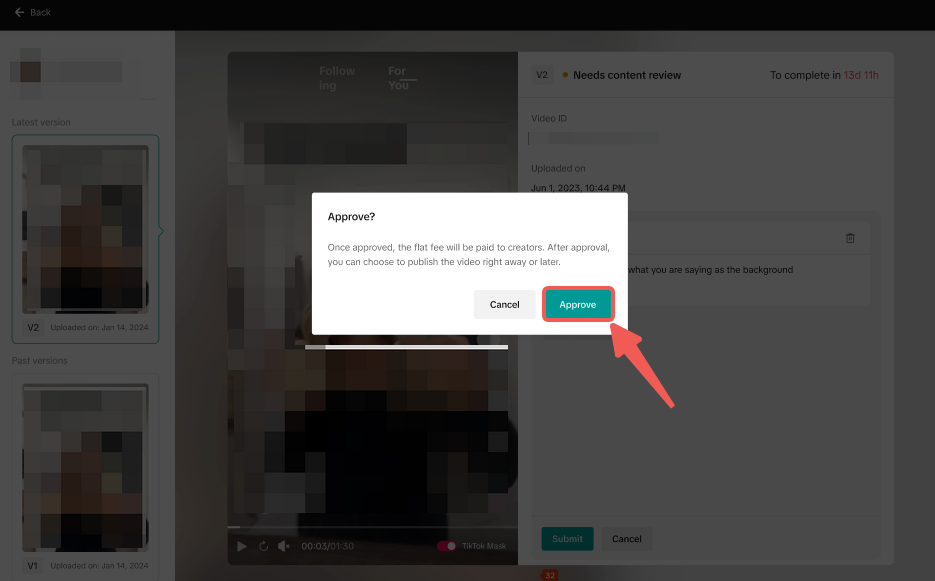
- Once you're happy, you can approve the video and publish it.
Step 5: Launch Shop Ads campaigns
- If you want to amplify the content, you can turn on the "ads authorization" toggle when you create your invite. This will remain active as long as the invite is valid.
- You can also set a Shop ads commission rate between 0-80% for each creator. Note that the Shop ads commission will be 0% if the sales commission is set to 0%.
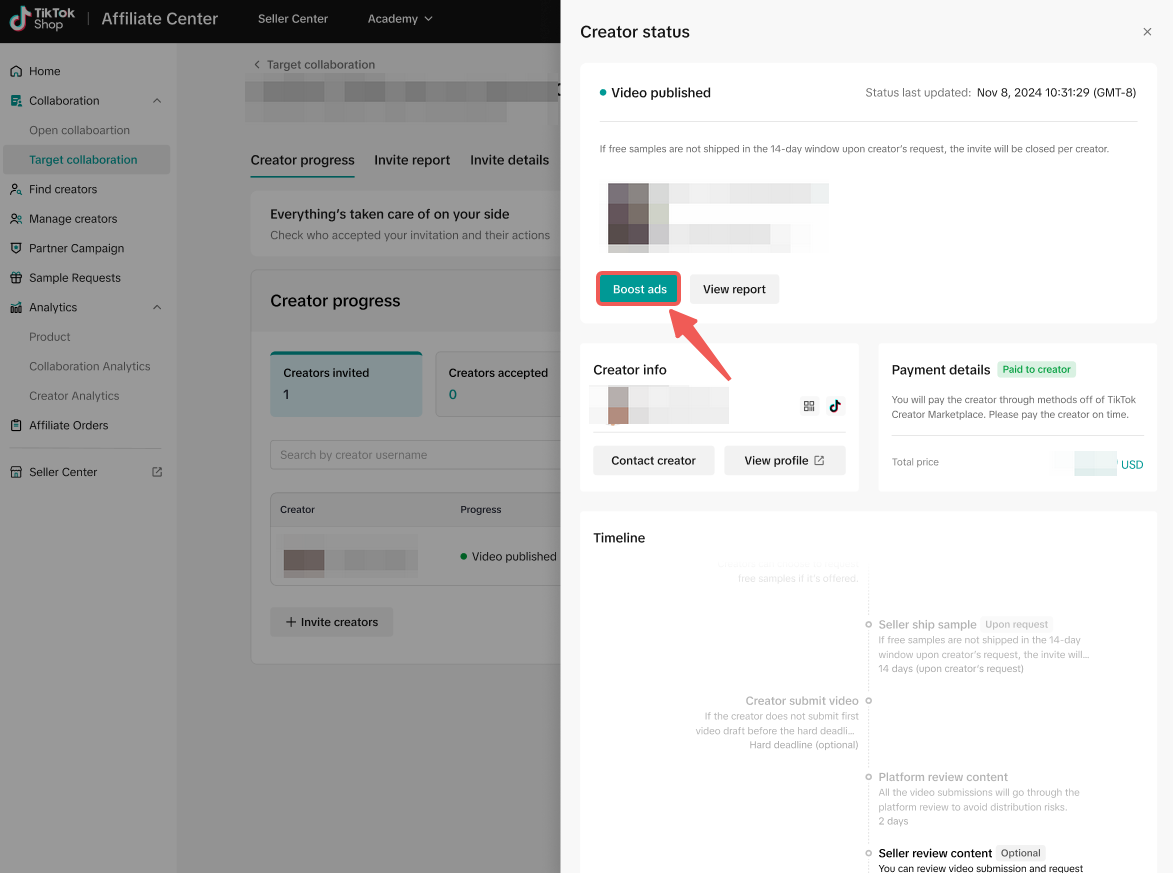
- This will automatically sync the video to TikTok Ads Manager. From there, you can launch a shop ads campaign to increase your reach and sales!
Tips
- Guidance on flat fee payments: Offer flat fees tailored to a creator's performance. For example, top creators: $300 ~ $500+ per video (with Ads authorization), micro creators: $100 per video (with Ads authorization).
- Balance guidance and creativity: Give creators a clear and detailed brief with non-negotiable talking points, but also give them creative flexibility. The best results often come from trusting a creator's unique style!
- Pick creators with good collaboration records: Prioritize creators with a history of timely delivery and high-quality content for a smoother collaboration experience.
- Don't keep your creators waiting: When a creator submits content, review it in a timely manner. You have up to 14 days for each round of edits. After that, the content will be automatically approved and the flat fee will be paid out.
FAQs
General
Can I still use the commission-only model? Yes! You can choose between "flat fee-based", "flat fee-based + commissions", or "commission only" when creating a Target collaboration invite.Is this available for creator LIVE content? No, flat fee collaborations currently only support Shoppable Videos and single video submissions.
Is this available in Open collaborations? No, currently, this is only available in Target collaborations.
Can the flat fee be negotiated? No, in-platform flat fee negotiation is not supported inside the platform at this moment.
Are there any creator restrictions on who and how many I can work with? Seller can feature up to 50 creators per flat fee invite. Each creator can only collaborate with 1 product & 1 valid flat fee invite from the same seller. Not all creators are eligible for flat fee invites. You can use the filters within the flat fee invite process or in Affiliate Center to find eligible creators to work with.
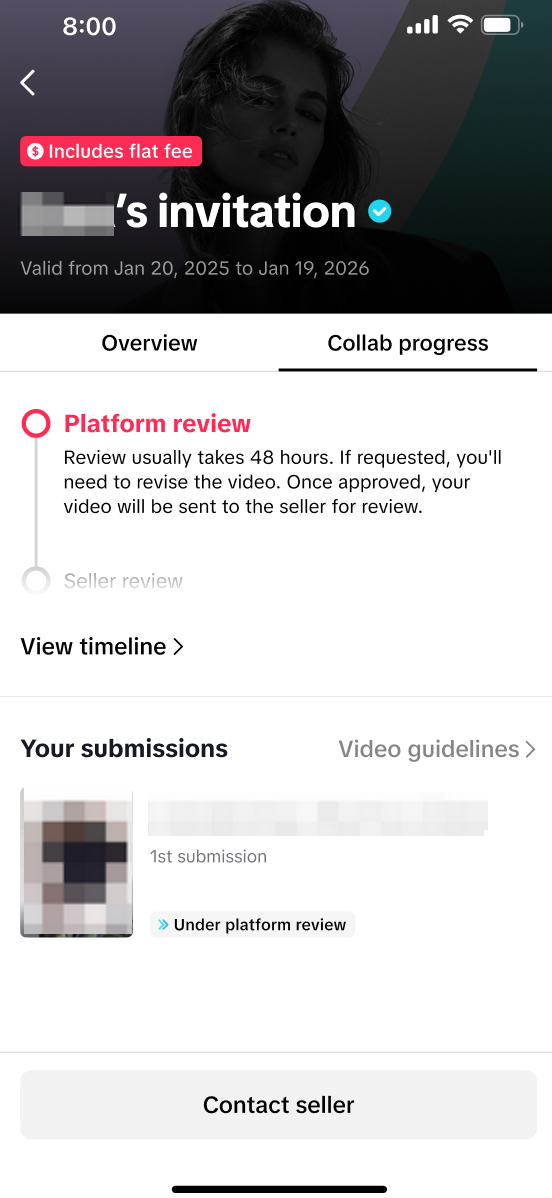
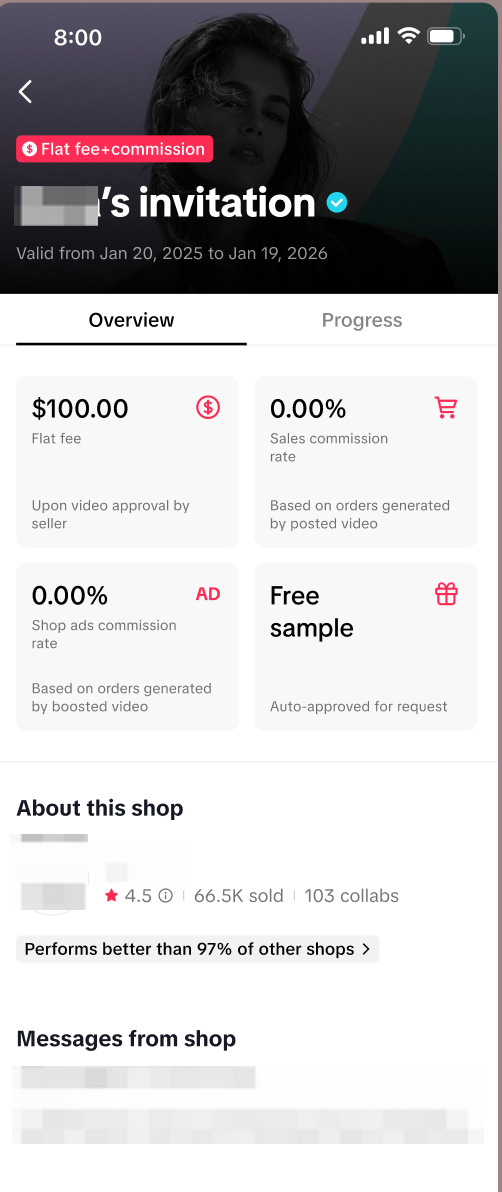
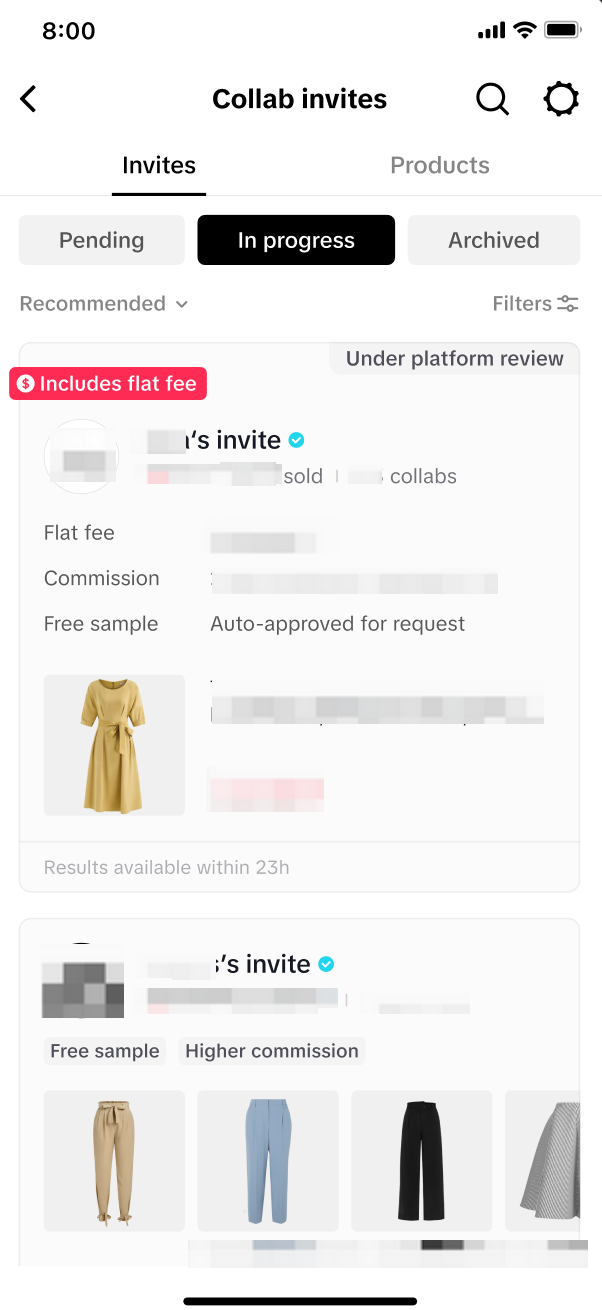
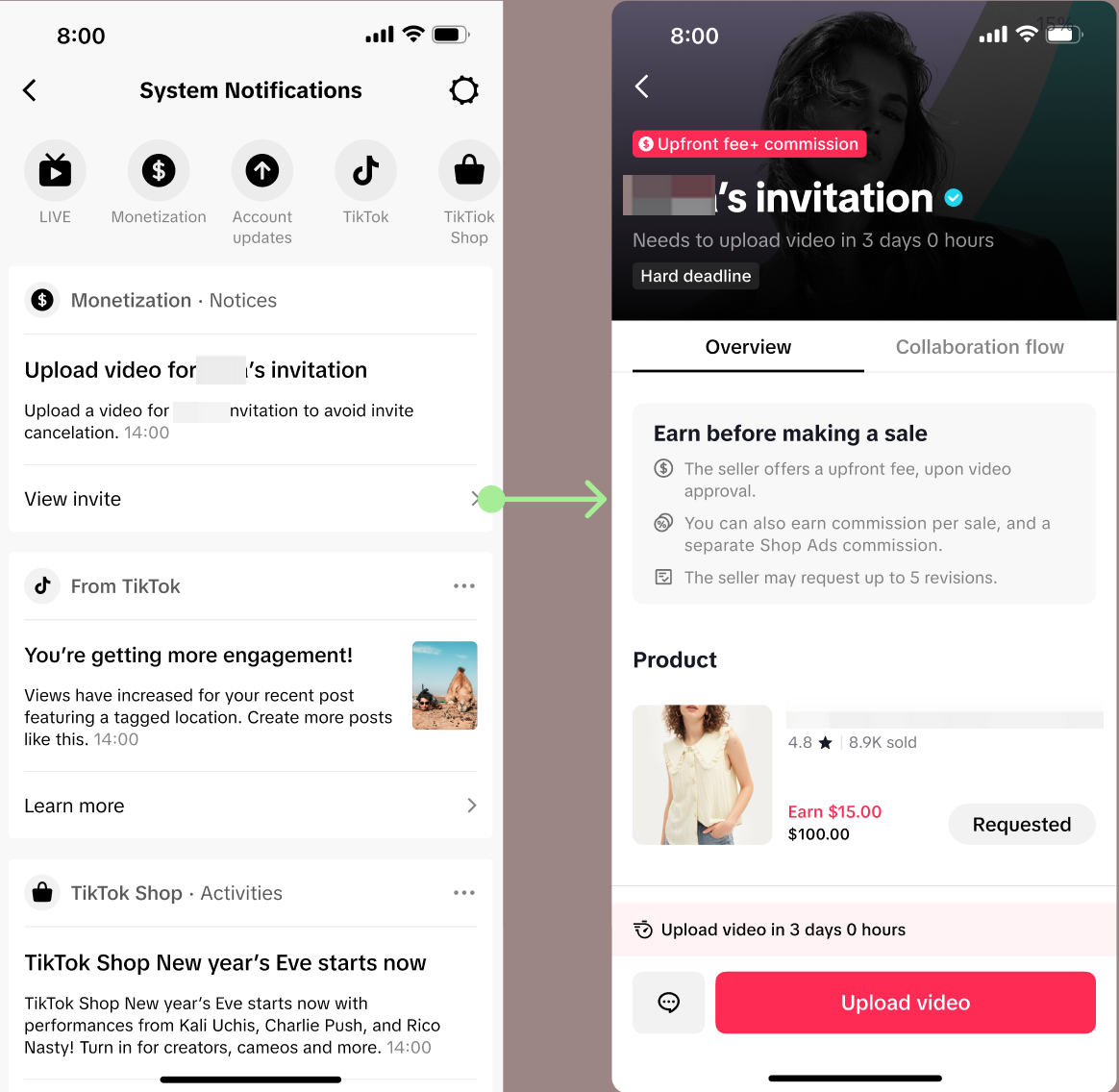
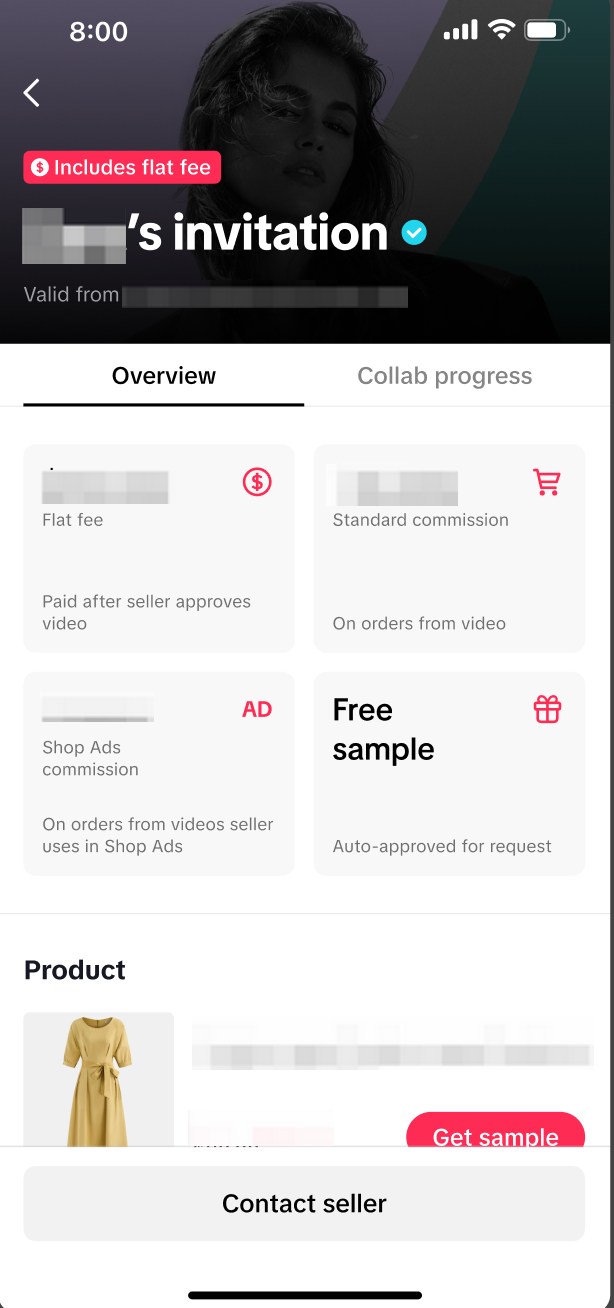
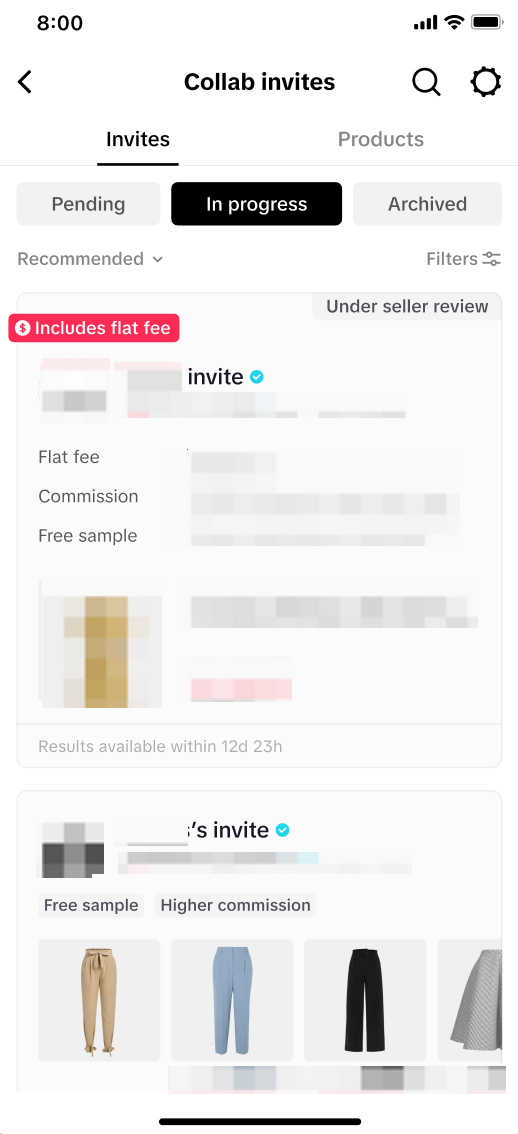
What is the creator experience? Creators who accepted the flat fee collaborations invite will be notified via inbox message to upload content 72 hours before invite cancellation. Creators will also be able to view the timeline for the flat fee collab within their app.
 |  |  |  |  |  |  |
Payments
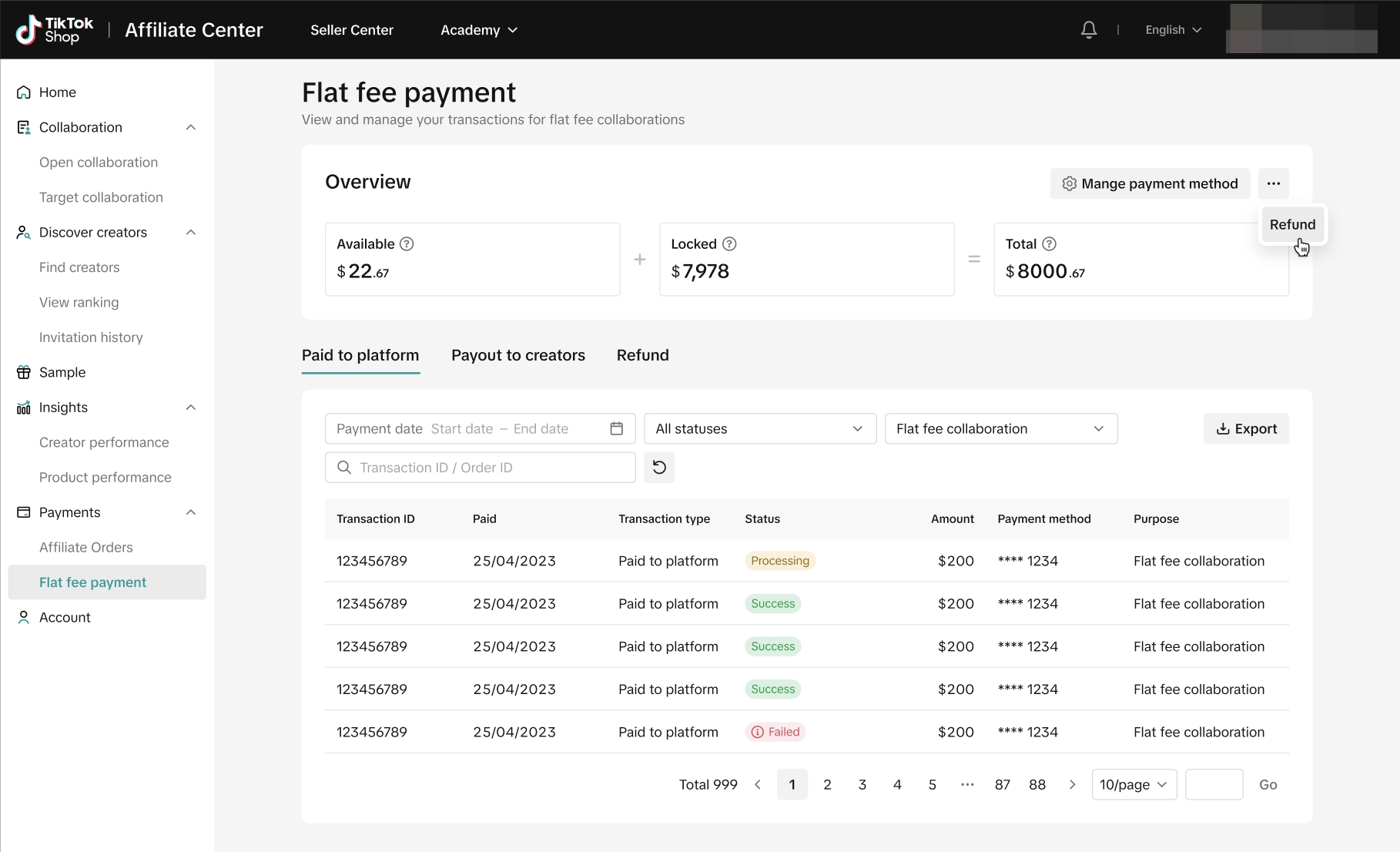
What does the amount displayed in the overview section represent? You can view your available and locked amounts in Affiliate Center > Payments > Flat fee payment. Keep in mind the following definitions:
- Available: The remaining amount you can use to invite creators for flat fee collaborations. You can request a refund for any unused amount to your original payment method.
- Locked: The amount reserved for processing ongoing collaborations.
- Payment will be made to the creator and deducted from the locked amount after the platform and seller reviews are passed.
- If a collaboration is canceled by either the platform or the seller, or if the creator rejects the invite, the amount will be returned to your available portion.
- Total: The sum of the available and locked amounts.
- The creator rejects or ignores the invite.
- You delete a creator from a launched invite.
- A creator fails to deliver qualified content after 3 rounds of reviews and edits.
How do I request a refund?
- Step 1: Go to the Affiliate Center -> Flat Fee Payment -> Click the '···' button -> Select Refund.
- Step 2: Confirm the refund amount and click Submit.
- Step 3: Check the refund status in the 'Refund' tab. The status could be Processing (refund is in process), Success (the refund has been processed by the bank. You may still need to wait 3 to 10 business days to receive it), Failed: (refund failed. You can submit a ticket for assistance).
Content & reviews
How many review rounds can I request? You can request up to 3 rounds of review.What happens if a creator fails to deliver after 3 edits? The flat fee payment for that creator will be refunded to your balance.
Can I decide when the content is posted? Yes, if you turn on the "needs content review" toggle, you can decide when to publish the content after you approve it. If the toggle is off, the video will post as soon as it passes platform review.
You may also be interested in
Open Collaboration One Click Solution
**This article is intended for the sellers that have been selected for the One Click Affiliate enrol…

8 Tips for Successful Seller & Creator Matchmaking
Welcome to TikTok Shop Affiliate program This playbook offers an end-to-end roadmap to empower US se…
Affiliate Target Invite & IM Quotas
Overview The Affiliate Target Invite & IM quotas introduces a structured approach for optimizing sel…

How to use Affiliate Links
Product Overview Drive sales from beyond the TikTok app by empowering creators to share your product…
Refundable Samples Terms & Conditions for Sellers
Introduction The Refundable Sample program (“Program”) is offered by TikTok Inc. (“TikTok”, “we”, “o…

Affiliate Partnerships Overview
Introduction: What is Affiliate Partnerships Overview? Affiliate Partnerships are designed to help s…

How to use SKU-level samples
Product Overview SKU-level samples is a smart, direct way to control exactly which product variants…

How to use Affiliate Center features in the app
Overview The TikTok Shop Seller Center App empowers sellers with the ability to manage their TikTok…

How to use refundable samples
Overview Refundable Samples is a TikTok Shop feature that allows you to connect with creators throug…