

How to Schedule Shoppable Videos
02/03/2026
Summary
What is the Scheduled Shoppable Videos feature on TikTok Shop and how does it benefit sellers?
- It allows sellers to create and schedule shoppable videos 30 minutes to 30 days in advance, automatically publishing them at the set time without needing to be online.
- Benefits include consistent posting, batch content creation, planning for events or sales, and maintaining activity during offline periods or travel.
How can sellers schedule, manage, and modify their Scheduled Shoppable Videos?
- Schedule videos via the posting page under “More options” > “Advanced settings” > “Schedule post,” then select date/time and confirm.
- Scheduled videos appear on the profile with a clock icon, are private until published, and can be deleted anytime before going live; to reschedule, delete and re-upload.
What are the best practices and use cases for utilizing Scheduled Shoppable Videos effectively?
- Plan weekly/monthly content calendars, batch film multiple videos, mix evergreen and trending content, and schedule early for major sales events.
- Use for posting across time zones, holiday campaigns, product launches, collaborations, travel consistency, and managing multiple accounts.
Are there any limitations or important considerations sellers should know about Scheduled Shoppable Videos?
- Sellers can schedule up to 50 videos at once; videos must have public or limited visibility (no private scheduling).
- Scheduled videos cannot be edited directly; to change time or content, delete the scheduled post to move it back to Drafts for modification.
Where can sellers find and preview their scheduled videos on TikTok Shop?
- Scheduled videos are visible only to the seller on their profile page alongside other videos, marked with a clock icon and scheduled time.
- Sellers can tap to preview scheduled videos and see their status before they go live; these videos do not appear publicly or in analytics until published.
💡 Feature Overview
Scheduled Shoppables Videos lets sellers, like you create and prepare videos whenever it's convenient, then choose exactly when they go live, from 30 minutes up to 30 days in advance. Your posts will automatically publish at the scheduled time, helping you plan content ahead, stay consistent, and save time. Plus, you don't need to be online when it goes live.Why use Scheduled Shoppable Videos?
- 📅 Post on your schedule: Whether it's first thing in the morning or late at night, you choose exactly when your video goes live.
- ⏳ Batch-create: Record and schedule multiple videos at once to streamline your workflow.
- 🌍 Stay active: Keep posting shoppable videos even when you're busy, offline, or on vacation.
- 🔄 Plan ahead: Build video pipelines for events, sales, holidays, and product launches.

🧭 How to Access This Feature
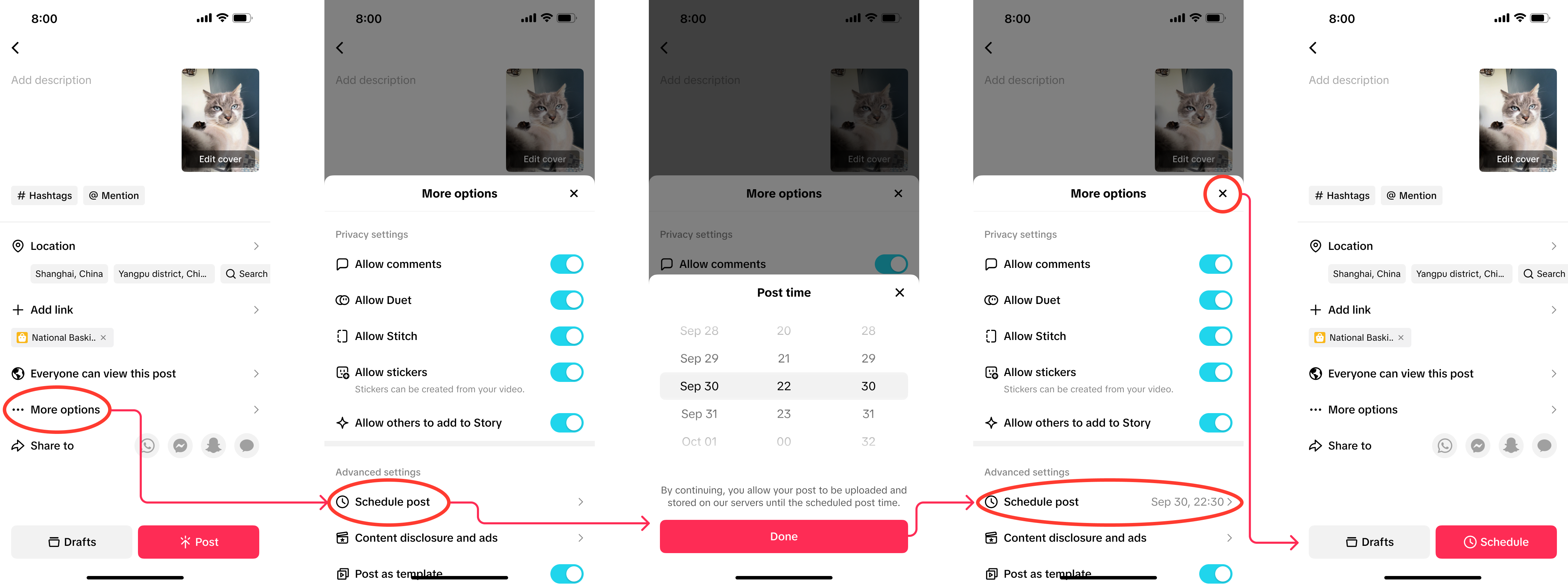
- On the posting page when uploading a shoppable video.
- Tap More options under your video details.
- In Advanced settings, select Schedule post.
- Choose your desired date and time for publishing.

⚙️ How it Works
📅 Scheduling your video
- Create your video: Upload your shoppable video as usual.
- Set your schedule:
- Tap More options under your video details. In the Advanced settings section, tap Schedule post to open the time picker.
- Choose the date and time for your video to go live (30 minutes-30 days ahead) and tap Done to save.
- Confirm your schedule:
- You'll see your selected time next to Schedule post.
- The Post button will now say Schedule.
- Tap "Schedule":
- Your video uploads and is stored privately until the scheduled time.
- It will automatically go live based on your settings. No need to be online.
- Manage your scheduled posts:
- You can delete a scheduled video at any time before it goes live.
- To reschedule, delete the post and upload it again with a new time.
🗺️ Where to find your scheduled videos
You can view and manage your scheduled videos directly on your profile page.- Scheduled videos appear alongside your other videos but are only visible to you until published.
- Each scheduled video shows a clock icon ⏱️ and the scheduled date and time on the thumbnail.
- Tap a scheduled video to preview it. You'll also see the scheduled time and status at the bottom.
- You can delete a scheduled video if you need to make changes or cancel the post.


🌟 Use Cases and Examples
Here are ways you can use this tool effectively:- Daily dosting without daily filming: Film multiple product videos in one day, then schedule them for the entire week. This is perfect for sellers with limited filming days.
- Posting across time zones: If your audience is most active early morning or late at night, schedule posts for their peak hours, even if you’re asleep.
- Holiday & seasonal campaigns: Batch-create videos for Black Friday, Christmas, Valentine’s Day, Mother’s Day, etc., and schedule them weeks in advance.
- Product launch coordination: Time your shoppable videos to publish right when a product drops or restocks.
- Collaboration & sponsored content: Agencies or partners may require specific posting times, so schedule to guarantee perfect timing.
- Staying consistent during travel: If you’re away or without good Wi-Fi, you can still maintain daily posting.
- Managing multiple accounts: Sellers or teams overseeing multiple pages can schedule content to avoid last-minute posting stress.
🌟 Best Practices
- ✅ Plan a Weekly or Monthly Content Calendar: Use a 30-day scheduling window to plan content for:
- Product cycles
- Sales events
- Trending periods
- Brand partnerships
- ✅ Batch film for efficiency: Film 5–10 videos in one session and schedule them across several days or weeks.
- ✅ Keep a mix of evergreen and trending content: Schedule evergreen product reviews well in advance. Save trend-based content for manual posting since trends expire quickly.
- ✅ Schedule earlier for big sales: For events like Black Friday, schedule content days or weeks ahead to avoid last-minute bottlenecks.
- ✅ Double-check links before scheduling: Since you can’t edit after scheduling, confirm your product links are accurate.

Frequently Asked Questions (FAQs)
| Question | Answer |
| Who can use Scheduled Shoppable Videos? | It's currently available for all TikTok Shop sellers. |
| How far in advance can I schedule a video? | You can schedule your video as early as 30 minutes ahead and up to 30 days in advance. |
| Can I change the scheduled time? Can I edit a scheduled video? | Yes. Click the ellipsis, then click Delete, then select Delete and re-edit. This will delete the original scheduled video, and it will reappear in your Drafts, where you can make modifications to the content or time. |
| What's the maximum number of videos I can schedule? | You can schedule up to 50 videos per account at a time. |
| Can I schedule private videos? | No. Scheduled posting is only available for videos with public or limited visibility settings. |
| Where can I see my scheduled videos? | On your profile page, visible to only you. |

You may also be interested in
- 1 lesson
Creating Shoppable Videos with Shopify's 1P App
Are you a Shopify seller looking to create scroll-stopping shoppable videos but don’t know where to…

2025 Shoppable Video Holiday Guide for Sellers 🎁 ✨
👋 Introduction Black Friday Cyber Monday (BFCM) is the biggest seasonal sales weekend of the year,…

TikTok for Shopify: Shoppable Videos
Introduction: What is the SV Widget on the Shopify App? Compelling videos are at the heart of what d…

How to Change Your Video's Sound
TikTok will notify you if any of your videos' sound is no longer available. The TikTok App offers di…

Image-to-Video (formerly known as AI Fashion Video Maker)
💡 Feature Overview Image-to-Video is a tool that instantly turns your product photos into short, po…

"TikTok Shop for Sellers"
Introduction Shoppable Video is the most powerful way to sell on TikTok Shop. TikTok Shop for Seller…

Shoppable Photos
NOTE: This feature is currently in beta and available for select sellers. Functionality may evolve a…