

Custom Box Management
01/08/2026
Summary
What is the Custom Box Management feature in TikTok Shipping and how can sellers use it?
- It allows sellers to create and manage custom-sized boxes that differ from standard carrier sizes, helping tailor packaging to their needs.
- Sellers access it via Logistics > Fulfillment > Package settings in Seller Center, where they can add, edit, set defaults, or delete custom boxes.
How do sellers add and modify custom boxes in TikTok Shop’s Seller Center?
- Click "Set Up" under Package settings to add a new box by naming it and defining its dimensions, then confirm to save it.
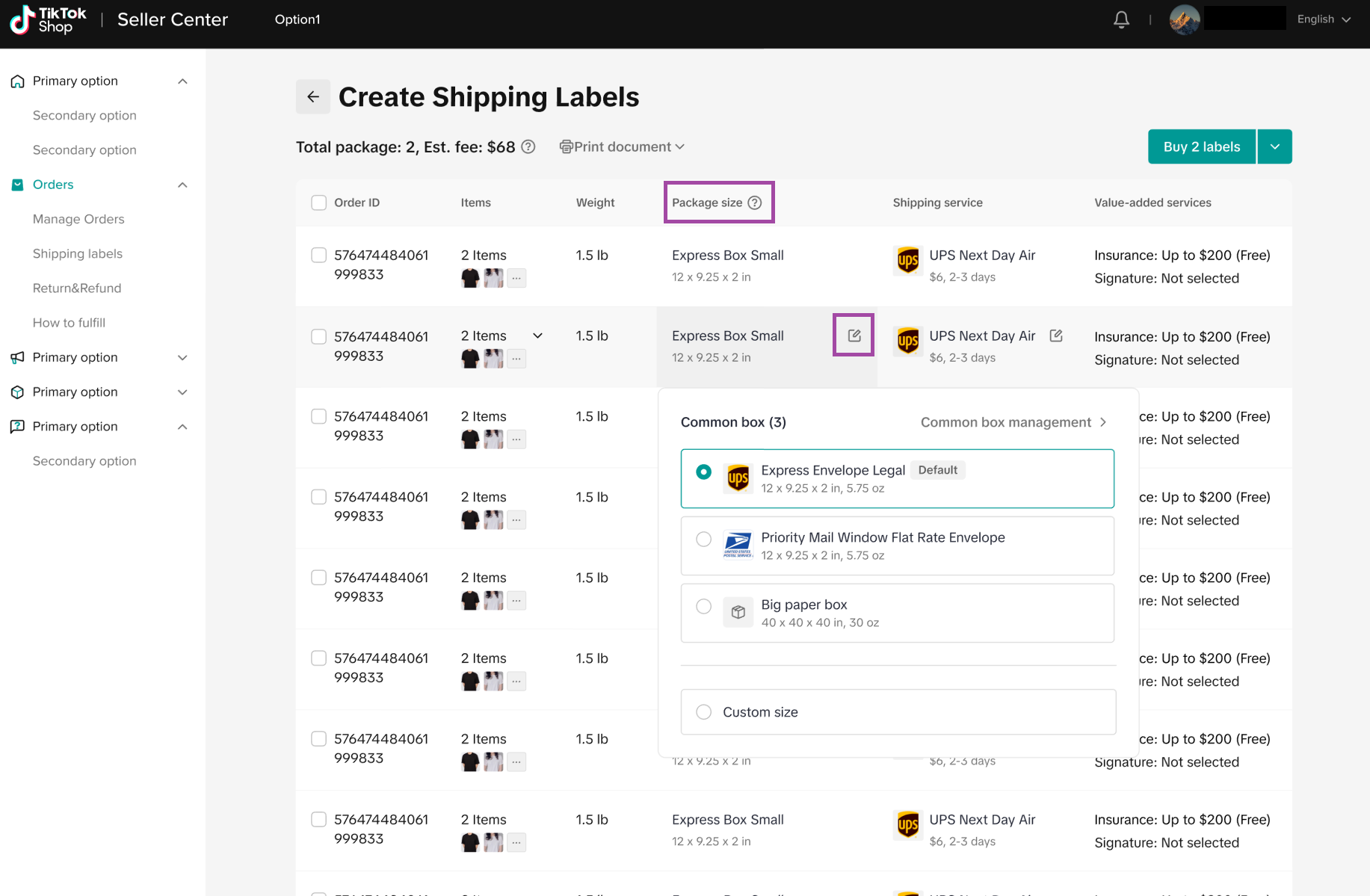
- Existing boxes can be edited or set as default via the three-dot menu, and box sizes can be adjusted when creating shipping labels.
Are there any restrictions or errors sellers should be aware of when using custom boxes?
- If a custom box size exceeds what the shipping service can handle, an error message "Shipping service cannot support this size" will appear, preventing label creation.
What are the practical benefits of using custom boxes for TikTok Shop sellers?
- Custom boxes enable more precise packaging, potentially reducing shipping costs and improving product protection.
- Setting a default box streamlines the shipping label creation process for frequently used package sizes.
Custom Box Management
TikTok Shipping allows you to create, manage, and define custom boxes that you may use on a daily basis that do not conform to standard box sizes provided by carriers. To access this feature, follow our simple guide below!- Navigate to the Logistics > Fulfillment page in Seller Center. In this page you will find the "Package settings" tab
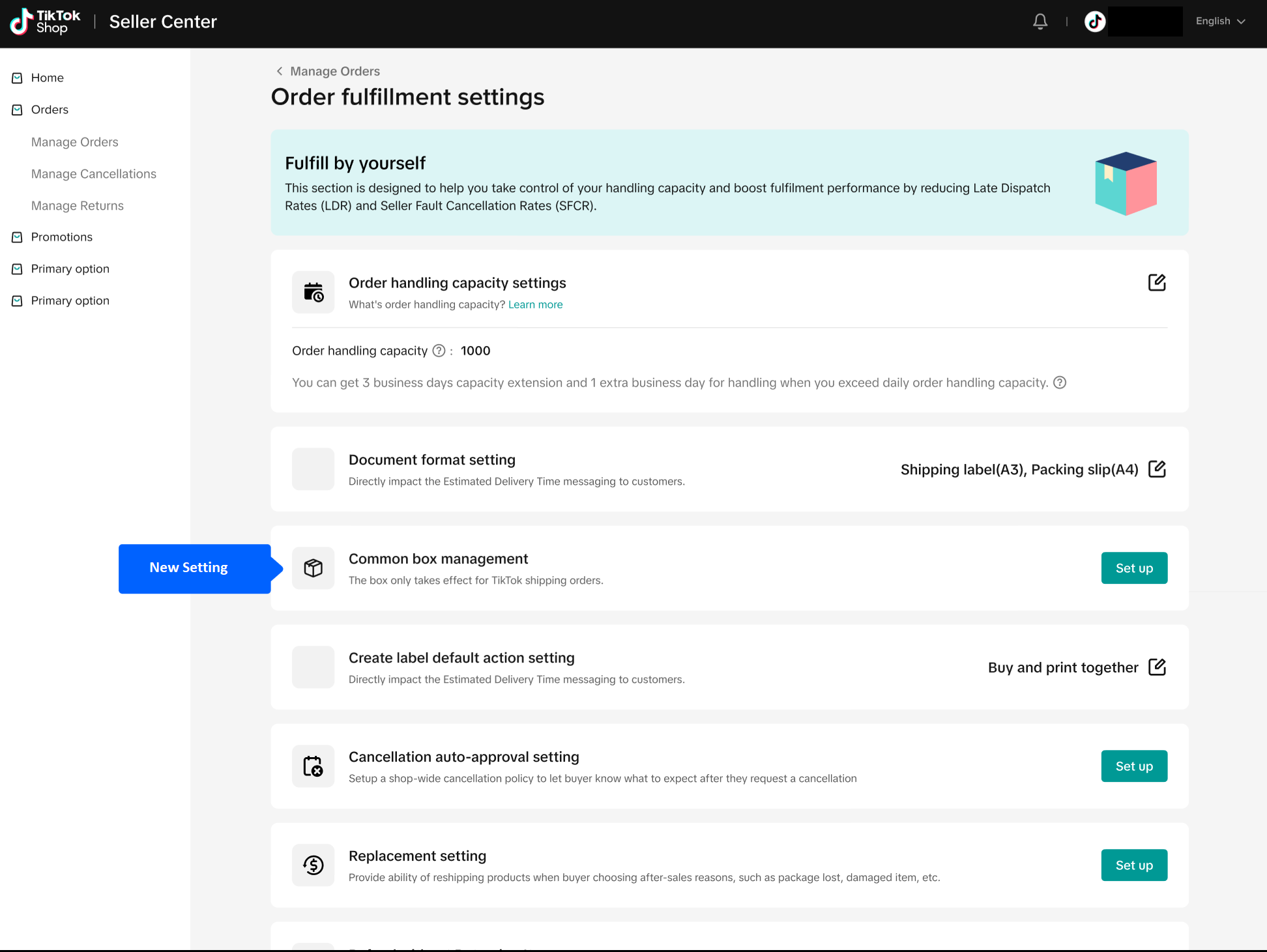
- Clicking the "Set Up" button will open a side-bar to Add New Box

- In this page you can give your package a name, and define the sizes of the this new box:
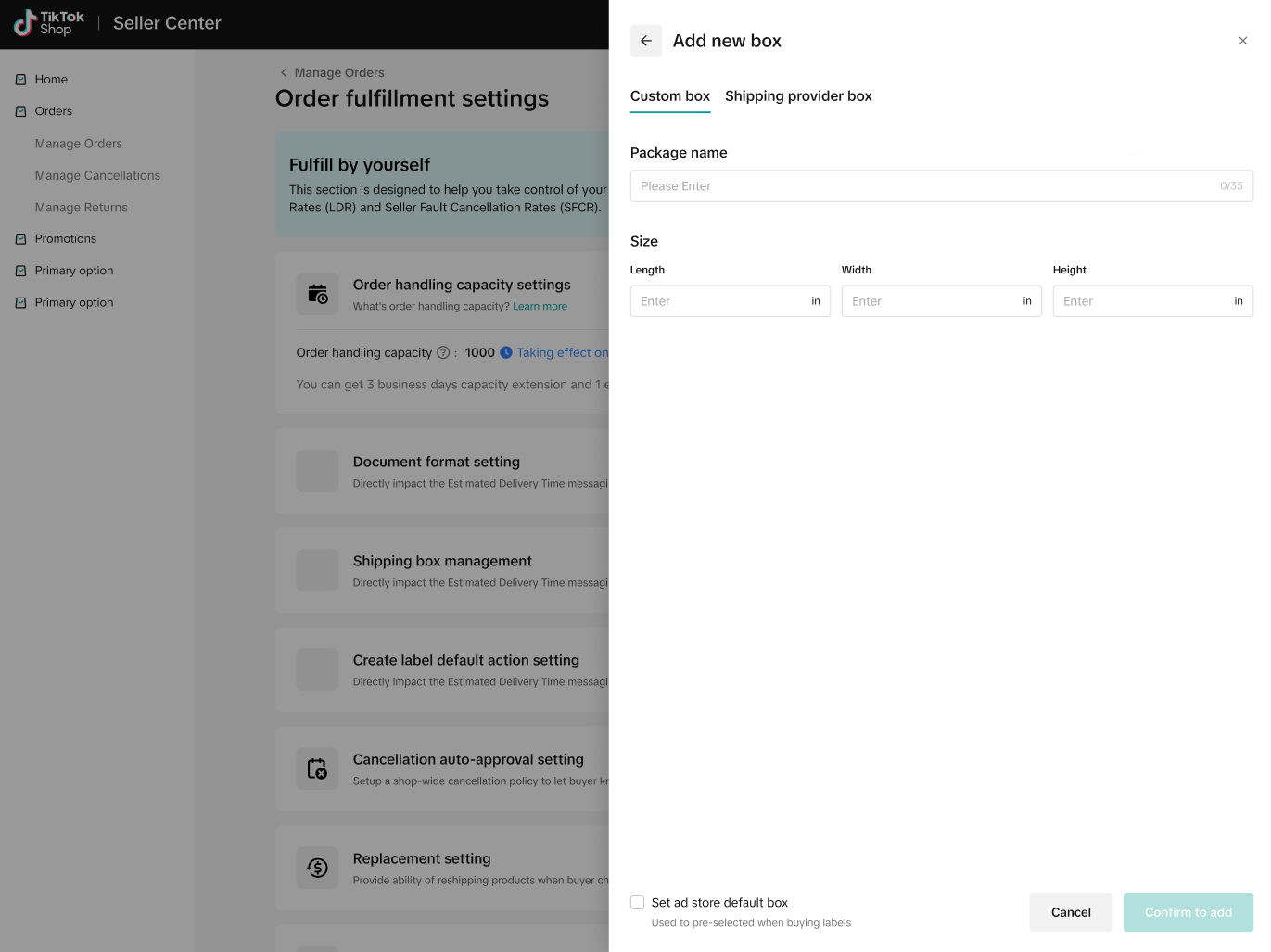
- When you click "Confirm to add" this will add it to your common box management page where you can edit the package size further by clicking on the 3 dots next to a package, set the package as your default box if you use this box more often than any other box, or delete any box you have created.
FAQ
- Is there any size limit?
- If a custom box size is entered that a shipping service can not accommodate, an error will be returned as "Shipping service cannot support this size".