

LIVE Flash Sale
11/14/2025
Summary
What is a LIVE Flash Deal and how does it benefit sellers on TikTok Shop?
- LIVE Flash Deal is a seller-funded promotion creating limited-time deals with countdown timers during livestreams to boost urgency and immediate purchases.
- It helps increase sales, engage audiences with pre-launch countdowns, and offers exclusive livestream-only discounts to retain viewers.
How can sellers create and manage a LIVE Flash Deal during their TikTok Shop livestream?
- Sellers log into LIVE Manager, access LIVE Console, select the Flash Sale tab, and create or manage deals by choosing products and SKUs from their LIVE shopping bag.
- They set deal prices, purchase limits, countdown timers, and sale durations, with options for batch editing and scheduling sales pre-live or during the livestream.
What are the key settings and limitations sellers must consider when setting up a LIVE Flash Deal?
- Deal prices must be within allowed ranges; total purchase limits must be set if deal prices are entered.
- Stock depletion outside the LIVE Flash Sale affects eligibility; countdown timers range from 10-300 seconds, and sale durations from 1-20 minutes.
What types of LIVE Flash Sales can sellers schedule and how do they operate?
- Sellers can create pre-live Flash Sales to start manually or schedule them to start automatically at a set time.
- During live sessions, sellers can start Flash Sales immediately or schedule them, providing flexibility in promotion timing.
What is LIVE Flash Deal?
LIVE Flash Deal is a seller-funded promotion tool that allows sellers to create limited-time deals with a countdown timer to create a sense of urgency and encourage immediate purchases. Customers can enjoy LIVE Flash Deal by adding the product to cart and purchasing the product from the seller's or creator's livestream channel.To learn more about setting up a LIVE Flash Sale in Seller Center, visit this link here.

Benefits
- Boost product sales during livestream by creating urgency with limited time deals. Indicating high discounts and limited inventory to encourage buyers to make immediate purchases.
- Engage and retain your livestream audiences with LIVE Flash Deal pre-launch countdown.
- Reward your livestream audiences with exclusive deals that are only available on livestream.

How to use
| Instructions | Images |
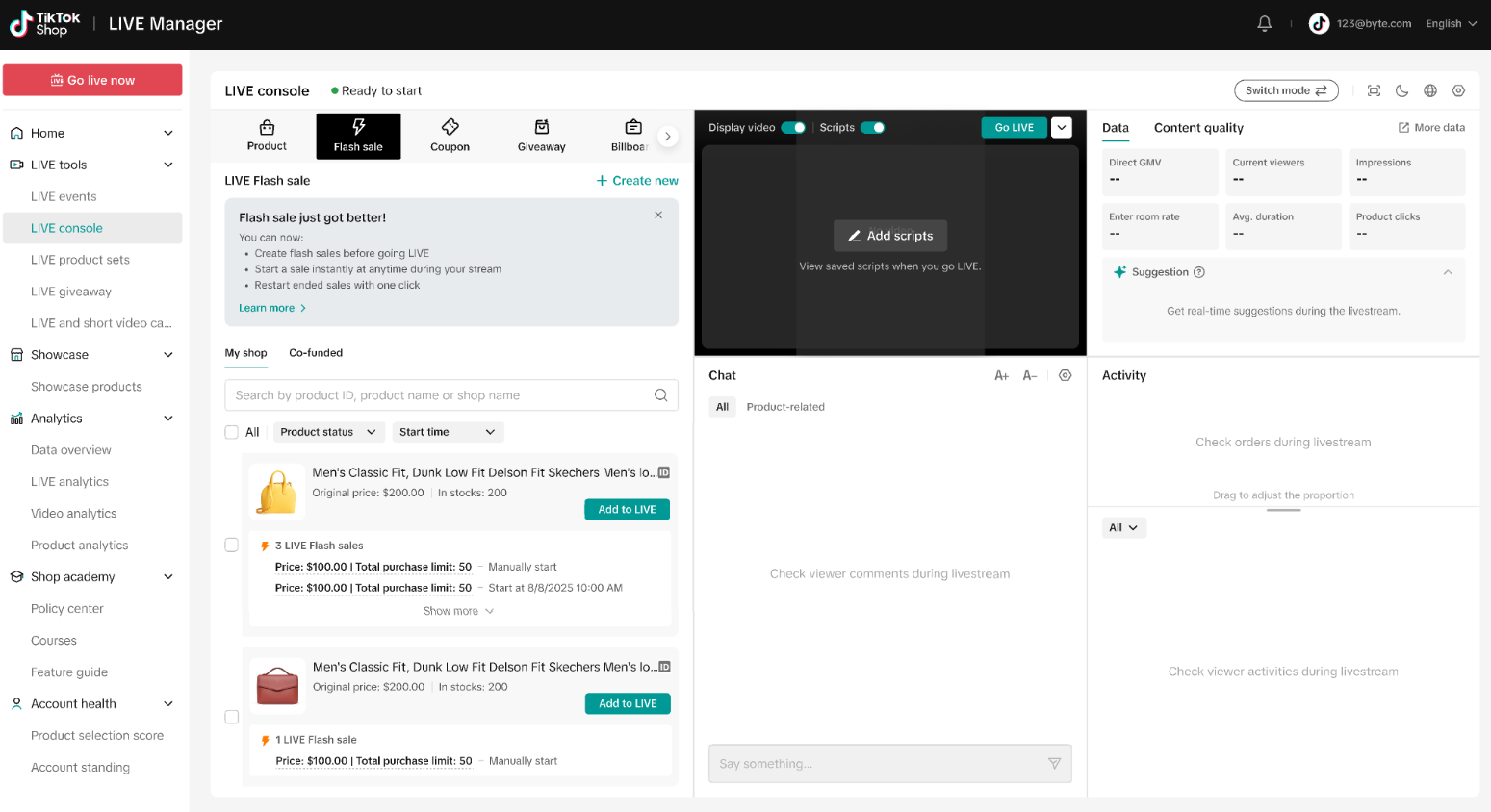
Step 1. To create a LIVE Flash Sale before or during a livestream, log into LIVE Manager and click on LIVE Console from the left navigation bar. Click on Flash Sale tab and click on the "+ Create new" button. Note:You may already see products listed under Flash Sale. These include:
|  |
| Step 2. A pop-up window will show the products that are currently in your LIVE shopping bag and are eligible for flash sales.Select the product you want to include in the Flash Sale. | 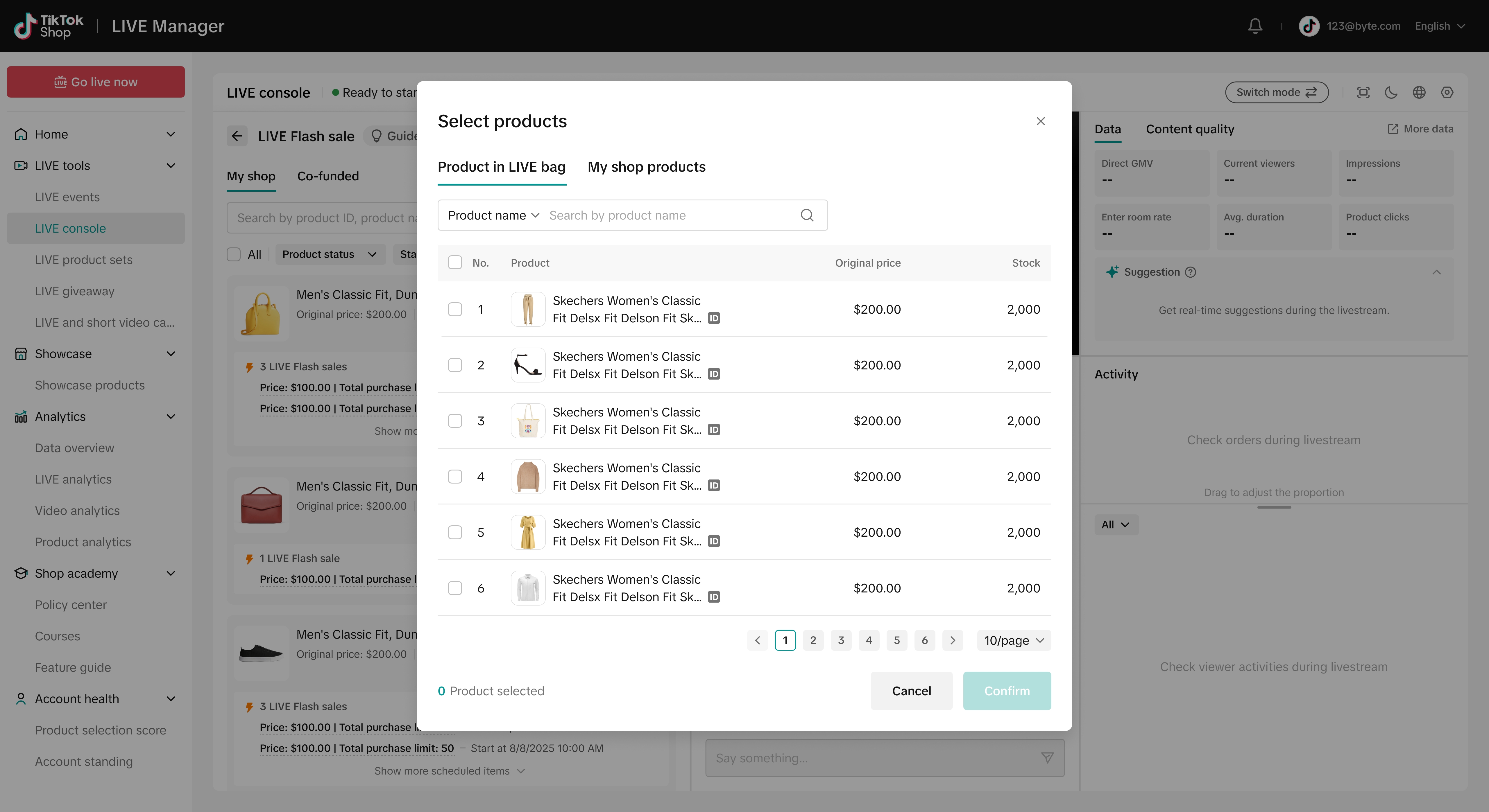 |
| Step 3. After selecting a product, all of its SKUs will be displayed. Flash Sales can be created either at the Product level or at the SKU level. You can select one or multiple SKUs to include in your Flash Sale. Use batch edit to update the Deal Price, Total Purchase Limit, and Customer Purchase Limit.To exclude a specific SKU from the Flash Sale, leave its Deal Price and Total Purchase Limit fields blank. | 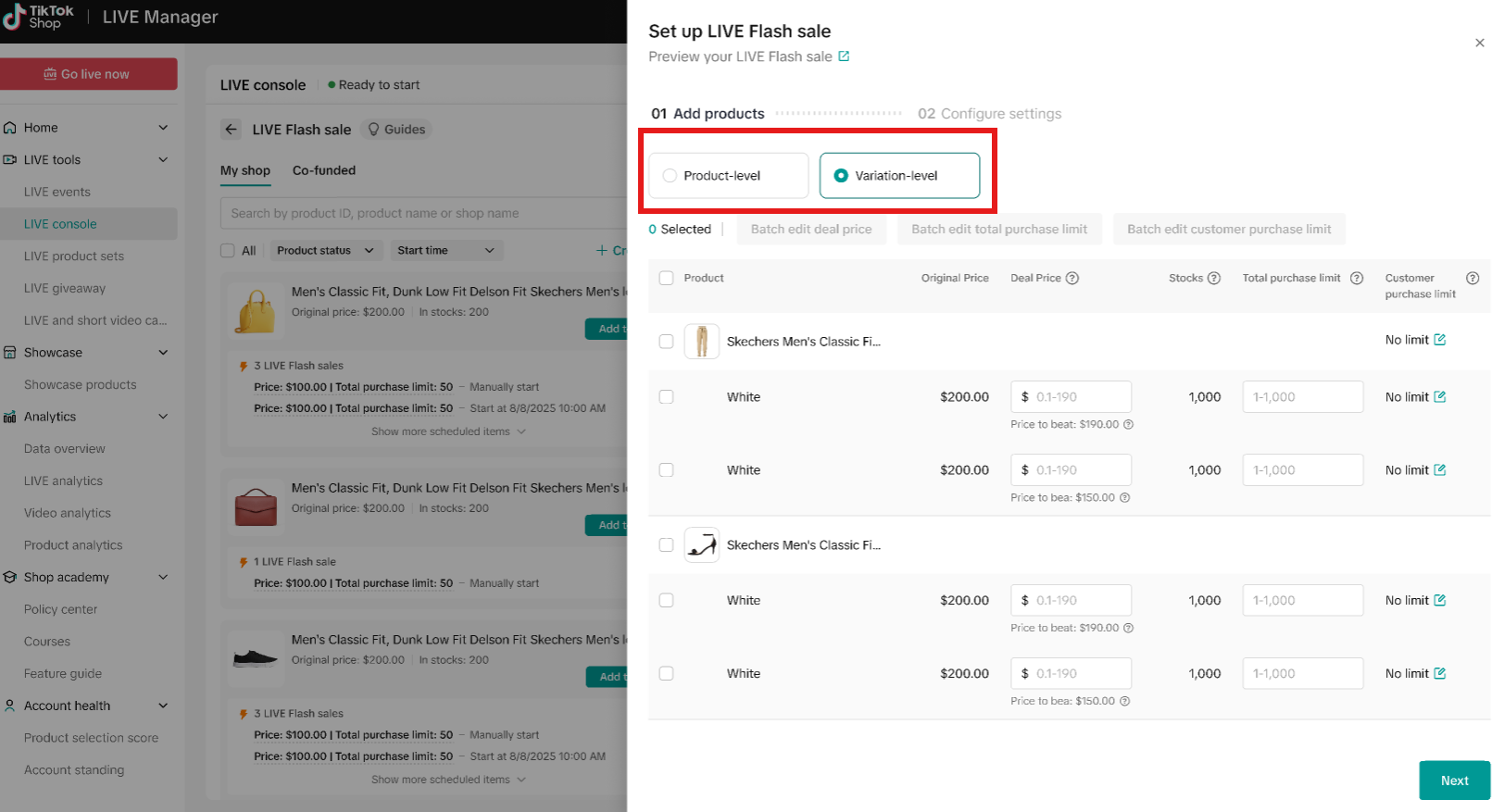 |
| Step 4. You can either manually edit each item or select all items and use the "Batch Edit Deal Price" option.Batch edits can be applied by percentage or by a fixed dollar amount. Once you're done setting the prices, click Confirm.Note: when editing prices in batch, the system does not verify whether each price is suitable for each SKU. An error will be reported if price exceeds maximum range. | 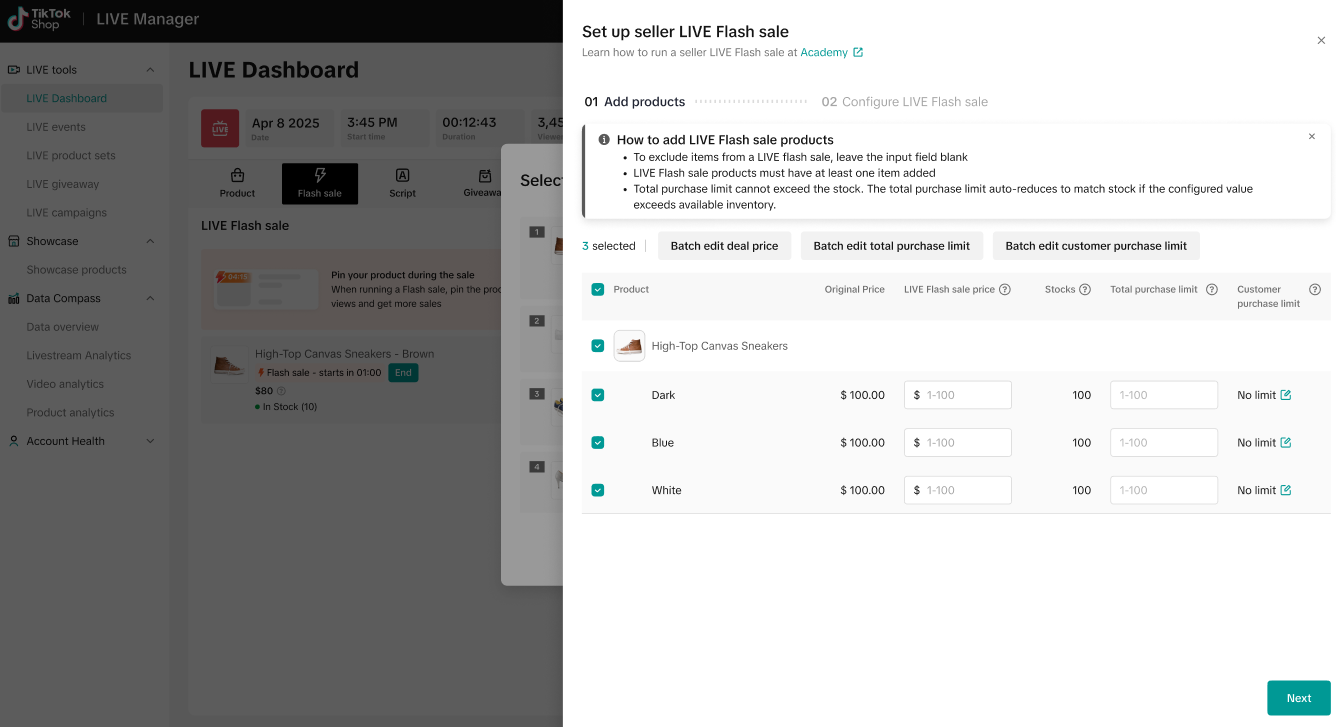 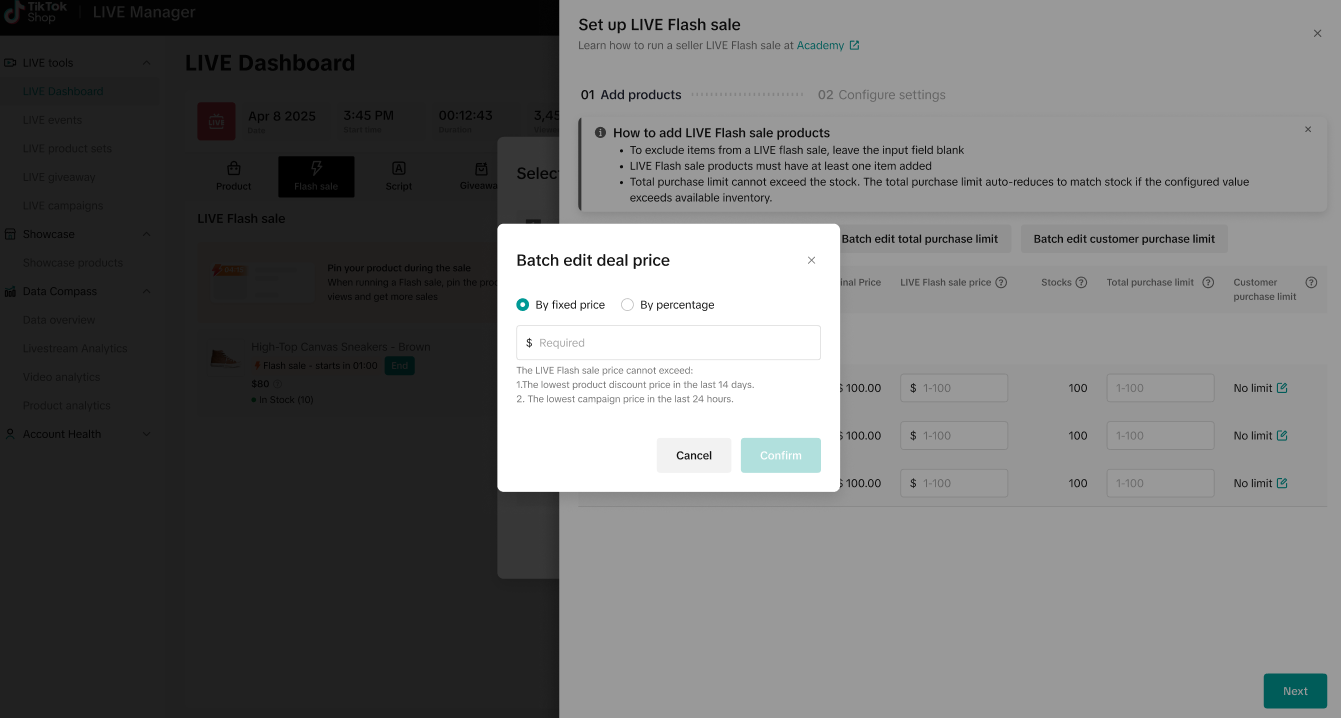 |
| Step 5. You can either manually edit each SKU, or select all SKUs and click "Batch Edit Total Purchase Limit."You can batch edit purchase limits by percentage or by entering a specific quantity.Once you're done, click Confirm to save your changes.Note: if deal price is filled in, the total purchase limit must also be filled in. Also note that if your stock is depleted through channels other than LIVE Flash Sale, your LIVE Flash Sale will no longer be eligible for use. | 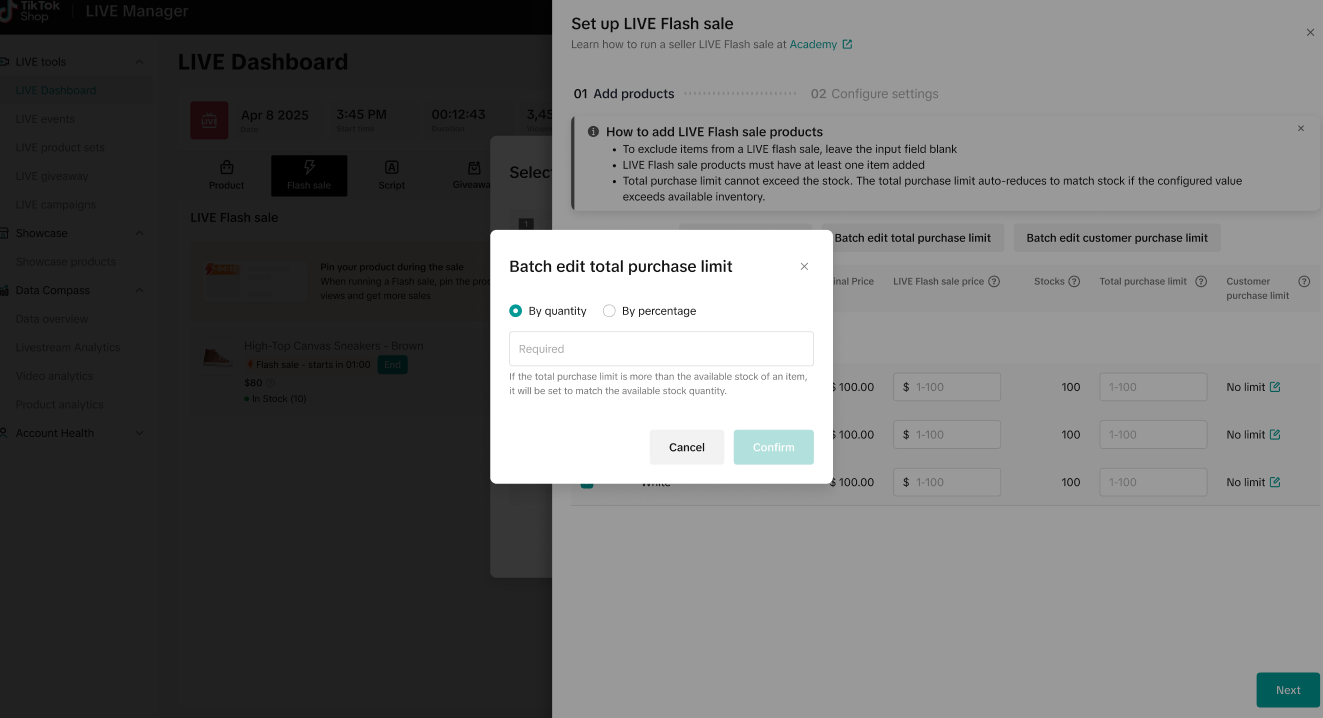 |
| Step 6. You can either manually edit each SKU, or select all SKUs and click "Batch Edit Customer Purchase Limit" to set the maximum quantity each customer can purchase.Click Next to proceed to Configure Settings. | 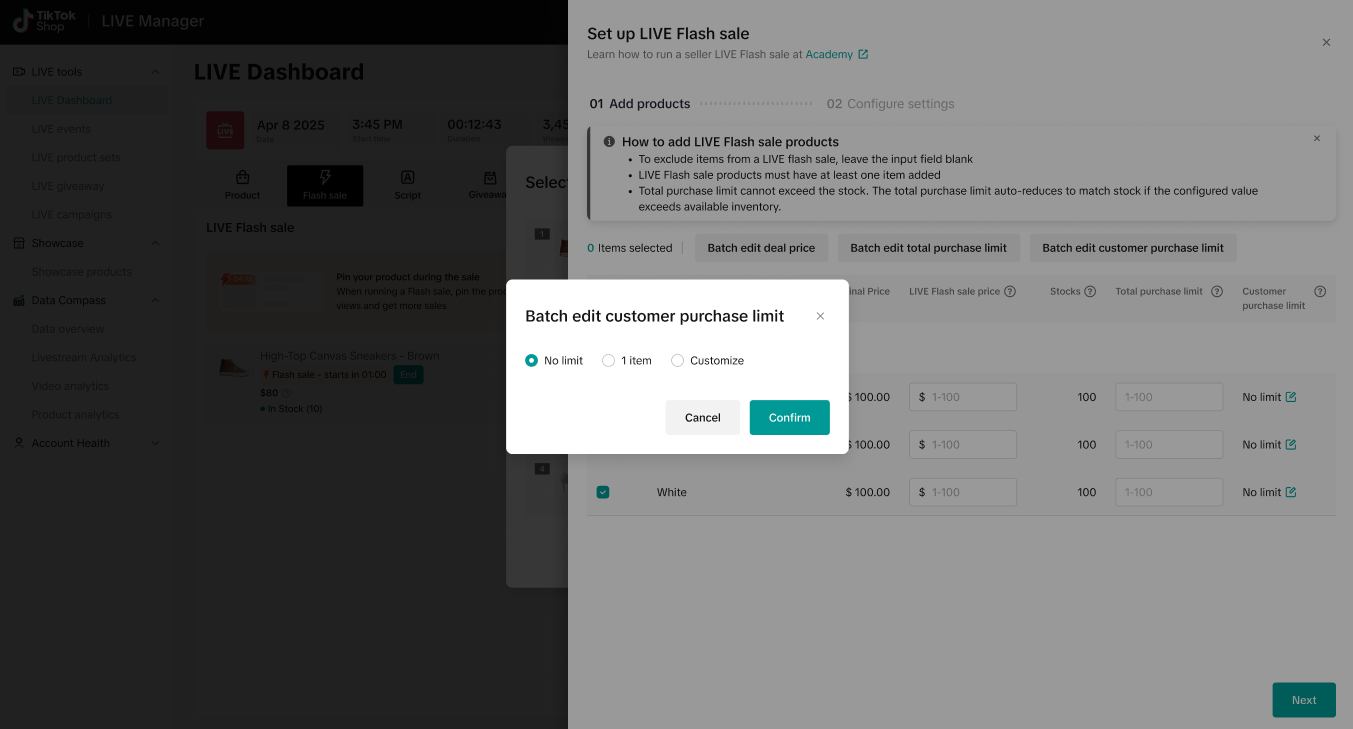 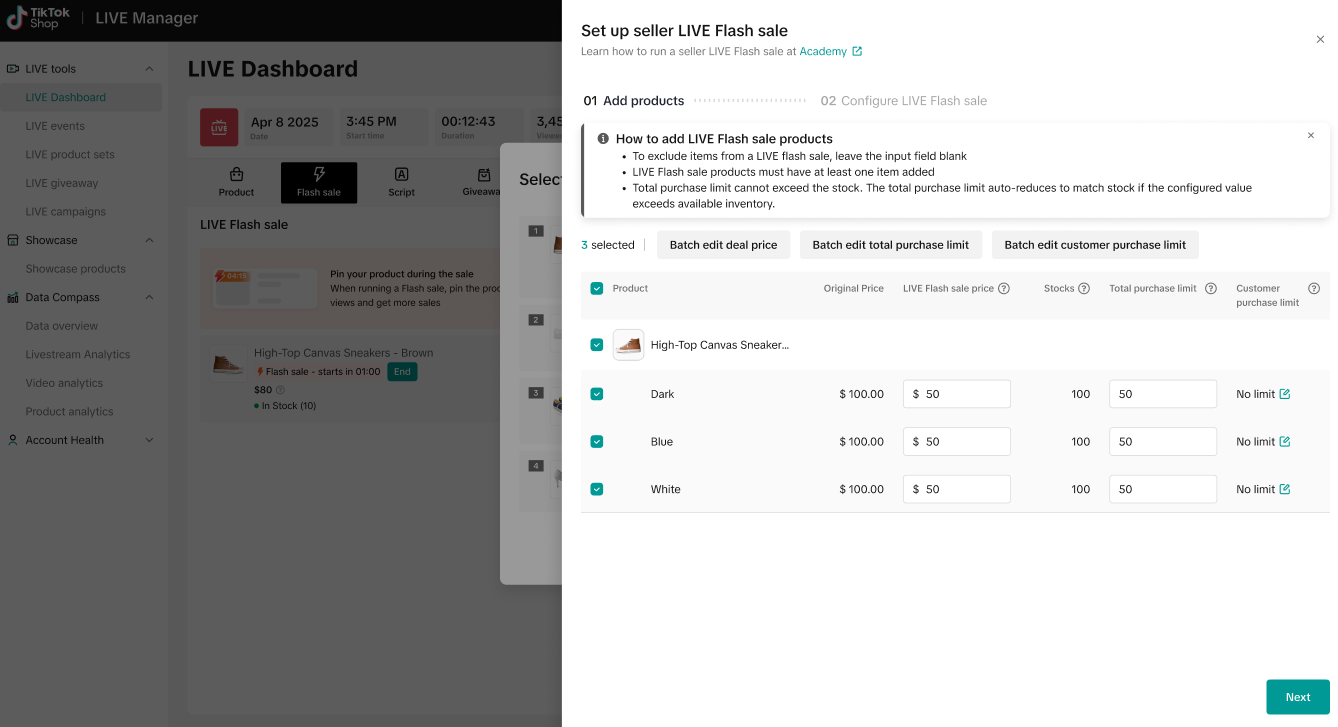 |
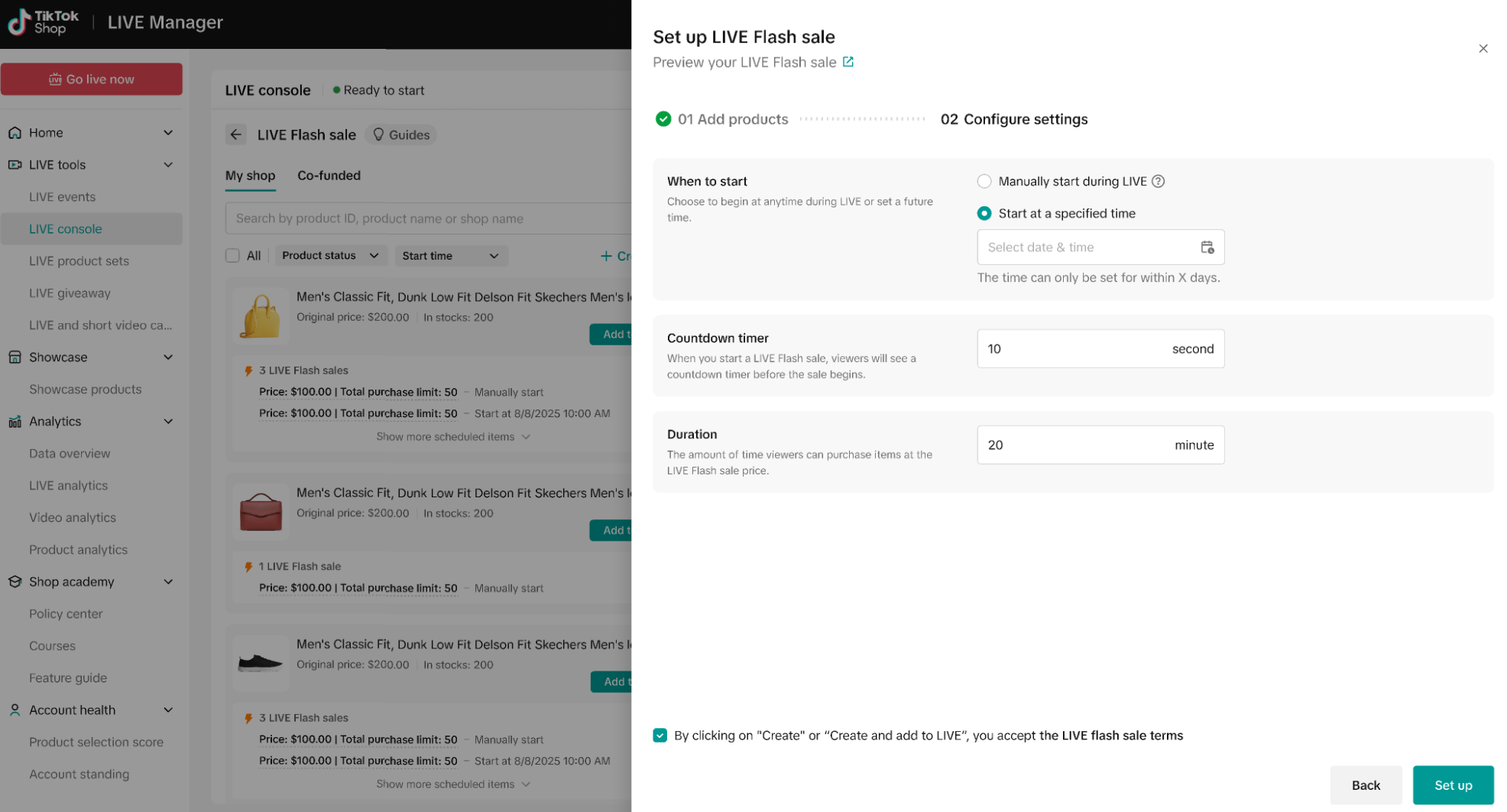
Step 7. Set when you want your flash sale to start (see note section below). Set your countdown timer (between 10 and 300 seconds) and Flash Sale duration (between 1 and 20 minutes). When you're ready, click "Create and Publish." Click Set up once you're complete.Note:There are three types of LIVE Flash Sales you can create in LIVE Manager:Pre-LIVE:
|  |
| *In your Product bag, you'll also see products that have Flash Sale information. For each product, you may see a Flash Sale that you can start manually or one that is scheduled to start at a specific time. | 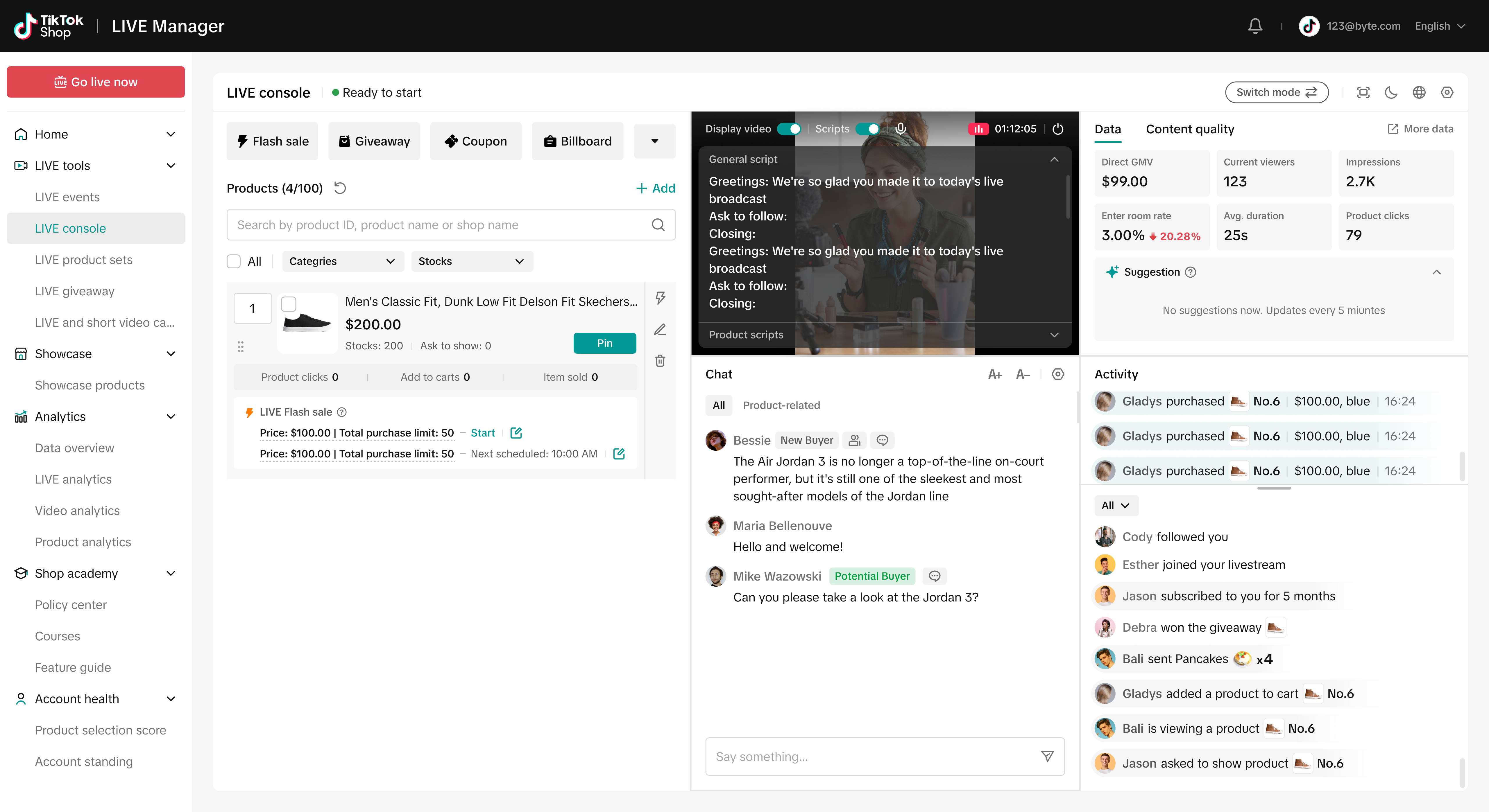 |