

Splitting Orders into Separate Packages
08/12/2024
Summary
What are the conditions for using the split order feature on TikTok Shop?
- The order must have more than one item, be in the "Awaiting Shipment" status, and all SKUs must not be canceled or in cancellation requested status.
- It applies to both "TikTok Shipping" and "Seller Shipping" orders.
How can sellers perform a split order on TikTok Shop?
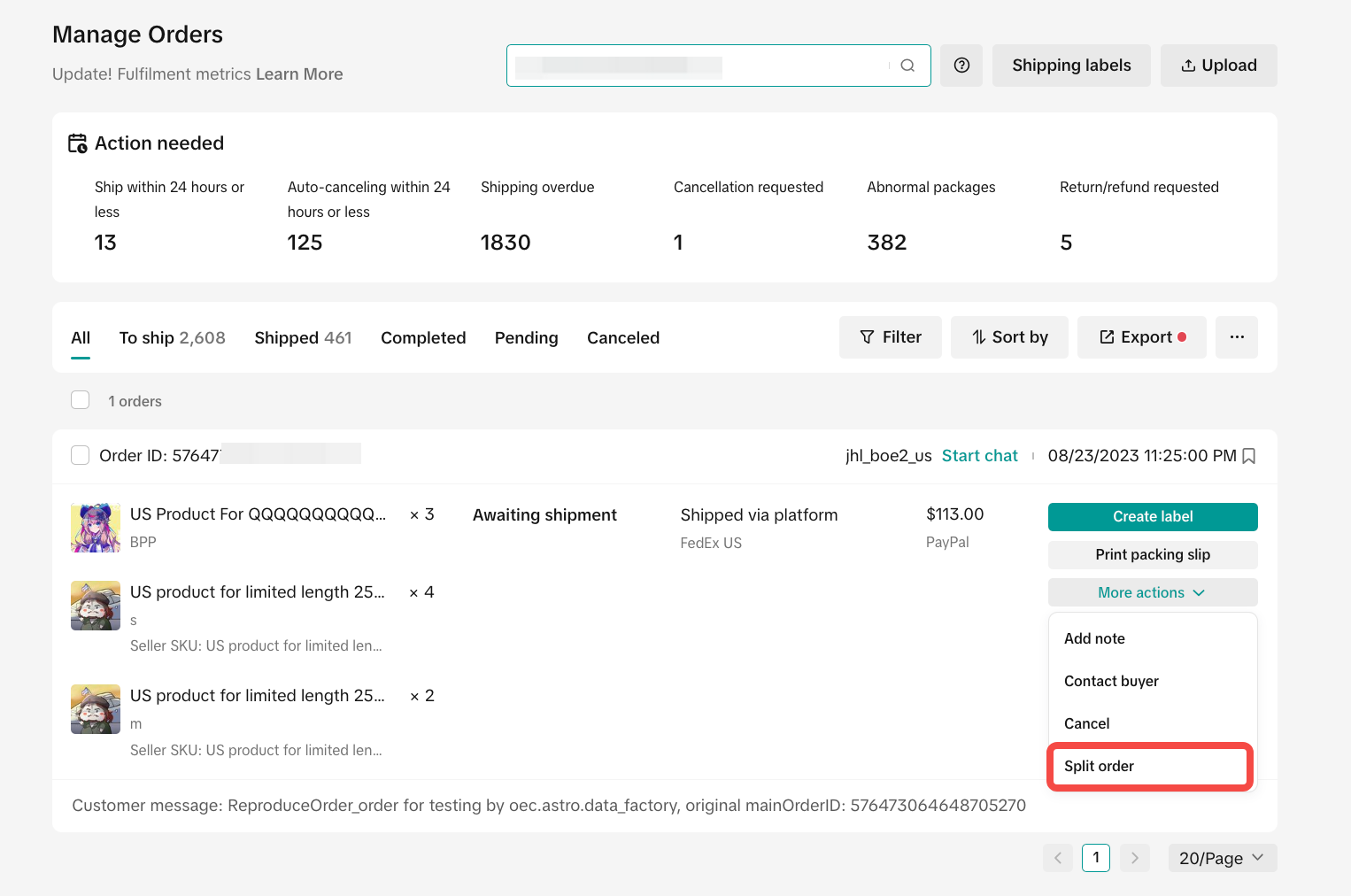
- Go to Manage Orders, find eligible orders with more than one SKU, and click "Split order."
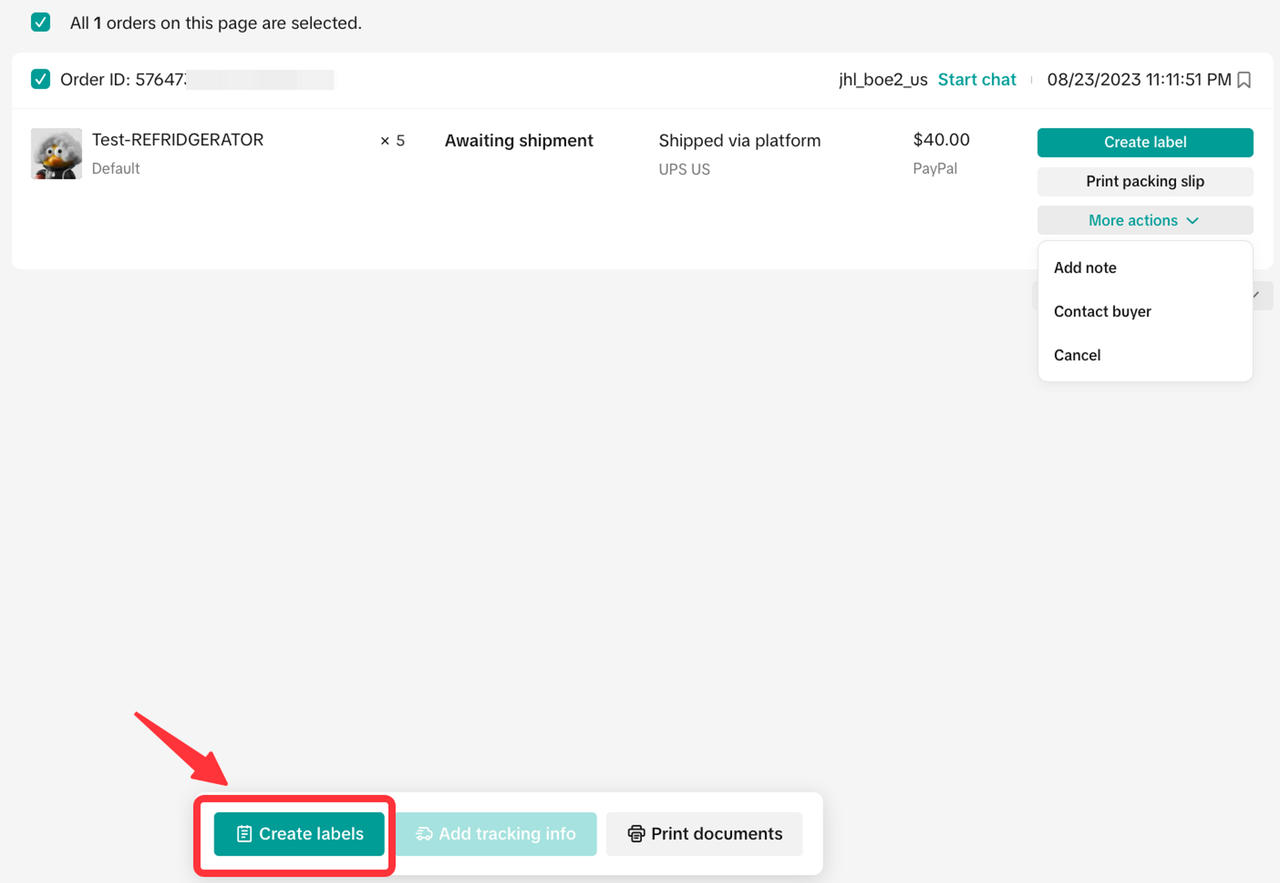
- For orders with one SKU but multiple quantities, click "Create label" to modify item quantities before splitting.
What are the steps to split an order into different packages?
- Split different SKUs into separate packages or split the same SKU with multiple quantities into different packages.
- Use the "Move to new package" button for different SKUs or modify quantities on the "Create shipping labels" page.
How can sellers manage and review split orders on TikTok Shop?
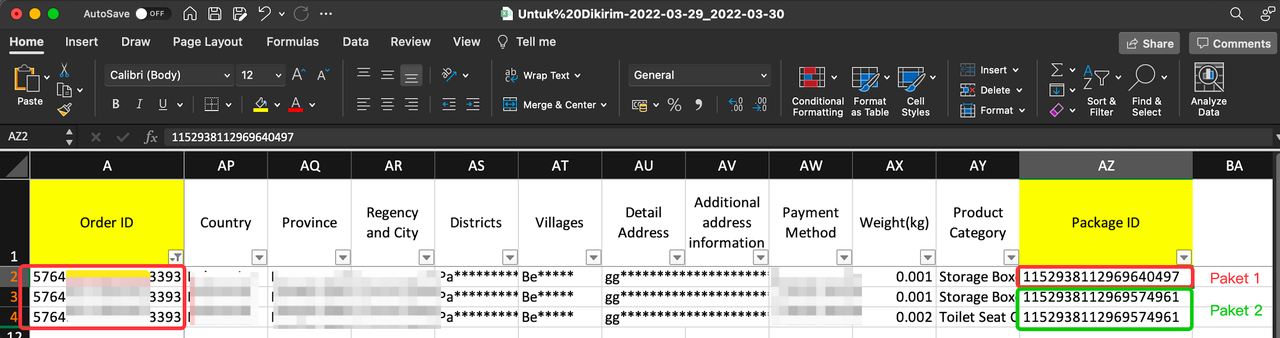
- Review split orders on the Manage Orders page and download results with different Package IDs under the same Order ID.
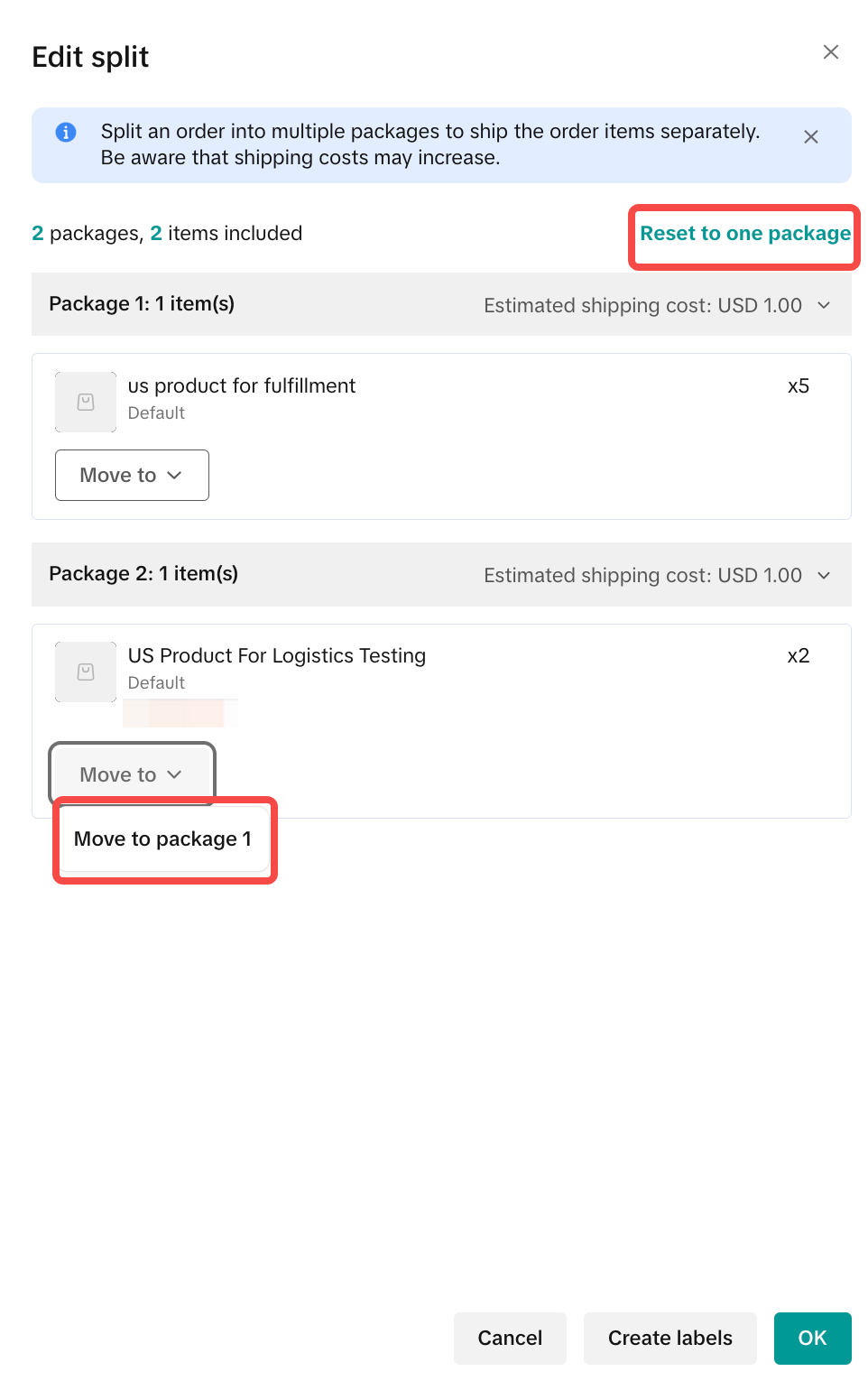
- Edit split orders before arranging shipment by resetting packages or moving SKUs between packages.
How can sellers check the delivery status of split orders?
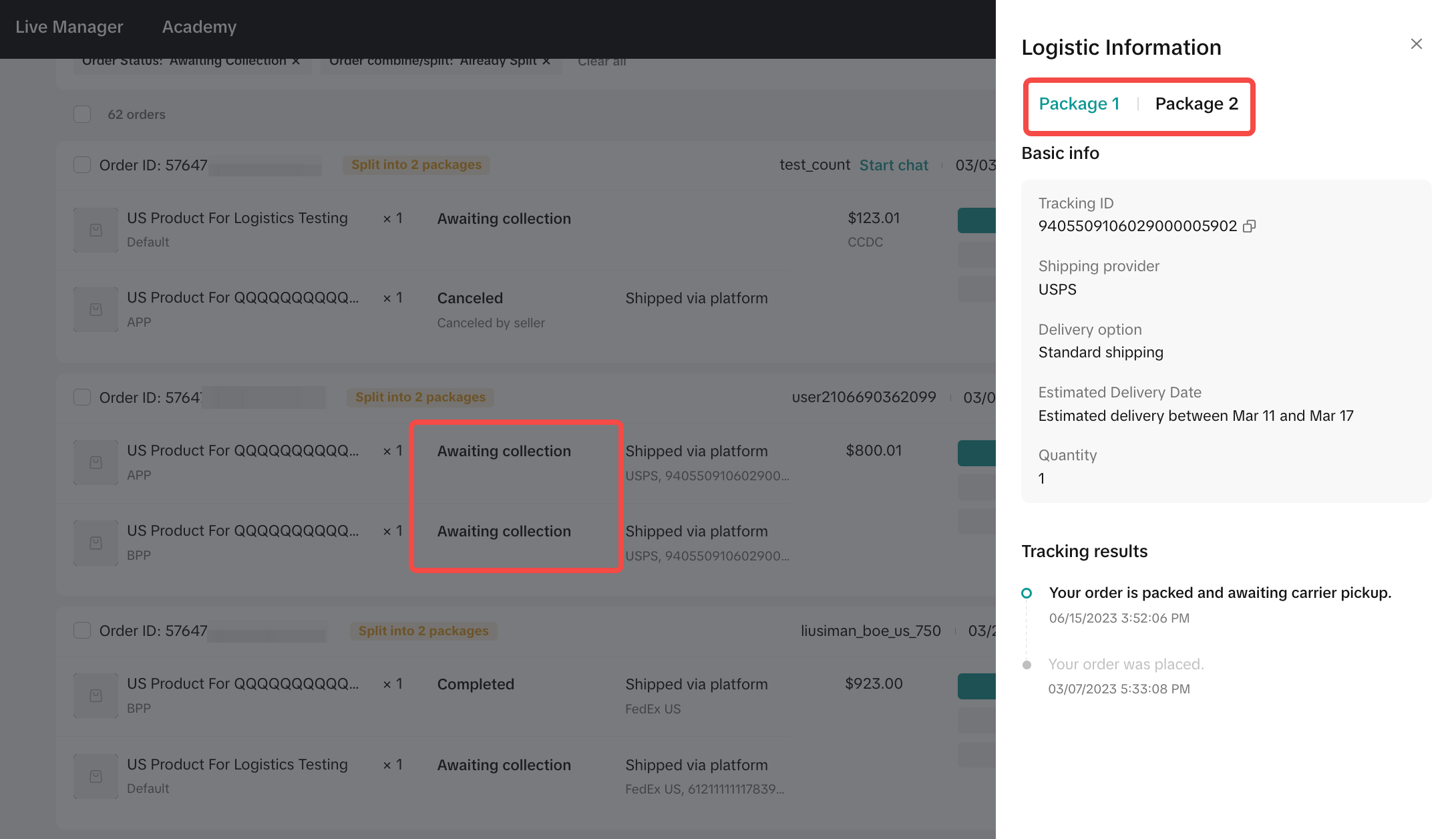
- Use the "View Logistics" button to see logistics details for each package on separate tabs.
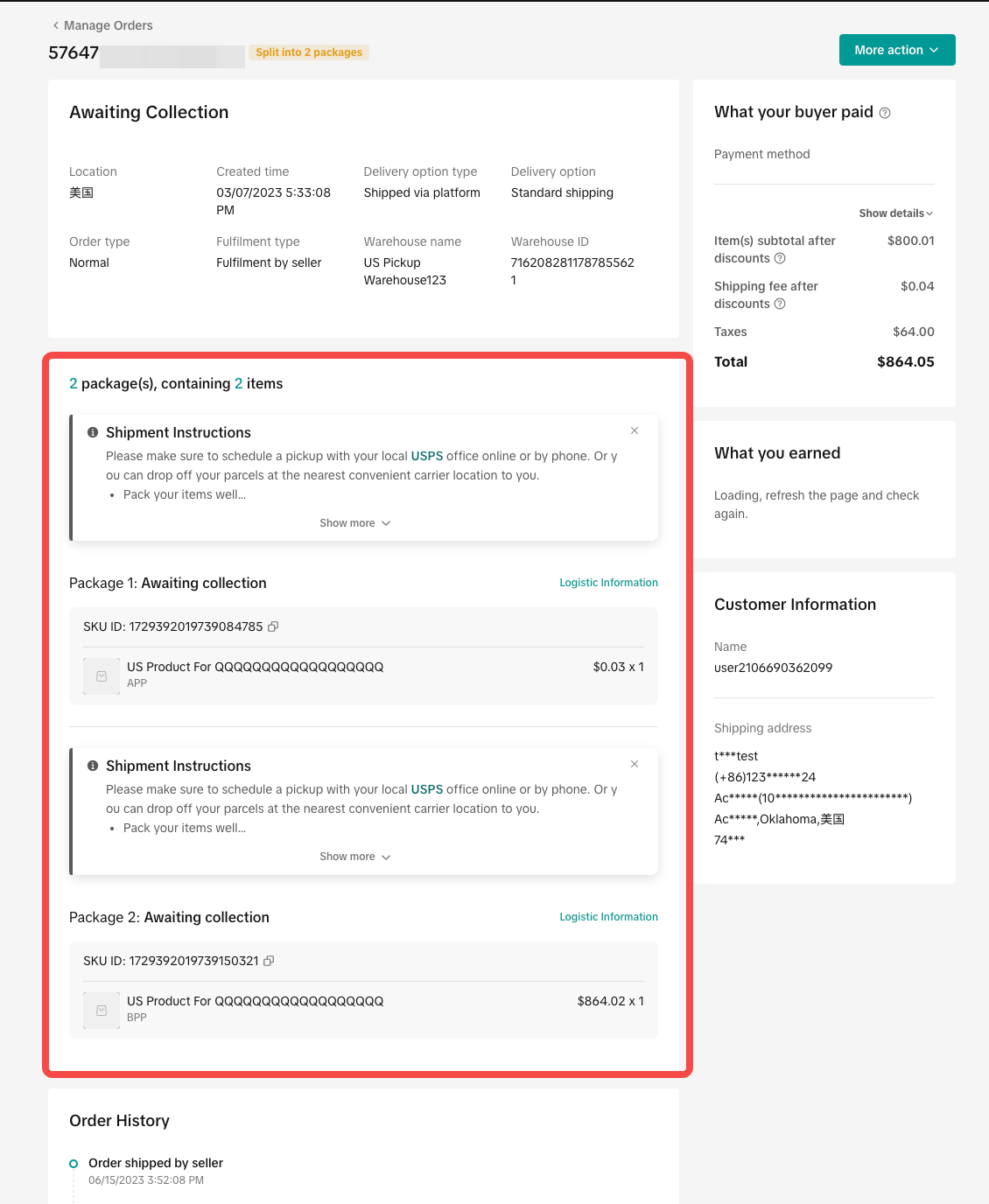
- Check delivery status on the order information page by viewing the Item and Package Information sections.
Test accounts and orders for reference only. The actual interface may differ.
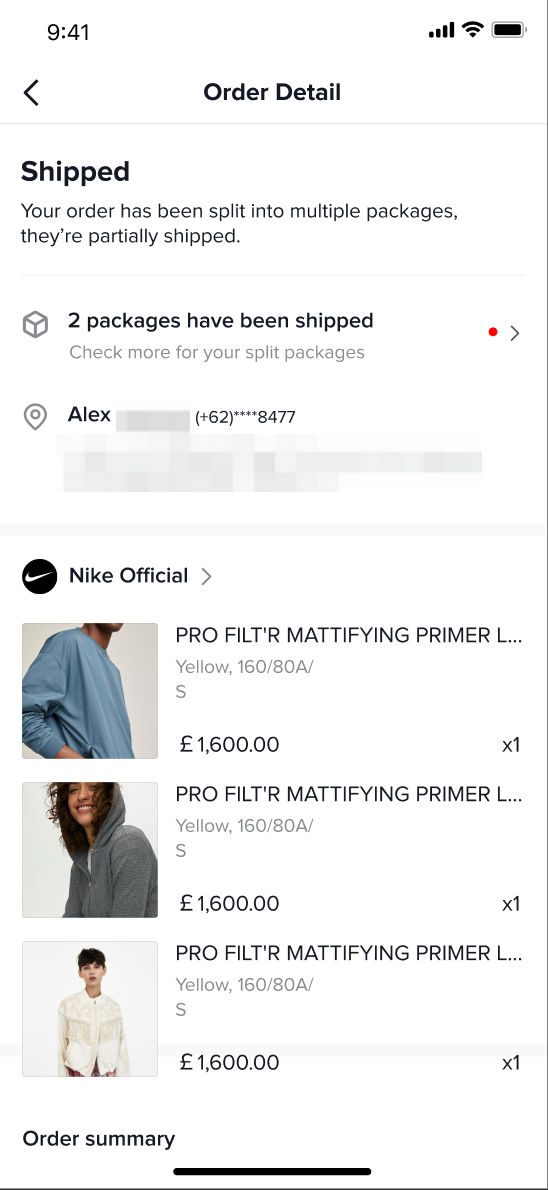
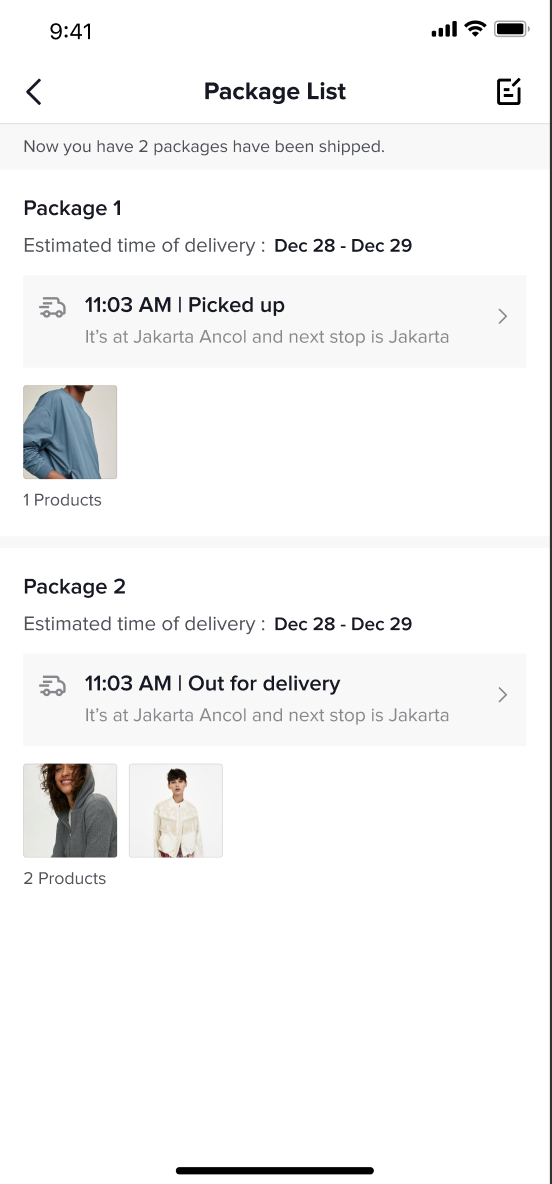
After you confirm the split order and arrange for delivery, customers can review their orders respectively on the TikTok Shop application.
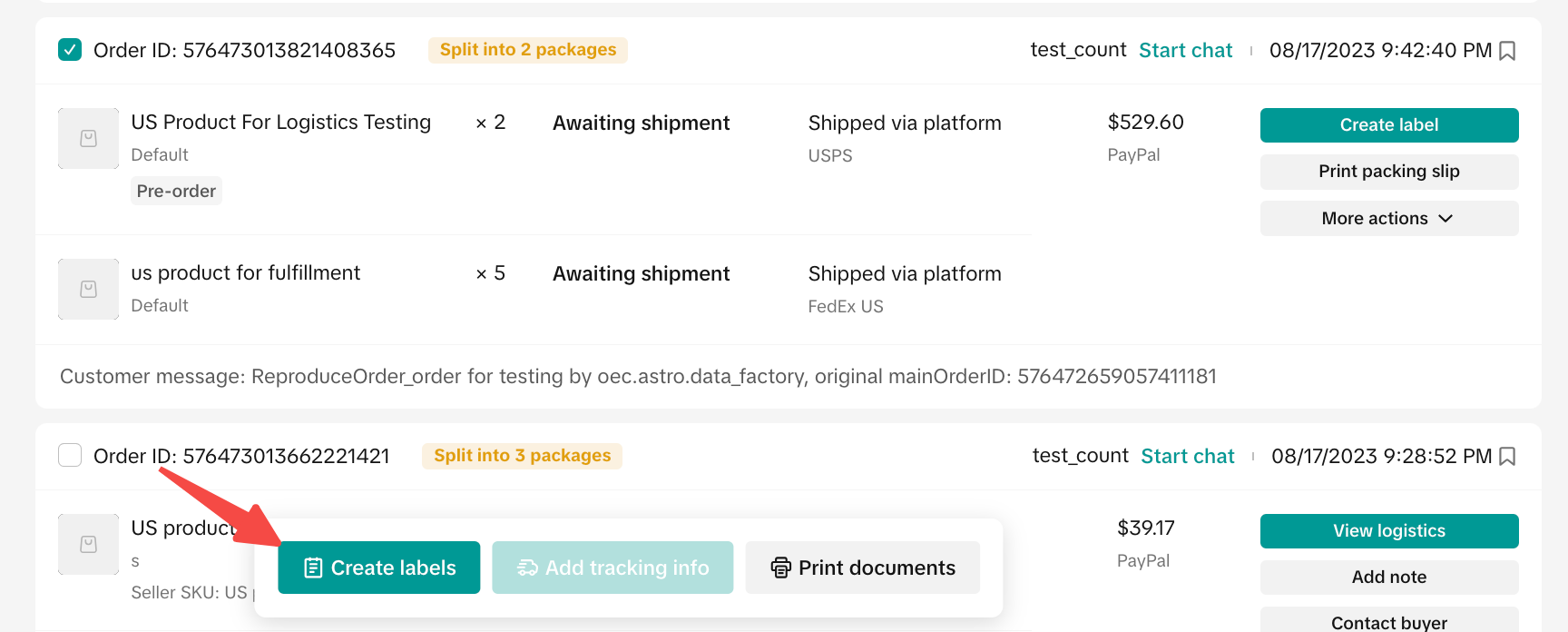
Example 2: When there is an order that has 1 SKU but more than 1 quantity, there will be no split order button available when you click "more actions" on the order card. You can only split order after you click "Create label".
There are 2 different SKUs (SKU A, SKU B).
Feature Overview
The split order option will be available if the following conditions are met:- Order consists of more than 1 item
- Order status is still Awaiting Shipment
- All SKUs are neither canceled nor in cancellation requested status
- It's applicable for both "TikTok Shipping" and "Seller Shipping" orders.
After you confirm the split order and arrange for delivery, customers can review their orders respectively on the TikTok Shop application.
 |  |
Split Order Guide
Follow the steps below to perform a split order.Finding Splittable Orders
Please go to Manage OrderExample 1:- On the Orders > Manage Orders menu, review an order that has more then 2 SKUs. The button will only be available on eligible orders.
- Click Split order.
 |
- On the Orders > Manage Orders menu, review an order that has more then 1 quantity of sams SKU.
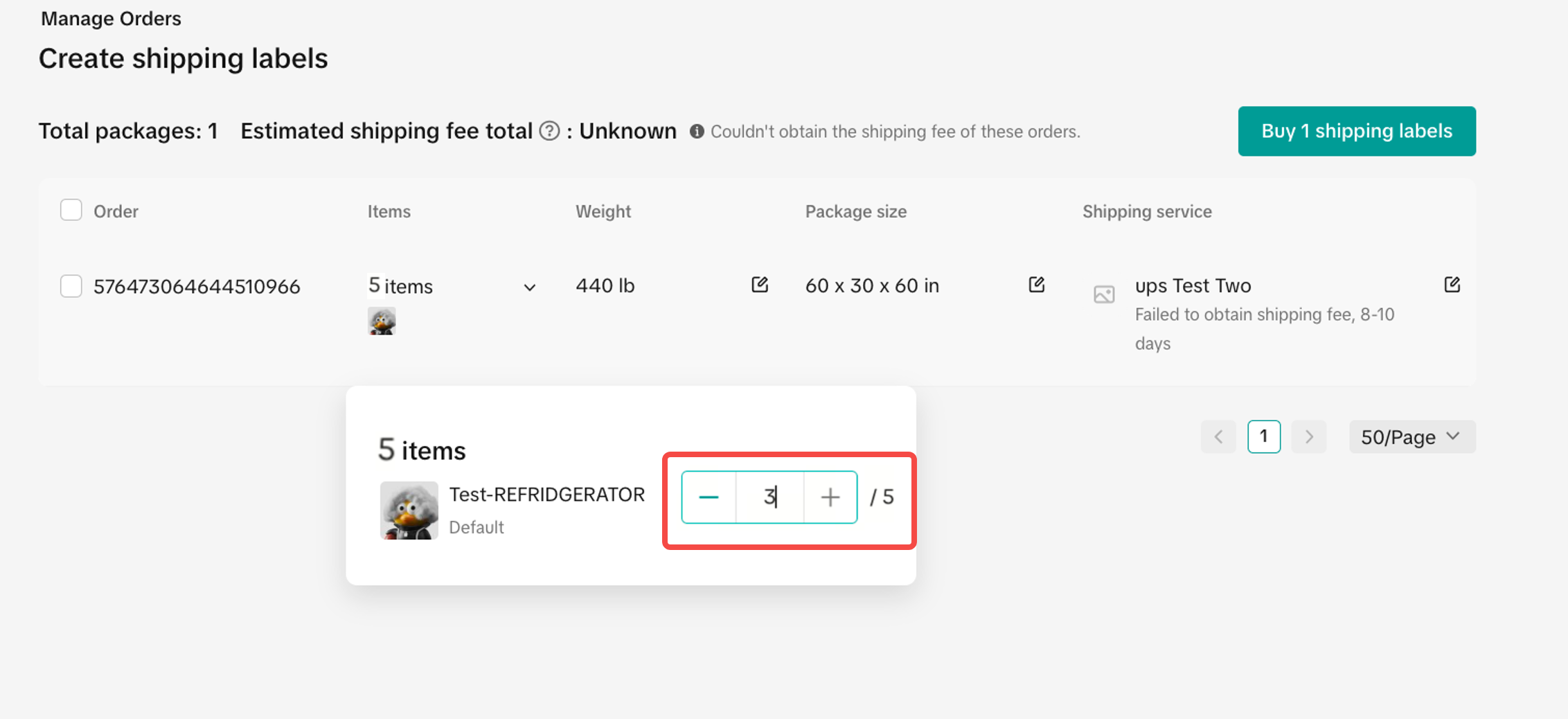
- Click Create Label. And then modify the item quantity of SKU.
- When there is an order that has 1 SKU but more than 1 quantity, there will be no split order button available when you click "more actions" on the order card. You can only split order after you click "Create label".
 |  |
Split an Order
Note:There are 2 ways of splitting the order.
- You can split one of the SKU into a different package.
- You can also split the same SKU into different packages if the SKU has more than one quantity.
The estimated shipping cost of package is only for reference when sellers split the order. The actual shipping fee is always shown in Seller Billing (Finance menu).
After you click the Split Order button from the Orders menu or the Shipping menu, you will see several SKUs contained in the order and a button to split them into different orders or reset them to one package again.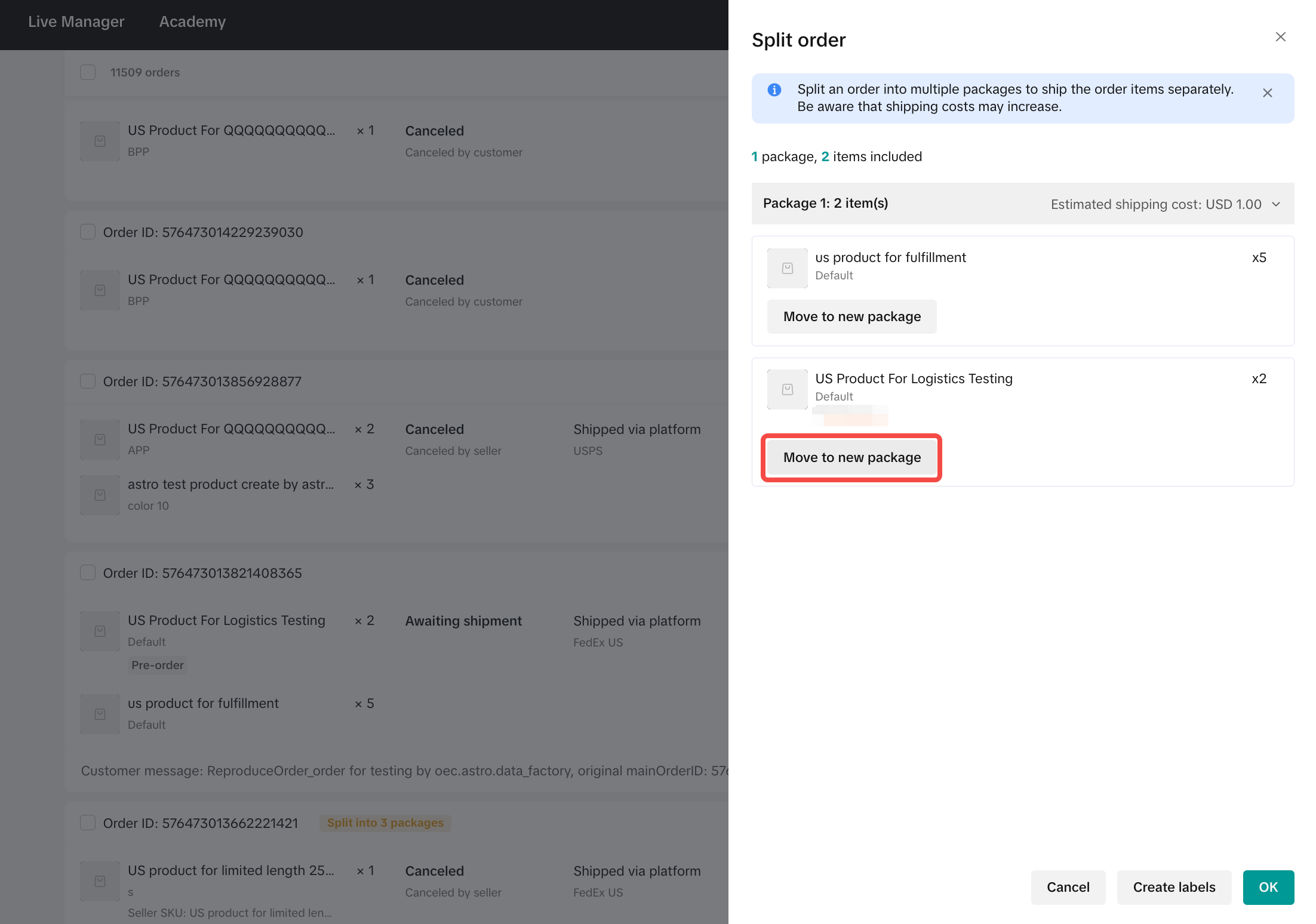 |
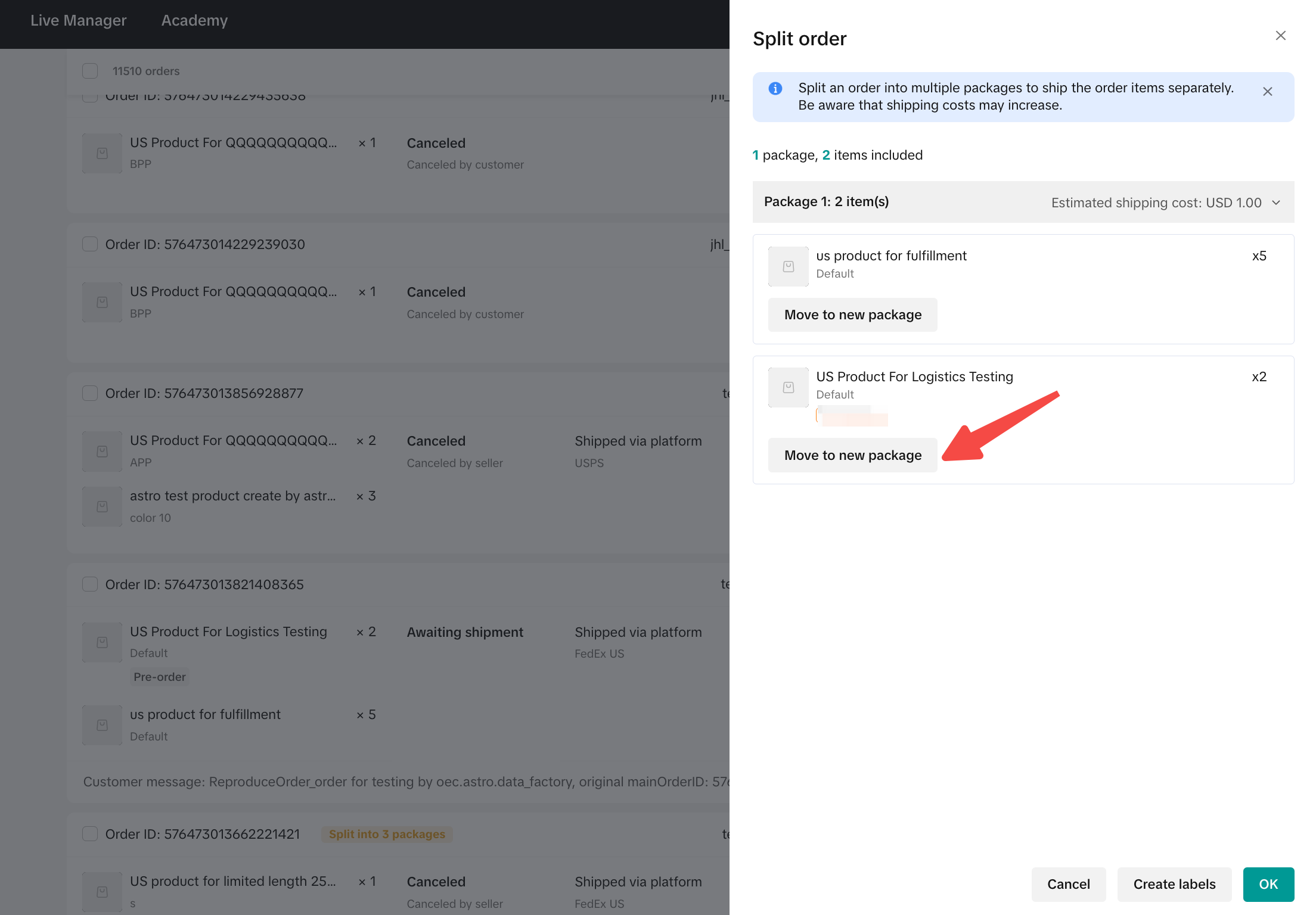
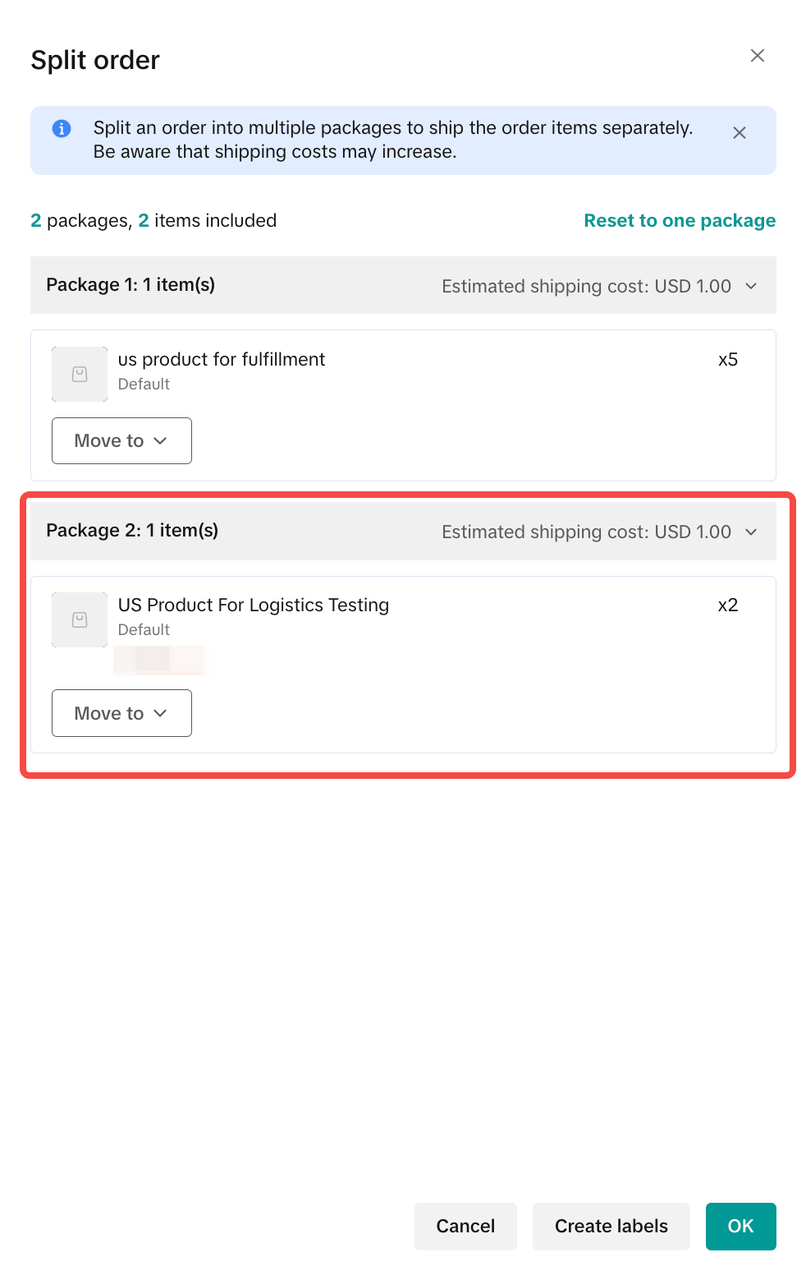
- Example 1: You can split one of the SKUs into a different package. As an illustration, SKU B is separated into a new package by clicking the Move to new package button in SKU B. And click "OK". As a result, there will be two packages for one order. Package 1 consists of SKU A, while Package 2 consists of SKU B.
 |  |
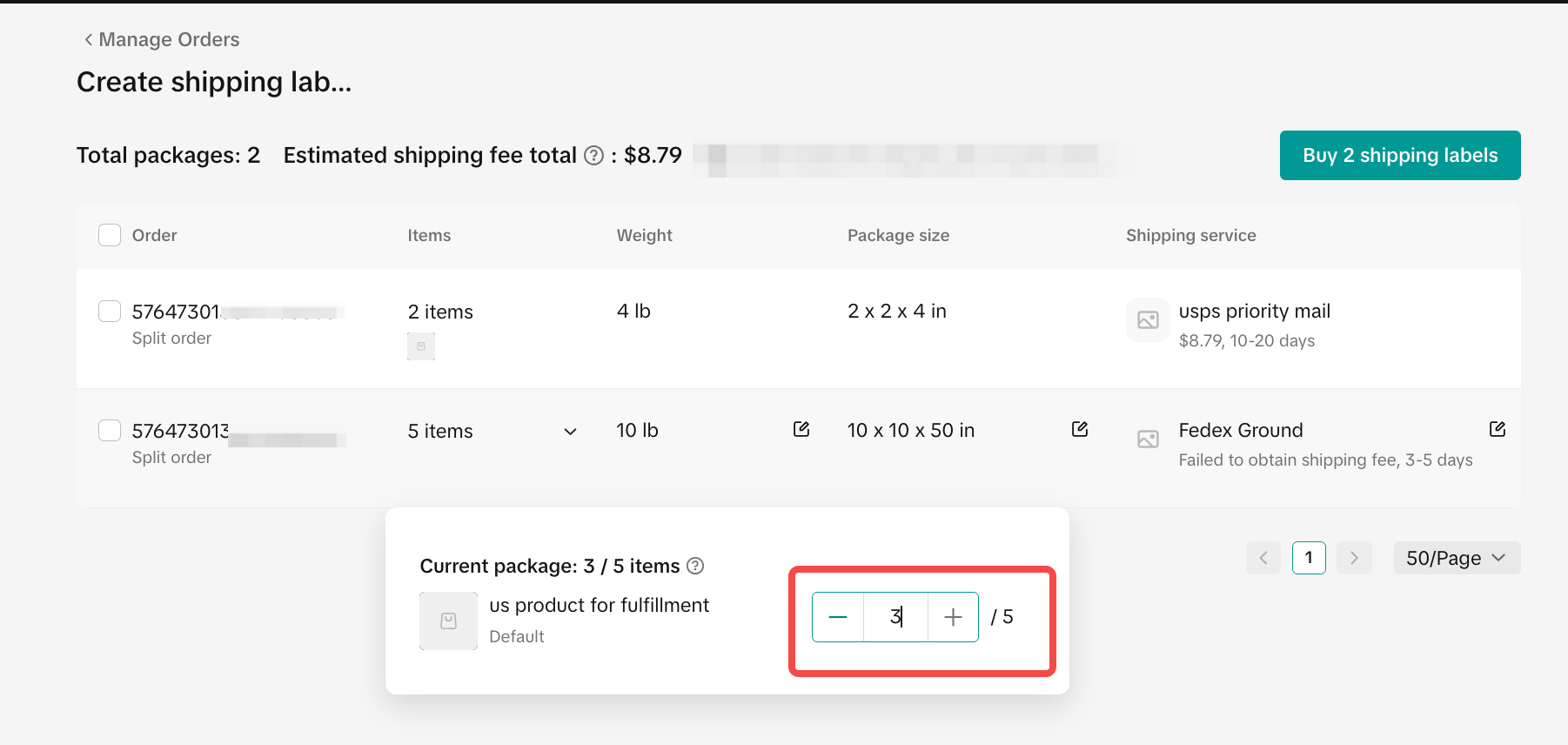
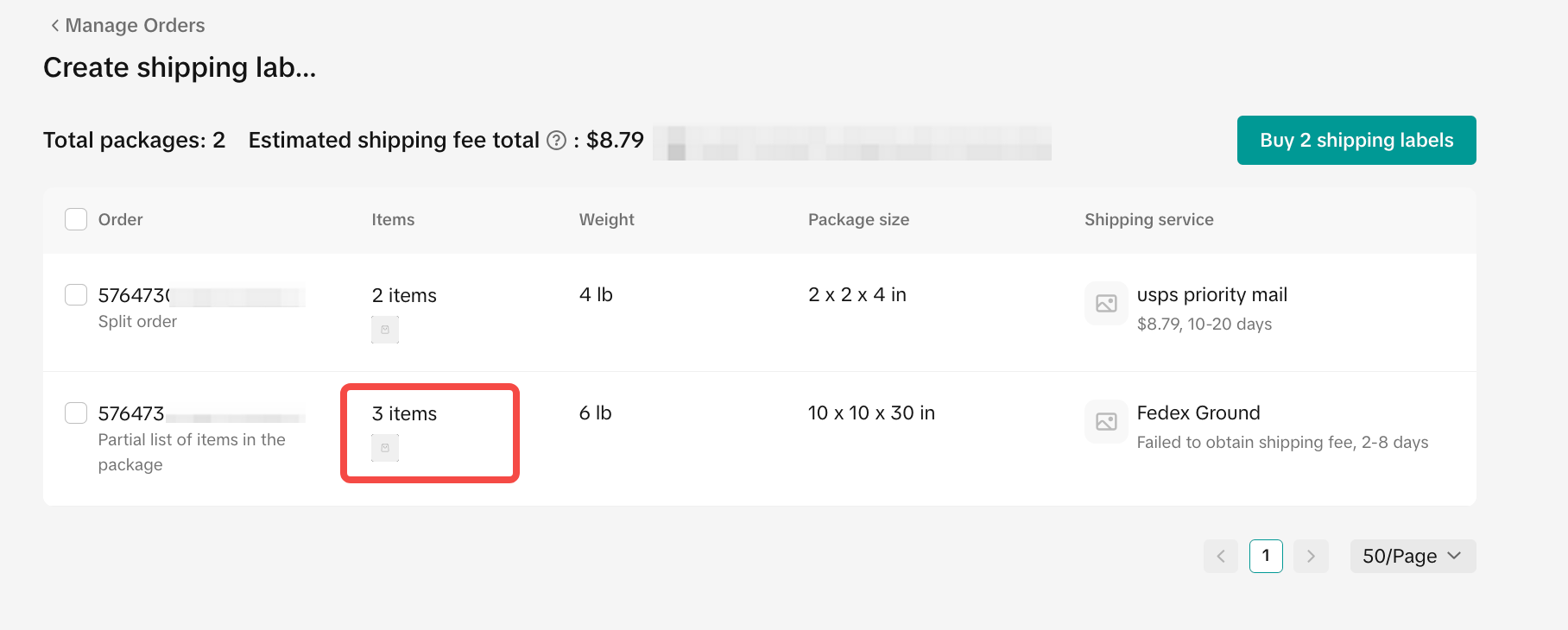
- Example 2: You can further split the same SKU into different packages if the SKU has more than one quantity. As an illustration, when you click "Create label", you can click "item" on the "Create shipping labels page", and modify the number of items that need to be shipped. When you finish modifying the quantity, the items of this package will be updated, and the weight/package size/shipping service will also all be refreshed. After you click "Buy shipping labels", the result will be 3 packages for one order.
 |  |  |
Reviewing Order Split
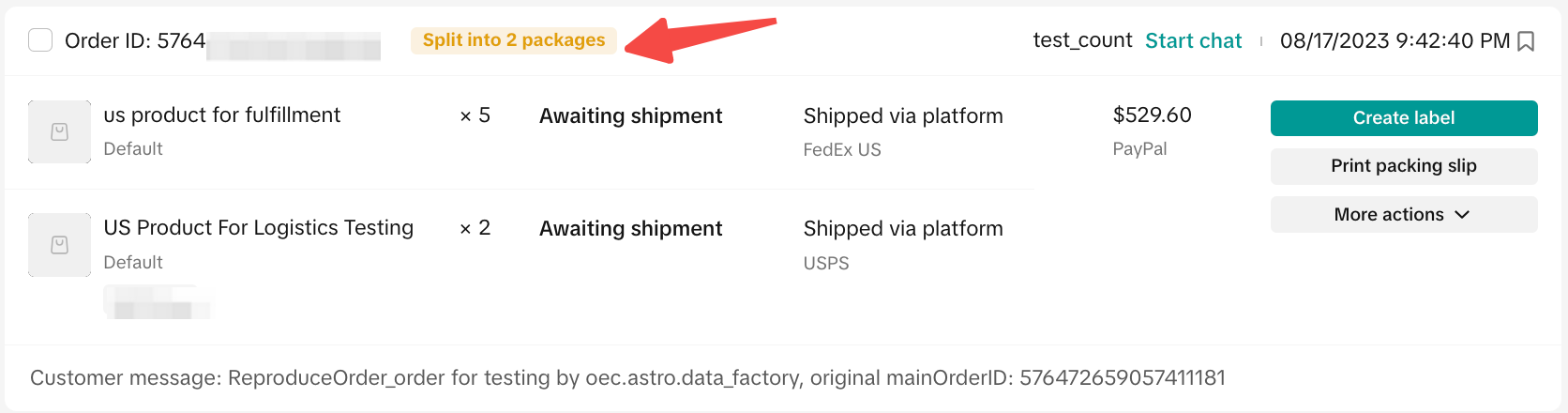
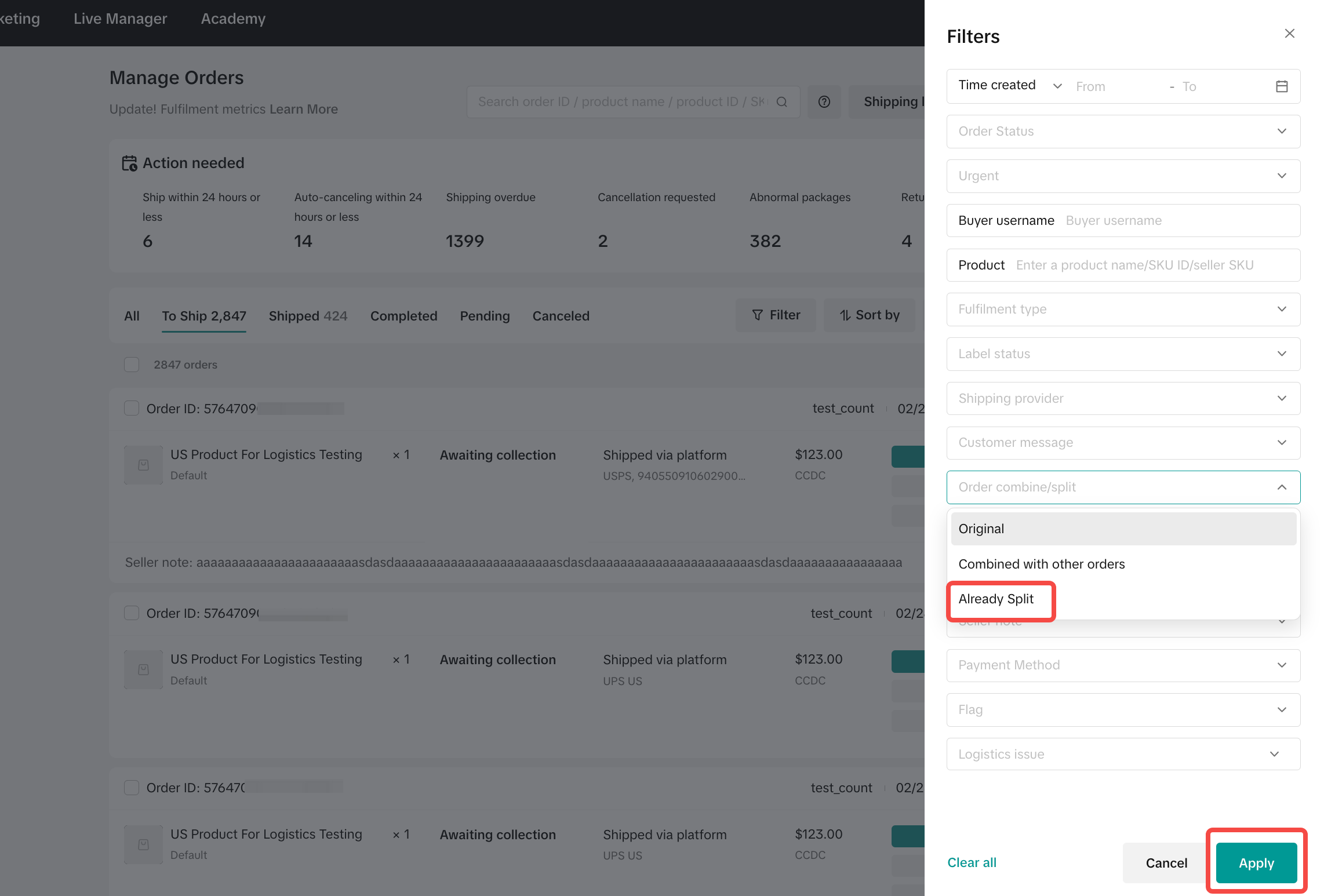
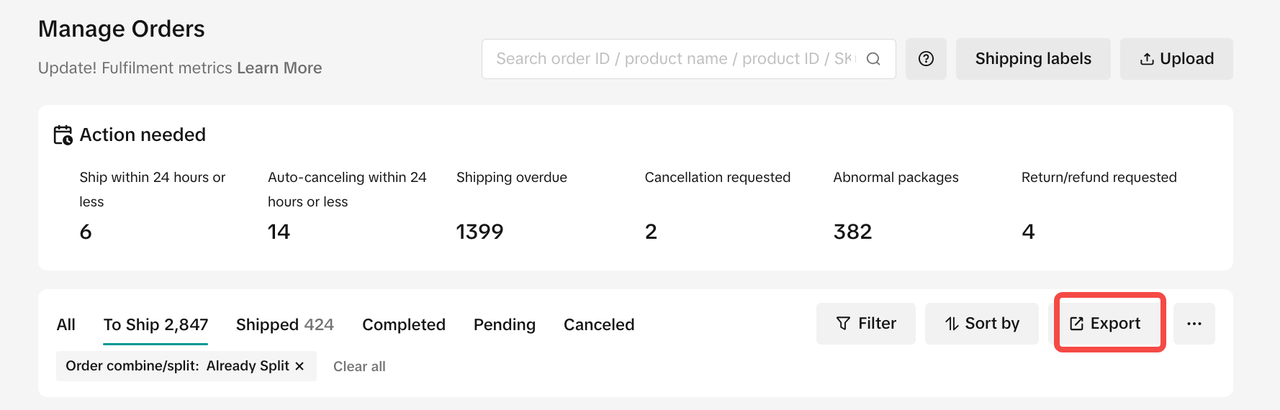
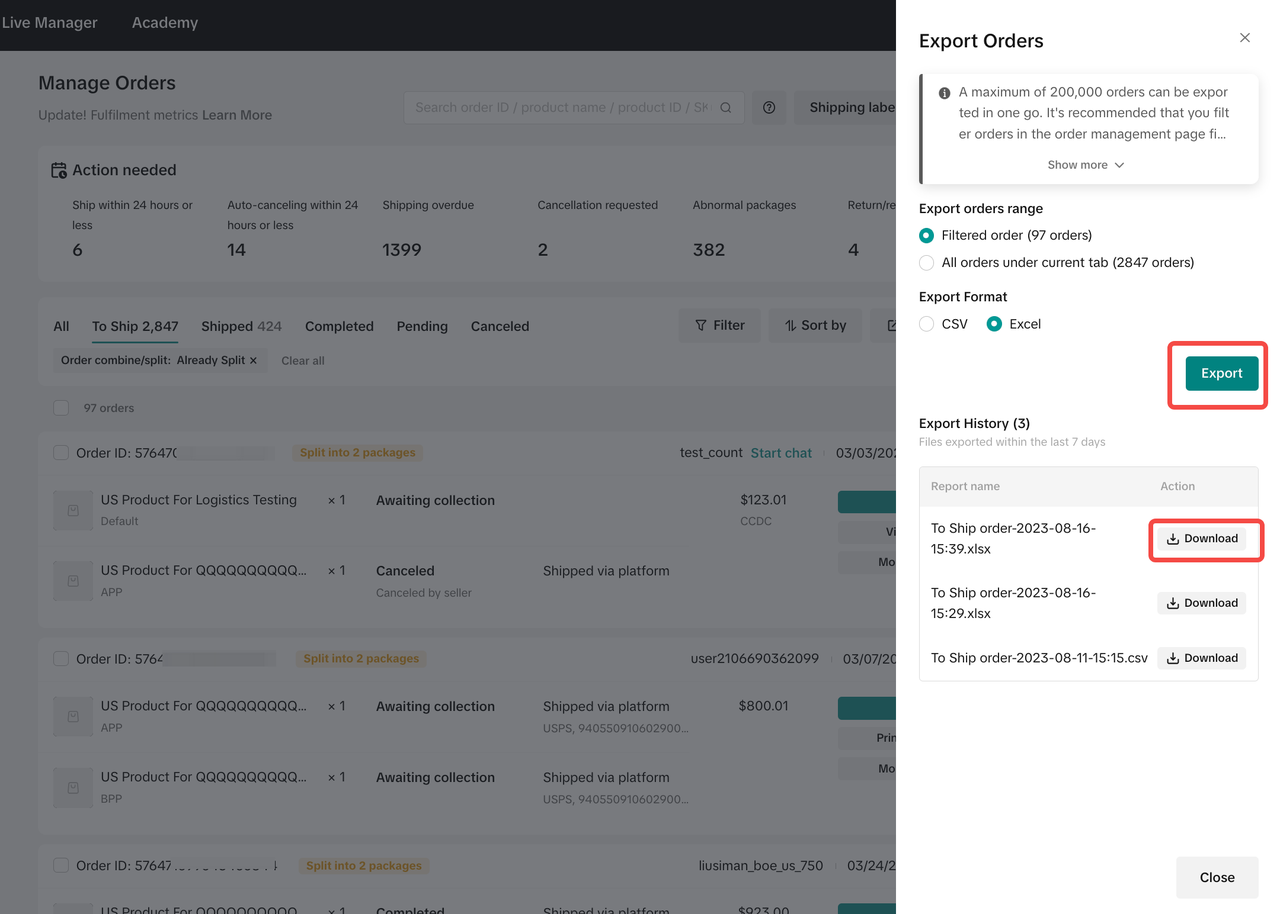
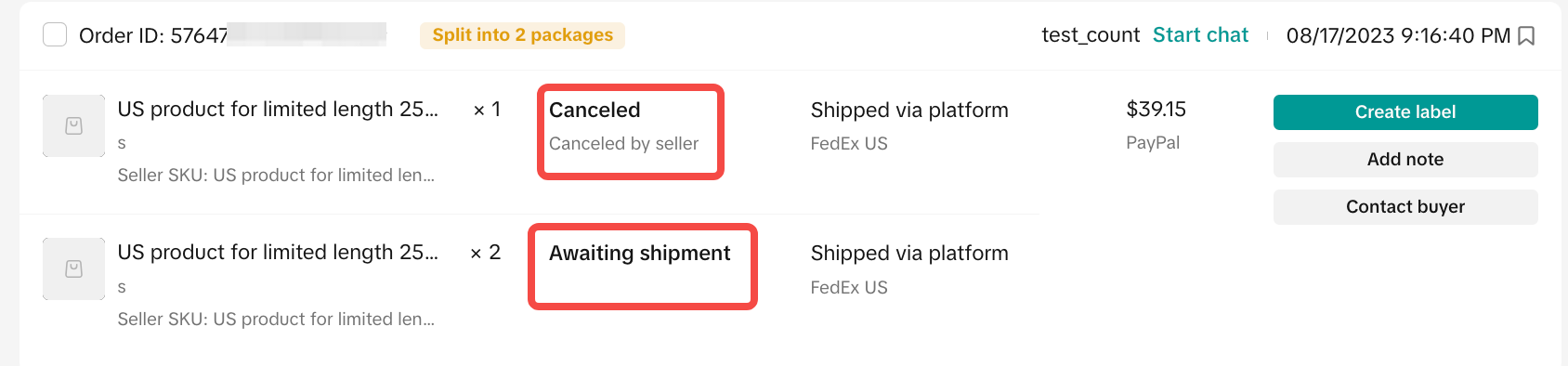
After you split an order, you can find it on the Manage Orders page and the order download results.
|  |
|  |
|  |
 | |
 |
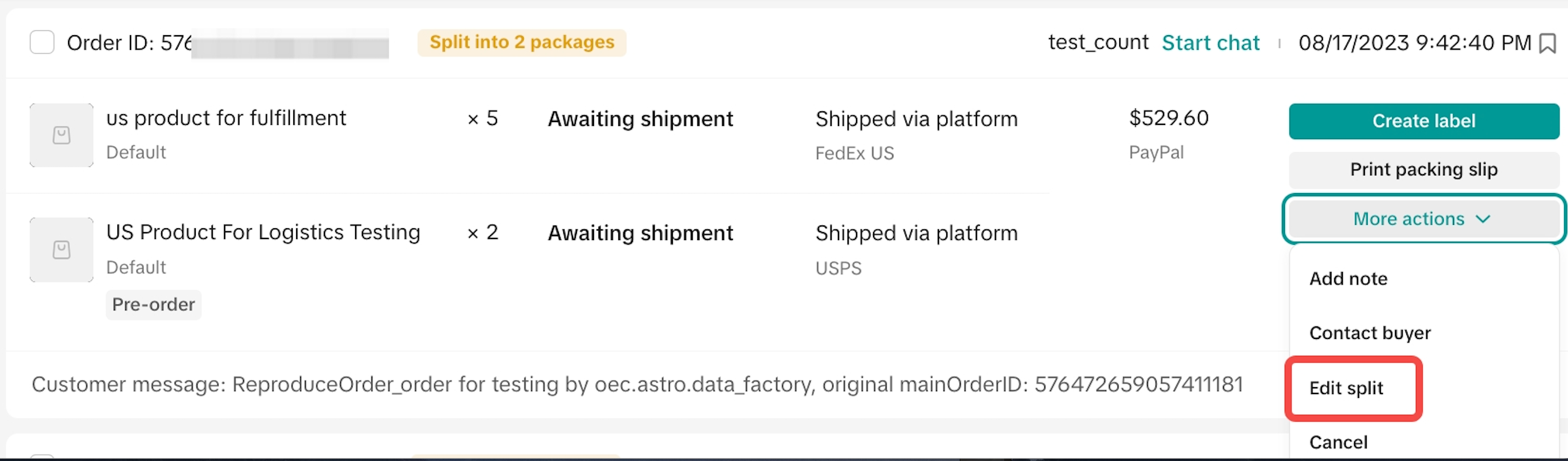
Edit Order Split
You can still edit an order that has been split before you arrange shipment (before the status changes to Awaiting Collection). You can change it on the Manage Orders menu:
|  |
| |
You can make the following changes:
|  |
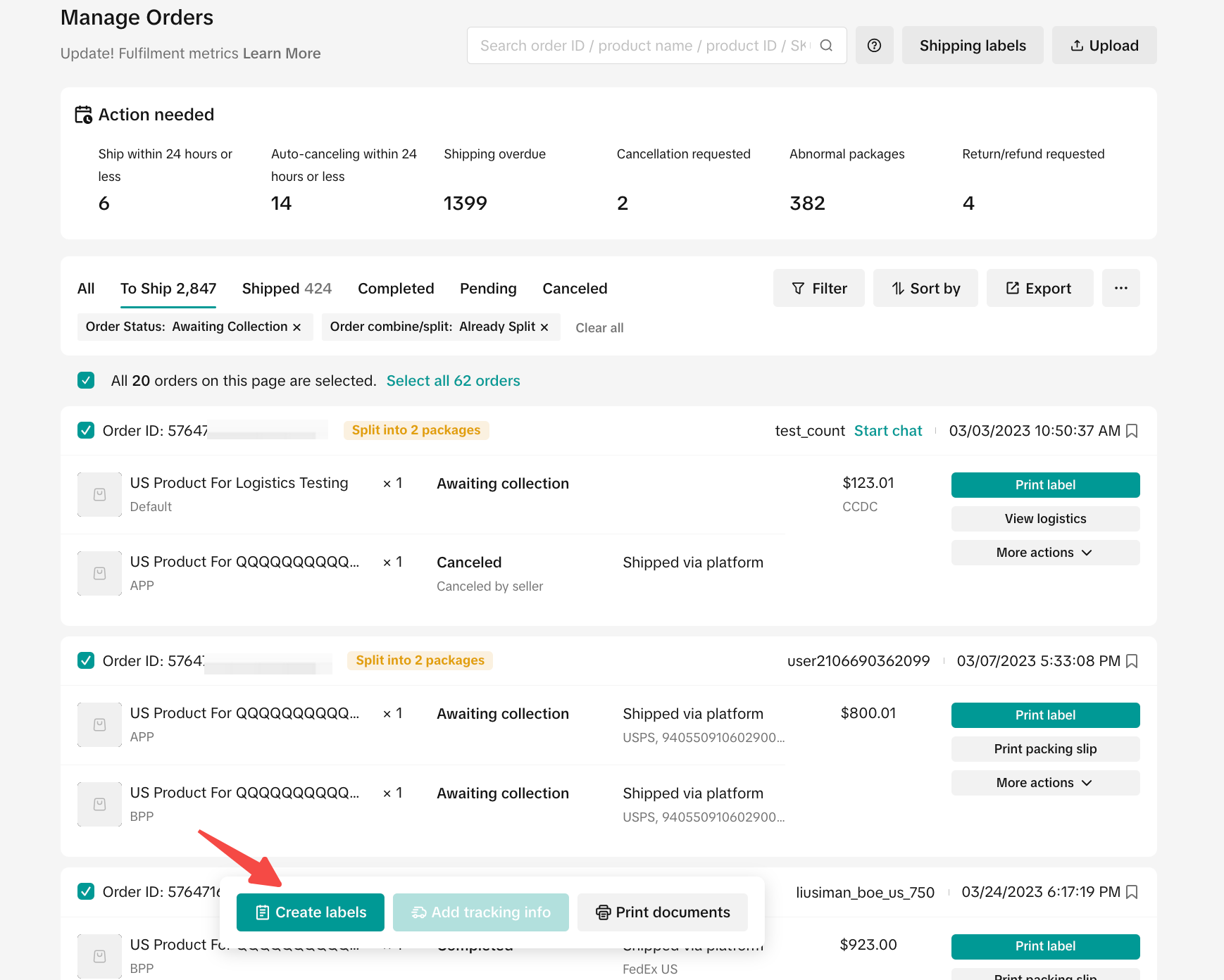
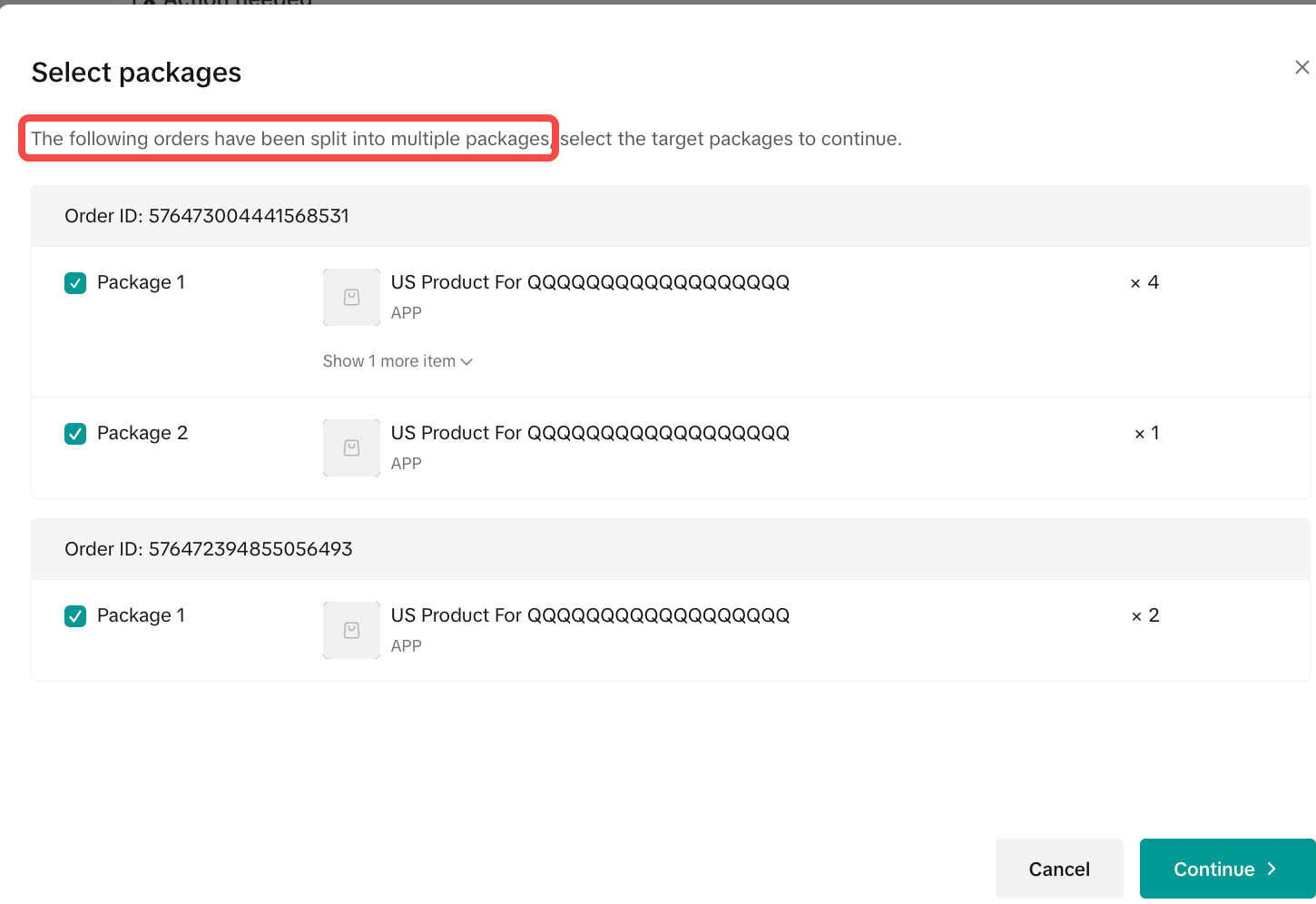
Fulfillment of Split Order
|  |
|  |
|  |
|   |