

US Multi-Warehouse Feature
01/05/2026
Summary
What is the Multi-warehouse feature on TikTok Shop and how does it benefit sellers?
- Multi-warehouse (MWH) allows sellers to manage up to 20 warehouses in Seller Center, enabling efficient order fulfillment, reduced shipping costs, and shorter delivery times by assigning stock to multiple locations.
- It automatically prioritizes the nearest warehouse to buyers, improving delivery speed and lowering shipping fees.
How do sellers set up and manage warehouses and stock using the Multi-warehouse feature?
- Sellers add warehouses via Logistics > Warehouses, entering details and setting shipping regions; warehouses can be edited but not deleted.
- Products can be assigned to multiple warehouses by enabling "Add to multiple warehouse" in product settings, allowing stock management per warehouse; this mode cannot be disabled once activated.
- Stock can be edited individually per warehouse or in bulk via batch upload templates, but warehouses cannot be added or removed through Excel.
How does order fulfillment and buyer experience work with Multi-warehouse products?
- Orders are processed similarly to single-warehouse SKUs, with warehouse filters in the Batch Shipping module for admins to manage orders by warehouse.
- Buyers see stock availability from the nearest warehouse first; if stock is insufficient, the system automatically sources from other warehouses, ensuring accurate stock display and faster delivery.
What shipping options and settings must sellers configure for each warehouse?
- Sellers must set preferred shipping services per warehouse under Logistics > Shipping and maintain separate shipping fee templates if using "Seller Shipping."
- Each warehouse’s shipping template is linked to its name/ID, allowing tailored shipping management per location.
How does the Multi-warehouse feature integrate with TikTok Shop’s Open API?
- Sellers use the Get Warehouse List API to retrieve warehouse info, then specify warehouse_id when creating or updating product stock via Create Product or Update Stock APIs.
- Real-time stock updates are supported through Order Status Update Webhook, enabling inventory synchronization across warehouses.
What is Multi-warehouse Feature?
Multi-warehouse (MWH) is a warehouse management tool in TikTok Shop Seller Center which allows sellers to manage up to 20 warehouses to help sellers fulfill their orders. This feature will enable sellers to fulfill orders more efficiently, and at the same time reduce shipping costs and shorten delivery lead time. This article will help you with Multi-Warehouse Setting.Feature Guidance on Seller Center
How to Create a New Multi-Warehouse
Add a warehouse
You can set at most 20 Pickup Warehouse addresses. Sellers can have multiple return Warehouse addresses.StepsFrom your TikTok Seller Center, Click Logistics > WarehousesFrom the Warehouses page, click the edit icon. |
- Click Add warehouse
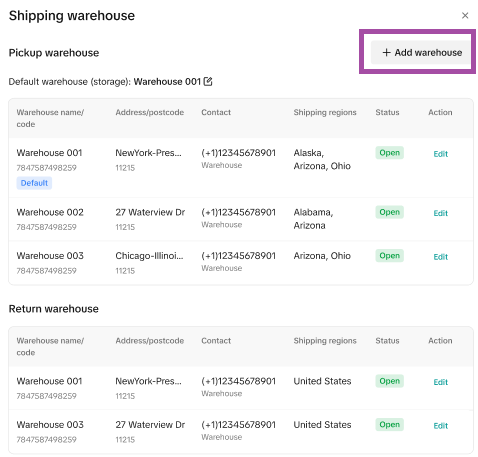
- Fill in the Warehouse Name, Contact Person, Phone Number, and Street Address.
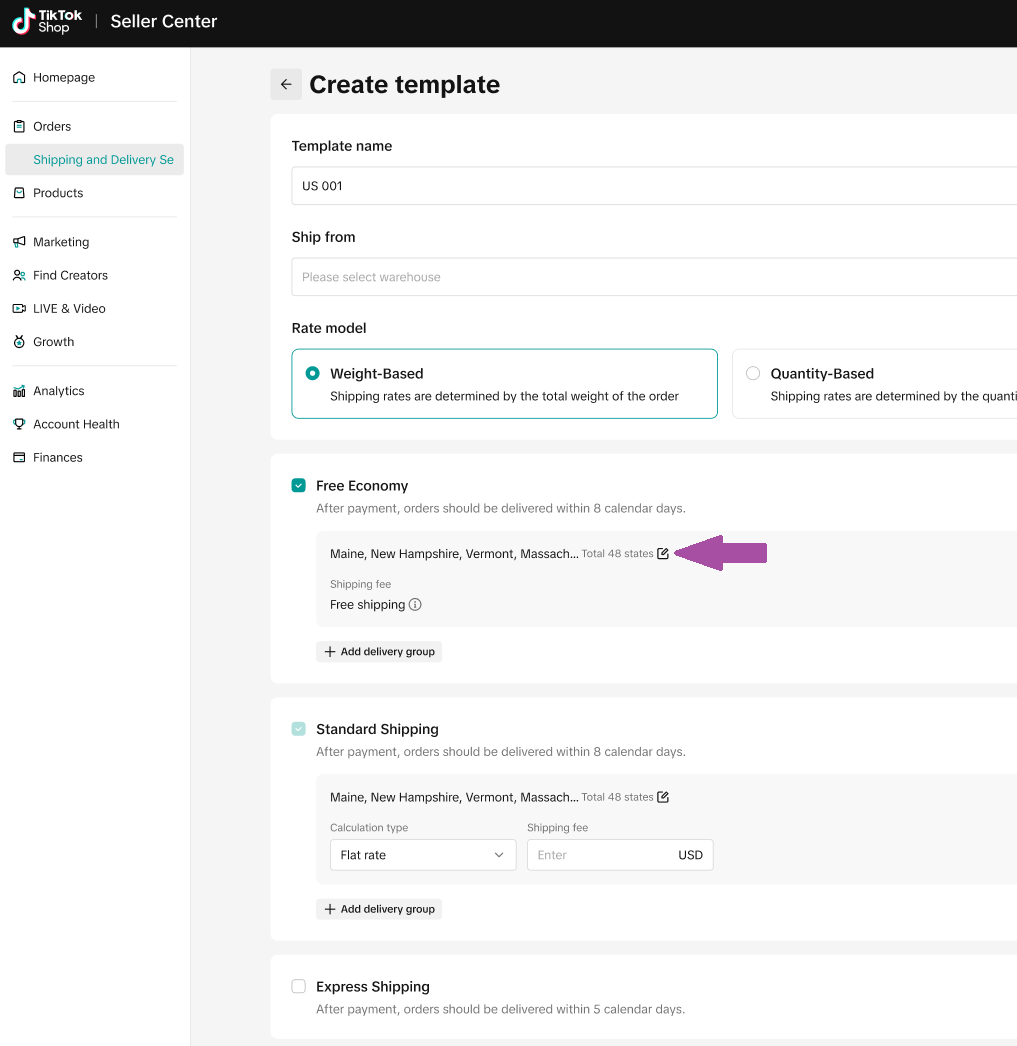
- Set Shipping Regions, which are the places where this warehouse is able to ship to.
Edit a warehouse
You can edit an address, but you are not allowed to delete a warehouse address.To edit a warehouse navigate to Logistics > Warehouses > then click the edit button on the Edit tab
Set Default warehouse
When you add a new product, it will be automatically assigned to the default warehouse. You can manually add more locations if you have multiple warehouses.What is a default warehouse?
Choose your default warehouse and you'll see a tag on the selected warehouse.

How to Enable Holiday Mode for Warehouse
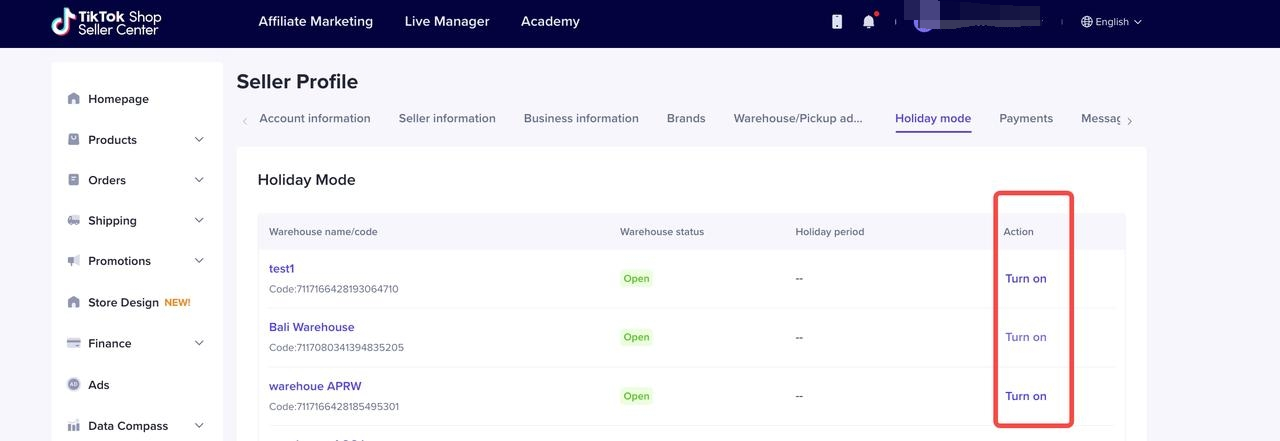
- Go to Orders > Shipping and Delivery Settings > Fulfillment and you will find the holiday mode setting on the bottom tab
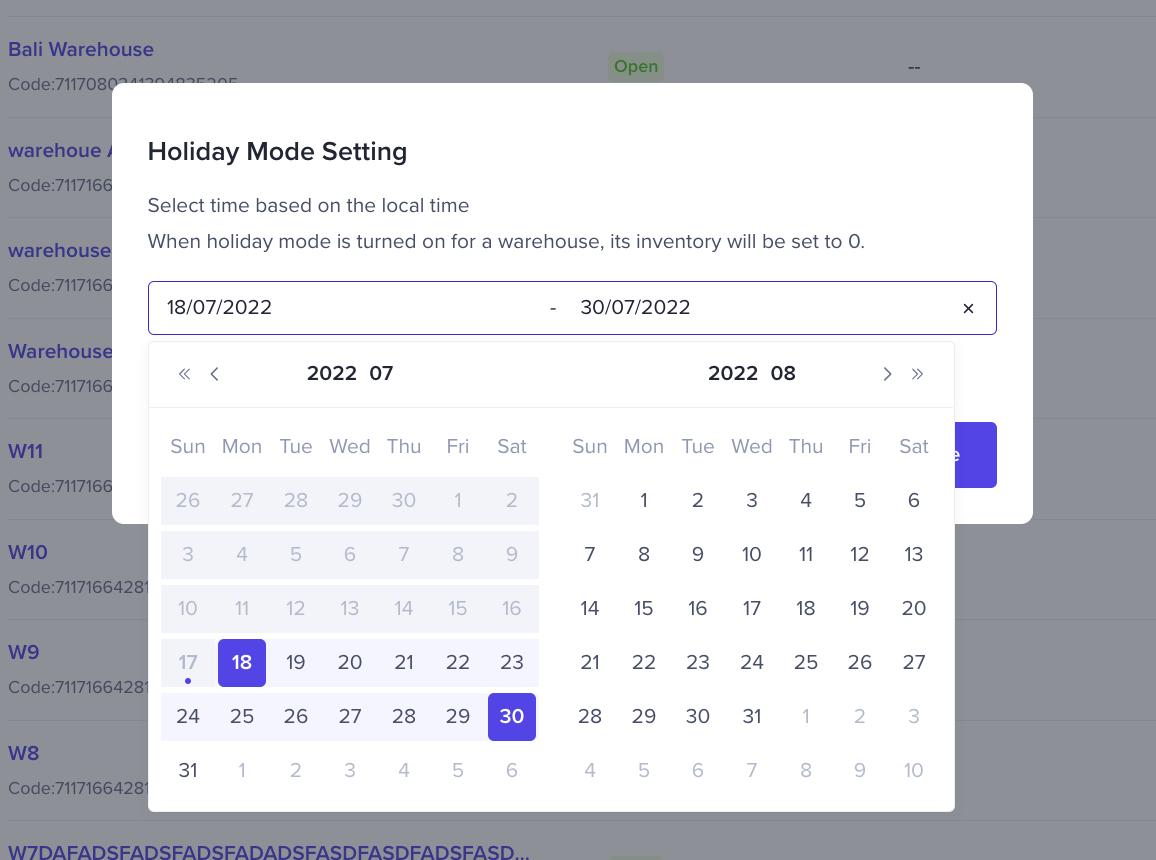
- Select warehouse and Click "Turn on". After confirming the holiday time period, click Done.
- Once the warehouse is on holiday mode, the warehouse inventory will be set to 0 for the timeframe you specified.
How to Set shipping option for Multi-Warehouse?
Seller can decide each warehouse's shipping options, meanwhile Seller needs to maintain the shipping template for each warehouse- Go to Logistics>Shipping
- Select warehouse and set its preferred shipping services by clicking "Switch Option".
 |
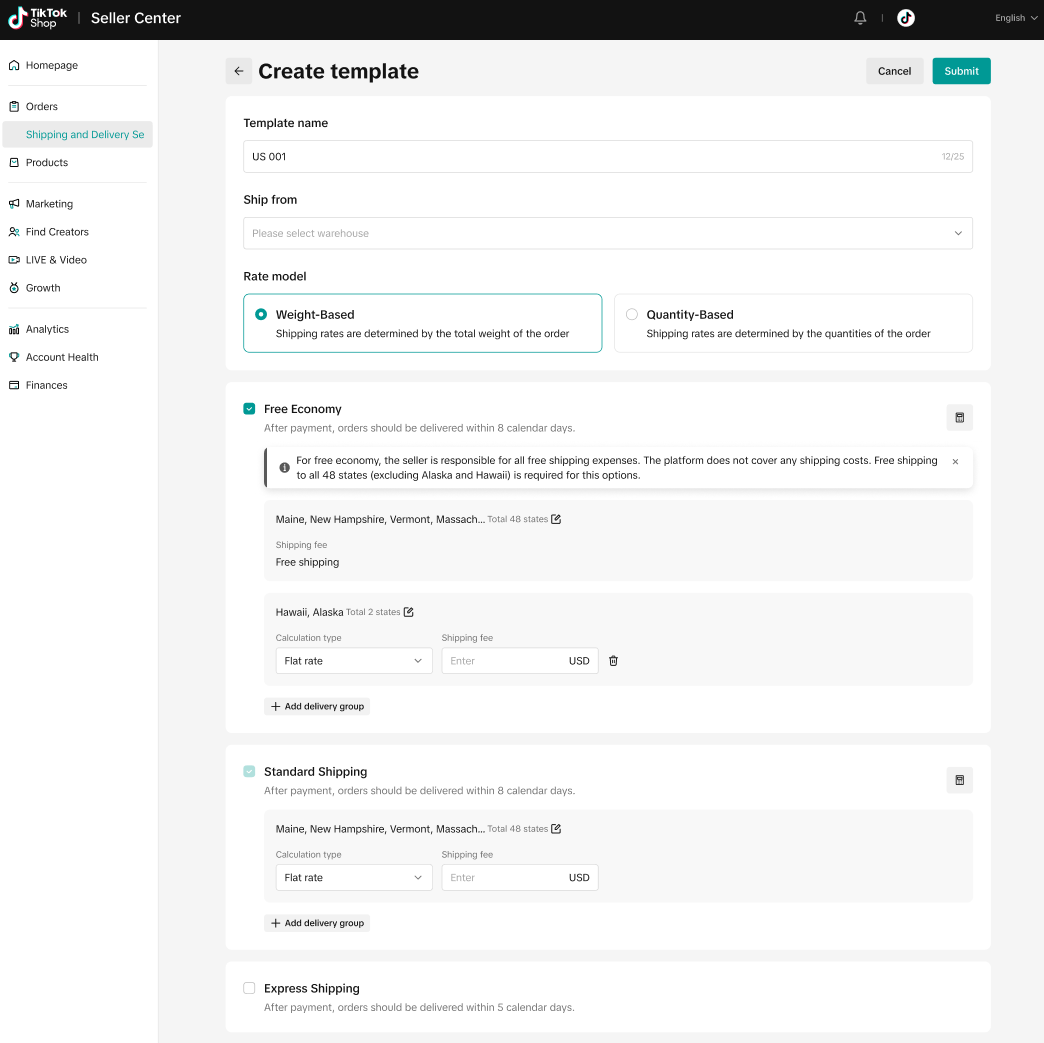
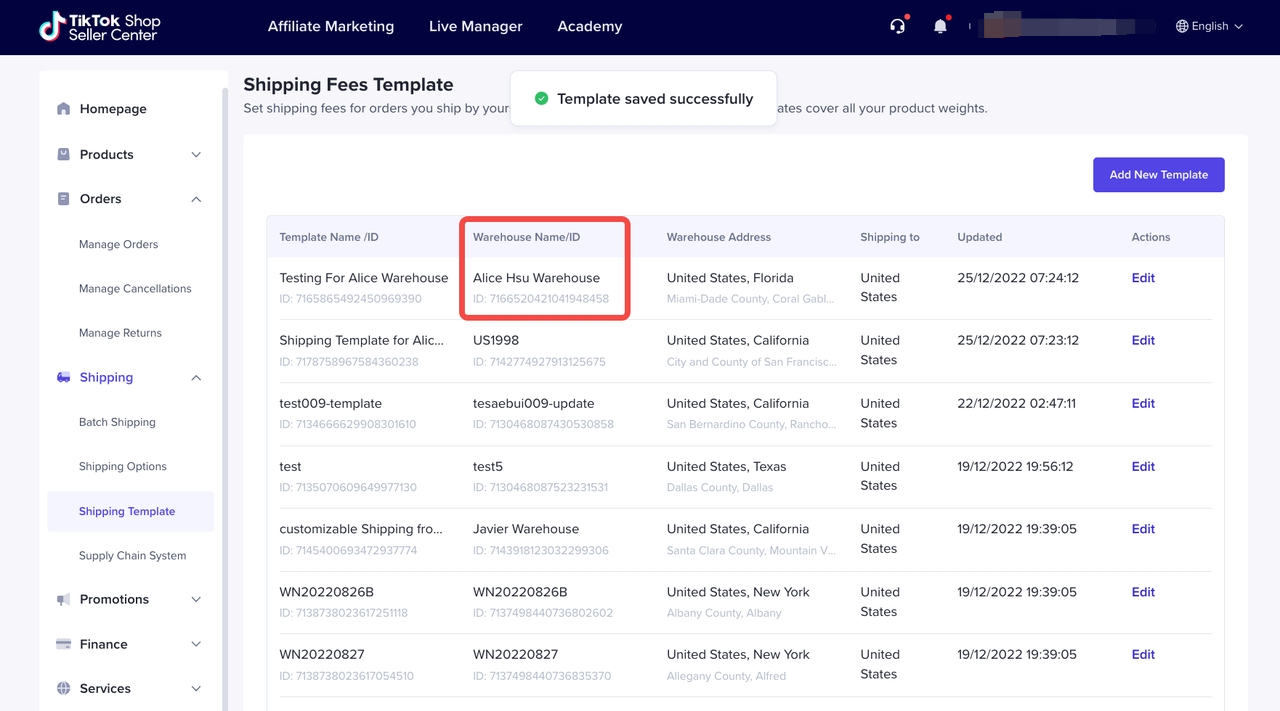 If you want to know more details about shipping options and shipping template, please refer to "Shipping option Setting" in the US Seller Academy
How to manage Stocks per warehouse
Edit Single Product MWH Stock
- Go to Product > Manage Product > Edit Product
- Seller can edit a single product's Multi-warehouse stock after clicking "Add to multiple warehouse" on Edit Product Page.
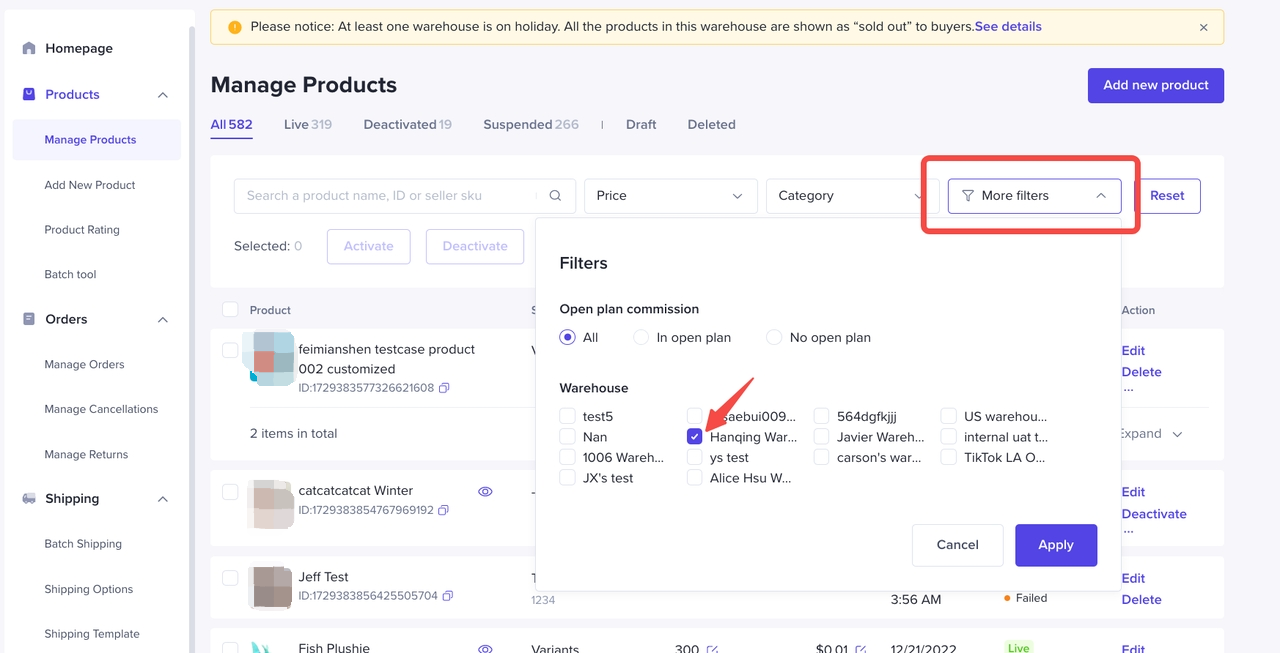
- Seller can use warehouse filter to view their product per warehouse, click More Filters > Warehouse.
How to manage Stocks per warehouse
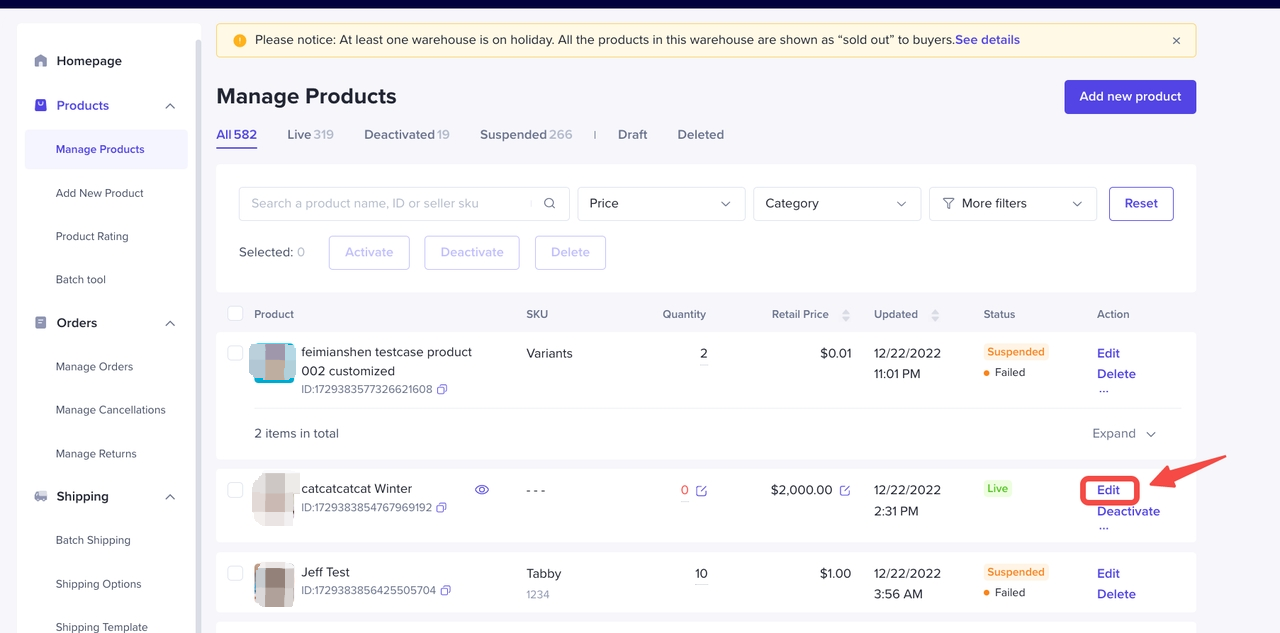
- Go to Products > Manage Products
- Click Edit to your selected multiwarehouse product.
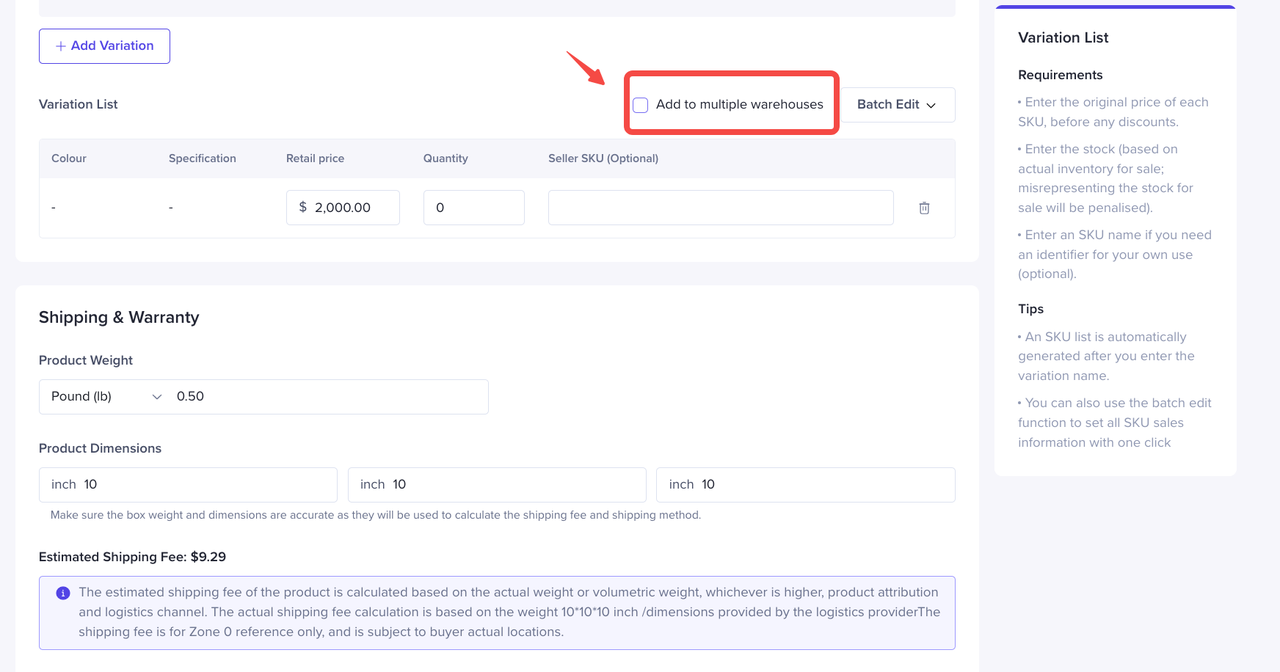
- Scroll down to Variant List field, tick on the Add to multiple warehouse checkbox. Please pay attention to the pop up message
- Once you click on "Add to multiple warehouse ", it means the product will be located in more than one warehouse, then you are able to edit the multiwarehouse stock, the button cannot be turned off once you've activated it.
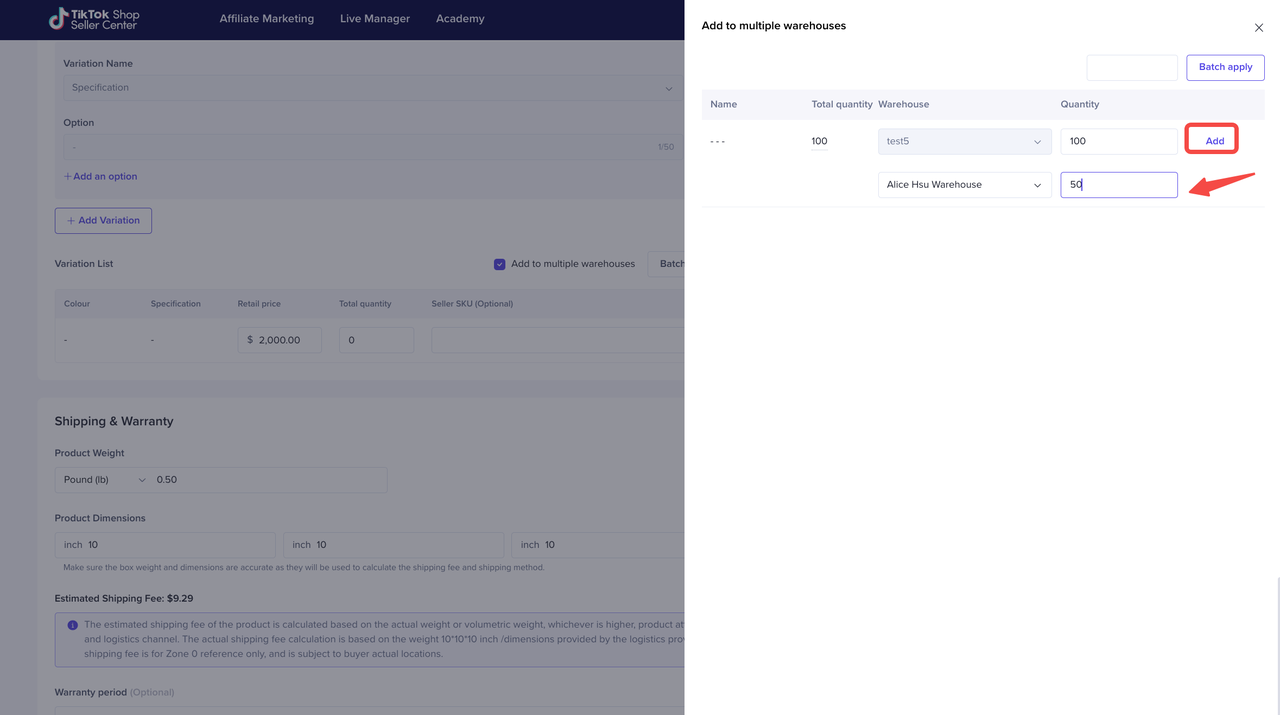
- Add new warehouse and stock of this product, the total quantity will be calculated automatically. Repeat this step if you want to add stock in other warehouses
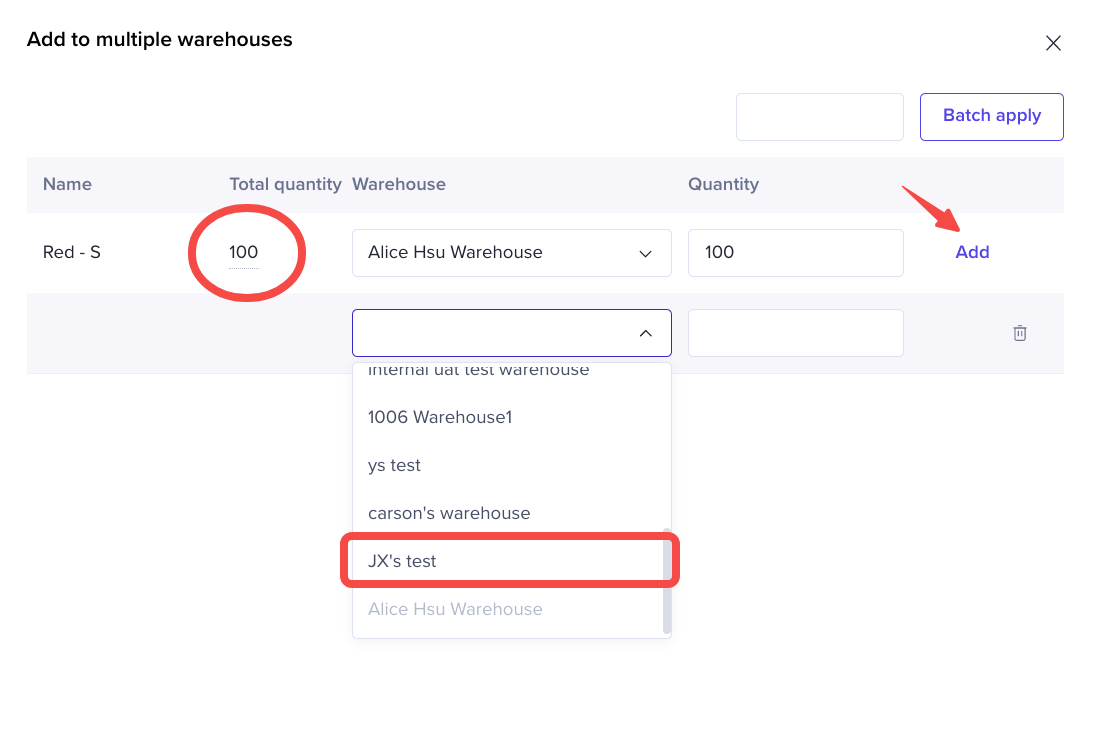 After registering as multiwarehouse product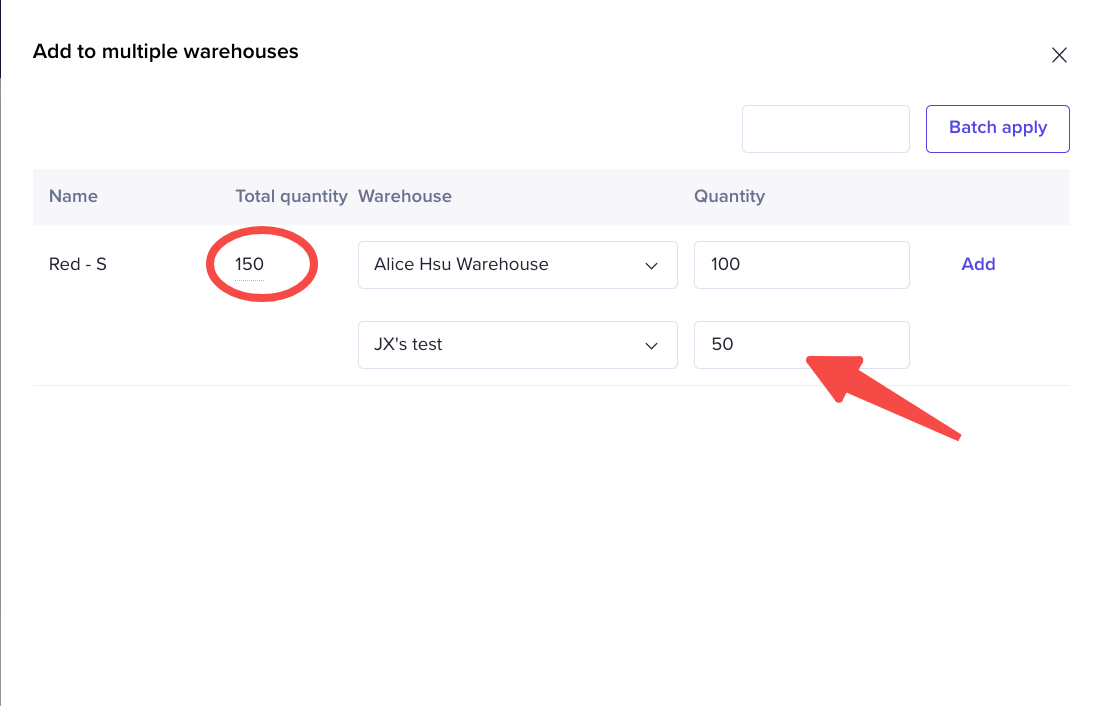
- After Submit, please remember to click Update in Edit Product Page.
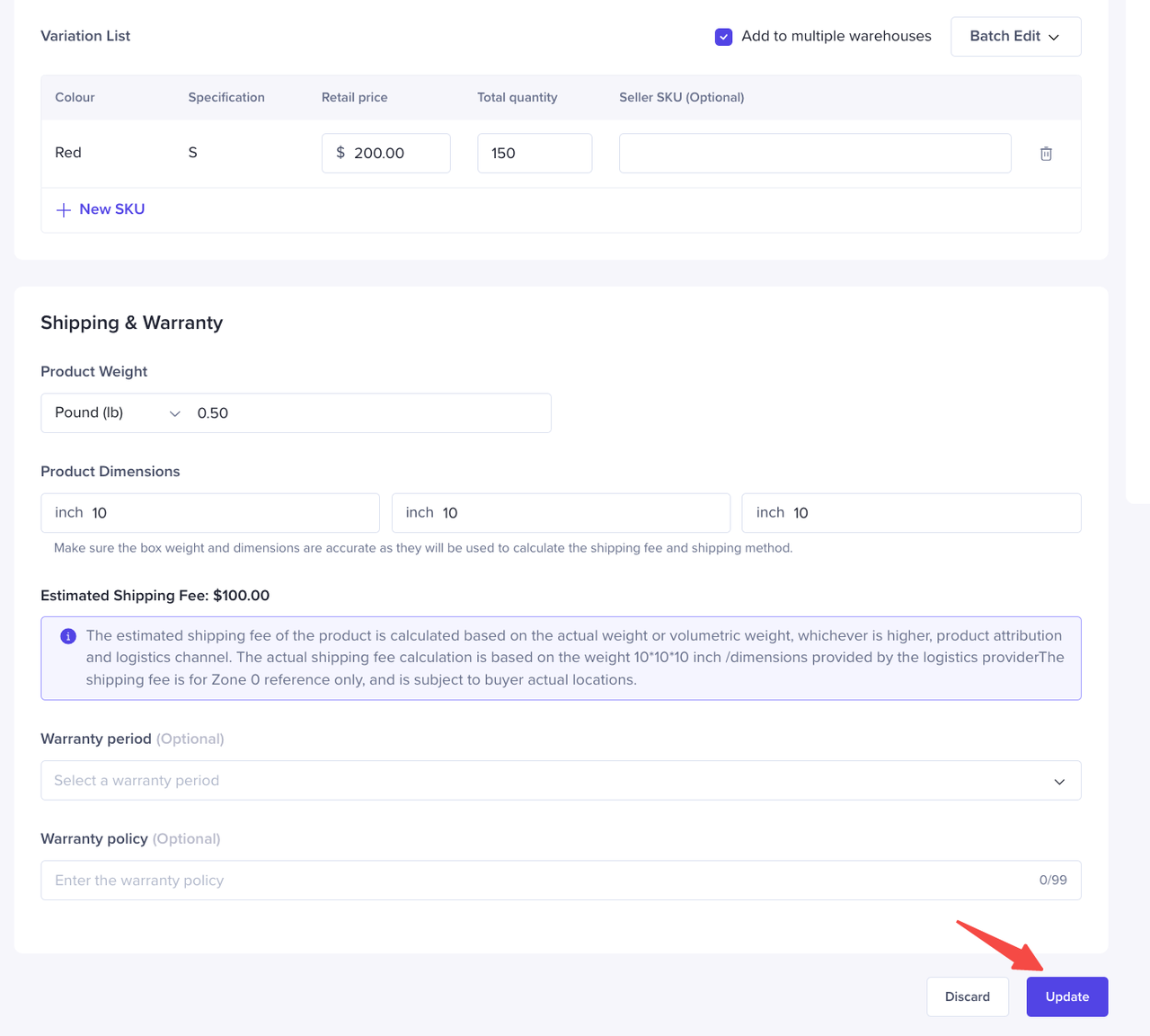
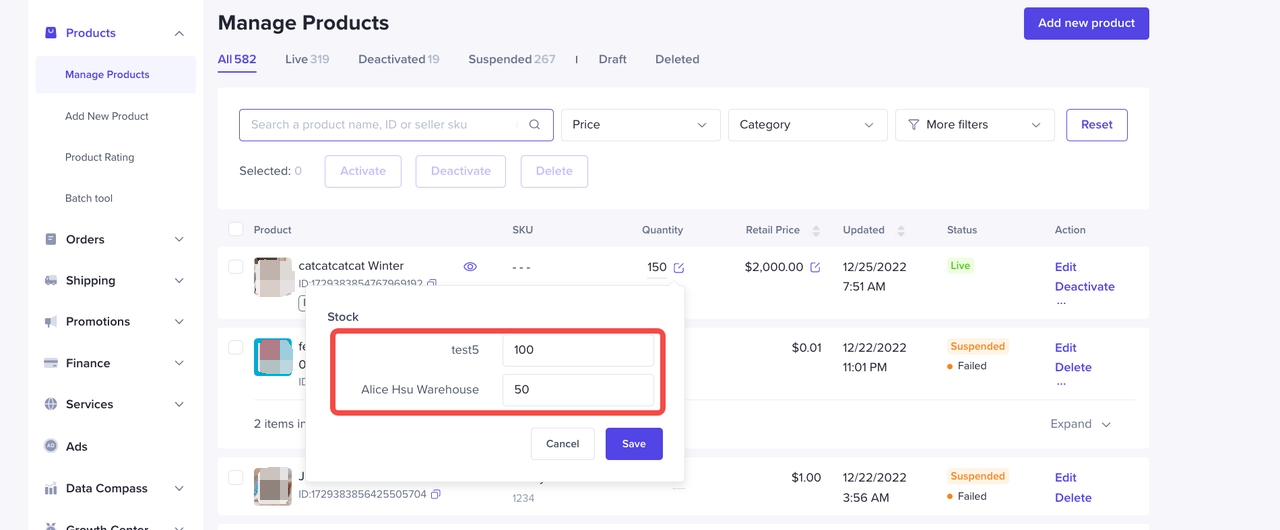
- After the product has been registered as multi-warehouse product, the product will have "Multi-WH" Tag.

- To manage multi-warehouse stock for products that have a "Multi-WH" tag, you can directly click the stock figure, then edit the quantity for each warehouse.
Batch Edit Product MWH Stock
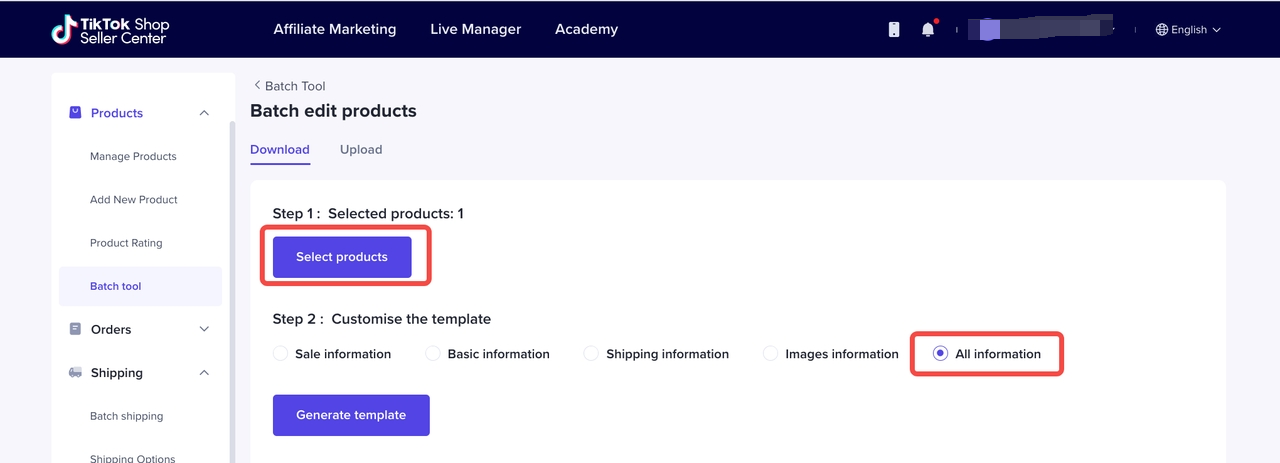
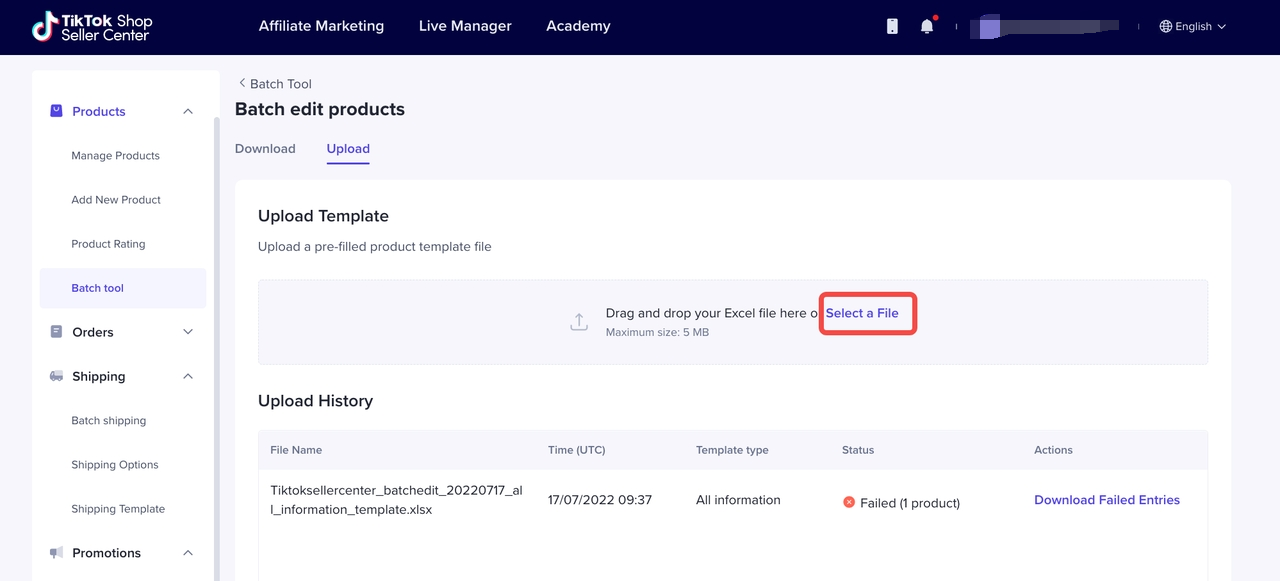
- Go to Batch Tool > Batch Edit Product
- Select Product > choose all information > generate template for batch edit
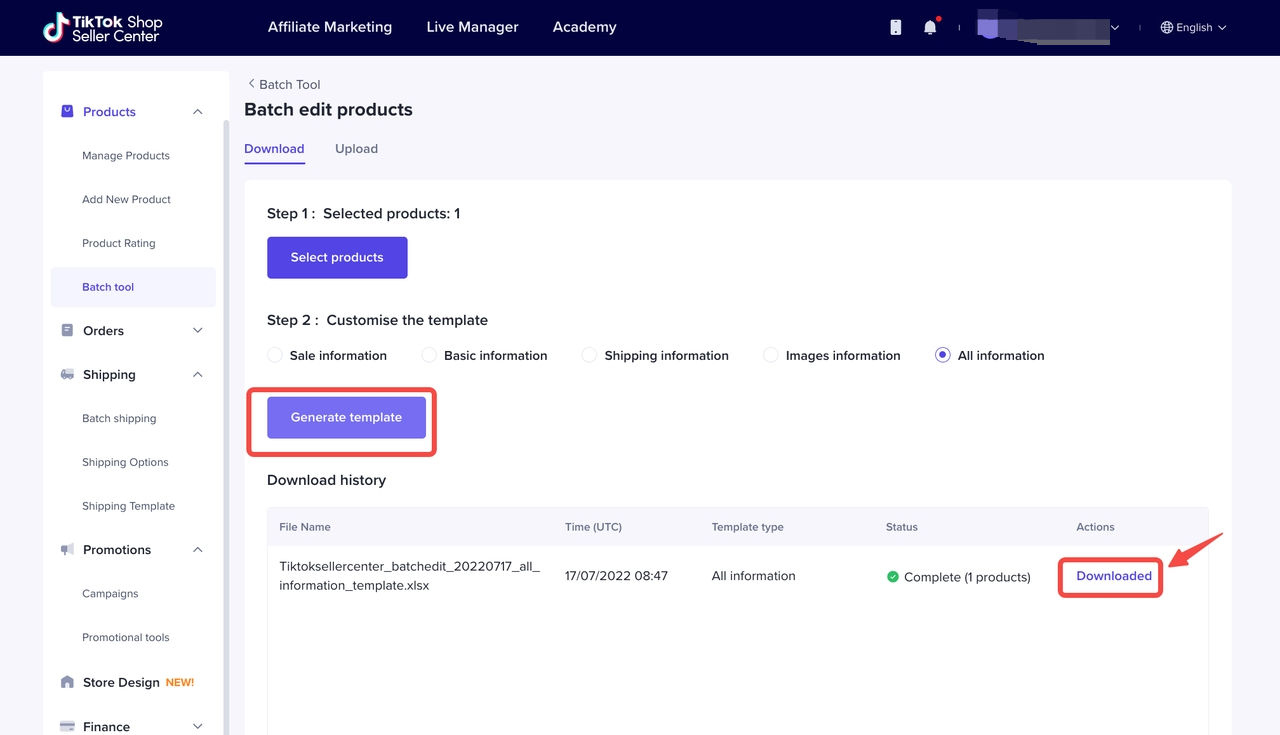
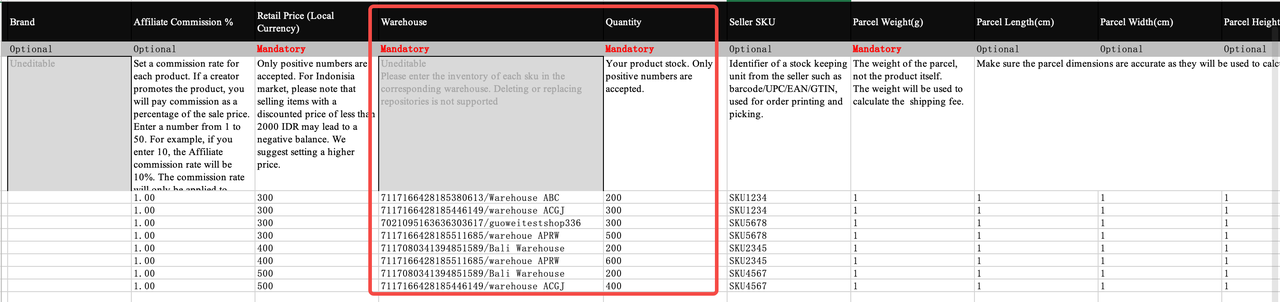
- After Modification is done, upload the file. The product quantity of each warehouse will be updated
How to Fulfill and Manage Orders per Warehouse
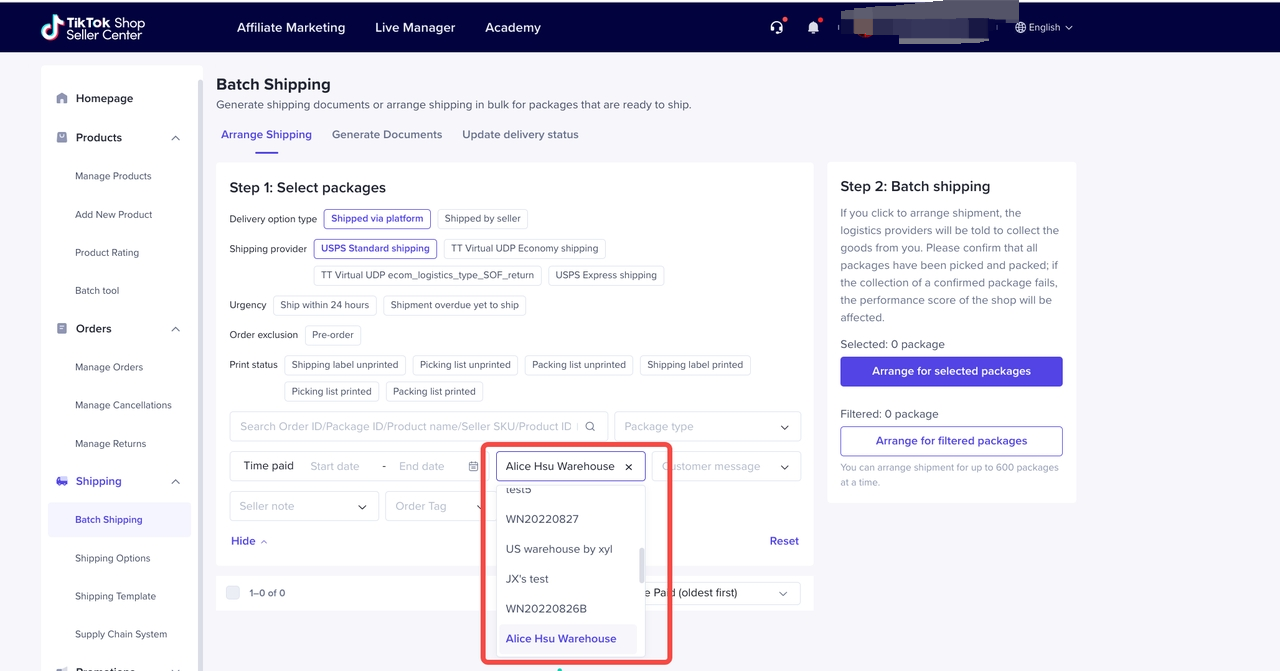
There is no big difference in processing orders for multi-warehouse SKU and standard SKU. There will be a warehouse filter in the Batch shipping Module. Admin of each warehouse can check the orders as per warehouse name.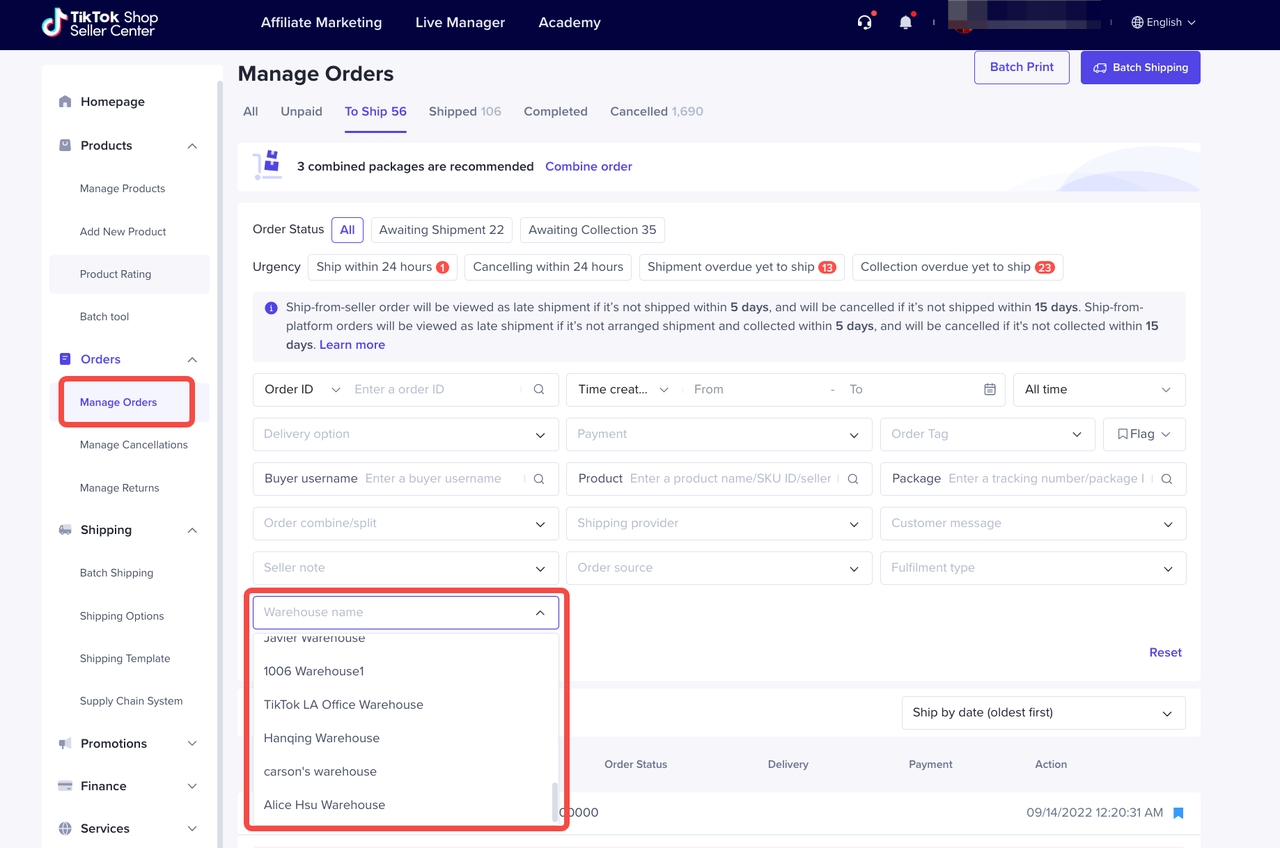
Buyer App view for multi-warehouse product
After the seller maintains more than one warehouse stock of the product, when buyer clicks "Buy Now", the TikTok Shop system will automatically analyze the best warehouse for this potential order as per location and stock of the warehouse. Showing "Shipping status Updated" when you come to Place Order Page.Example
A product has stock of 34 which are divided into multiple warehouses. The main warehouse of this store is named : Nationwide Warehouse
- 12 stock on Nationwide Warehouse (Default Warehouse)
- Service area : Nationwide
- 10 stock on Warehouse Washington
- Service area : State of Washington
- 12 stock on Warehouse Florida
- Service area : State of Florida
- TikTok Shop System will only show 10 stocks of that product from Warehouse Washington. This is because the nearest warehouse will always be prioritized to speed up delivery lead time and cheaper shipping fee
- If the buyer successfully orders those 10 products, then the remaining stock in Warehouse Washington will be empty. If buyer wants to order an additional of 2 products, then TikTok Shop Shop system will show stock coming from Nationwide Warehouse.TikTok Shop System will refer buyers to the stock available in the main warehouse if the nearest warehouse stock is empty
- When the available stock in Warehouse Washington and Nationwide Warehouse are empty, then there will be no more available stock for buyers to order. TikTok Shop system will display a message to inform the buyer that there is no available stock for this product
- But, this condition will not apply to buyers who are located in the state of Florida because there are 12 remaining stocks in the warehouse Florida and buyers will still be able to purchase those remaining products.
Open API
The Open API also supports multi-warehouse scenarios.Related APIs
| API name | type | description |
| Get Warehouse List | RESTful API | Pass in shop_id to get the information of all warehouses of the shop. |
| Create Product | RESTful API | Create the product |
| Get Product Detail | RESTful API | Use this api to get product details. |
| Edit Product | RESTful API | Update the product related info including the stock and price |
| Update Stock | RESTful API | Update the product stock only |
| Order Status Update Webhook | Webhook | Real-time order status update push |
Diagram
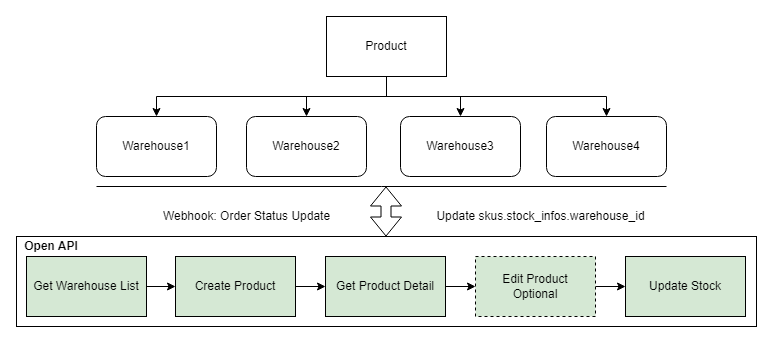
Description
- If the seller has configured multiple warehouses, then when creating products with Open API, seller needs to call API Get Warehouse List to get warehouse information first, and then call API Create Product (parameter: skus.stock_infos.warehouse_id) to create products.
- If the seller wants to modify the stock, first call API Get Product Detail (skus.stock_infos) to get the product stock information, and then call API Edit Product or Update Stock (recommended) to update the stock.
- Listening to the Notification Push(Webhook): Order Status Update Webhook, app can update the product inventory in real time.