

How Can Sellers Register For Platform Livestream Campaigns?
08/26/2024
Summary
What is the Livestream registration system on TikTok Shop, and how can merchants register for campaigns?
- The Livestream registration system allows merchants to register their livestreams for platform campaigns via Seller Center or TikTok App.
- Merchants must bind an official account to sign up, and can register up to 100 sessions per campaign in Seller Center and LIVE Manager.
What are the steps involved in registering for a Livestream campaign on TikTok Shop?
- Check available campaigns and choose one to register for based on requirements.
- Fill in registration info including TikTok account details, livestream willingness level, period, main category, and product images.
- Submit the registration and enter the review process.
What should merchants do if they encounter issues with the registration link or lack an official account?
- If the registration link shows a notification, bind the merchant's official TikTok account before continuing.
- Without an official account, merchants can register using a marketing or Affiliate account in LIVE Manager.
What actions can merchants take after registering for a Livestream campaign on TikTok Shop?
- Merchants can manage registered sessions, view details, and cancel or duplicate registrations within the campaign limits.
- Registration records are visible in Seller Center and LIVE Manager, with restrictions on where cancellations can be made.
PS: All the pics in this doc are from the test account and have no relationship with the real merchant/creator information,the demo/screenshots are subjected to changes based on actual interface.
Introduction of the Livestream registration system
Seller Operation Routine
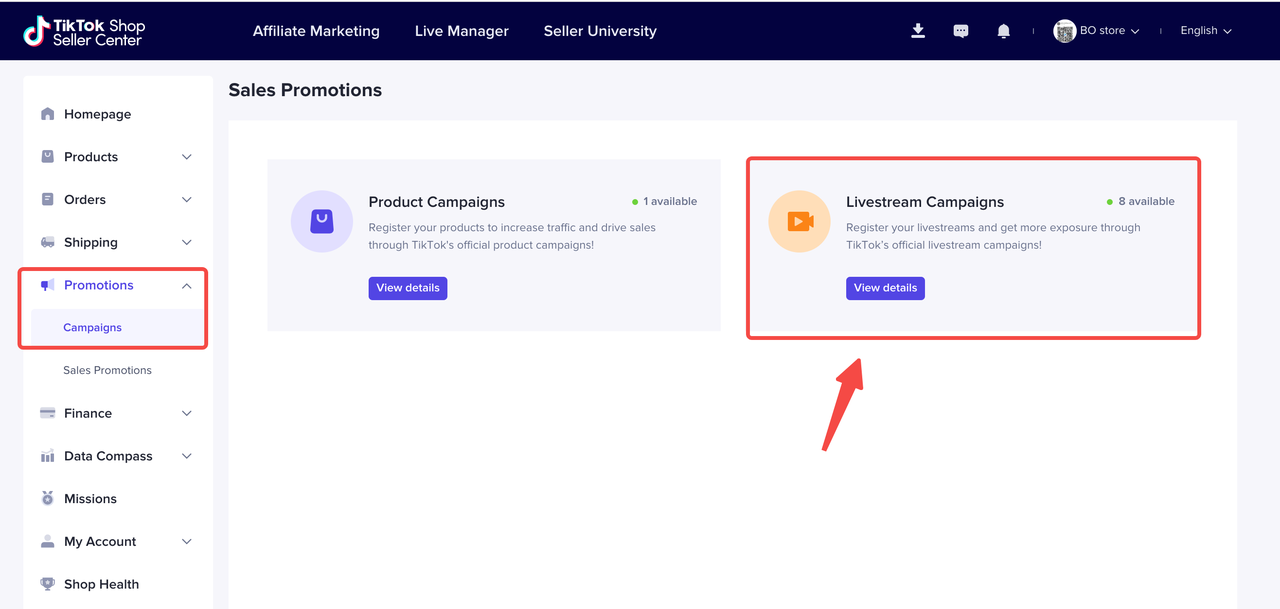
 Registration Entry:PC: Seller Center- Promotions- Campaigns- Livestream CampaignsTikTok App:Register through the shared url.
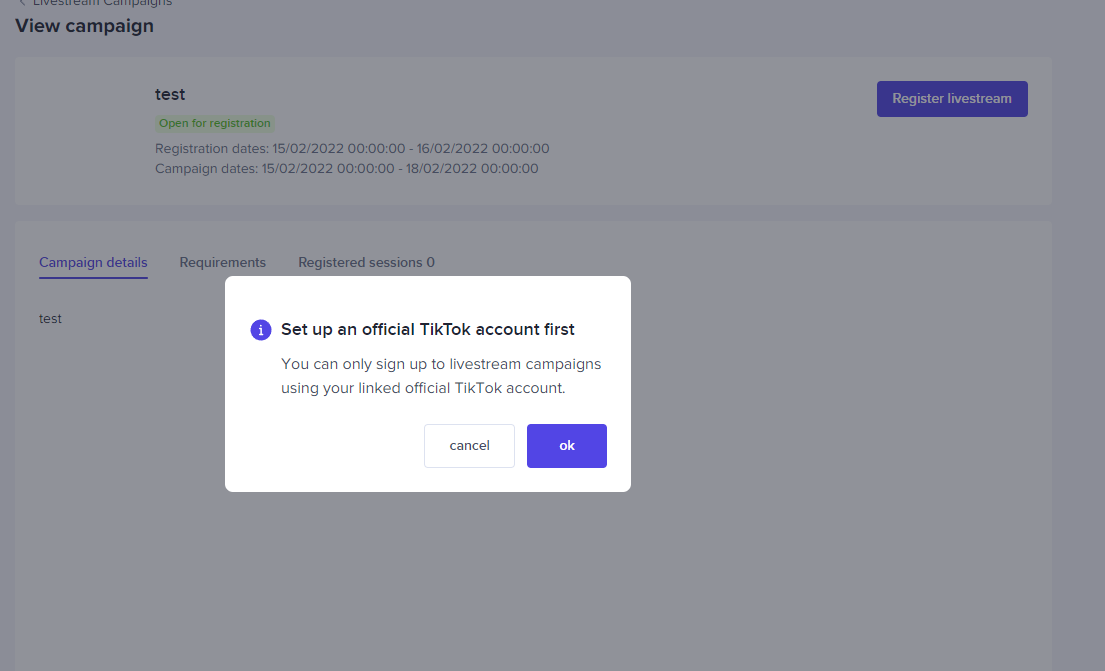
- Merchants must bind an official account to sign up for Livestream campaigns
- The upper right corner shows the number of Livestream campaigns that can be registered
- Click 'View Details' to enter the event registration page
 TikTok App
🎈Step 1: Check for Campaigns to participate in

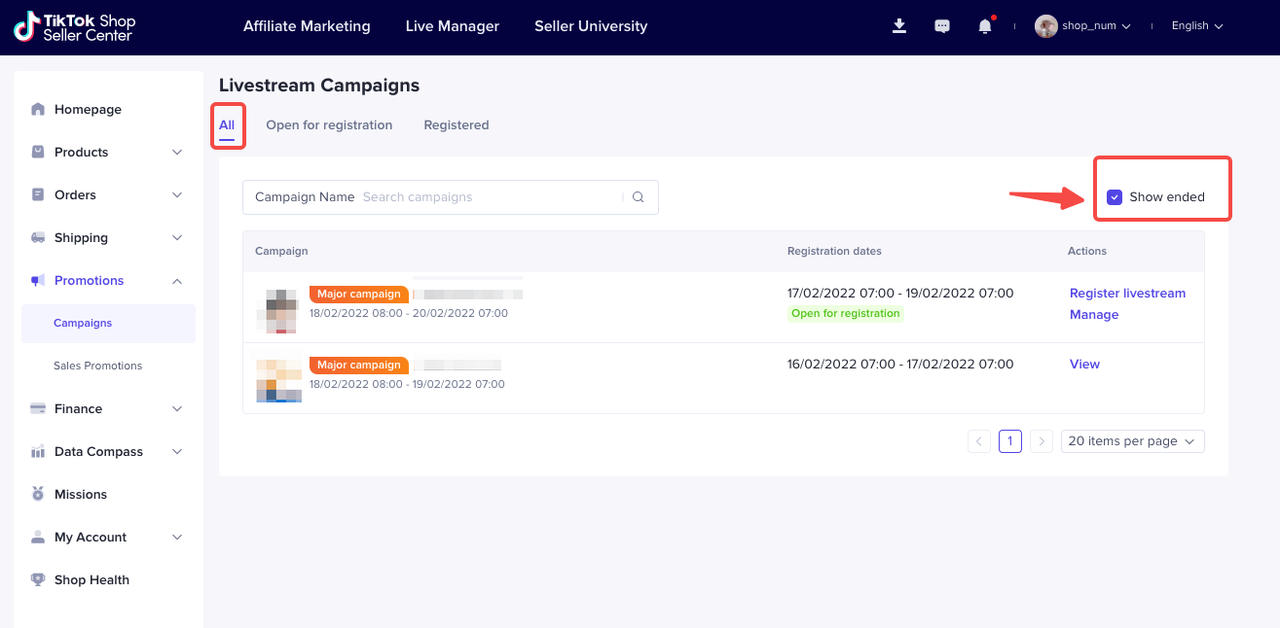
- 'All' tab displays all Livestream campaigns: click on the upper right corner 'show ended' to display the ended campaigns
- 'Open for Registration' tab displays Livestream campaigns that can be registered
- 'Registered' tab displays the Livestream campaigns that the sellers/creators have registered. If the merchant's official account has been registered on LIVE Manager, the registration record will also be displayed here
- If you are invited to participate in an exclusive/private campaign, this will not be displayed. It can only be viewed through the registration link shared with you by your AM.
- You can filter the campaigns you want to register for according to the campaign name
🎈Step 2: Choose a Campaign to Register
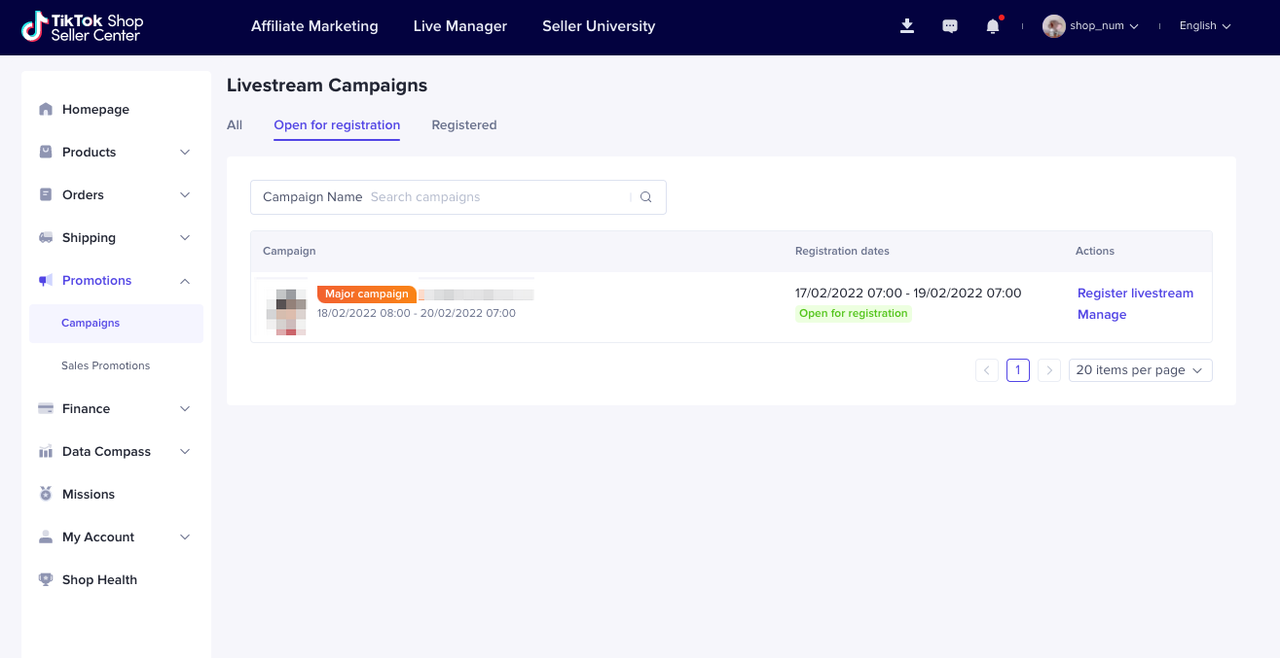 Merchants can opt-in to register for campaigns based on the campaign requirements displayed on the campaign list. To do this, click the 'Register Livestream' button to enter the livestream registration process.
Check Campaign Details
- Campaign cover
- Campaign name
- Campaign status
- Registration Dates: The registration period for this campaign
- Campaign Dates: The time this campaign launches
- Campaign Details
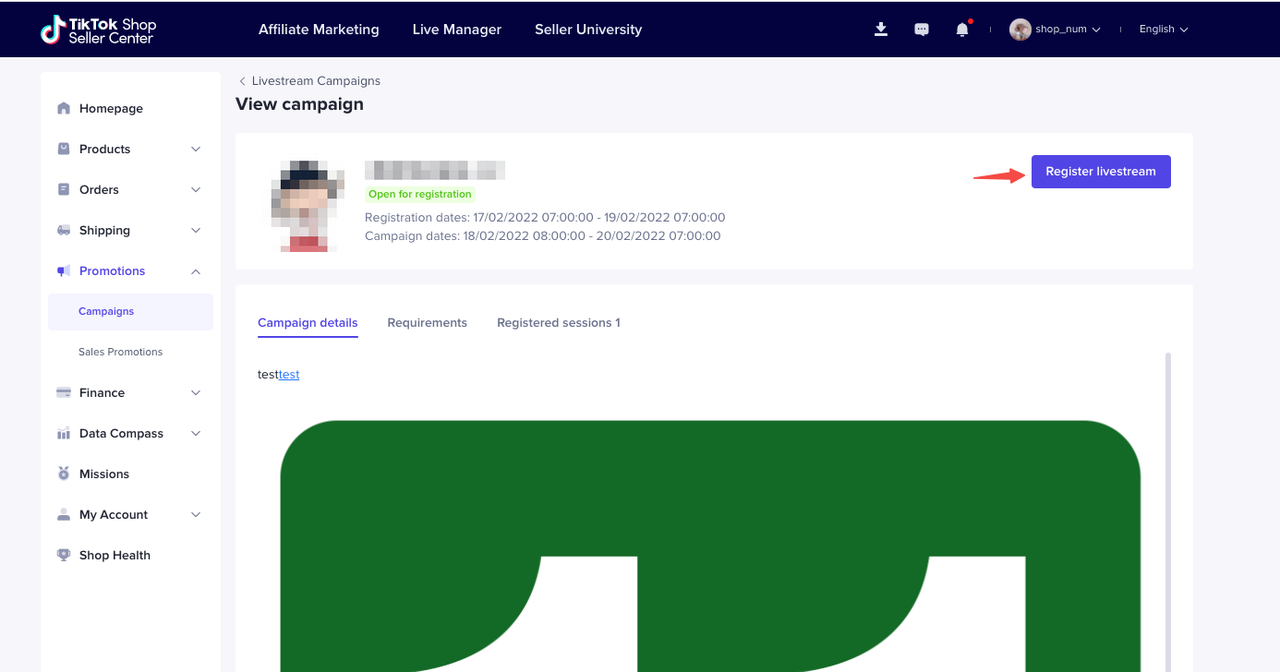
- Livestream period: Displays the minimum Livestream period that needs to be met by Livestream sessions of different levels for the campaign
Register for Campaign
- This button can be clicked when the merchant meets the conditions and is eligible for registration
- Only the official account can register via Seller Center
- In the same campaign, the total number of registrations that merchants can register in Seller Center and LIVE Manager cannot exceed 100.
🎈Step 3: Fill in the registration info
Click 'Register Livestream' on the campaign list page or event details page to enter the registration process for the Livestream campaignRegistration instructions:- The registration information may change, and the platform operator will contact you before the modification;
- Please start the livestream on time after the review has passed.
PC
- TikTok Account:
- Only show the official account associated with the seller
- Display the account's profile, handle, and UID
- Livestream willingness level : One or more levels can be selected at the same time
- Live period:
- The selected Livestream period cannot be outside the campaign period range
- The system will verify the required maximum livestream period according to the selected Livestream willingness level. If the filled period is insufficient, a prompt will be displayed
- Livestream Main Category:
- Available at this stage: Fashion, Home Living, Mother & Baby, Health, Beauty and Personal Care, Electronics, Food & Beverages
- White-background image of main products: Only 1 image, support png, jpg, jpeg format, minimum 400*400 px
- Brand logo: The main product brand logo image. Only 1 image, support png, jpg, jpeg format, minimum 400*400px
- Notes: Optional, you can fill in the notes of the session

TikTok App
- Livestream willingness level: One or more levels can be selected at the same time
- Live period:
- The selected Livestream period cannot be outside the campaign period range
- The system will verify the required maximum Livestream period according to the selected Livestream willingness level. If the filled period is insufficient, a prompt will be displayed
- Livestream Main Category:
- Available at this stage: Fashion, Home Living, Mother & Baby, Health, Beauty and Personal Care, Electronics,Food & Beverages
- Platform merchandise support: If you would like the platform to organize the products in your live room or not.
🎈Step 4: Check Registration Records
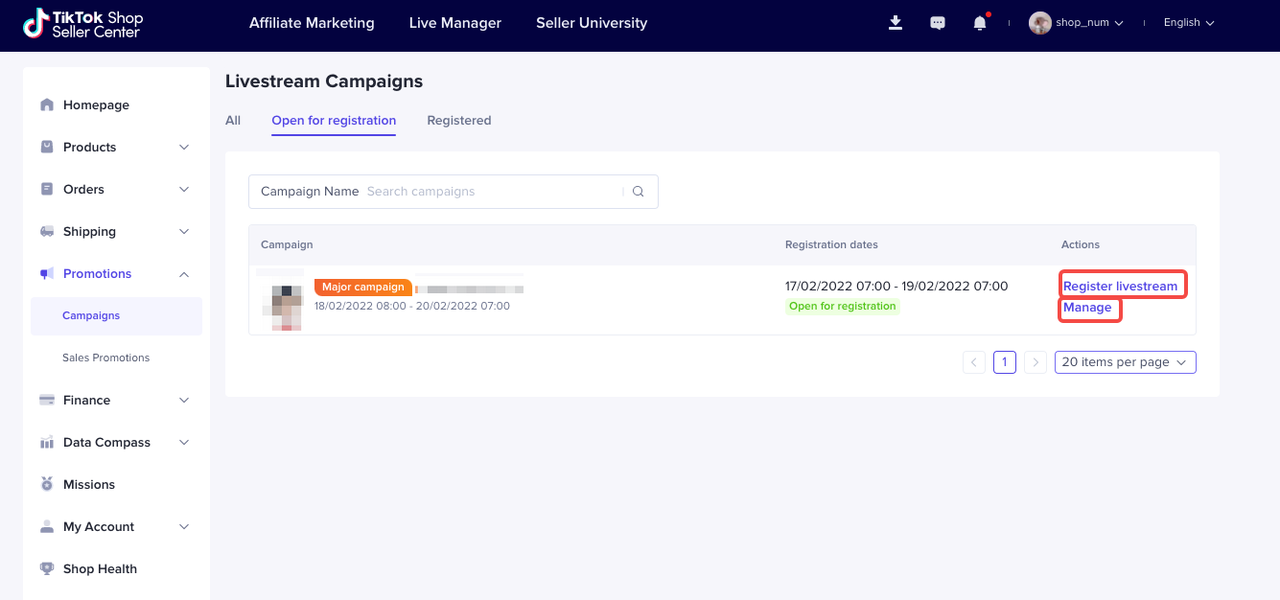
In the Registered tab of the campaign list page:- Select a campaign that has been successfully registered and click 'Manage' to enter the registered Livestream session management
- For campaigns that have ended, you can click 'View' to view campaign details and registration records, but private campaign registration records are not displayed here
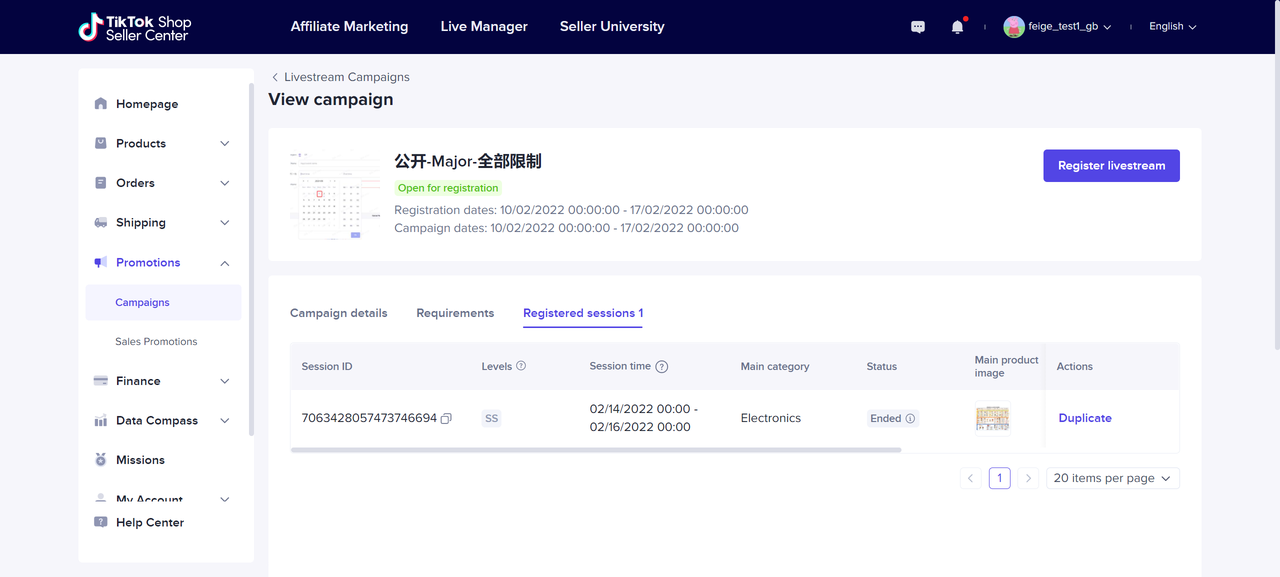
Registered Session Records
- Note:
- The registration information of the merchant and the related official account can be displayed to each other:
- You can see the registration session records in Seller Center and the registration session records of the related official account in LIVE Manager
- You can see the registration session records in LIVE Manager and the registration session records of the related official store in Seller Center
- Display all the registration sessions of this shop in Seller Center + the registration records of the sessions registered in LIVE Manager with the associated official account under the same campaign
- After the registration is successful, if the merchant applies to withdraw from the campaign when this record is pending review, this record will still be reserved, but no operations can be performed.
- Display information includes:
| Dimension | Details |
| Session ID |
|
| Session Level |
|
| Live Period |
|
| Livestream main category |
|
| Status |
|
| Registered time |
|
| Registration resource |
|
| Ops Name |
|
Actions in the Campaign List:
Actions for the registration sessions of the merchant and the associated official account have the following restrictions:- The sessions registered in Seller Center can only be canceled in Seller Center
- The sessions registered in LIVE Manager can only be canceled in LIVE Manager
| Action | Details |
| Cancel: Exit the campaign |
|
| Duplicate |
|
| View product |
|
FAQ:
- What should I do if the registration link shows the following notification?
- If I don't have an official account, how can I register for the Livestream campaign?