

US Warehouse Management


AI Summary
Warehouse setup and deactivation rules: Most sellers can add up to 20 pickup warehouses, whitelisted sellers up to 80, and multiple return warehouses. A pickup warehouse can be deactivated only if another active pickup warehouse exists and all linked products/SKUs, inventory, active orders, and reserved stock are cleared first; once deactivated, it cannot be restored. New warehouses default to TikTok Shipping unless changed, and keeping warehouse data accurate is required for correct routing, fees, and delivery estimates.
Add a Warehouse
Most sellers can set up to 20 pickup warehouse addresses, while eligible whitelisted sellers can set up to 80. Sellers can also have multiple return warehouse addresses. Follow these steps to set up a new pickup or return warehouse:| From your TikTok Seller Center, Click Logistics > Warehouse & shipping > Warehouse settingsFrom the Warehouses page, click the add Warehouses icon. | 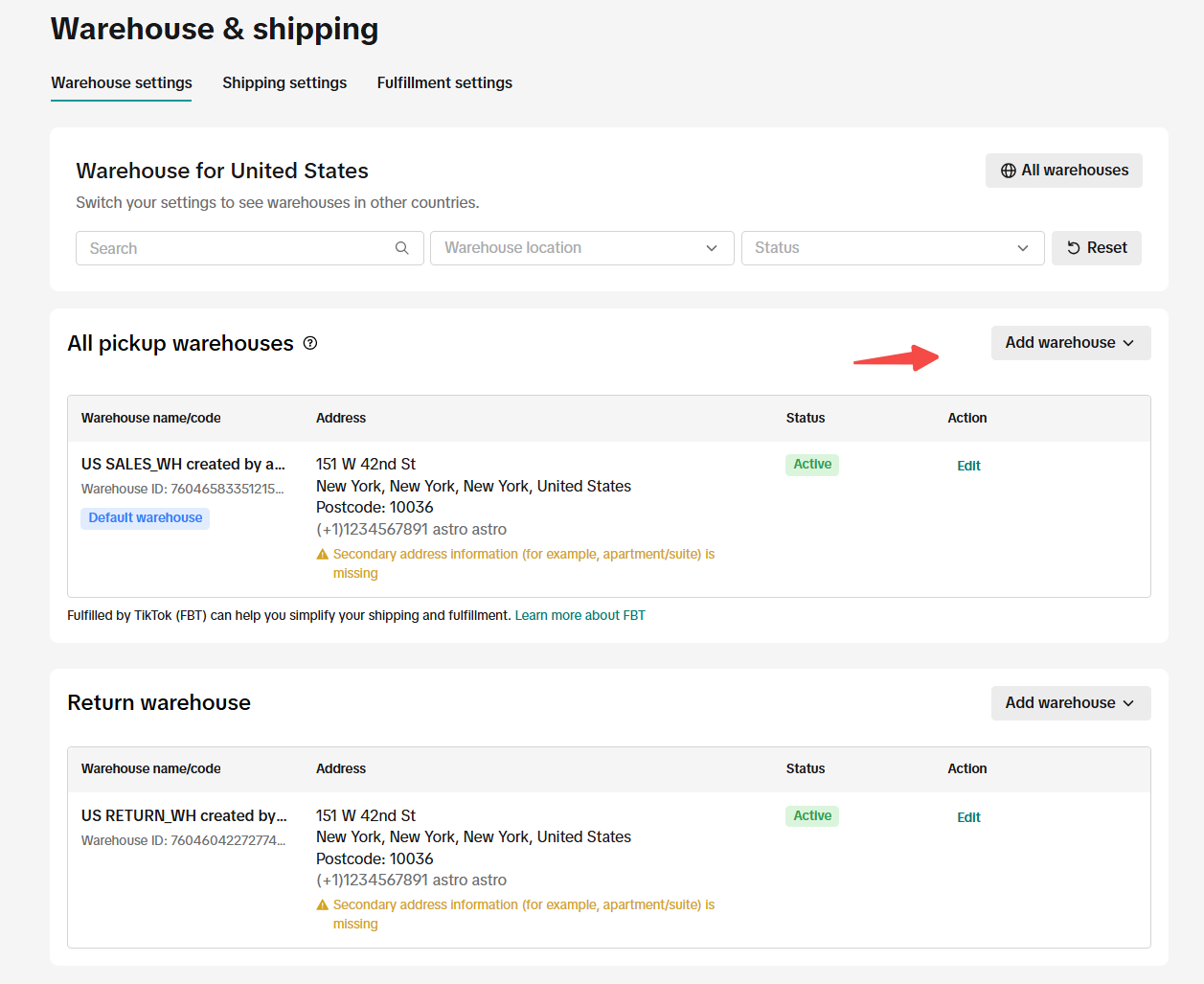 |
| Fill in the Warehouse Name, Contact Person, Phone Number, and Street Address. | 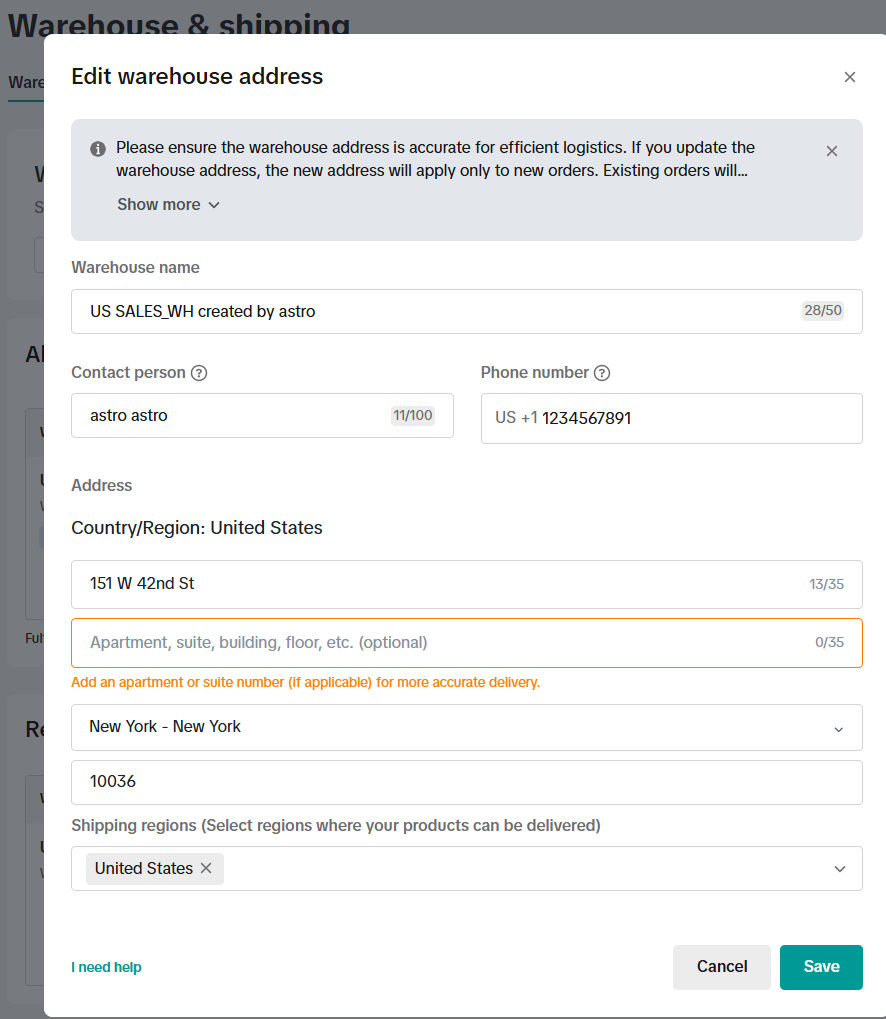 |
| Upon adding a new warehouse, navigate to Logistics > Warehouse & shipping > Shipping settings to configure your preferred shipping option. Note: If no shipping option is selected, TikTok Shipping will be set as the default | 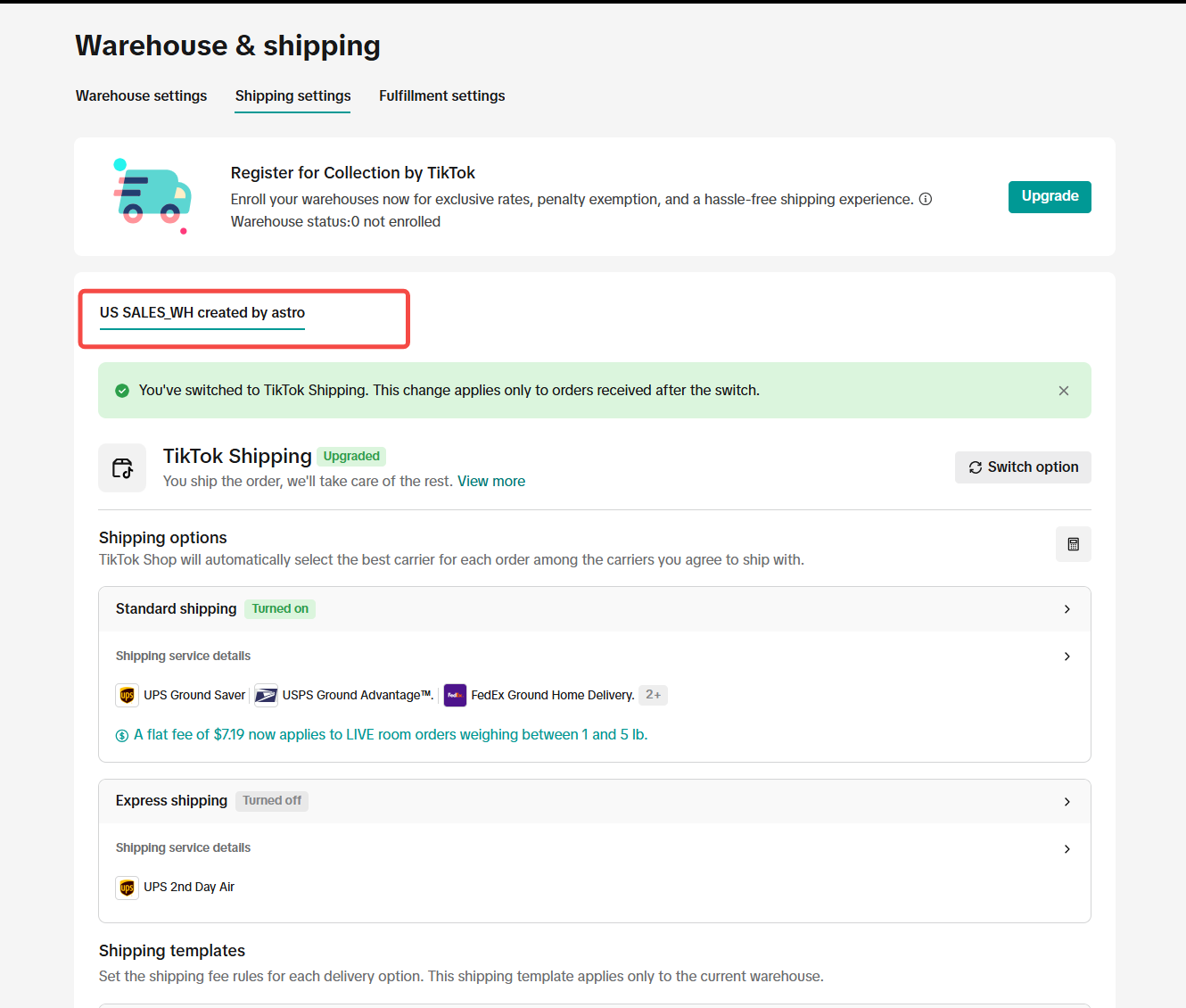 |
Set Default warehouse
The default warehouse is the pickup warehouse automatically assigned to a product when it is created. Upon selection of the shop's default warehouse, a tag will appear below the warehouse name.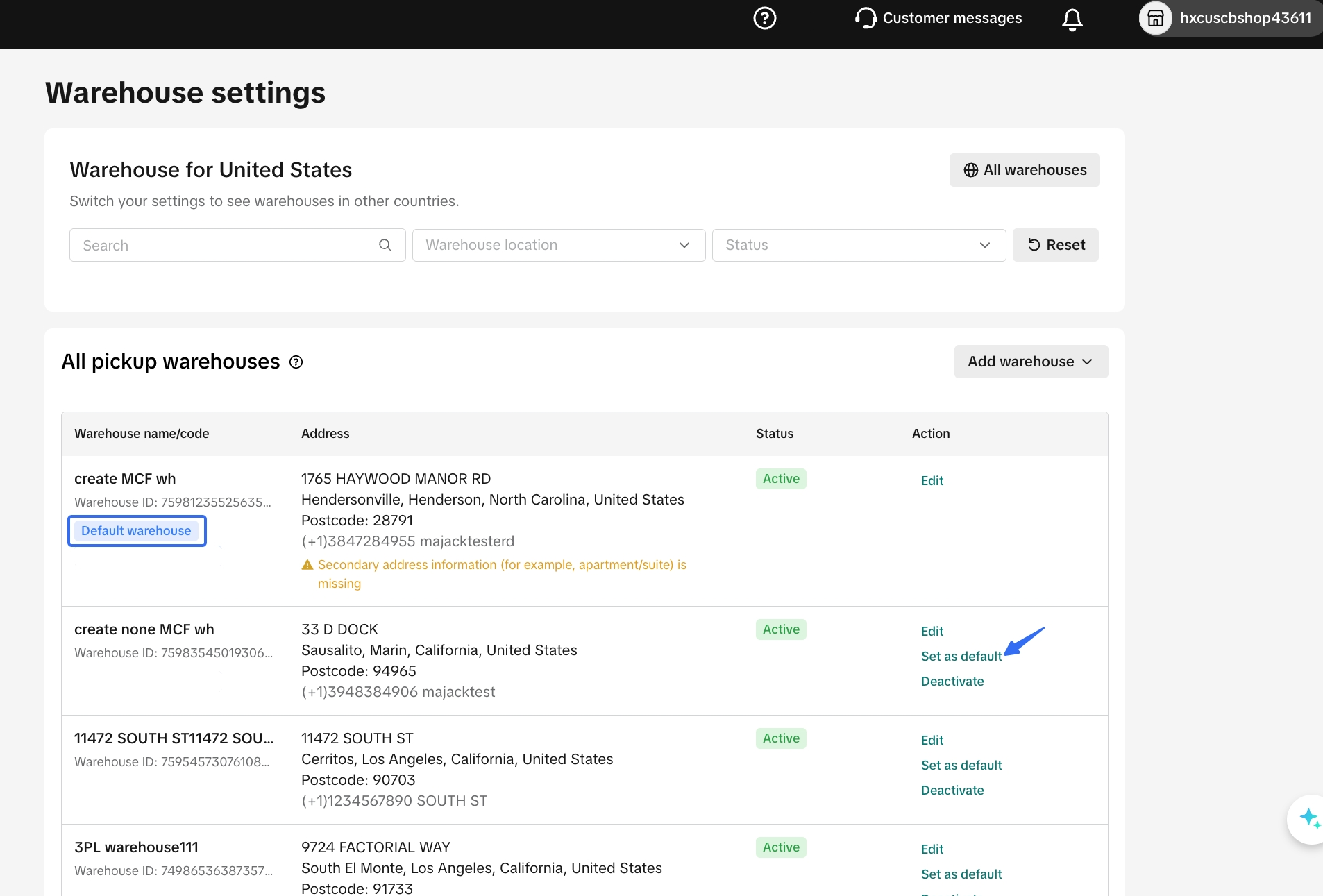 |
Enable Holiday Mode
When enabled, Holiday Mode sets the selected warehouse's inventory to 0 for the specified time period.| Go to Account settings > Holiday mode > Warehouse holiday mode settings and you will find the holiday mode setting on the bottom tab |  |
| Select warehouse and turn on holiday mode. |  |
| After confirming the holiday time period, click Done. |  |
Deactivate a Pickup Warehouse
If you no longer use a pickup warehouse, you can deactivate it in Seller Center > Logistics > Warehouses.You can deactivate a pickup warehouse only when your shop has more than one active pickup warehouse. If your shop has only one active pickup warehouse, the Deactivate button will be disabled. This helps ensure that your shop always has at least one active pickup warehouse available for fulfillment.
Once a pickup warehouse is deactivated:
- The warehouse can no longer be used for order fulfillment.
- Products and inventory linked to this warehouse may become unavailable for sale.
- The deactivated warehouse will no longer appear in related Seller Center pages, such as product management, inventory management, product creation or editing, and other warehouse-related pages.
- This action cannot be directly restored after confirmation.
When you click Deactivate, the system will first check whether the pickup warehouse can be deactivated.
- The warehouse is not linked to any products. You can choose:
- Cancel: Keep the warehouse active.
- Deactivate: Confirm and deactivate the warehouse.
 |
- The warehouse still has products or available inventory
To continue, click View products to go to the product or inventory page, then remove the related SKUs from this warehouse. After the SKUs are removed, you can return to the warehouse page and try deactivating the warehouse again. Please note that after a pickup warehouse is deactivated, any inventory in that warehouse will no longer be sellable.
If the system shows that products are still linked to this warehouse, follow these steps:
| Click View products to go to the product or inventory page. | 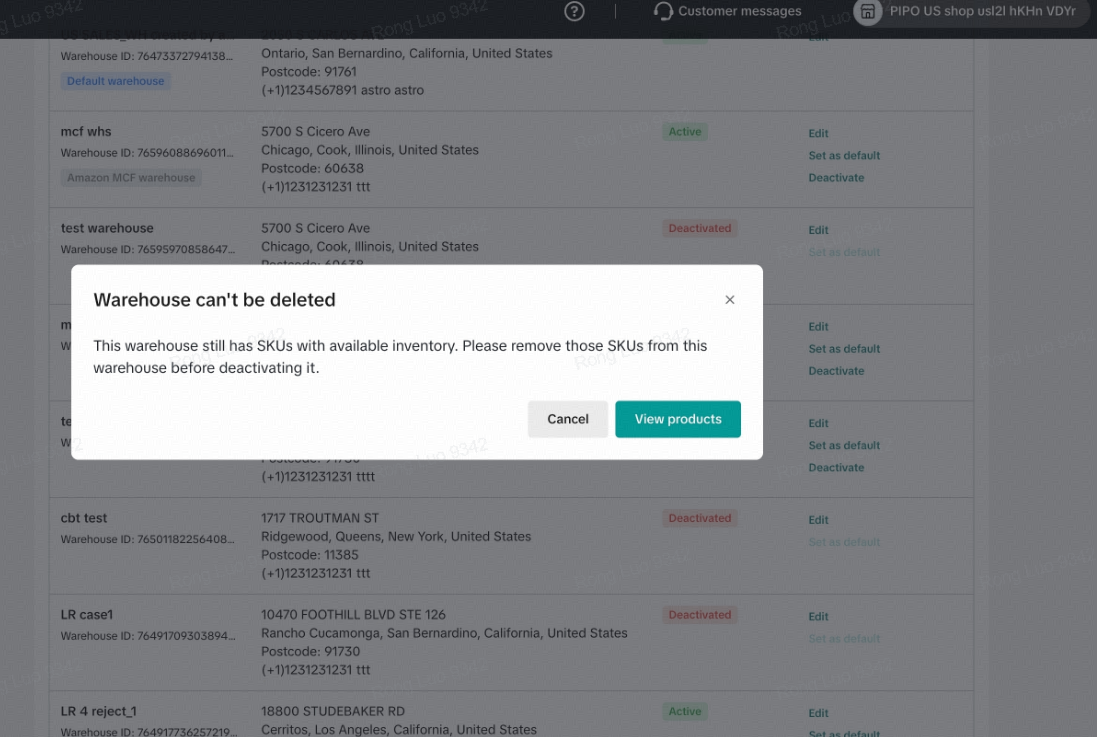 |
| Select the products or SKUs you want to remove from this warehouse. |  |
| If a SKU is linked to only one pickup warehouse, please link it to another active warehouse before removing it from the current warehouse and deactivating the warehouse. |  |
| After the products or SKUs are removed, return to Seller Center > Logistics > Warehouses. |  |
| Find the warehouse again and click Deactivate |  |
Delete a Return Warehouse
For US sellers, you may delete a return warehouse if it is no longer needed.To delete a return warehouse:
- Go to Seller Center > Logistics > Warehouses > Return warehouse
- Click Delete next to the return warehouse you want to remove.

Edit Warehouse Shipping Option
Sellers can configure shipping options for each warehouse and maintain the corresponding shipping templates as needed. When adding a new warehouse, if no shipping option is selected, TikTok Shipping will be set as the default.
- Go to Logistics>Shipping
- Select warehouse and set its preferred shipping services by clicking "Switch Option".
 |
 |
 |
Maintain accurate warehouse information
Accurate warehouse information helps ensure delivery estimates and shipping fees are calculated correctly, and packages are routed and processed as expected. Go to Seller Center > Logistics > Warehouses to review your Warehouse settings.If the Warehouse accuracy improvements banner appears, the platform has identified one or more issues that need your attention.
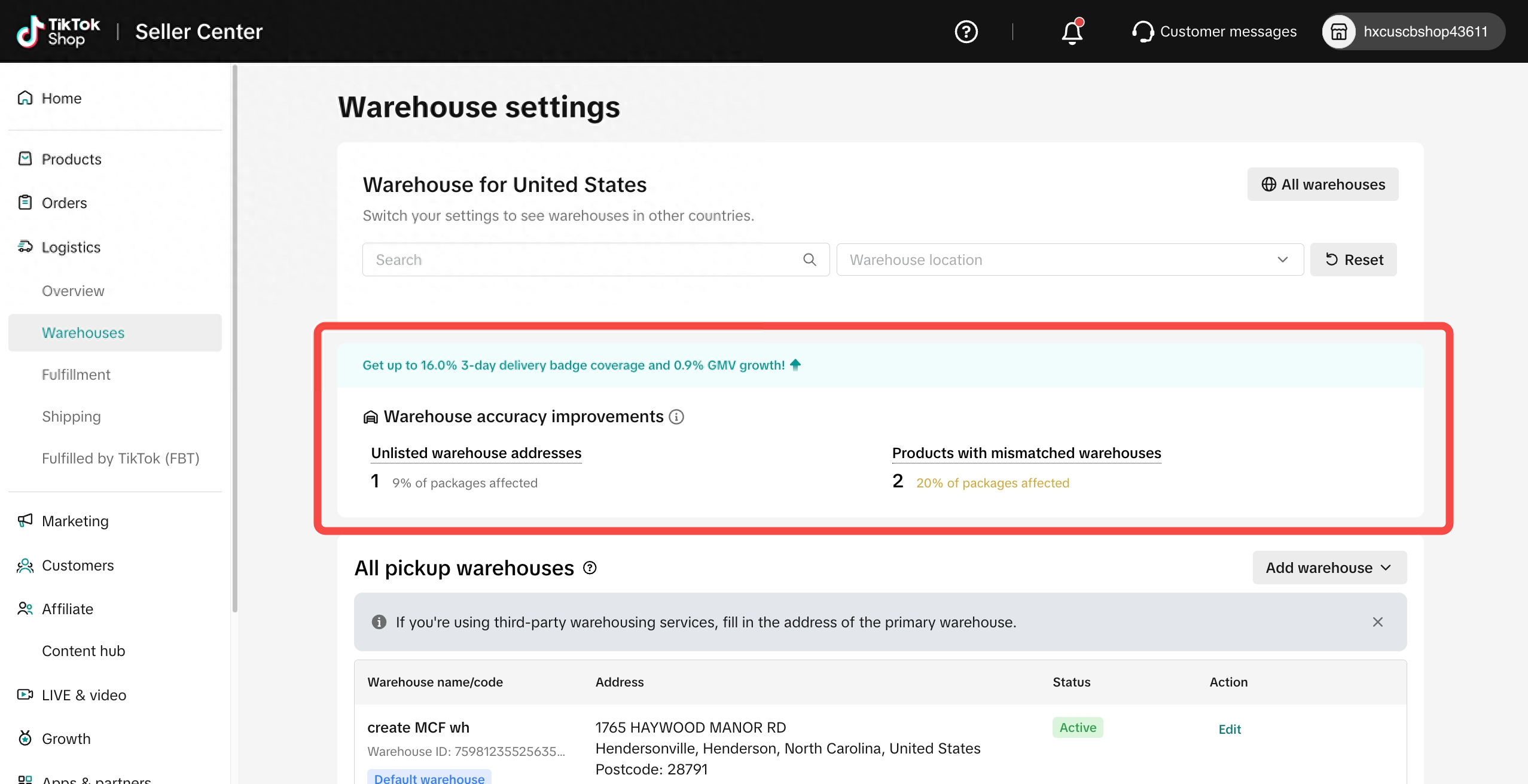 |
Identified inaccuracy | What it means and recommended actions |
| Unlisted warehouse addresses | Unlisted warehouse addresses are warehouse locations that TikTok Shop has detected the seller is actively shipping orders from, but that have not been added to Seller Center.Recommended actionsTo resolve this, click on Unlisted Warehouse and follow the recommended action to add any missing warehouse address identified. 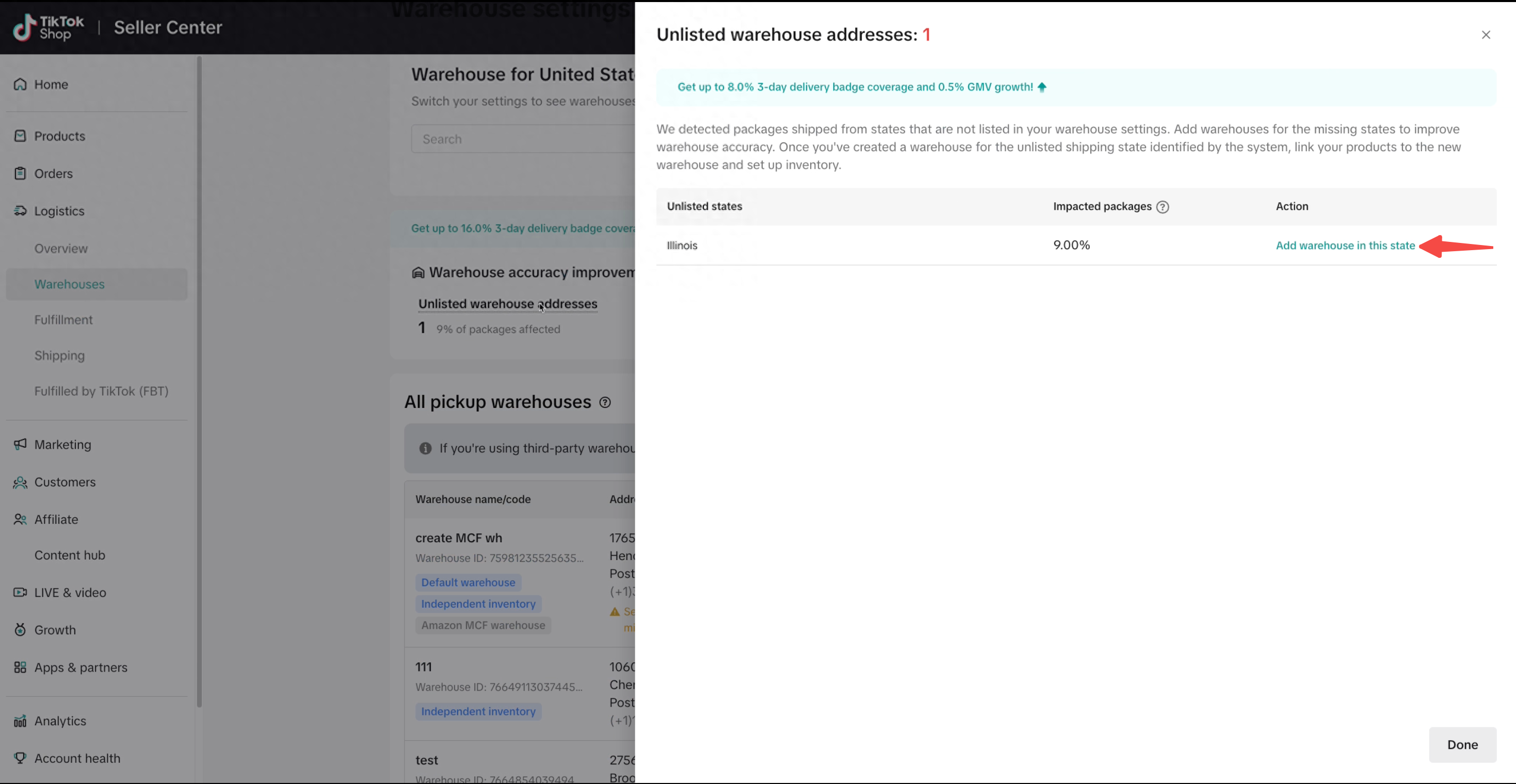 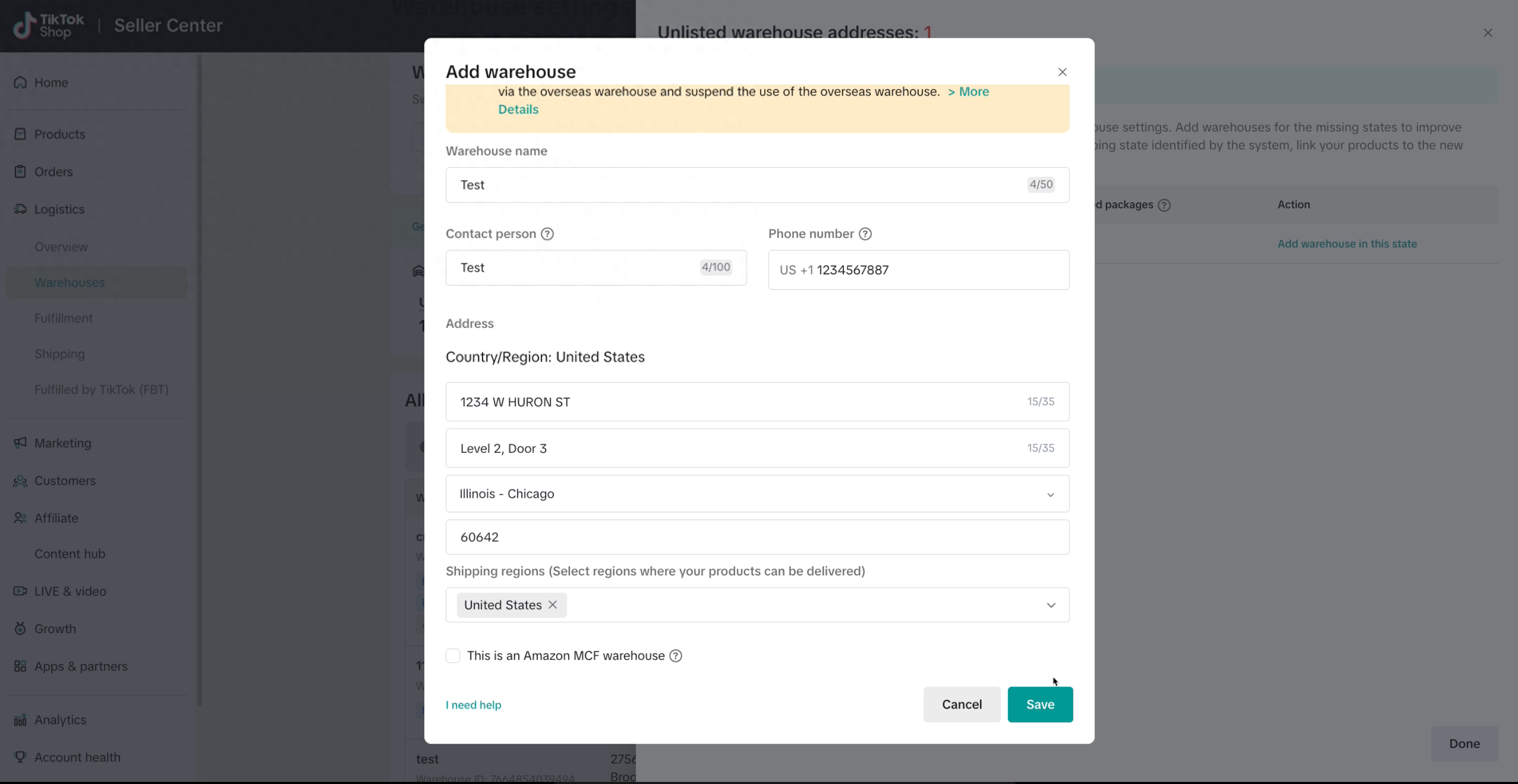 |
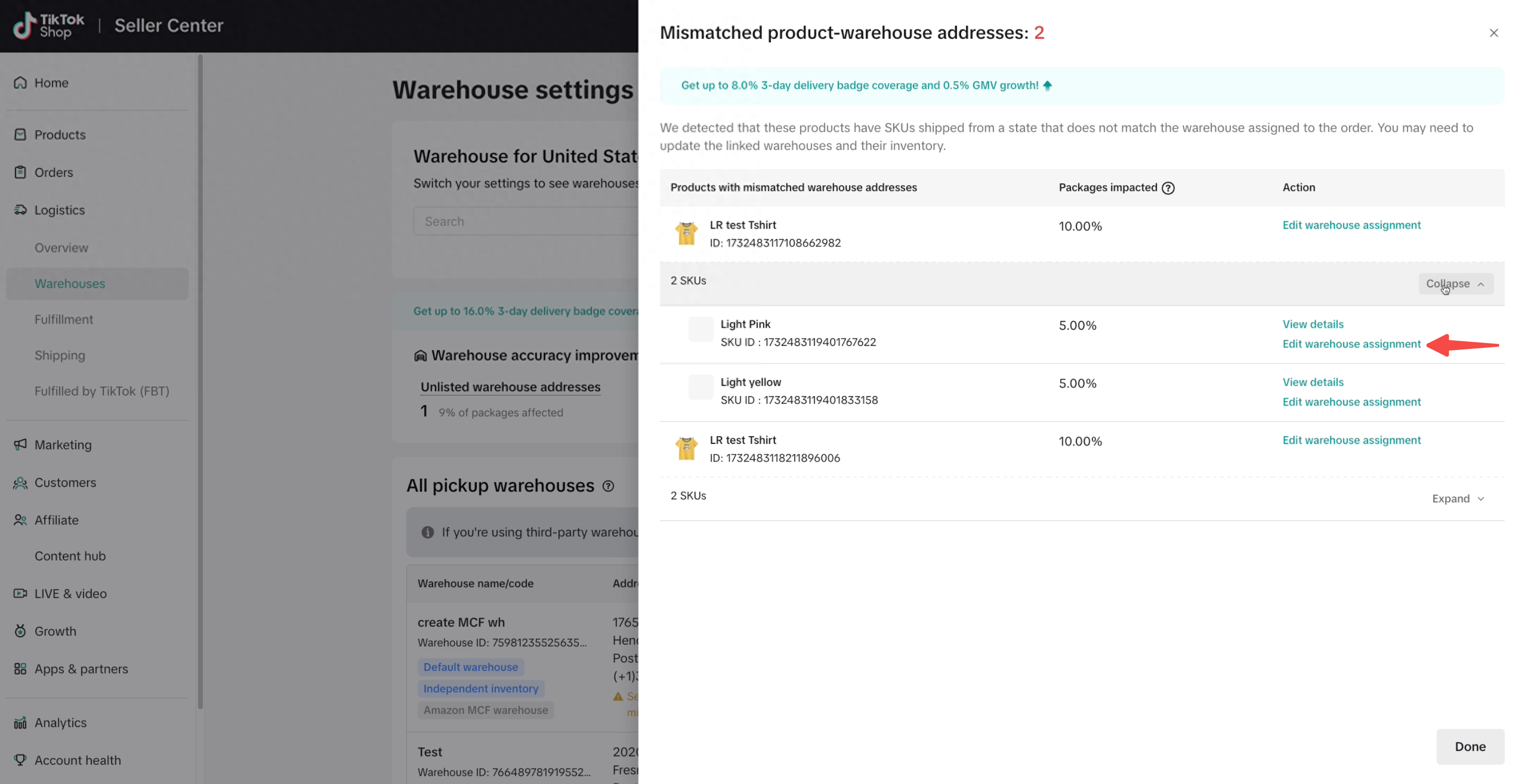
| Mismatched product-warehouse addresses | Products identified with mismatched product-warehouse addresses are shipped from a warehouse that is already listed in Seller Center, but from a different state than the one originally assigned by the platform. TikTok Shop automatically assigns a warehouse to each order based on proximity to the delivery destination and inventory availability. Recommended actionsClick on Mismatched Product-Warehouse to review the affected products and SKUs, then:
|


FAQ
- Why can't I deactivate a pickup warehouse?
- It is the only active pickup warehouse in your shop.
- The warehouse still has products or SKUs with available inventory.
- The product has active orders that use inventory from this warehouse.
- The product has reserved stock in this warehouse.
- This is the only warehouse linked to this product.
- What should I do if I want to deactivate a warehouse with listed products?
- Will products still be sellable after the warehouse is deactivated?
- Can I restore a deactivated warehouse?