

How to Process "TikTok Shipping" Orders?
12/08/2025
Summary
What is the process for creating and purchasing shipping labels using TikTok Shipping?
- Sellers select orders under "Manage Orders" > "To Ship" and use the "Create Shipping Labels" button to buy labels individually or in bulk, choosing either "Purchase Only" or "Purchase and Print" options for flexibility.
- During label creation, sellers can edit shipping services, add value-added services, and adjust package sizes or document formats to fit their shipping needs.
What should sellers do if their shipping label is rejected, and what are common causes for rejection?
- If a label is rejected due to carrier error codes, TikTok displays the reason and suggests fixes; sellers can resolve issues and click "Recreate Label" to retry or contact customer service for serious problems.
- Common rejection causes include incorrect buyer addresses, oversized products, or shipping provider order failures.
How can sellers manage and track their shipping labels after purchase on TikTok Shipping?
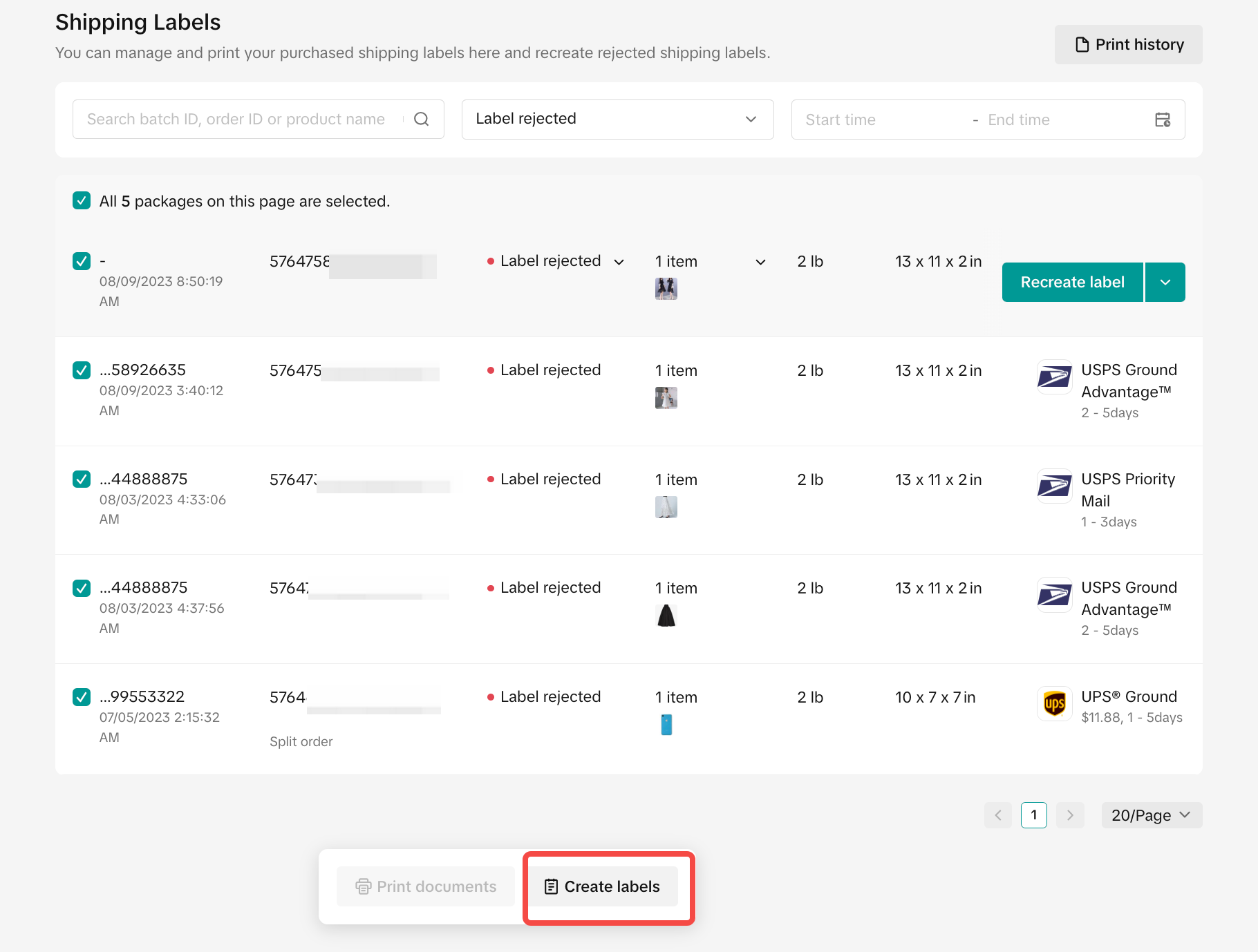
- Sellers can use the Shipping Labels page to bulk recreate or reprint labels, view printing results, and handle issues efficiently during fulfillment.
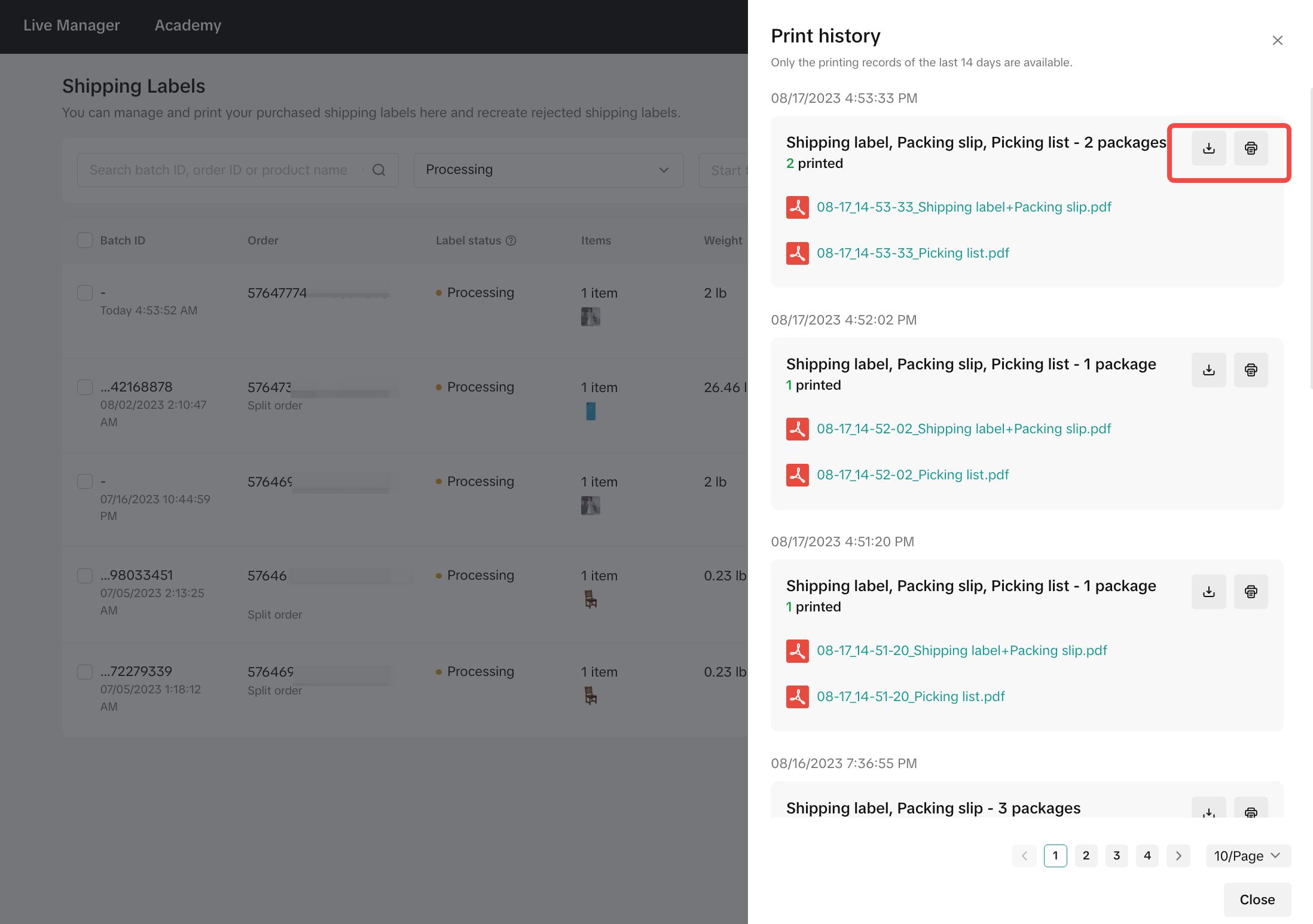
- The page also provides detailed package info and full label history, including creation and printing records, with options to download PDFs of batch labels.
What customization options are available for shipping label and packing slip formats on TikTok Shipping?
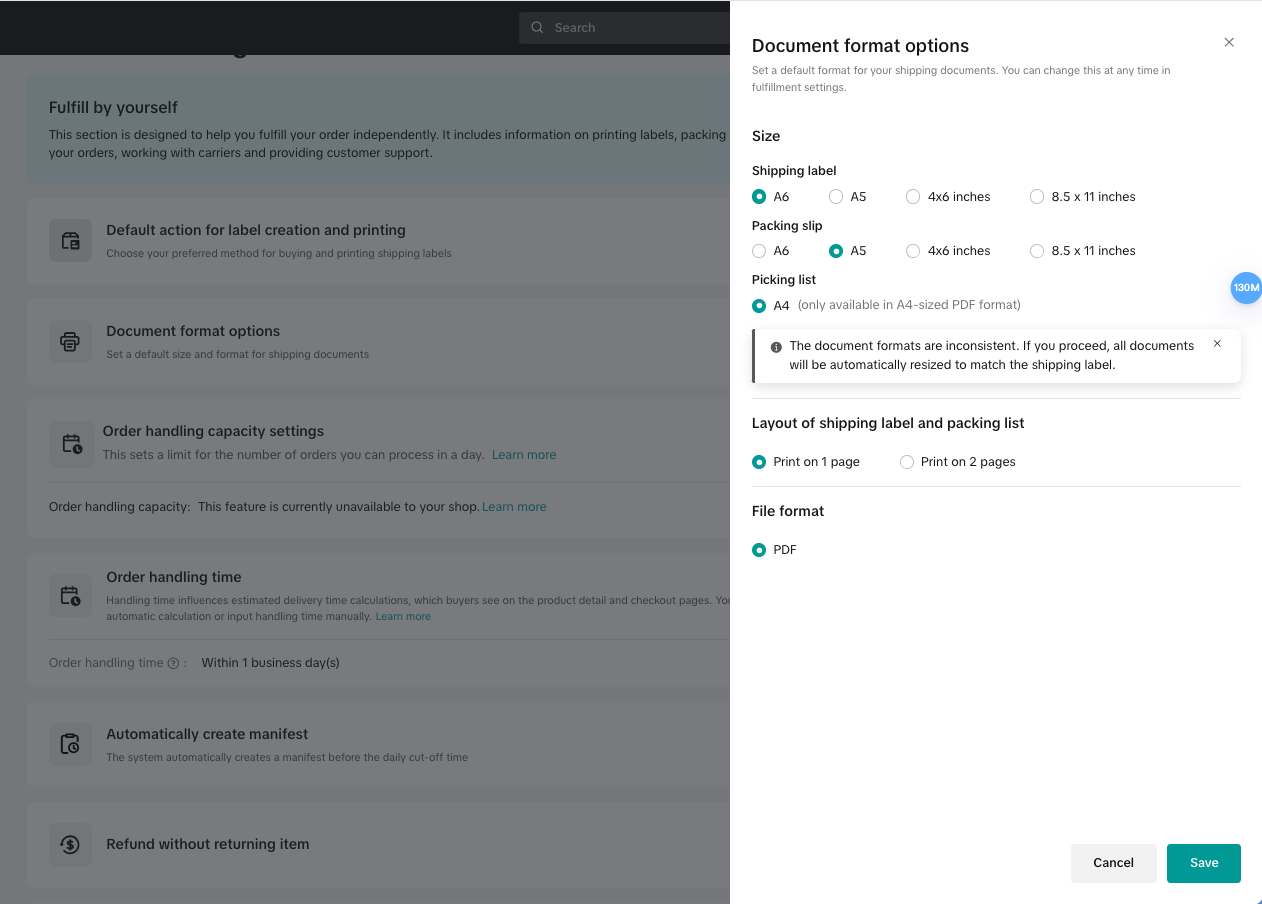
- Merchants can choose from multiple label and packing slip sizes (4x6", 8.5x11", A5, A6) and print configurations (1 or 2 pages), with the system automatically generating separate files if sizes differ.
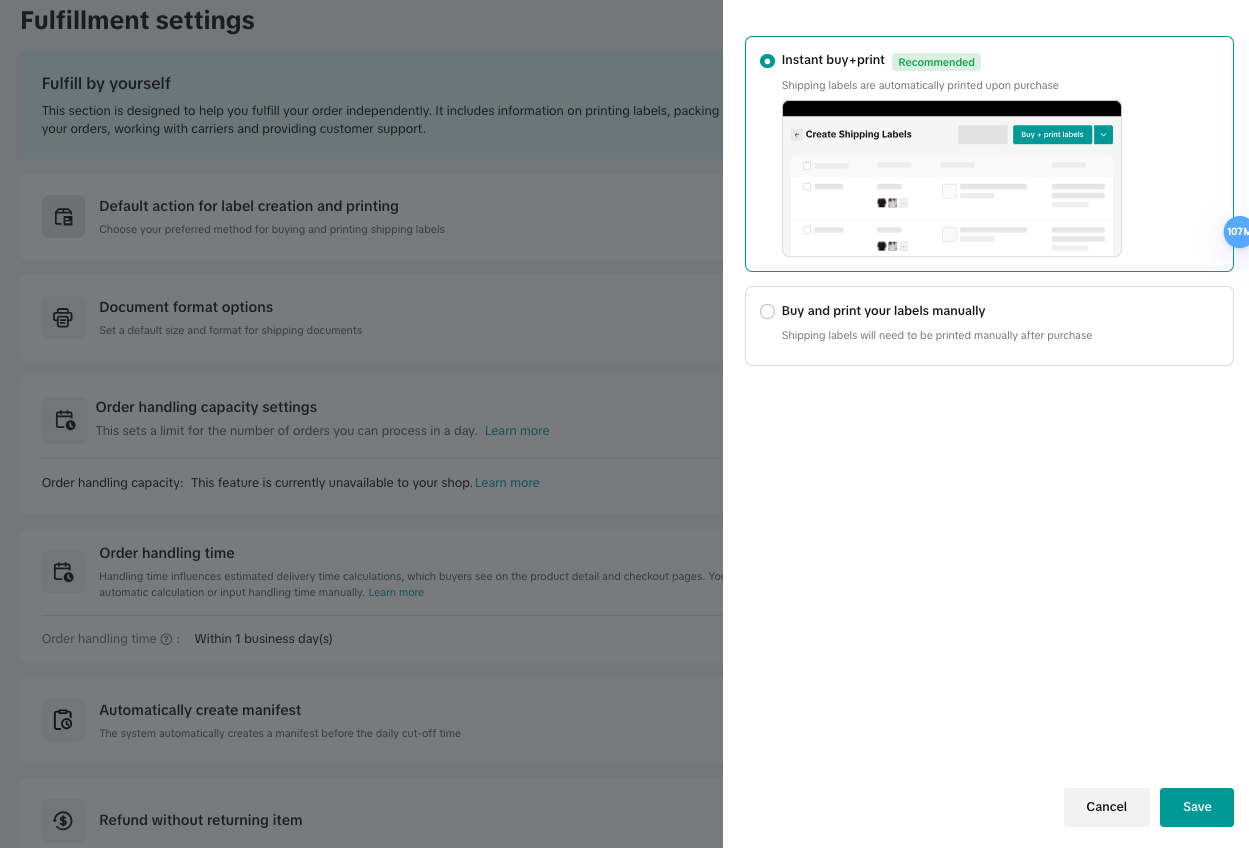
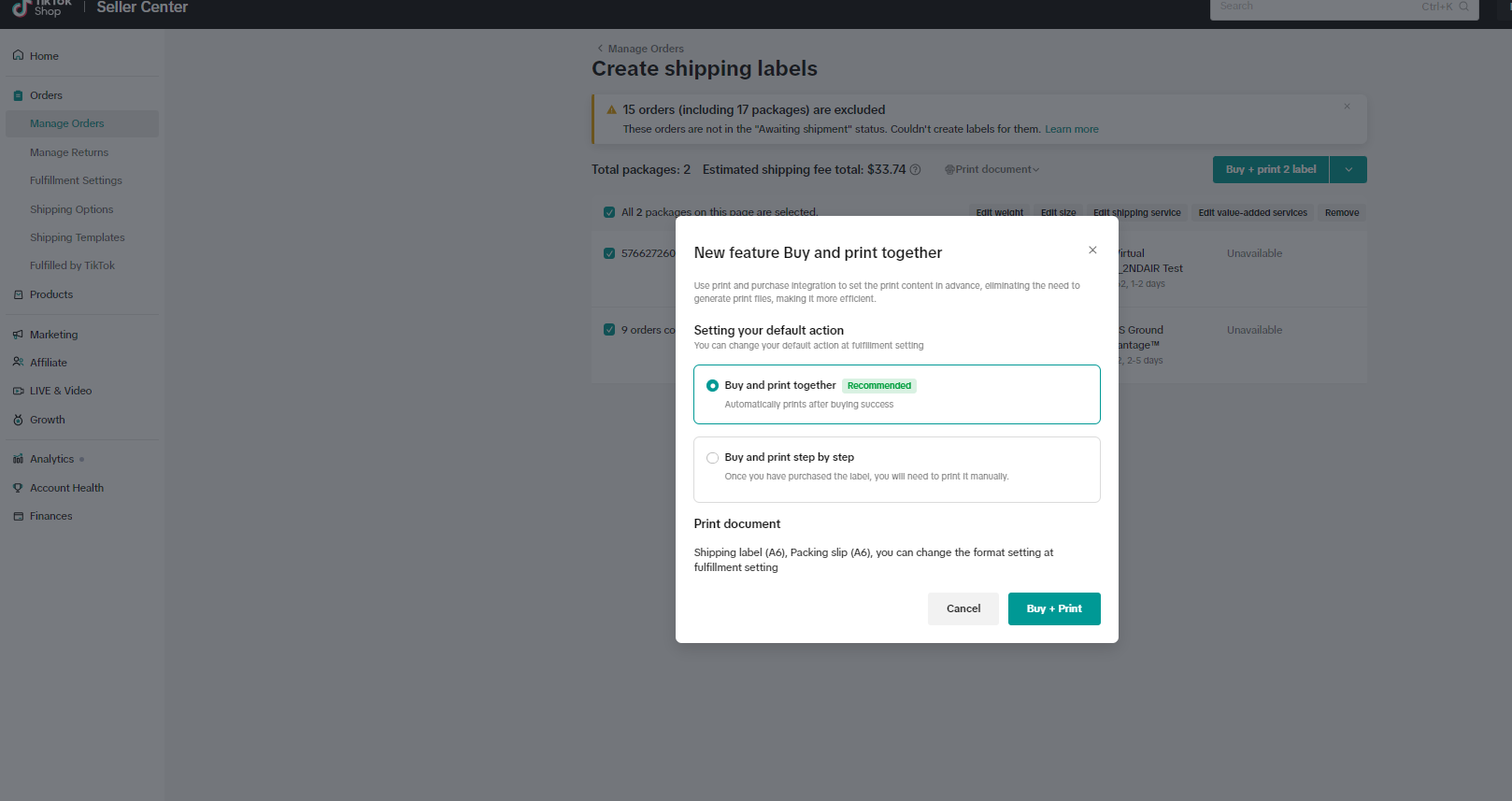
- Sellers can set default label printing actions (purchase only or purchase and print) to streamline their fulfillment workflow.
Are there any important restrictions sellers should be aware of when using TikTok Shipping labels?
- Each order must have a unique shipping label; reuse of shipping labels is strictly prohibited to ensure accurate tracking and delivery.
If you're using TikTok Shipping, our new shipping tool makes the process of creating and buying shipping labels quick and easy! Here’s how to do it:
TikTok Label Buying Process
- Selecting Orders for Label Purchase:
- Create shipping labels for orders awaiting processing on TikTok by selecting them individually or in bulk under "Manage Orders" > "To Ship">"Create Shipping Labels" button.
- Step 1: Select order status "Awaiting shipment"
- Step 2: Select"TikTok Shipping" order and select a particular SKU first.
- Step 3: Select Order content "Single SKU"
- If no shipping provider is available for the order, the system will display an error tag.
| Single Order Selection | Batch Order Selection | Order Selection Error Code |
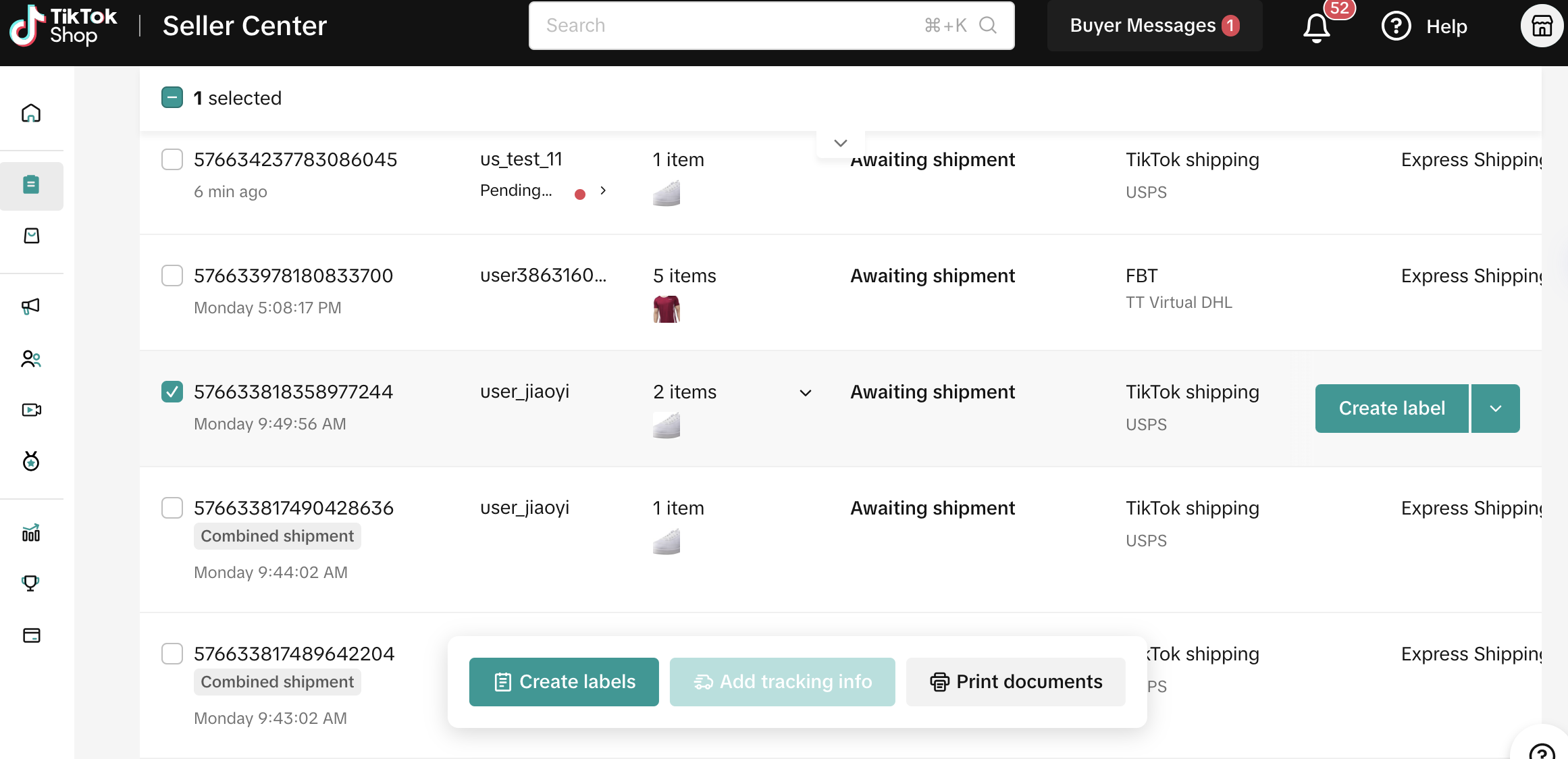 | 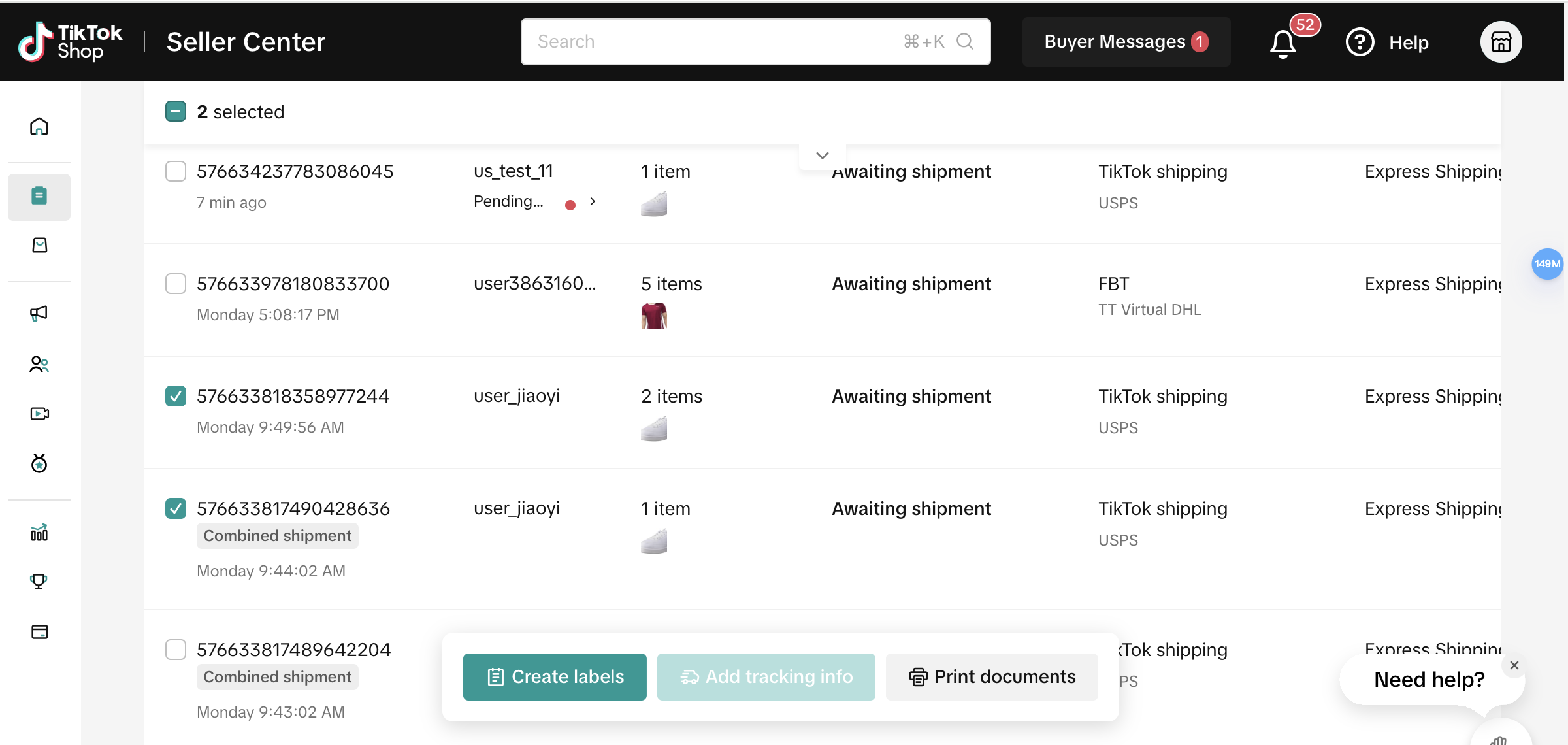 | 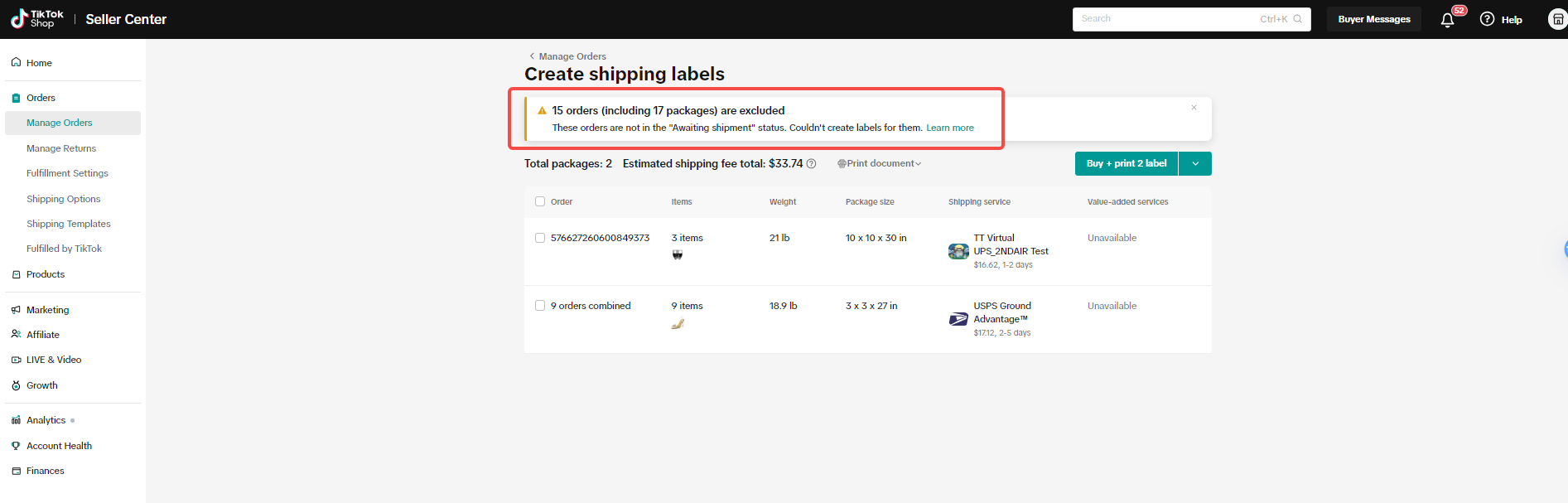 |
- Options for Label Purchase:
- Purchase only: Sellers have the option to buy shipping labels now and print later.
- Purchase and print: Buy and print labels simultaneously. After purchase, labels can be printed immediately without needing to visit the Purchase Label Result page.
| Purchase Shipping Labels Only (Print Later) | Single Shipping | Batch Shipping |
| Buy Label | 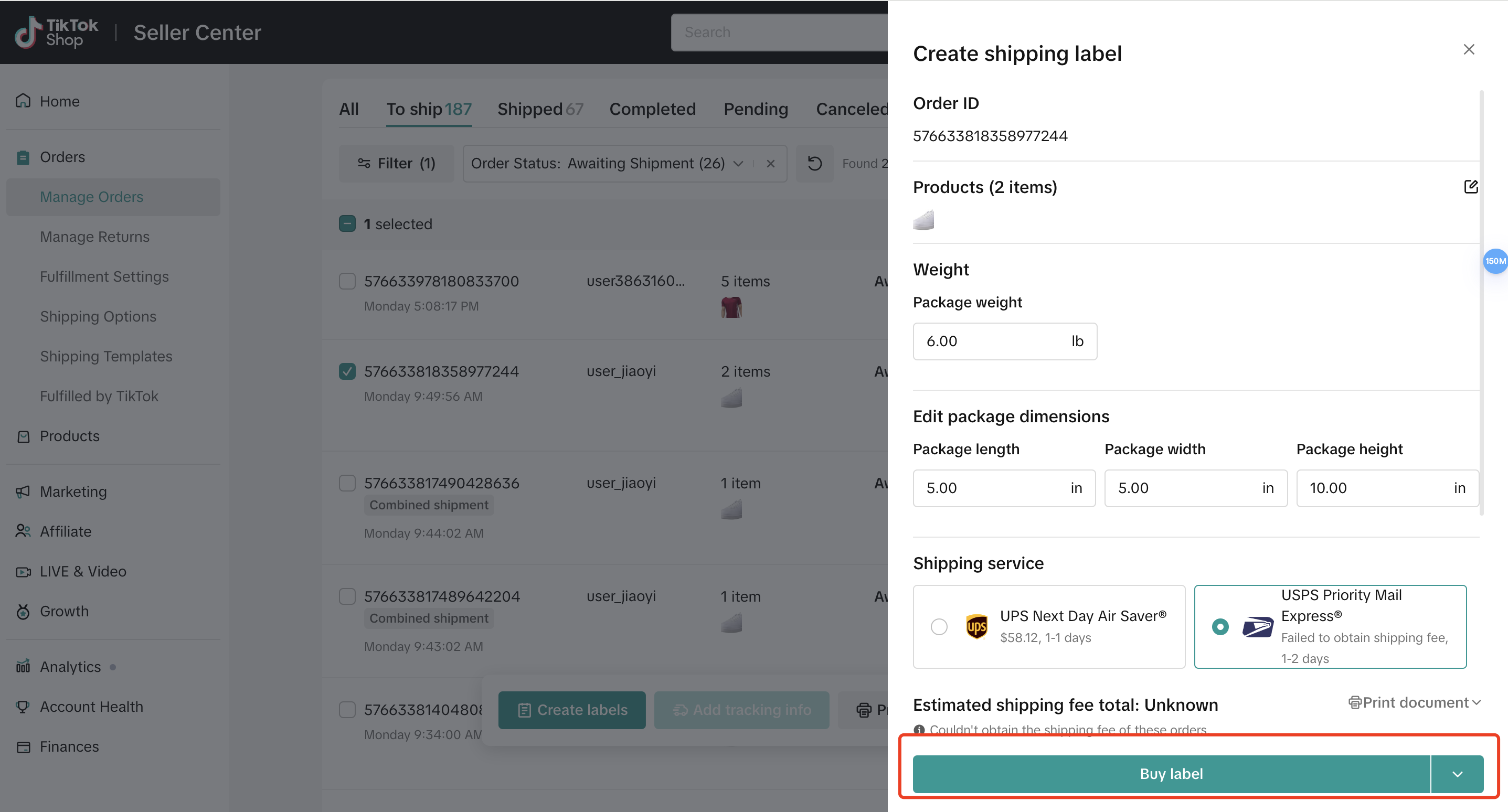 | 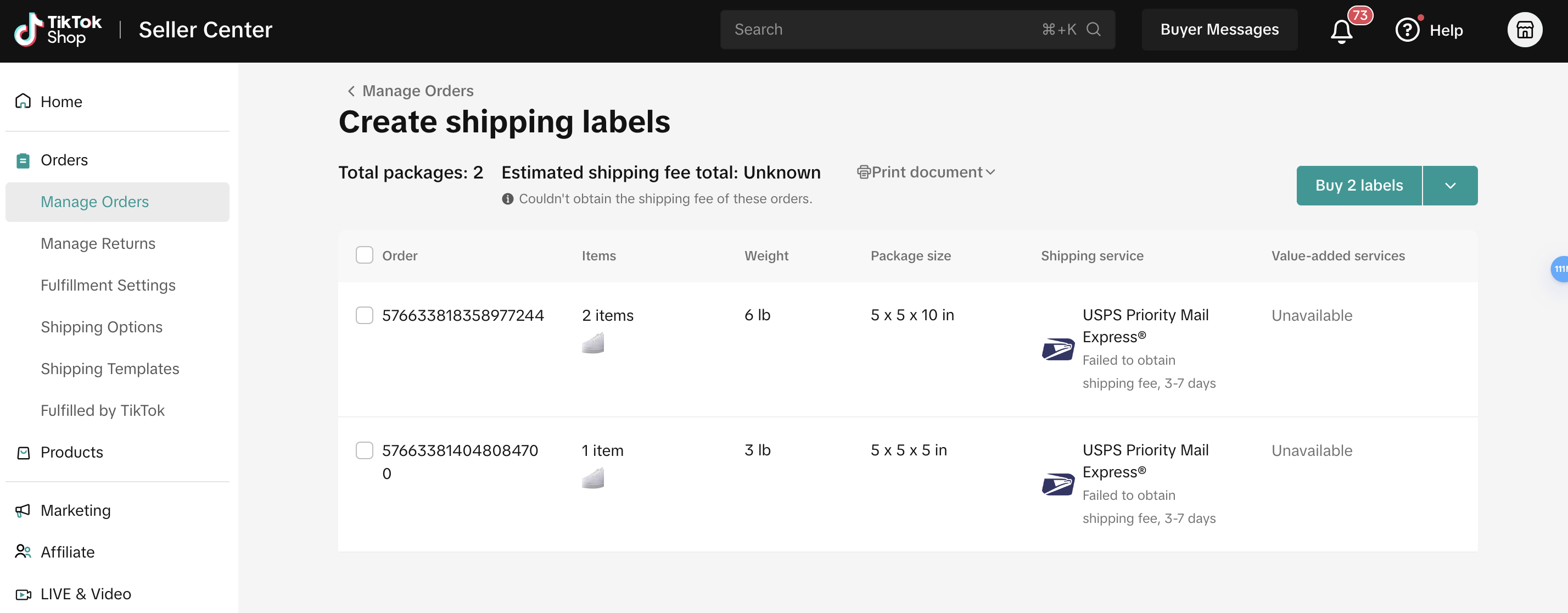 |
| Buy Label Result | Success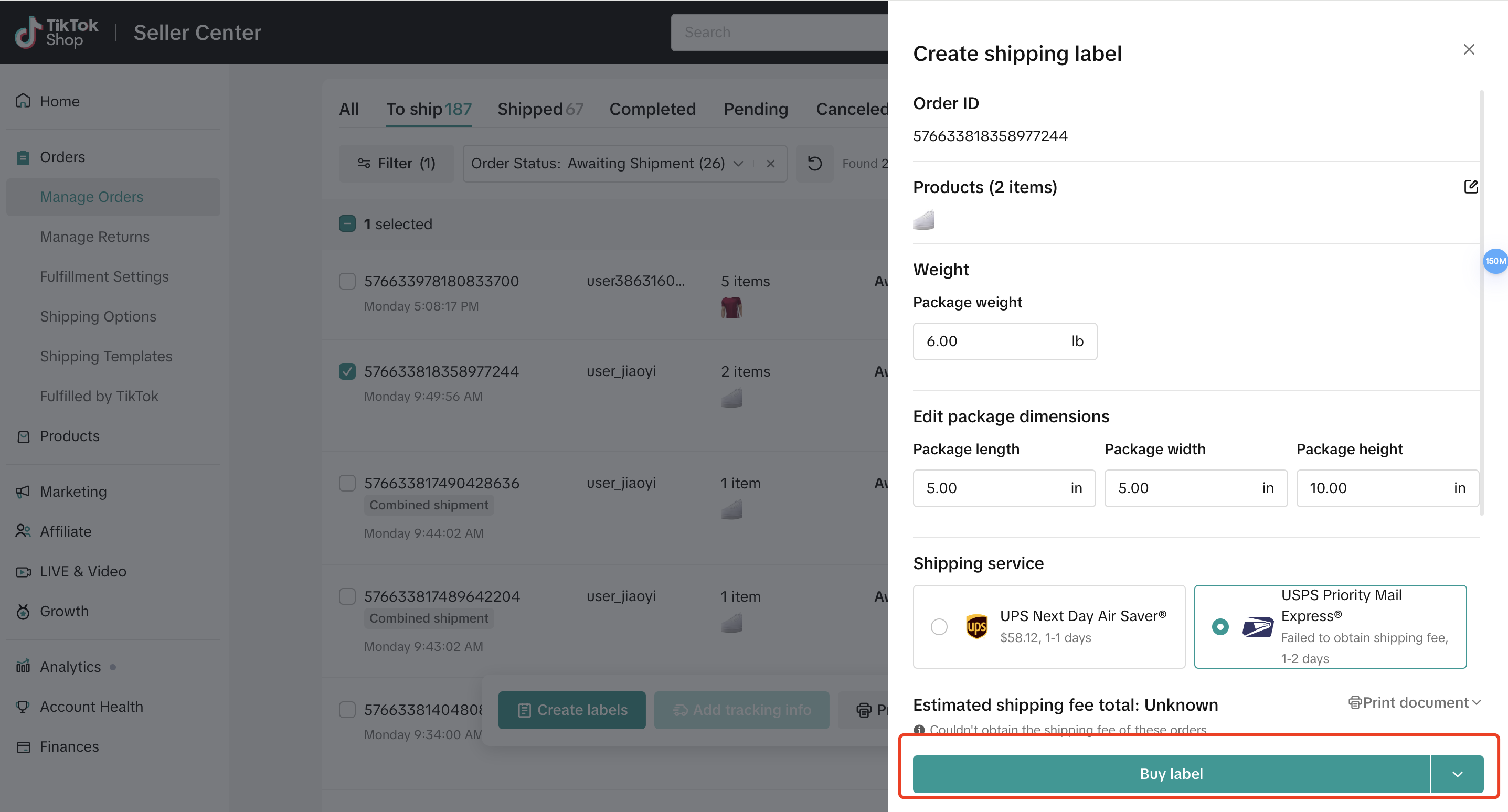 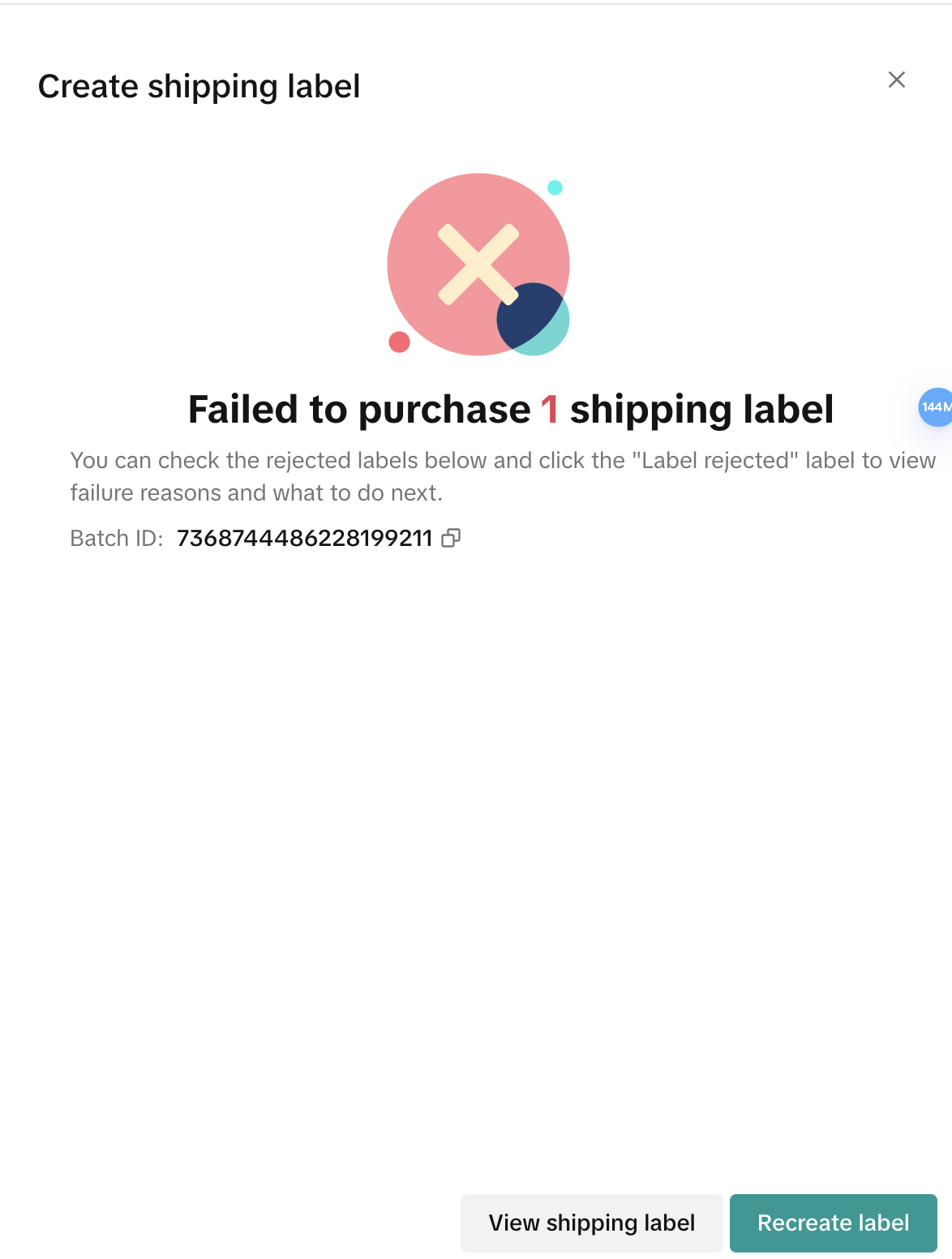 | All Success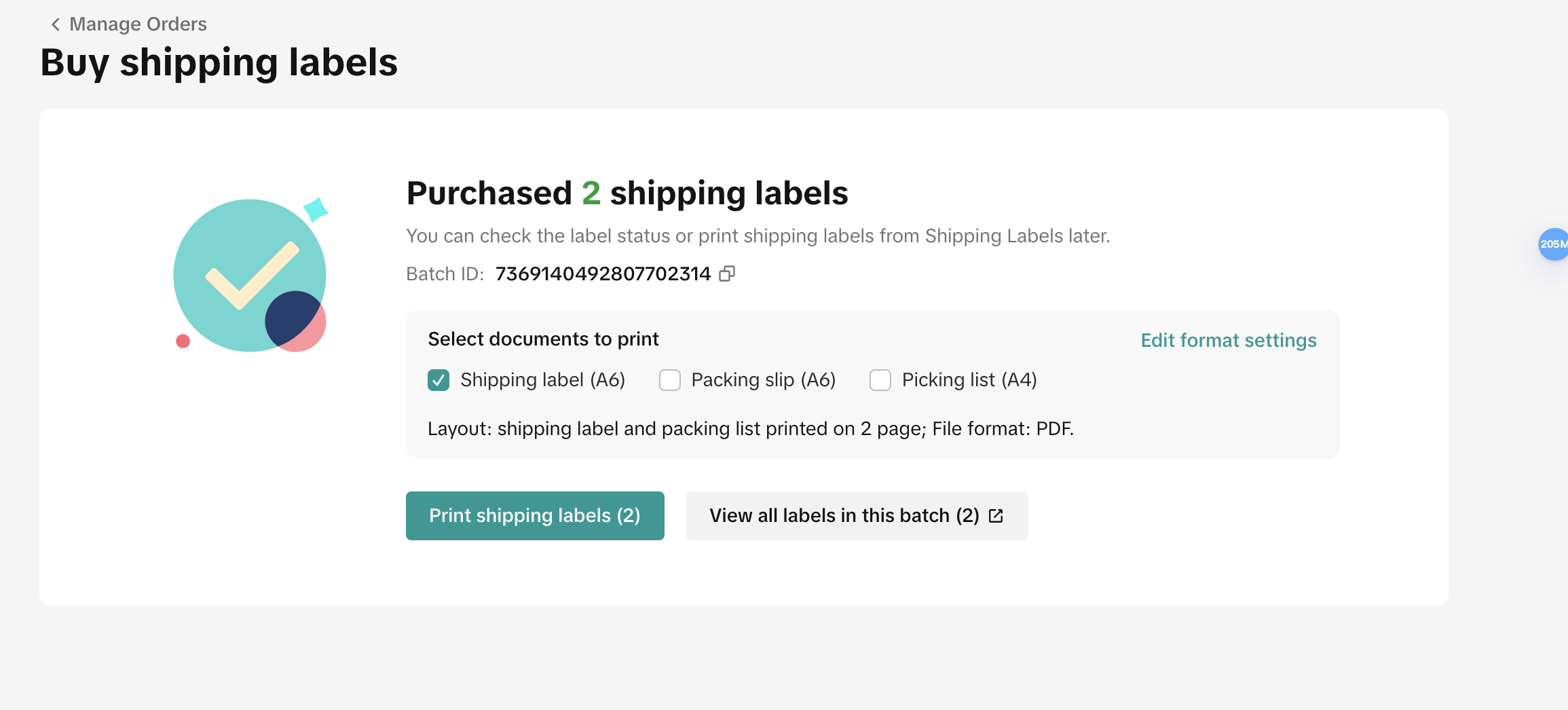 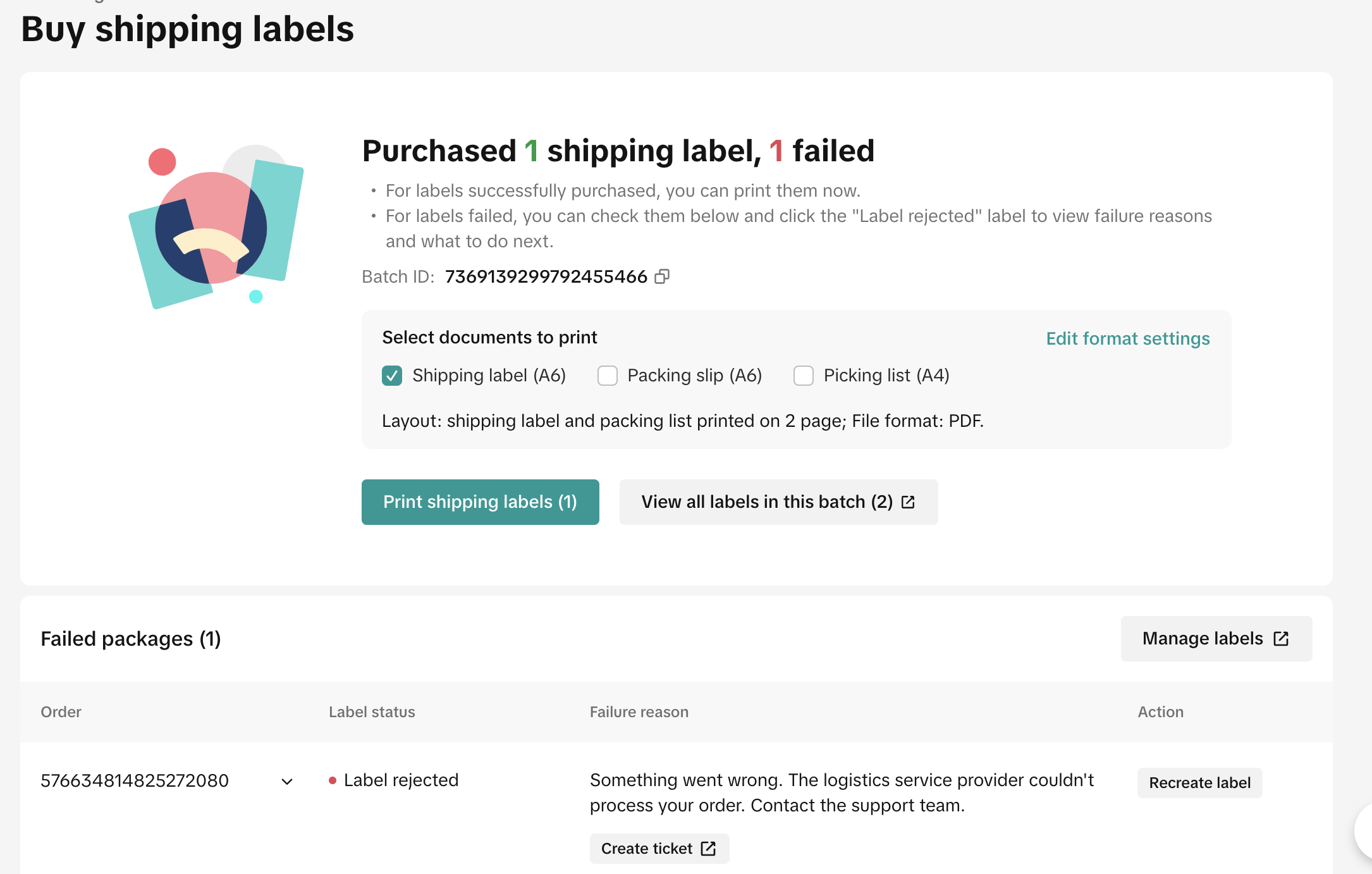 |
| Print Label | 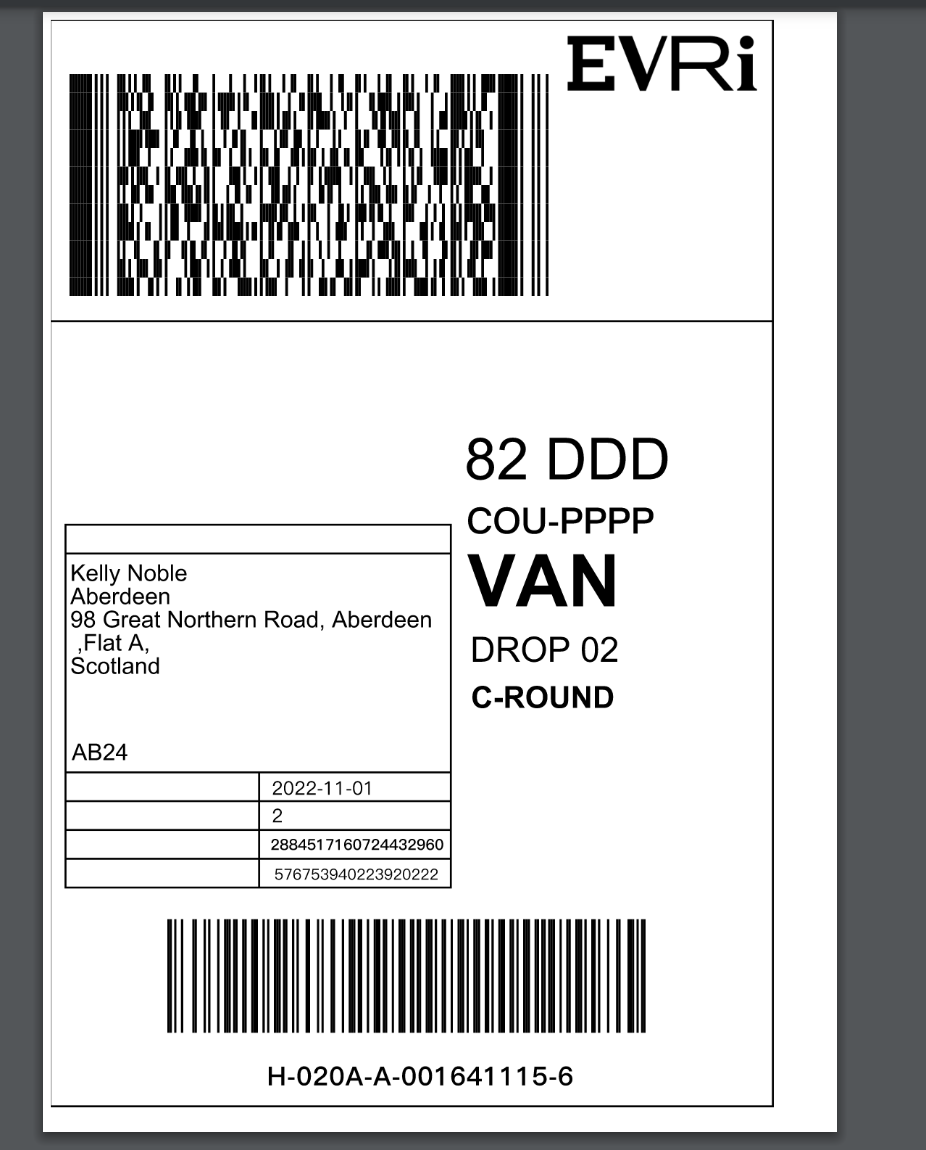 | 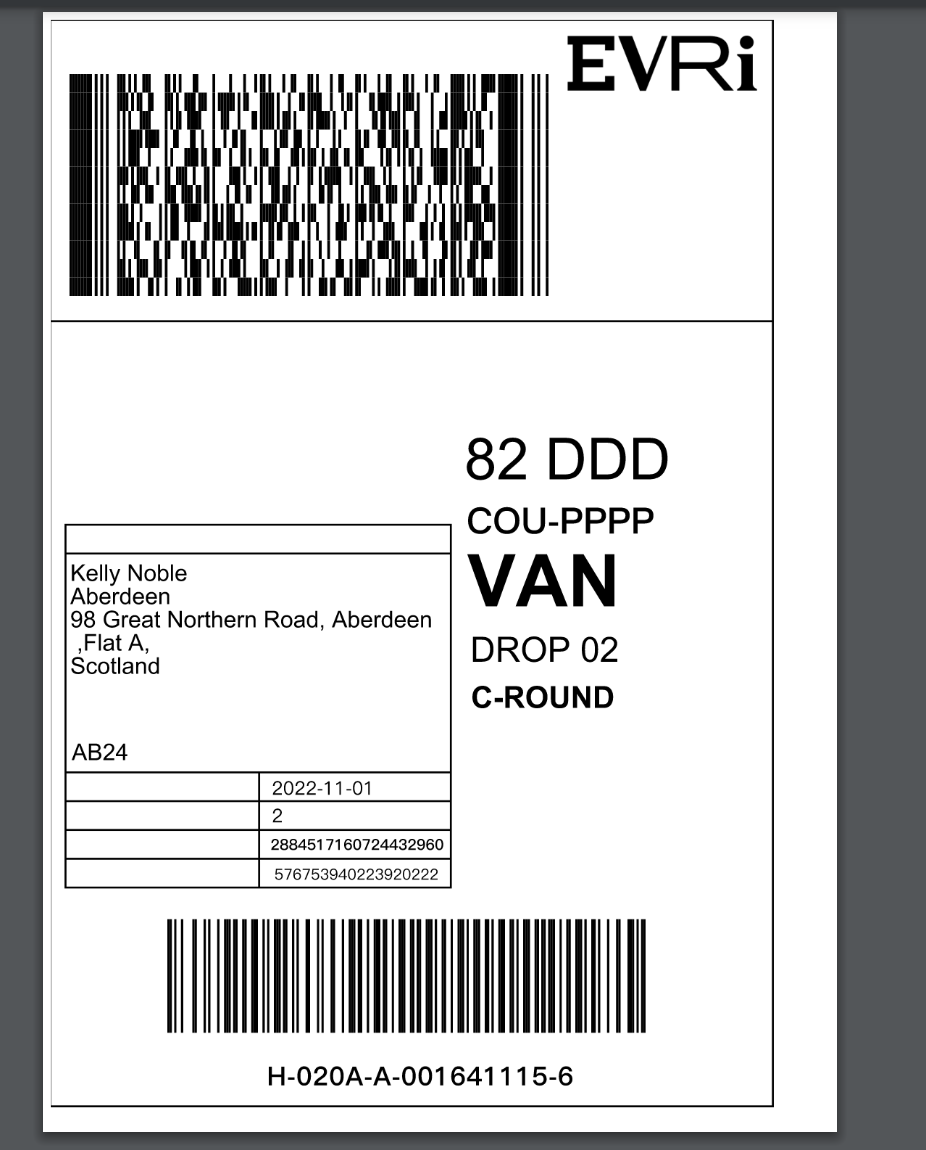 |
| Purchase and Print Together | Single Shipping | Batch Shipping |
| Buy Label | 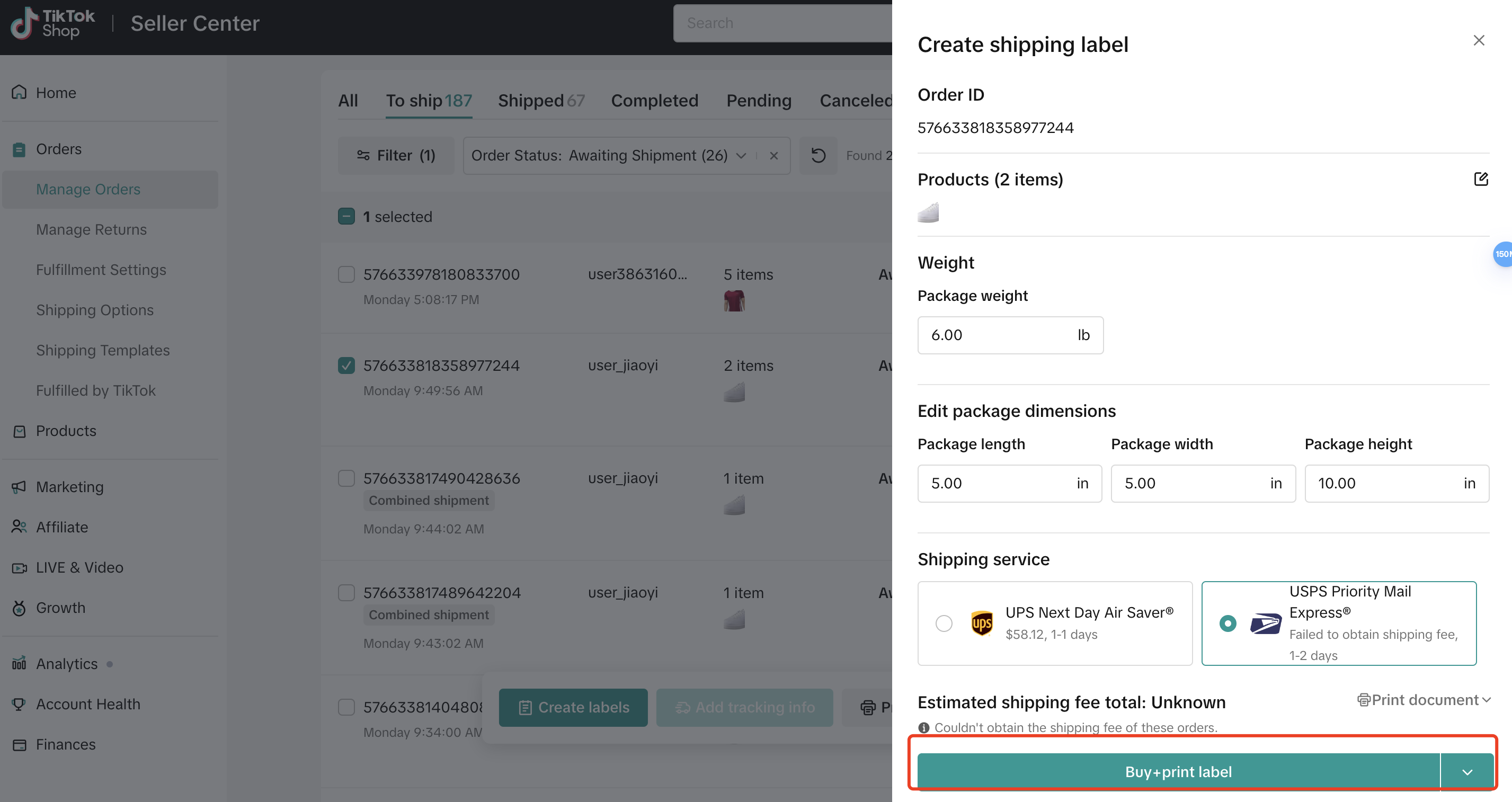 | 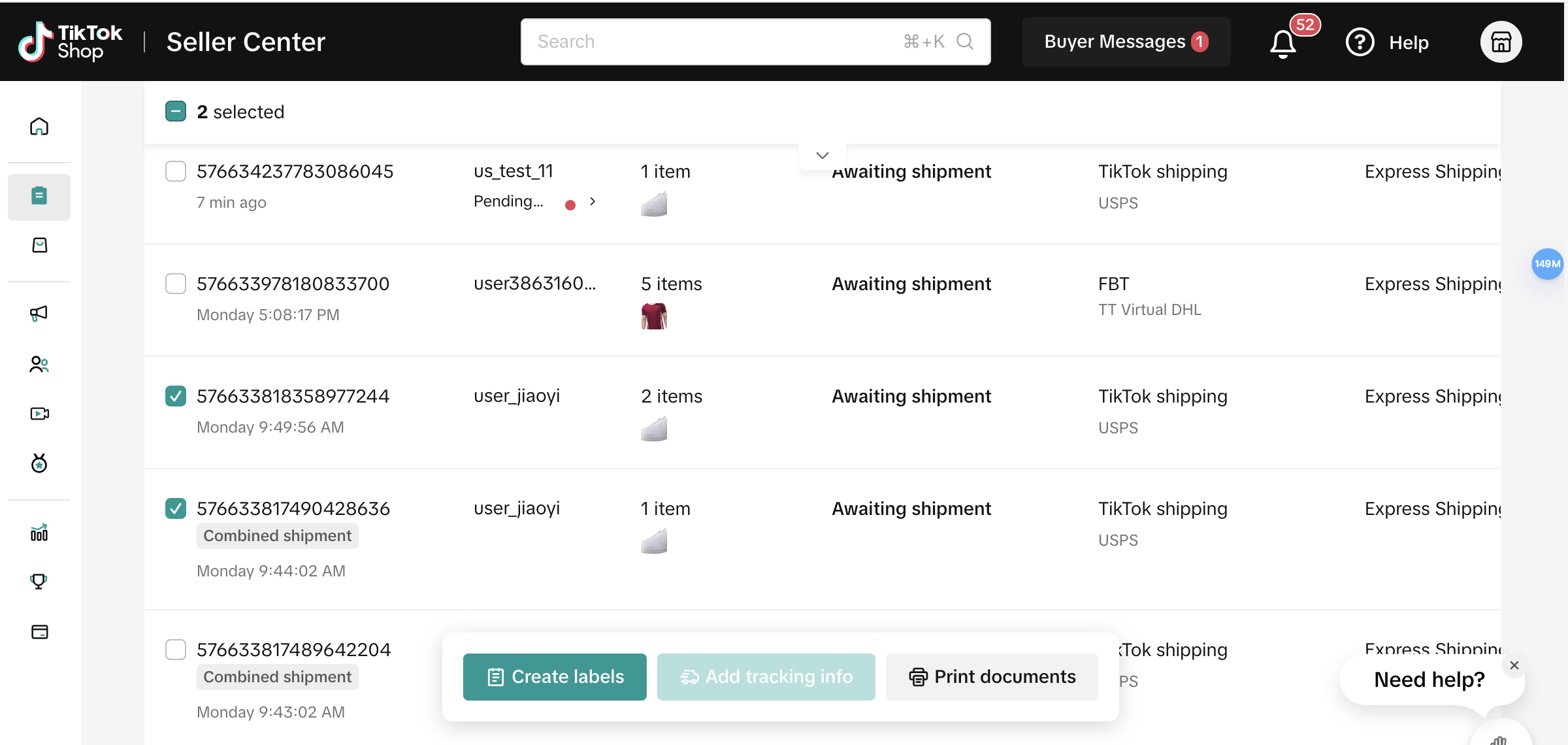 |
| Buy Label & Print Label Result | Success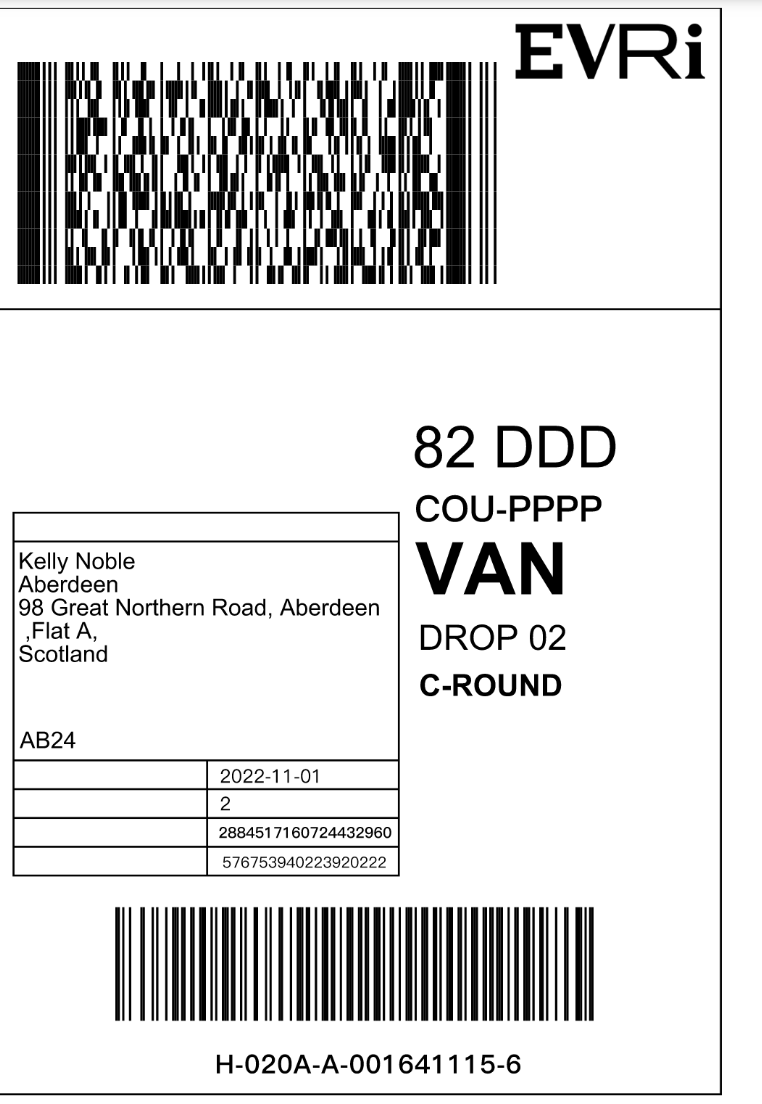  | All Success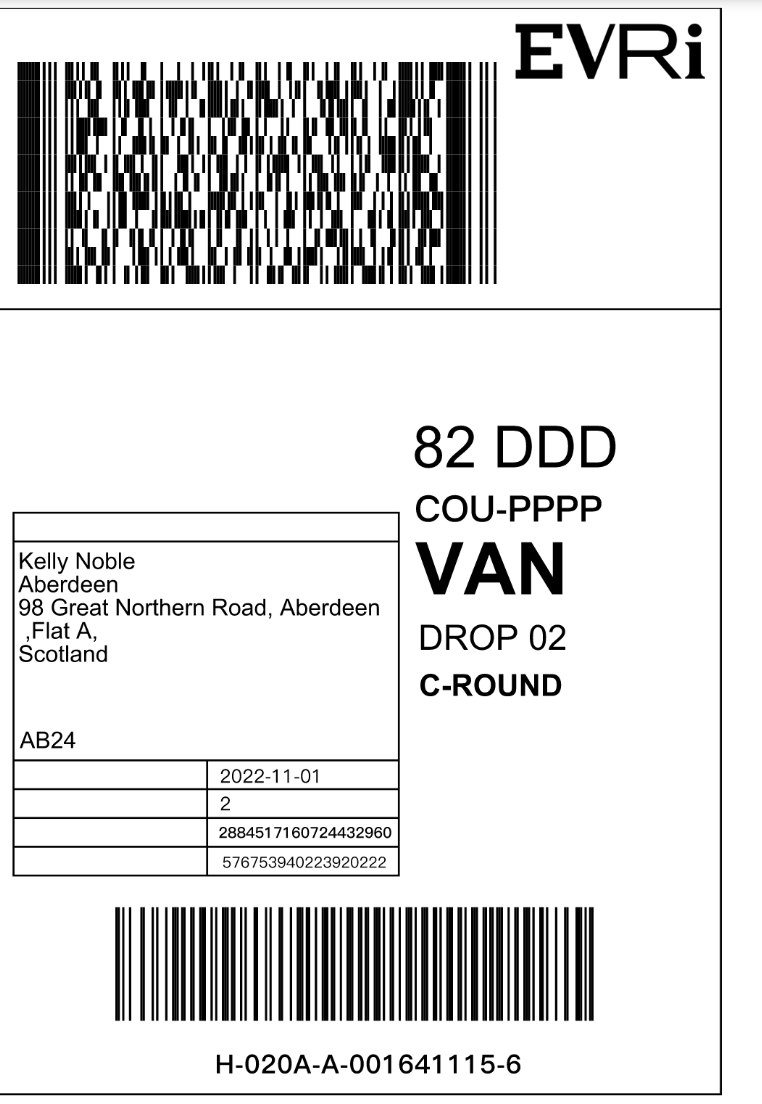 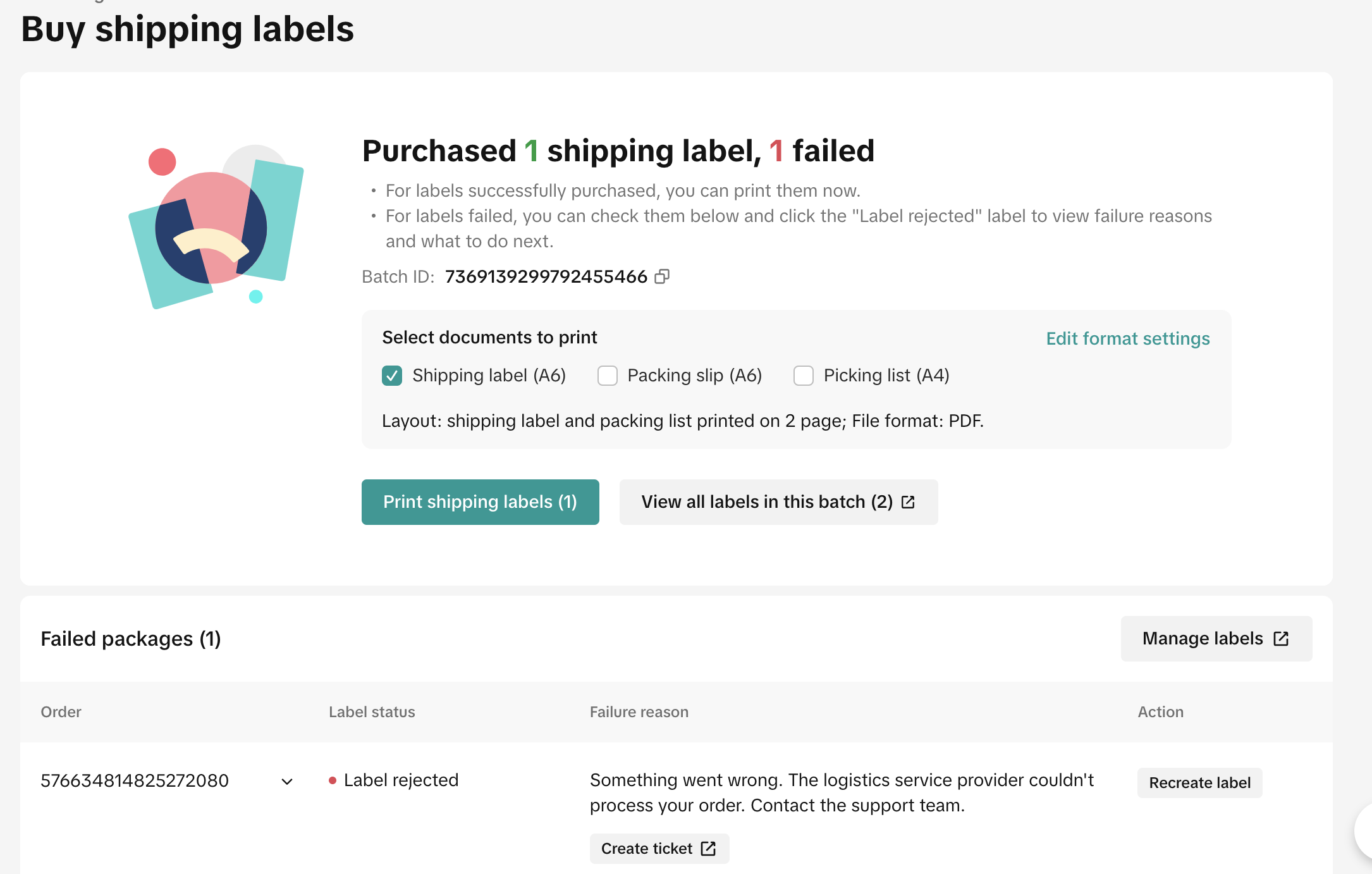 |
- Package Editing Flexibility
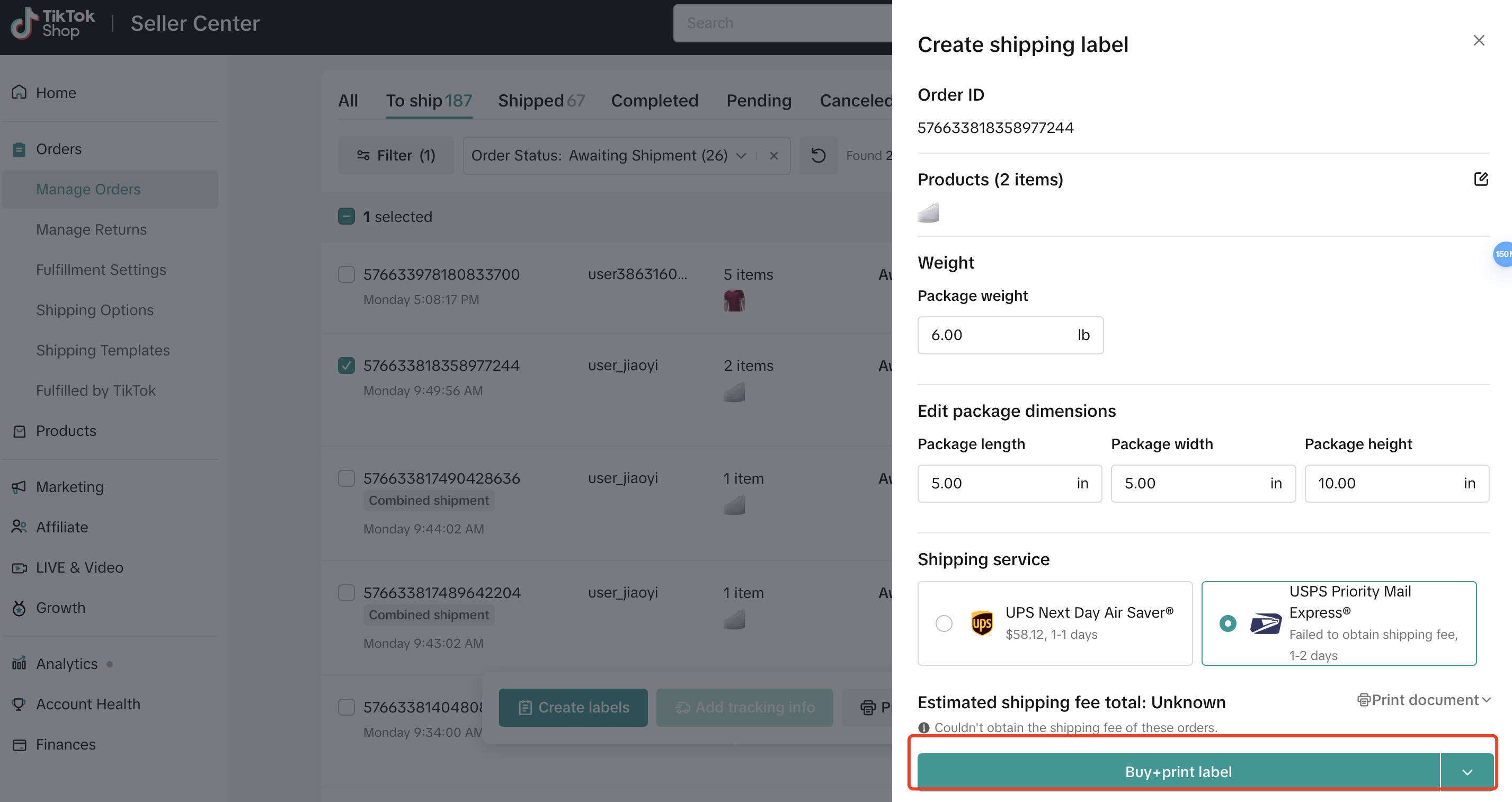
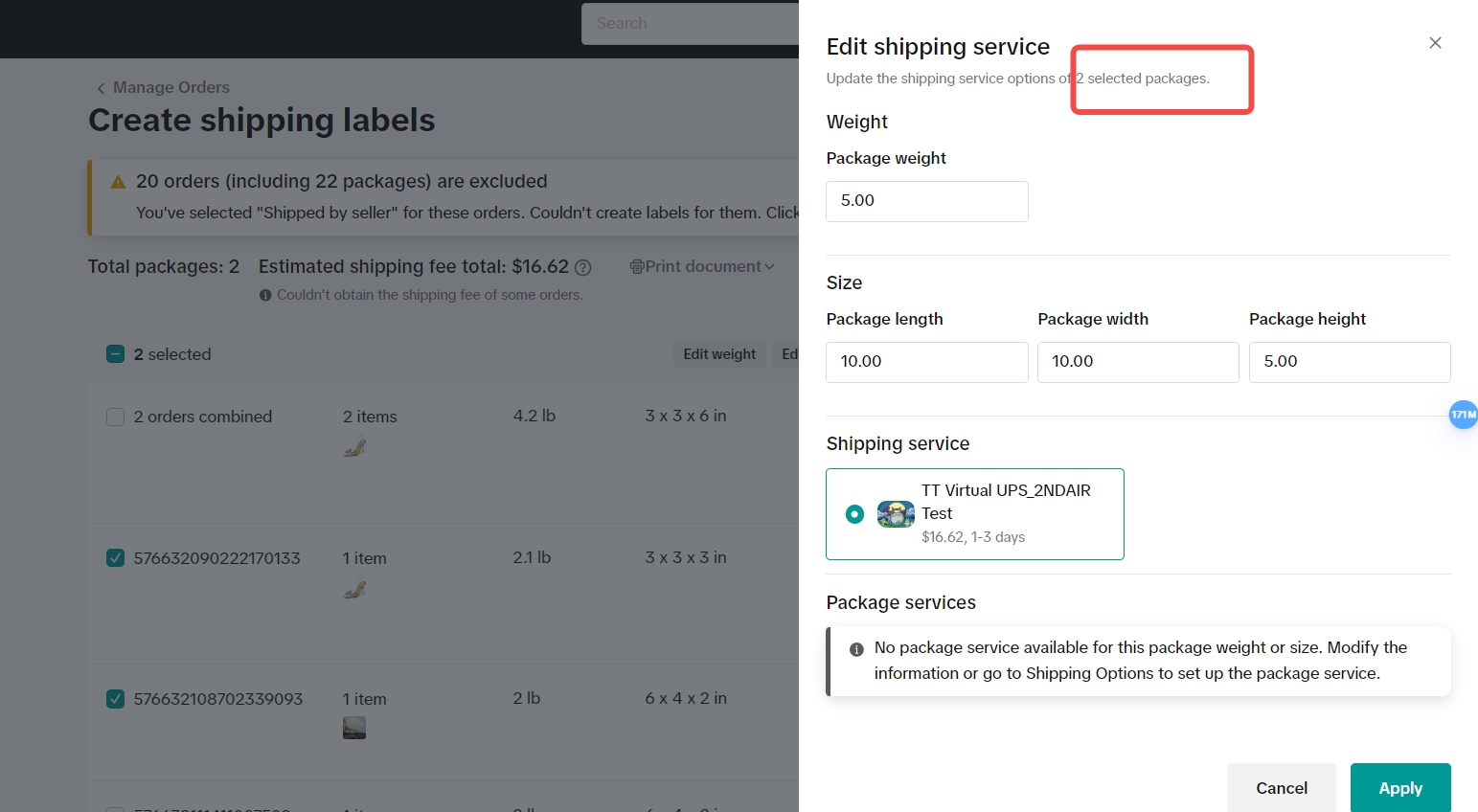
- During the label purchase workflow, sellers can modify shipping services, add value-added services, and adjust package sizes for individual or batch orders. This flexibility allows sellers to adapt to changing shipping needs and preferences.
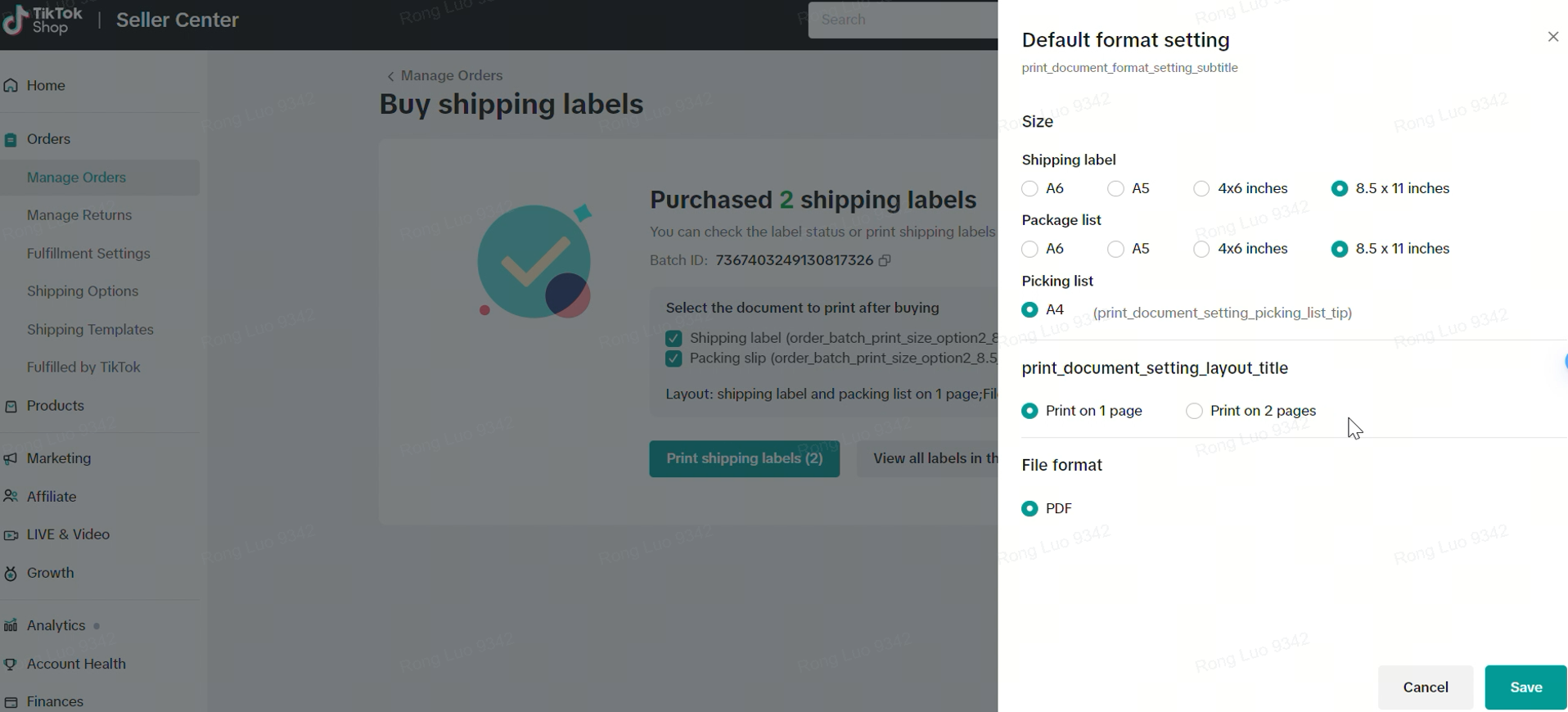
- Sellers also have the option to modify document format settings for the label during package editing.
| Edit Single Package | Edit Multiple Packages | Package Printing Preference |
 |  |  |
- What if my label is rejected?
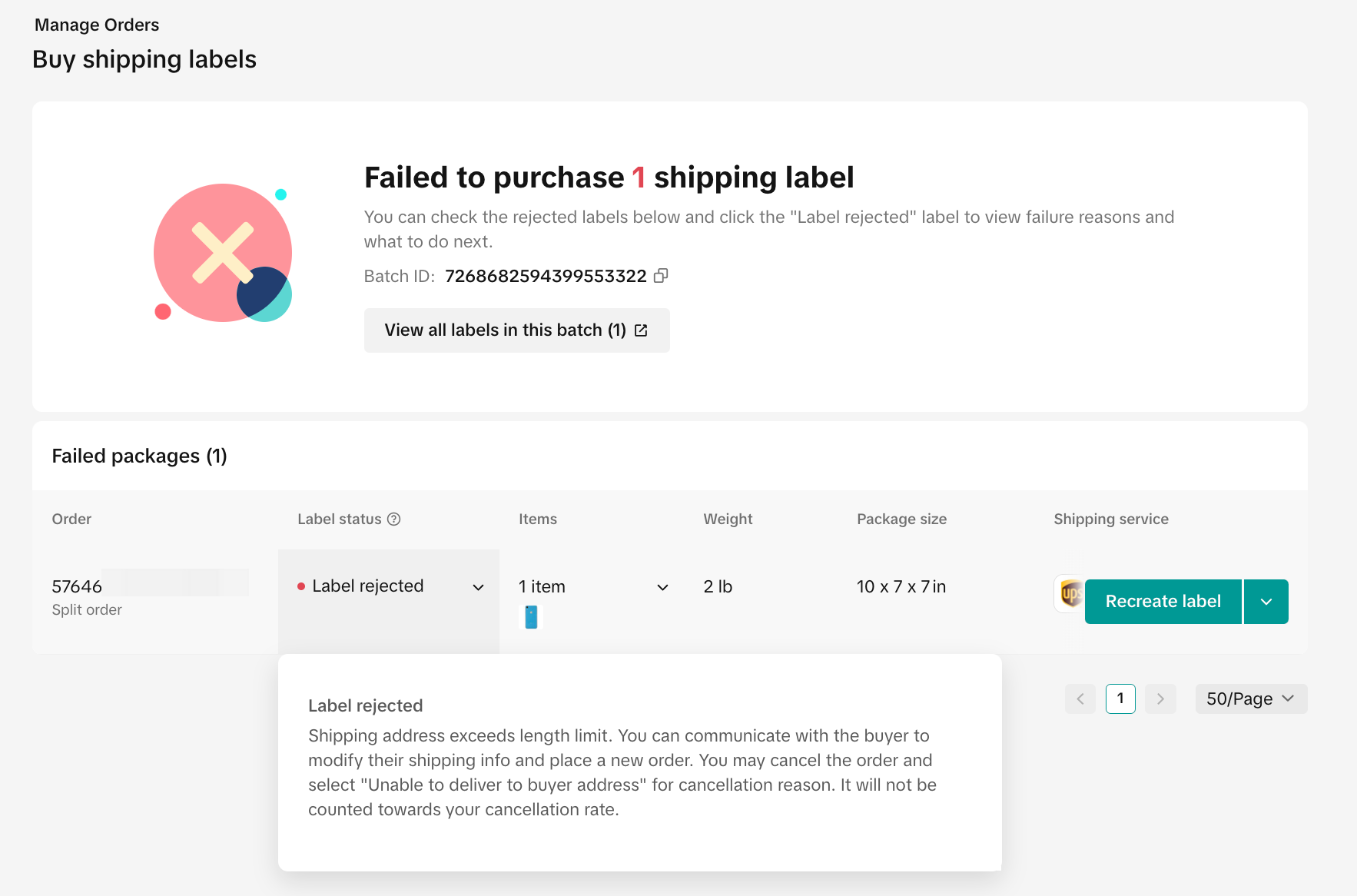
If we receive an error code, a "Label rejected" notice will be displayed for that order at the bottom of the page. Don't panic! We will show the reason for the error code and suggest ways to fix the problem. Once you’ve resolved the issue, you can click Recreate Label to continue the process. For additional guidance on troubleshooting label printing, please read here.
| Label Buying Failure |
 |
| Types of Errors |
|
| |
|
- Recreate or reprint on the Shipping Labels page
 |
- Check your printing history
- On the Shipping Labels page, you can check detailed package information and the status of your labels for each order. If you click View History, you can also see the full order label records, from creation to printing.
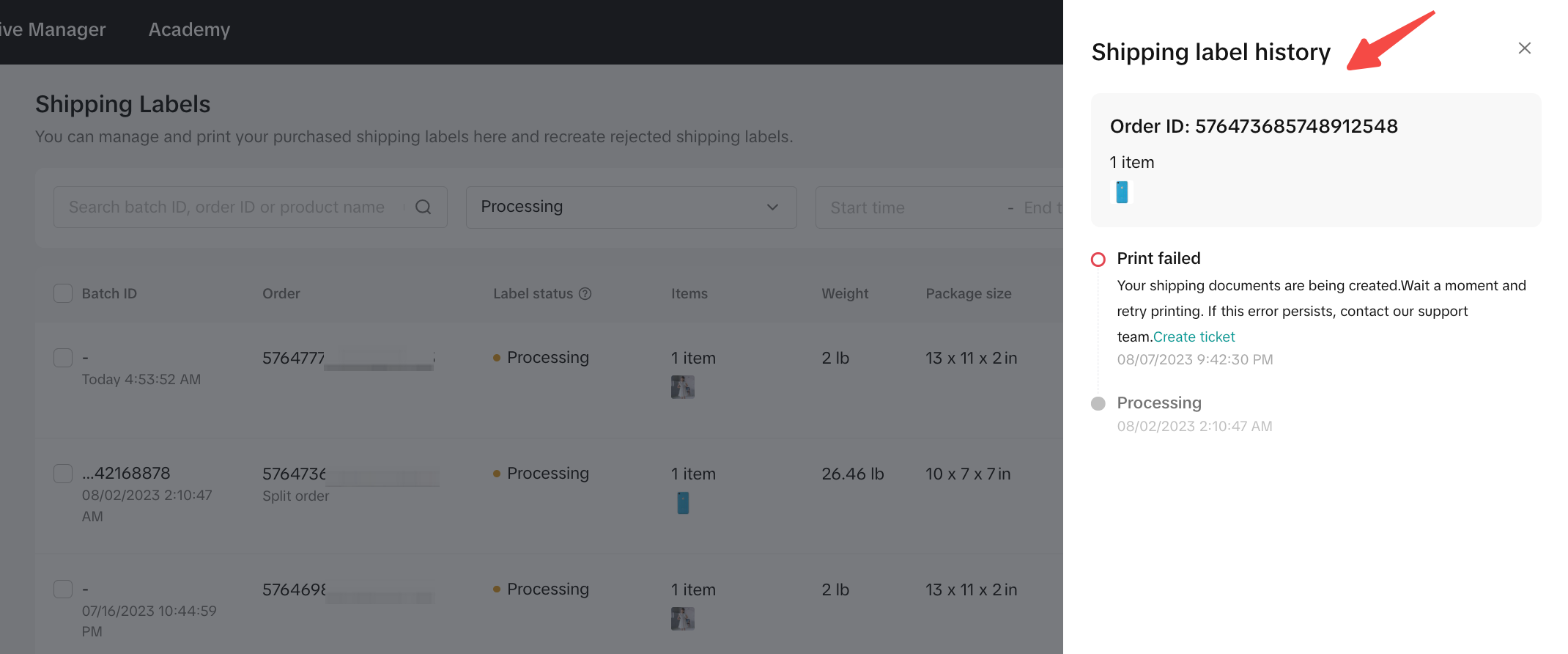 |
- On the Shipping Labels page, you can check detailed package information and the status of your labels for each order. If you click View History, you can also see the full order label records, from creation to printing.
 |
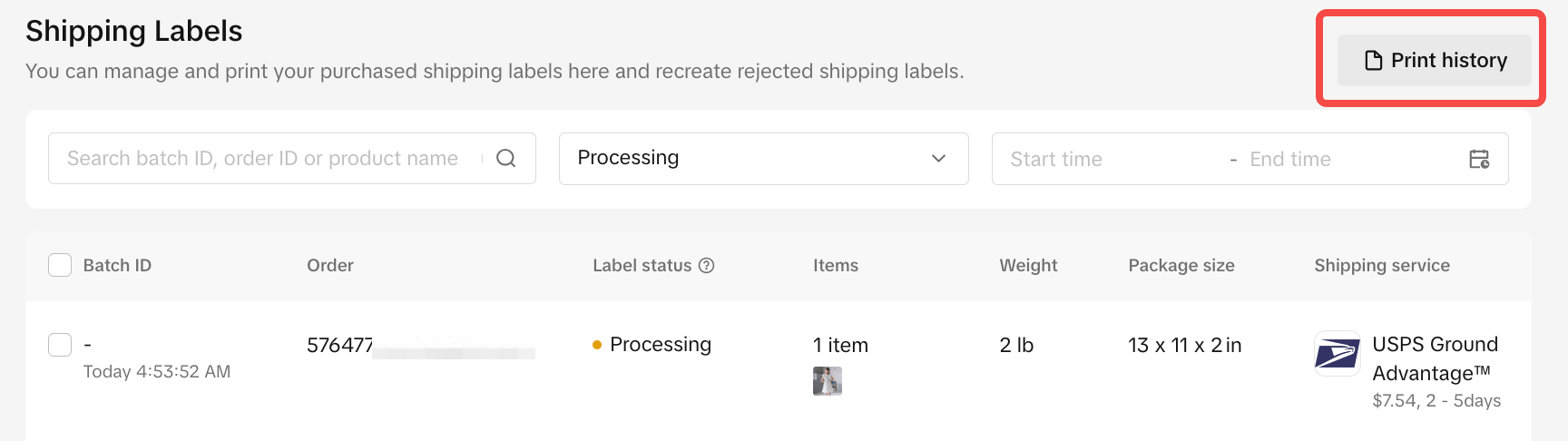
- Click Printing History to check and download PDFs of particular batch labels.
 |  |
- Available sizes include 4x6 inches, 8.5x11 inches (Letter/A4), A5, and A6.
- Choose Print On 1 Page or Print On 2 Page with shipping label and packing list. If sizes differ, the system will automatically generate separate files.
- Shipping Label and Packing List Sizes:
| Document Format Options Settings |
 |
- Setting Your Label Default Actions
- Label printing options allow sellers to either purchase labels for later printing or buy and print them immediately. After successful printing, sellers will receive a direct URL to the label PDF.
- For both new and existing sellers, a reminder will prompt you to set printing preferences in the fulfillment settings.
| Default action for label creation and printing | New feature reminder for default label action |
 |  |
You may also be interested in
Temporary Shipping Rate Update for Peak Season
Holiday 2025: Temporary Peak Season Shipping Rate Changes What’s Changing? To keep you informed, we'…
Important Notice: Upcoming Logistics Service Policy Upgrade
Dear TikTok Shop Seller, As part of TikTok Shop's ongoing efforts to create the best-in-class custom…

Setting Up Shipping
Warehouse and Pickup Address Setting You need to maintain the correct Warehouse/ Pickup address. Whe…
Free Shipping page feature guide
Shipping Settings Page Guide Summary The new Shipping Settings page consolidates all shipping-relate…

TikTok for Shopify - TikTok Shipping (Shipped by TikTok)
Introduction The TikTok for Shopify App, created by TikTok, enables a connection between your Shopif…
How to Upgrade Your TikTok Shipping Account
Important Notice: CBT Enrollment is currently closed, and will reopen on 01/05/2026. Upgrade Process…
March 2024 Monthly Product Innovation
Every month, we introduce new products and features designed to simplify store management, boost sal…
TikTok for SFCC: Order Management
Order Creation When you place an order in TikTok Shop, the system automatically activates the Create…
TikTok for SFCC: Product Catalog & Inventory Sync
Initial Product Catalog Sync(During Onboaring): A product catalog feed is generated. The feed is dro…

TikTok for Shopify - Switching from TikTok Shipping to Selle…
TikTok Shipping All new and existing TikTok Sellers that onboard onto the TikTok for Shopify App,…