

Combined Listings
12/10/2025
Summary
What are Combined Listings on TikTok Shop and how do they benefit sellers?
- Combined Listings group related products with different Product IDs to create a seamless shopping experience, improving discoverability, increasing GMV, and simplifying merchandising for sellers with large or varied inventories.
How can sellers create and manage Combined Listings in Seller Center?
- Sellers create Combined Listings by selecting 2-20 related products (across categories or including virtual bundles, excluding auctions) via the Manage Products > Combined Listings tab, setting variation types/values, and optionally affiliate commissions; they can edit or archive packages later.
What are the best practices and restrictions sellers should follow when using Combined Listings?
- Use true variations like size or color of the same core product for relevance; avoid gifts, auction items, or mixing test/non-test products; a product cannot be in multiple Combined Listings; monitor performance to optimize sales and engagement.
How do Combined Listings affect product visibility, affiliate commissions, and shopper experience?
- Combined Listings add a "More choices" module on product pages linking related PIDs, enhancing shopper navigation without merging reviews or sales; affiliates earn commissions if buyers purchase any linked product from the Combined Listing.
What key differences exist between Combined Listings and Virtual Bundles on TikTok Shop?
- Combined Listings link separate existing product IDs for browsing convenience, while Virtual Bundles create a new single product ID by bundling multiple products for purchase; they serve different merchandising purposes.
Combined Listings
Seamlessly connect related products to give your customers a smooth, integrated shopping experience with more choices.Benefits:
- Improve Discoverability: Help shoppers easily find related products, increasing exposure for your entire catalog.
- Enhanced Shopping Experience: Create a unified product display, making it effortless for shoppers to browse different (but similar) products
- Increase GMV: Keep shoppers engaged within your product catalog, encouraging them to explore more of your offerings and complete their purchase.
- Simplify Merchandising: Organize your products more effectively, especially if you manage a large inventory with many variations.

What are Combined Listings:
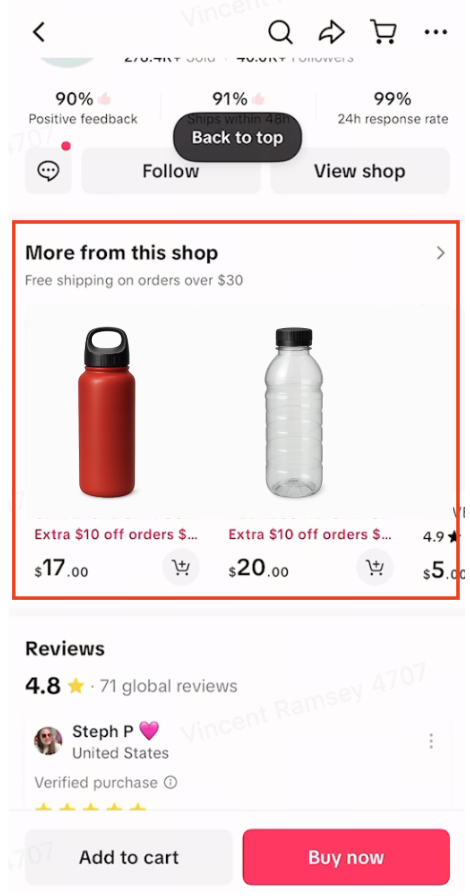
Combined Listings allow you to group related products (or PIDs) together, creating a connected shopping journey for your customers. This shows up through "more choices" where shoppers can explore other product listings that have been combined.Example of related products:
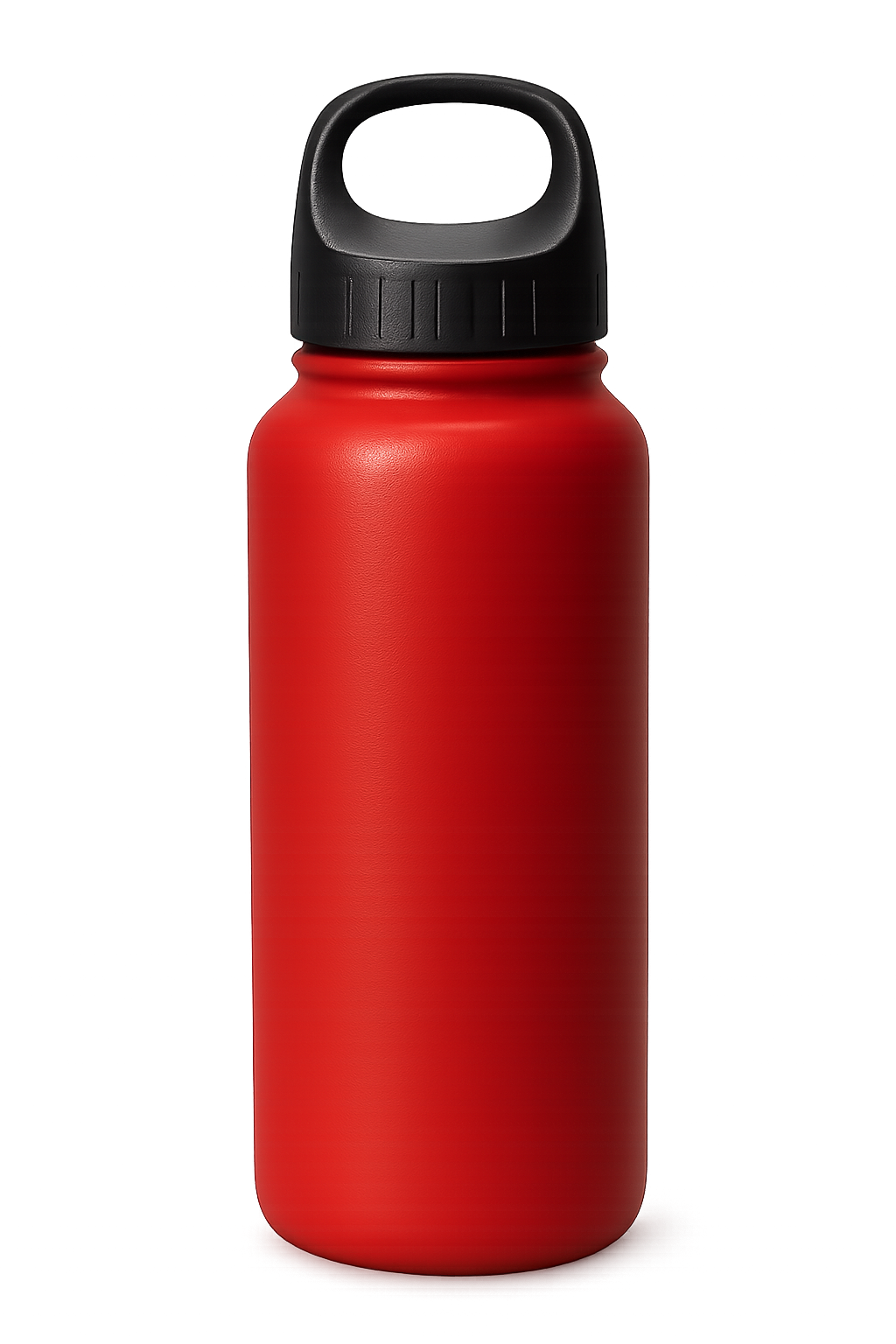
- A red, reusable water bottle with variations just for size (12 oz, 20oz, 35oz)
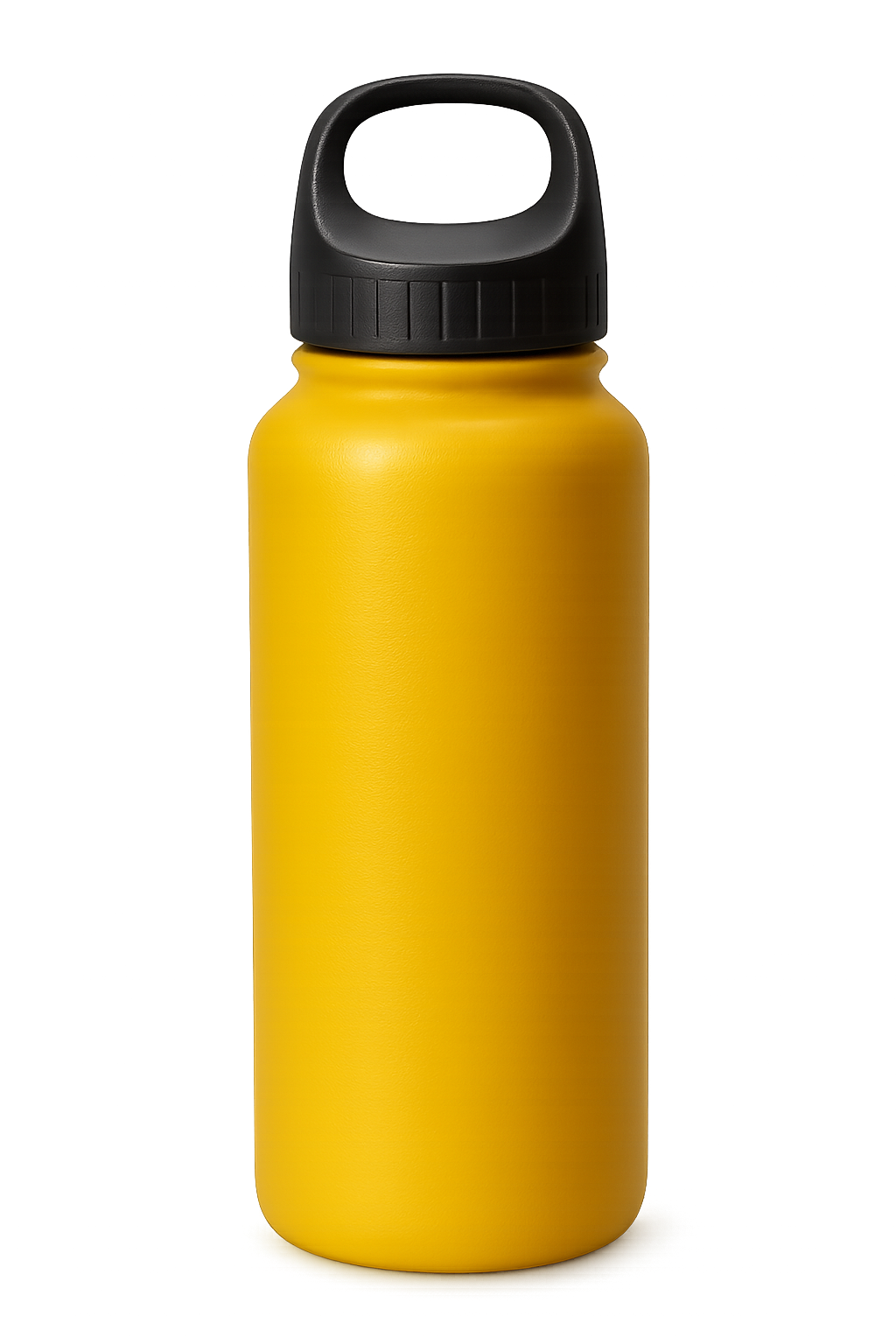
- A yellow reusable water bottle with variations just for size (12 oz, 20 oz, 35 oz)
 |  |
How It Works:
Here’s how you’ll create and manage Combined Listings:In Seller Center (PC & App):
Creating Combined Listing Packages
- Navigate to Manage Products on the left-hand navigation bar and select the Combined Listings button at the top-right to create your Combined Listings.

- To create a Combined Listing, you can select the Combine button to the right of "Custom create combinations" or review system-suggested choices to combine.

- Select the products to be combined in a package, so shoppers can browse related products easily. You must select at least 2 products and can have a maximum of 20 products for the Combined Listings package.
- The Combined Listings package CAN have products across different product categories
- The Combined Listings package CAN include Virtual Bundles
- The Combined Listings package can NOT have items that are auction items or a mix of test and non-test products
- A single product can NOT be included in multiple Combined Listing packages. An error message will pop-up if this scenario occurs.

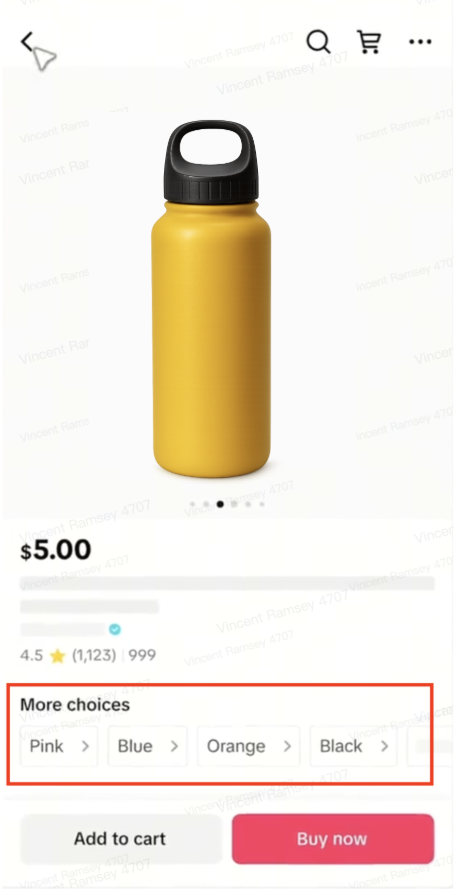
- Select the Combined Listing's "Variation type" and "Variation values". Simply speaking, you are writing the text that will be shown to shoppers when they see the Combined Listing on the product detail page:
- Combined Listing Attribute: You will choose from pre-set values to highlight the relationship between the additional choices. Options include: More choices, More versions, More colors, More sizes, More flavors
- In the below "Shopper View" image, the Combined Listing attribute is "More choices"
- You currently can not enter new or custom options for Variation Type
- Combined Listing Attribute Values: For each product you added to the Combined Listing package, you'll be able to freely choose an Attribute Value. This will be the short name for each product option that's reflected to shoppers
- You can freely type the Attribute Values to describe each product, but each value is limited to 30 characters max
- In the below "Shopper View" image, the Combined Listing attribute values are Pink, Blue, Orange, and Black
- Pro Tip: the order of the attribute values dictates the order that shoppers will see. Use the drag handle / reorder handle (six dots) to rearrange your options to be in the order that you wish
- Combined Listing Attribute: You will choose from pre-set values to highlight the relationship between the additional choices. Options include: More choices, More versions, More colors, More sizes, More flavors
Seller Center View | Shopper View |
- (If applicable) Set Affiliate Commission Percentage - If a listing is a part of an open collaboration, the system will prompt you to set a commission percentage to successfully create the Combined Listing. All products in a Combined Listing should meet either of the following affiliate rules:
- None of the products have any affiliate commission plan (including open, targeted, or TAP)
- All products have an open affiliate plan, but the commissions can be different
- Once all required information is entered, select Create at the bottom to create the Combined Listing. The Combined Listing will be successfully created and can be viewed under the Combined listings tab for any required edits.
Editing Combined Listing Packages
- Navigate to Manage Products on the left-hand navigation bar and select the Combined Listings button at the top-right to manage your Combined Listings.
- In the Combined Listings drawer that pops-up, select the "Manage combinations" tab to see all existing Combined Listing packages
- NOTE: The Combined Packages here will reflect packages you have manually created from scratch, packages you created based on previous system suggestions, and (if applicable) packages that were created on your behalf by your Account Manager

- NOTE: The Combined Packages here will reflect packages you have manually created from scratch, packages you created based on previous system suggestions, and (if applicable) packages that were created on your behalf by your Account Manager
- From here, you can select "Edit" near the applicable Combined Listing package to edit the products included in it or even choose to archive the Combined Listing package so it is hidden from shoppers
- You are able to edit all types of Combined Listing packages (Combined Listing packages created manually by you, packages based on system recommendations, or even packages created by your Account Manager)
- However, please note that if a package was deactivated by your Account Manager, you will not be able to edit it. Instead, a pop-up window will instruct you to reach out to your Account Manager for further support with this specific package.

- Choose wisely: The product variations can not be gifts, virtual bundles, or auction items. Additionally, all listings must be in the same category.
- Focus on True Variations: The most impactful combined listings are typically for different variations of the same product, like different sizes (e.g., 14oz, 20oz, 30oz water bottles) or colors. This creates the most "seamless" feel for shoppers.
- Keep it Relevant: Combined Listings are designed for closely related items. For example, connecting a water bottle with its various size options is a perfect fit.
- Monitor Your Performance: Keep an eye on your sales and engagement metrics after interlinking products. This will help you understand what's working well and where you might need to adjust your Combined Listing strategies.

FAQ:
- Is the the same thing as Virtual Bundles? No, these are different. Combined Listings visually connects different, existing product IDs (PIDs), creating a unified shopping experience where shoppers can effortlessly jump between the related products. This differs from Virtual Bundles, which bundle multiple existing products into a single, new product ID for purchase.
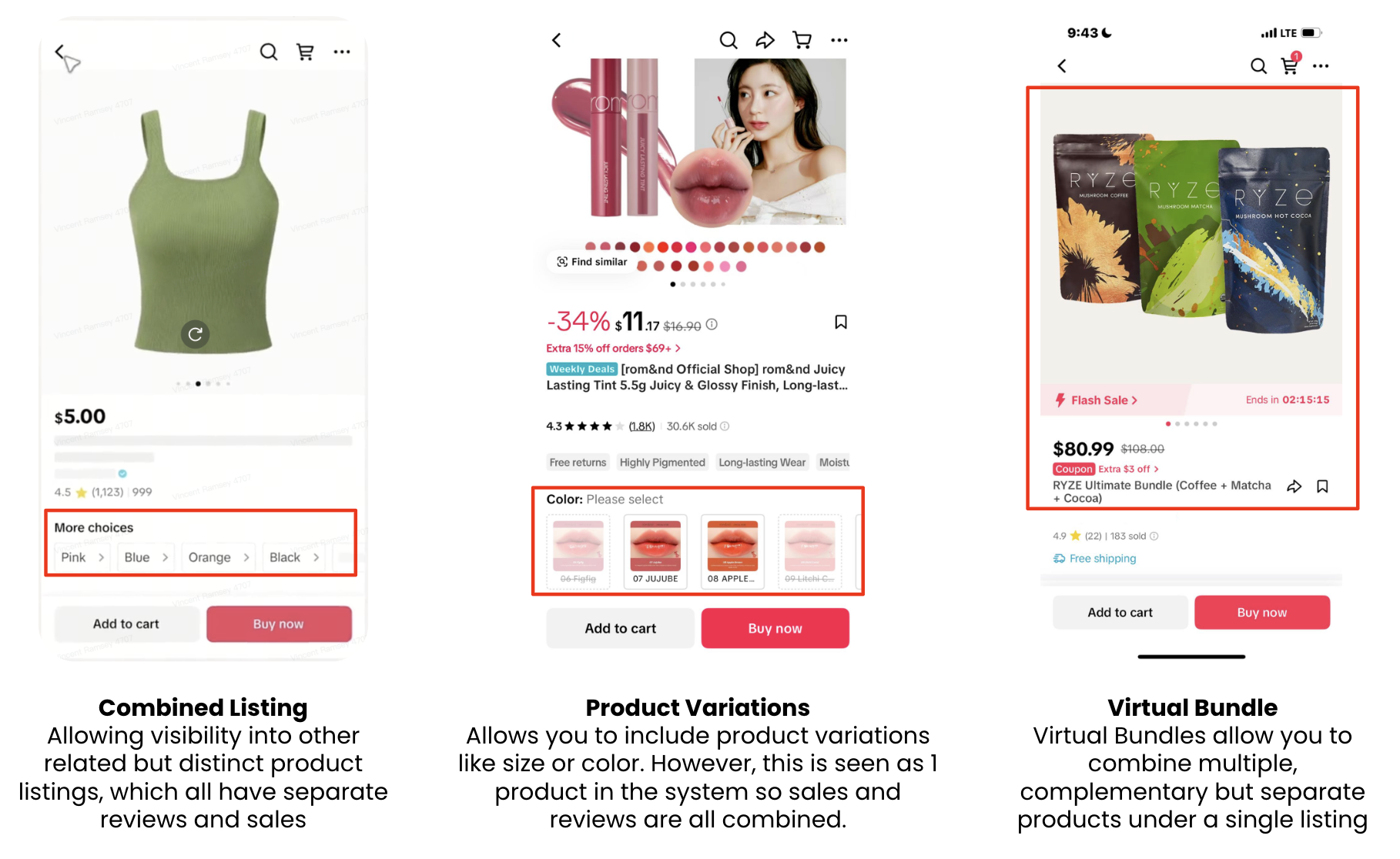
- Who is this product for? This product is primarily for sellers, who want to combine different product IDs (PIDs) to be displayed together, allowing shoppers to easily navigate between related products as if they were a single item.
- Why can't I just create product variations within a single listing instead of doing a Combined Listing? While traditional product variations work for some scenarios, Combined Listings is specifically designed to seamlessly connect different PIDs (which might currently appear as separate listings) into a unified shopping experience for users. With a product listing, variations under the same product share reviews and sales together. However, with Combined Listings, these are all separate PIDs (with separate reviews and sales) that are "linked together" for display purposes. Combined Listings are a great option to solve for existing products that have separate sales and reviews.
- What kind of products should I include in Combined Listings? Ideal candidates for Combined Listings are different sizes or colors of the same core product. Think of items like a Stanley water bottle available in 14oz, 20oz, and 30oz sizes –- Combined Listings make it easy for shoppers to switch between these separate but related product listings.
- Will combining my listings affect my existing product listings? When products are a part of a Combined Listing, a special module will appear on their Product Details Pages (PDPs) that allows shoppers to jump between the related PIDs. The individual product listings themselves will still exist, but the shopper's journey will be enhanced by having visibility into the related products through Combined Listings.
- If an affiliate creates a shoppable video and links to a product that is a part of a Combined Listing, will that affiliate get commission if the buyer instead purchases a linked product under "More Choices"? Yes, an affiliate will get commission if a buyer purchases a product that's a part of a Combined Listing instead of the specific, tagged product.
- How will I know if my Combined Listings are performing well? We encourage you to observe changes in your business data, such as GMV and conversion rates, for products that have been combined.
- What if I want to remove products from a Combined Listing? You'll have the ability to edit and manage these packages in Seller Center.
You may also be interested in
2025 BFCM TikTok Shop Readiness Guide
The holiday shopping rush is your single biggest opportunity to increase sales & grow your brand on…

List with a URL
Note: This feature is currently in beta to a limited set of pre-selected sellers. Introduction: Wh…

Made-to-Order (MTO)
Introduction: What is Made-to-Order (MTO)? Made-to-order is a new listing option available for eligi…

New Product Rewards
🚀 Introducing New Product Rewards to Accelerate Your Success The New Product Rewards program is Tik…

Applying for Category Permission
Introduction Some product categories on TikTok Shop are restricted and require sellers to apply for…

TikTok for Shopify - Product Listing Upgrade
Overview: With this new listing update, sellers will have the same product listing experience whethe…
How to Use Size Chart Tool & Guidance
Introduction to our Size Chart Tool With the Size Chart tool, you can now update key sizing informat…

Edit products in your shop
Introduction to editing products in your shop Maintaining accurate and appealing product listings is…

Luxury Resale Products and Uploading Certificates of Authent…
What are Luxury Resale Products? Luxury Resale products are luxury items, including pre-owned luxury…

TikTok for Shopify: Promotions Sync
Overview: Shopify sellers can sync Promotions/Discounts except Free Shipping on Shopify directly to…