

Operating LIVE Flash Sales in LIVE Manager
Summary
What are the benefits of using LIVE Flash Sales on TikTok Shop?
- LIVE Flash Sales create urgency and excitement, boosting engagement and sales during LIVE shopping sessions.
- They highlight recognizable sellers and products, enhancing consumer interest in the TikTok Shop LIVE experience.
How can sellers and creators set up LIVE Flash Sales in LIVE Manager?
- Navigate to the Shopping Bag section in LIVE Manager, click Add LIVE Flash Sale, and select products for the sale.
- Set up inventory, purchase limits, and flash sale duration, then confirm the setup to add it to your LIVE session.
What should sellers do if they encounter errors during the Flash Sale setup?
- Address the specific error message displayed, resolve the issue, and attempt to set up the Flash Sale again.
How can sellers edit or duplicate a Flash Sale once it's set up?
- Edit a Flash Sale by clicking Edit settings, or duplicate it by selecting the duplicate option if sufficient inventory remains.
- Adjust inventory and settings as needed, and choose to start the duplicated sale immediately or save it for later.
Introduction to LIVE Flash Sales in LIVE Manager
When sellers invite creators to sell exclusive Flash Sale inventory, creators can manage and deploy this inventory from within LIVE Manager and offer viewers discounts on exclusive stock to drive up engagement and sales during their LIVE shopping sessions, all while earning commission. Sellers can also run LIVE Flash Sales from marketing accounts.Note: Sellers must set up a Creator Flash Deal promotion first within Seller Center and assign that promotion to a creator or marketing account. For more information on this, refer to our Seller Feature Guide on Creator Flash Deals. Take a look at some of the benefits of LIVE Flash Sales below:
- Add urgency to your LIVE shopping sessions with exclusive inventory to drive further excitement and engagement from shoppers.
- Spark consumer interest in the TikTok Shop LIVE shopping experience by highlighting recognizable sellers and products in creator LIVE sessions.

Setting up LIVE Flash Sales
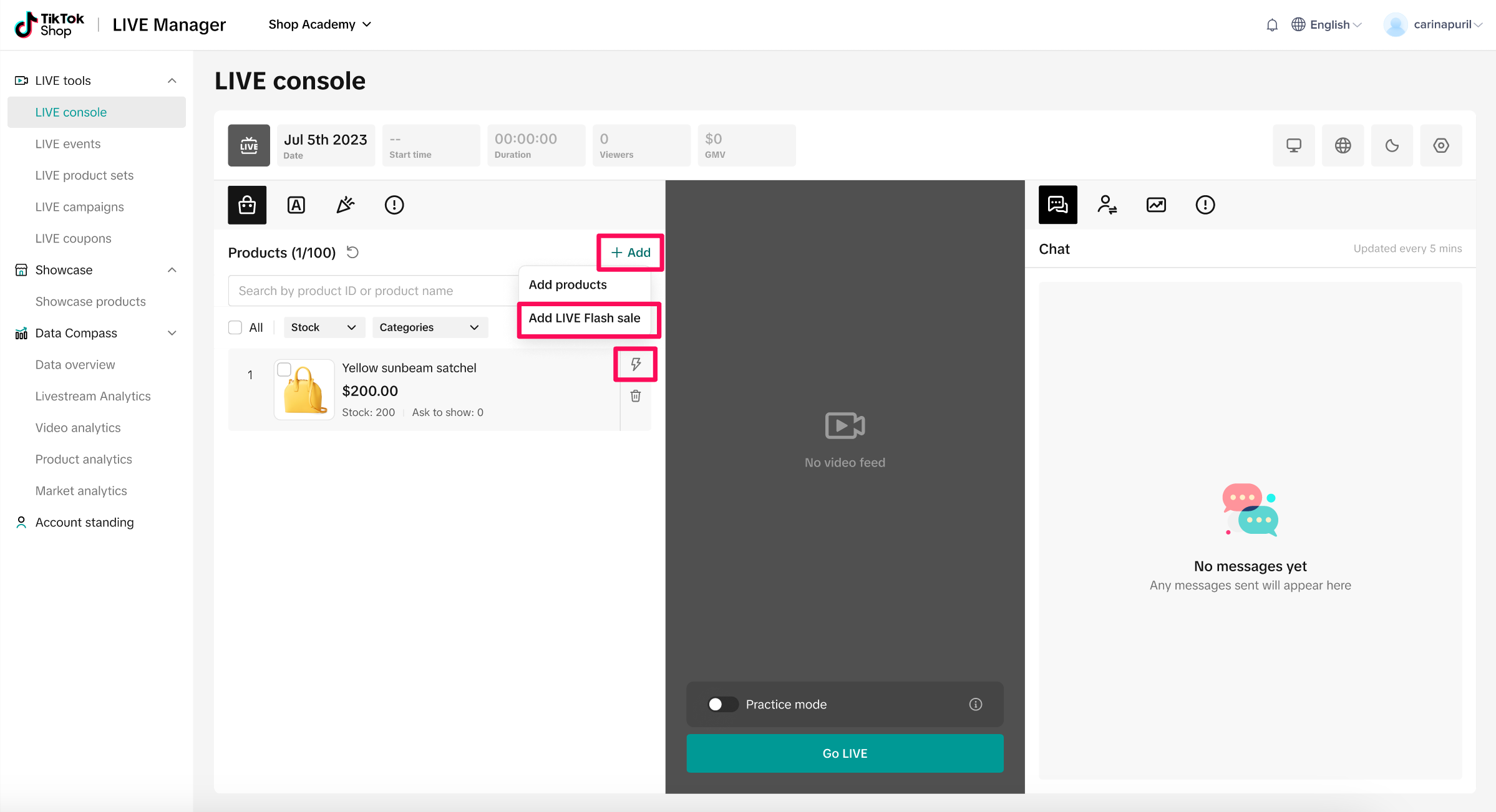
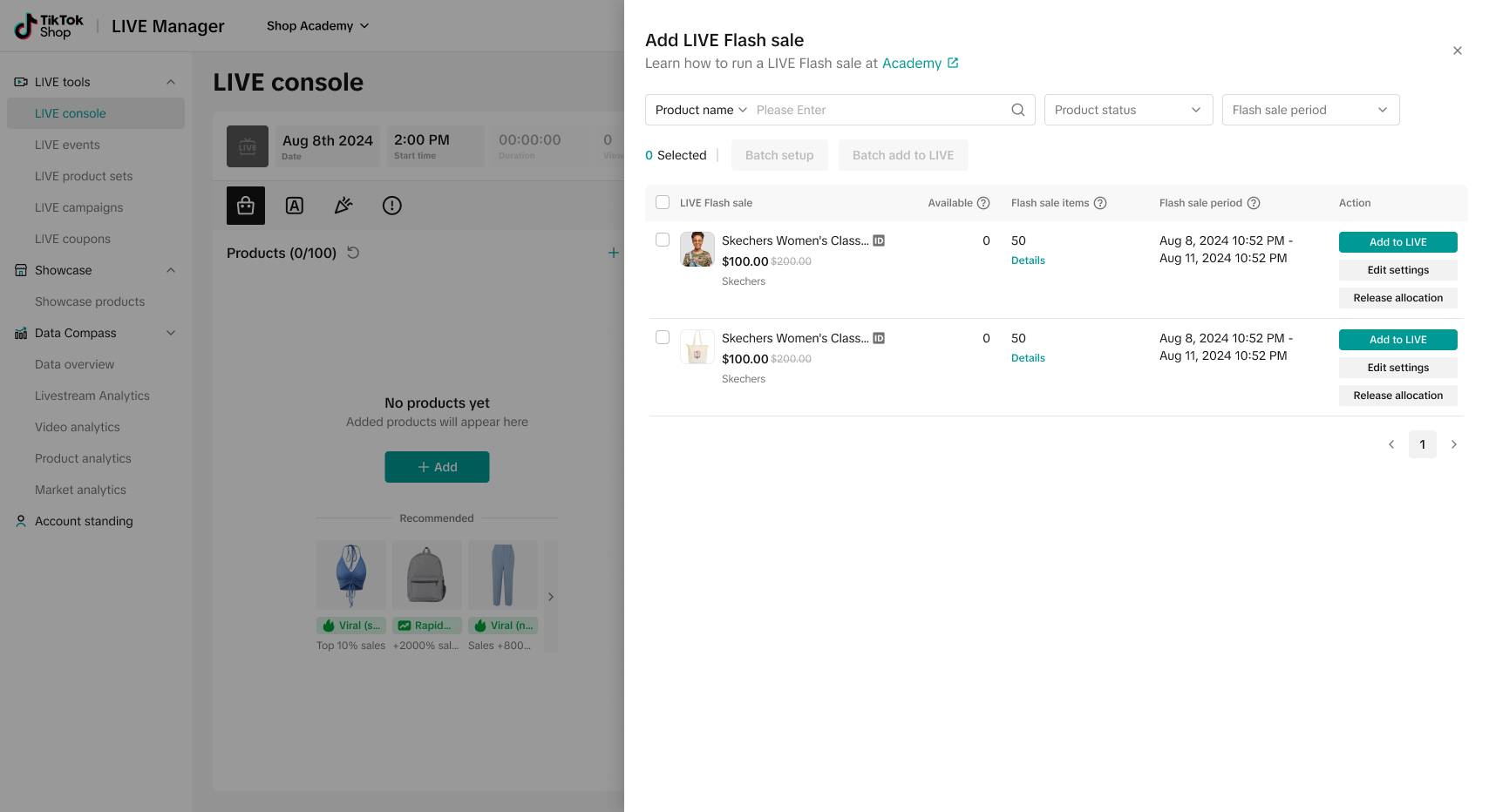
Step 1: Within LIVE Manager, navigate to the Shopping Bag section. Click Add LIVE Flash Sale to pull open the creation drawer, where creators can see all products that they can set up Flash Sales for.Note: If you already have products in your shopping bag that are eligible for LIVE Flash Sale, but which you haven't set up a Flash Sale for, you'll see a lightning bolt icon. Click this to open the LIVE Flash Sale creation drawer.
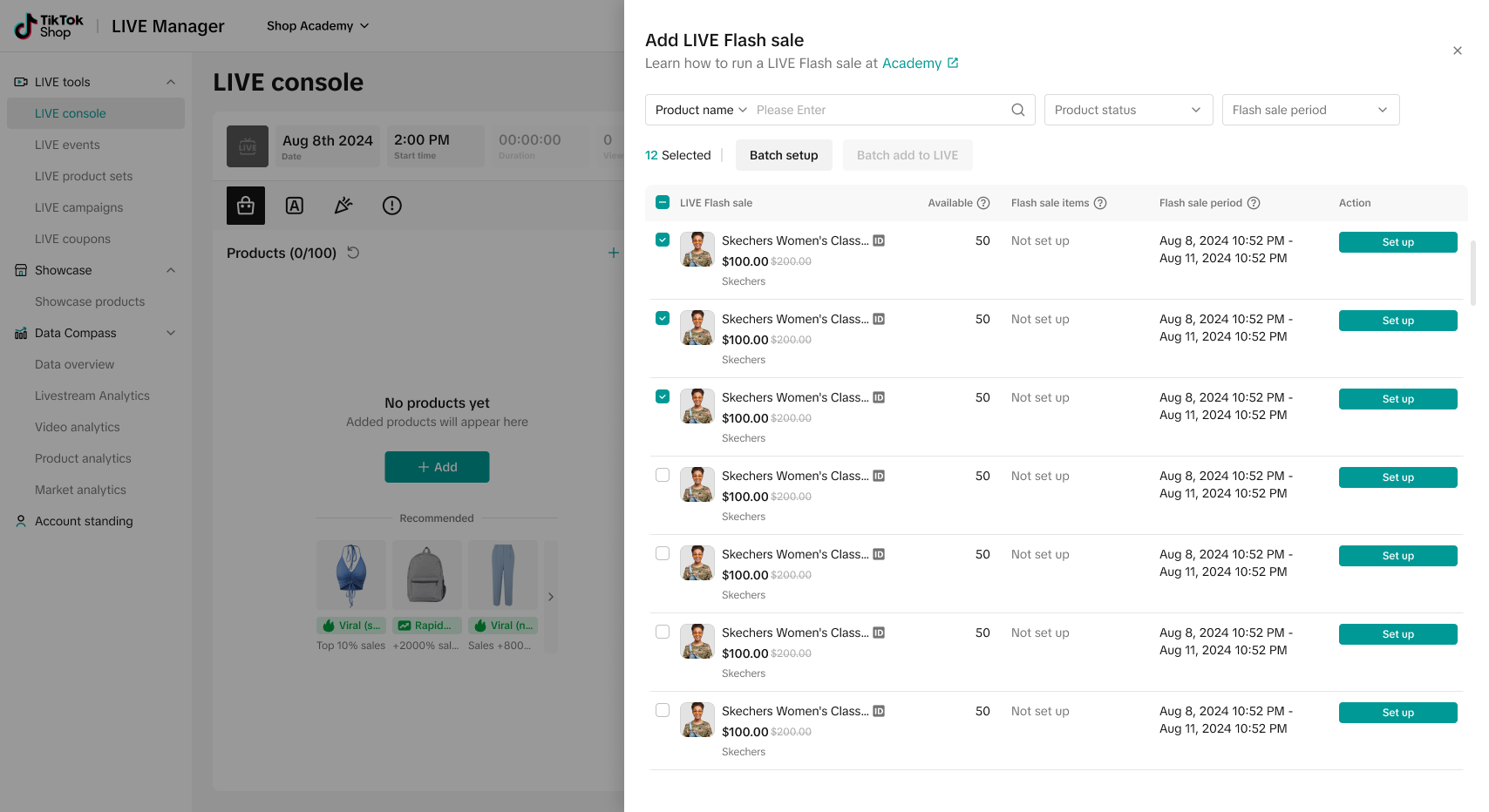
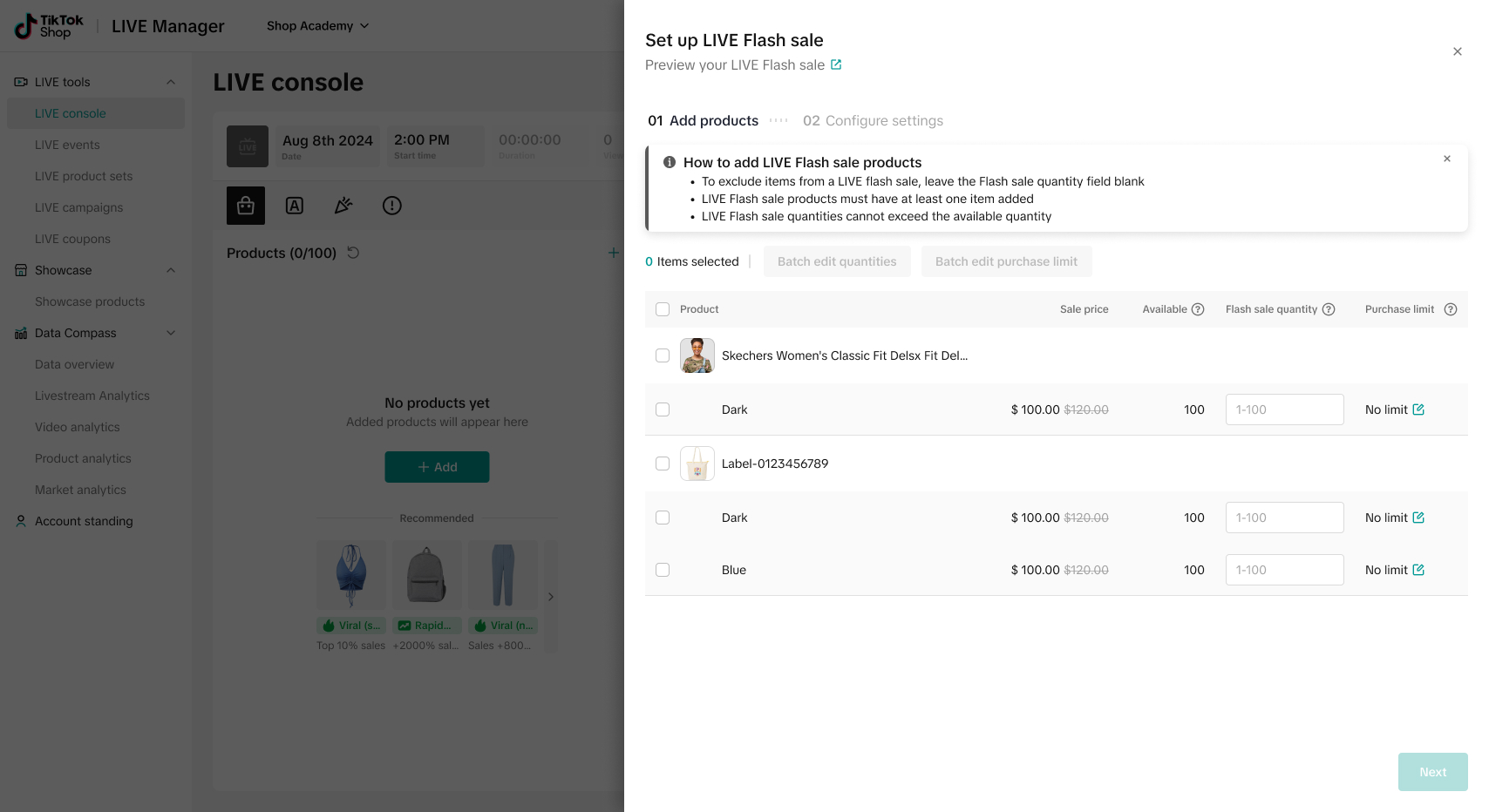
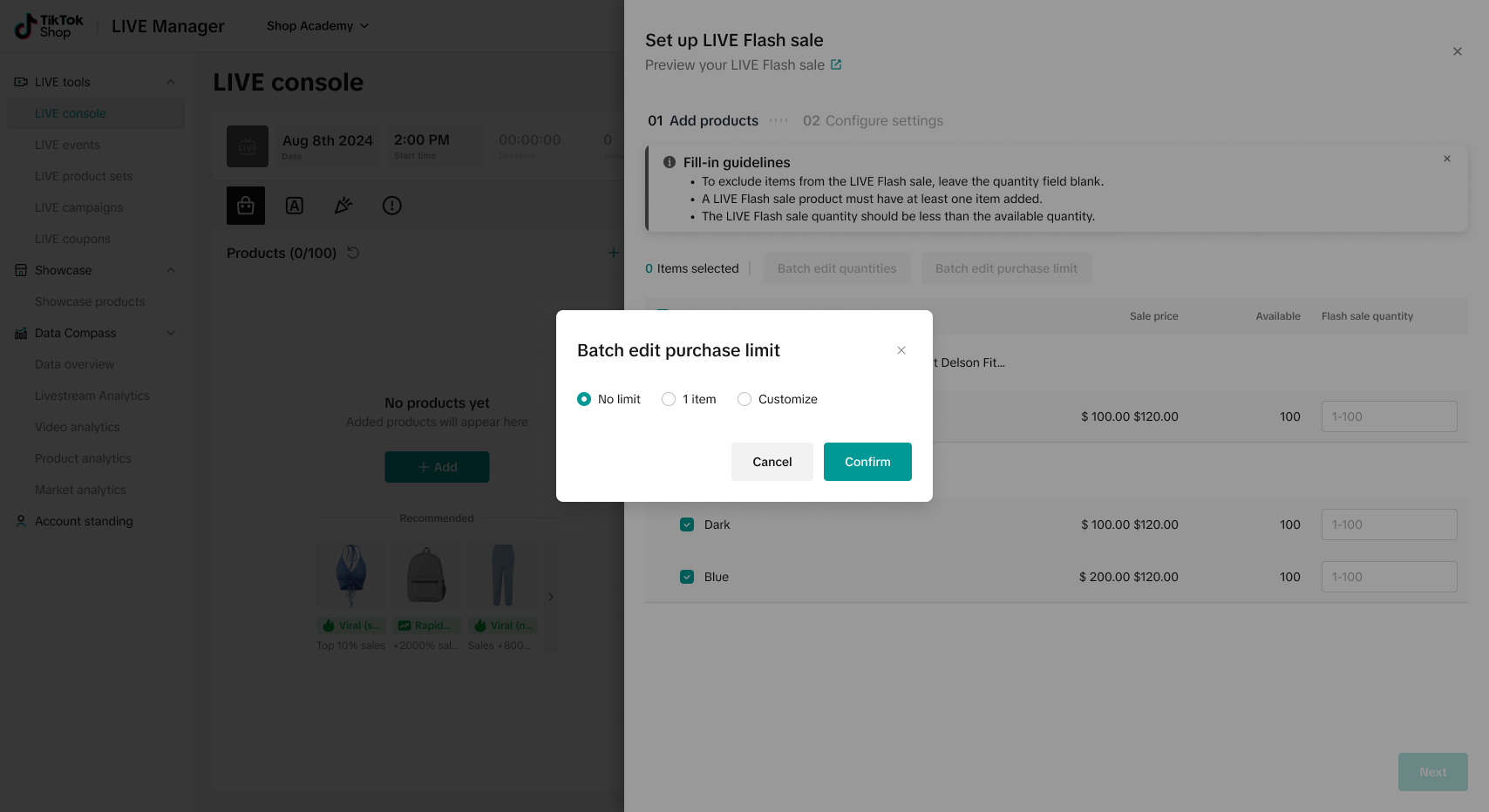
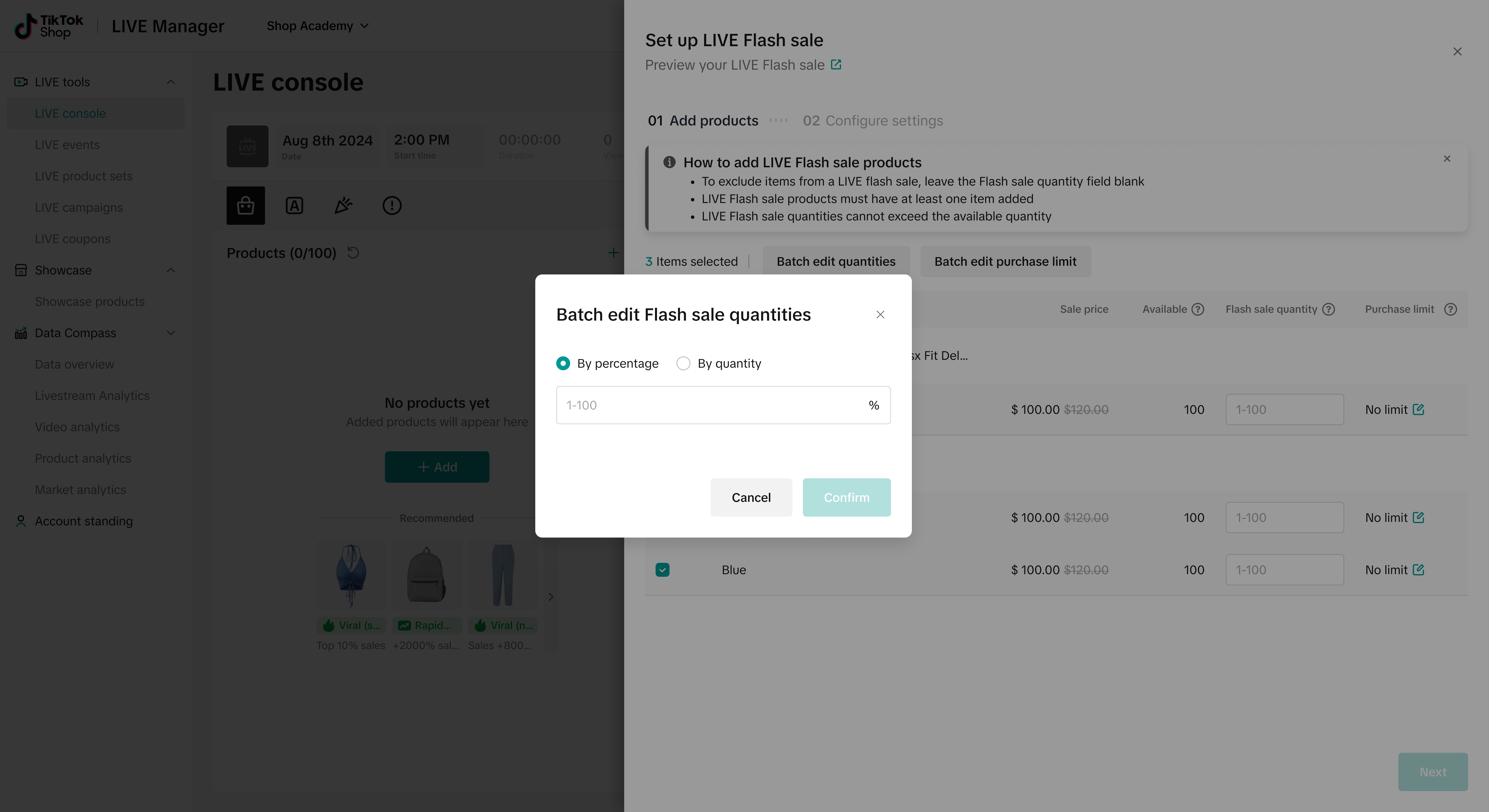
- After you've selected the products and batch quantities as needed, fill in the flash sale duration, countdown time
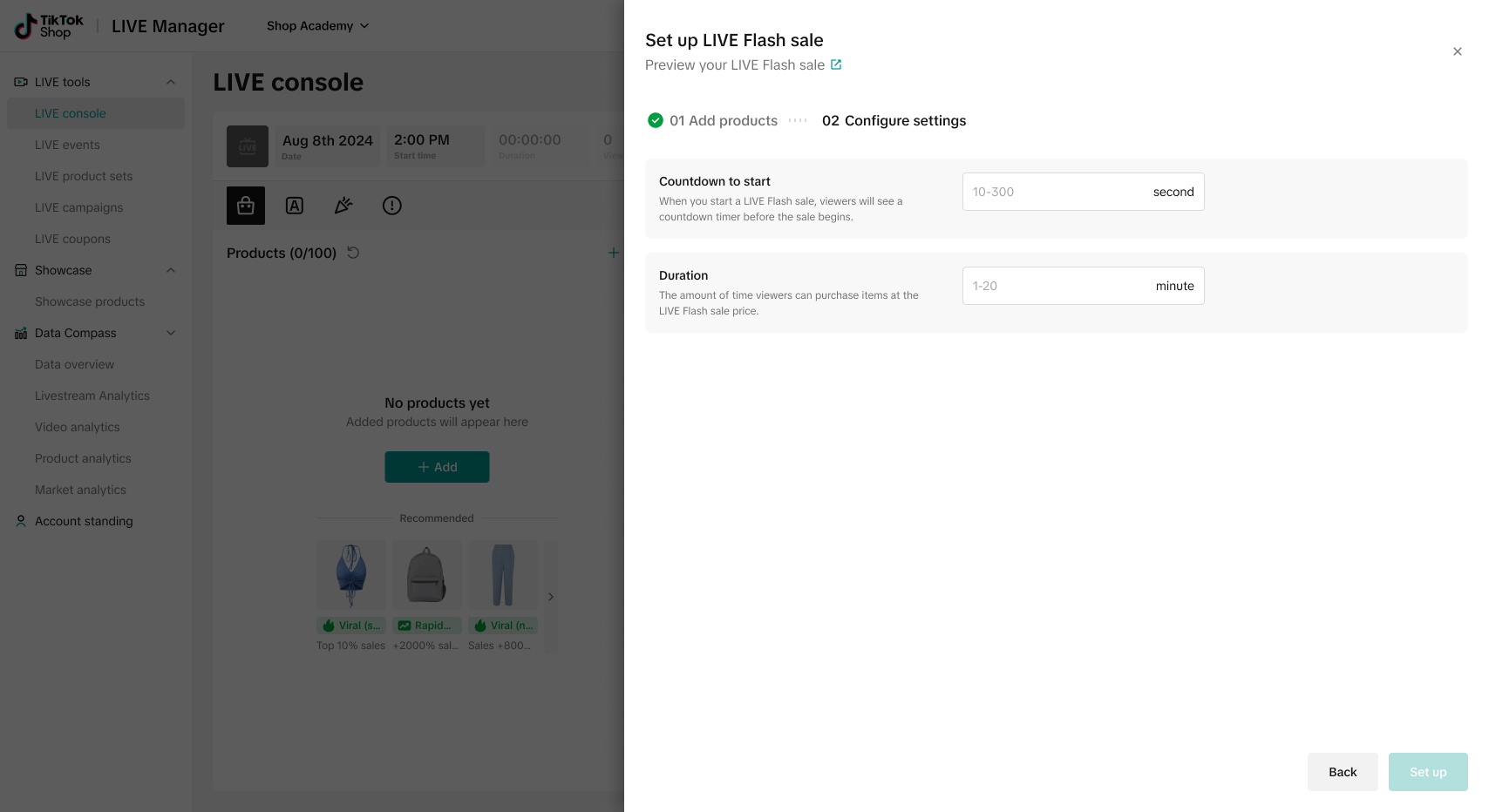
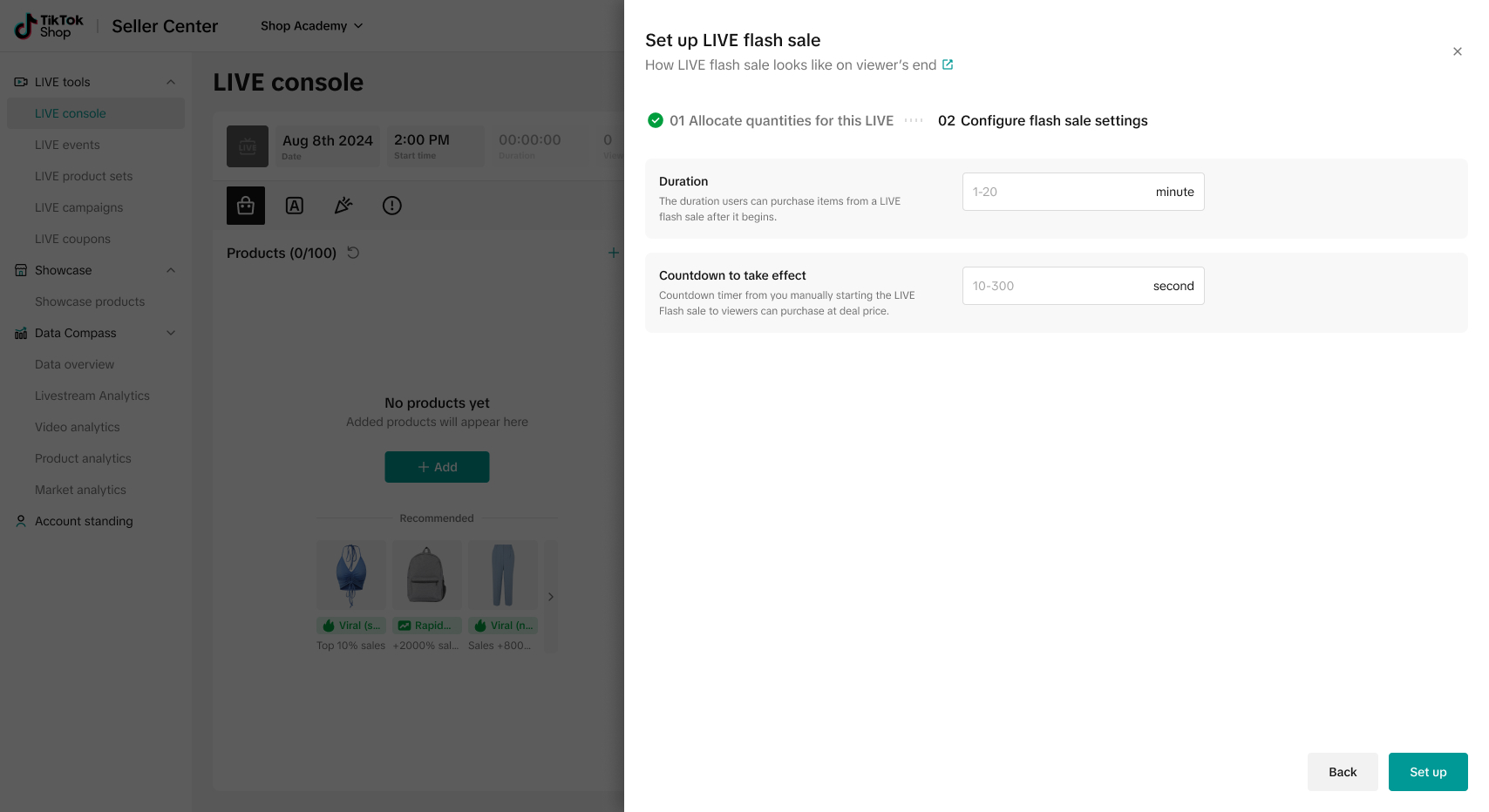
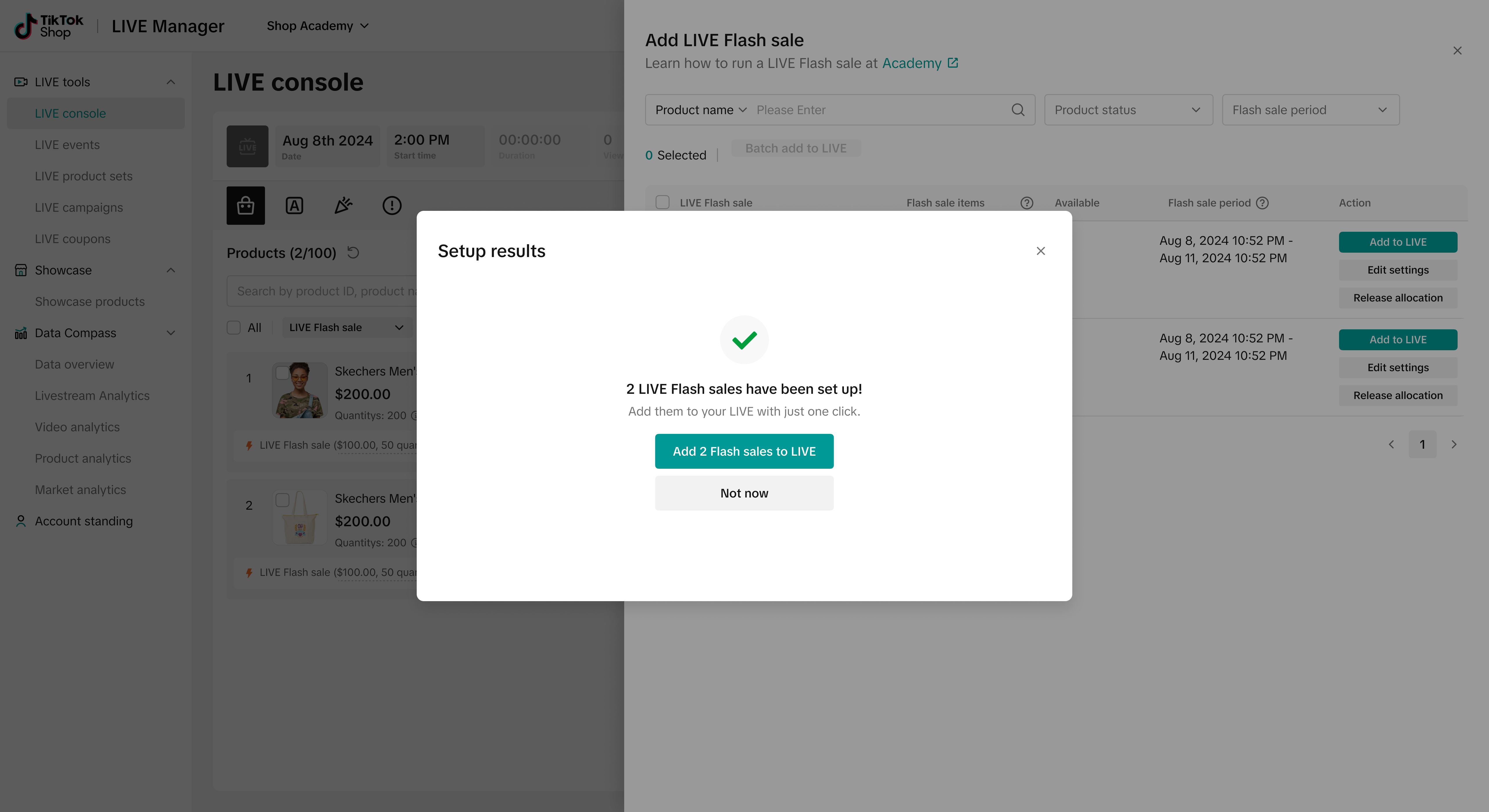
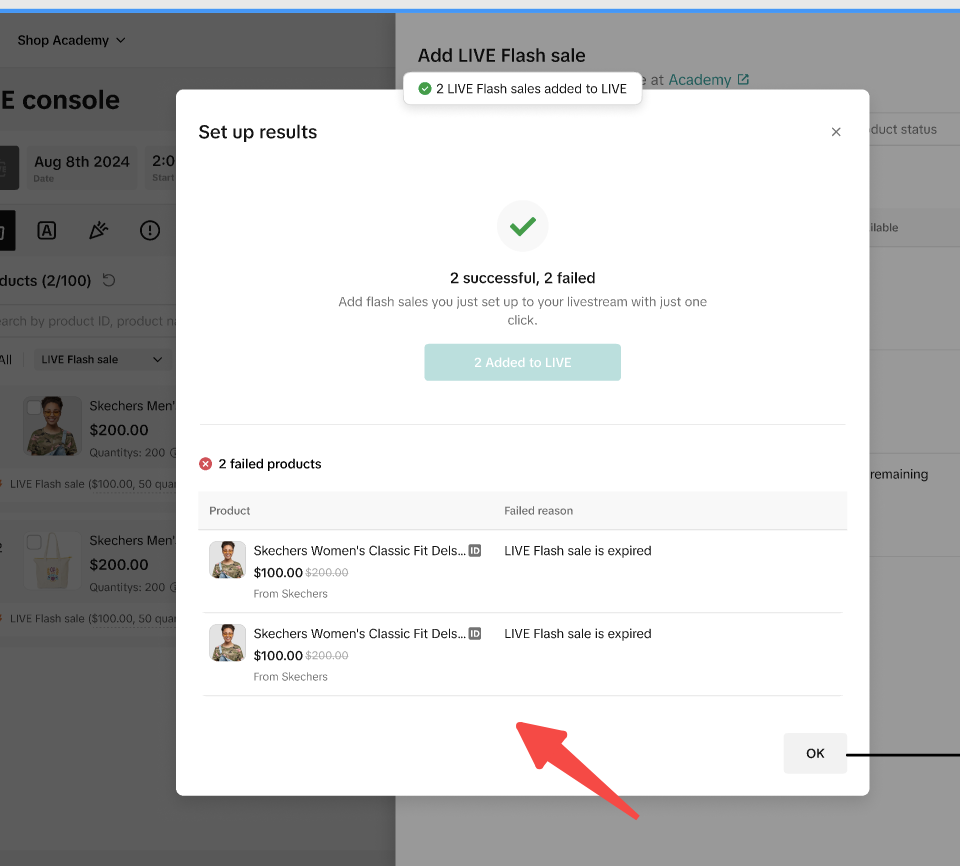
- Once you've followed the creation steps above, you will return to the original creation drawer. Here, you can edit or remove the flash sale by selecting release allocation to release the allocated product quantities and return the product to its original price in the shopping bag.
Editing a Flash Sale
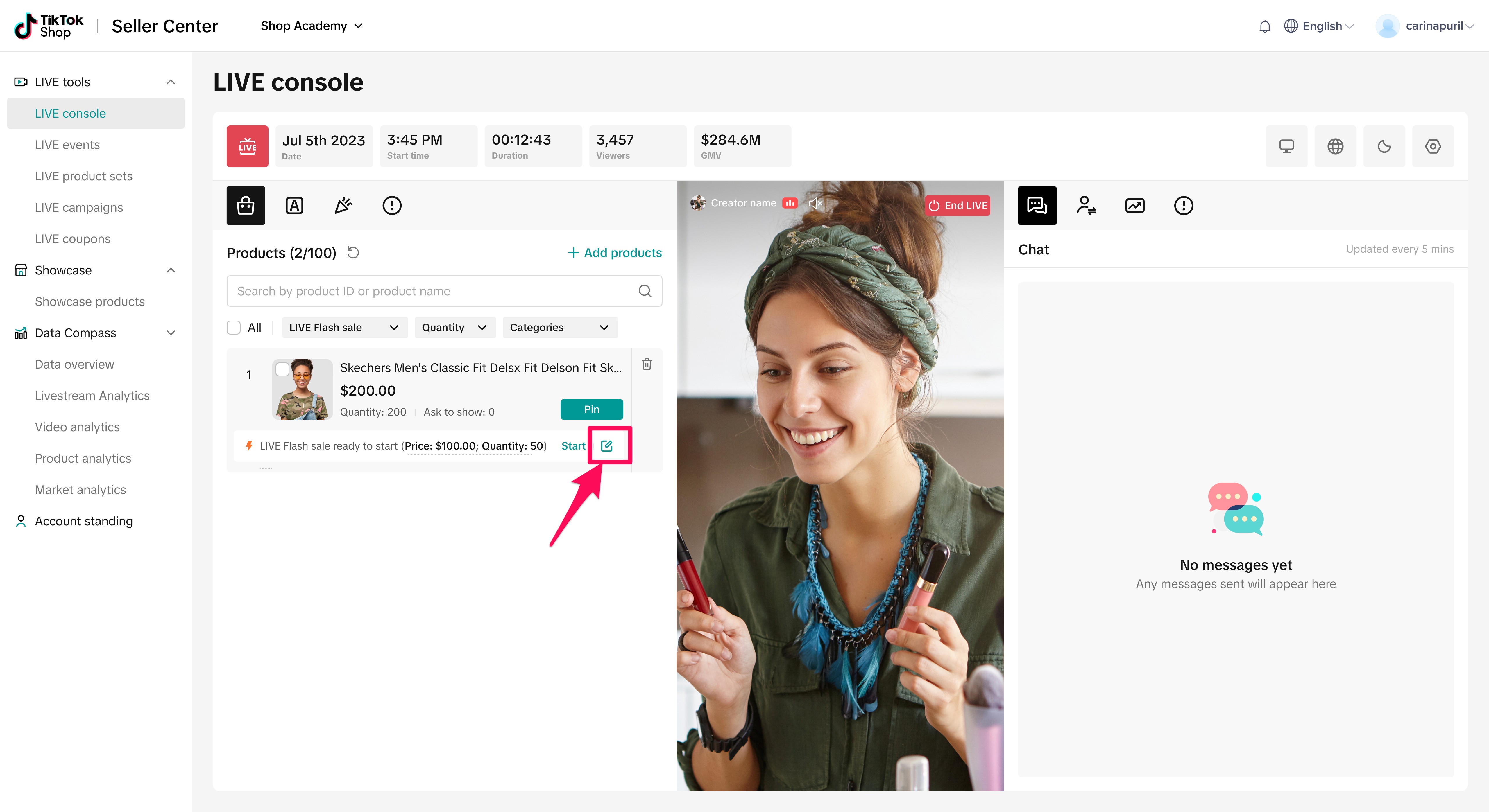
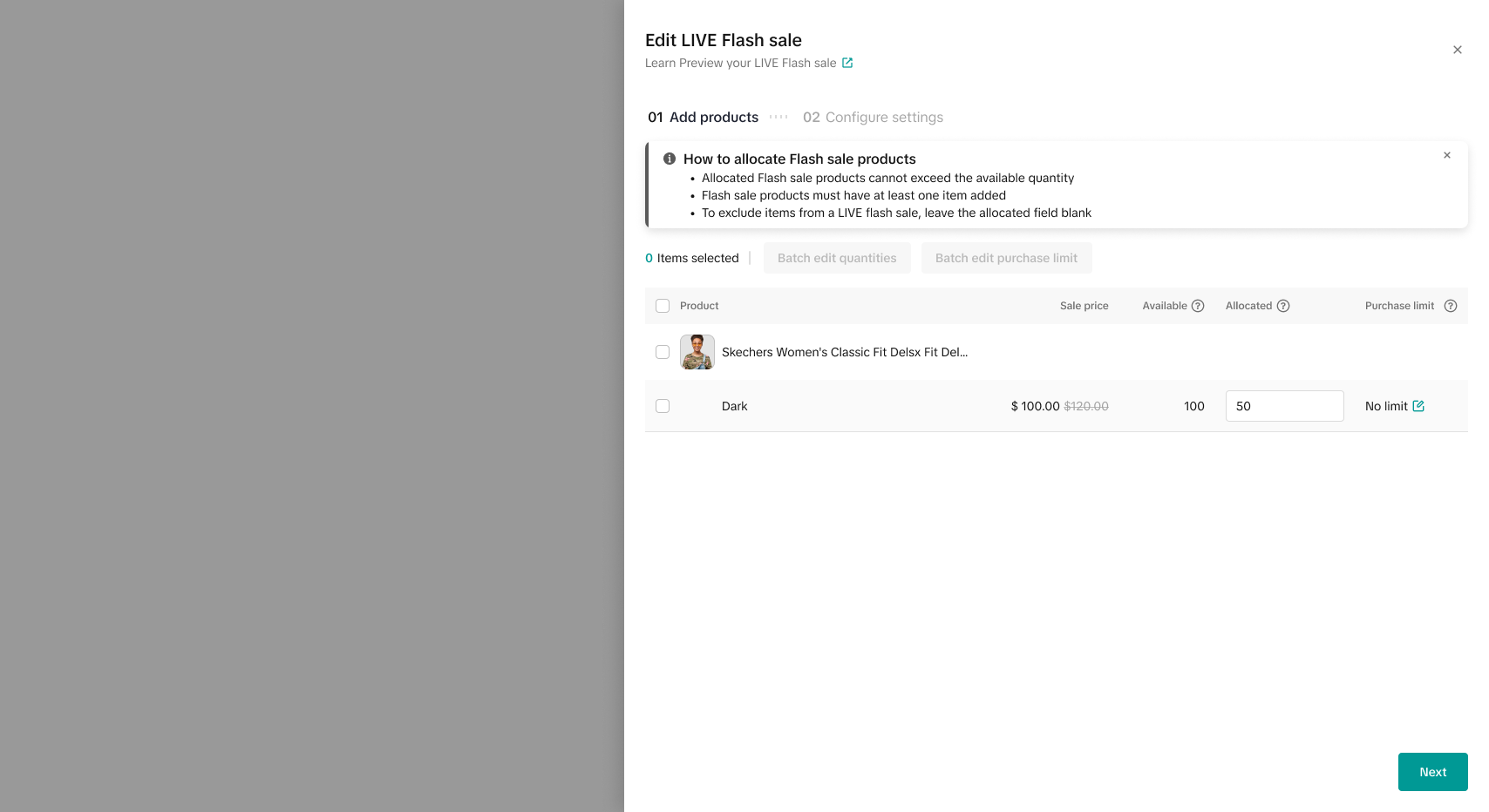
You can edit a Flash Sale by clicking Edit settings to modify your settings through the same set up process. Release allocation means removing the Flash Sale allocation - you can click the trashcan icon to do this, as well.Once you have added a Flash Sale sale to your shopping bag, click the edit icon to open up the Edit LIVE Flash Sale drawer.
Starting your Flash Sale While LIVE
- Once you are LIVE and the Flash Sale products are added to your shopping bag, press start to begin the Flash Sale countdown. Pin the product to get more attention and focus on the Flash Sale for better conversion.
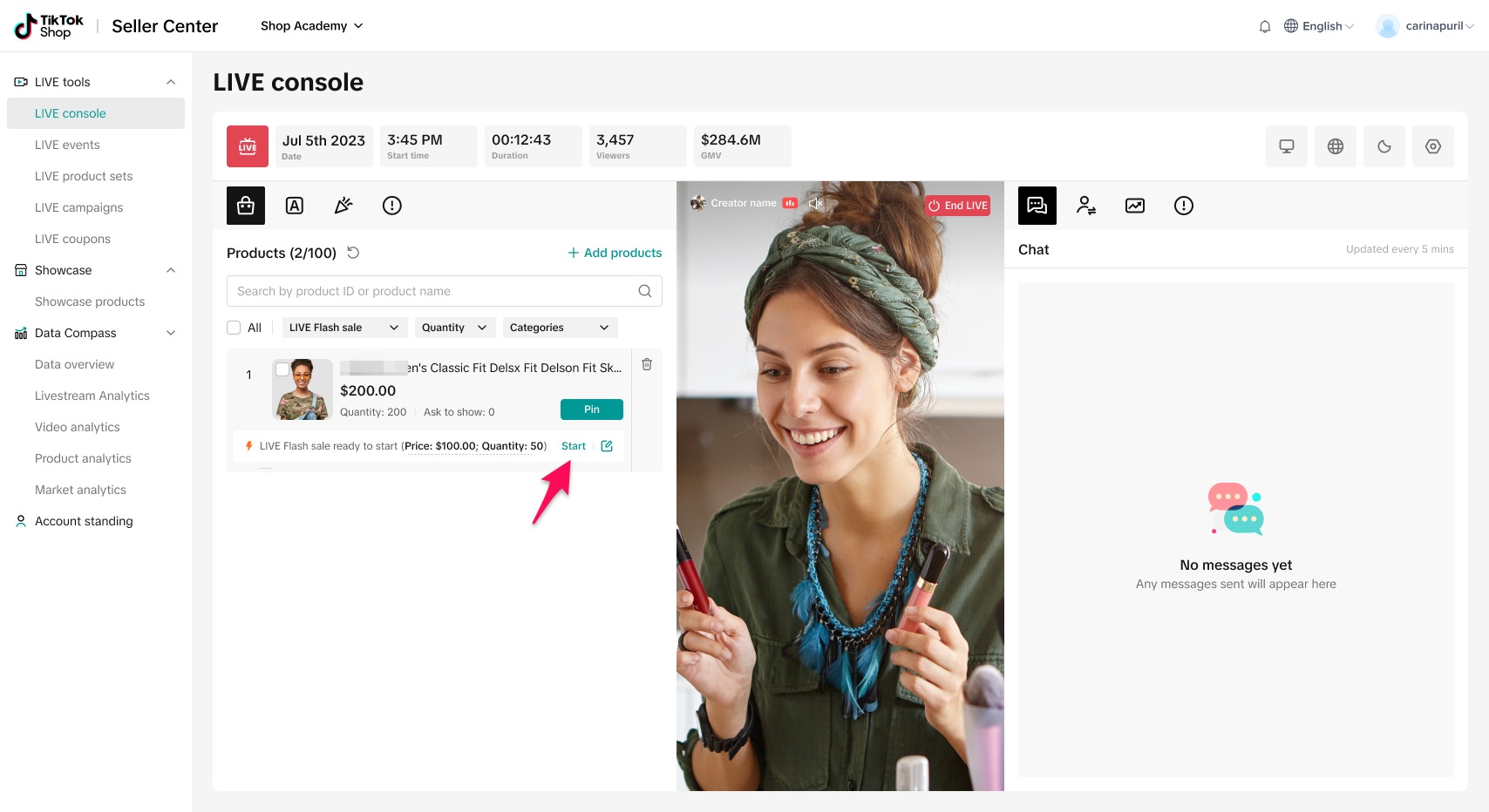
- You'll be able to keep track of the countdown from the shopping bag so that you can build up anticipation and energy ahead of the sale start time.
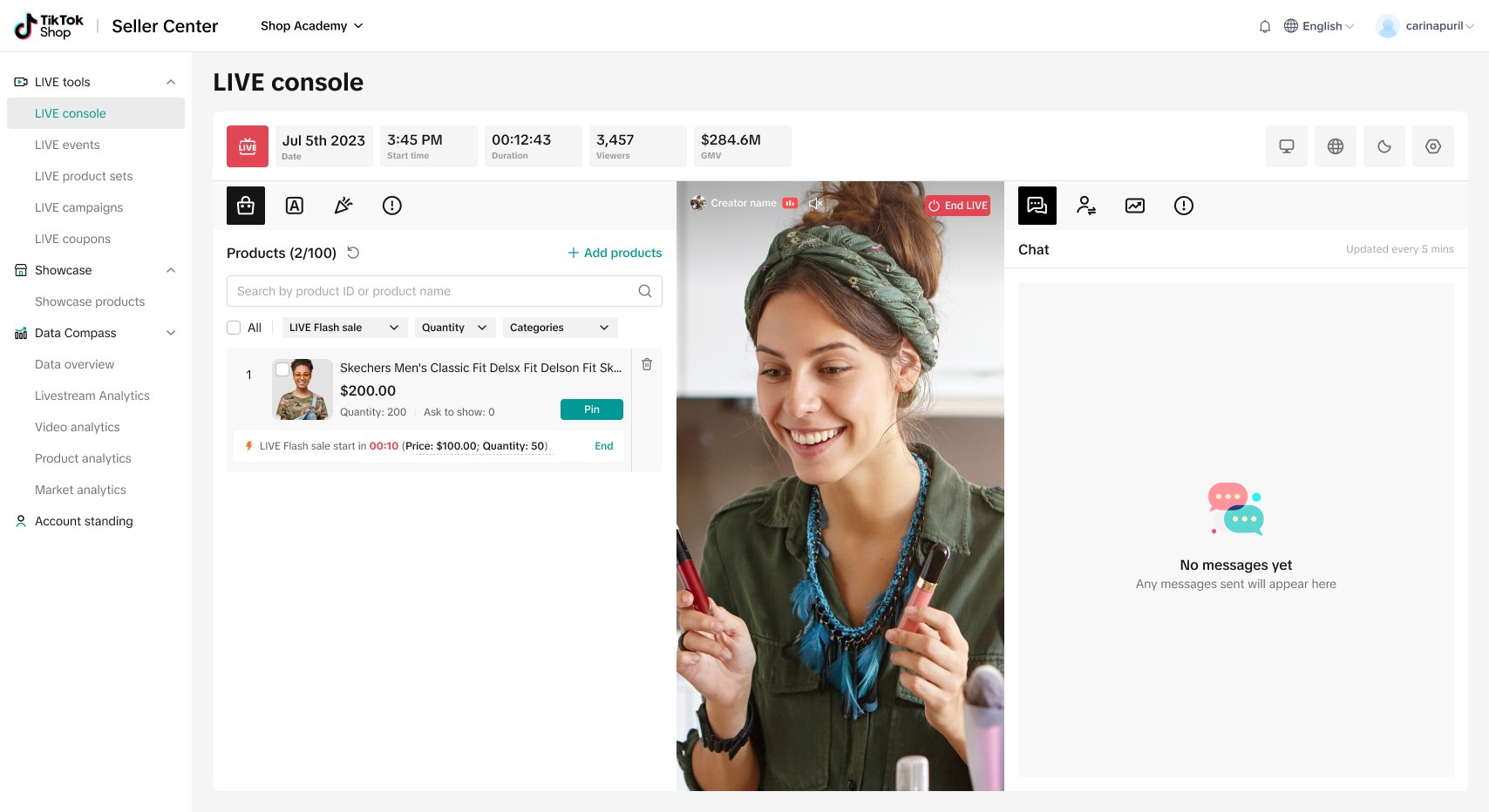
- If you change your mind during the 'preheat' countdown, you can click the end button to end the flash sale in the second confirmation pop-up, or click the delete button to end the flash sale and remove the product from the shopping bag.
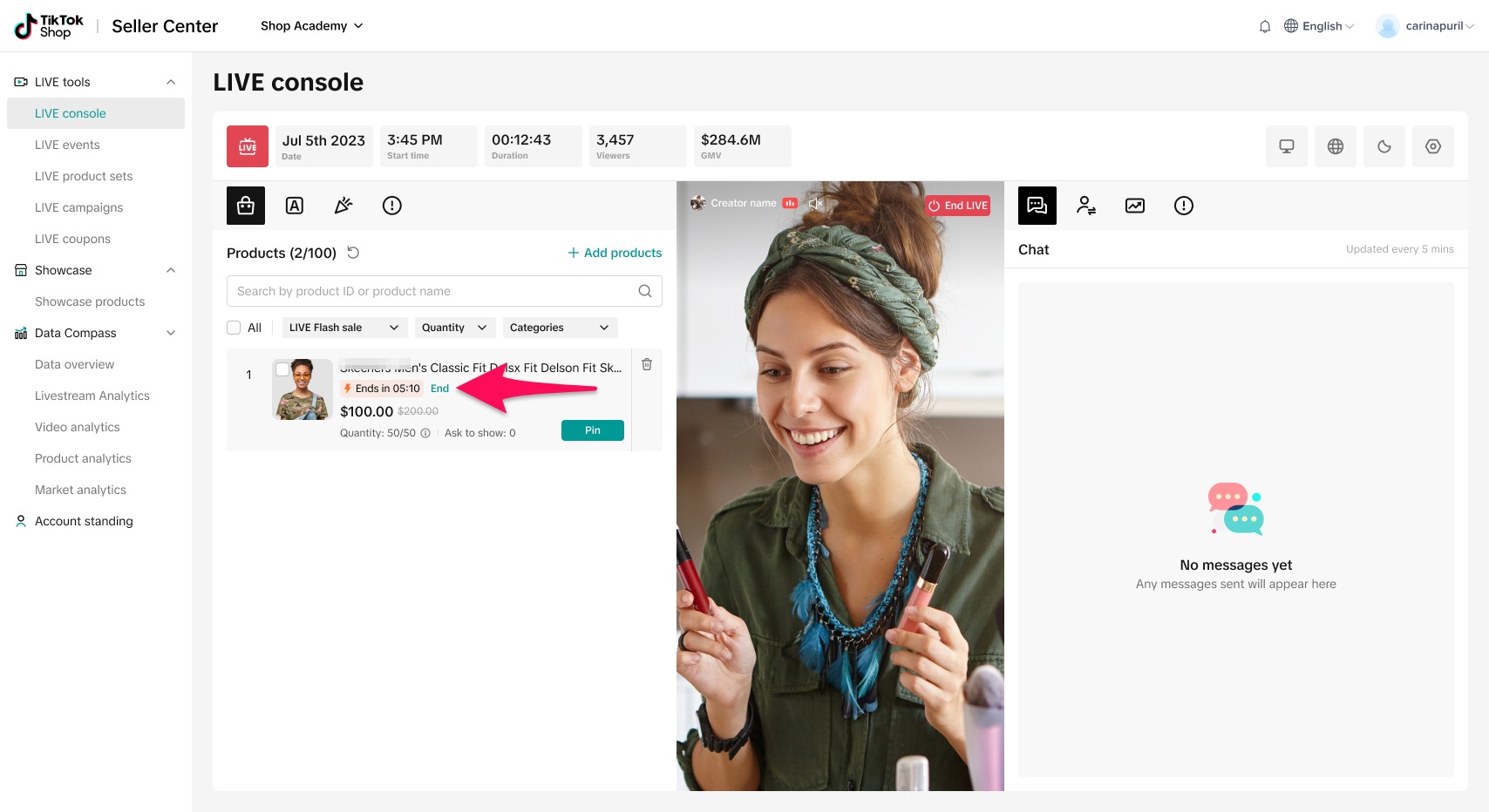
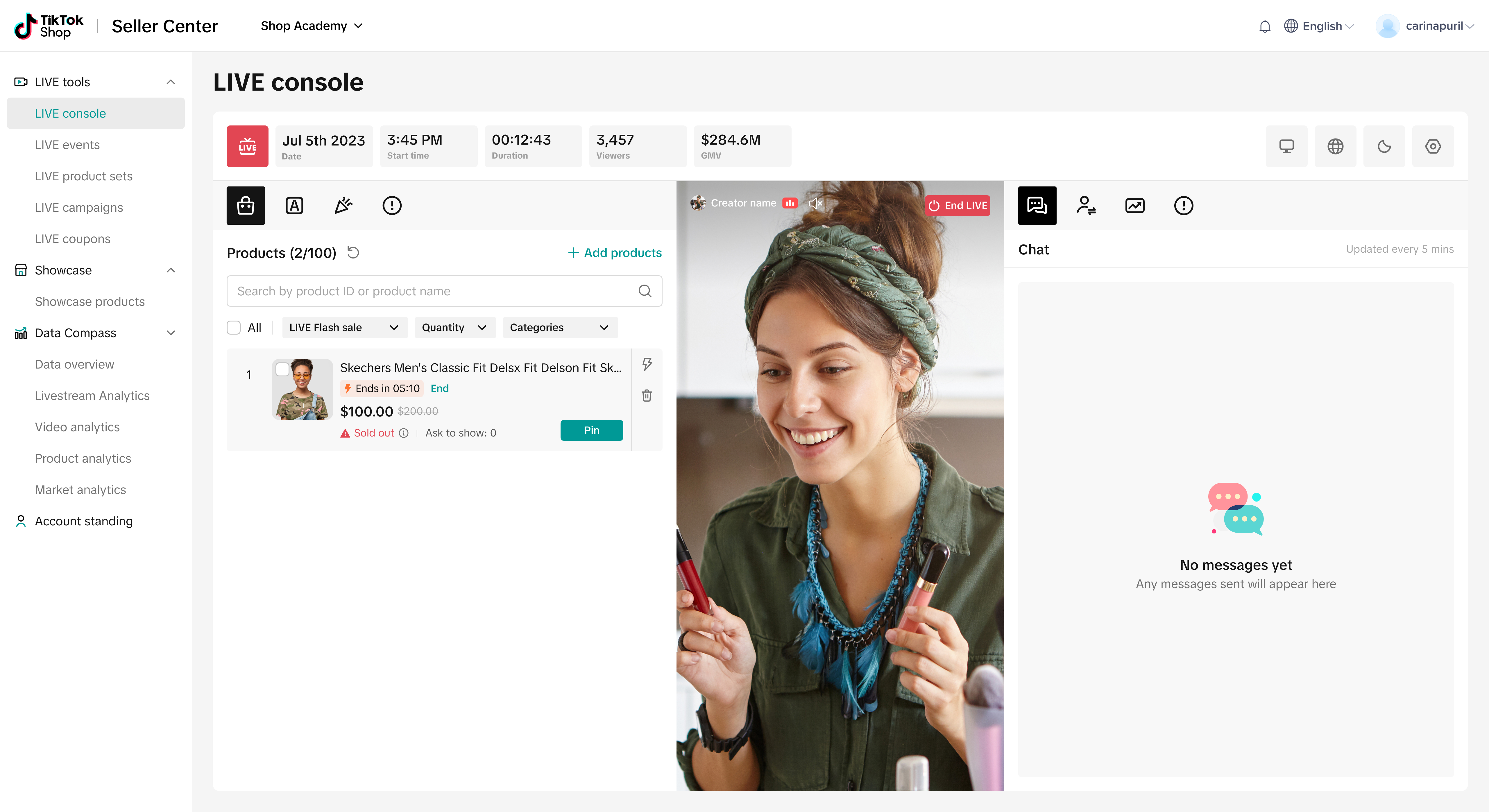
- The Flash Sale will end once the sale duration has concluded.
Duplicating a Flash Sale
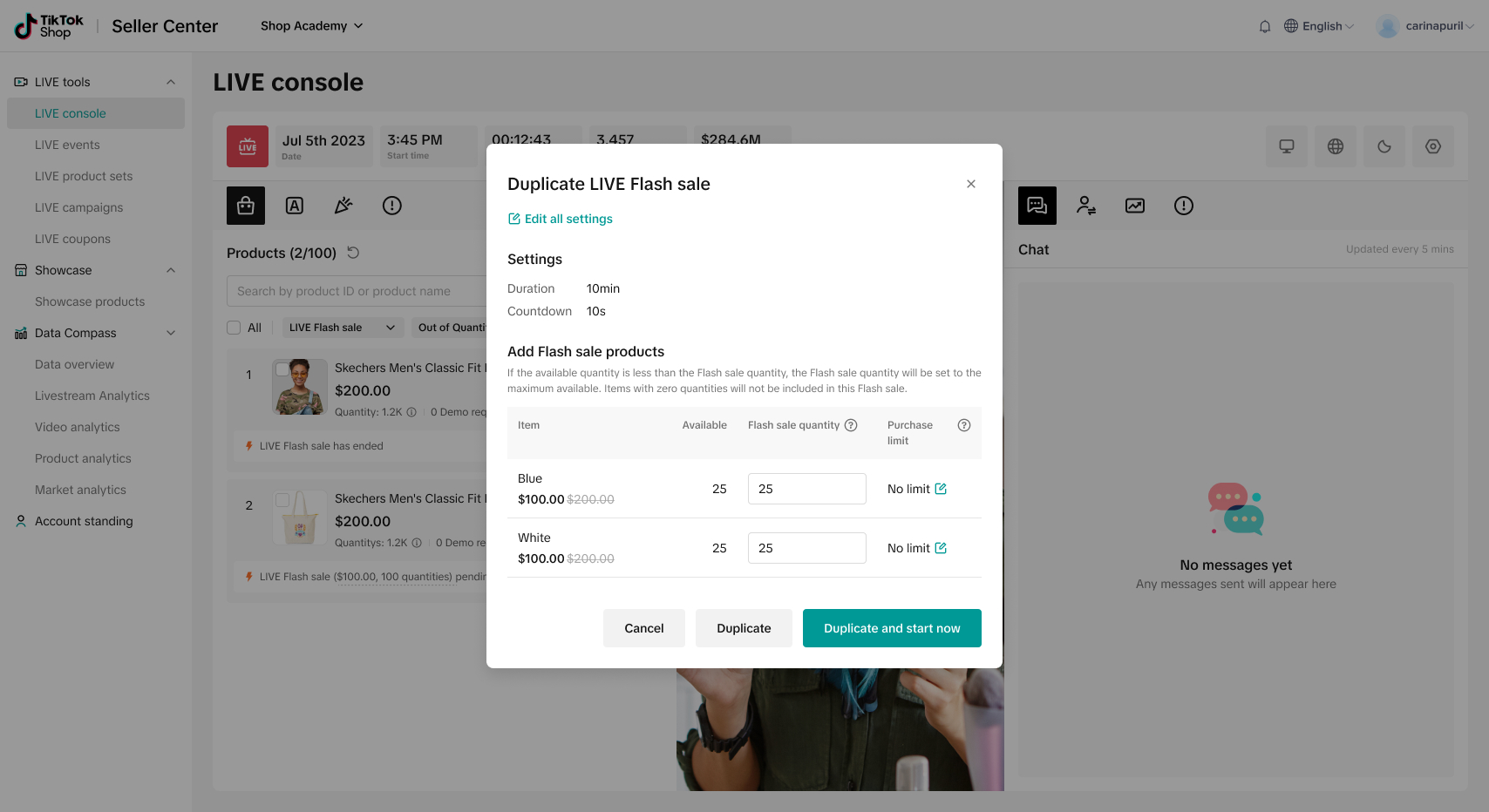
Once your LIVE Flash Sale has ended, if we detect that you still have sufficient inventory and can still create a Flash Sale, you will see the option to duplicate the flash sale or click the lightning bolt to enter the creation flow described above.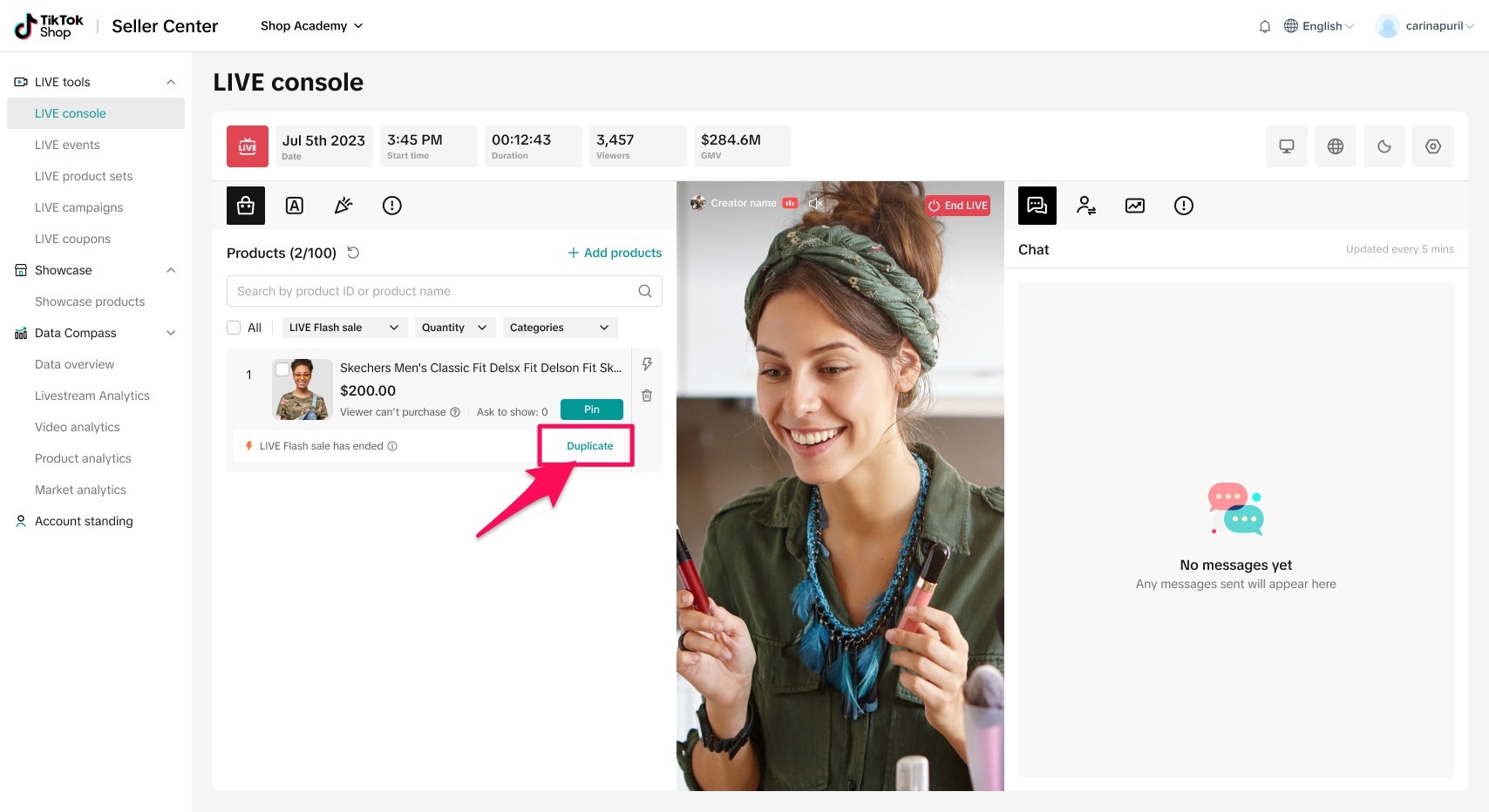
You can also decide whether you want to duplicate and start the flash sale immediately or simply duplicate for future use.
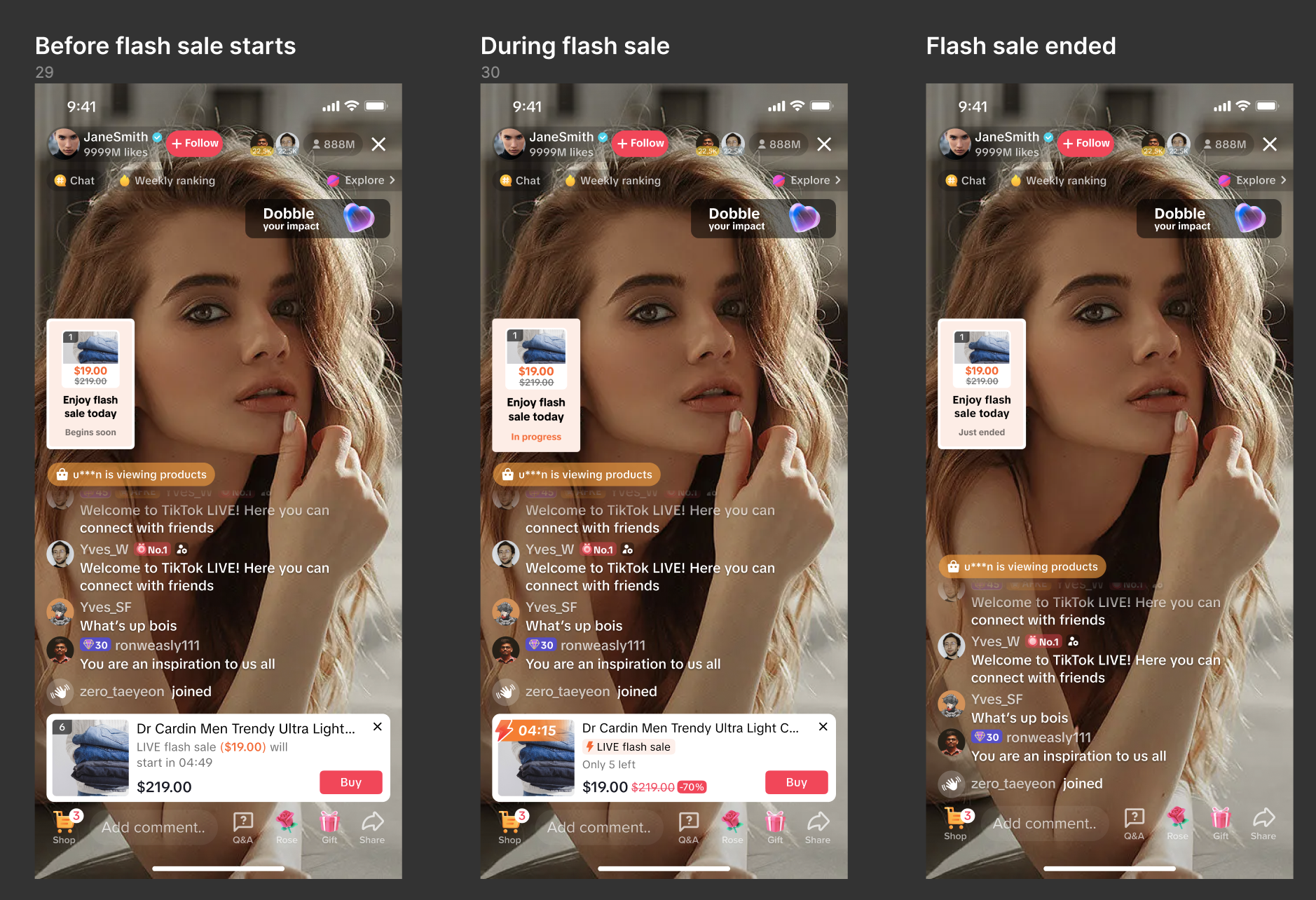
Viewers' Perspective

FAQs
| Questions | Answers |
| Creator accounts and seller marketing accounts are now all able to configure and launch LIVE Flash Sales from LIVE Manager. Note that LIVE Flash Sales still need to be set up as promotions in Seller Center first. For instructions, reference this guide. |
| Check out this tutorial on best practices related to LIVE promotional tools. |
| You can learn more about setting up a normal Flash Sale by referring to our guide on LIVE Flash Deals. |