

How to Use the 'Buy More Save More' Feature
12/10/2025
Summary
What is the Buy More Save More (BMSM) promotional tool and how does it benefit sellers on TikTok Shop?
- BMSM is a seller-funded tool that offers tiered discounts to customers buying multiple items, encouraging larger orders and cross-selling complementary products.
- It helps increase Average Order Value, drive volume sales, and move inventory faster by incentivizing bulk purchases or stocking up on essentials.
How can sellers create and configure a Buy More Save More promotion effectively?
- Sellers create BMSM promotions via Seller Center > Marketing > Promotional Tools, setting promotion type, name, period, and customer eligibility (all, new, existing, or repeat customers).
- They define up to 2 discount tiers with minimum quantities and discount amounts, set usage limits, and select eligible products (up to 1000), ensuring no overlap with Flash Deals or other BMSM promotions.
What are the key rules and restrictions sellers must follow when managing BMSM promotions?
- Only 2 tiers allowed, with Tier 2 requiring higher quantity and discount than Tier 1; products cannot participate in multiple BMSM promotions simultaneously or with Flash Deals.
- Sellers can limit total redemptions or per-customer claims; promotions auto-deactivate when limits are reached; stores with 10 ongoing/upcoming BMSM events or negative balances cannot create new promotions.
How does customer segmentation affect the visibility and effectiveness of BMSM promotions?
- Promotions can target all customers or specific segments (new, existing, repeat), but segmented deals are only visible to eligible shoppers, so sellers should avoid promoting them in videos to prevent confusion.
- This targeted approach helps tailor offers to customer loyalty levels, potentially increasing conversion among specific groups.
What management options do sellers have for ongoing or upcoming BMSM promotions?
- Sellers can edit upcoming promotions freely, increase usage limits or make ongoing promotions unlimited, but cannot reduce limits on active campaigns.
- They can also deactivate promotions immediately or duplicate past campaigns to quickly launch similar offers, with detailed usage reports available after promotion ends.
Product Overview
Buy More Save More is a seller-funded promotional tool designed to reward customers for purchasing larger quantities. With this tool, you can set tiered discounts on specific product collections, incentivizing shoppers to add more items to their cart to unlock the savings (e.g., "Buy 2 items, save 10%").Key Benefits
- Increase Average Order Value (AOV): Motivate shoppers to increase their basket size to reach your discount thresholds.
- Encourage Cross-Selling: Drive sales across your catalog by grouping complementary products (e.g., shampoo and conditioner) that buyers need together.
- Drive Volume Sales: Incentivize shoppers to "stock up" on essentials or buy in bulk, helping you move inventory faster.
How to create Buy More Save More promotion
Step 1: Go to Seller Center > Marketing > Promotional Tools > Buy More Save More > Create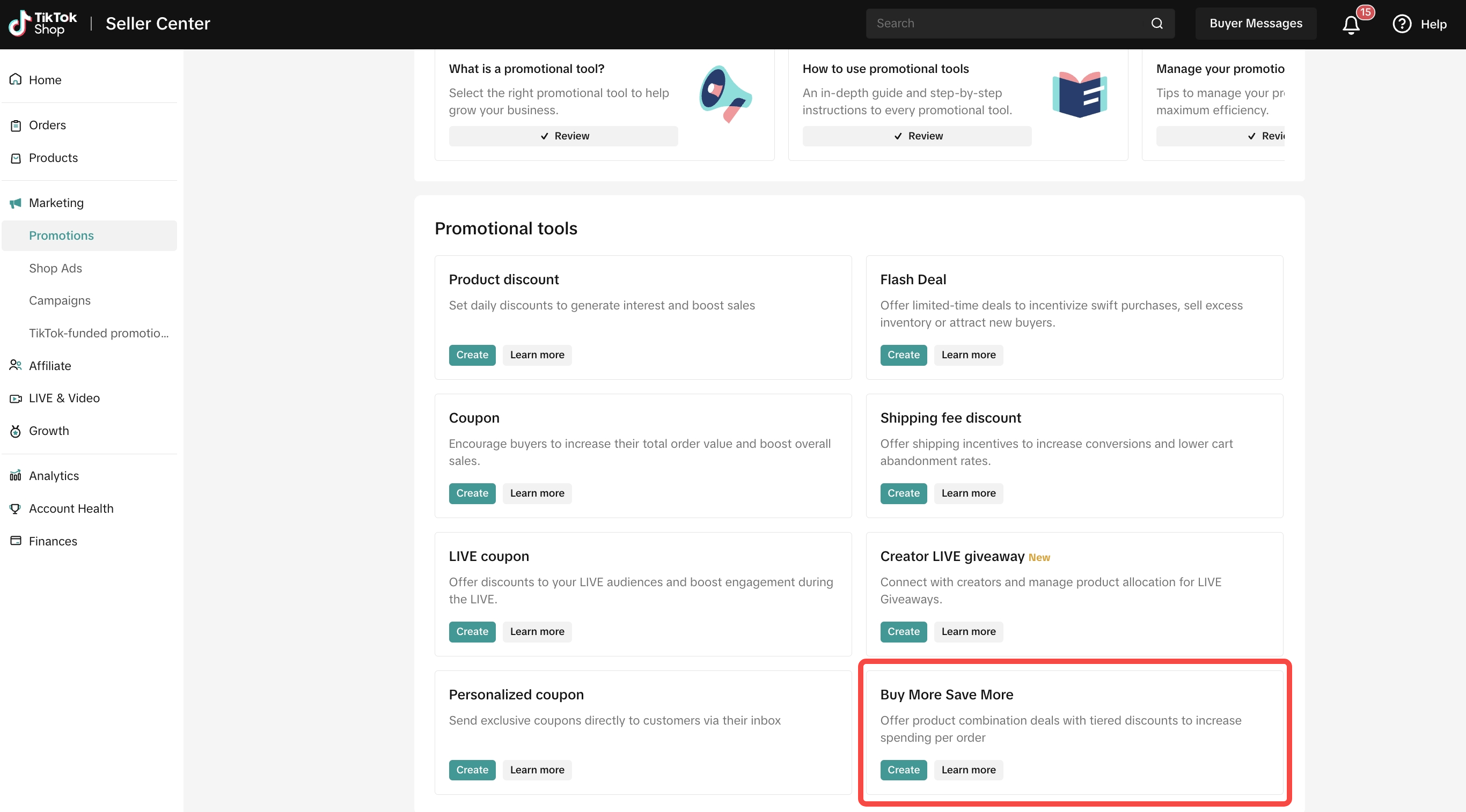
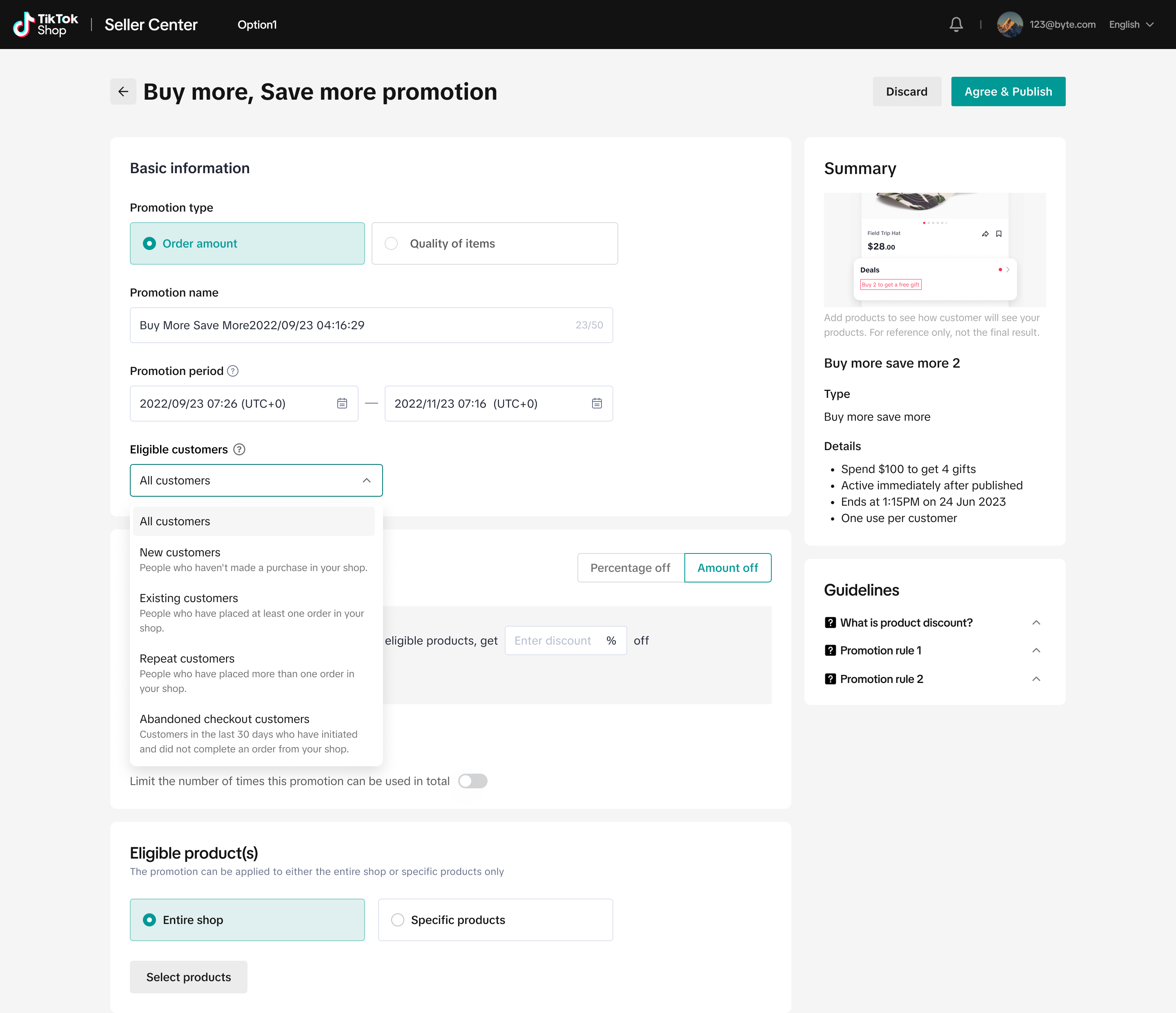
- Promotion Type: Order amount or Quality of items
- Promotion Name: A unique name to help you manage the promotion
- Promotion Period: Select the date range and time of the promotion.
- Eligible customers:
- All Customers (Default): Available to every shopper. This setting applies to all legacy promotions created before customer segmentation was available.
- New Customers: Shoppers who have never purchased from your shop before.
- Existing Customers: Shoppers who have completed at least one purchase from your shop in the past.
- Repeat Customers: Loyal shoppers who have completed two or more purchases from your shop.
Marketing best practice: Segmented promotions are only visible to eligible shoppers, so be mindful mentioning them in LIVE or Short Videos. If viewers cannot see the deal, it may cause confusion.
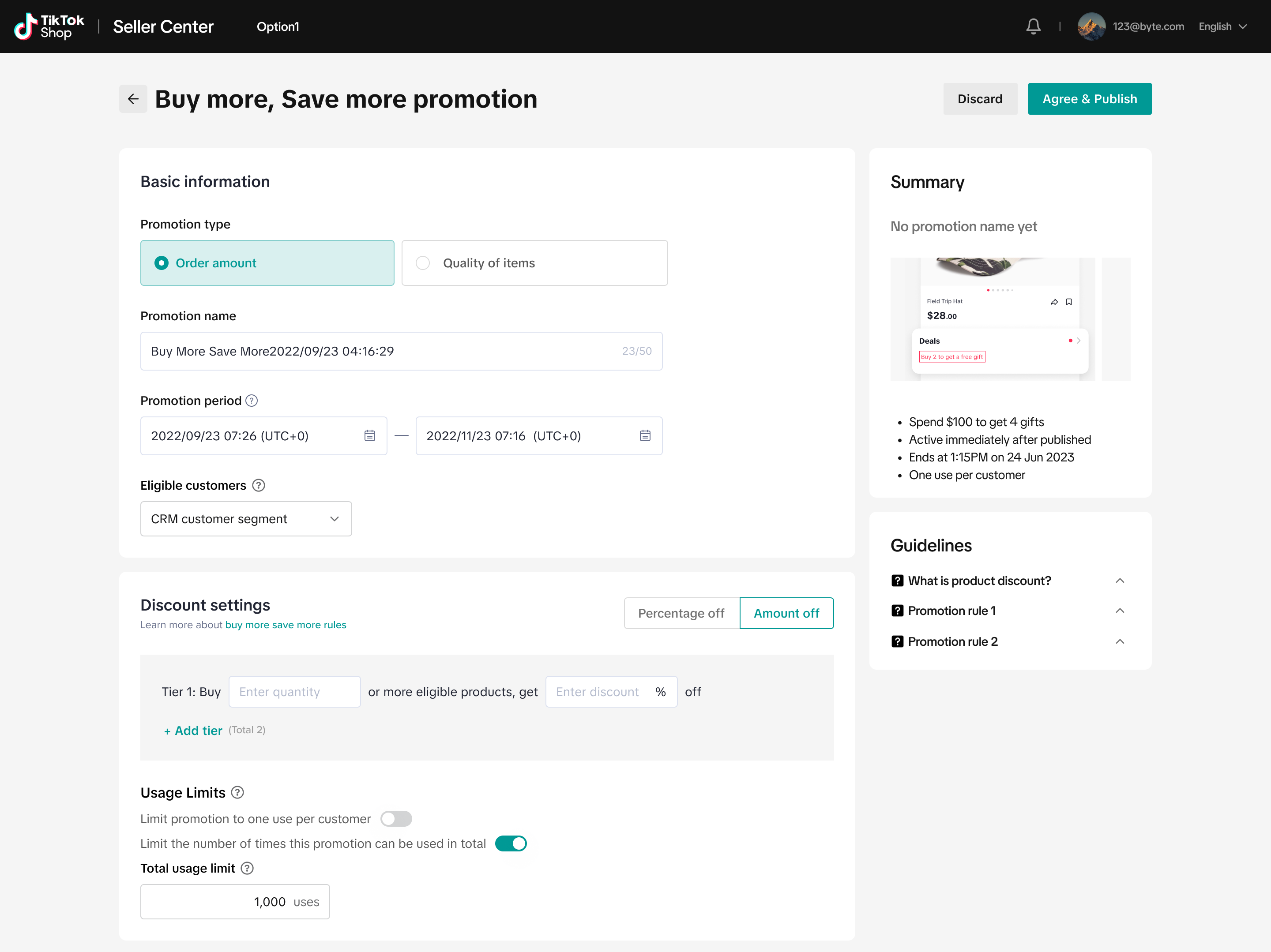
- Discount settings
- Tier: Define your discount levels by entering the minimum Quantity (how many items must be bought) and the discount Amount (the reward). Use the second tier to reward bulk purchases. For example, if Tier 1 is "Buy 2, Save 5%," make Tier 2 "Buy 3, Save 10%" to encourage shoppers to add just one more item to their cart.
- Usage Limits: You can control your budget by toggling on "Limit the number of times this promotion can be used in total" This differs from the "Limit to one per customer" setting, as it caps the total number of redemptions across all shoppers.
- Range: You must enter a value between 100 and 100,000. (Default: 1,000).
- High Volume: If you plan to offer more than 100,000 redemptions, simply turn off the toggle to allow unlimited usage.
- Editing Active Promotions
- Upcoming Promotions: You can freely edit the usage limit to any valid number.
- Ongoing Promotions: You can increase the limit or disable the toggle (make it unlimited). You can't decrease the limit on an active promotion.
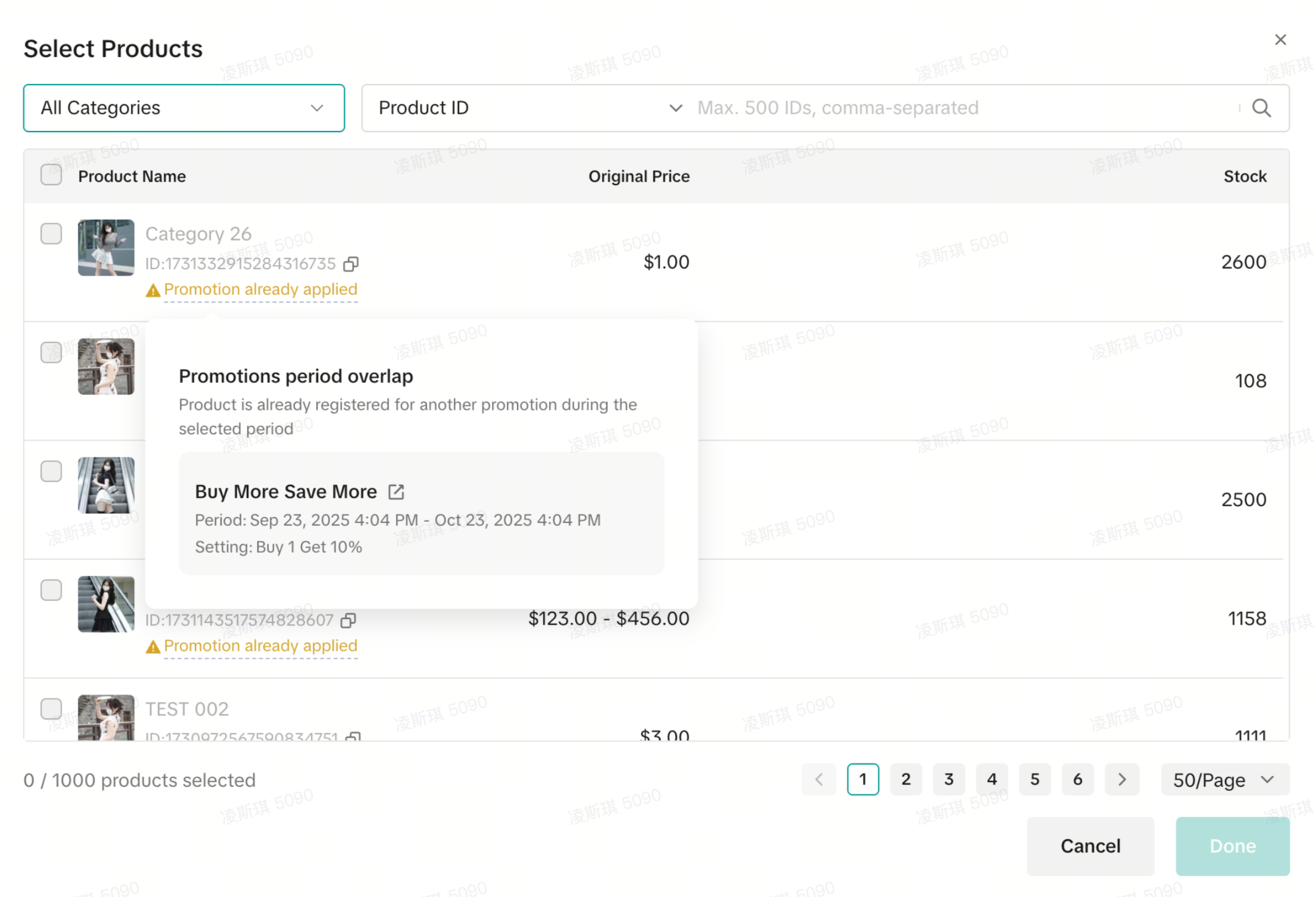
- Eligible Product(s) : You can select products involved in existing BMSM promotions, but a "Promotion already applied " warning will appear. Hovering over this warning reveals the overlapping promotions and clarifies that the higher discount takes priority during the conflict period
Managing Your BMSM Promotions
Once your promotion is created, you can manage it using the following actions:- Edit: Modify the settings of upcoming or ongoing promotions.
- Deactivate: Immediately stop an ongoing promotion or cancel an upcoming one.
- Duplicate: Clone the settings of a past or existing promotion to quickly set up a new campaign.
FAQs
- How many tiers can I set for Buy More Save More promotions?
Examples:Tier 1: Buy 2 items and get 20% discount
Tier 2: Buy 3 items and get 30% discount
- What's the difference between Tier 1 and Tier 2 discounts?
Positive examples:Tier 1: Buy 2 items and get 20% discount
Tier 2: Buy 3 items and get 30% discount
Negative example:Tier 1: Buy 4 items and get 30% discount
Tier 2: Buy 2 items and get 20% discount
- How many times can a buyer claim a Buy More Save More promotion?
If the Seller has set a limit of one claim for each buyer, the buyer is unable to see the BMSM promotion after it has been successfully paid.
- Can I select store-wide to participate in the promotion?
- Are there any restrictions on product selection?
A product can only participate in one BMSM promotion at the same time period.
Buyers will only see the BMSM promotion with the lowest discount if there are multiple BMSM promotions created.
- Why can't I create BMSM promotions?
- What happens if a buyer is eligible for two different Seller BMSM promotions?
Products A & B are eligible for BMSM 1.
Products C & D are eligible for BMSM 2.
The buyer will enjoy both BMSM promotions.
You may also be interested in
2025 BFCM TikTok Shop Readiness Guide
The holiday shopping rush is your single biggest opportunity to increase sales & grow your brand on…
Promotion stacking rules
Learn how promotions work together What you'll see and what your customers get: On TikTok Shop, you…
TikTok for Shopify: Strikethrough Pricing Integration
TikTok for Shopify - Strikethrough Pricing Integration for Shopify Overview: Strike-through pricing…
Seller LIVE Flash Deal
What is LIVE Flash Deal ? LIVE Flash Deal is a seller-funded promotion tool that allows sellers to c…

The Seller Guide to Shop Tab Success
What is Shop Tab? Shop Tab is another way for shoppers to discover your products on TikTok Shop. As…

How to register through standard registration
What is Standard Registration? Standard Registration allows you to register products that meet speci…

How to register for flash sale campaigns
What is a TikTok Shop Flash Sale Campaign? A Flash Sale campaign is a limited-time promotion that le…

TikTok for Shopify: Promotions Sync
Overview: Shopify sellers can sync Promotions/Discounts except Free Shipping on Shopify directly to…
The smart pricing suite: Pricing insights and campaign price…
Product Overview TikTok Shop Pricing Suite is your complete smart pricing system built directly into…
How to Use Seller Coupon
Seller Coupon What is Seller coupon? Seller coupon is a promotional tool that can be used by sellers…