

TikTok for Shopify - Auto Post Shoppable videos
12/16/2025
Summary
What is the automatic video sync and auto-publish feature for TikTok Shop merchants using Shopify, and how does it work?
- This feature automatically syncs eligible Shoppable Videos from Shopify to a linked TikTok Shop account and auto-publishes 1-2 videos daily based on a customizable schedule, preventing duplicate posts across accounts.
- Videos sync continuously if linked to active products and meet TikTok Shop guidelines, with merchants able to adjust posting frequency, times, and time zones anytime.
What are the eligibility requirements and key rules merchants must follow to use auto-sync and auto-publish for Shoppable Videos?
- Videos must comply with TikTok Shop’s responsible business, safety, community content, product compliance, and product eligibility rules; videos linked to products already having a video won’t sync again.
- Merchants must link their TikTok Shop account before enabling auto-sync; otherwise, auto-posting remains disabled and a warning prompts account binding.
How can merchants set up, customize, and manage their auto-sync and auto-publish settings for Shoppable Videos?
- Setup involves linking the TikTok Shop account in Shopify’s TikTok App, toggling auto-sync ON, and configuring videos per day, posting times, and time zone under Shop Management → Shop Settings → Videos.
- Merchants can manage videos (edit captions, hashtags, schedule, publish immediately) via Shop Management → Shoppable Video → Manage Videos, including bulk actions and status filtering.
What should merchants know about managing video content and troubleshooting common issues with auto-publishing?
- Published videos cannot be edited; only scheduled or ready-to-post videos can be modified. If a video upload fails, hovering over the error tooltip reveals the reason.
- Disabling auto-post stops scheduled posts until re-enabled; correct time zone settings are crucial to avoid posting delays; guidance banners can be dismissed but do not affect posting functions.
What are the implications of this feature rollout for TikTok Shop sellers using Shopify?
- This automation streamlines content publishing, saving time and ensuring consistent posting, but requires careful account linking and compliance with TikTok’s guidelines to maximize video visibility and avoid posting errors.
- Gradual rollout means some merchants may not yet see the feature; those with access can leverage it to boost engagement and sales through timely, automated video content.
This article explains how automatic syncing and auto-publishing of Shoppable Videos work for merchants using the TikTok App for Shopify with TikTok Shop. You’ll learn how videos sync, how auto-posting works, eligibility rules, setup steps, scheduling options, and how to manage your content.NOTE: This document has a full feature preview. The automatic video sync and auto-publish capabilities will be gradually rolled out to all merchants.
Overview
With this new feature, your existing Shoppable Videos from Shopify can automatically sync to your linked TikTok Shop Seller Center. Once synced, videos can be automatically published to your TikTok Shop account based on your configured posting schedule.- Each video syncs only once.
- Videos sync to only one TikTok Shop account, preventing duplicate posts across multiple accounts.
Feature Rules
Default Behavior
- Starting December 18, the system automatically syncs your Shopify Shoppable Videos to your linked TikTok Shop account.
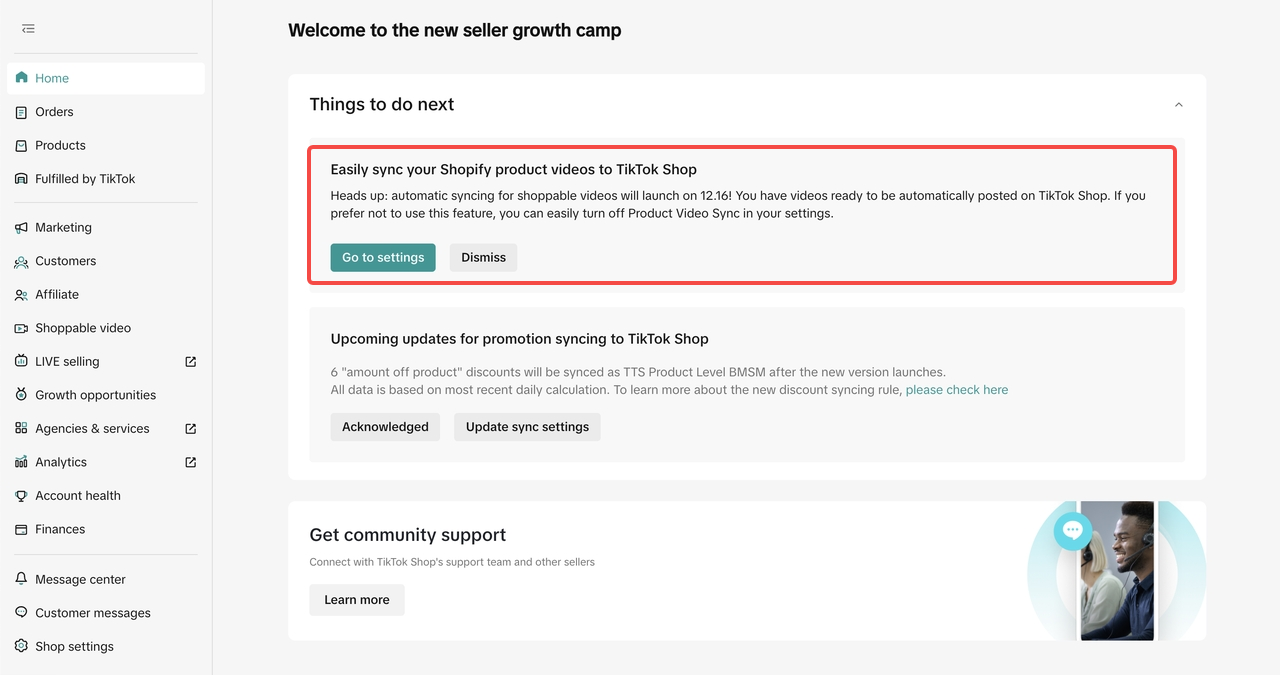
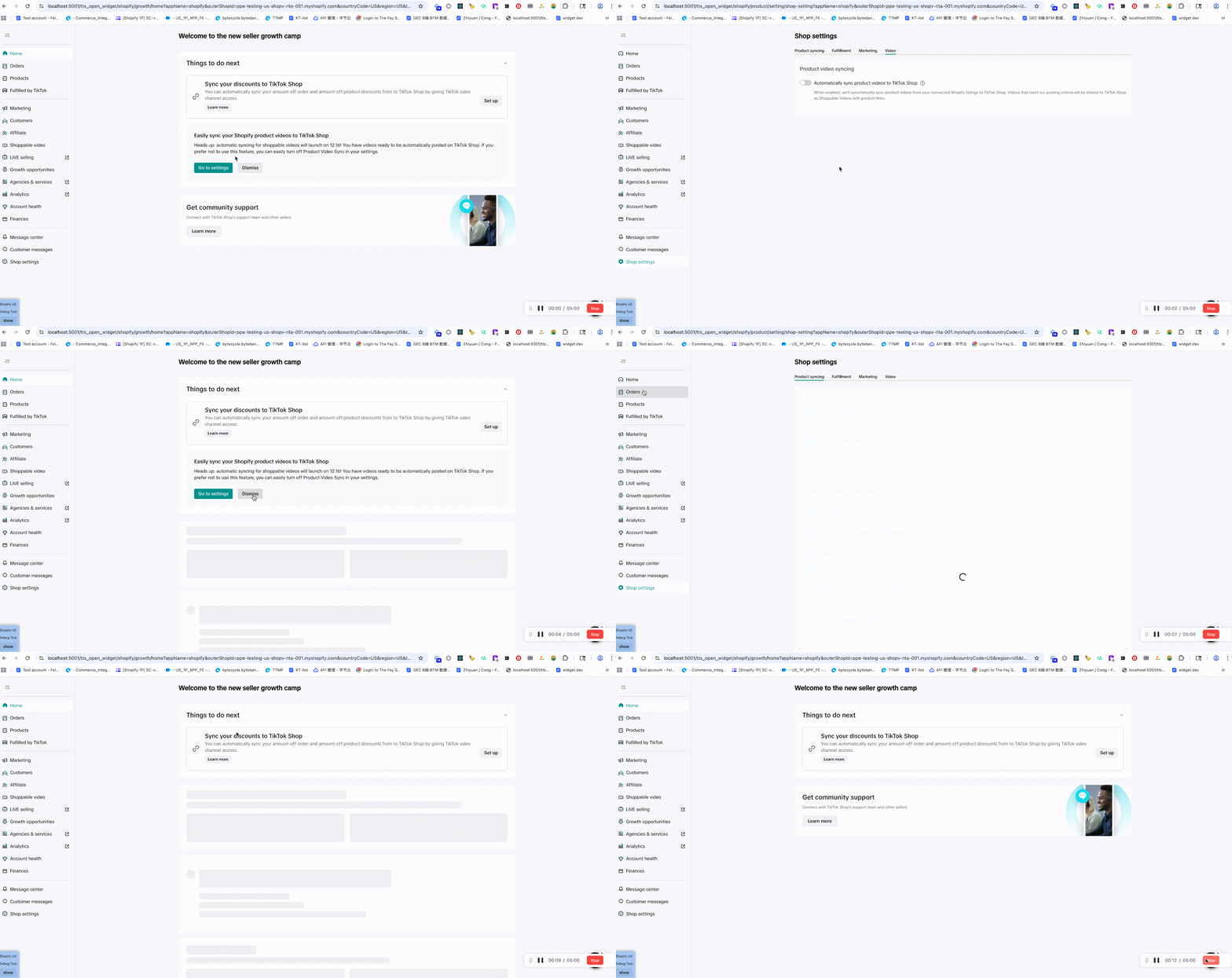
- If you have already linked a TikTok account, you will see a homepage banner in the TikTok App for Shopify prompting you to adjust auto-sync settings.
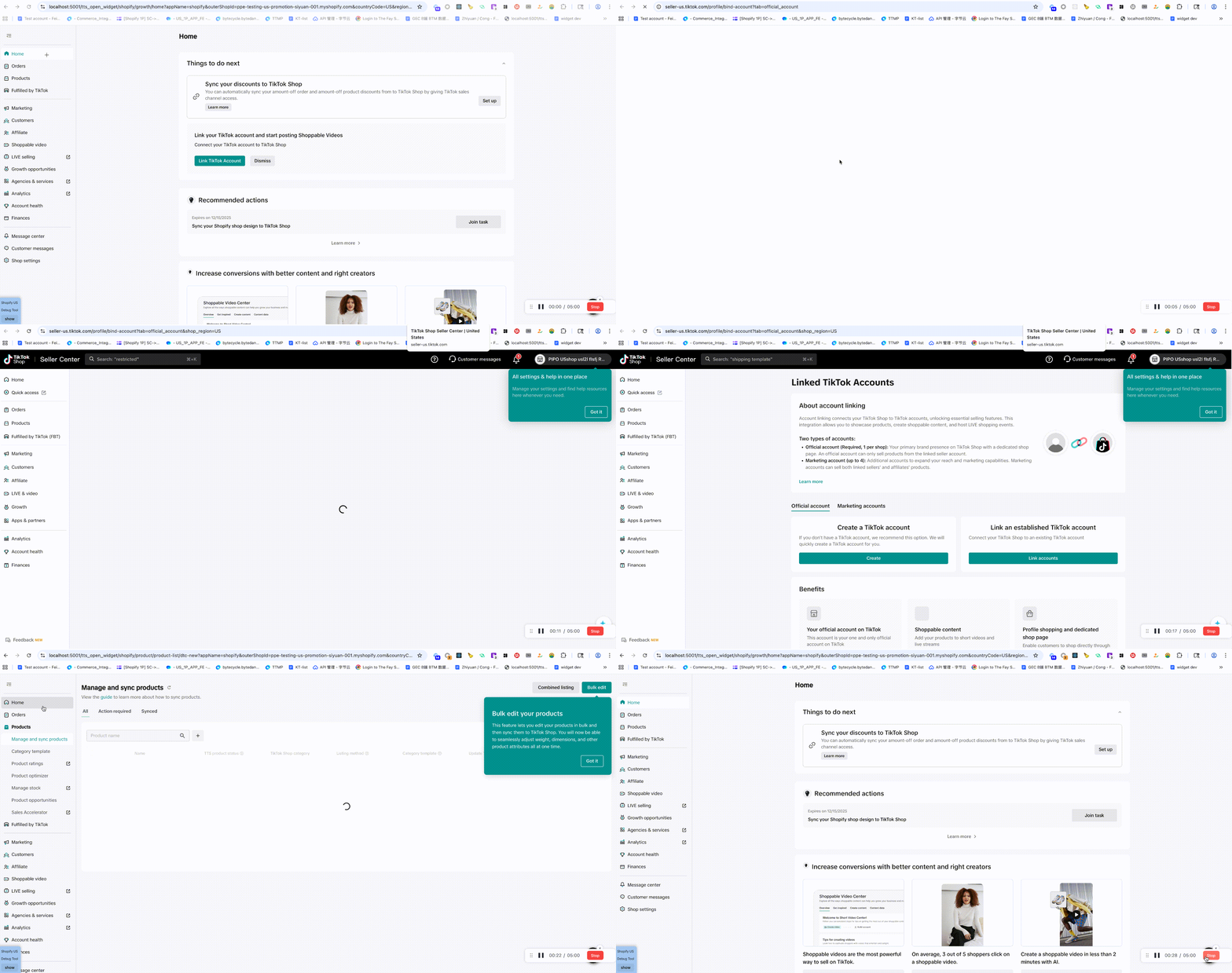
- If your TikTok account is not linked, the banner will prompt you to complete TikTok official account binding before adjusting any sync settings.
- Sellers will also see a warning message requiring TikTok account binding before turning ON auto-sync.

- The system automatically auto-publishes 1 or 2 videos per day unless you change the settings.
Adjustable Options
You can customize:- Number of videos posted per day
- Preferred posting time(s)
- Time zone
- Auto-publish (enable/disable)
Eligibility
Only qualified videos sync and post. Videos must meet TikTok Shop guidelines, including:- Responsible-business and safety requirements
- Community content and product compliance rules
- Product eligibility rules
- If a product already has a video, the system will not attach a new synced video.
How Auto-Sync & Auto-Post Work
Video Syncing
- Videos sync automatically from your Shopify store to your TikTok Shop Videos Manager.
- Only videos linked to active, valid products will sync.
- Syncing is continuous—new eligible videos will be fetched automatically.
Scheduling & Auto-Publish
If auto-posting is enabled:- Videos will publish automatically according to your daily posting schedule.
- You can adjust posting times at any time.
How to Enable Auto-Post
- Go to Shopify → TikTok App
- Navigate to Shop Management → Shop Settings → Videos
- Click Link TikTok Account and select your TikTok Shop account
- Toggle Automatically sync product videos to TikTok Shop ON
- Configure your desired posting settings:
- Videos per day
- Posting time(s)
- Time zone
- Click Save

How to Manage Videos
- Go to: Shop Management → Shoppable Video → Manage Videos
- Here, you can browse videos by status:
- Posted
- Scheduled
- Ready to Post
- Not Eligible
- For each video, you can:
- Edit captions
- Add hashtags
- Adjust scheduled posting times
- Publish immediately
- Use Bulk Actions to edit or publish multiple videos at once.
Feature Details
Below is the full breakdown of all Auto-Post Shoppable Video functions.Homepage Guidance (Things-To-Do Banner)
Item | Details |
| Purpose | Guide merchants through account linking and setup |
| Banner States | • Link TikTok Account – prompts account connection • Ready to Post – shown after account is linked |
| Actions Available | • Link TikTok Account • Dismiss • Go to Manage Videos |
| Behavior | Once dismissed, the banner remains hidden (stored in local storage). |
Shop Settings — “Videos” Tab
Item | Details |
| Location | Settings → Videos |
| Functions | • Enable/disable auto-posting• Choose TikTok account• Select number of videos per day• Set posting time & time zone• Save configuration |
| UI Behavior | • After saving, the settings become read-only.• Merchant must click Edit to make changes. |
| Account Requirement | If no TikTok account is available, a prompt appears and auto-posting stays disabled. |
Manage Videos Page
Item | Details |
| How to Access | • Home banner• Left-side navigation• Settings → Manage Videos |
| Page Banner | Dismissible guidance banner (remains hidden once dismissed; stored locally). |
| Video Table Includes | • Status: Posted / Scheduled / Ready to Post / Upload Failed / Not Eligible• Product bindings• Pagination (10 videos per page)• Error tooltips |
| Empty/Error States | • No videos• Auto-post disabled• No eligible videos |
| Video Preview | Clicking a video thumbnail opens a portrait video preview using the built-in video player. |
Editing Video Details
Item | Details |
| Fields Available | • TikTok account selection• Caption (max 2000 characters)• Hashtags (max 1000 characters)• Scheduling options• Time + time zone selection |
| Editing Rules | • Published videos cannot be edited• Scheduled videos show Save and Publish• All required fields must be completed |
Merchant Tips & Important Notes
- You must link your TikTok account before enabling auto-posting.
- You can update posting frequency, posting time, or time zone anytime.
- Dismissing guidance banners only hides them; it does not affect posting.
- If a video upload fails, hover over the error tooltip to see the reason.
- For scheduled videos, ensure your time zone is correct to avoid posting delays.
Frequently Asked Questions (FAQ)
Q: What happens if I disable Auto-Post? A: All scheduled posts stop until you re-enable Auto-Post.Q: Can I edit videos that are already published? A: No. Only Ready to Post or Scheduled videos can be edited.
Q: Why don’t I see the Videos tab in Settings? A: This feature is controlled by a configuration switch and may not be enabled for all merchants yet.
You may also be interested in
- 1 lesson
Creating Shoppable Videos with Shopify's 1P App
Are you a Shopify seller looking to create scroll-stopping shoppable videos but don’t know where to…
2025 Shoppable Video Holiday Guide for Sellers 🎁 ✨
👋 Introduction Black Friday Cyber Monday (BFCM) is the biggest seasonal sales weekend of the year,…

TikTok for Shopify: Shoppable Videos
Introduction: What is the SV Widget on the Shopify App? Compelling videos are at the heart of what d…

How to Schedule Shoppable Videos
💡 Feature Overview Scheduled Shoppables Videos lets sellers, like you create and prepare videos whe…

How to Change Your Video's Sound
TikTok will notify you if any of your videos' sound is no longer available. The TikTok App offers di…

Image-to-Video (formerly known as AI Fashion Video Maker)
💡 Feature Overview Image-to-Video is a tool that instantly turns your product photos into short, po…

"TikTok Shop for Sellers"
Introduction Shoppable Video is the most powerful way to sell on TikTok Shop. TikTok Shop for Seller…

Shoppable Photos
NOTE: This feature is currently in beta and available for select sellers. Functionality may evolve a…