

TikTok for Shopify: Product Attributes
08/19/2025
Summary
What new features have been introduced to simplify product listing for Shopify sellers on TikTok Shop?
- Attribute Pre-Fill automatically fills product details, reducing manual entry. Quick Sync Product Feature speeds up listing by syncing products with minimal input. Auto-Fill Syncing imports and pre-fills product attributes and shipping dimensions from Shopify to TikTok Shop.
What are the key steps sellers must follow to enable and use the auto-sync and pre-fill features?
- Sellers must connect their TikTok account in settings, complete Warehouse Setup, and finish Onboarding verification in Shopify. Auto-sync starts automatically with a toggle ON by default but can be turned off for manual syncing.
How can sellers verify and manage the pre-filled product attributes after syncing?
- A Green Icon appears next to each product’s Edit button indicating successful pre-fill of attributes like weight and dimensions. Sellers can click Edit to review or modify these details, including selecting the correct Brand if authorized.
What should sellers do if the product sync process gets stuck at certain percentages during onboarding?
- Sync delays at 15%, 30%, or 45% are common with large catalogs. If stuck for an extended time, sellers should contact their Account Manager or TikTok Seller Support for assistance.
Overview
Key Enhancements
- Attribute Pre-Fill: This feature saves sellers time by automatically pre-filling product attributes, reducing the manual setup needed for each listing.
- Quick Sync Product Feature: A new syncing option that allows sellers to list products faster with minimal manual input.
Auto-Fill Syncing Process
Steps to Start the Process:
- Connect Your TikTok Account
- Navigate to the account settings and click on Connect Account to link your TikTok account.
- Note: Auto-sync will NOT activate until the connection is established and Warehouse and Onboarding verifications are complete.
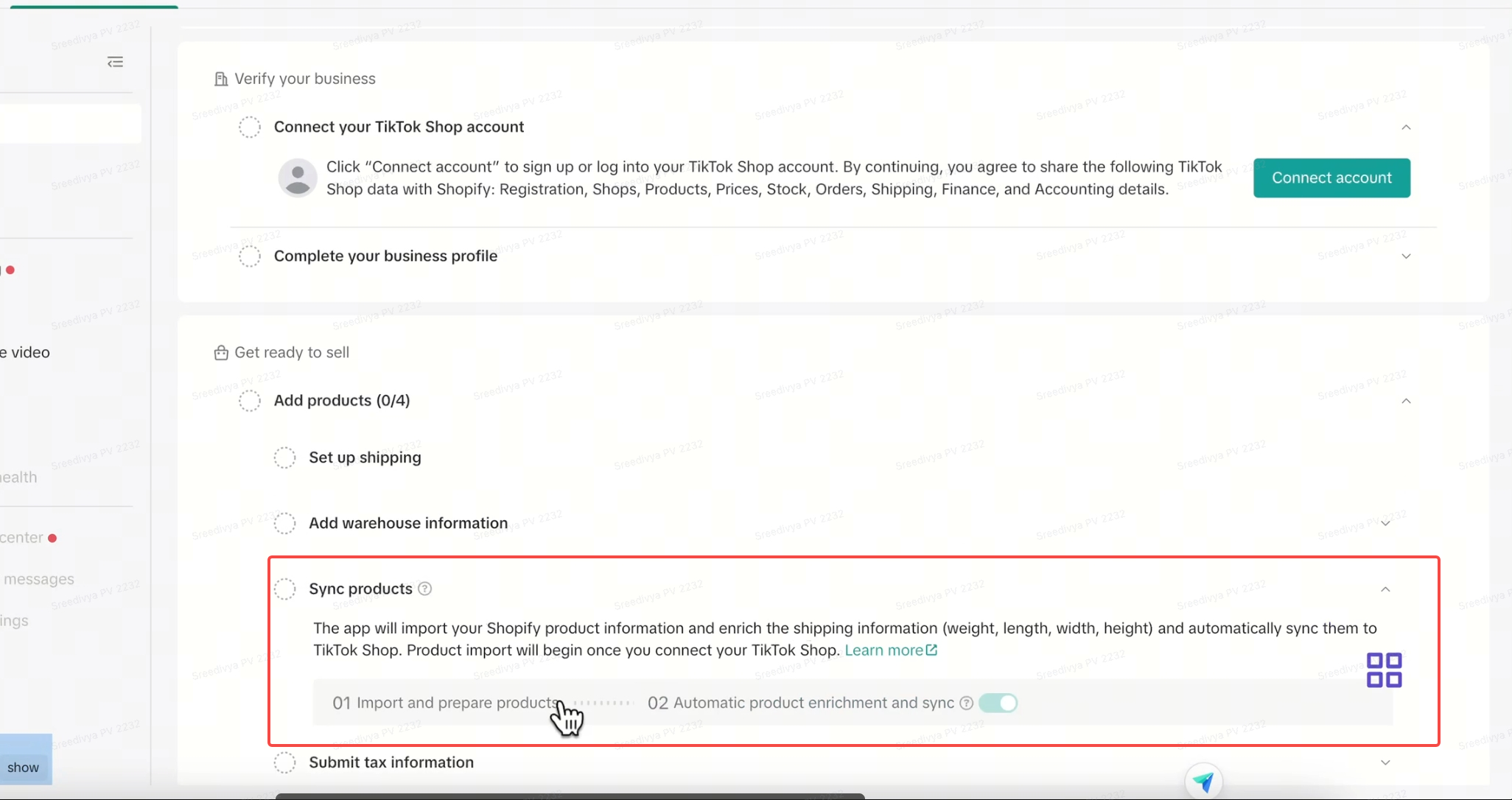
- Auto pre-fill Process
- After connecting your TikTok account, the pre-fill and auto-sync processes will start, with the toggle set to ON by default.
- To stop auto-syncing, you can switch the toggle to OFF if you prefer manual syncing.
- If the toggle remains ON, the system will continue to pre-fill and auto-sync product attributes for any Shopify products with existing values.
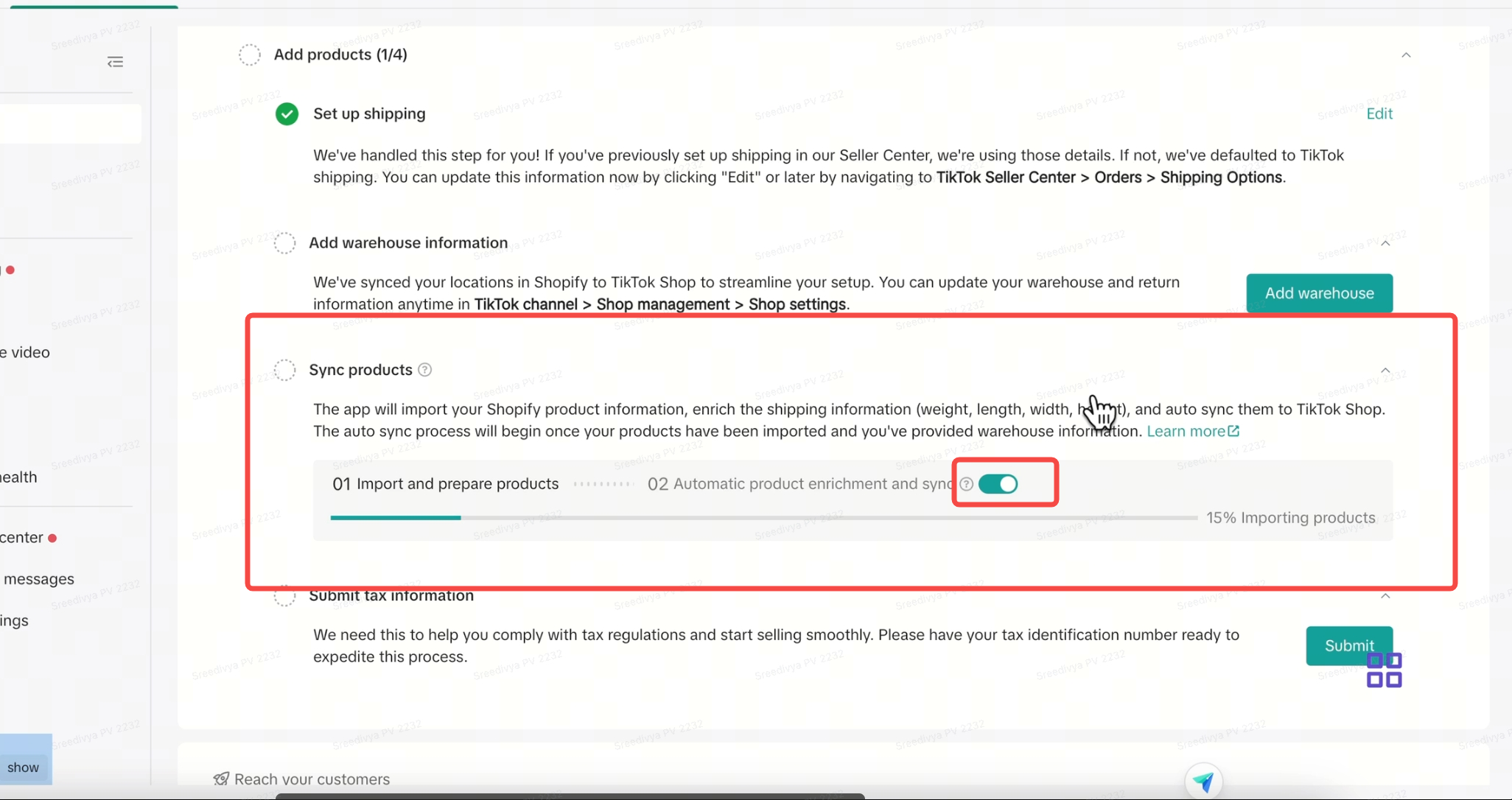
- Warehouse Step and Onboarding Completion
- Auto-sync will only begin once you have completed the Warehouse Setup and Onboarding verification is approved in your Shopify account.
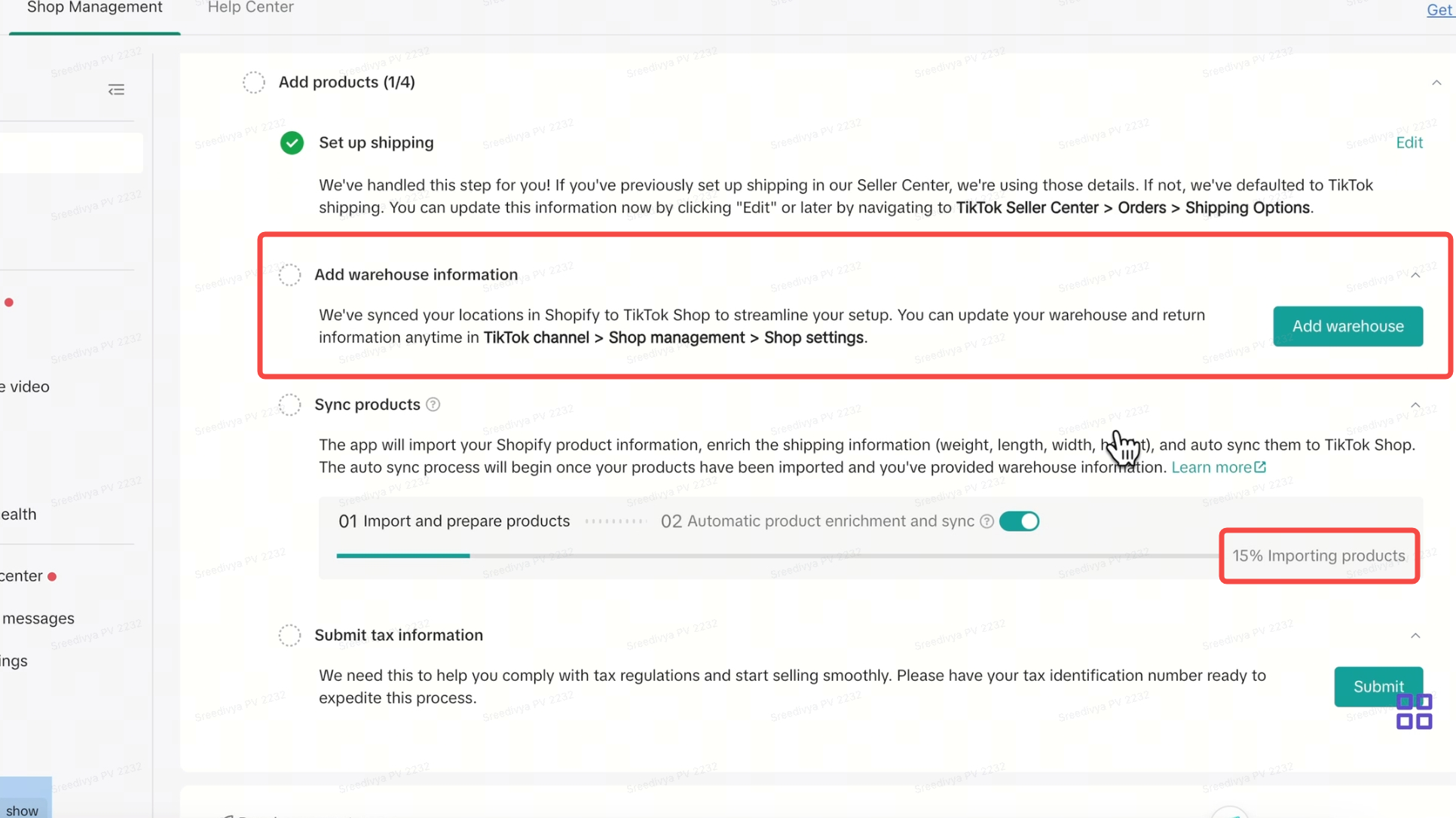
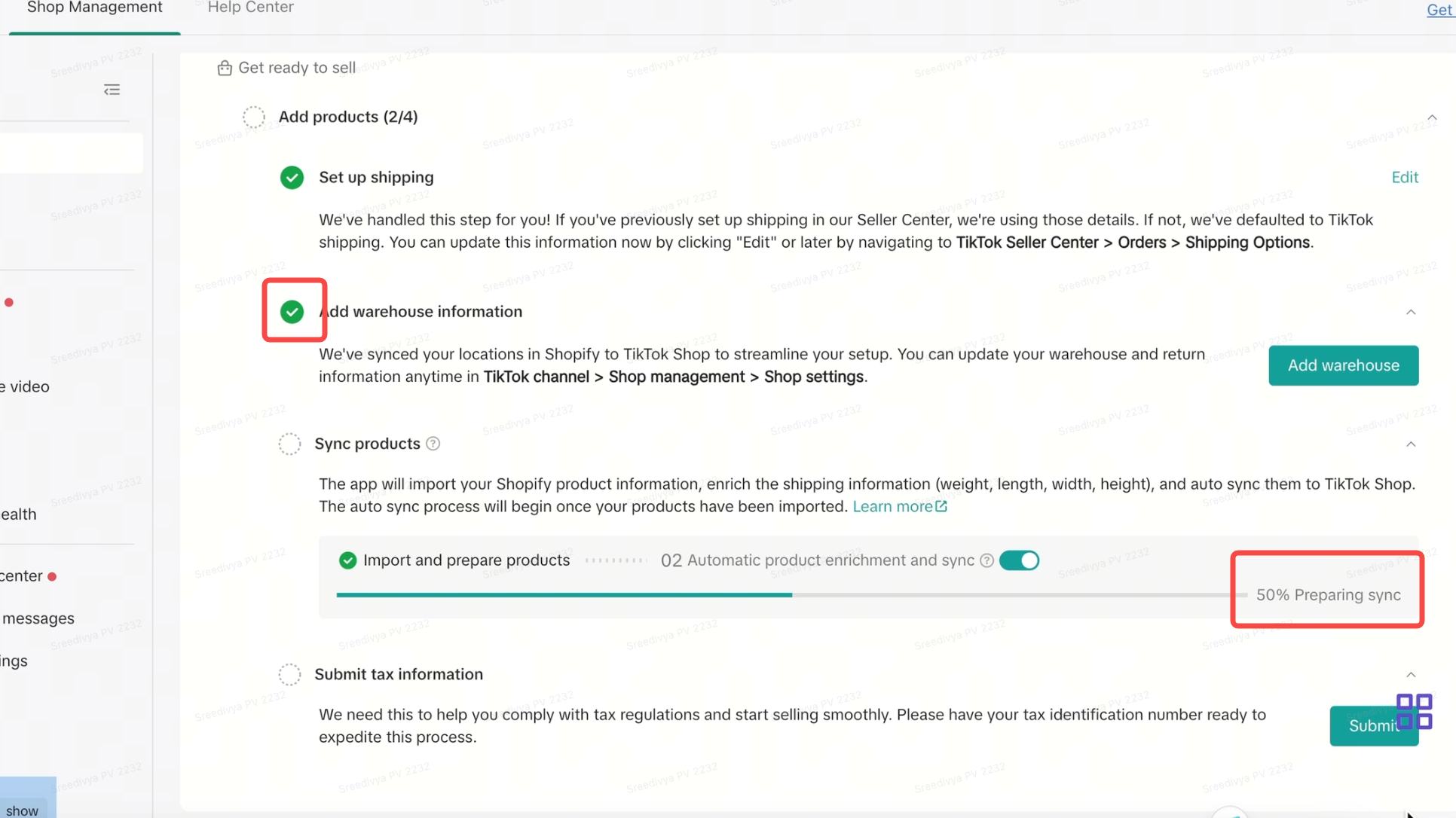
- Auto-sync will only begin once you have completed the Warehouse Setup and Onboarding verification is approved in your Shopify account.
- Verify Pre-Filled Attributes
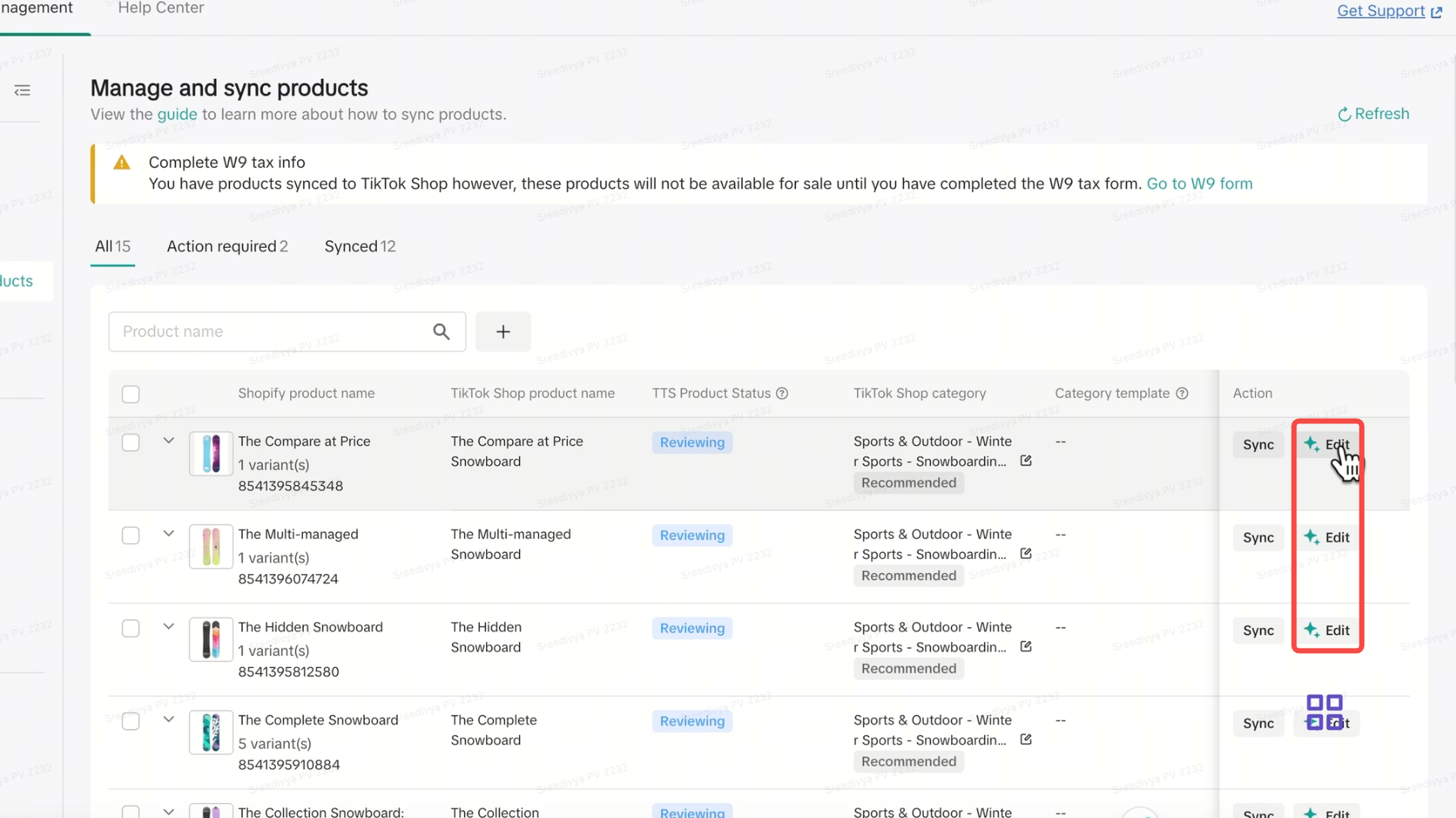
- Once the pre-fill attribute sync is complete, sellers will see a Green Icon on the Edit button next to each auto-filled product, indicating the attributes were successfully pre-filled.
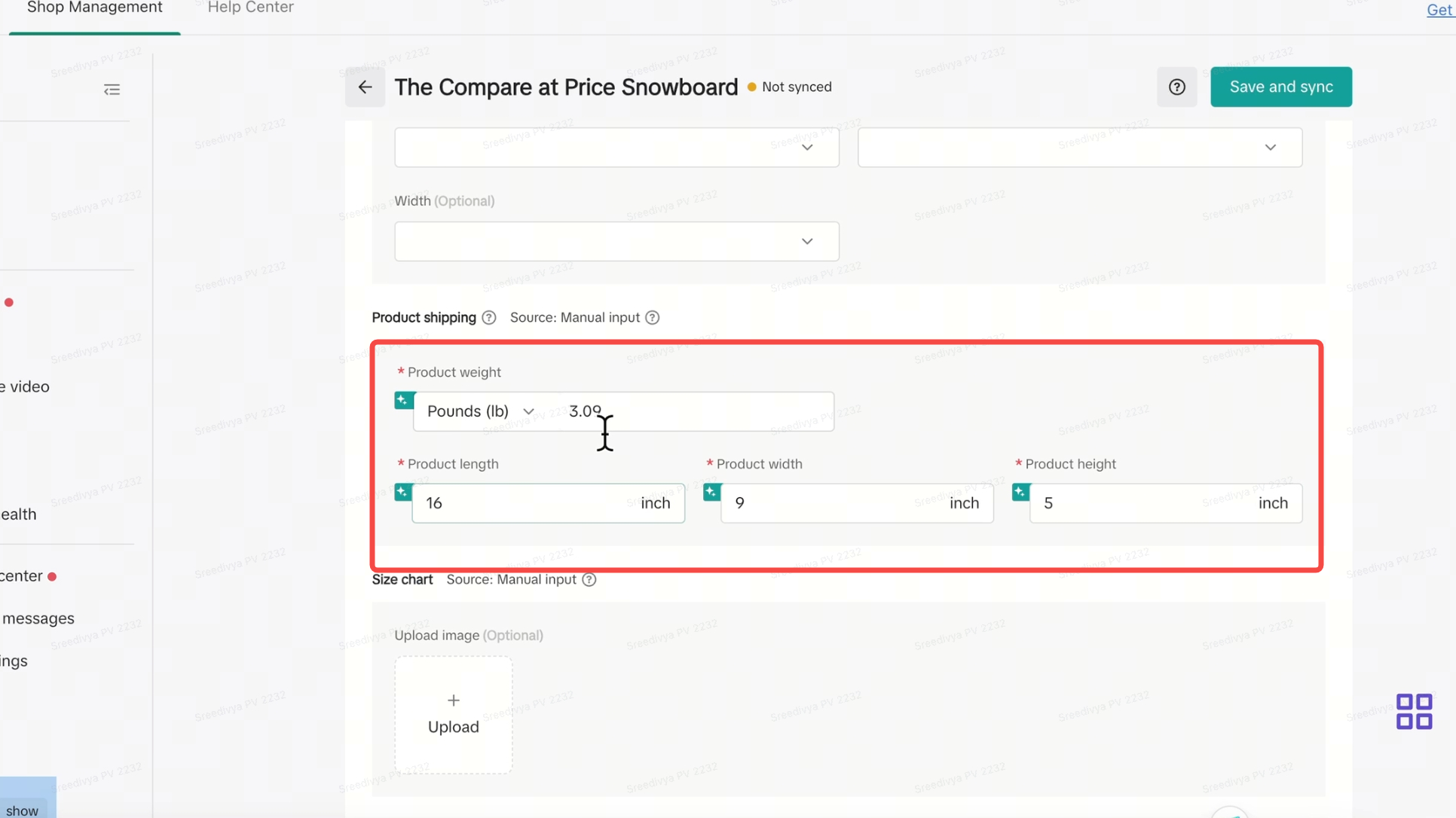
- This Green icon signifies that product attributes (such as Weight, Length, Width and Height) have been pre-filled successfully
- You can review and edit these attributes by clicking Edit next to each product.
- Check Product Dimensions
- Click on any product to review the shipping dimensions (weight, length, width, height) which have been imported from Shopify to TikTok Shop.
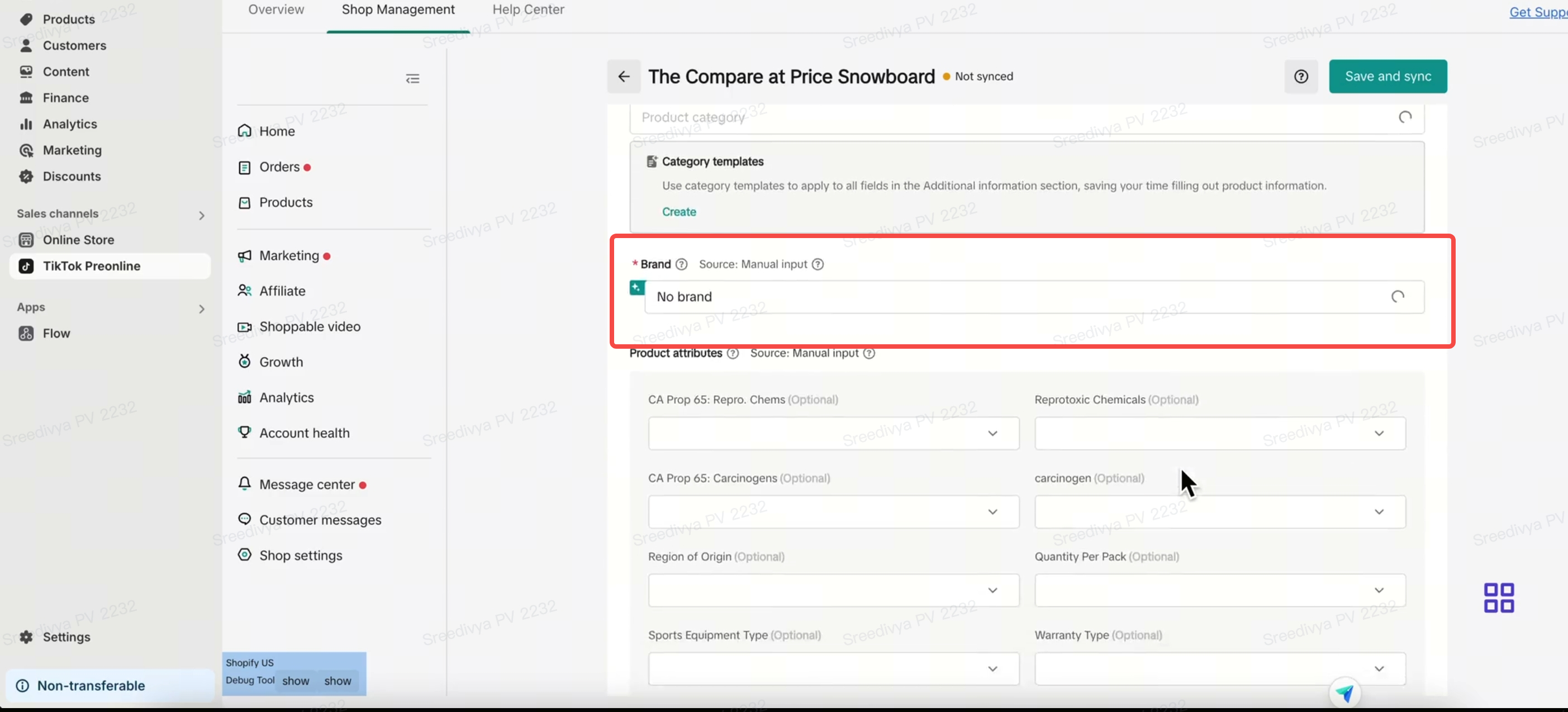
- Check Brand field as auto-fill defaults to No brand option. If you have Brand authorization, do choose your authorized Brand from the drop-down
FAQs:
Q: I am stuck at 15% or 30% or 45%. How should I proceed with the sync?
This is expected if the seller has larger product catalog with product attributes on Shopify. However, if the seller is stuck at atny stage (15% or 30% or 45%) in the sync process, please reach out to AM or TikTok Seller Support teamYou may also be interested in

How to List Dangerous Goods
Overview When creating a new product listing, TikTok Shop may identify your product as a potential D…
Product Safety Compliance and Recall Notices
At TikTok Shop, Safeguarding our customers is a core priority, which is why we maintain a rigorous p…

How To Avoid Counterfeits, Knockoffs, And Other Trademark In…
TikTok Shop maintains a strict policy against all forms of intellectual property (IP) infringement.…

Pesticides Policy
Key Points: To sell Pesticides, you may need to submit documentation through the Qualification Cente…

TikTok for Shopify: Shop Management Tab
Overview In the latest update of the TikTok for Shopify app, the "Shop Management" section of the ch…
TikTok for SFCC: Order Management
Order Creation When you place an order in TikTok Shop, the system automatically activates the Create…
TikTok for SFCC: Product Catalog & Inventory Sync
Initial Product Catalog Sync(During Onboaring): A product catalog feed is generated. The feed is dro…

How To Avoid Copyright Infringement Violations
TikTok Shop maintains a strict policy against all forms of intellectual property (IP) infringement.…
TikTok for Shopify: Frequently Asked Questions (FAQs)
About Set-Up and Log-In Q: I'm having issues connecting my Shopify store with TikTok Shop. I keep ge…